
A Complete Guide on How to Blend Photos with Nano Banana AI
Learn how to blend photos using Nano Banana AI
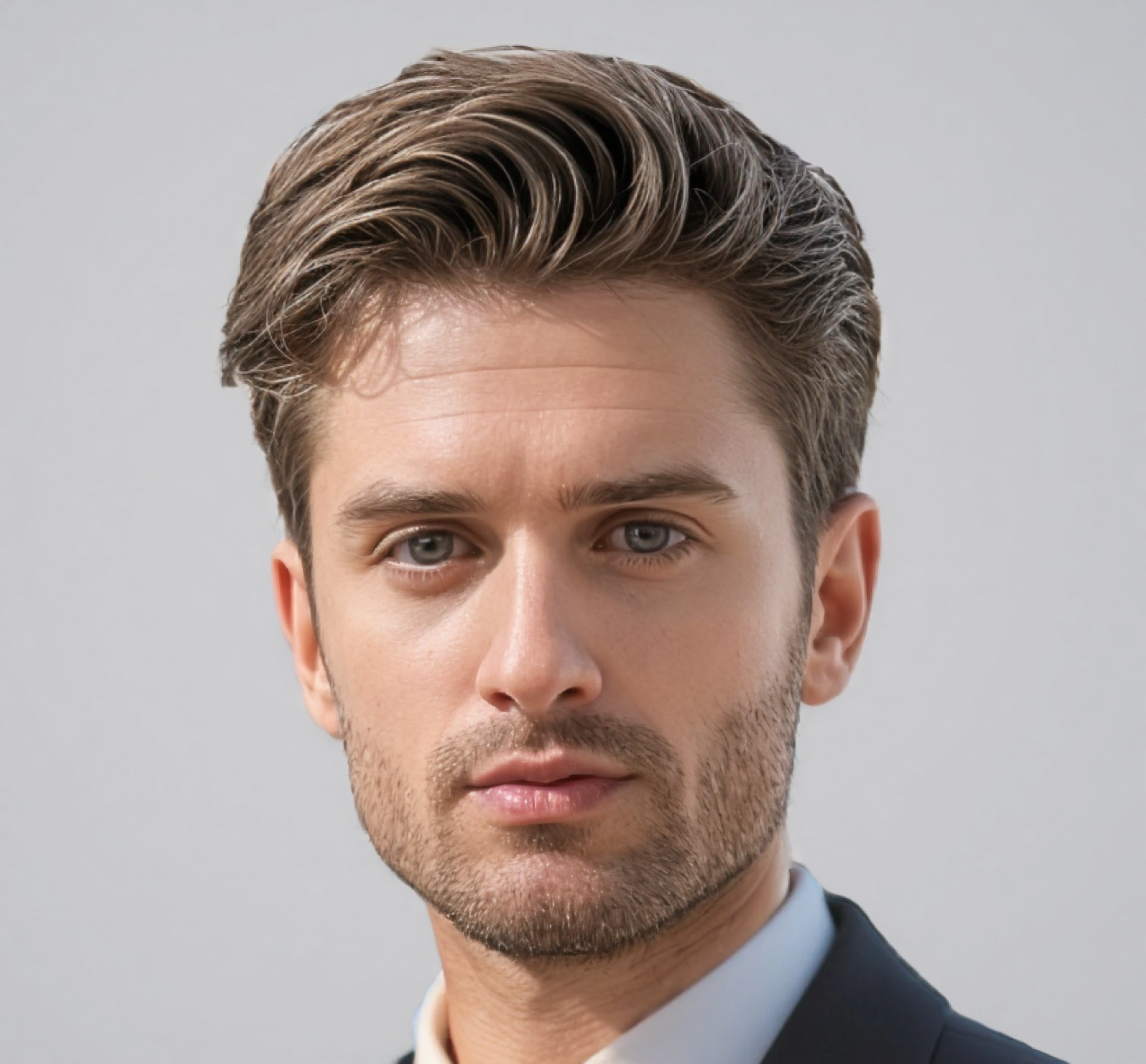

People used to spend hours grinding and perfecting blending images. If you wanted to place a product on a sandy beach or add a model with it, it would consume your hours. But today? The game has changed completely. Advanced AI tools have absolutely dominated the photo editing world, making image manipulation effortless, fast, and genuinely creative. If there’s one name you need to know, it’s Nano Banana, Google’s powerful, top-rated AI image editing engine.
This isn't just about simple filters. Nano Banana is a robust tool for AI image editing and generation. It allows you to swap environments flawlessly. If your end goal is to create high-end product or retail images minus the hefty cost, you must try it. Read this guide on how to blend photos using Nano Banana.
- What Exactly Is Nano Banana?
- How to Blend Photos with Nano Banana AI
- Your Four-Step Guide to Perfect Photo Blending
- Troubleshooting Your Blends: Common AI Hiccups and Fixes
- Top Use Cases for Nano Banana Fusion
- Character Consistency Across Edits
- The Viral 3D Figurine Trend
- Native World Knowledge and Annotation
- Style Transfer and Texture Mapping
- Getting it Right: Final Human-Touch Tips
- Conclusion!
What Exactly Is Nano Banana?
Okay, let’s discuss the name first. Nano Banana is actually the catchy, viral codename for the Gemini 2.5 Flash Image model. It's Google DeepMind’s state-of-the-art engine for image generation and editing. The name started as an internal joke, but the model's performance was so revolutionary that the nickname stuck and went viral.

The main reason this tool blew up? It's incredible editing precision. You don't need a degree in graphic design anymore. You can literally talk to the AI, giving it natural language commands—like "remove that power line," or "change the jacket to red"—and it handles the task.
The real magic here is something called spatial understanding. The simple truth is, Nano Banana doesn't just guess which pixels to change. It fundamentally 'sees' the world in 3D: the depth, the shadows, and the relationship between every element in your photo. That's why the composites look so mind-blowingly realistic. It truly is a massive leap forward for accessible, professional-grade imagery.
How to Blend Photos with Nano Banana AI
This is where the excitement is. Multi-image fusion is one of Nano Banana's peak capabilities, perfect for combining objects, people, or scenes into a single, cohesive moment.
Here is the straightforward, professional process for how to blend photos using the Nano Banana engine, which you access via the Google Gemini app:
Your Four-Step Guide to Perfect Photo Blending
Start Your Project: Open the Gemini app or the partner UI you're using for image editing and begin your creative chat.
Upload the Ingredients: You need your source images. Make sure you know which is which:
Image A (The Subject): The main element you want to keep—the person, the pet, or the product.
Image B (The Scene): The environment or setting you want your subject placed into.
Craft the Crucial Prompt: This is the most vital step. You must clearly tell the AI exactly what you need. Clarity here prevents confusion and ensures a natural result.
Example Prompt: "Take the woman's face from Image A and place it onto a 3D figurine of a princess, standing in the throne room shown in Image B. Make the image look like a high-detail clay model with cinematic lighting."

Key Insight: Always identify the subject, the action, and the specific style (like "creative editing" or “cinematic lighting”) to nail the result.
Refine and Finalize: The AI generates a few versions. Do not settle for the first one if it’s not perfect! Use multi-turn editing to polish the output. You can simply say, "Adjust the shadow so it falls to the left," or "Make the subject's shirt color deep emerald green." Once it's right, download your final blended image.

Troubleshooting Your Blends: Common AI Hiccups and Fixes
Let's face it: AI isn't perfect. Your first blended image might have some subtle flaws. The difference between a hobbyist and a pro is knowing how to use multi-turn editing to correct these issues instantly. Don't restart; correct.
Here are the most common blending issues and the direct conversational prompts you use to fix them:
Problem | Correction Prompt | What it does |
Inconsistent Shadows (Subject looks like they're floating) | "Add a subtle shadow underneath this subject. Cast it to the right to match the background light source." | This anchors the subject to the scene by making the AI analyze the background light and correctly render the shadow. |
Incorrect size of the subject | "Shrink the subject. Slightly improve perspective." or "Make the subject stand slightly further into the background. This will create depth." | This uses the AI's deep understanding to correct the scale. This will make the subject look natural, not just slapped onto the image. |
Mismatched Lighting Color | "Adjust the subject’s colors. Match the warm, golden tone of the background lighting." | This corrects the color temperature and exposure of the subject to achieve perfect color consistency with the new environment. |
Edge/Halo Artifacts (Fuzzy or unnatural lines around the subject) | "Refine the edges around the subject's hair and clothing for a cleaner blend." | This forces the AI to re-process the masking step, cleaning up any rough outlines left over from the initial fusion. |
Mastering these conversational correction prompts is the true secret to moving from a decent draft to a final, professional image composite.
Top Use Cases for Nano Banana Fusion
The power to seamlessly merge images unlocks a ridiculous amount of creative and professional potential. The fact that natural language makes how to blend photos so easy means this tool is for everyone.
Use Case | Description | Primary Benefit |
Product Images | Combine a product photo with a real-world scene. It is mostly used to create product mockups. | Eliminates the need for expensive physical photoshoots for e-commerce. |
Blending a person's photo with an image of a dress, hairstyle, or accessory to see the final look. | Visualizing purchases before buying; creative editing. | |
Interior Redesign | Blending a photo of a room with images of new furniture, wallpaper, or a different lighting setup. | Visualize home renovations and café interior design ideas before committing. |
Personalized Storytelling | Combine your current photo with a photo of yourself as a child. You can also use it with a pet or a personal belonging. | Creates engaging and shareable content. |
Targeted Transformation | Changing a single element in an existing photo. Example: Replacing a cloudy sky with a sunset, etc. | Professional photo cleanup and creative restyling for artists and marketers. |
Beyond Blending: Other Nano Banana Features You Need
While how to blend photos is a fantastic feature, it would be a mistake to think that's all Nano Banana does. This engine is a full-stack creative tool for anyone who needs consistent, high-quality visuals.
Character Consistency Across Edits
Historically, AI struggled to keep the same person recognizable across multiple scenes. Nano Banana fixed it. You upload one picture and can then ask the AI to put you in a dozen different outfits or environments. The best part? Your face, your likeness, remains consistent in every single image. This is invaluable for brand assets and rich, visual storytelling.
The Viral 3D Figurine Trend
Remember that viral social media craze? Nano Banana started it. This tool is able to convert a normal selfie into a miniature. In other words, a photorealistic 3D figurine. The details are so perfect, the models look exactly like custom figurines we purchase. This unique feature highlights the model's incredible ability to understand and render 3D objects from a 2D source.

Native World Knowledge and Annotation
Here's a feature that goes beyond aesthetics. Because Nano Banana benefits from Gemini’s huge knowledge base, it understands context and real-world relationships. For instance, you can upload a photo of a street scene and ask the AI to annotate it, providing information about the landmarks or buildings you see. This pushes AI imagery into functional, even educational, territory.
Style Transfer and Texture Mapping
You can apply the style, color, or texture of one image to an object in another. Want a dress designed using the pattern from a butterfly's wing? Or maybe applying the rough texture of wood to a pair of rain boots? You can. This feature is incredibly useful for high-end creative editing and generating unique design concepts instantly.

Getting it Right: Final Human-Touch Tips
A professional result isn't just about using the best tool; it's about giving that tool the best instructions. Here’s how you ensure your image is flawless:
Specify the Light: Never just say "realistic." Tell the AI how the light should look—soft ambient light, dramatic cinematic lighting, harsh overhead flash, or sunny beach glow. This is the difference between a flat image and a striking one.
Insist on Perspective: If the subject from Image A needs to be standing in Image B, remind the AI: "Ensure the perspective and scale are correct," or "Make the subject stand slightly further into the background." Visual harmony is everything.
Be Aware of the Watermark: Just a reminder: all images generated or edited with Nano Banana via Gemini will include a visible logo and an invisible SynthID digital watermark to clearly mark them as AI-created. Plan your usage accordingly.
Conclusion!
Nano Banana has changed how photo editing used to be. The highly technical, stressful process of how to blend photos is now a simple conversational prompt away. It’s no longer a skill reserved for experts; it’s a creative powerhouse for every single business owner and creator. Moreover, if you want to explore the same features at half the price, we recommend using Zawa AI Agent. It is solely created for retail businesses that want to enhance their brand image.
Related articles

The Creator's Guide to Veo 3.1: What's Changed and How to Use it
What is VEO 3.1? The Video Model That Demands Creative Control
The Best Roles for Veo 3.1: Where Google's New AI Video Model Excels
