
How to Remove Background in Figma: 4 Effective Methods You Should Know
Learn about how to remove the image background in Figma and also how to remove the background online with AI.


Ever had an image with a background that just doesn’t fit your design? Maybe it’s distracting or clashes with your colors. Or even worse, it just makes your layout look messy. That’s why automatic background removers are a lifesaver for designers. It makes your images blend in and your designs clean and focused.
Now, Figma doesn’t have a simple “remove background” button, but don’t worry!. There are a few ways to do it. In fact, you can do it right inside Figma as well as with tools outside the app.
In this article, we will walk you through how to remove the background in Figma in detail.
- Why Clean Backgrounds Make a Difference in Figma Designs
- 3 Ways How to Remove Background in Figma
- Background Removal Using Vector Masking in Figma (Manual Method)
- How to Remove Background in Figma Removal Using Figma Plugins (Automatic Method)
- Use External Background Removal Tools and Import into Figma
- Conclusion
Why Clean Backgrounds Make a Difference in Figma Designs
In Figma, clean backgrounds are essential for creating professional designs. It's because Figma’s collaborative environment means your designs will be viewed and edited by others. So, keeping images tidy with transparent backgrounds ensures consistency. Plus, it images with clean background are easier to reuse across various screens. Here’s why clean backgrounds matter:
Prevents distractions caused by unwanted background colors or patterns
Makes layering elements smoother and more flexible
Ensures consistency across different screens and device views
Saves time when reusing images in multiple projects
Keeps your designs looking polished and focused
3 Ways How to Remove Background in Figma
Now that we know why cleaning a background in Figma matters, it's time to do the actual work. Let's quickly discuss each of the methods in detail.
Background Removal Using Vector Masking in Figma (Manual Method)
Firstly, let’s try the manual method to remove a background in Figma. Start by using the Pen Tool. You can manually trace around your subject. Then mask out the background. This gives you full control over what stays visible and is great for simple shapes or clear subjects.
How to do it:
Add your image
Drag and drop your image onto the Figma canvas or use File > Place Image.
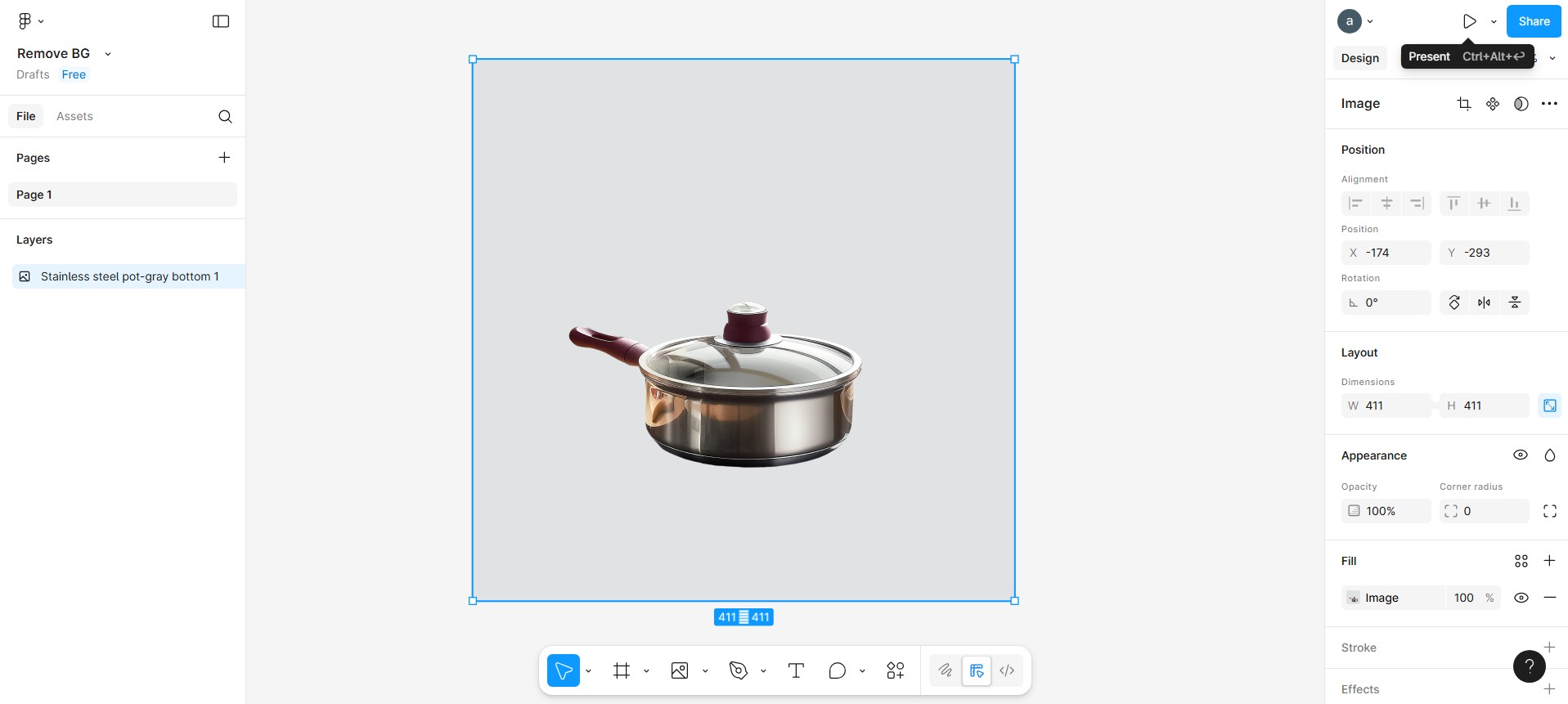
Outline your subject
Zoom in and select the Pen Tool (P). Click to add points around your subject, adjusting curves by dragging handles for a smooth outline.
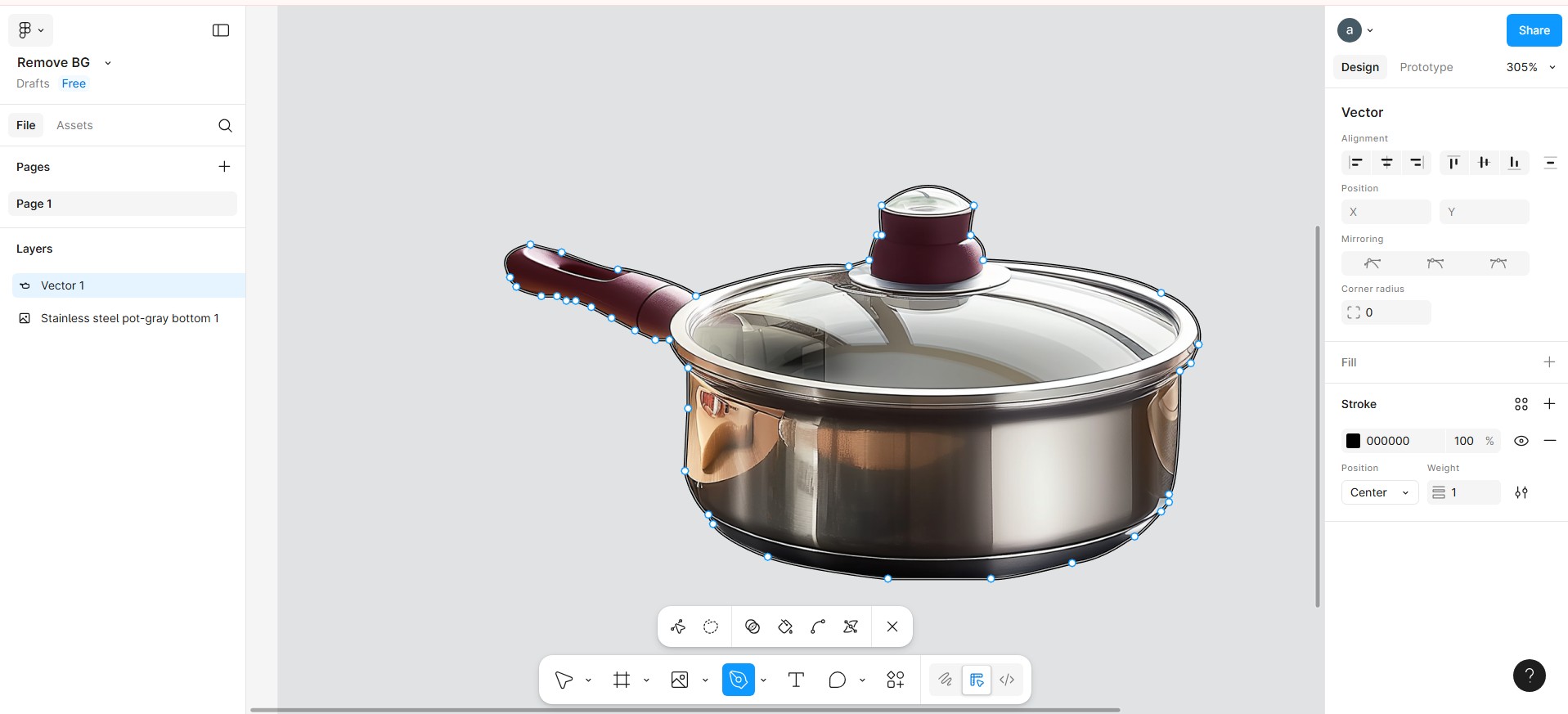
Close and fill the shape
Connect the last point to the first to close the path. Fill the shape with any color and remove any stroke.
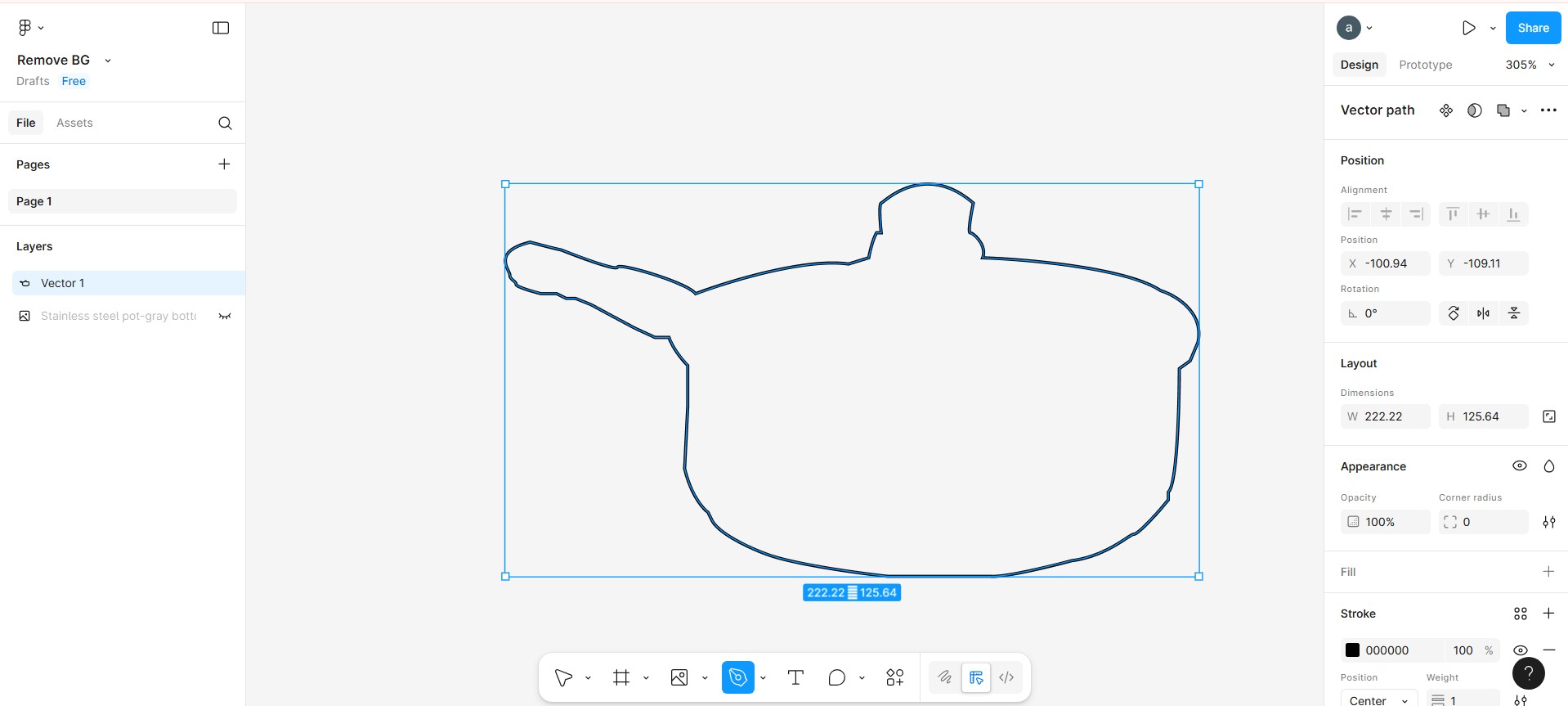
Apply the mask
Select both your image and vector shape, then right-click and choose Use as Mask. Or press Ctrl/Cmd + Alt + M. The background outside your shape will be hidden.
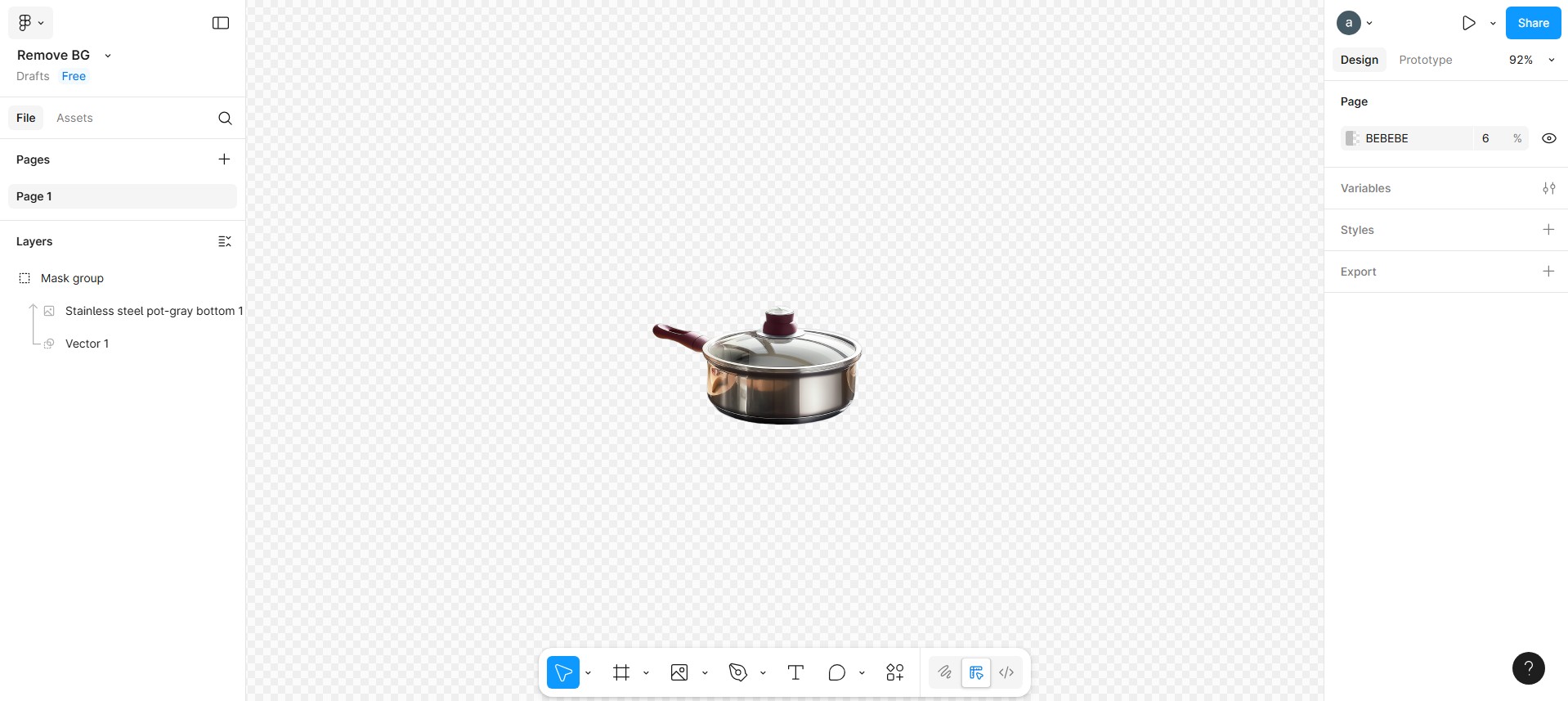
And that’s how you will be able to remove the background of an image in this tool itself.
This is great when you want precise control without using external tools but can be time consuming for complex images.
How to Remove Background in Figma Removal Using Figma Plugins (Automatic Method)
If masking sounds too much effort, you can use a dedicated background removal plugin. These tools use AI to remove backgrounds for you. It saves you time compared to manual editing.
One of the popular options is the Remove BG plugin, which works seamlessly in Figma. Here’s how to get started:
How to do it:
Add your image to Figma
Import the image you want to edit into Figma. Choose an image where the main subject is clear.
Open the Remove BG plugin
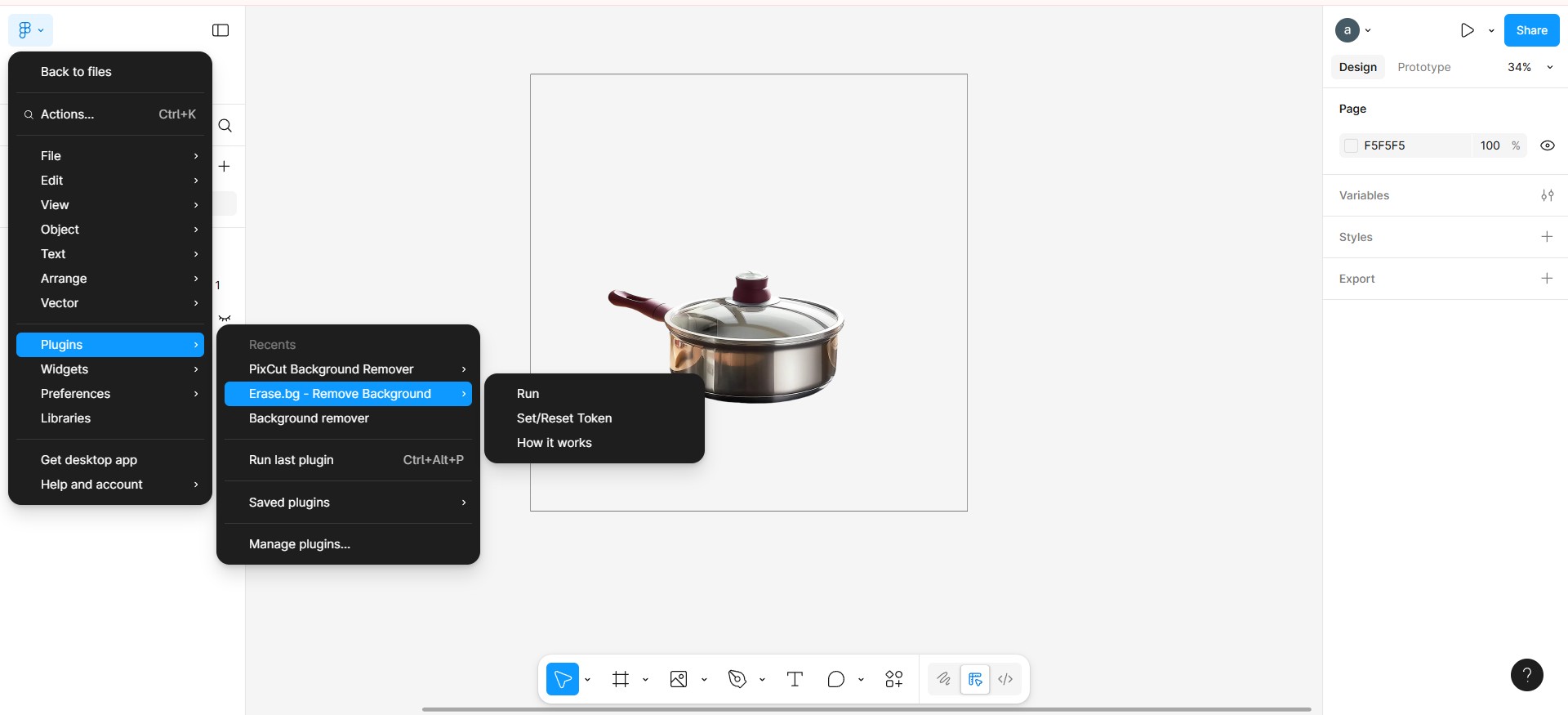
Open the plugin browser by clicking on the Resources icon or press Shift + I, then search for “Remove BG”. Once found, open the plugin.
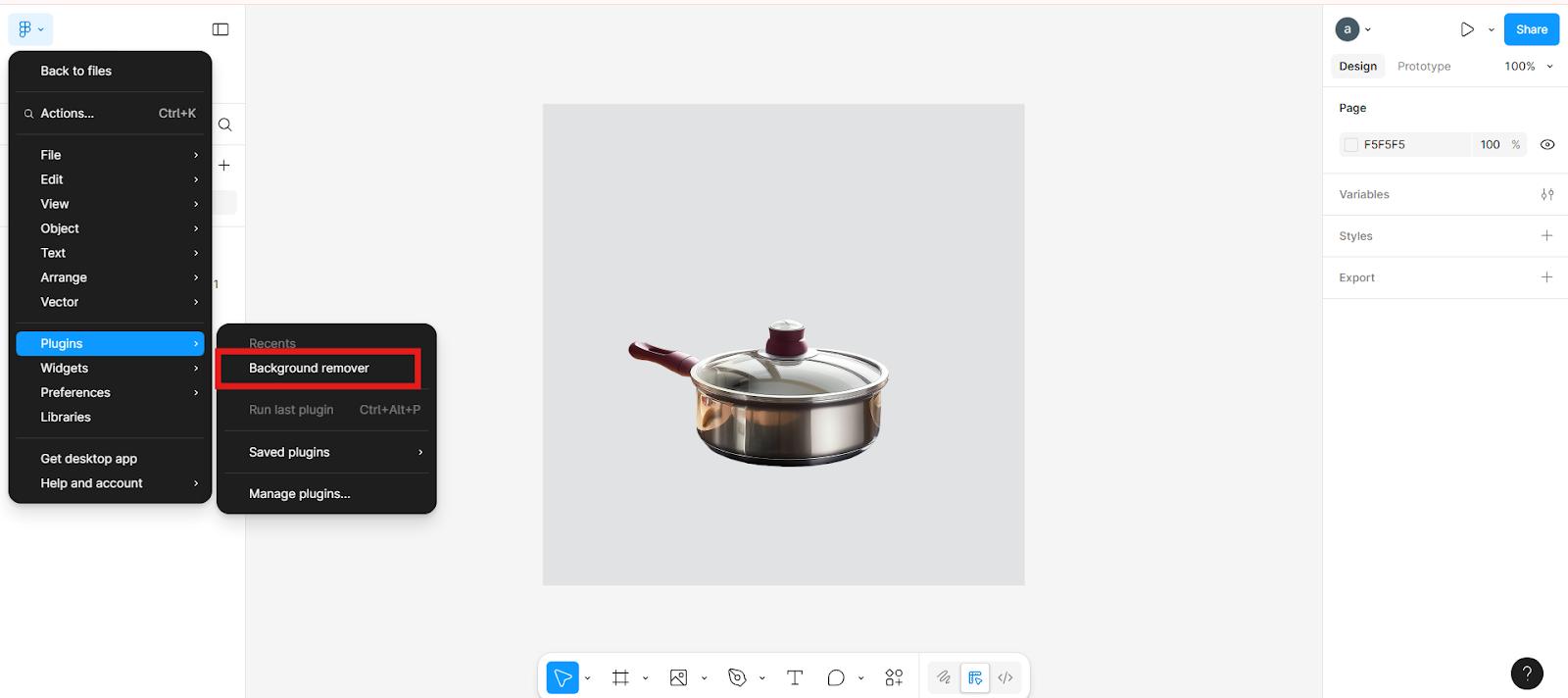
Create and link your Remove BG account
The plugin requires you to sign up for a free account on remove.bg and generate an API key. Sign up on their site. Then go to your account dashboard to create a new API key. Copy that key and paste it back into the plugin window in Figma to activate the service.
Run the background removal
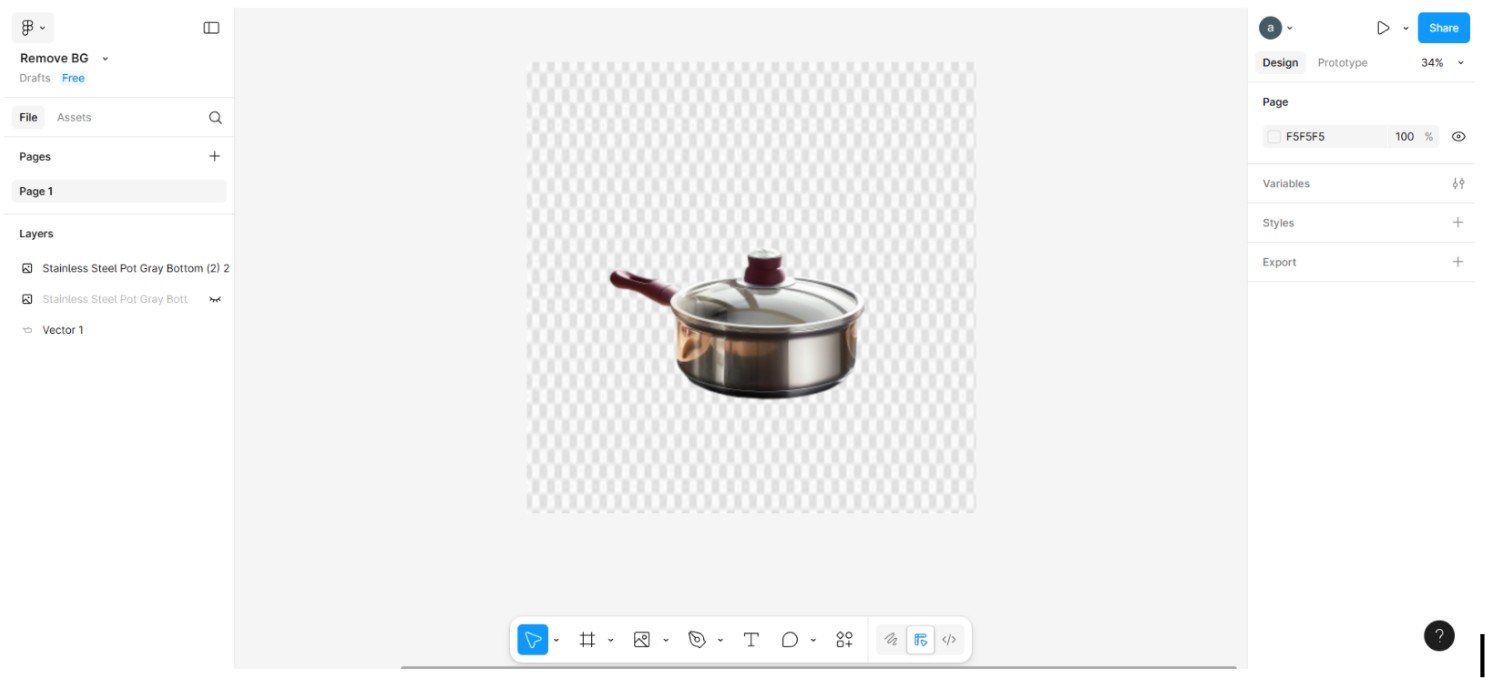
With your API key set, select your image layer, then run the Remove BG plugin again. The background will be removed in seconds and you’ll have a clean subject on a transparent background.
Optional: Add a new background
If you want, add a new background by creating a rectangle behind your image. Fill it with any color or image you like. This lets you customize even more.
Use External Background Removal Tools and Import into Figma
Too many plugins in Figma can slow down your workflow and manual masking can feel complicated or time-consuming. If you want a smooth and easy alternative, external background removal tools are the way to go. These online services are experts in removing backgrounds fast and accurately. One of the best AI editors for this is Zawa Background Remover. It uses AI to separate your subject from the background in just a few clicks.
How to do it:
Upload your image to Zawa
Start by adding the picture you want to edit into the Zawa platform. You can upload it directly from your device.
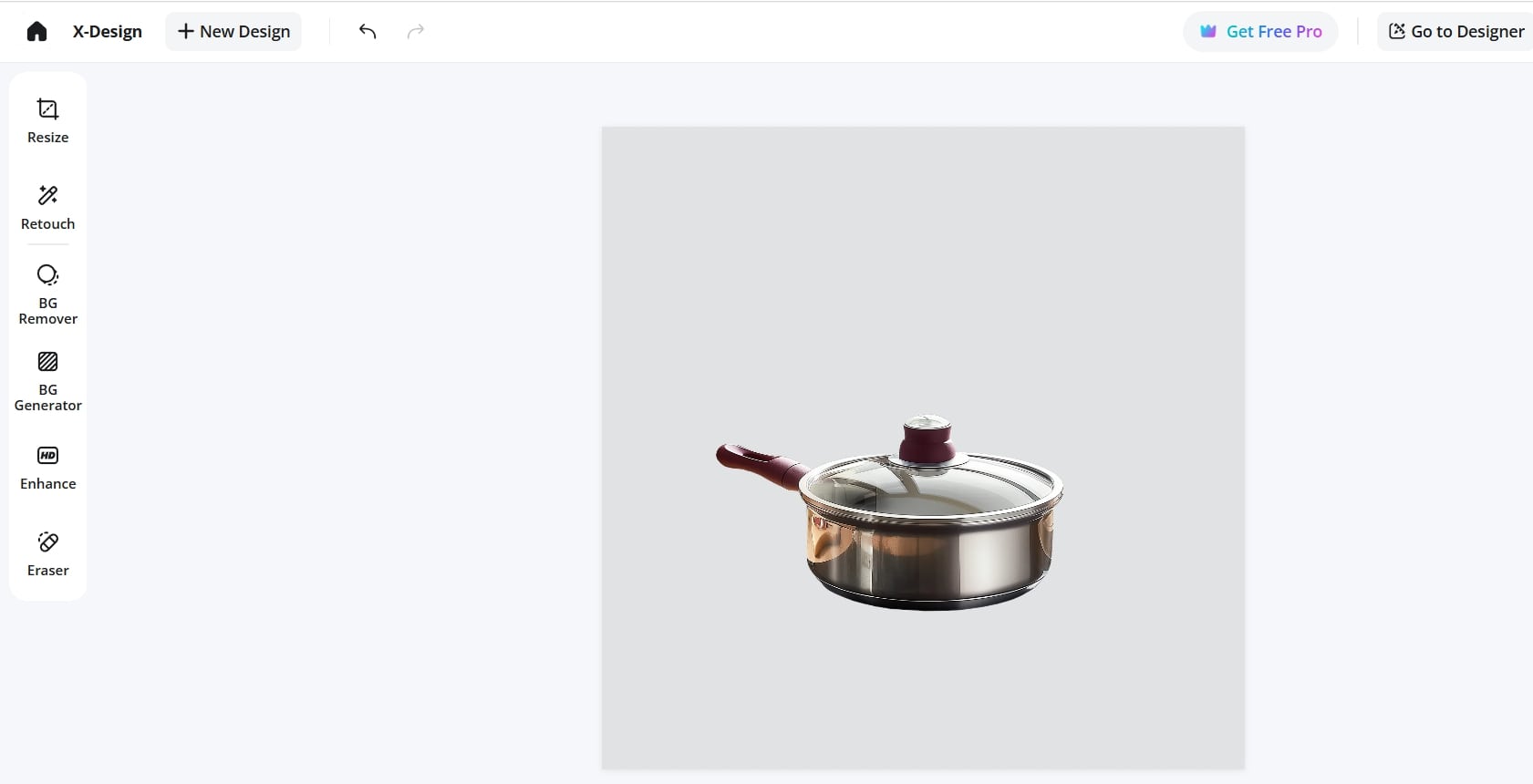
Select the Background Remover tool
From the Zawa dashboard, choose the Background Remover option to start processing your image.
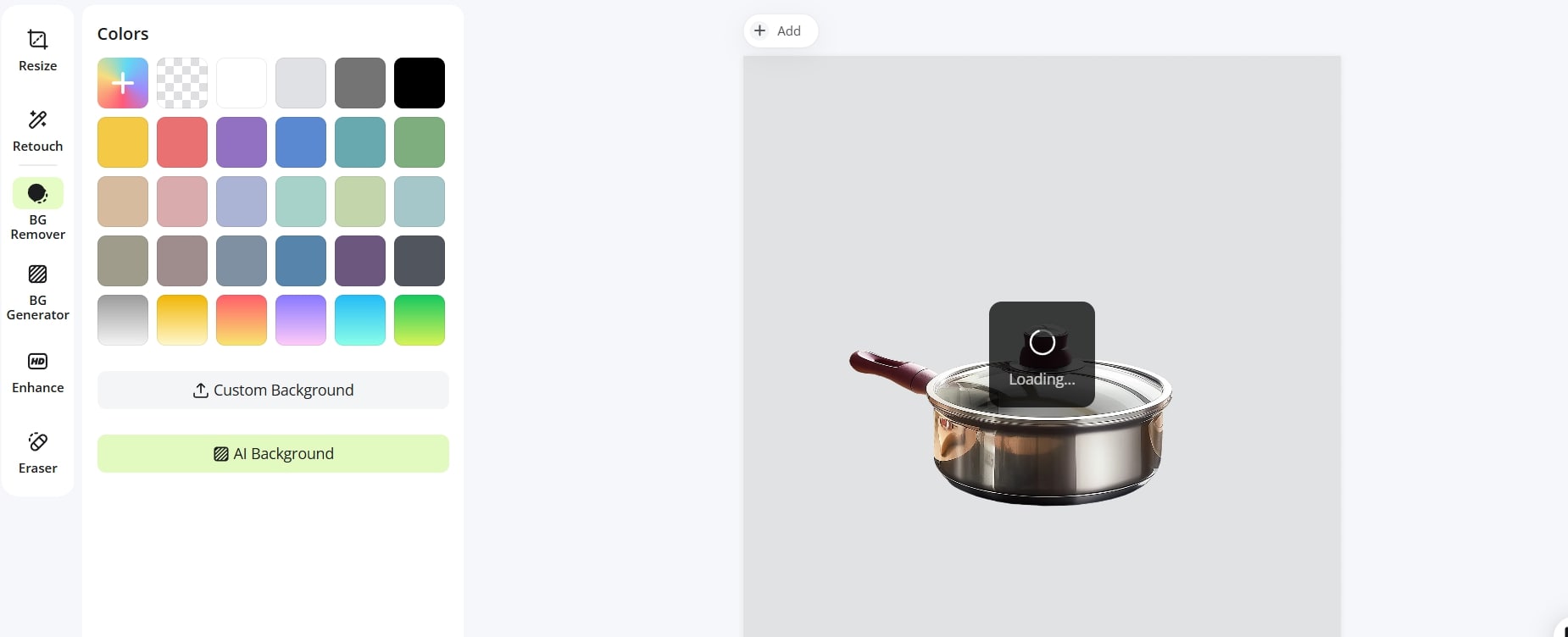
Remove the background
Click the Remove button the tool will automatically isolate your subject and remove the background.
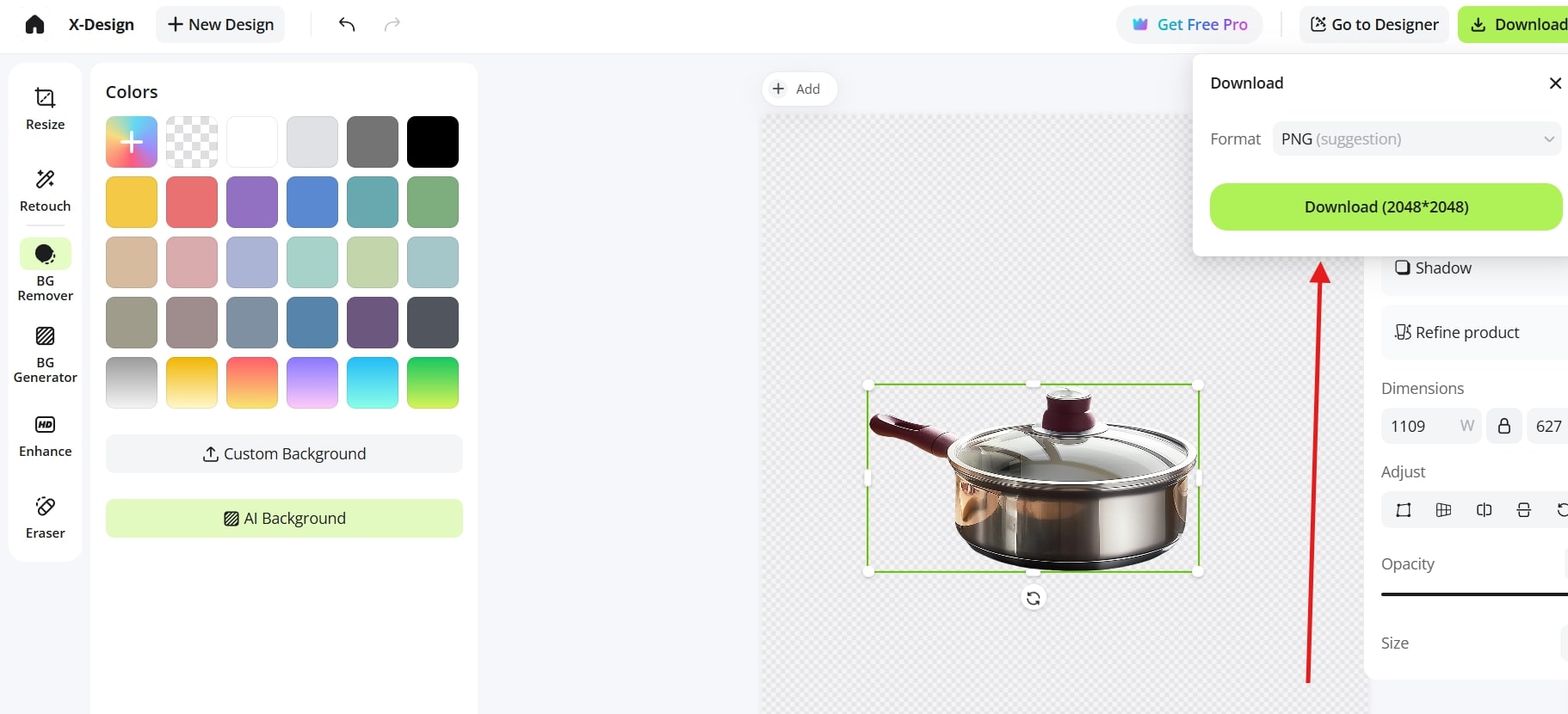
Save the Image
Download your image as a PNG with a transparent background and use it in Figma.
Key features of Zawa Background Remover:
Uses advanced AI to accurately detect and remove backgrounds, even with complex edges.
Removes backgrounds quickly, saving you valuable time.
Simple upload and one-click removal, no technical skills required.
Produces clean, sharp images with transparent backgrounds, perfect for professional designs.
Download your images in PNG or other preferred formats for versatile use.
Conclusion
That is all you need to know about how to remove background in Figma. Through any of these processes—manual masking, plugins, or utilizing fast external powers like Zawa—you can quickly produce clean, professional images for your work. Even though other processes can also do the job well, but using trusted software like Zawa tends to save time and yield uniform, high-quality outputs. Try these techniques out, and see your Figma projects spring to life with clean, background-free images!
Related articles

What is a PNG and How to Convert It?

How to Remove the Kling AI Watermark

How to Remove Gemini Watermark?
