How to Remove Getty Images Watermark: Complete Guide for AI and Manual Methods
Discover the best ways to remove Getty Images watermarks using AI watermark removers, Photoshop tools, and manual editing techniques. Explore quality-improvement tips and legal considerations for professional-looking images.


Getty Images is one of the world's most well-known visual content companies, providing high-quality images, videos, and other media assets for individuals, businesses, and media organizations. People often need to remove the Getty Images watermark from previews during layout planning. These watermarks cover important details and interfere with judging composition and visual balance. Stock photo platforms still require proper licenses before using clean images in campaigns.
This article explains practical editing options available in Photoshop and other specialized tools. By the end, you will understand realistic methods, quality limits, and rules for editing watermarked stock.
What Is a Getty Images Watermark?
A watermark on images is a branded logo or text on top of the preview photographs. It appears as repeated marks or strips across faces, objects, and backgrounds. These visible marks signal that the photo belongs to Getty and contributing photographers. The watermark disappears only on licensed downloads delivered through authorized Getty accounts.
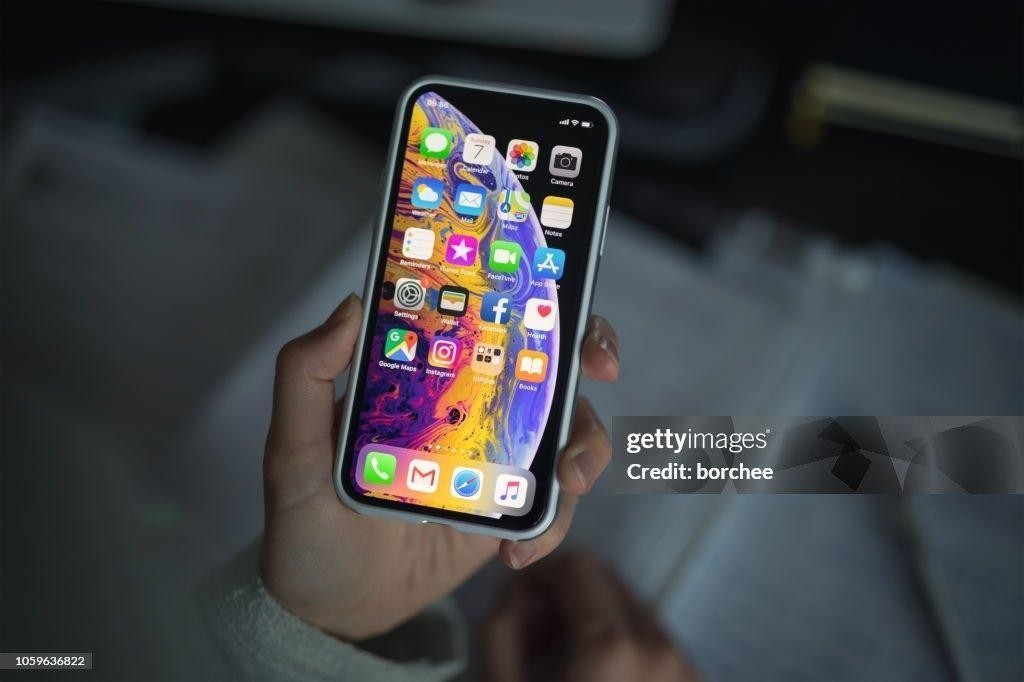
Why Getty Images Adds Watermarks?
Watermarks discourage unlicensed copying, and any Getty Images watermark remover respects licensing paths. Look at the reasons below to understand how these marks protect licensed content:
-
Copyright Protection: Copyright notices on the image show that the photos are protected, not free assets. That reminder pushes projects toward buying licenses instead of reusing previews.
-
Ownership Attribution: When photos get shared on platforms, watermarks help maintain the agency's visibility. They help audiences trace images back to the legitimate source page.
-
License Funnel: Links beside previews point directly to image licensing and pricing pages. They guide interested users into correct purchasing flows instead of screenshot saving.
-
Deterring Misuse: A large, central watermark makes stolen copies look unprofessional and distracting. That visual impact discourages brands from publishing downloaded previews in client-facing work.
Different Types of Getty Watermarks
Getty uses several watermark layouts that change how editing and cropping decisions work. The table below outlines common styles and where each usually appears:
| Watermark Type | Placement Area | Main Elements |
|---|---|---|
| Centered Logo Overlay | Middle of image | Getty logo, semi‑transparent band |
| Tiled Logo Pattern | Across full frame | Repeating logo marks, low opacity |
| Corner Text Strip | Top or bottom edge | “Getty Images” text, small bar |
| Corner Info Block | Lower corner area | Logo, short-link, photographer credit |
Can Watermarks Affect Image Quality?
Strong overlays hide texture and edges, which makes judging real sharpness harder. Heavy cropping around logos can cut important framing elements from the picture. Aggressive cloning or inpainting sometimes leaves smudged patterns or repeated background patches. Even a good Getty watermark remover may still introduce artifacts in complex areas.
Remove the Getty Image Watermark Using Photoshop Tools
Many people prefer Photoshop because it allows detailed control over each edited pixel. Layer-based editing also keeps original previews safe while testing different cleanup ideas. Careful brushwork and selections help avoid random changes that automated tools sometimes introduce. Now, we will see how to remove the Getty Images watermark with Photoshop tools:
Using Content-Aware Fill
Content-Aware Fill analyzes nearby pixels and invents a new background over watermark areas. It suits scenes with repeating textures, like skies, grass, or simple walls. For users prioritizing speed over pixel-perfect control, review the steps below:
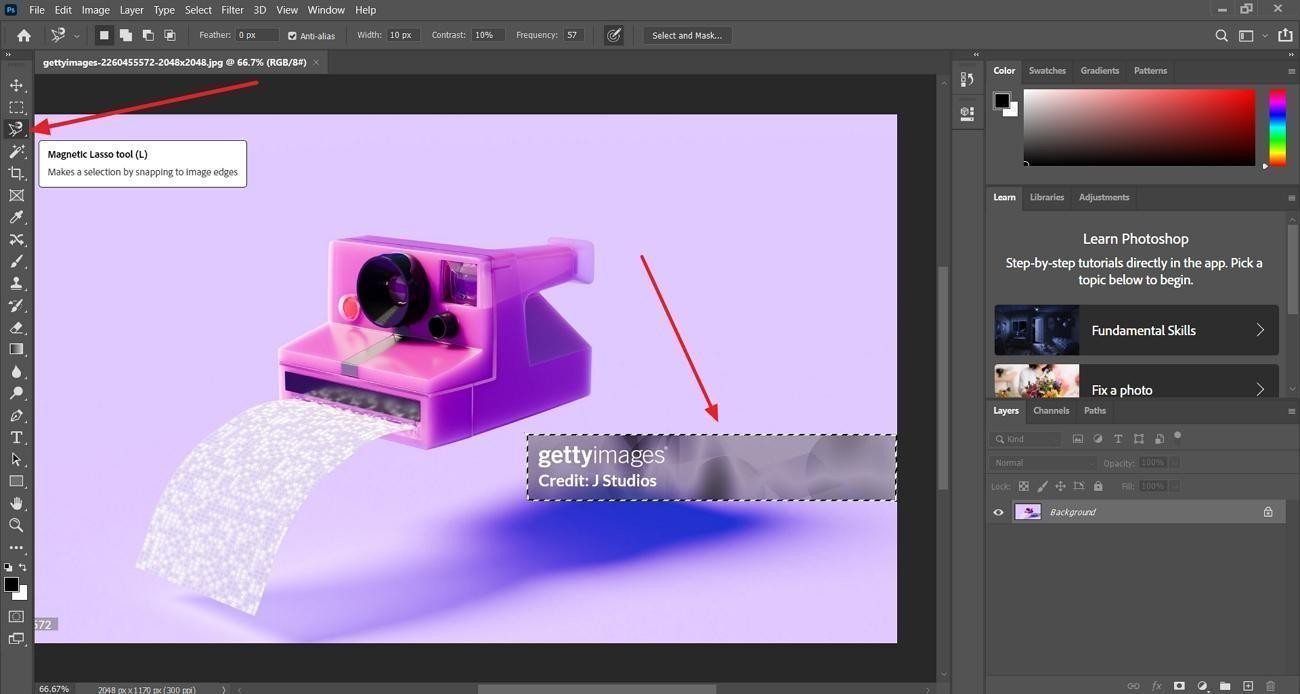
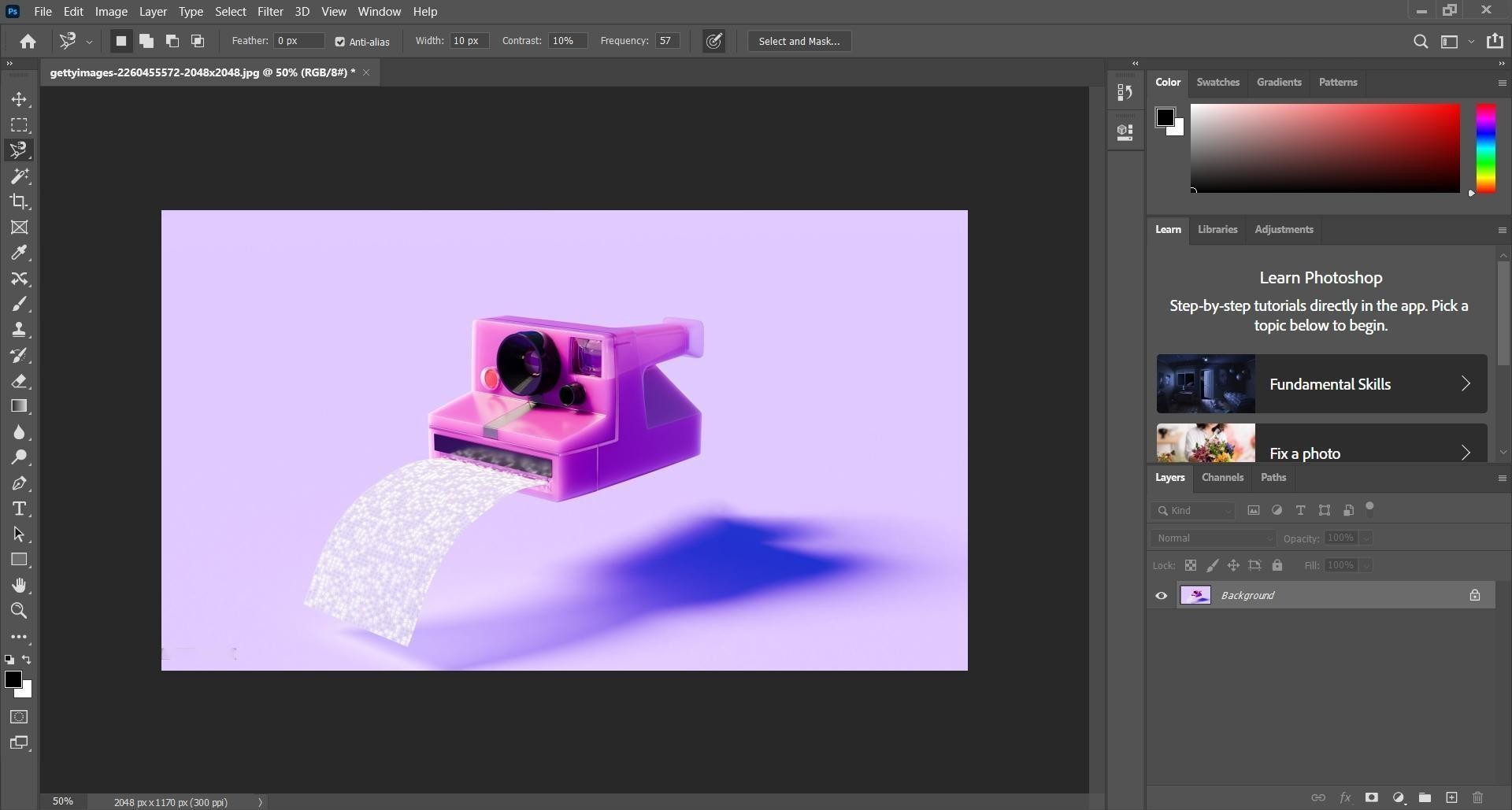
Step 1. Once you open a Getty image in Photoshop, select the “Magnetic Lasso” selection tool and select the watermark area.
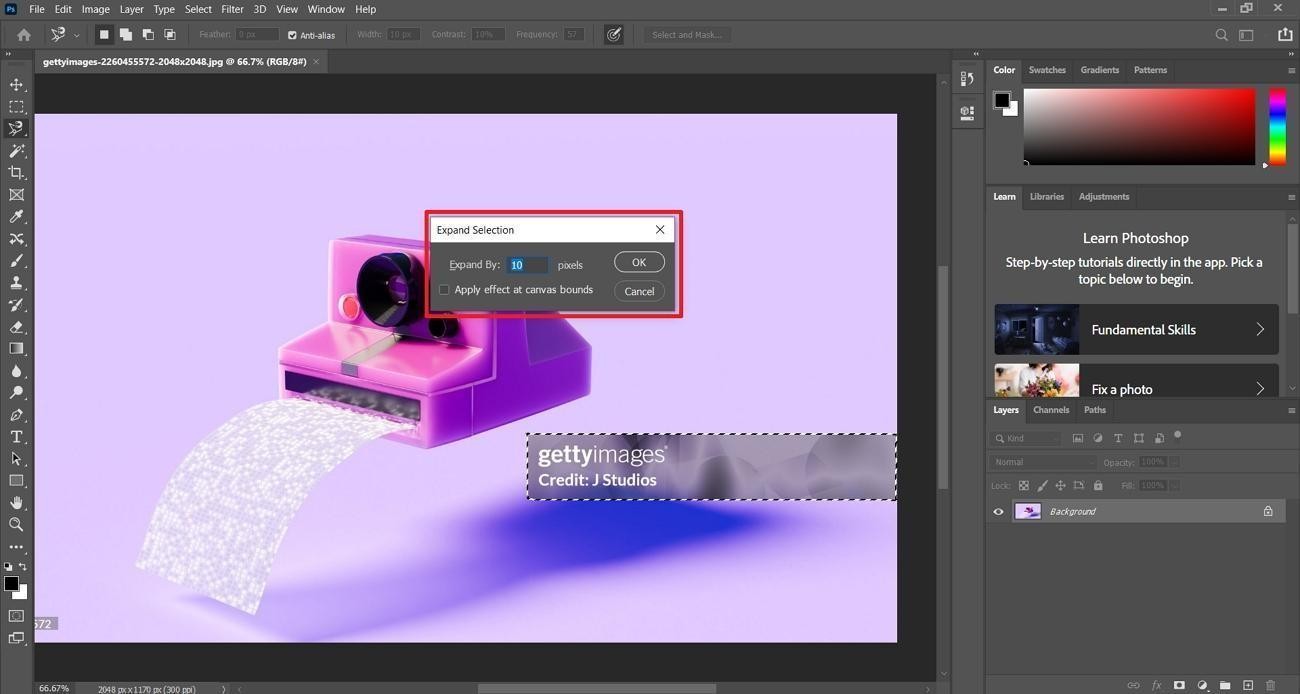
Step 2. Next, access the “Expand” tool and set the expansion number to expand the selection.
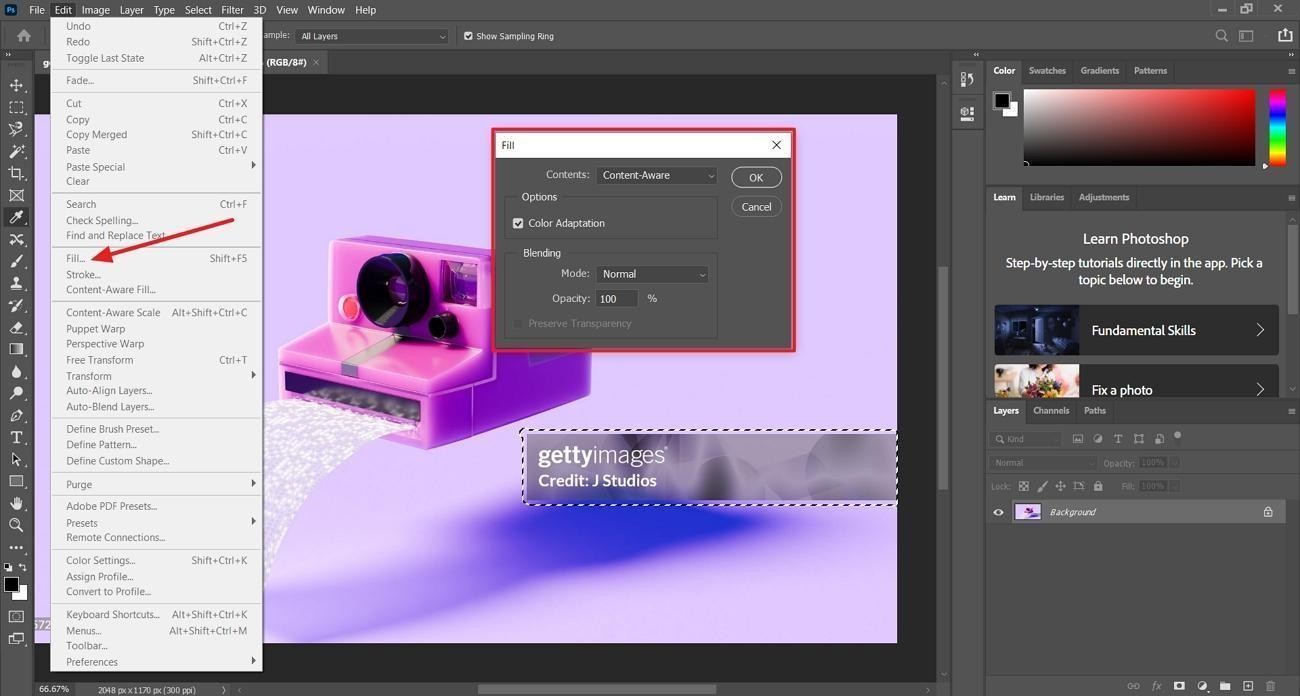
Step 3. Afterward, click the “Edit” option and press the “Fill” button. In the pop-up window, choose the “Content-Aware” option. The tool will use AI to remove the watermark.
Step 4. Review the results and repeat the same process for other watermarks.
Spot Healing Brush Technique
The Spot Healing Brush blends small marks into surrounding pixels with automatic sampling. It works well for thin lines or logo fragments on clean backgrounds. When quick touchups are enough for previews or drafts, this tool feels efficient. Follow the steps below to use it as a simple Getty Image watermark remover:
Step 1. First, select the “Spot Healing Brush” tool from the toolbox and choose the “Content-Aware” type. Next, select the size of the brush as per the watermark.
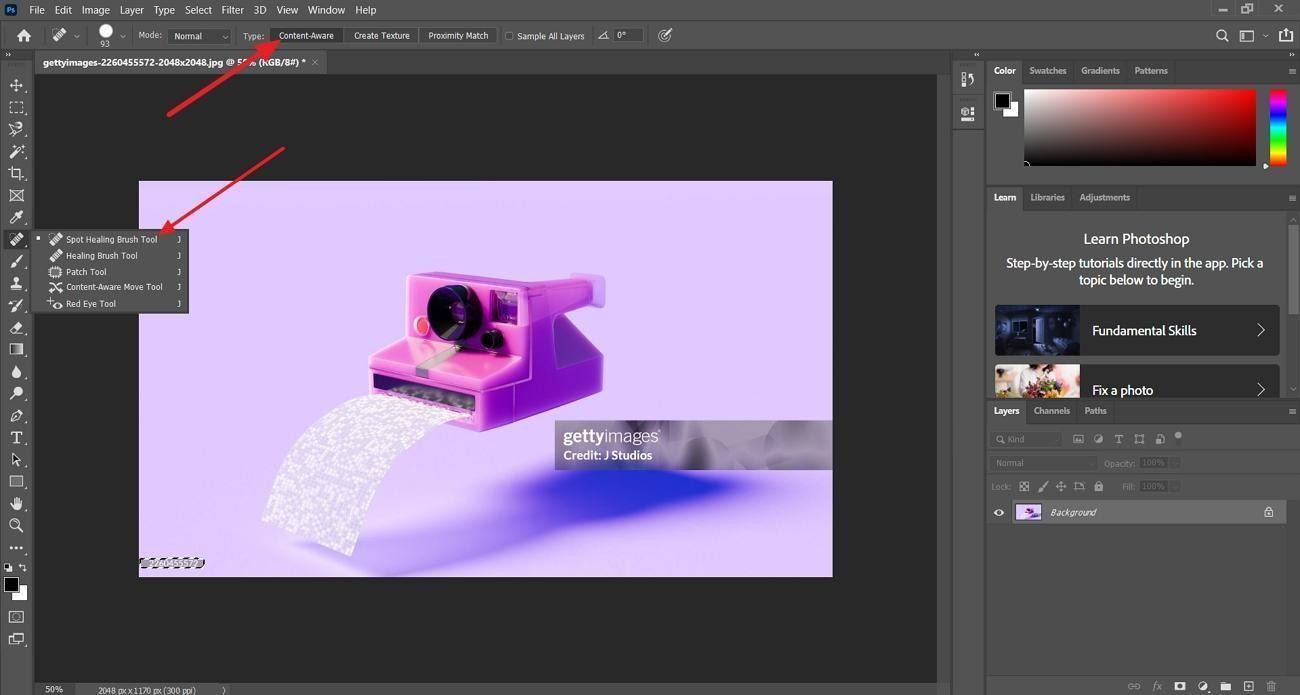
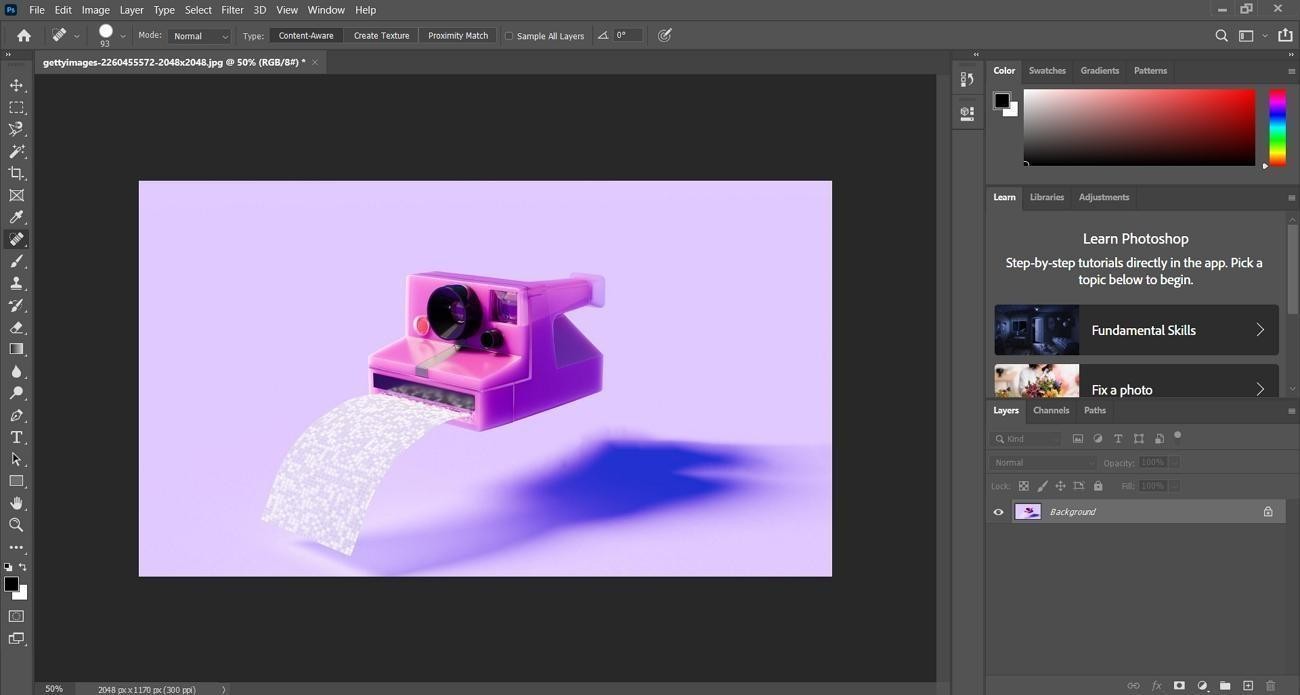
Step 2. Now, drag the brush over the watermarks. The tool will automatically remove the watermark and visible marks left behind.
Clone Stamp Tool Method
This method allows you to copy details from a chosen source area onto the watermark region. The Clone Stamp tool helps when the logo overlaps faces, text, or complex textures. Editors needing careful manual control for final layouts can look at the steps:
Step 1. Pick the “Clone Stamp” tool from the toolbox.
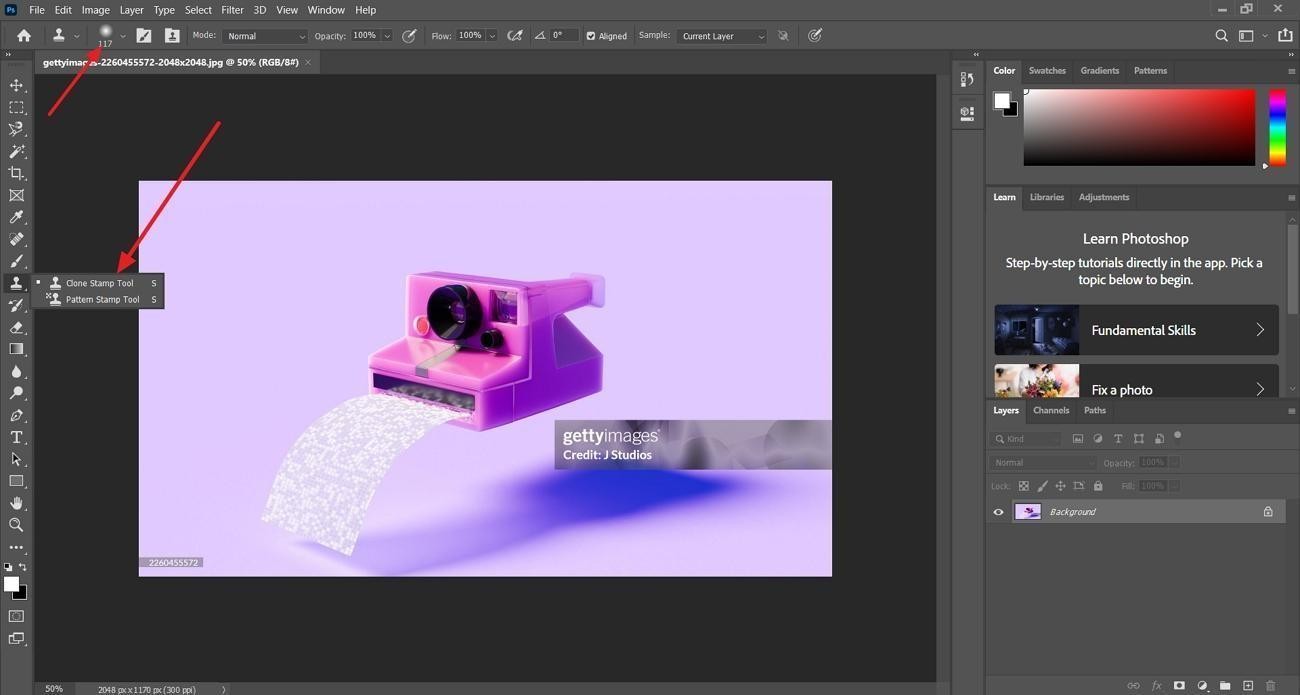
Step 2. Press and hold the “Alt” key and click on the area that you want to clone in place of the watermark. Drag the clone tool on the watermark to replace it with the selected area.
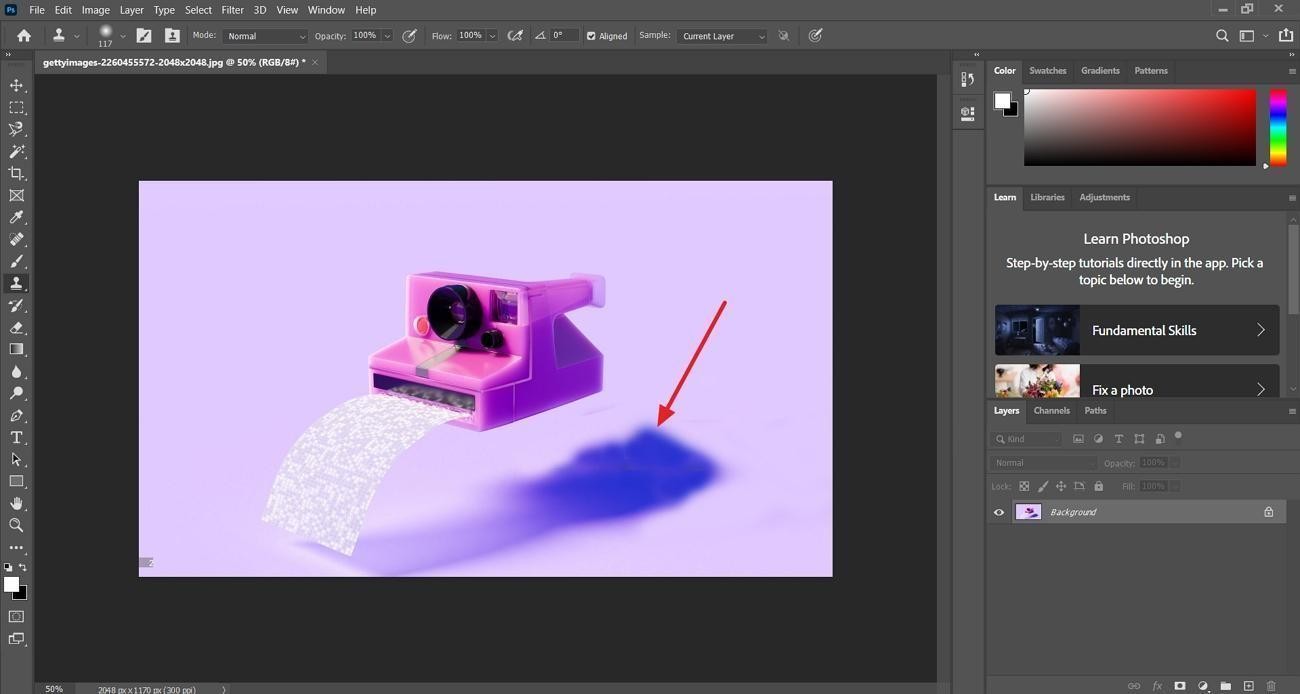
Photoshop offers precise control but demands time, practice, and focus for clean results. Many teams prefer avoiding layer management and detailed brushwork for every single image. In those cases, a dedicated AI Getty Images watermark remover feels like a practical alternative.
Faster Getty Images Watermark Remover - AI Solution!
Manual watermark removal in Photoshop feels complex and easy to mess up. This is where Zawa offers a simpler, guided way to clean previews. The online editor focuses on removing overlays without complicated layer or brush settings. It works well for marketers, designers, and content teams handling many images daily. People wanting clean mockups, not pixel-level retouching practice, prefer this approach.
Key Features
-
Smart Overlay Detection: Zawa scans the image and detects logos and visible watermarks. It reduces the time spent tracing shapes or outlining every single overlay edge.
-
Single-click Cleanup: A dedicated control removes the Getty layer in one focused operation. This avoids repeating small brush strokes across many similar watermark segments.
-
Bulk Watermark Removal: Zawa’s AI-powered bulk watermark remover uses intelligent watermark detection technology to quickly remove watermarks from multiple images at once.
-
Realistic Background Filling: AI fills matches nearby colors, grain, and patterns when rebuilding removed areas. Cleaned regions blend into the scene rather than appearing as flat, blurry patches.
-
Brush Targeting Control: Brush strokes can cover only the logo without touching important subjects. This helps protect faces, key products, or interface elements near the mark.
-
Before-and-after Preview: A comparison view shows the original and edited versions. Users can spot artifacts and undo results that still look unnatural.
How to Use Zawa To Remove Getty Images Watermark
Zawa image watermark remover focuses on cleaning watermark overlays with a guided workflow. Now, go through the steps below to see how to remove the Getty Images watermark:
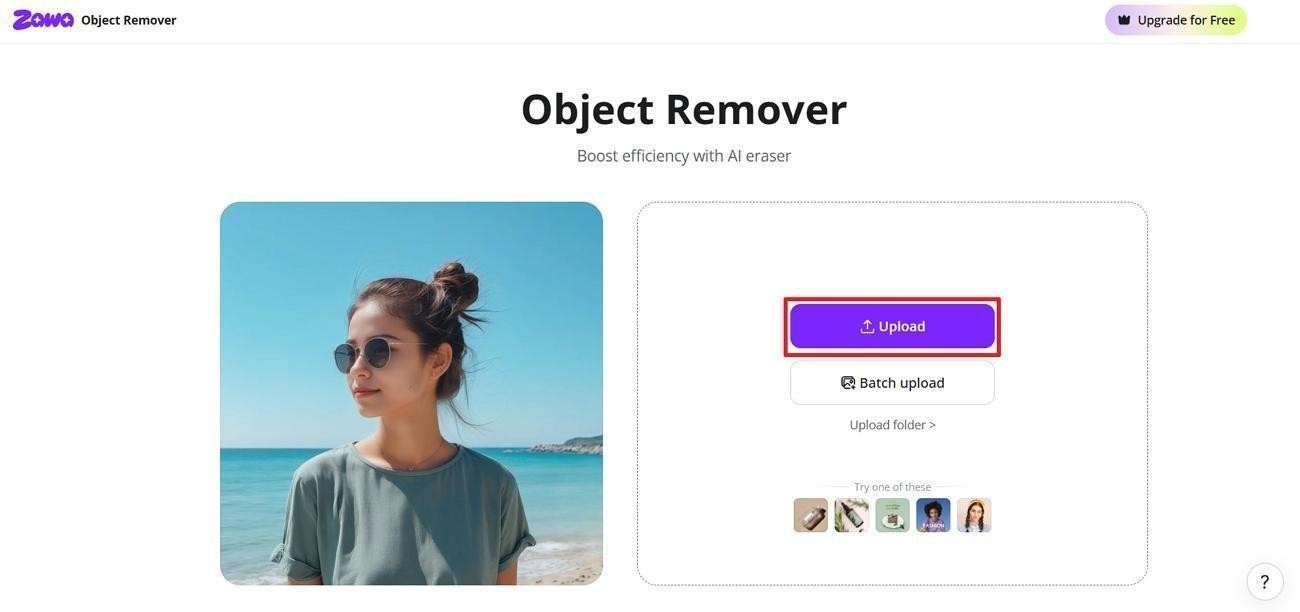
Step 1. Upload Getty Watermark Image
Once you enter the main interface, click the “Upload” option to upload a Getty image.
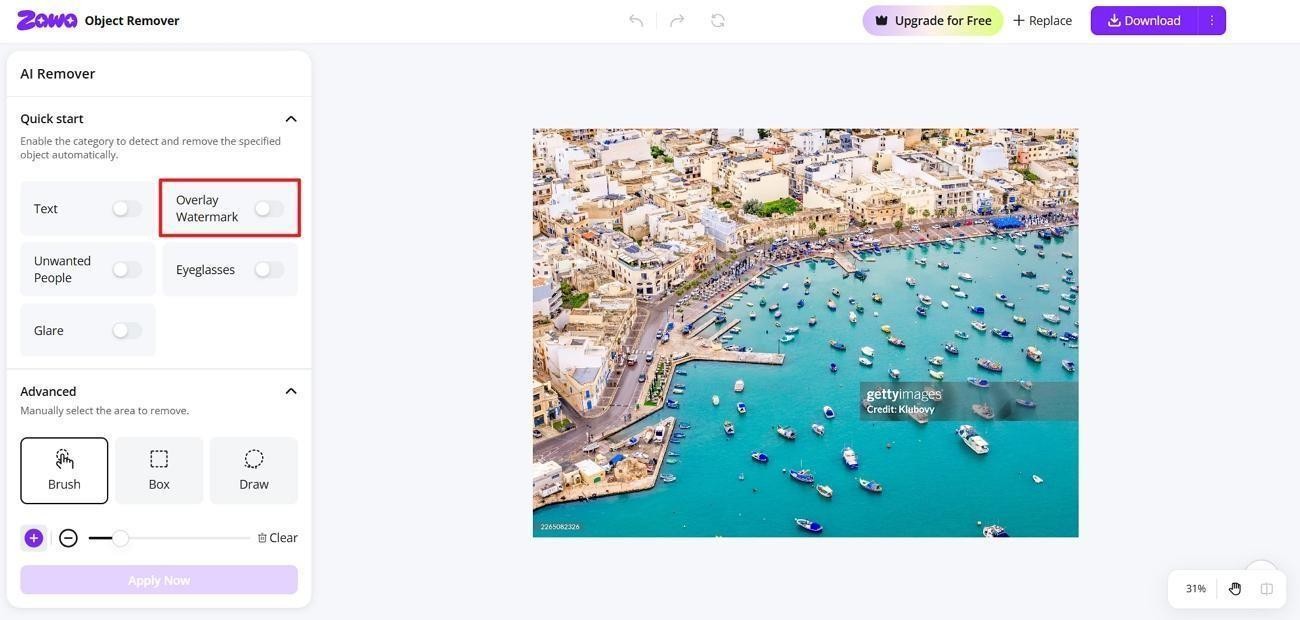
Step 2. Select The Overlay Watermark Tool
Next, enable the “Overlay Watermark” tool. It will automatically remove the watermark using AI placed on the image.
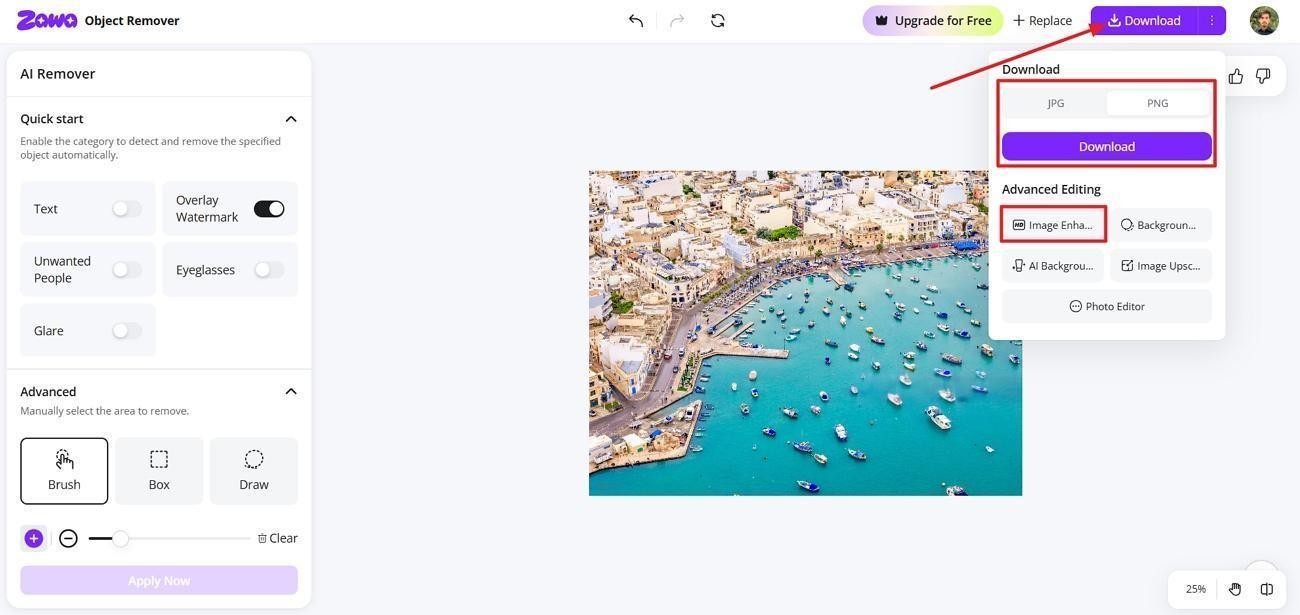
Step 3. Refine and Download Final Output
Further improve the image by clicking the “Download” button and using the “Image Enhancer” tool. After the image is finalized, choose the format and press the “Download” button again to save the image.
Tips for Better Getty Watermark Removal Results
Small choices before editing change how natural the final cleanup looks. Look at the tips below to help any Getty watermark remover perform better.
Start with High-Resolution Images
High-resolution previews give AI tools finer detail around logo edges and patterns. Manual brushes also follow shapes better when pixels are not already compressed. Soft, tiny files usually show smudging sooner, even after careful retouching work.
Crop Strategically First
When the logo sits near a corner, cropping can remove it immediately. A simple trim keeps important content and avoids unnecessary cloning or inpainting. Less remaining watermark area means faster editing and fewer visible repair seams.
Combine AI with Manual Cleanup
AI tools can clear most of the logo in a single pass. After that, small marks often need healing brushes or clone strokes for polish. Blending both methods usually gives cleaner previews than relying on only one.
Things to Keep in Mind When Removing Watermarks
Watermarks mark ownership, so think about rights before using Getty Images to remove the watermark. The points shared below explain key legal, quality, and privacy concerns.
Respect Copyright Ownership
Watermarks show who owns the image and how licensing should work. Removing them without permission can ignore the creator’s rights and agreements.
Avoid Commercial Misuse
Using cleaned copyrighted photos in ads can trigger serious legal complaints. Always license images before placing them on products or marketing materials.
Quality Loss Is Common
Even strong AI tools can blur textures while hiding watermarks. After heavy cleanup, photos may look less natural or detailed than before.
Always Keep Backup Copies
Save an untouched original file before starting any watermark removal attempts. Backups let you restore lost details if edits damage important visual areas.
Some Tools Store Uploaded Images
Online removers might keep uploaded files on their servers for training. Check each tool’s privacy policy before sending confidential or sensitive visuals online.
Conclusion
In summary, always think about ownership when you decide to remove the Getty Images watermark. Respecting copyright rules helps you avoid legal trouble after editing licensed photos. For safer results, you can try Zawa or other similar watermark tools.
FAQs
-
Can AI completely remove Getty Images watermarks?
AI can hide most watermark text, but perfect reconstruction is not guaranteed. Fine textures and complex backgrounds often expose small editing artifacts on close inspection.
-
What is the best Getty Images watermark remover?
Several Getty watermark removers claim strong performance, but results vary by image complexity and background. Tools like Zawa work best when backgrounds are simple and consistent.
-
Is it illegal to remove Getty Images watermarks?
Removing watermarks without permission can violate copyright and digital rights laws. Penalties may include fines and legal action, especially when images are reused commercially.
-
Can I remove watermarks on mobile devices?
Yes, many Android and iOS apps support watermark removal on phones. Mobile tools like Zawa simplify quick edits when you are away from a desktop.
-
Why does the image become blurry after watermark removal?
Many removers use inpainting algorithms that blend surrounding pixels over watermark areas. This blending often softens textures, causing blur where strong details once existed.
You May Be Interested

How to Remove Gemini Watermark?

How to Remove the Kling AI Watermark

The Ultimate Guide to Remove Shutterstock Watermarks from Images

How to Turn Images Into AI Prompts