
What Is 1440p Resolution? QHD Explained for Monitors, Gaming & Video (2026)
1440p (QHD) sits between 1080p and 4K with 2,560 x 1,440 pixels - 78% more than Full HD. This guide explains the format, compares it across resolutions, covers real-world applications, and addresses the upscaling challenges that come with 1440p content.


1440p resolution, also called QHD or Quad HD, refers to a display output of 2,560 x 1,440 pixels. That is roughly 3.7 million total pixels per frame. The 'p' stands for progressive scan, meaning every line in each frame is rendered in sequence rather than alternating.
It sits between Full HD (1080p) and 4K UHD. Compared to 1080p, it carries 78% more pixels. Compared to 4K, it requires significantly less GPU headroom. That combination makes it a practical middle ground that has held its position in the market for several years.
This article covers the technical definition, how 1440p resolution compares to other standards, where it has a measurable impact, and how to deal with the real problem of bringing lower-resolution video up to 1440p quality.
What Is 1440p Resolution? The Full Technical Definition
Before comparing 1440p to other resolutions, it helps to understand exactly what the number refers to and where the format names come from.
Standard 1440p (QHD / Quad HD)
The core spec: 2,560 x 1,440 pixels, totaling 3,686,400 pixels per frame. Aspect ratio is 16:9, which is the standard widescreen format shared by 1080p and 4K.
The name 'Quad HD' comes from the pixel count. 720p HD is 1,280 x 720, which equals 921,600 pixels. Multiply that by four and you get 3,686,400. So 1440p delivers exactly four times the pixels of 720p HD, which is where 'Quad HD' originates.
You will also see the label 'WQHD' (Wide QHD) used interchangeably for the same 2,560 x 1,440 spec. Some manufacturers apply it selectively to ultrawide panels, but there is no technical distinction from QHD in standard use.
One label to treat with caution: '2K.' Consumer marketing applies this to 1440p regularly, but it is technically inaccurate. True 2K is a DCI cinema standard at 2,048 x 1,080. That is narrower and shorter than 1440p. The '2K' label has spread because 2,560 starts with a '2,' but it does not correspond to any standardized definition.
1440p sits 78% above 1080p in total pixel count. It sits approximately 56% below 4K UHD's 8,294,400 pixels. That gap explains why mid-range GPUs can handle 1440p at high settings while 4K still requires significantly more expensive hardware.
Ultrawide 1440p (3,440 x 1,440)
Ultrawide 1440p uses the same vertical resolution of 1,440 pixels but extends horizontally to 3,440 pixels. The aspect ratio changes from 16:9 to 21:9. This format is common in 34-inch panels marketed to creative professionals and PC gamers who want a wider field of view.
The distinction matters practically. Ultrawide 1440p panels require more horizontal GPU bandwidth than standard 1440p. Not all games and applications handle 21:9 natively. Before purchasing an ultrawide display, confirm that your GPU and primary software support the format. Source content created at 16:9 will display pillarboxes unless the application has native ultrawide support.
1440p vs. 1080p vs. 4K: Side-by-Side Comparison
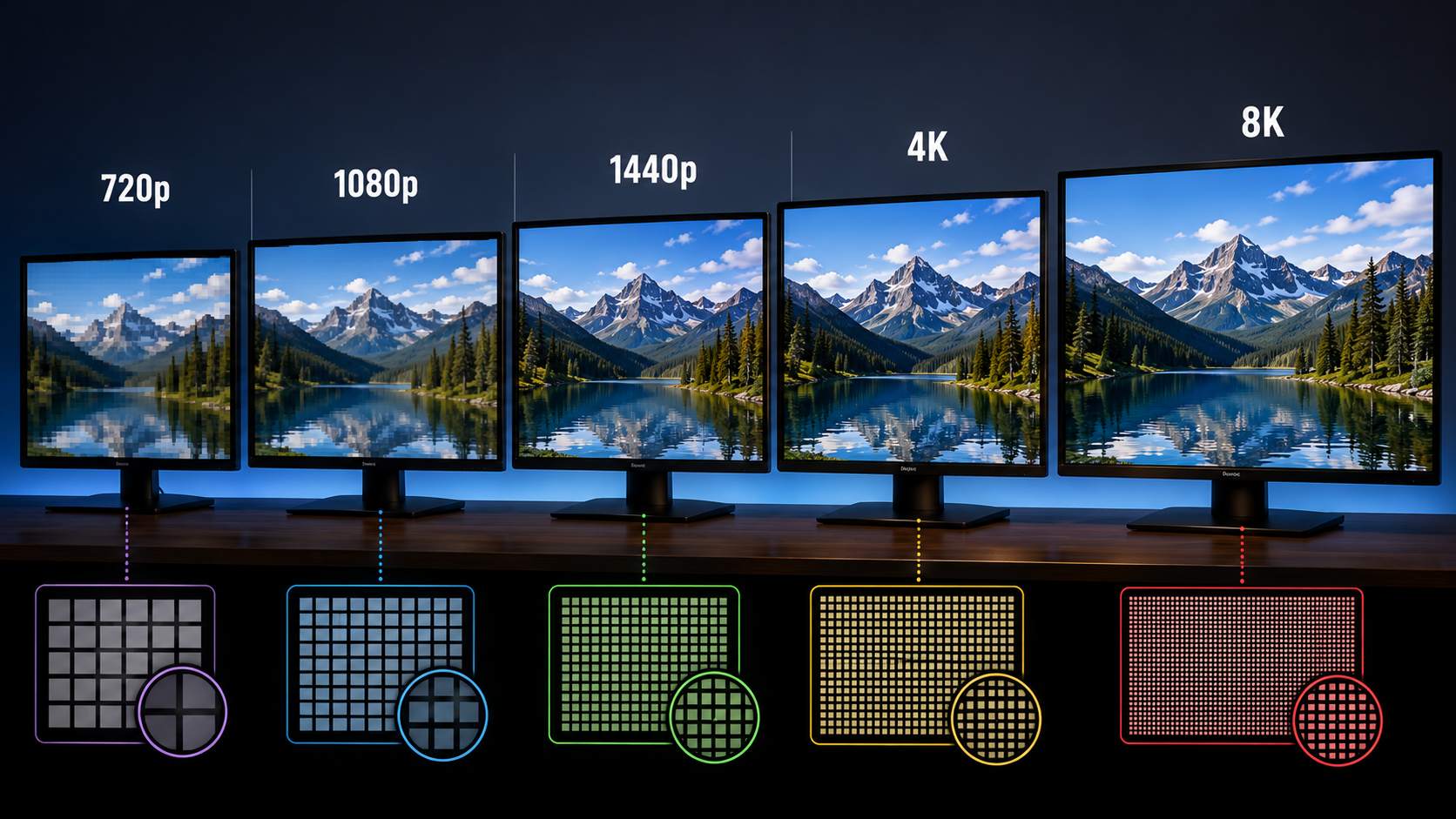
The table below shows how 1440p resolution sits relative to the major consumer display standards. Pixel density figures are calculated at 27 inches, which is the most common monitor size where 1440p is deployed.
|
Resolution |
Pixel Dimensions |
Total Pixels |
PPI (27 in) |
Aspect Ratio |
Common Use |
|---|---|---|---|---|---|
|
720p HD |
1,280 x 720 |
921,600 |
54 PPI |
16:9 |
Entry streaming, older content |
|
1080p FHD |
1,920 x 1,080 |
2,073,600 |
82 PPI |
16:9 |
Mainstream gaming, streaming, web |
|
1440p QHD |
2,560 x 1,440 |
3,686,400 |
109 PPI |
16:9 |
Enthusiast gaming, productivity |
|
4K UHD |
3,840 x 2,160 |
8,294,400 |
163 PPI |
16:9 |
TV, pro editing, premium monitors |
|
8K UHD |
7,680 x 4,320 |
33,177,600 |
326 PPI |
16:9 |
Broadcast production, niche use |
Key Differences at a Glance
Going from 1080p to 1440p adds 78% more pixels. On a 27-inch screen, pixel density increases from 82 PPI to 109 PPI. That jump is visible in everyday use. Text appears sharper. Fine detail in images and video holds better. The improvement is consistent and noticeable without needing side-by-side comparison.
The jump from 1440p to 4K is a different story. 4K carries 2.25 times the pixels of 1440p, reaching 163 PPI at 27 inches. At that density, the difference between 1440p and 4K is harder to detect at typical viewing distances. It is visible on close inspection, particularly in fine texture and thin lines, but most users sitting 60 to 80 cm from their screen will not see a dramatic difference in daily use.
GPU demand follows the pixel count. A mid-range GPU such as the RTX 3060 Ti or RX 6700 XT handles most current titles at 1440p and 60fps on high settings. Running the same games at 4K requires hardware at least one tier higher, typically at a $200 to $400 premium. For high refresh rate gaming at 1440p and 144Hz, the RTX 5060 Ti or RX 9070 handles most 2026 titles well.
The '2K' Label Confusion
1440p is sold under the '2K' label by many monitor brands. The reasoning is loose: 2,560 starts with a '2,' and the format represents a step up from 1080p. Neither justifies the label technically.
DCI 2K, the actual standardized 2K format, is 2,048 x 1,080. It is narrower than 1920 and shorter than 1440. It is a cinema production standard, not a consumer display spec. When a monitor box says '2K,' check the pixel dimensions listed in the fine print. If it says 2,560 x 1,440, that is 1440p QHD. The '2K' label tells you nothing useful about what you are buying.
Where 1440p Resolution Size Makes the Most Difference: Real-World Applications
The pixel count is one part of the picture. Where 1440p actually changes the experience depends on the use case.
PC Gaming
1440p is the dominant resolution among enthusiast PC gamers in 2026. The Steam Hardware Survey shows 1080p still holds the largest share overall, roughly 60 to 65% of active PC gamers, but the majority of that figure reflects the large installed base of older and mid-range systems. Among new monitor purchases in the $300 to $600 range, 1440p leads.
The practical reason is frame rate. A 1440p monitor at 144Hz is a more balanced target than 4K at 60Hz for most game genres. Higher refresh rates produce visibly smoother motion, and 1440p allows mid-range hardware to hit those frame rates. A GPU that struggles to hold 60fps at 4K can sustain 144fps at 1440p in the same title.
NVIDIA DLSS and AMD FSR add flexibility. Both upscaling systems allow games to render at a lower internal resolution and output at 1440p quality. DLSS on a 1440p monitor rendering at 1080p quality can reduce GPU load by 30 to 50% with minimal visible sharpness loss in most titles.
The sweet spot by genre: open-world and single-player titles benefit most from 1440p detail. Competitive FPS players often prefer 1080p at 240Hz or higher, where frame rate outweighs resolution for reaction-time-sensitive play.
Monitors for Work and Productivity
At 27 inches, 1440p produces 109 PPI. For text-heavy work, that density is a meaningful improvement over the 82 PPI of 1080p at the same size. Reading long documents, reviewing code, and working in spreadsheets for extended periods is noticeably more comfortable at 1440p. Characters are sharper, and the eye does not have to compensate for pixel edges in small fonts.
Screen real estate also improves. 1440p offers more usable vertical space than 1080p, which reduces scrolling in code editors, email clients, and long web pages. For multi-window workflows, the additional space makes arranging two side-by-side applications more practical without reducing font size to an uncomfortable level.
One sizing note: 27 inches is the most efficient match for 1440p. Moving to a 32-inch 1440p monitor reduces pixel density to around 92 PPI, which is close to a 24-inch 1080p monitor. If a 32-inch screen is the priority, 4K becomes a more logical choice to maintain comparable sharpness.
Video Production and Streaming
Editing 1440p footage on a 1440p monitor is a native workflow. There is no scaling applied between the source and the preview, so what you see in the editing timeline matches what exports. Grading decisions, crop positions, and text placement are accurate at full resolution.
Editing 4K footage on a 1440p monitor is also a workable setup. The editing software displays a downscaled proxy preview. The full 4K detail is preserved in the project file and is intact in the export. The monitor does not degrade the output; it only limits what you can see at once on screen.
For content published to YouTube, 1440p recordings deliver visibly sharper playback than 1080p at the platform's compression settings. YouTube applies heavy compression at 1080p; the 1440p tier uses a higher bitrate. Creators shooting for broad audiences often export at 1080p for delivery, but recording at 1440p gives more headroom for cropping and reframing in post without losing resolution.
Storage: a 1440p video file runs approximately 2 to 2.5 times the size of equivalent 1080p footage at the same bitrate and codec. That is a meaningful cost over large projects but significantly less than the jump to 4K.For 1440p uploads to YouTube, the recommended bitrate is 16 Mbps at 30fps or 24 Mbps at 60fps using H.264. Switching to H.265 achieves the same quality at roughly half the bitrate. Use VBR for uploads — YouTube re-encodes everything on delivery, and VBR gives its encoder better source material to work with.
Security Cameras
1440p security cameras extend the useful range for identifying faces and license plates compared to 1080p cameras. The extra pixel density allows tighter digital zoom into recorded footage without reaching the resolution floor as quickly.
Coverage area matters more for this use case than display quality. A 1440p camera covering a 6-meter entry zone retains more readable detail in the corners and edges of the frame than a 1080p camera in the same position. This is particularly relevant when the camera cannot be repositioned after installation.
One practical requirement: 1440p camera systems need compatible NVR or DVR hardware that can accept and store the higher bitrate streams. Budget recorders designed for 1080p may downsample the input, removing the resolution advantage at the recording stage.
The Common Challenge: Managing and Upscaling 1440p Content
Resolution mismatches create real problems in two directions. 1440p content displayed on a 4K screen produces a softer image. Lower-resolution content stretched to 1440p loses detail in the process. Standard upscaling handles neither well. Understanding why the math does not work is useful before looking at what does work.
The Blurred-Stretch Reality
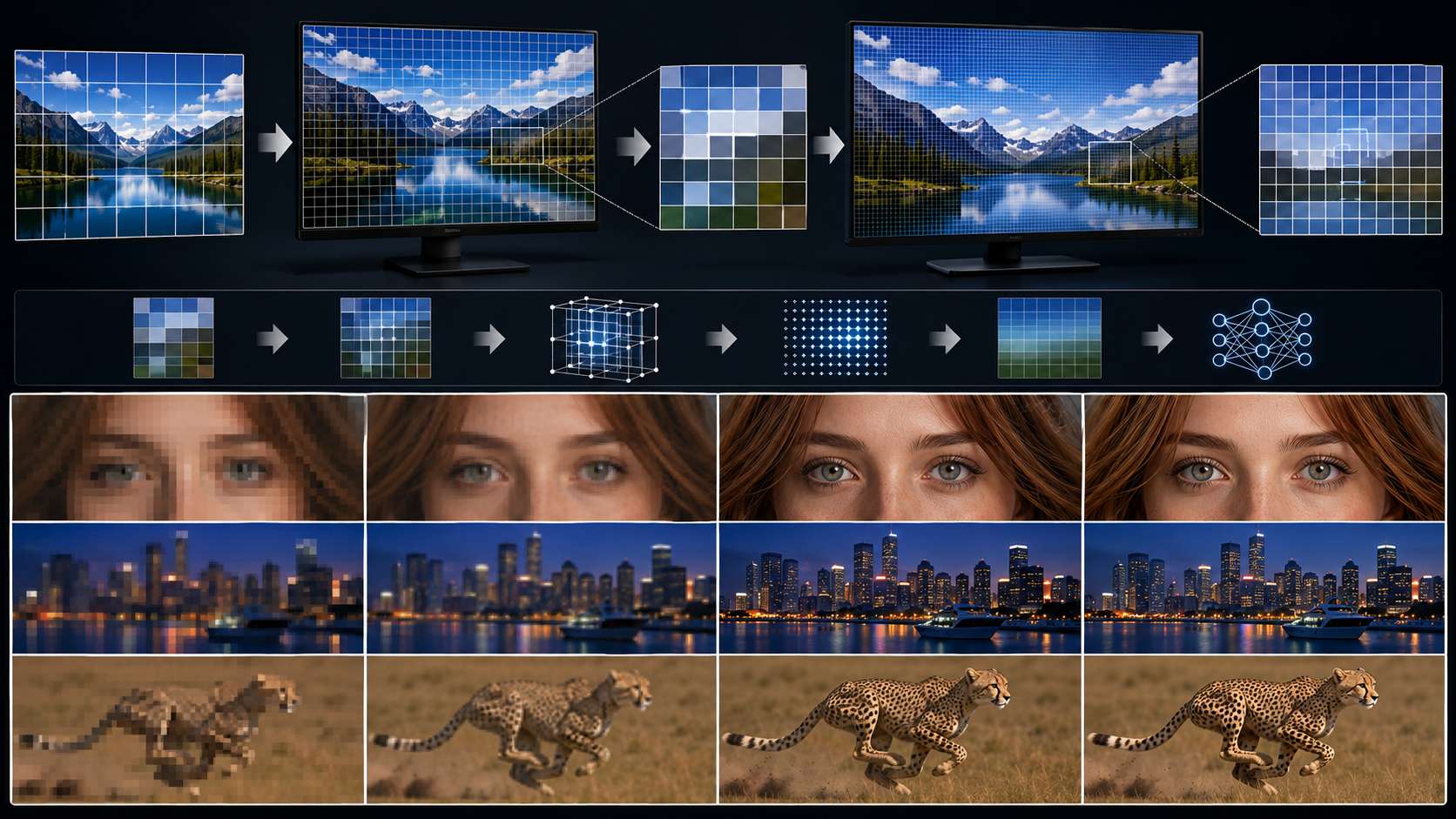
A 4K monitor contains 3,840 x 2,160 pixels. Displaying 1440p content on that screen requires each 1440p pixel to cover approximately 2.25 display pixels. The monitor cannot reconstruct the missing detail; it uses interpolation to estimate what those pixels should look like based on surrounding values.
The result is a softer image. The 4K-resolution file retains its larger container, but the actual sharpness does not improve. You are looking at estimated pixel values rather than real captured detail. On budget panels, the interpolation is done by a basic upscaling chip and the blur is more pronounced. Higher-end monitors with dedicated upscaling processors handle the mismatch better, but the fundamental limitation remains: interpolation predicts, it does not recover.
Loss of Critical Detail When Upscaling Lower-Resolution Content to 1440p
Going the other direction, upscaling 1080p video to 1440p with conventional algorithms adds pixels without adding information. Bicubic and Lanczos algorithms calculate new pixel values by averaging the pixels around them. This smooths the expanded image but does not reconstruct any detail that was not in the original file.
The gap shows most clearly in specific content types. Hair strands, fabric texture, fine text overlays, and sharp geometric edges are approximated rather than preserved. In static images, the result often looks acceptable. In video, motion sequences reveal the limitation. Fast-moving subjects and close-up detail shots expose interpolation artifacts during playback that are invisible in the compressed preview thumbnail.
Compressed source footage compounds the problem. Video that has been through lossy compression before upscaling arrives at the algorithm with compression artifacts already baked in. Bicubic upscaling treats those artifacts as real detail and includes them in the stretched output. The resulting file is larger but carries amplified noise rather than recovered sharpness.
Why Traditional Upscaling Is Not Enough
The core limitation of traditional upscaling is that it works with what exists. It enlarges the pixel grid and fills the gaps using mathematical estimates of neighboring pixels. No new visual information is added. The output is a mathematically larger version of the same detail.
AI upscaling works differently. A neural network trained on large datasets of matched low-resolution and high-resolution image pairs learns to predict what the higher-resolution version of a given input should look like. When it encounters fine edges, it does not average them. It applies learned patterns to reconstruct what the detail most likely looked like at higher resolution.
The visible result: traditional upscaling produces a smooth image that reads as soft or slightly blurry at the upscaled size. AI upscaling recovers edge sharpness, restores texture in hair and fabric, and reduces the halo artifacts that conventional methods introduce. The difference is measurable and visible in side-by-side playback at 1440p or higher.
Upscaling Lower-Resolution Content to 1440p and Beyond with AI Video Enhancer
For video recorded or compressed below 1440p, the upscaling step is where quality is won or lost. Standard interpolation handles the math of enlargement but cannot restore what was never captured. AI video upscaling tools close that gap by analyzing content at the frame level and reconstructing detail rather than estimating it.
Zawa Video Enhancer is one option that applies this approach directly in the browser — no software install required, and free to try with new-user credits. It handles the detail recovery that pixel-stretching misses: tighter edges, cleaner textures, and reduced blocking from earlier compression stages.
Step-by-Step: Using Zawa Video Enhancer
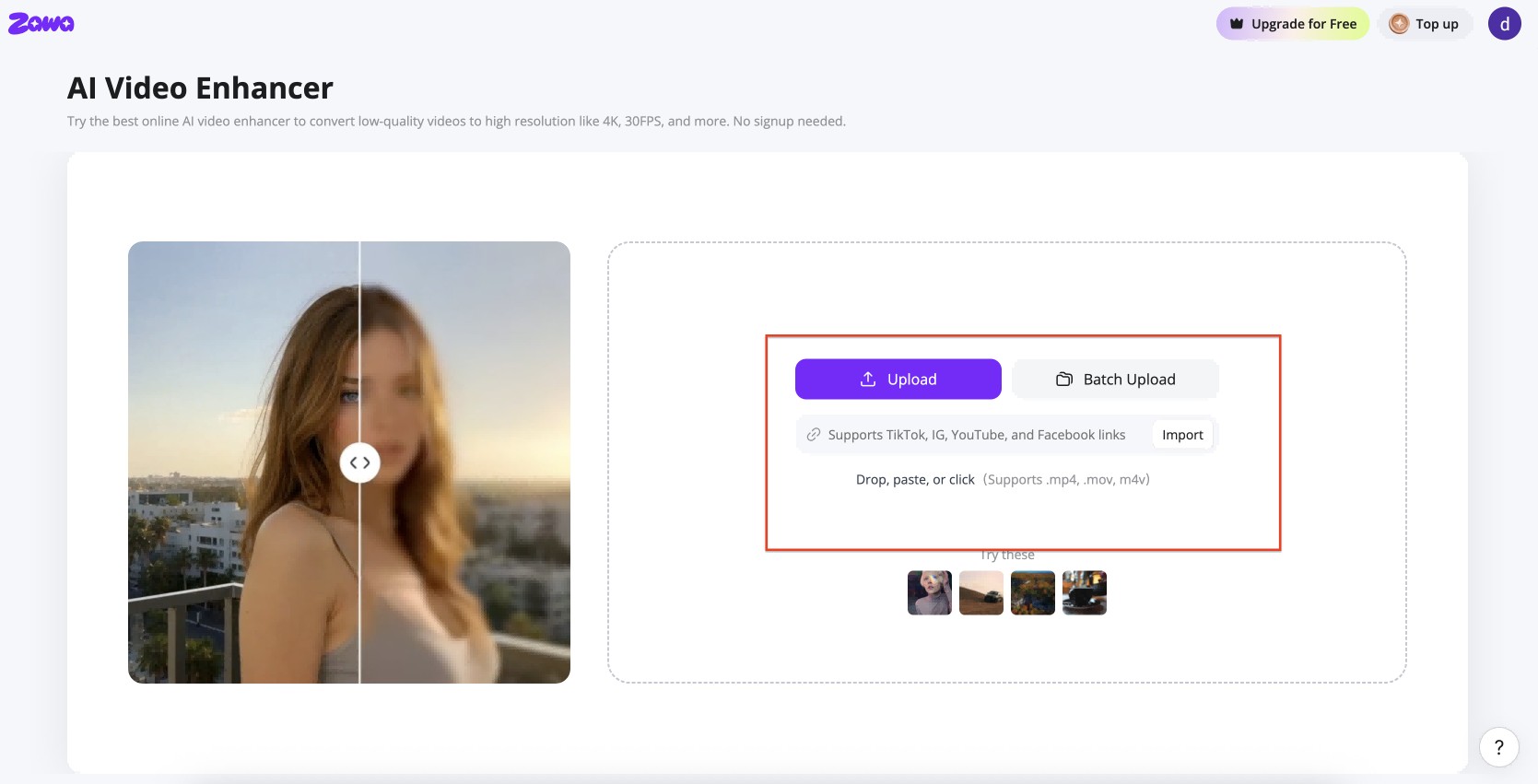
Step 1: Open the tool and upload your file
Find Video Enhancer in the tool panel at the bottom-right of the Zawa workspace. MP4, M4V, MOV, AVI, and 3PT files all work. The file goes straight to the editor once the upload finishes.
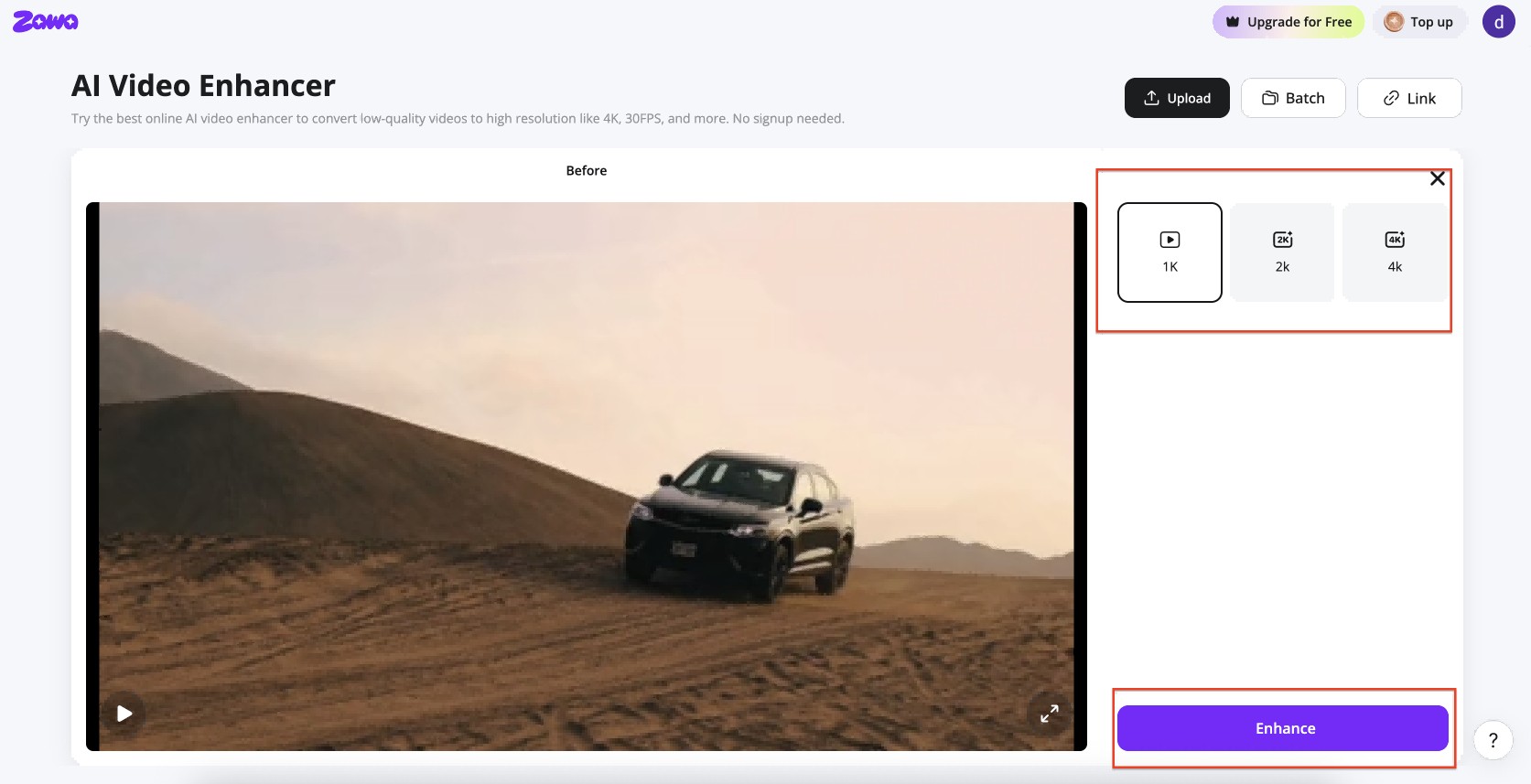
Step 2: Pick your output resolution and run the enhancement
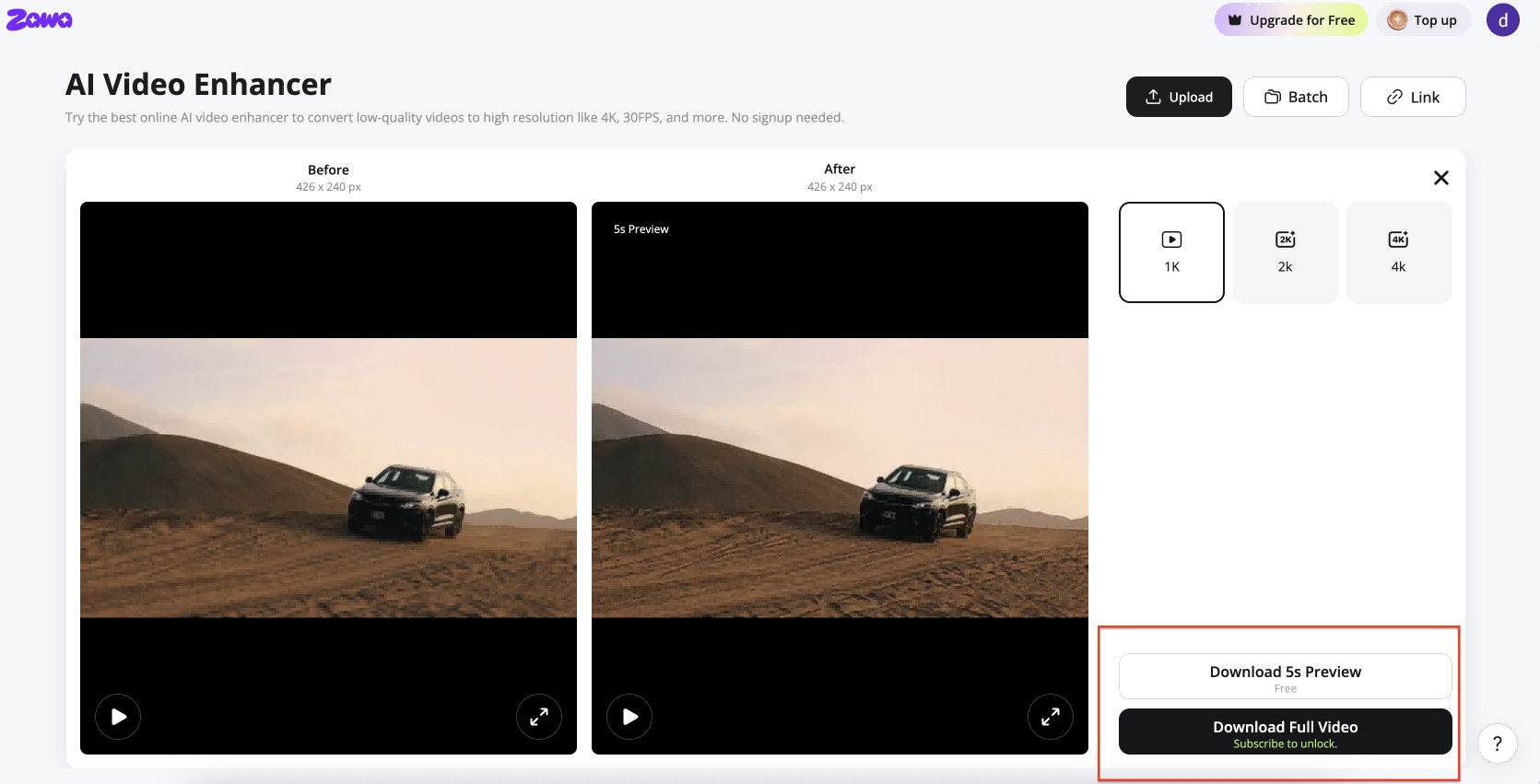
The right panel shows two output options: 2K for 1440p-equivalent output, or 4K if you need a higher export resolution. Pick one, then hit Enhance. The tool works frame by frame, rebuilding edge detail and reducing compression noise rather than stretching what is already there.
Step 3: Check the preview and download
When processing is done, a split-view comparison loads. Preview through the clip and check a few spots where fine detail matters most, such as fast-moving edges, text overlays, or hair. If the output looks right, hit Download Full Video. The file saves in the format you selected.
Video enhancement is just the first step. Zawa's all-in-one AI platform also supports video watermark removal, background removal, and other editing tools—all in one place. Try it free at Zawa!
Where 1440p Fits in the Resolution Landscape: 2026 and Beyond
1440p has not been replaced. It has not peaked either. The format sits at a hardware price point that still makes sense for most buyers upgrading in 2026, and that position has not shifted in two years.
1080p remains the most common gaming resolution globally. The Steam Hardware Survey for 2025 to 2026 estimates 60 to 65% of active PC gamers still run at 1080p. That figure reflects the large installed base of mid-range and entry-level systems, not new purchases.
Among new enthusiast-tier monitor sales, 1440p leads. The $300 to $600 monitor price range, where most upgrade purchases happen, is dominated by 1440p panels at 144Hz and above. GPU sales in the mid-range, the RTX 5060 Ti and RX 9070 class, are optimized for this target.
4K has become the default for new TV purchases above 40 inches. In PC monitors, it is growing but remains a premium tier. The GPU cost required to drive 4K gaming at high refresh rates keeps it out of reach for most buyers on a single-monitor budget.
8K has no practical consumer footprint. It exists as a broadcast production standard and in a small number of high-end panel releases. Native 8K content outside of NHK test broadcasts and limited YouTube uploads is essentially absent.
The more significant development is AI upscaling reshaping how resolution is experienced. DLSS, FSR, and panel-side upscaling processors are narrowing the perceptual gap between resolution tiers. A well-upscaled 1440p source increasingly approaches 4K perceptual quality on capable panels. This makes the difference between hardware resolution tiers less absolute than the raw pixel counts suggest.
For content creators, 1440p recording in 2026 remains a practical, storage-efficient format. It exports cleanly to 1080p for broad audience delivery while retaining enough detail for cropping, reframing, and color grading in post without hitting a resolution floor too quickly.
Conclusion
1440p resolution is 2,560 x 1,440 pixels. It carries 78% more pixels than 1080p and fits into mid-range hardware budgets that 4K cannot. For gaming at 144Hz and above, for desk monitors at 27 inches, and for video production workflows that need more than 1080p without the storage cost of 4K, it is the most practical choice in the current market.
The main limitation is upscaling. Displaying 1440p on a 4K monitor, or pushing lower-resolution footage up to 1440p, exposes the gap between interpolation and real detail. Traditional algorithms fill that gap with estimates. AI video upscaling tools reconstruct it with learned detail, which is a meaningful difference in output quality.
In 2026, 1440p is not a stepping stone to something better. It is a format with a stable, well-supported hardware ecosystem, a GPU cost that makes sense for most buyers, and a content pipeline that works cleanly at both the production and delivery stages.
FAQs
What aspect ratio is 1440p?
Standard 1440p uses a 16:9 aspect ratio at 2,560 x 1,440 pixels. Ultrawide 1440p panels extend to 3,440 x 1,440 at a 21:9 aspect ratio. The vertical resolution stays the same; the horizontal dimension changes. Always confirm which spec a monitor uses before purchasing, since the two formats differ in GPU demand and software compatibility.
Is 1440p the same as 2K?
No. True 2K refers to the DCI cinema standard of 2,048 x 1,080 pixels. That format is narrower and shorter than 1440p (2,560 x 1,440). Consumer marketing applies the '2K' label to 1440p because 2,560 starts with a '2,' but it is not a standardized term. Always check the actual pixel dimensions listed in a monitor's spec sheet rather than relying on marketing labels.
Is 1440p good enough for gaming in 2026?
Yes. 1440p at 144Hz is the most widely recommended PC gaming setup in 2026. It delivers noticeably sharper output than 1080p, runs at high refresh rates on mid-range hardware, and is supported by AI upscaling features like DLSS and FSR that extend performance further. 4K produces a sharper image but requires hardware that costs significantly more.
Why does 1440p look blurry on a 4K monitor?
A 4K monitor has 3,840 x 2,160 native pixels. Displaying 1440p content requires each 1440p pixel to be stretched across approximately 2.25 display pixels. The monitor fills the missing values using interpolation, which estimates rather than restores detail. The result is a softer image compared to native 4K content. Budget panels with basic upscaling chips produce more visible blur; premium panels with dedicated upscaling processors handle the mismatch with less degradation.Setting the monitor to its native resolution and scaling 1440p content through AI upscaling tools — either panel-side or in software — produces sharper results than the monitor's built-in interpolation.
What is the difference between 1440p and QHD?
They are the same thing. QHD stands for Quad HD, which describes a resolution four times the pixel count of 720p HD (1,280 x 720 = 921,600 pixels). 1440p QHD equals 2,560 x 1,440 = 3,686,400 pixels. The terms 1440p and QHD are used interchangeably in monitor, camera, and display specifications. There is no technical or functional difference between them.
You May Be Interested

How to Increase Resolution of Image Without Losing Quality

Veo 4 Could Change AI Video From Clip Generation to Scene Direction

10 Best AI Video Enhancers to Upscale Your Videos

15 Best AI Video Generators in 2025
