Best Ways to Remove Objects in Photoshop (AI + Manual Methods)
Master object removal in Photoshop in 2026! Learn how to erase unwanted objects using AI Remove Tool, Content-Aware Fill, Clone Stamp, and Healing Brush. Discover tips, best practices, and alternative AI tools for faster editing.
Photoshop is the top choice and go-to tool for millions of photo editors worldwide. Whether you are a photographer, designer, or marketer, removing objects saves valuable time. This tool becomes useful when unwanted objects spoil a perfect image. In this guide, you will learn how to remove objects in Photoshop, its problems, and a better alternative.
Why Remove Objects in Photoshop?
Many users remove an object in Photoshop CC to create cleaner and more professional visuals. So, let's walk through the reasons why this editing tool improves photos:
-
Background Cleanup: Eliminating random people and clutter keeps attention focused on the main subject. A cleaner background makes photos appear more planned and visually balanced overall.
-
Social Readiness: Refined visuals perform better on busy social media platforms. Removing clutter makes images easier to understand on smaller phone screens.
-
Product Appeal: Clean product photos look more trusted, attractive, and ready for online buyers. Clearing unwanted items helps products stand out clearly in every image.
-
Brand Images: Polished visuals help brands build trust with customers across different platforms. Object removal keeps photos neat, clear, and matching your brand style.
-
Marketing Impact: Object removal helps marketing visuals communicate messages faster. A cleaner layout can improve viewer attention across advertisements and promotional content.
Step-by-Step Guide to Remove Objects in Photoshop
Learning how to remove an object in Photoshop helps improve image quality. Go through the step-by-step guides below for effective photo editing.
Using AI Remove Tool (New Photoshop Feature)
The AI Remove Tool is a modern Photoshop feature that removes unwanted objects automatically. It uses artificial intelligence to analyze nearby areas and fill the removed space with matching textures and details. Adhere to the given guide to eliminate unwanted objects using the new AI removal tool in Photoshop:
Step 1. Open the tool and add an image, then go to the left “Toolbar” and opt for “Lasso Tool” to select the object.
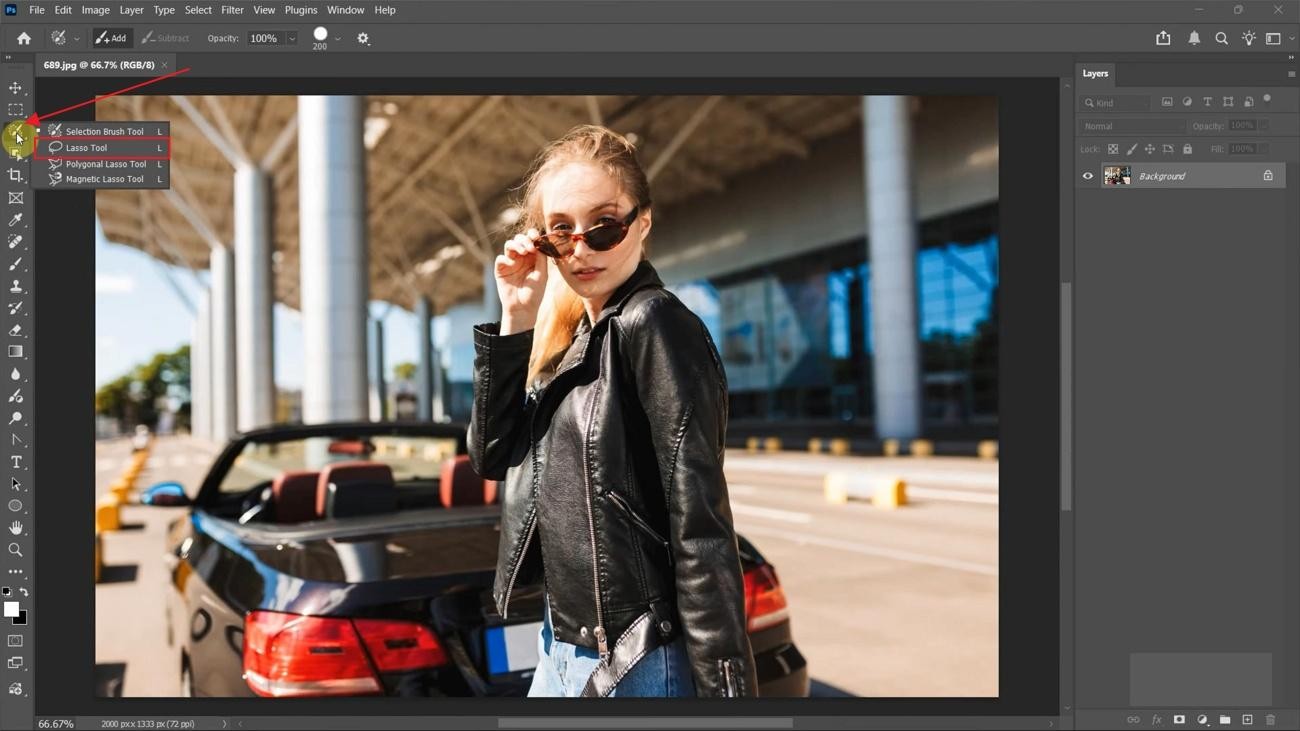
Step 2. Next, go to “Window” and choose “Contextual Task Bar”.
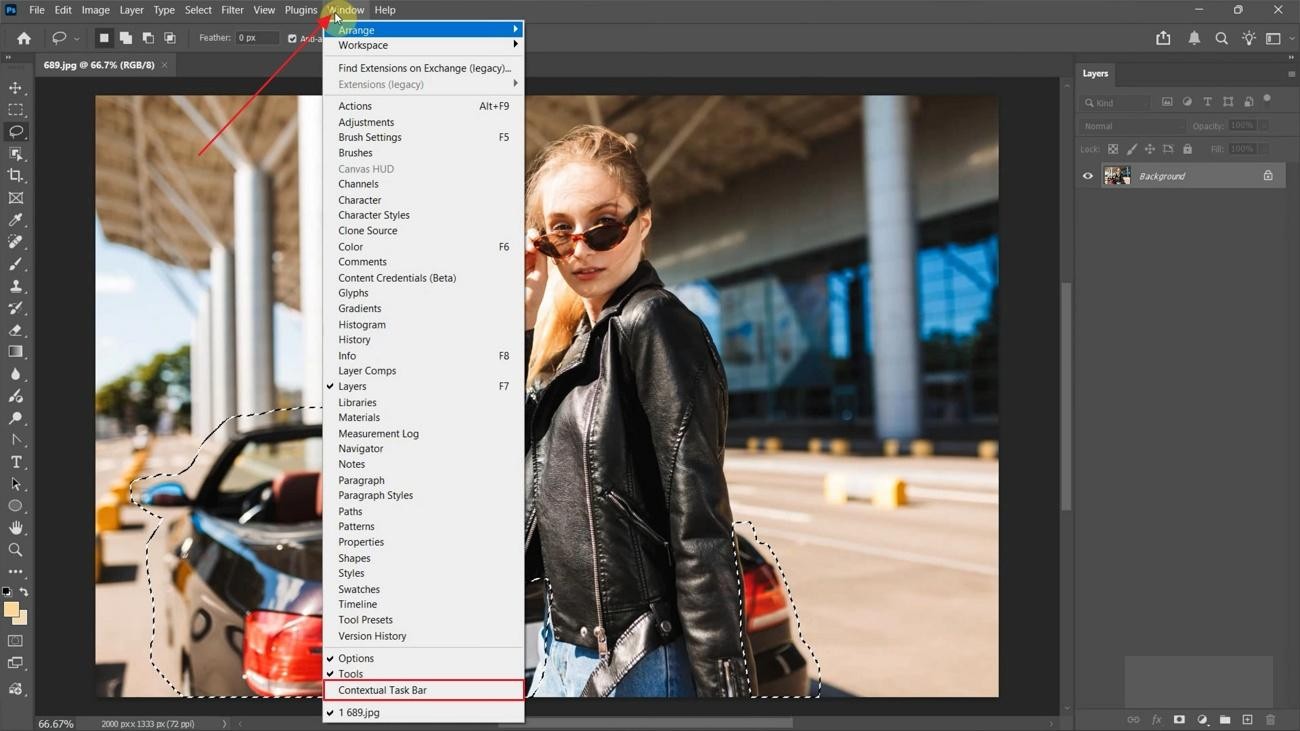
Step 3. Moving forward, type “Remove” inside the Text field and click “Generate.”
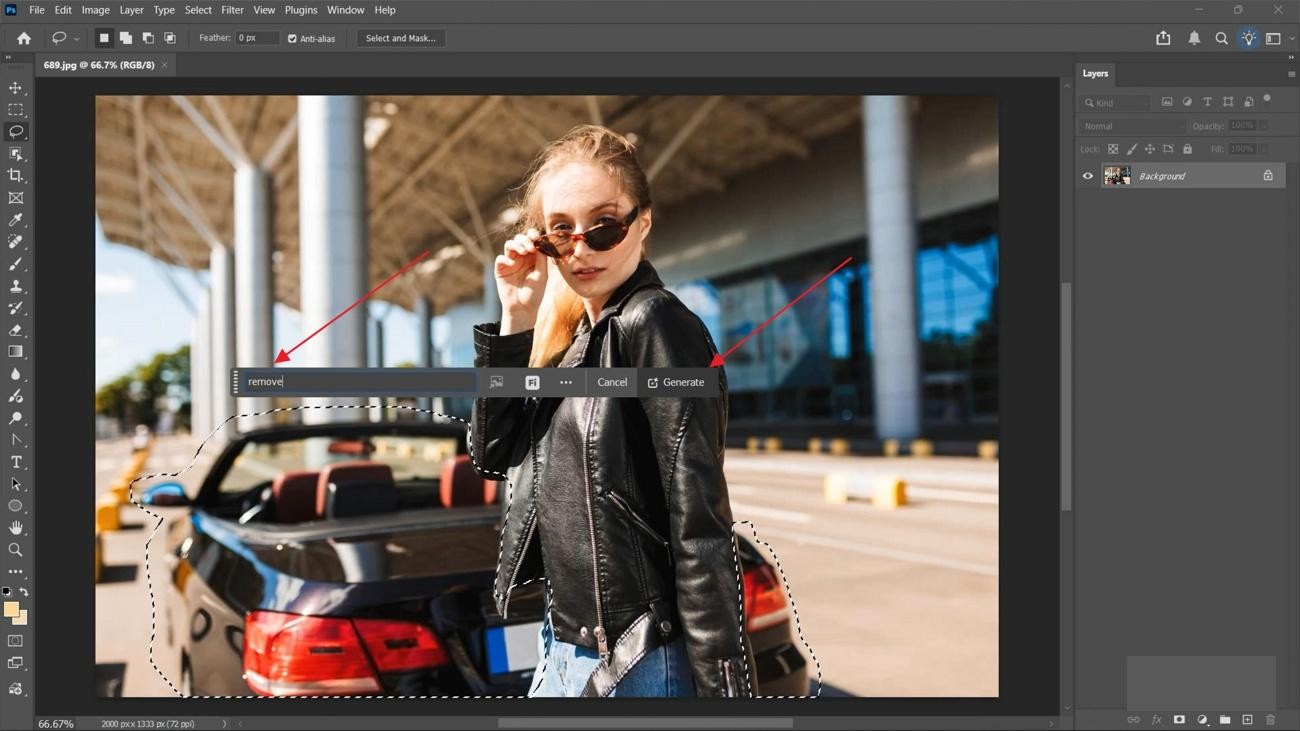
In this example, Photoshop AI Remove Tool automatically removes the car from the background while preserving the subject. The AI fills the removed area with matching pavement and architectural details, creating a clean and natural-looking result.

Content-Aware Fill Tool
Photoshop's Content-Aware Fill Tool removes unwanted objects by filling the selected area with matching pixels from the surrounding background. Below, you will explore the complete workflow on how to erase things in Photoshop using the Content-Aware Fill Tool:
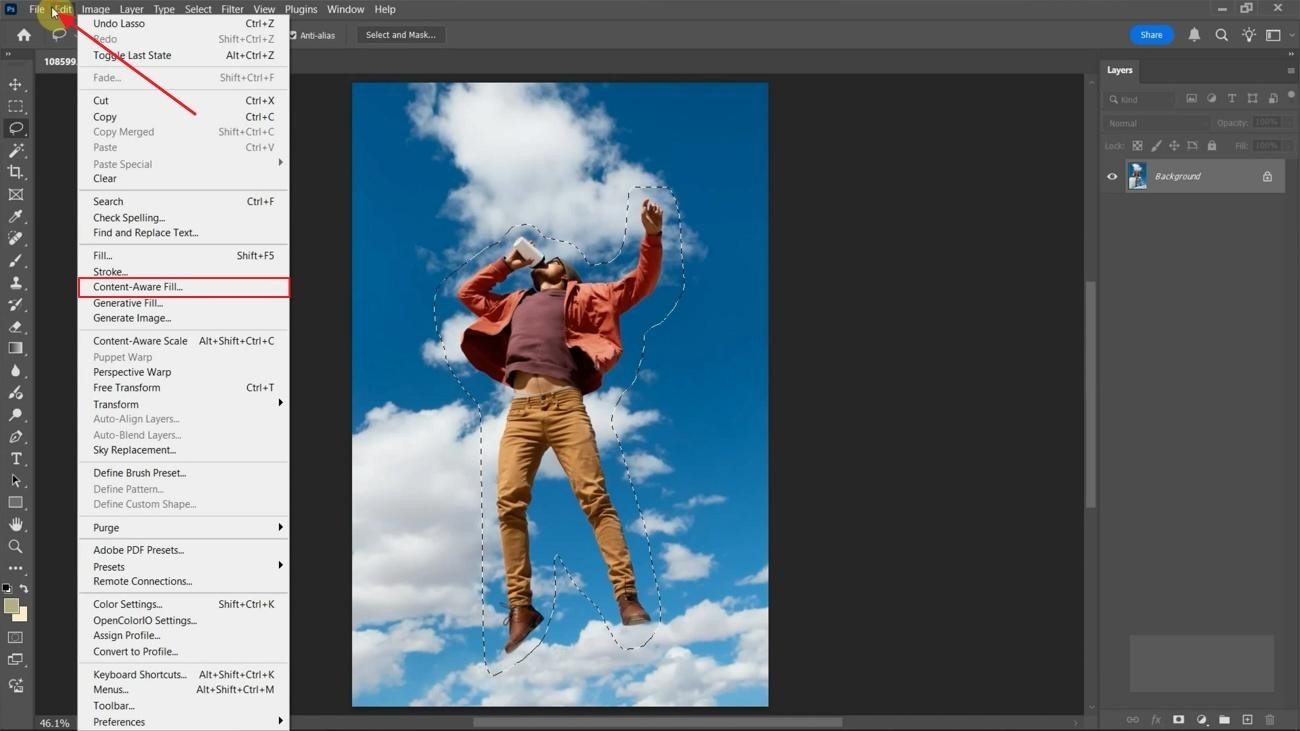
Step 1. To initiate, go to the left “Toolbar” and select the “Lasso” tool to select an object, then go to “Edit” and choose “Content-Aware Fill”.
Step 2. The tool will automatically remove the object. Afterward, compare the before and after results and press the "Ok" button.
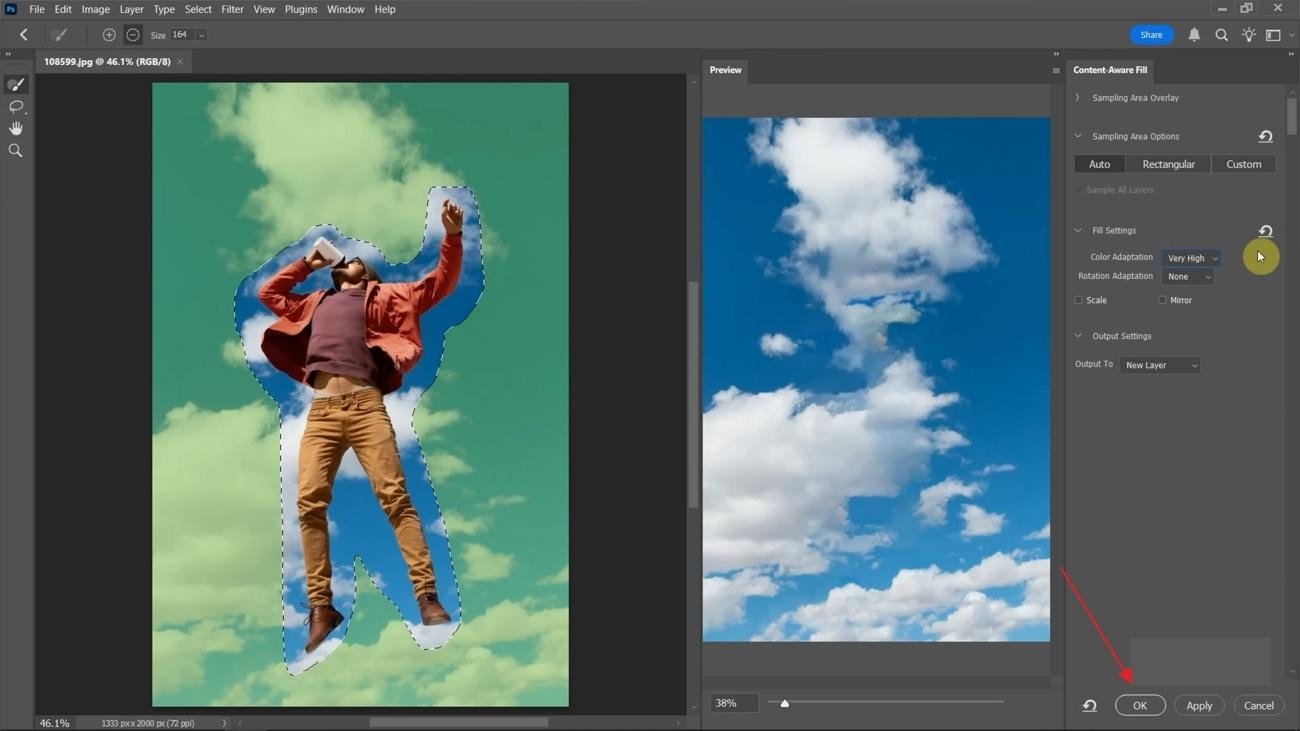
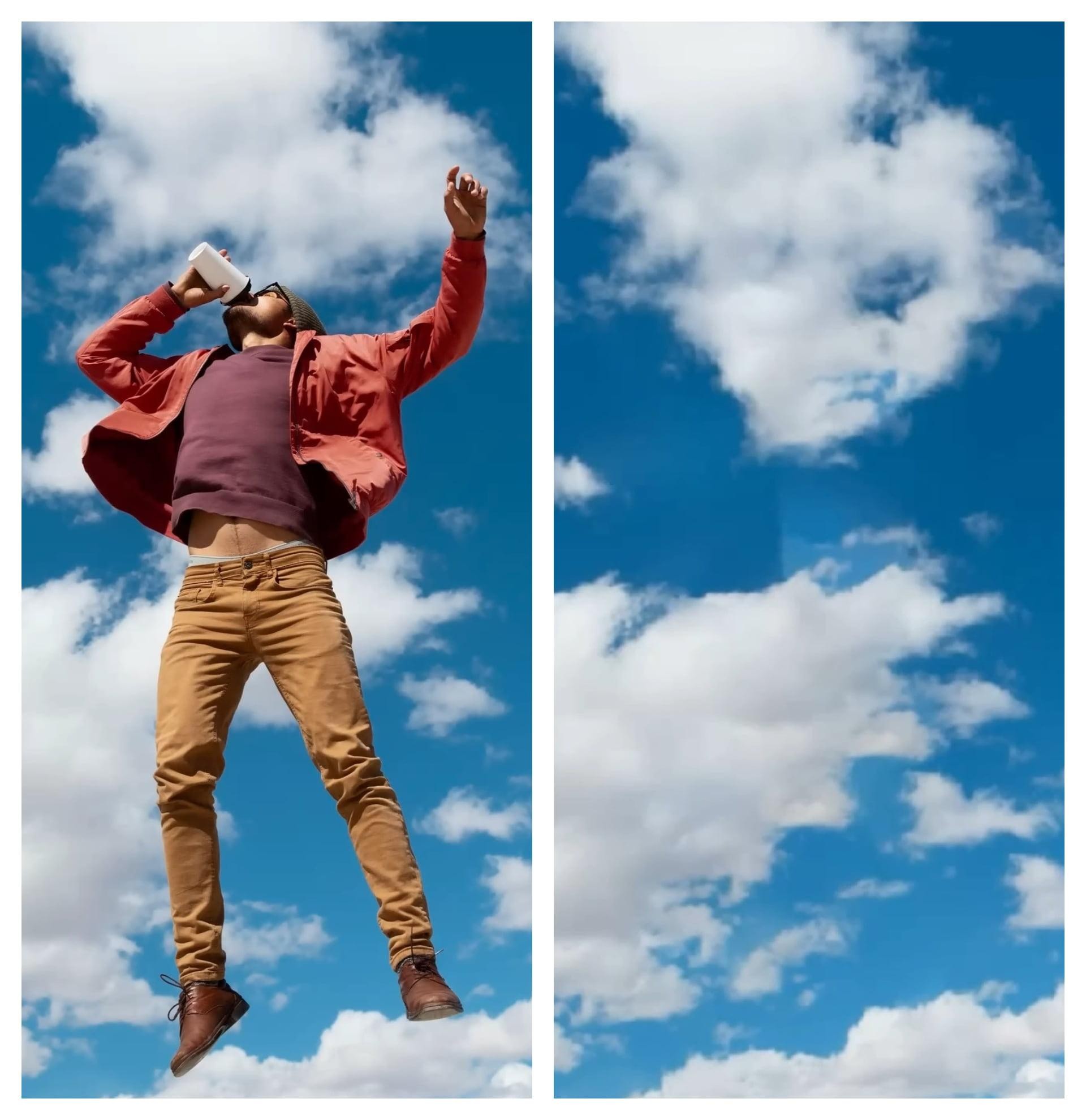
The comparison shows Photoshop Content-Aware Fill Tool removing the subject from the image and filling the background with surrounding sky and clouds. While the tool successfully eliminates the person, some areas of the generated clouds appear slightly repetitive and less natural upon closer inspection.
Clone Stamp Tool
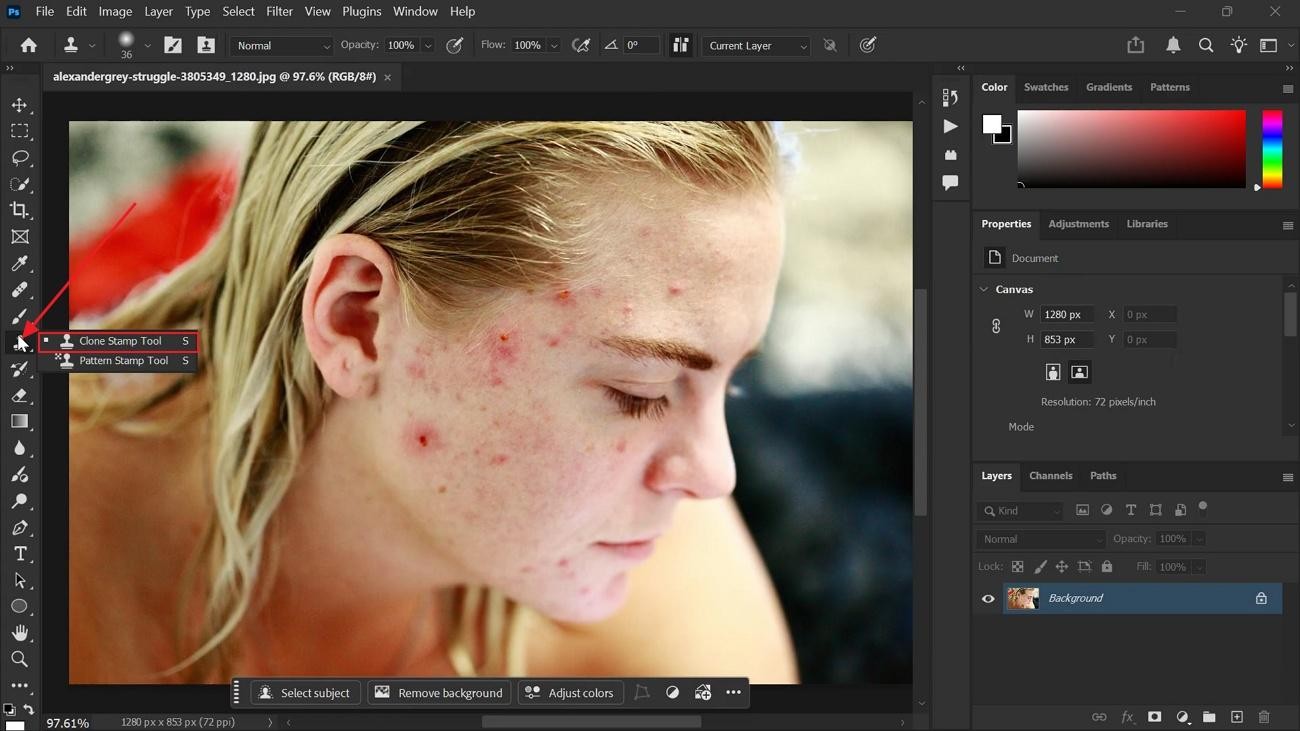
The Clone Stamp Tool removes objects by duplicating nearby image parts onto unwanted areas. It replaces unwanted elements with copied pixels from surrounding image sections. Take guidance from below to learn how to remove things on Photoshop using the clone stamp tool:
Instructions: From the left “Toolbar,” choose “Clone Stamp Tool”. Before you can paint, you need to choose a source area and then hold the Alt key and click on a clean area to set a sample point. Now, brush over the area where you want to add the copied details to remove objects.
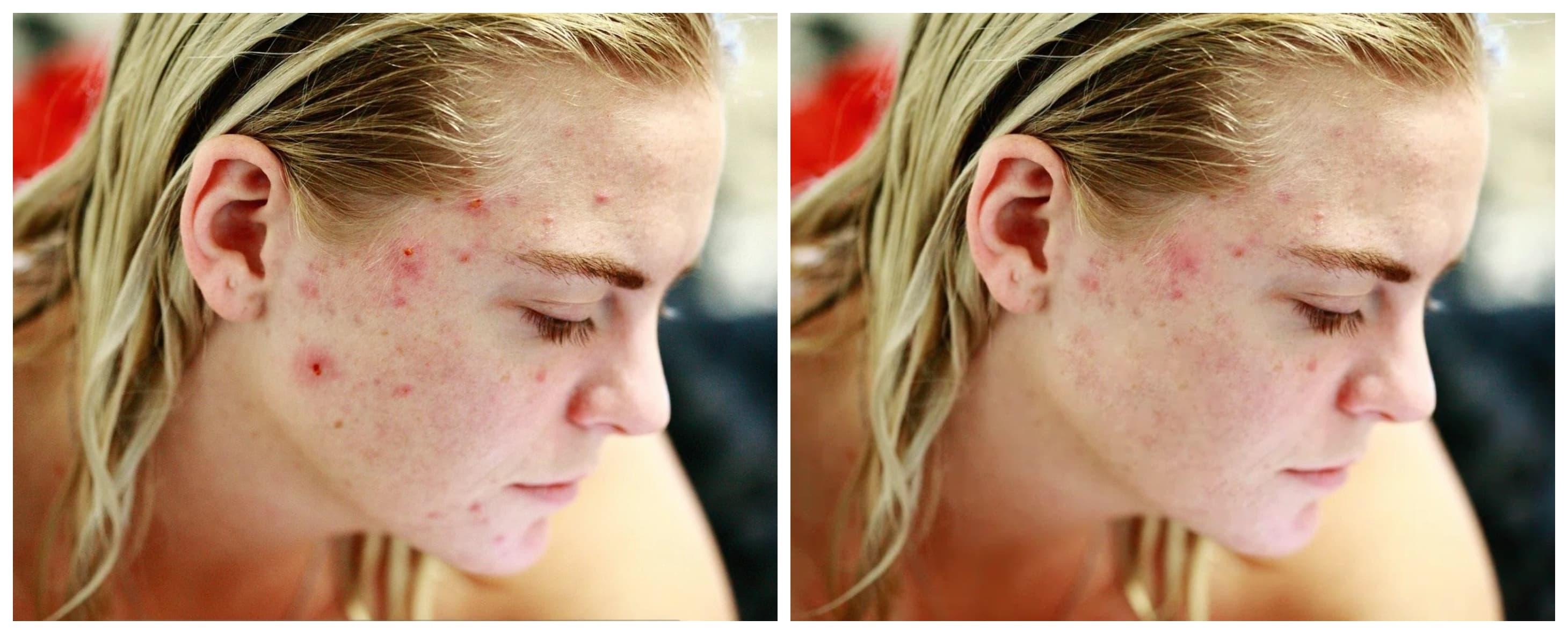
Photoshop's Clone Stamp Tool can effectively reduce the appearance of inflamed pimples and small blemishes. However, it struggles to completely remove larger areas of redness and inflammation. As a result, some retouched areas may appear unnatural and reveal visible signs of editing.
Healing Brush Tool
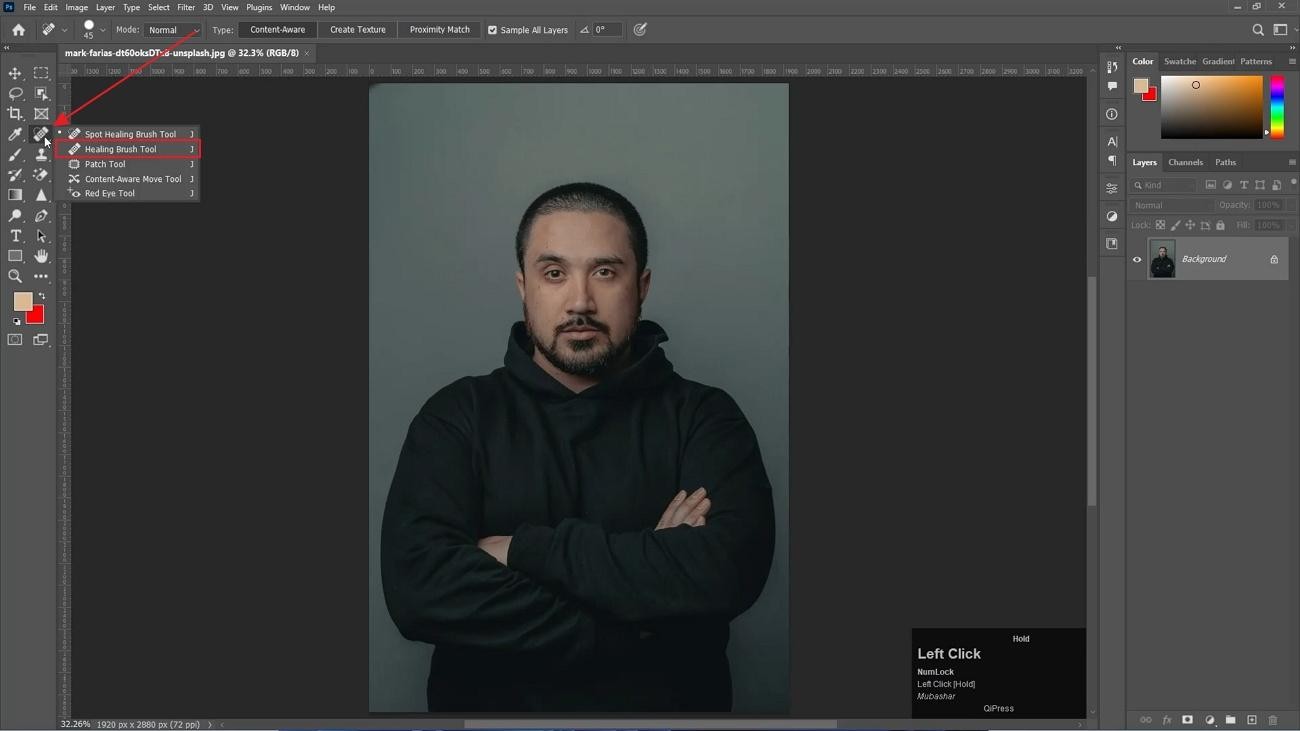
Small objects can be removed using the Healing Brush Tool in Photoshop. The tool combines nearby image details with the selected area automatically. To learn how to delete an object in Photoshop, go through the given instructions:
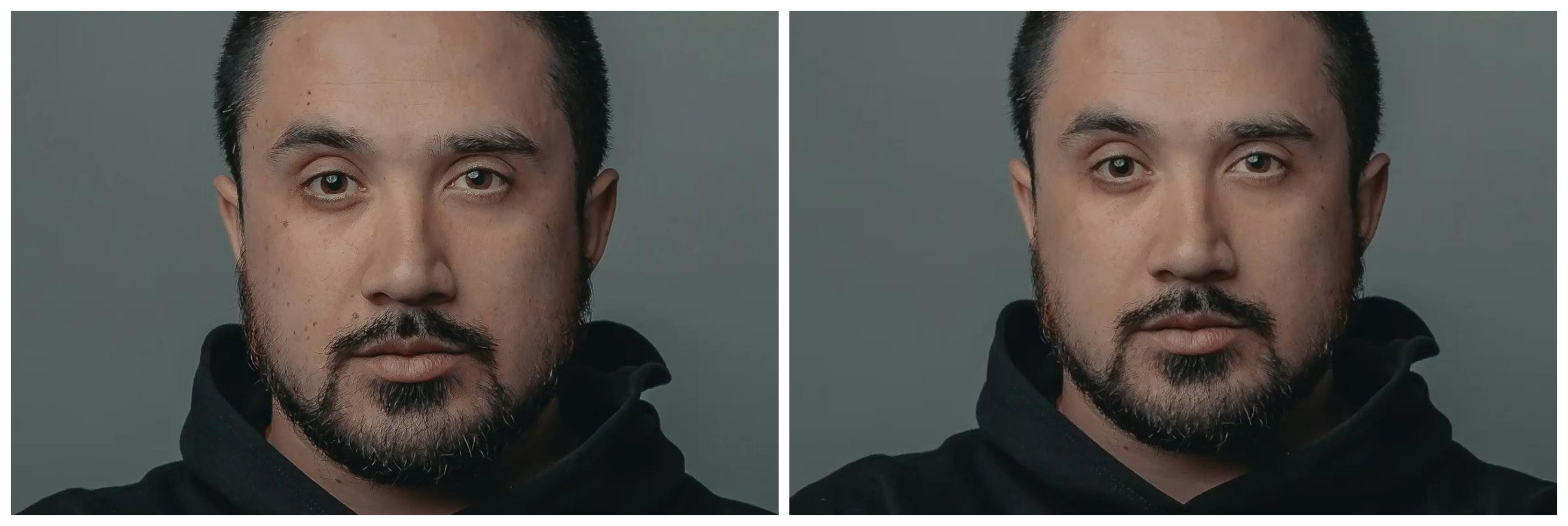
Instructions. Open the tool and add an image, then choose the “Healing Brush Tool” from the left “Toolbar” menu. Next, hold “Alt” and brush over the unwanted object or blemish distraction carefully.
Photoshop's Healing Brush Tool effectively removes facial blemishes while preserving much of the surrounding skin texture. The result appears more natural than traditional cloning methods, although minor inconsistencies in skin tone and texture can still be noticeable upon close inspection.
Patch Tool
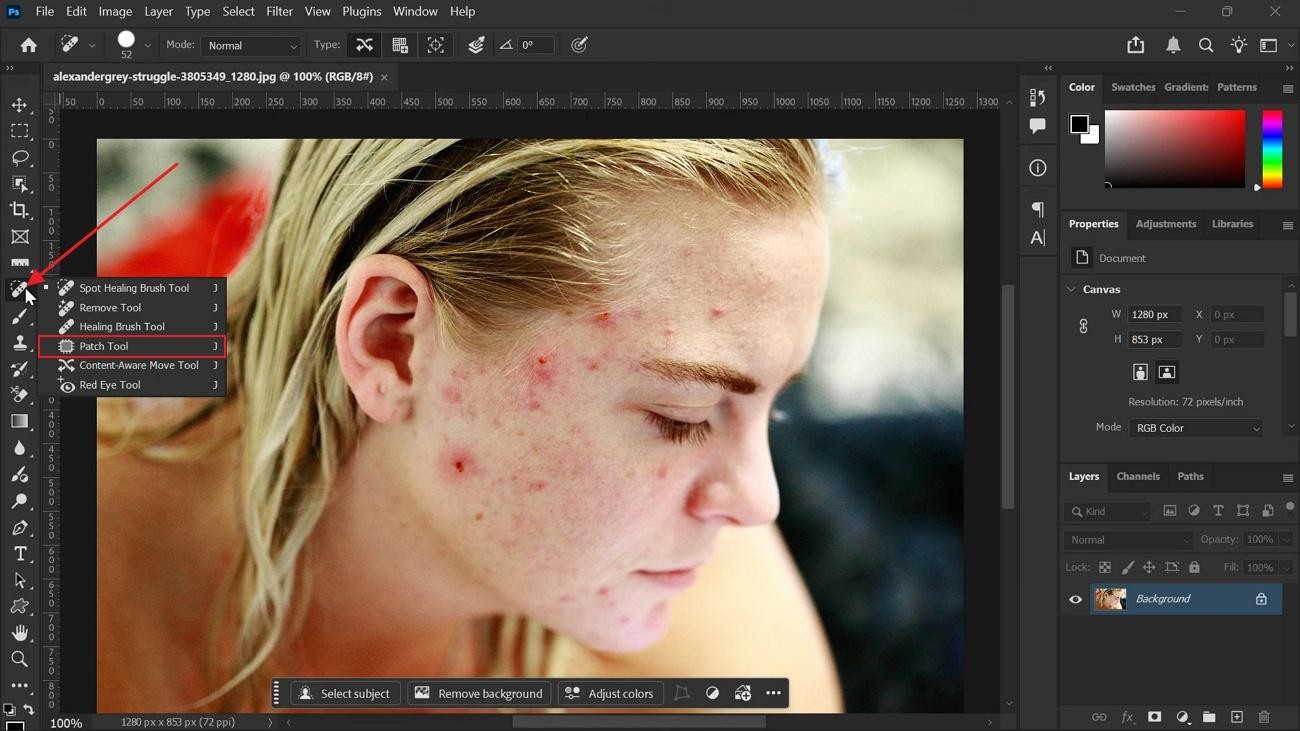
The Patch Tool in Photoshop removes unwanted objects by selecting and replacing areas with clean parts of the image. It ensures natural blending with surrounding pixels and textures. Follow the instructions below to learn how to remove object in Photoshop:
Instructions. Open your image and choose the “Patch Tool” from the left “Toolbar” menu. Next, draw around the unwanted object you want to remove carefully. Photoshop blends the selected area with matching surrounding textures automatically.
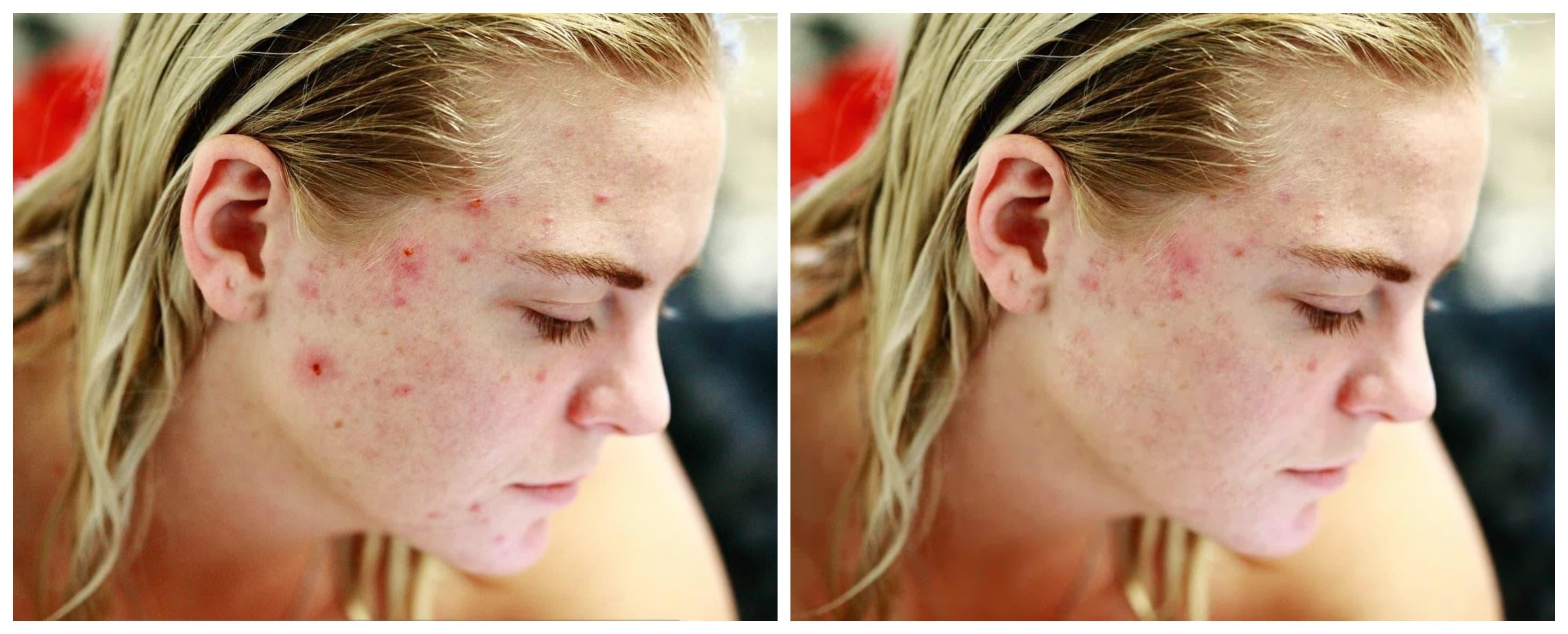
Photoshop's Patch Tool can effectively reduce larger acne spots by replacing them with nearby skin texture. However, it struggles to fully correct widespread redness and inflammation, leaving some discoloration visible in the final result.
5 Key Challenges in Using Photoshop Effectively
The Photoshop AI remove object works well, but the software demands much more from users. Thus, below are the 5 challenges that make Photoshop difficult for most beginners to handle:
-
Tool Confusion: Photoshop has many advanced tools that confuse beginners during early editing. So, new users often struggle with choosing the right tool for simple tasks.
-
Slow Editing: Manual object removal and retouching tasks often take too much time. A simple edit can become slow when working on detailed photo changes.
-
Panel Overload: Too many panels and menus make it hard for new users to find the right option, even for simple edits.
-
Hardware Limits: The software needs a powerful computer for smooth and stable performance. A weak laptop may freeze or crash during larger editing projects.
-
Feature Overload: Photoshop offers many settings that can overwhelm beginners very quickly. Therefore, new users often feel lost between the tools, buttons, and editing choices.
Zawa: The Ultimate Online Solution for Fast Image Editing
Since Photoshop requires effort, many users prefer tools with simpler editing controls. Traditional Photoshop erase object techniques can take longer than expected for beginners. To solve these issues, Zawa offers a faster alternative with easier image editing.
It is a browser-based AI editor that uses advanced AI inpainting technology to reconstruct backgrounds and remove unwanted objects in seconds. It offers 3 pen types, such as brush, circle, or square, along with an adjustable brush-size slider for precise edits. Additionally, users can process up to 30 images at once while maintaining consistent editing quality.
Key Features
Explore the main features below that make Zawa stand out from every other editing tool:
AI-Powered Automatic Object Detection
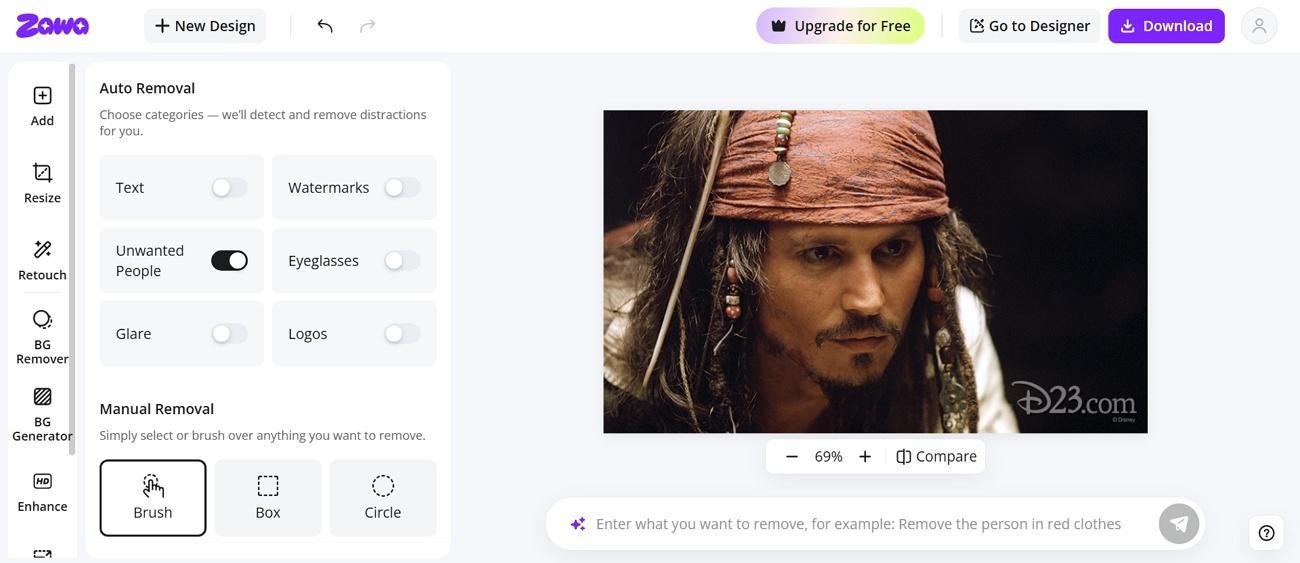
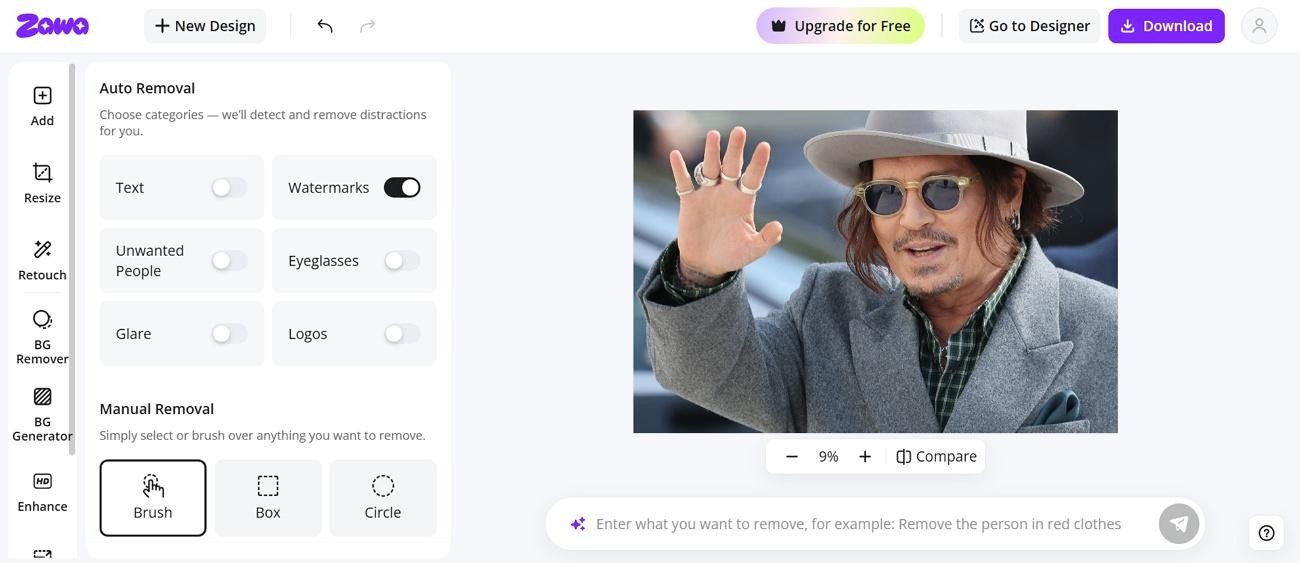
Zawa uses machine learning models to automatically detect unwanted elements in your photo. It identifies watermarks and text overlays accurately and removes them without any manual selection work needed.
One-Click Watermark Removal
Users can remove unwanted marks instantly using a simple one-click editing process from their image. The feature delivers fast results without complicated tools, layers, or editing adjustments.
Natural Background Reconstruction
The tool uses AI inpainting technology to rebuild the missing area after any object is removed cleanly. Zawa reconstructed background matches surrounding textures and colors with natural accuracy on standard photos.

No Design Skills Required
Beginners can use Zawa easily because it has only 3 simple steps that any beginner can follow without any prior knowledge. Users do not need Photoshop knowledge or advanced editing experience for quality results.
Supports Multiple File Formats
Zawa supports common image formats, including JPG, PNG, and HEIC, for flexible editing. Users can upload different photo types without converting files before starting edits.
How to Use Zawa To Remove Objects
Zawa makes watermark and object removal easier through a straightforward step-by-step process. Thus, below are simple steps to easily remove unwanted objects throughout the cleanup process:
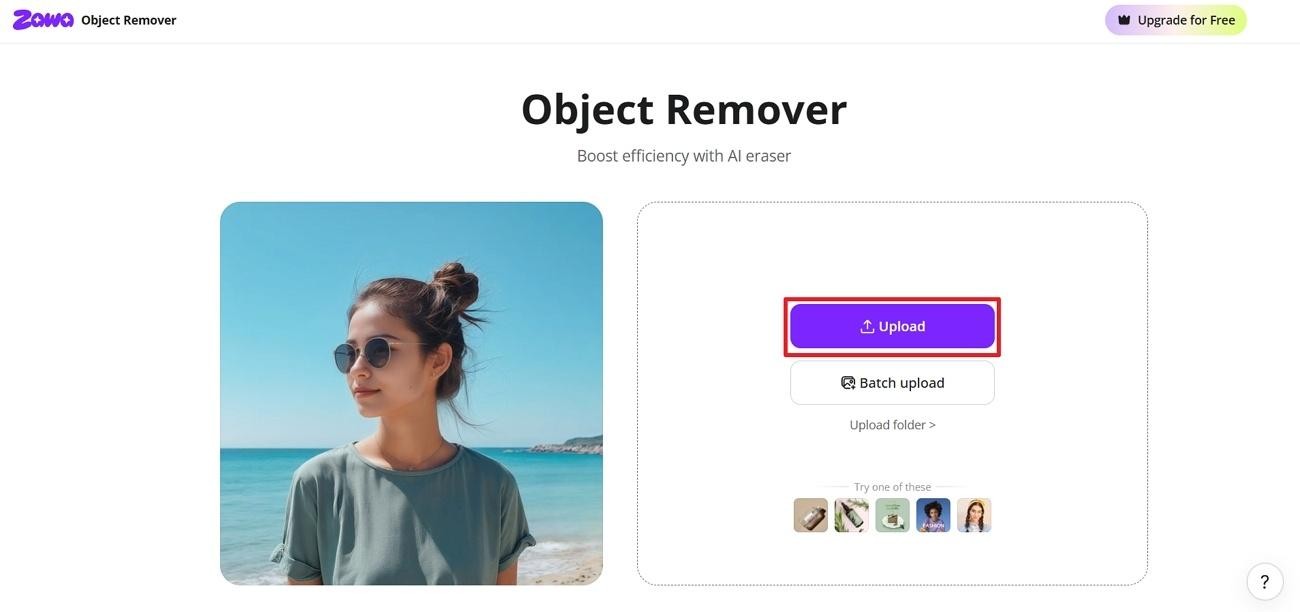
Step 1. Upload the Watermarked Image
After opening the main interface, click the “Upload” button to add your watermark image.
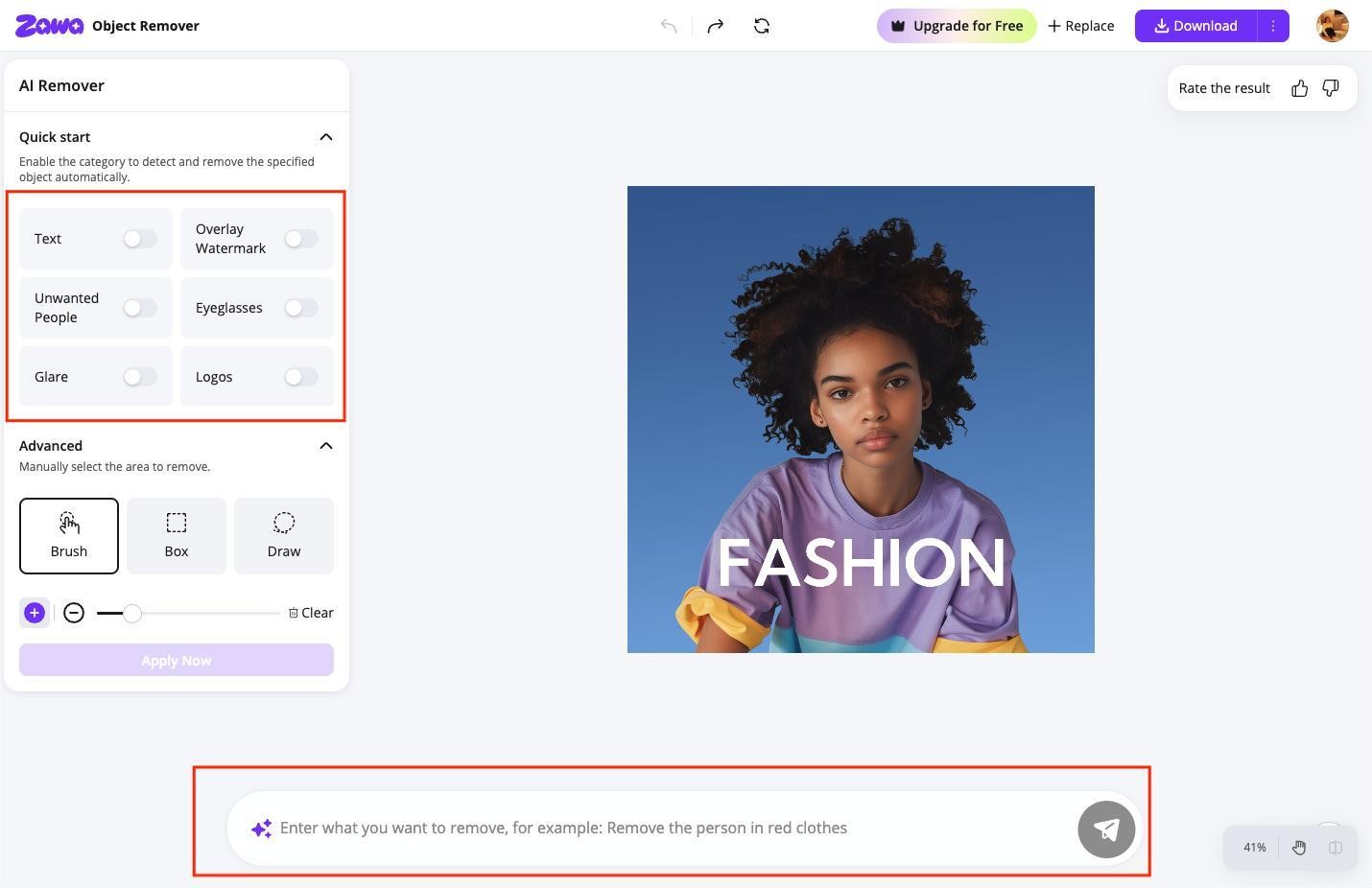
Step 2. Select an object removal mode
After uploading your image, you can choose the most suitable method to remove unwanted objects or simply describe your request in the prompt box. Zawa will use AI technology to automatically detect and remove watermarks from your image.
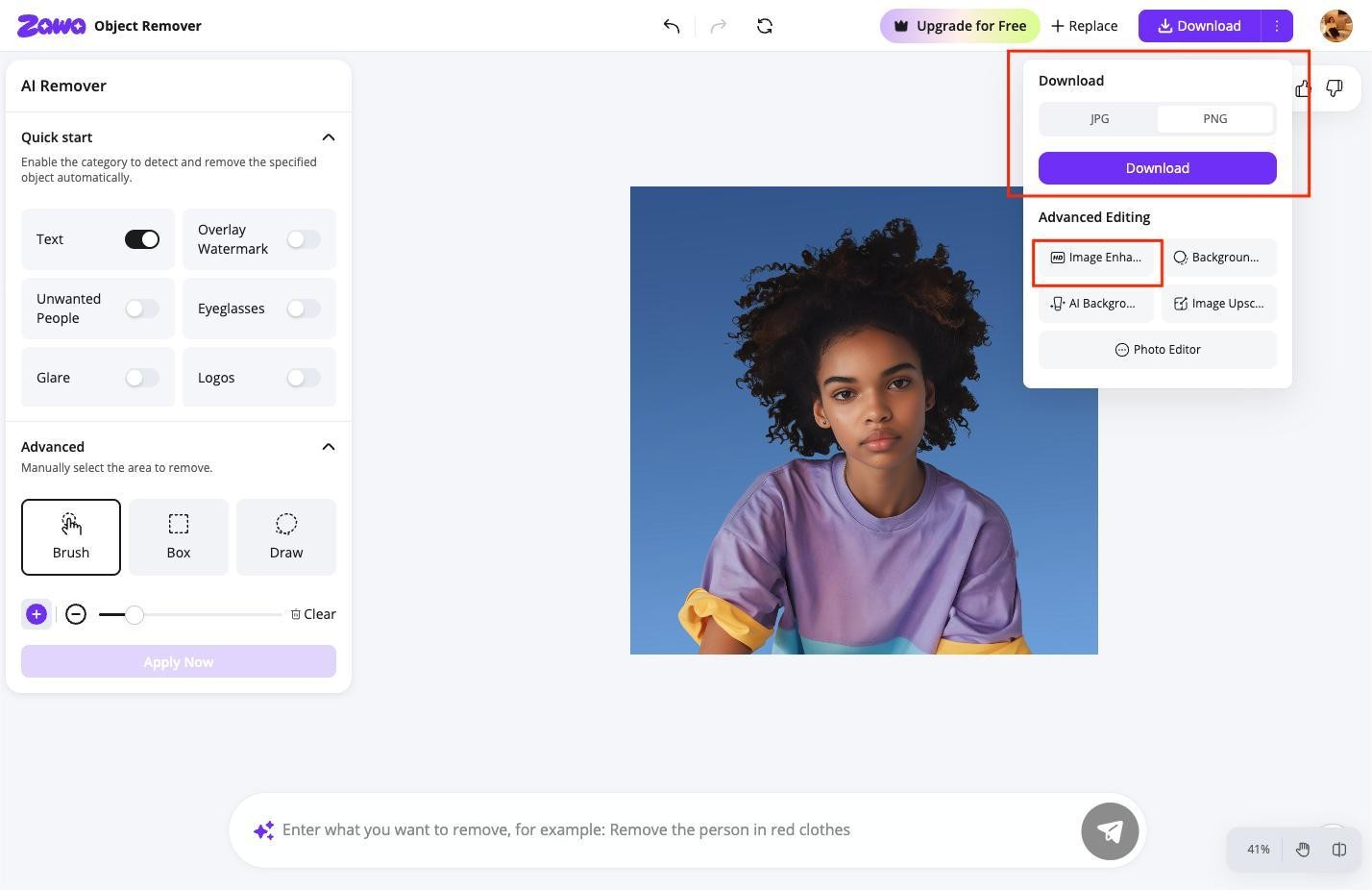
Step 3. Enhance and Download the Result
Use the “Image Enhancer” tool to improve image quality before saving. After finalizing the edits, select your desired format and opt for “Download” to save the image.
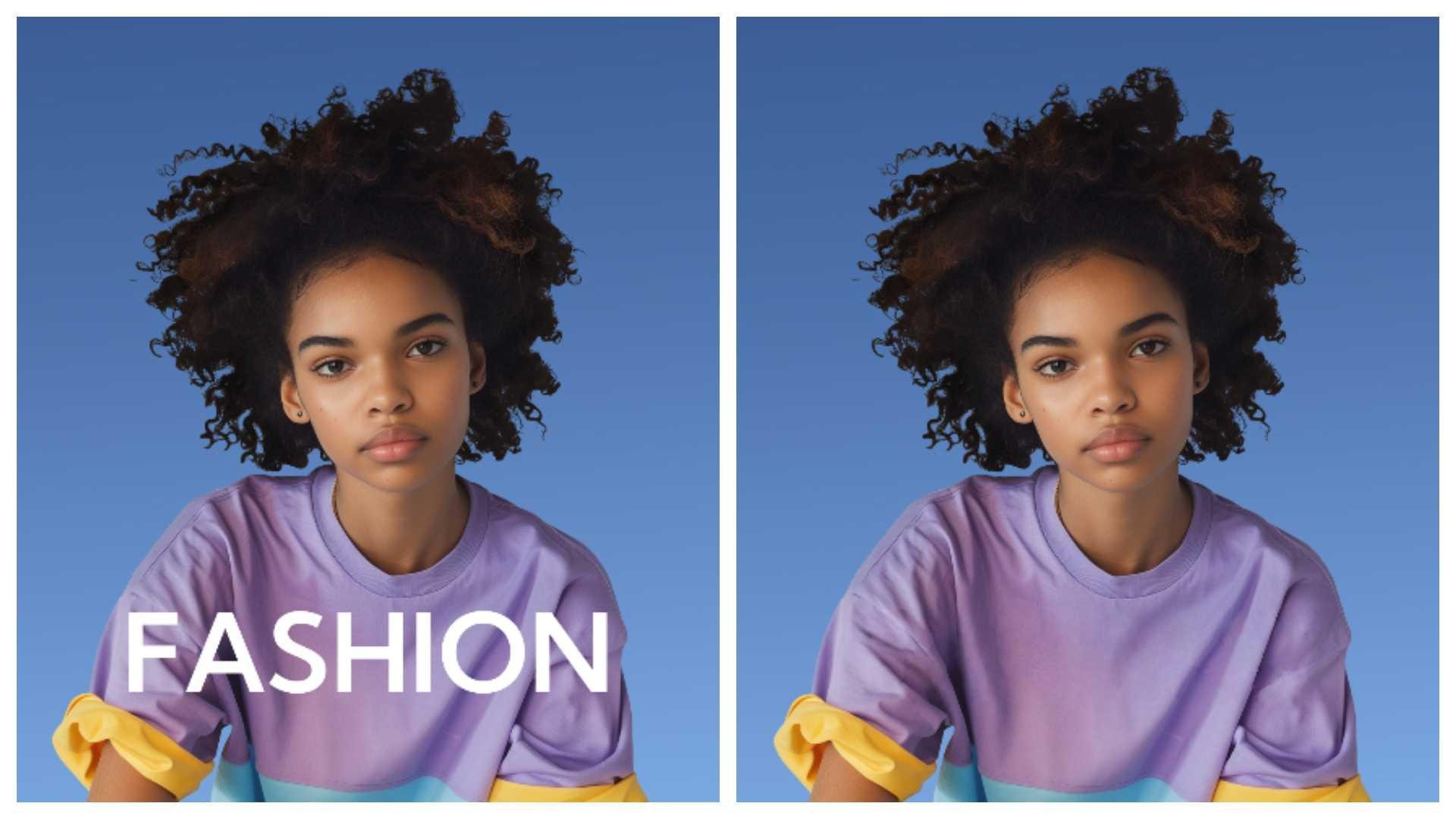
Zawa accurately removes the text and intelligently reconstructs the hidden clothing details. The colors, folds, and overall texture remain natural, with no noticeable artifacts, delivering a clean and realistic result.
Zawa or Photoshop: Which One Should You Use?
Both Zawa and Photoshop remove object features serve different users in very different ways. Review the comparison table below and pick the tool that fits your workflow best:
| Feature | Zawa | Photoshop |
|---|---|---|
| Object Removal Speed | One-click AI cleanup | Manual multi-step editing |
| Ease of Use | Beginner-friendly workflow | Steeper learning process |
| Object Detection | Automatic AI detection system | Manual object selection |
| Background Repair | Natural AI background rebuilding | Manual background adjustments |
| Setup Requirement | Browser-based quick access | Software installation needed |
| Editing Skills | No design skills needed | Editing knowledge required |
| File Support | JPG PNG HEIC support | Multiple professional formats |
| Watermark Detection | Auto-detects watermarks instantly | No auto-detection feature |
Conclusion
In conclusion, understanding how to remove objects in Photoshop gives users better control over photo editing. Yet advanced tools and manual work can slow down the editing process. When speed and simplicity matter most, users often look for easier solutions. In that case, Zawa or similar tools provides fast AI editing with simple steps and automated online controls.
FAQs
-
Is Clone Stamp better than Healing Brush?
Clone Stamp gives you full manual control over every pixel you paint over. Healing Brush is faster and blends edges more naturally into the surrounding area. The better choice depends on your editing needs and image details.
-
Which Object Removal Tool Is Best for Beginners?
Yes, Zawa AI is easier for beginners because the editing process stays simple. Photoshop has many tools that can confuse new users during editing. Beginners often prefer Zawa for faster results and easier object removal.
-
Do I need editing skills to use Zawa AI?
Zawa AI does not require advanced editing skills or technical knowledge. It's a simple process that helps users remove objects with very little effort. Most beginners can use the tool without learning complex editing methods.
-
Is Photoshop still better for professional editing?
Yes, professional editing work with lots of detail and complexity is still best done using Photoshop. It provides more advanced layering, color grading, and masking features than every browser tool provides. For serious creative projects, Photoshop still provides the most accurate and best results.
-
Do AI tools replace Photoshop for object removal?
AI tools can be used to remove objects quickly, easily, and without a learning curve. The Photoshop version offers greater control when editing complex and detailed images. Either one is a good choice depending on your goals and editing requirements.
You May Be Interested

How to Remove People From Pictures
[2026 Updated] Best Apps to Remove Person From Picture

How to Remove Image Background in GIMP

4 Ways To Remove Backgrounds from Photos
12 Best Free Photoshop Alternatives – AI Photo Editor Tools