
10 Best Apps to Remove a Person from a Picture [Easy to Use]
Remove unwanted people from photos easily in 2026! Explore the best AI apps to erase persons from images, compare features, pros & cons, user reviews, and learn how tools like Zawa AI help you clean pictures with one-click smart editing.
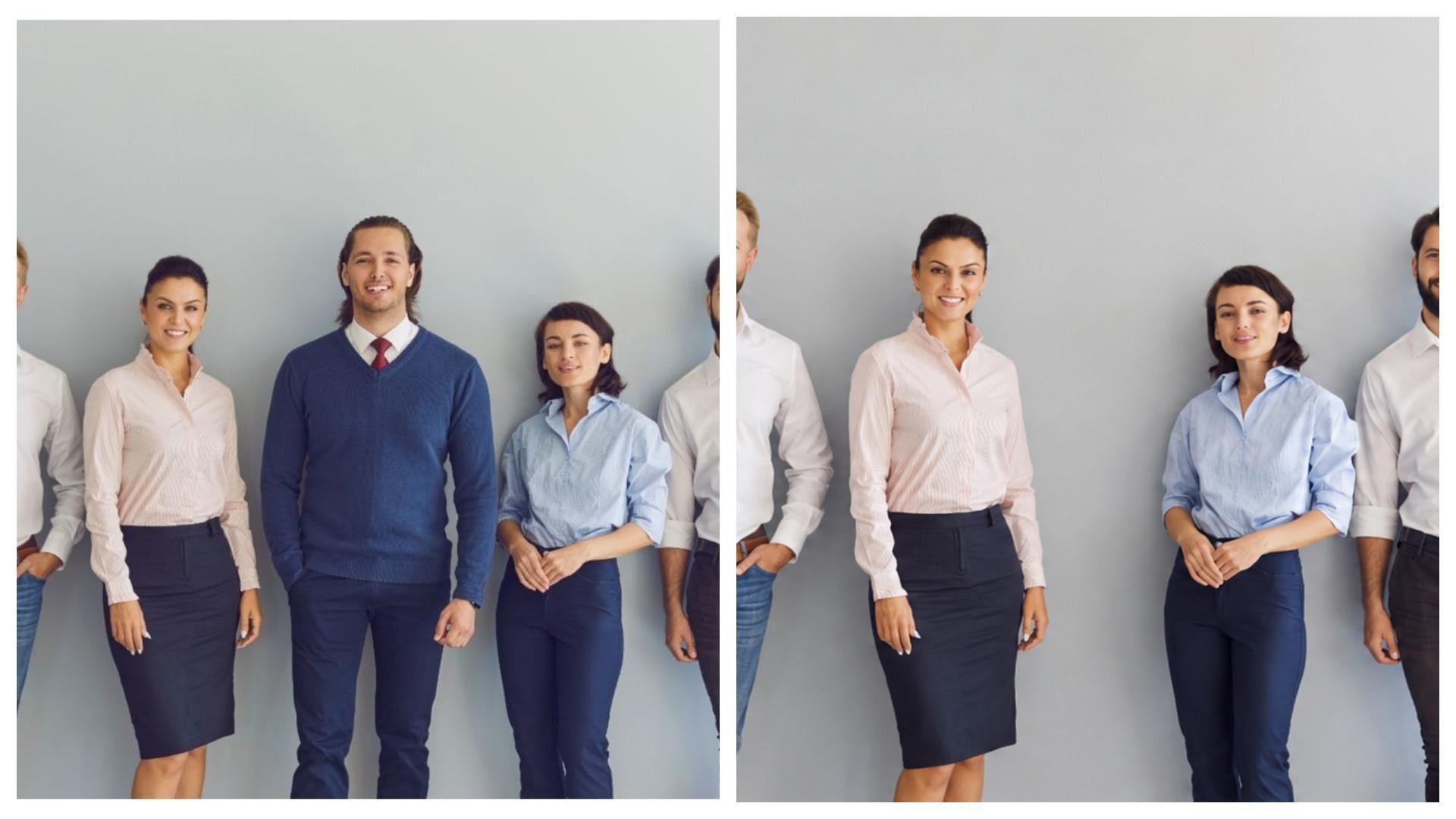
Sometimes group photos turn out great, but one unknown face spoils everything. That one unwanted person can ruin a photo you really wanted to keep. So, finding a good app to remove person from picture saves your best shots. Thus, this article covers the 10 best tools that actually work in 2026 to remove unwanted objects.
Top 10 Apps to Remove a Person from a Picture in 2026
People rely on AI apps to remove unnecessary people from photos, but finding the right one is hard. In this section, you will find the right app to remove a person from a photo:
1. Adobe Lightroom Mobile (Android/iOS)
Adobe Lightroom Mobile is one of Adobe's most popular photo-editing apps. It offers 3 removal modes, including Remove AI Heal and Clone. The remove people from photos app includes a Healing Brush tool for unwanted people. Users can use 2 brush settings, including Size and Opacity, for better selections.
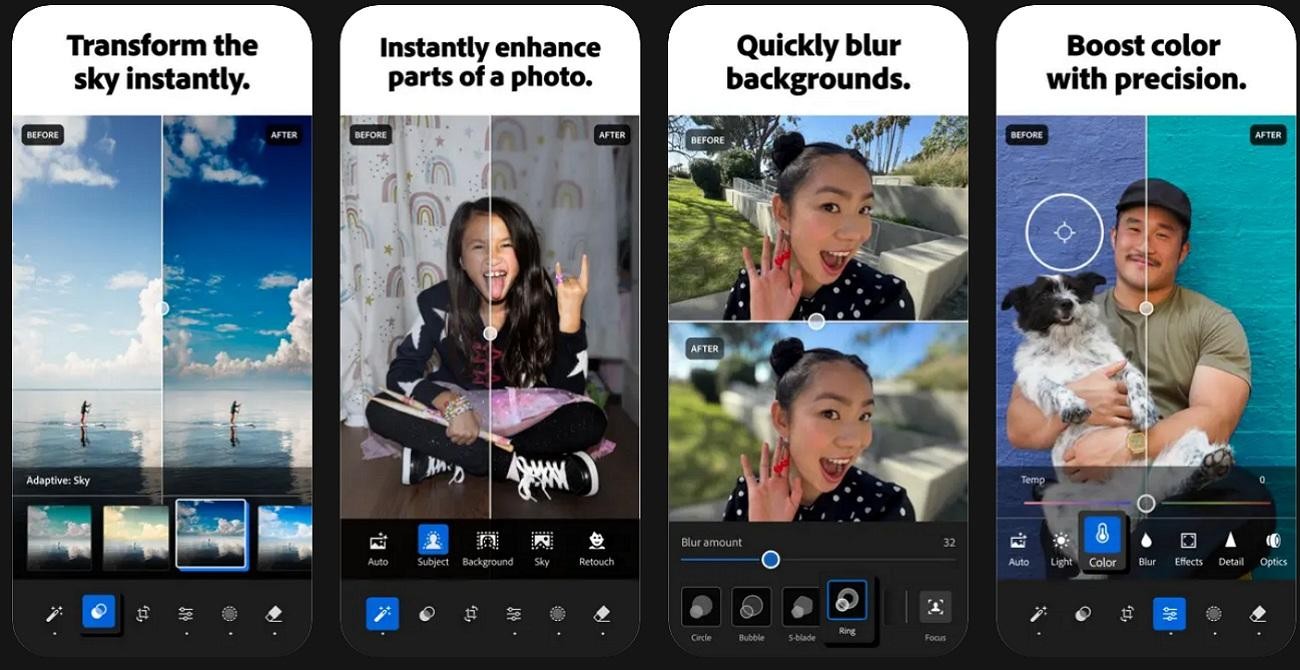
Key Features
-
Removes objects, shadows, and extra parts for more natural photos.
-
Supports RAW image formats for higher-quality, more detailed photo editing.
Pros
-
Handles tiny spots, medium objects, and larger background people easily.
-
Includes 2 refinement tools for cleaner object selections.
Cons
-
Busy backgrounds can show blurry areas or broken patterns.
-
Detailed edits need brush size and opacity changes.
2. Google Photos Magic Eraser (Android/iOS)
This remove people from photos app is a super tool built right into Google Photos. The tool removes unwanted people and objects with fast one-tap AI removal. Moreover, it offers 2 removal modes called Erase and Camouflage for object cleanup.
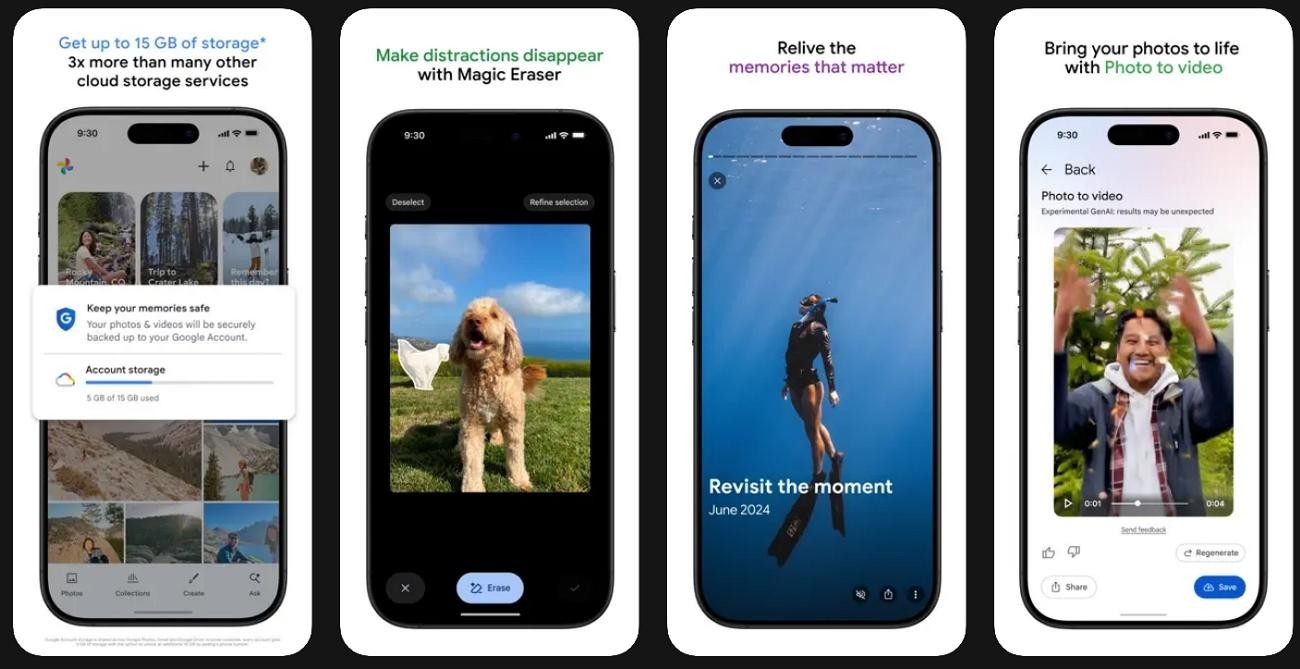
Key Features
-
Changes color and brightness to hide objects without full removal.
-
Shows automatic suggestions when an unwanted person appears in photos.
Pros
-
Works well on simple backgrounds with small unwanted objects.
-
Keeps 2 photo versions for safer editing changes.
Cons
-
Large objects can leave blurry patches after removal.
-
Busy backgrounds may show repeated textures or smudged areas.
3. Zawa (Android/iOS)
Zawa stands out for its batch-processing capability, letting you process multiple images at once — useful for anyone editing product photos or event shots in bulk. It uses AI fill to recognize unwanted objects and remove them automatically. With its batch-processing feature, users can select up to 30 photos together for faster object editing.

Furthermore, the app lets users re-edit photos while removing unwanted objects. Zawa also offers 3 brush designs, including Swipe, Box, and Circle selections. Users can even remove unwanted people's shadows and extra background distractions easily. Along with object removal, it removes text captions, logos, and date stamps from photos.
Key Features
-
Structure Preserve: Keeps original colors and image structure clear after object removal edits.
-
Seamless Filling: Uses AI inpainting for smoother object removal and cleaner backgrounds.
-
AI Detect: Detects multiple objects automatically in 1 scan for quick cleanup.
Pros
-
Supports up to 100x zoom for detailed and precise object removal.
-
Produces smooth results using AI-based image reconstruction tools.
-
Saves edited images in 3 formats, including PNG, JPG, and PDF.
Con
-
Complex backgrounds often require multiple cleanup attempts for better results.
4. Snapseed (Android/iOS)
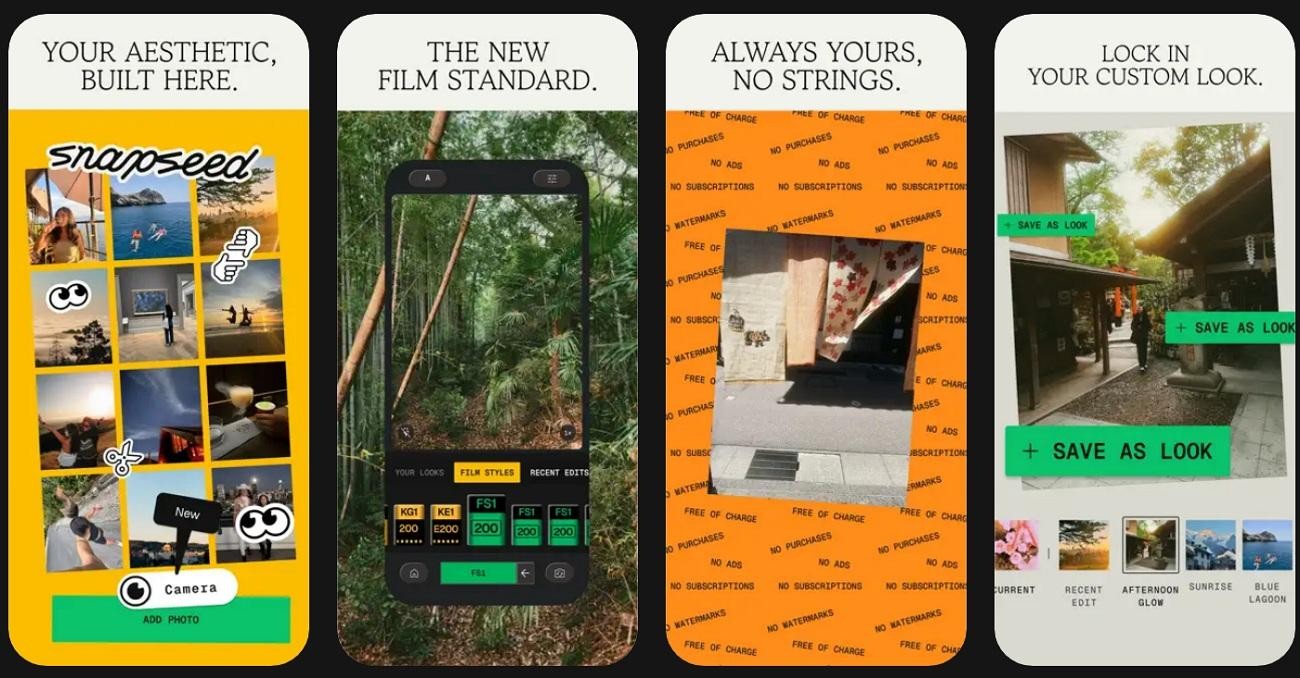
Users can also use this app, as it lets them remove people and objects using the Healing tool. This app for removing person from photo also supports JPG and RAW files with precise control. Plus, it uses a finger brush to paint and remove objects with a single stroke.
Key Features
-
Recommends 3 or more small strokes for better large object removal.
-
Supports pinch zoom and 2-finger move for detailed object editing.
Pros
-
Works fully offline without an internet connection, making editing fast anywhere.
-
Provides 2 controls, including undo and redo, for fixing mistakes quickly.
Cons
-
Struggles with large or complex objects in busy scenes.
-
No multiple AI options for different removal results.
5. TouchRetouch (Android/iOS)
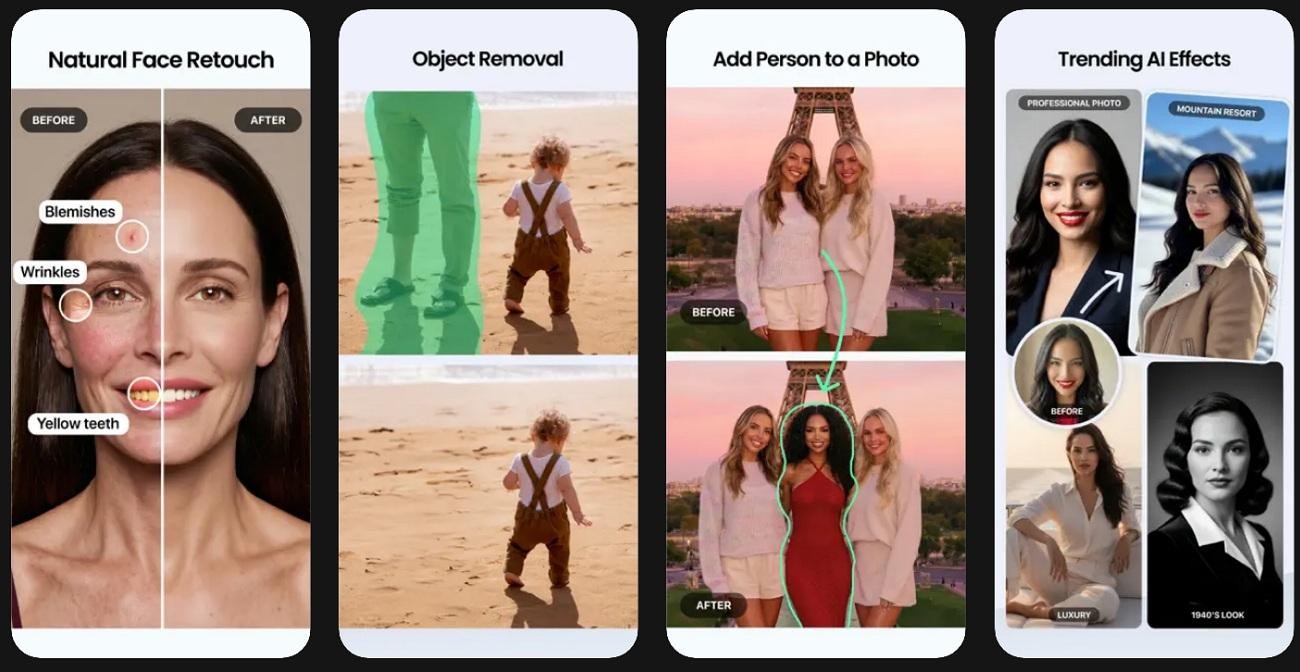
TouchRetouch is a dedicated app to remove person from photo, built only for removing unwanted things from photos. It also supports 360 photo editing for panoramic object removal work easily. The app uses a brush or lasso tool to remove objects automatically using smart AI technology.
Key Features
-
Blends removed areas using nearby pixels for a smooth and natural look.
-
Offers 4 object tools, including removal line, mesh, and clone stamp.
Pros
-
The Line Removal tool removes wires and poles quickly.
-
Works well on textured and detailed backgrounds for clean results.
Cons
-
AI erase fails on very detailed or crowded images.
-
Large object removal may need multiple editing attempts.
6. Picsart (Android/iOS)
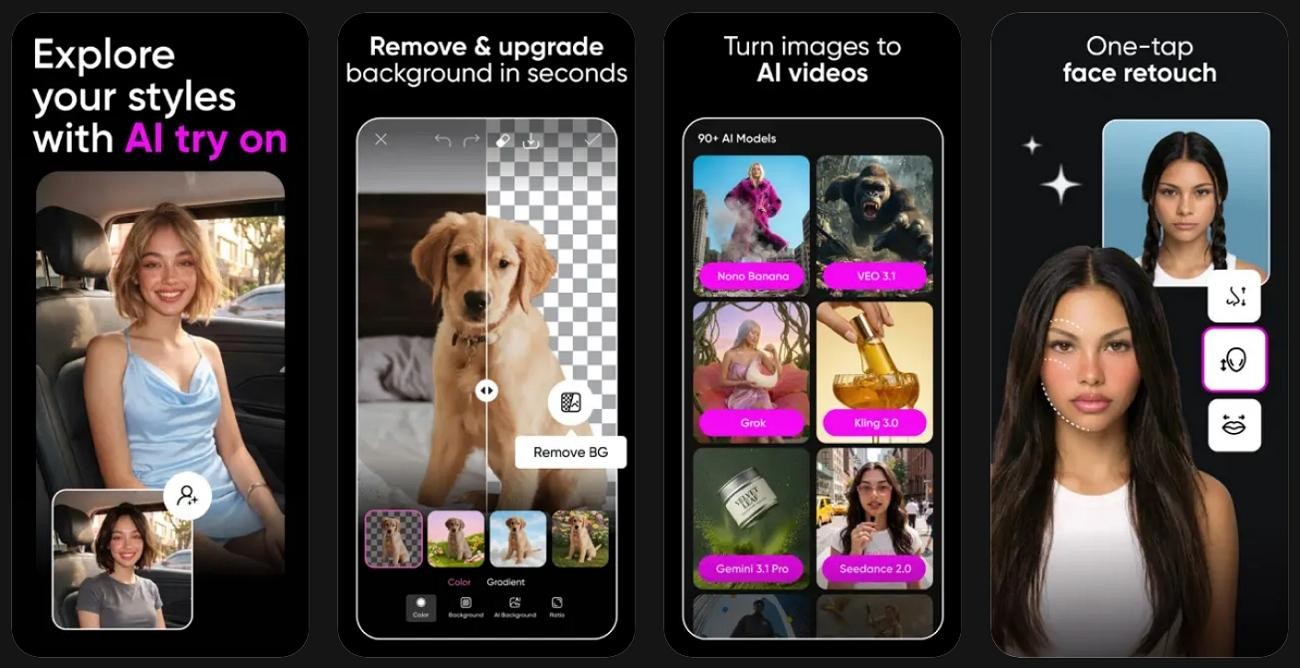
It is another app for removing person from photo that offers 2 selection methods: AI tap and manual brush for accuracy. Using its Brush Control features, users can adjust the brush size slider for small and large object removal. Additionally, Picsart allows multiple passes over the same object for better output results.
Key Features
-
Supports Undo and Redo for fixing mistakes during the object removal process.
-
Removes people in seconds using the automatic AI people remover system.
Pros
-
Keeps the original image safe while creating an edited copy.
-
Allows zoom editing for better control of small details.
Cons
-
Complex backgrounds may show smudges or repeated patterns.
-
Brush mistakes can leave parts of objects still visible.
7. Canva (Android/iOS)
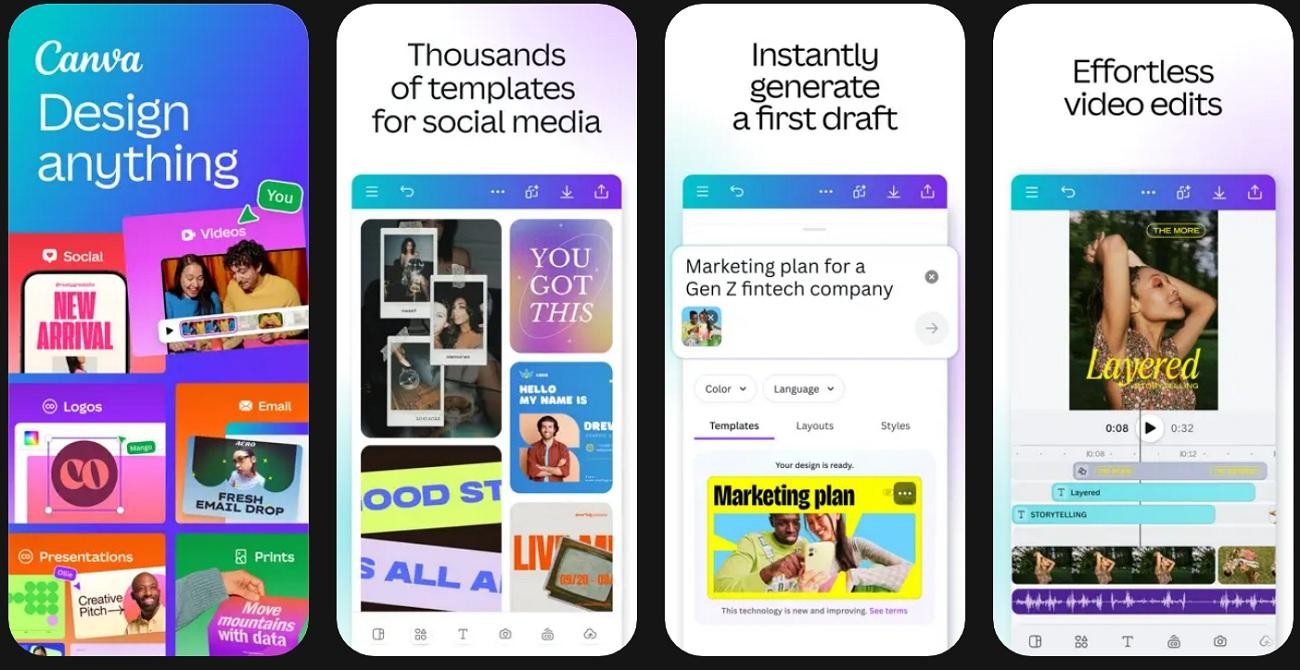
Canva is a well-known design app to remove person from picture that supports multiple image formats, such as HEIC and PNG. It also has a smart AI feature called "Magic Eraser" to remove people from images in a few seconds. Moreover, this tool allows zoom and pan control for better detailed object selection.
Key Features
-
Uses AI inpainting to fill the removed area with natural background pixels.
-
Can easily remove up to 4 types of objects, such as people, text, logos, and distractions.
Pros
-
Provides a clear option for redoing brush selection easily anytime.
-
Brush mode gives control for better object selection accuracy.
Cons
-
Complex textures may show blurry or repeated patterns after removal.
-
High-detail scenes may reduce overall editing accuracy.
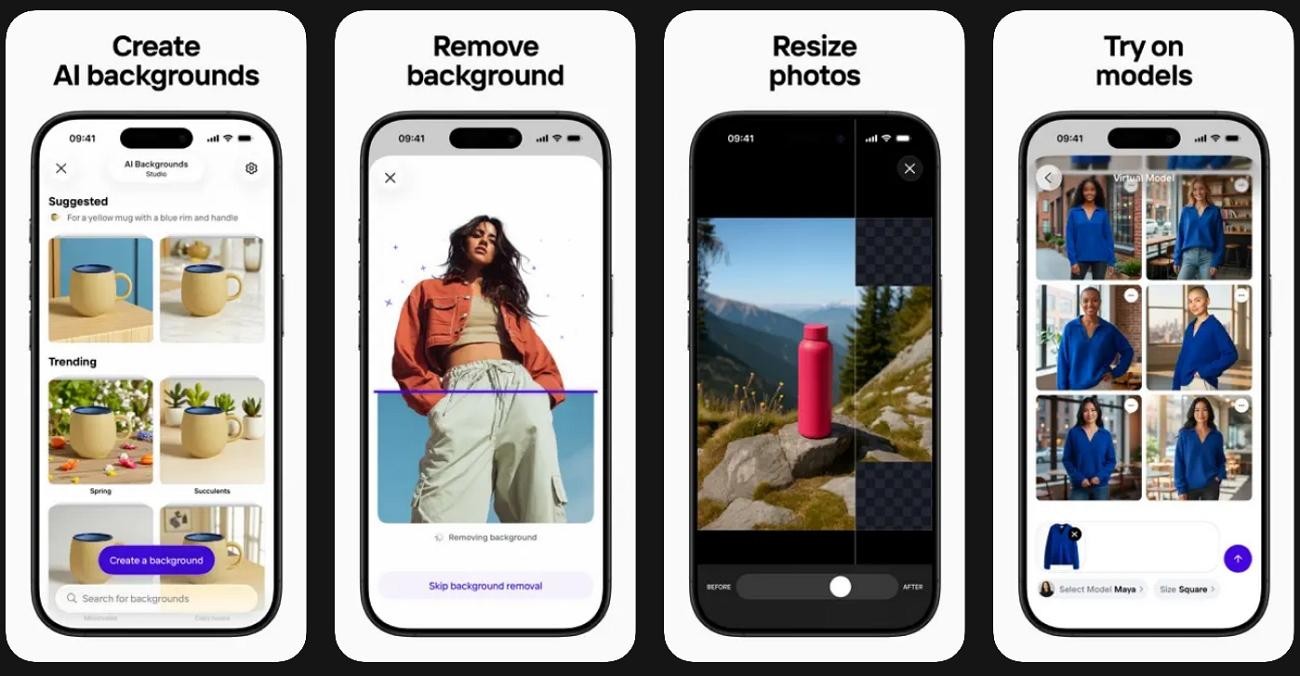
8. Photoroom (Android/iOS)
This is another app to remove a person from a photo, removing small objects in just 1 brush pass or stroke. Not only this, it fills the removed area using smart AI and a nearby pixels blending system. Every single removal gives you 3 different AI fill options to pick from.
Key Features
-
The heal mode copies nearby pixels and blends them in smoothly, always.
-
Extend the brush over shadows and disconnected parts for cleaner results.
Pros
-
Allows brush control for better object selection accuracy.
-
Batch editing to remove people from many photos.
Cons
-
Large object removal may need multiple brush attempts.
-
Complex scenes may need repeated Retouch brushing and size adjustments.
9. Fotor (Android/iOS)
The remove people from photos app has a Clone Stamp tool that removes defects or duplicate objects with 1-click. Plus, Fotor automatically finds people and objects for a faster removal selection process. Its batch features even allow removing objects from multiple images.
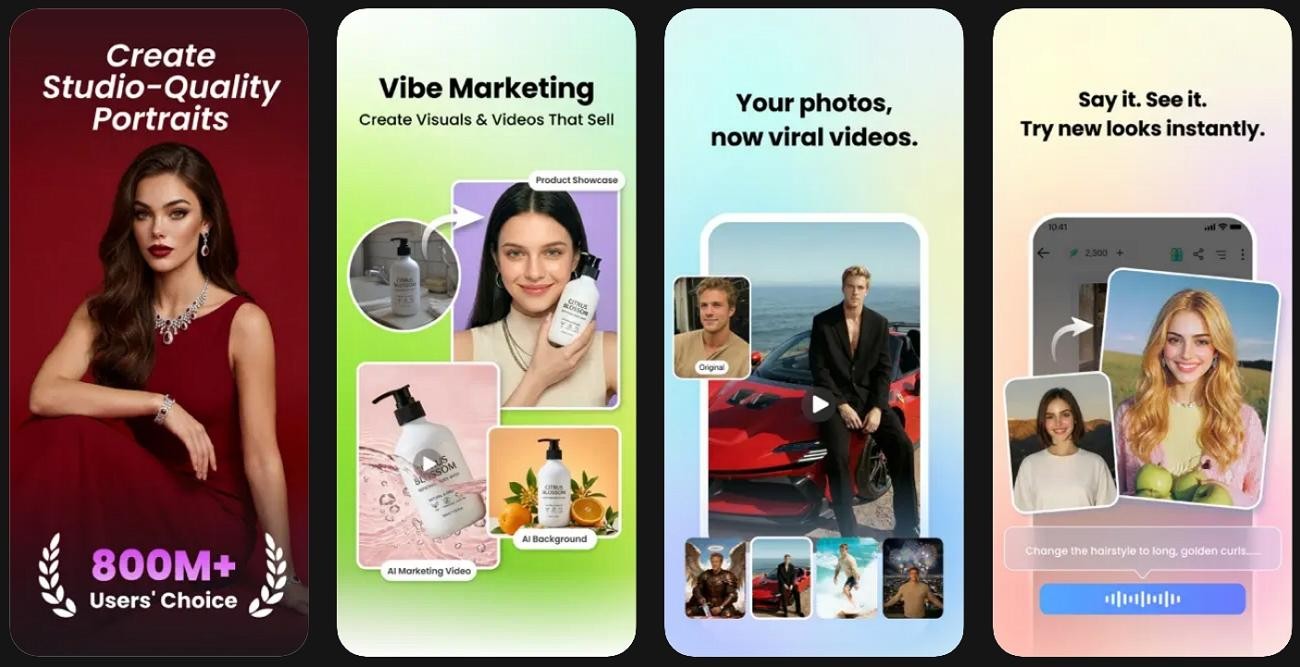
Key Features
-
The AI inpainting tool fills in the missing background area all by itself.
-
Removes a single person or a group of people within seconds.
Pros
-
Supports multiple image formats, including PNG and Webp.
-
Can remove multiple small objects in one editing session.
Cons
-
Rough selections can leave small, unwanted visual artifacts behind.
-
Large objects may need multiple attempts for clean removal.
10. Meitu (Android/iOS)
When finding an app for removing person from photo, Meitu detects unwanted people and removes them within seconds using AI. When saving the edited image, it keeps the original photo structure safe and a clean version separately. The app combines background eraser and cutout tools for better object removal.
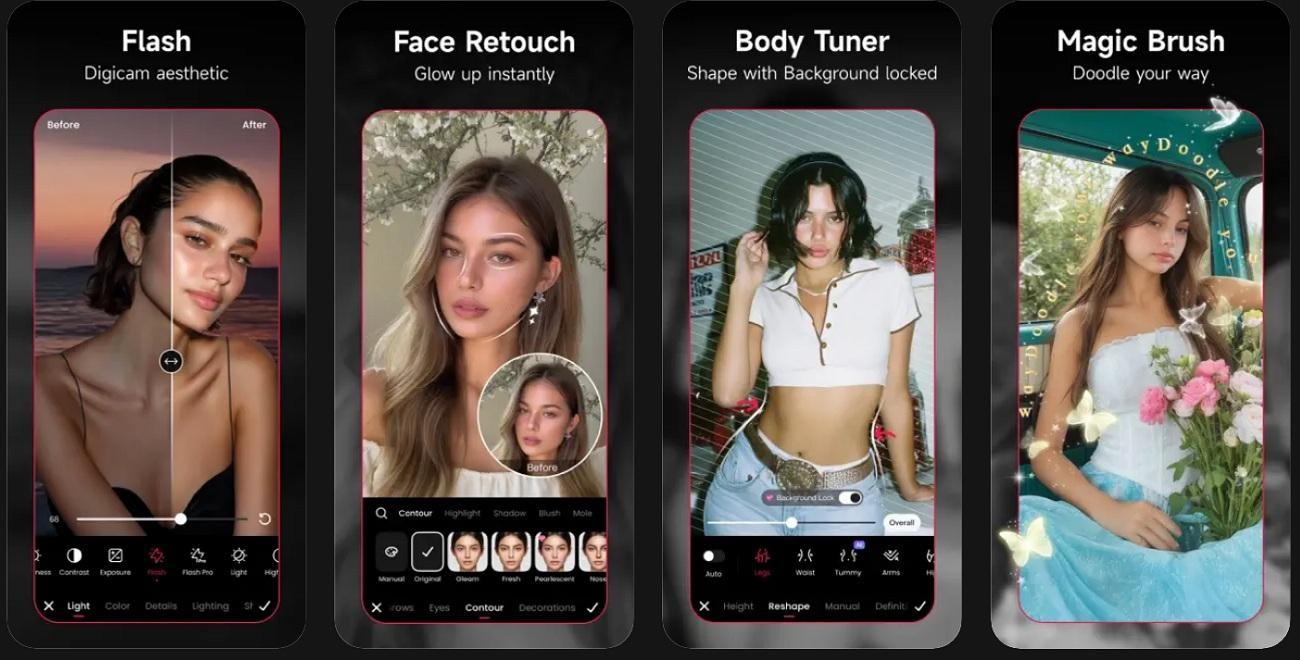
Key Features
-
Rebuilds background using AI inpainting for natural, clean photo output.
-
Removes up to 10 different distraction types from photos easily.
Pros
-
Removes people from photos with just one single tap.
-
Lets users fix mistakes using the undo and redo options.
Cons
-
Limited advanced controls, like no fine-tuning sliders.
-
Large object removal may require multiple editing attempts.
With so many AI-powered object removal tools available today, choosing the right one can be challenging. While some apps focus on quick edits for social media, others prioritize precision, image quality, or advanced AI reconstruction. The tools reviewed above each have their own strengths and limitations, depending on your editing needs.
How to Remove a Person from a Picture Using Zawa
If you're looking for a solution specifically designed to remove people from photos while maintaining natural backgrounds and image details, Zawa stands out as a strong option. Its AI-powered technology can intelligently detect subjects, reconstruct hidden areas, and deliver clean results with minimal manual effort. Here's how you can use Zawa to remove people from your images in just a few simple steps.
Let’s explore the guide below to remove people from photos using the Zawa app:
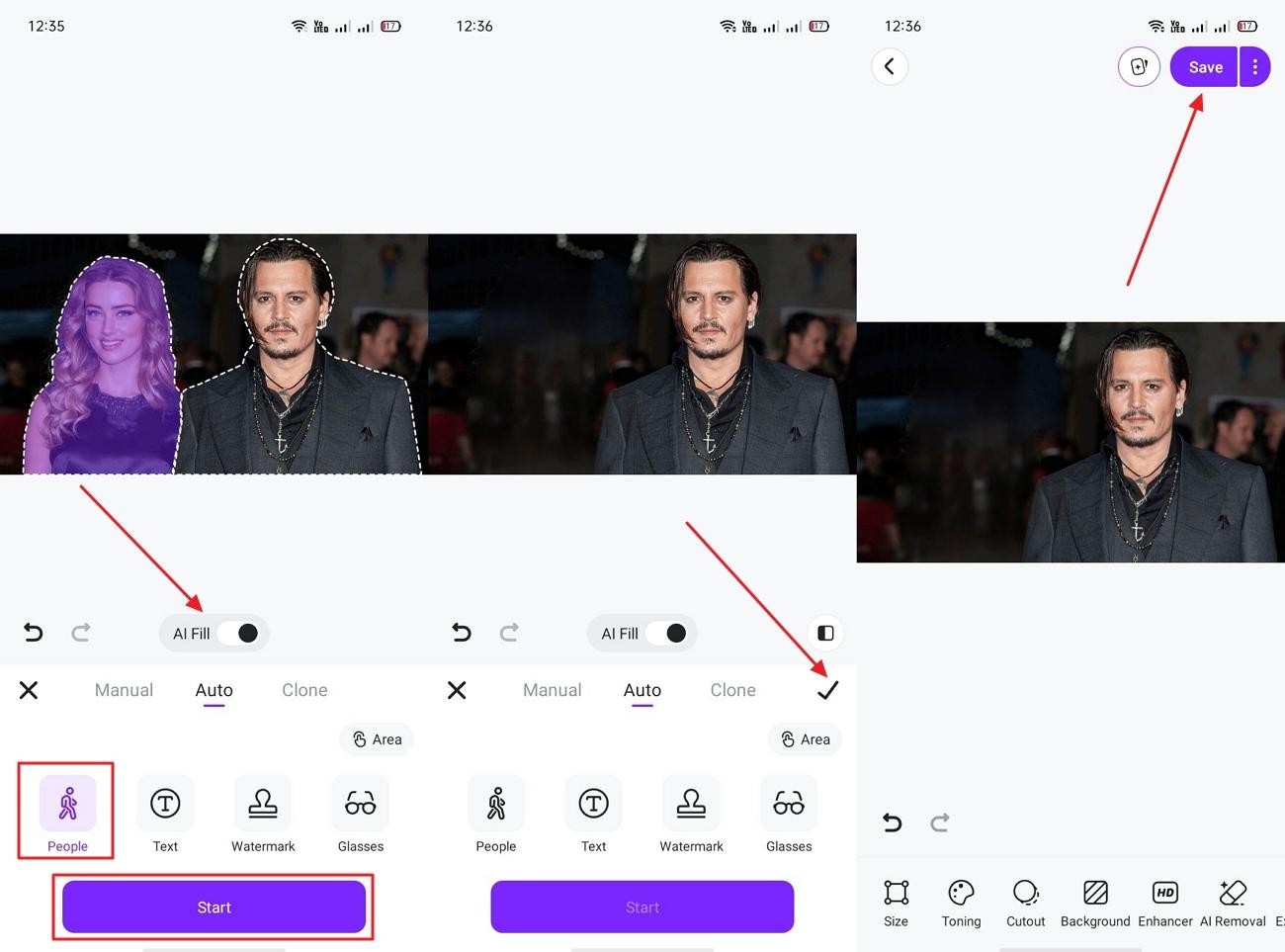
Step 1. Open the app, tap “Tools” and opt for “Object Remover”. Next, select the picture and hit the “Start” button.
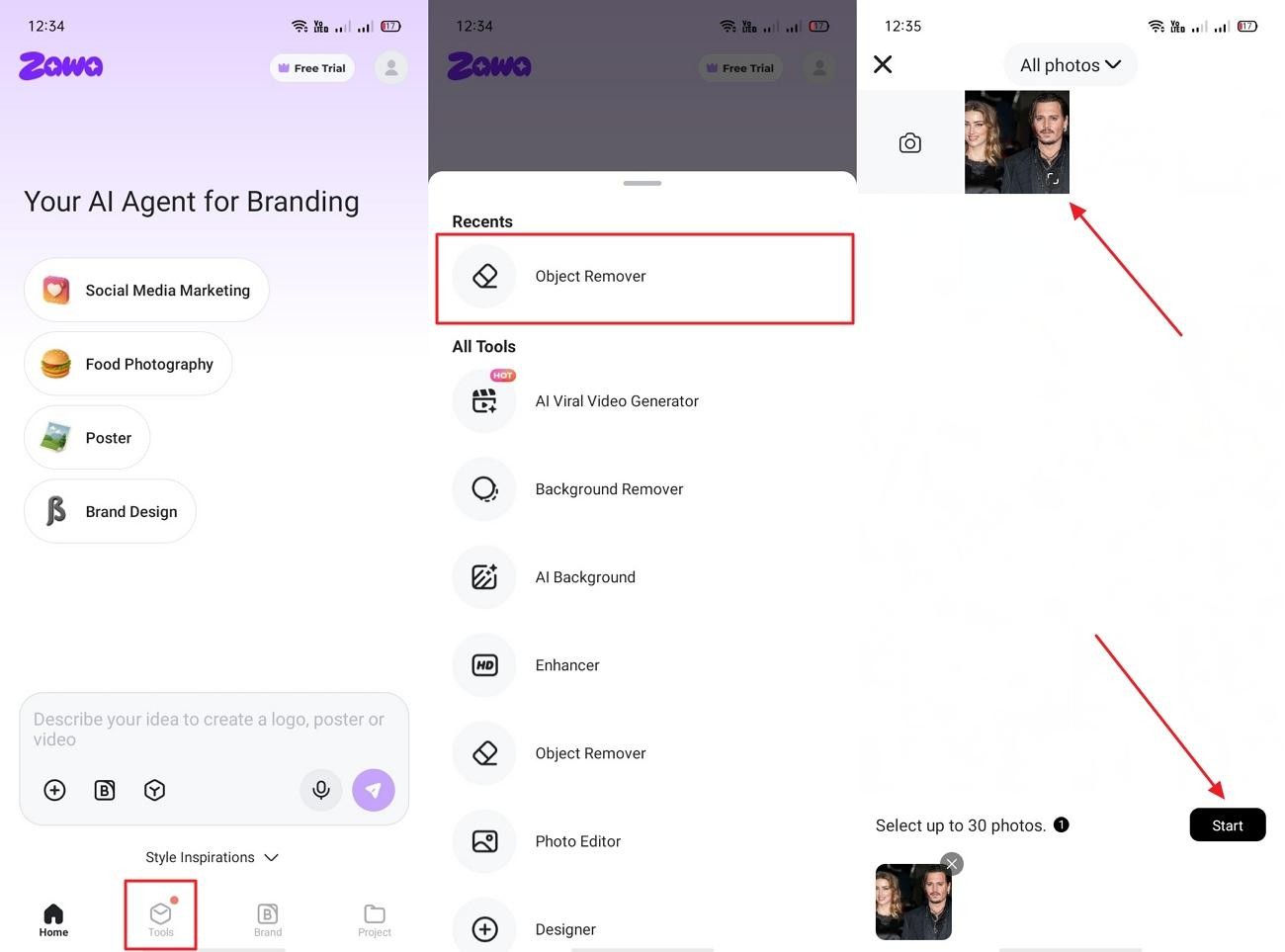
Step 2. Later on, toggle on “AI Fill” and choose “People”, then tap “Start”. Once the object is removed, opt for “Tick” and then tap “Save”.
How to Get Professional-Level Results - 5 Tips
The best results come when you pair a great tool with smart habits. Go through the given tips to get the most from your app for removing person from photo:
-
High Resolution: Use high-resolution images so AI gets enough detail for a clean reconstruction. Avoid screenshots because low-quality images reduce final object removal accuracy.
-
Simple Background: Choose photos with simple backgrounds like open sky, plain walls, or solid-color floors. Busy backgrounds often confuse AI and create visible errors in the final image.
-
Zoom Carefully: Always zoom in before selecting objects for more accurate clean removal. Zooming helps you avoid leaving edges or parts of unwanted objects behind.
-
Brush Control: Use a small brush for edges and a large brush for wide object areas. Proper brush size helps avoid missing parts or selecting extra background space.
-
Shadow Care: Pay close attention to shadows when carefully removing objects from photos. Wrong shadow removal can make the edited image look fake and unnatural.
Conclusion
In summary, finding the right app to remove person from picture can save your best memories forever. Each tool on this list has something great to offer for different needs. However, consider tools like Zawa for refined edits for better precision. It is simply the easiest and most powerful choice available in 2026.
FAQs
-
Which Tool Uses AI to Remove People from Images?
Many tools like Zawa and Fotor use AI to remove people from images. They detect people and rebuild the background automatically for cleaner, natural-looking photos.
-
Which apps can remove a person from a photo for free?
Google Photos Magic Eraser, Snapseed, and Picsart all offer free object removal features. Some limit usage or resolution on free plans.
-
How do I remove a person from a photo on iPhone?
Google Photos, Zawa, and TouchRetouch are all available on iOS and work well for removing people directly on iPhone without a computer.
-
Which app is easiest for beginners?
Apps like Google Photos, Zawa, and Fotor are very beginner-friendly tools. They use simple tap or brush steps that anyone can easily understand.
-
Does removing a person affect image quality?
A good AI tool keeps your photo quality clean and sharp after removal. Tools like Zawa preserve full image quality and support high-resolution photos. You can also continue improving your image with Zawa's AI Image Enhancer or Photo Editor.
-
Can Zawa AI remove people from images accurately?
Yes, Zawa uses smart AI that removes people with very high accuracy. It has been tested on a wide range of images and delivers natural-looking results.
-
What app works best on mobile?
Google Photos, Picsart, and Lightroom Mobile work very well on smartphones. They offer easy tools for quick object removal and a simple editing workflow.
-
Is it legal to remove people from photos?
Yes, it is legal for personal use and editing your own photos. However, using images of others without permission may break privacy rules.
You May Be Interested

6 Bold Text Generators for Facebook in 2026

How to Make Facebook Ads: Complete Beginner-to-Pro Tutorial

7 Best Background Remover Apps
Remove Fold of Scanned Image: Best AI Restoration Guide
