
How to Remove Background in Illustrator: 5 Methods for Any Skill Level
Master background removal in Adobe Illustrator in 2026! Learn step-by-step methods using Pen Tool, Image Trace, and clipping masks. Compare Illustrator vs Photoshop and explore faster AI solutions like Zawa for quick, clean background removal.


Stuck trying to cut out a background in Illustrator — and it's taking way longer than it should? Such stubborn backgrounds lower visual impact and make it quite difficult to reuse assets in different layouts. Not only that, but they also cause slower workflows and often guarantee unnecessary re-edits whenever ideas or formats change.
In this guide, users will get an understanding of how to remove background in Illustrator using methods suited for different image types and skill levels. The article also explores when Illustrator’s tools work best and discuss other background removal alternatives.
Why Remove Background in Illustrator?
Inside Illustrator, it is simple to make visuals cleaner, more flexible, and easier to reuse across different platforms. Even new designers can change or get rid of backgrounds without worrying about color clashes or awkward edges. Take a look at the reasons why you should remove backgrounds in Illustrator.
-
Cleaner Designs: Transparent backgrounds prevent unwanted boxes, edges, or color blocks from interfering with layouts or brand colors. So, you can make sure logos, icons, and web graphics fit nicely on many backgrounds.
-
Stronger Branding: Product shots are free of background, thus focusing on the product rather than the background or shadows. Clean edges add a touch of professionalism and credibility to eCommerce listings, ads, and catalogs.
-
Ready for All Platforms: Images without backgrounds can be easily used for different print sizes and digital formats. The same asset can be dropped into posters, web banners, or social posts without extra editing.
-
Adjustable Assets: As soon as a subject is isolated, it can be reused across campaigns and color schemes. Users can experiment freely with backgrounds without re-cutting the same image each time.
5 Various Ways to Remove Background in Adobe Illustrator
Although it may look challenging, you can easily understand how to remove a background in Illustrator. With a few guided instructions, anyone can get rid of the backgrounds for their images. This section discusses 5 proven methods to use Adobe Illustrator for removing backgrounds.
Using the Image Trace Tool
This method is best for beginners working with logos, icons, or images that have a clear contrast between the subject and the background.
Image Trace converts a raster image into vector shapes so the background can be deleted cleanly. It is relatively easy, even for beginners, and best for logos or high‑contrast graphics. For users who want to delete backgrounds quickly, check the steps below:
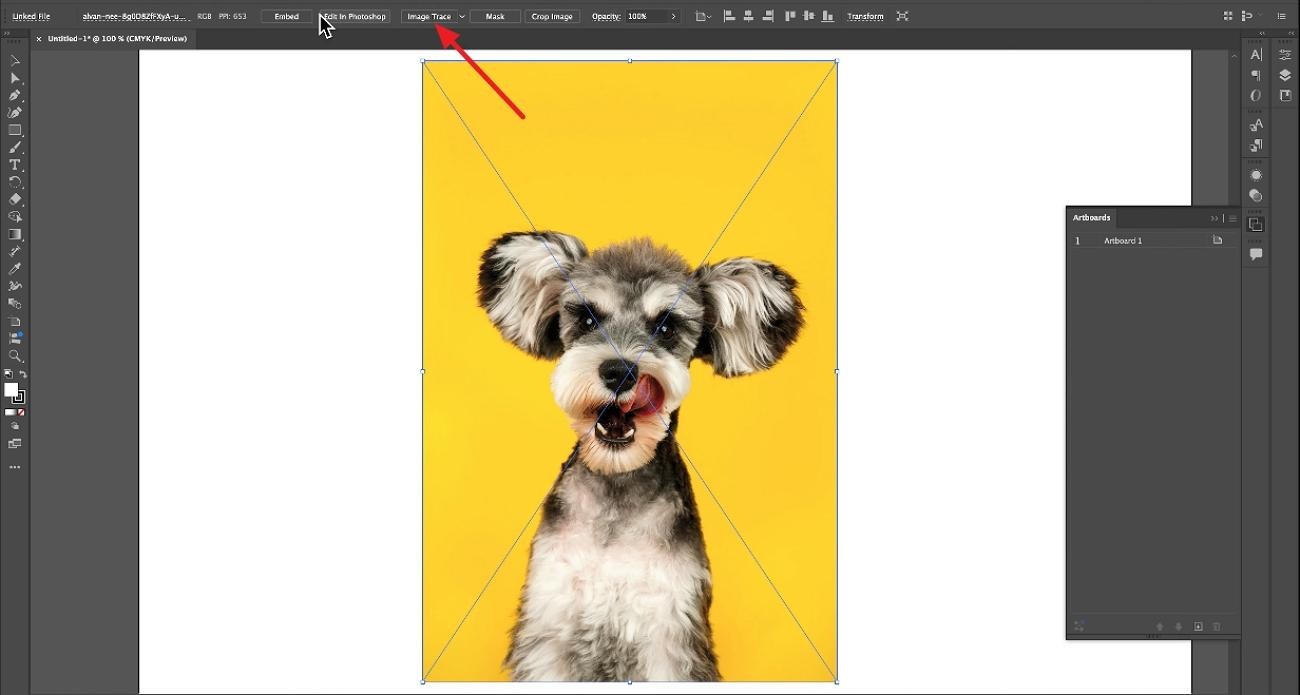
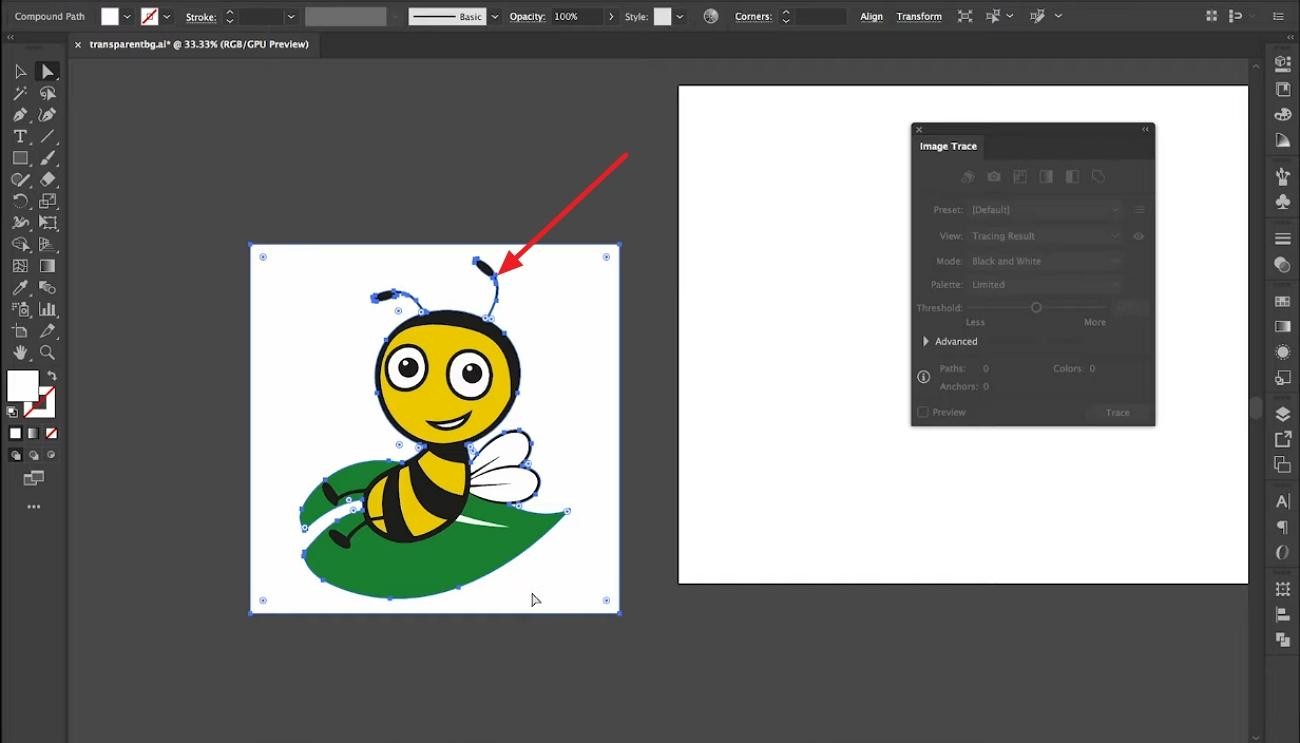
Step 1. Once you import an image into Illustrator, click on the image and select the “Image Trace” option on the top panel.
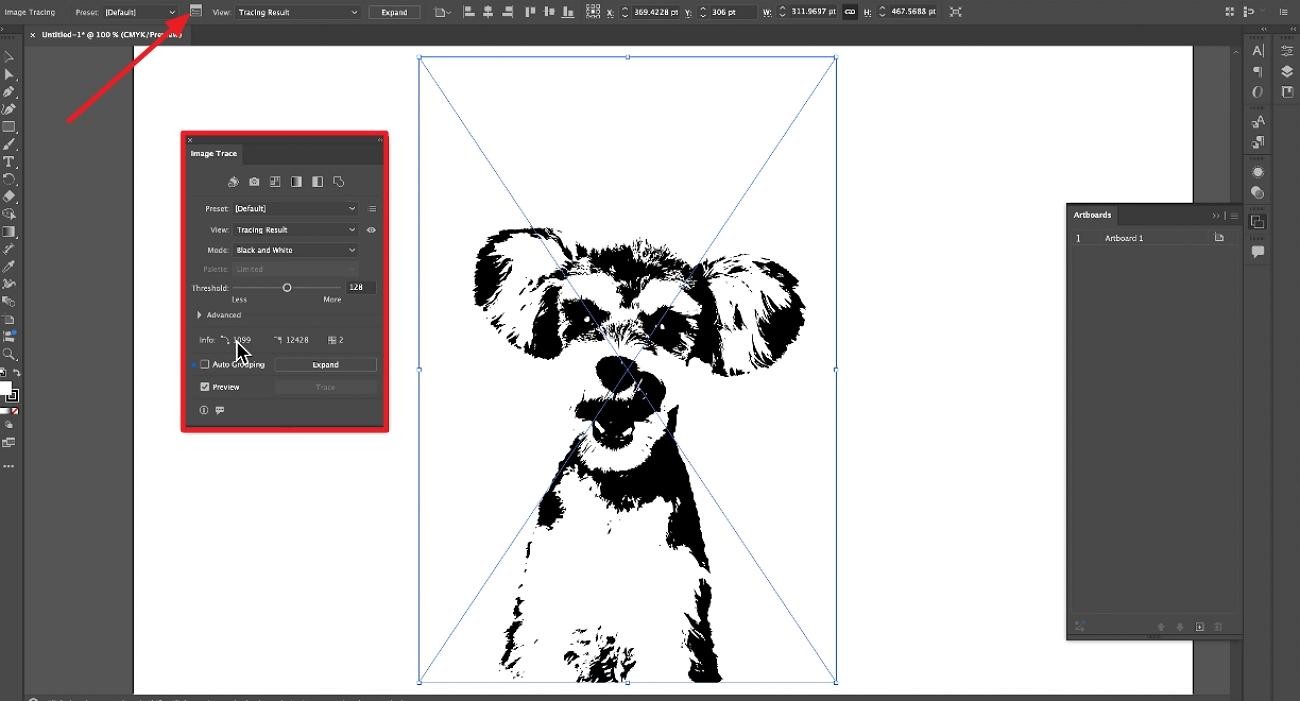
Step 2. Then, access the “Image Trace Panel” and adjust the settings to your preference. You can change the image's color, preset, and mode to match how you want the final result to look.
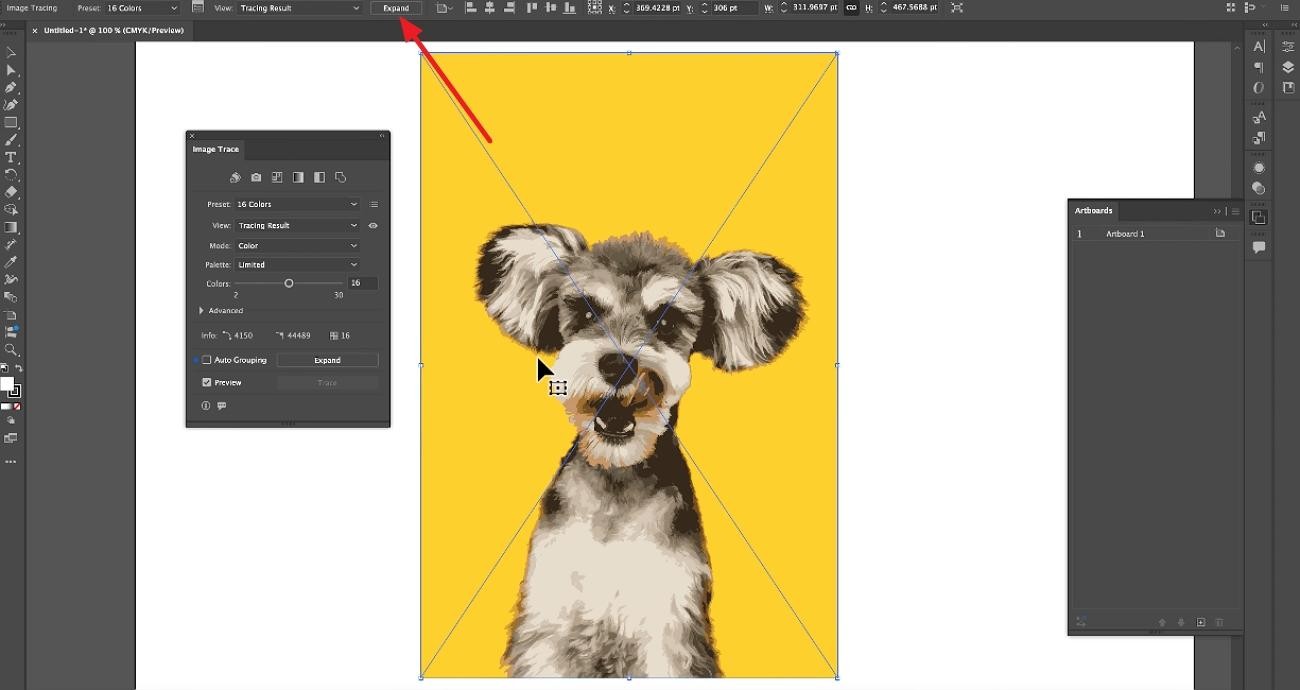
Step 3. Preview the look and select the “Expand” button on the top bar. Click the background you want to remove, then press the “Delete” key to finalize the removal.
Using the Pen Tool (Manual Method)
This method is ideal for designers who need maximum precision when cutting out subjects with complex edges or intricate details.
A more advanced method that produces precise edges around complex subjects is the Pen Tool. It is ideal when the main object has complex outlines and needs a clean, professional cutout. Look at the steps below to understand how to remove a white background in Illustrator:
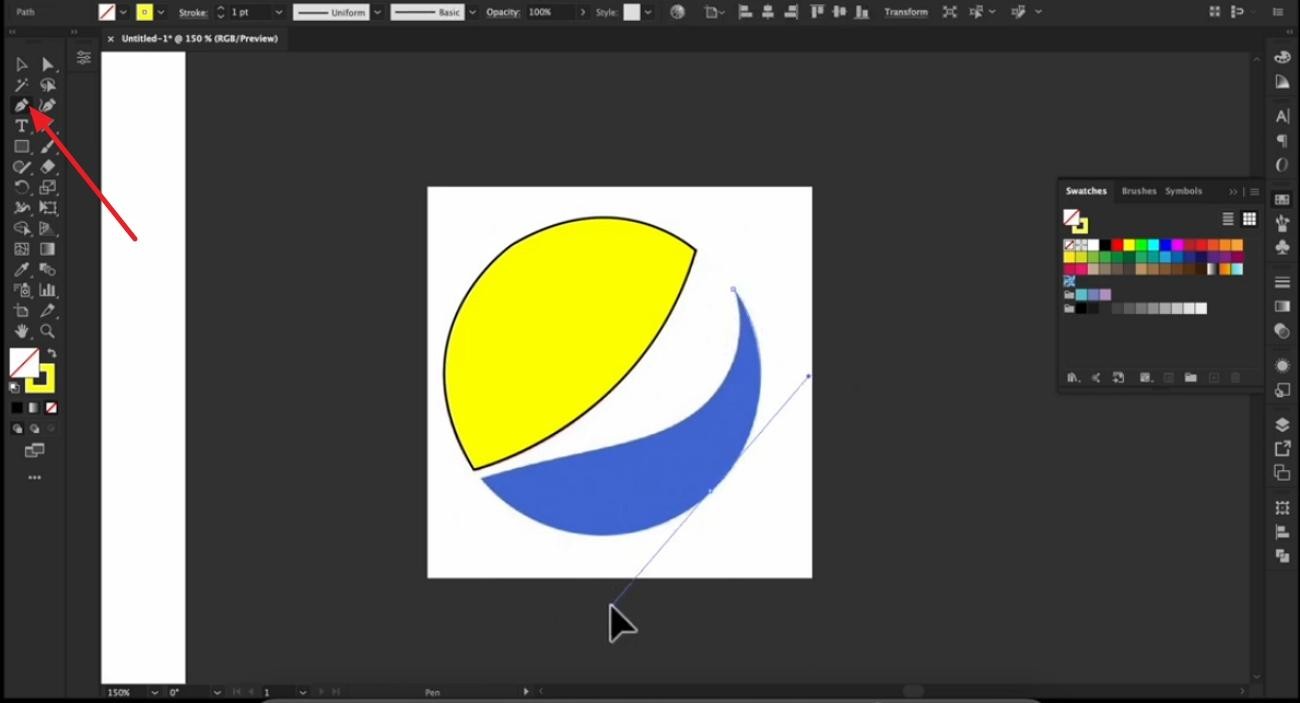
Step 1. Initially, select the “Pen Tool” to draw around the subject that you want to keep.
Step 2. Here, click on the “Object” panel at the top and access the “Make” option from the “Command Path” menu.
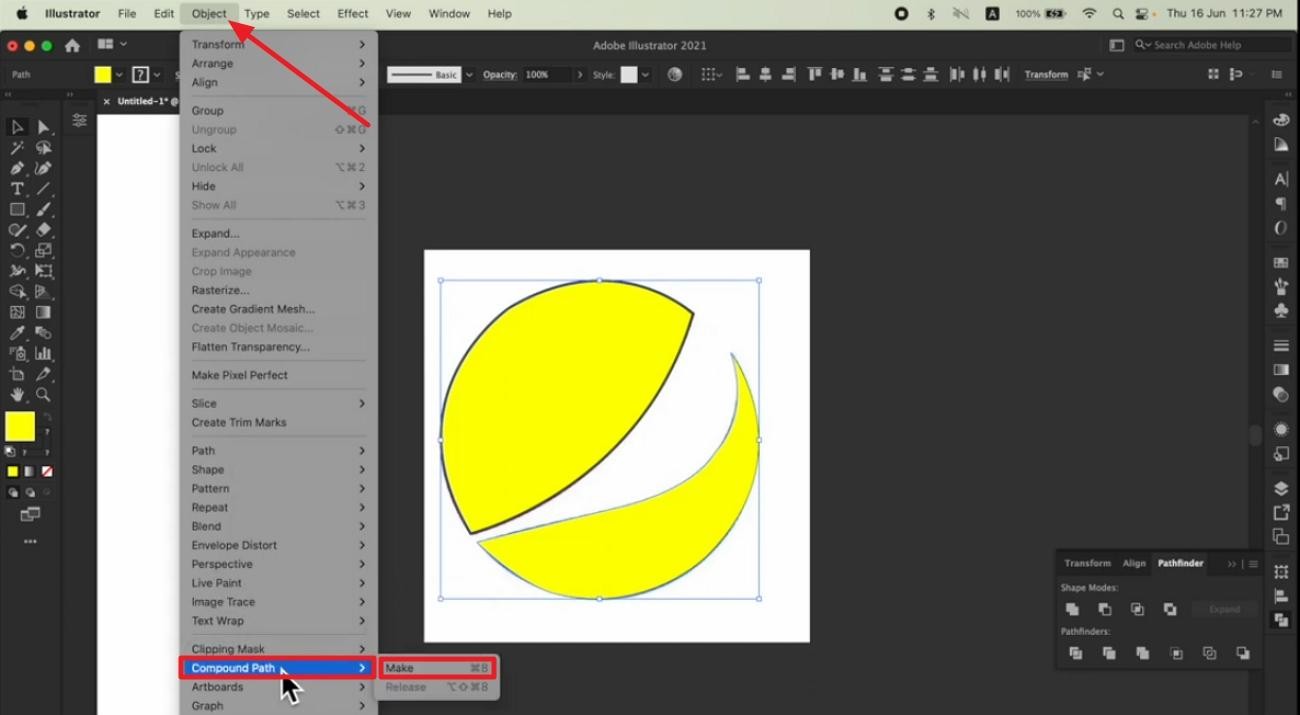
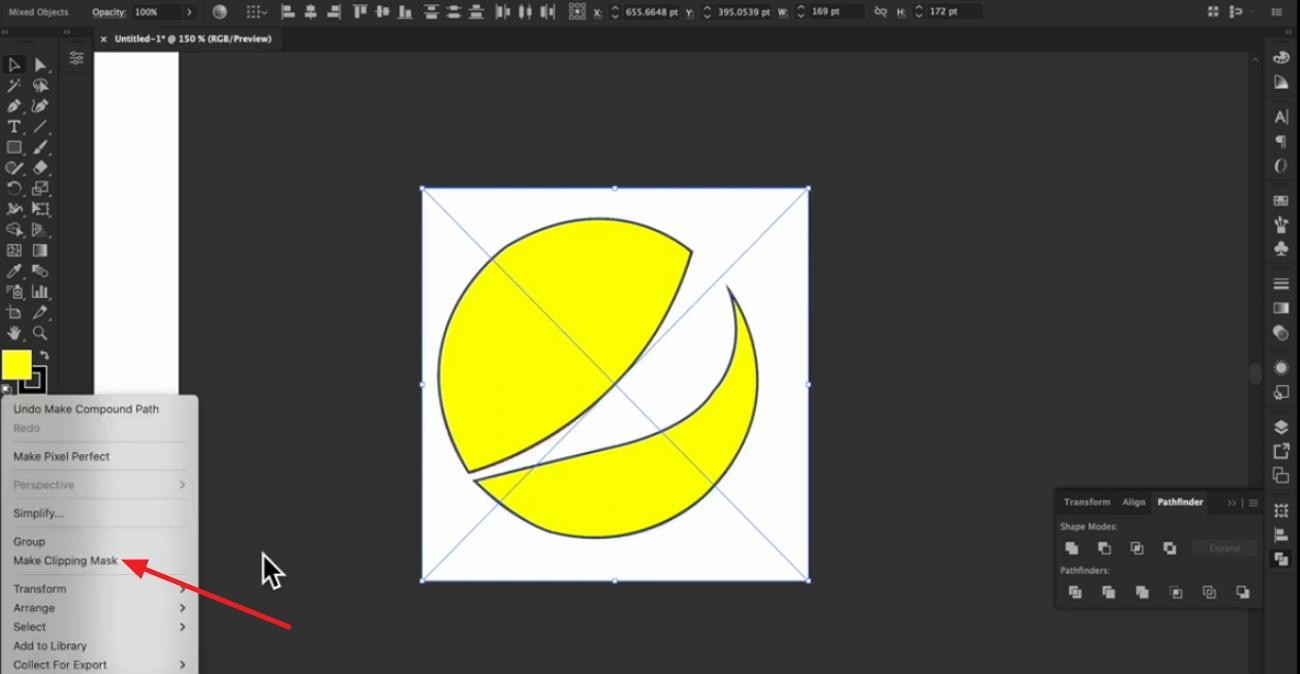
Step 3. Select the image again, then click on the “Make Clipping Mask” option from the dropdown menu to remove the background completely.
Using the Magic Wand tool
This method works best for images with simple, solid-colored, or white backgrounds that need to be removed quickly.
The Magic Wand selects areas with similar colors, making it useful for quickly removing flat or white backgrounds. Although it is a beginner-friendly method, users should try to use it on simple, evenly colored backgrounds. Use the next set of steps to follow this procedure accurately:
Step 1. Begin by selecting the “Magic Wand” tool from the side panel and adjusting the tolerance values accordingly.
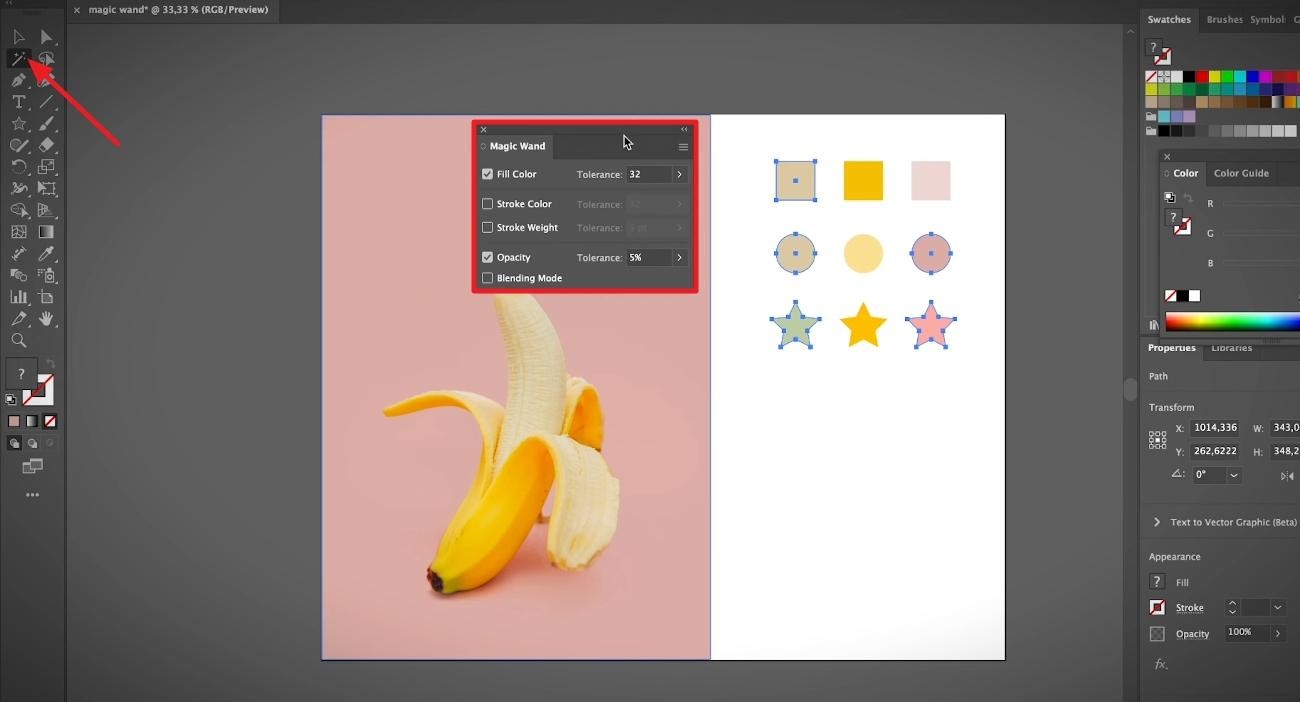
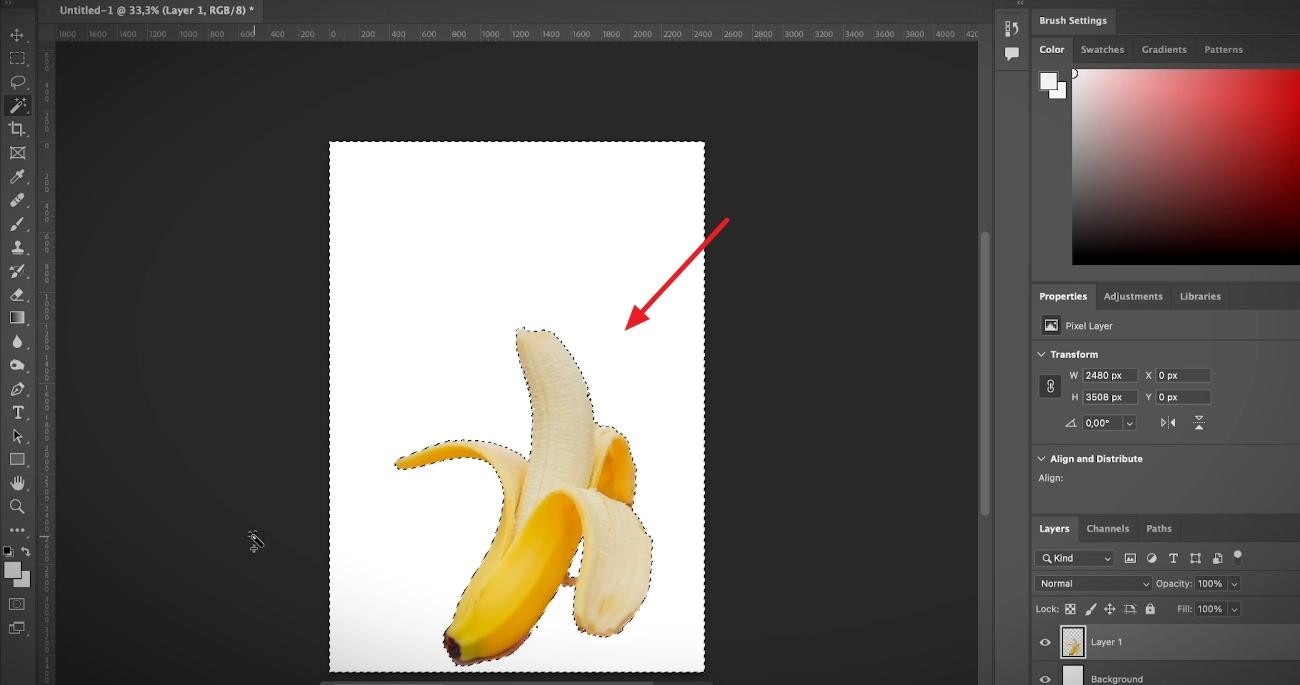
Step 2. Click on the background of the image and press the “Delete” key to remove the unwanted area cleanly.
Using Clipping Masks
This method is suitable for users who want a non-destructive workflow and may need to adjust the cutout later.
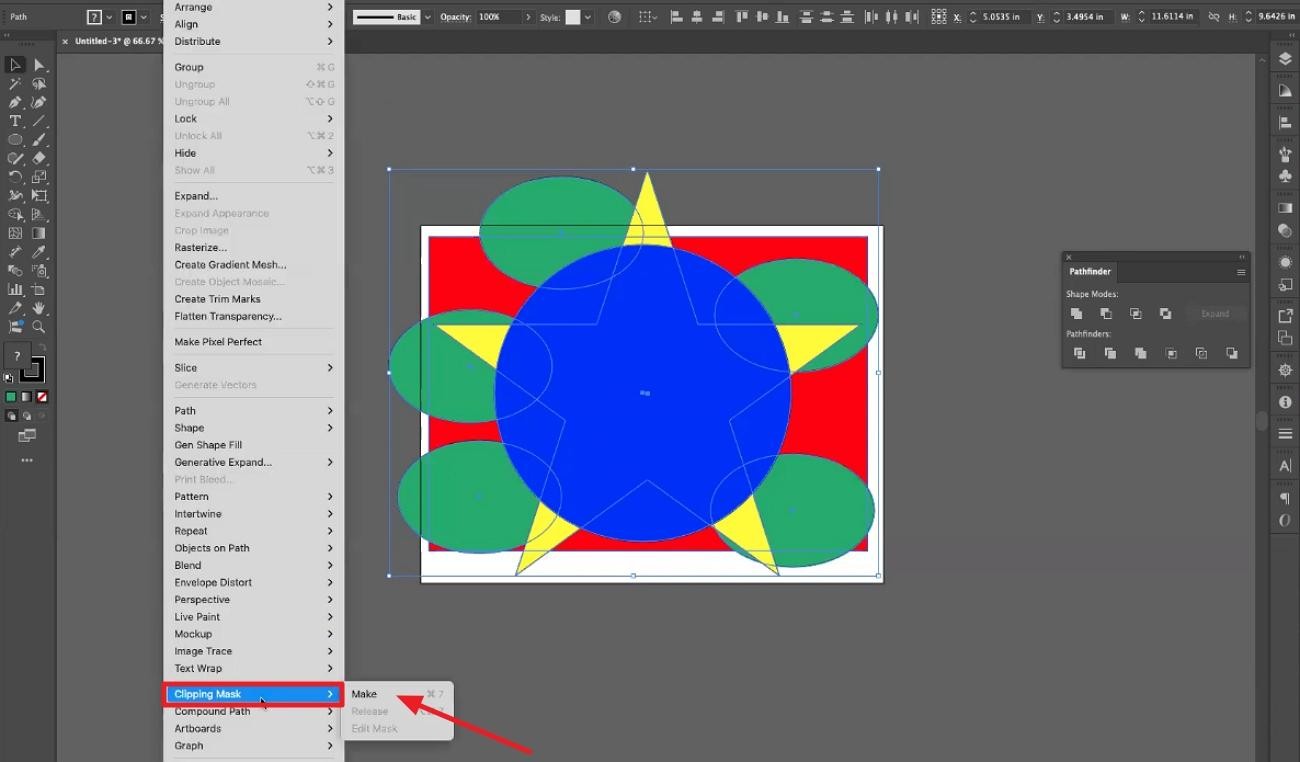
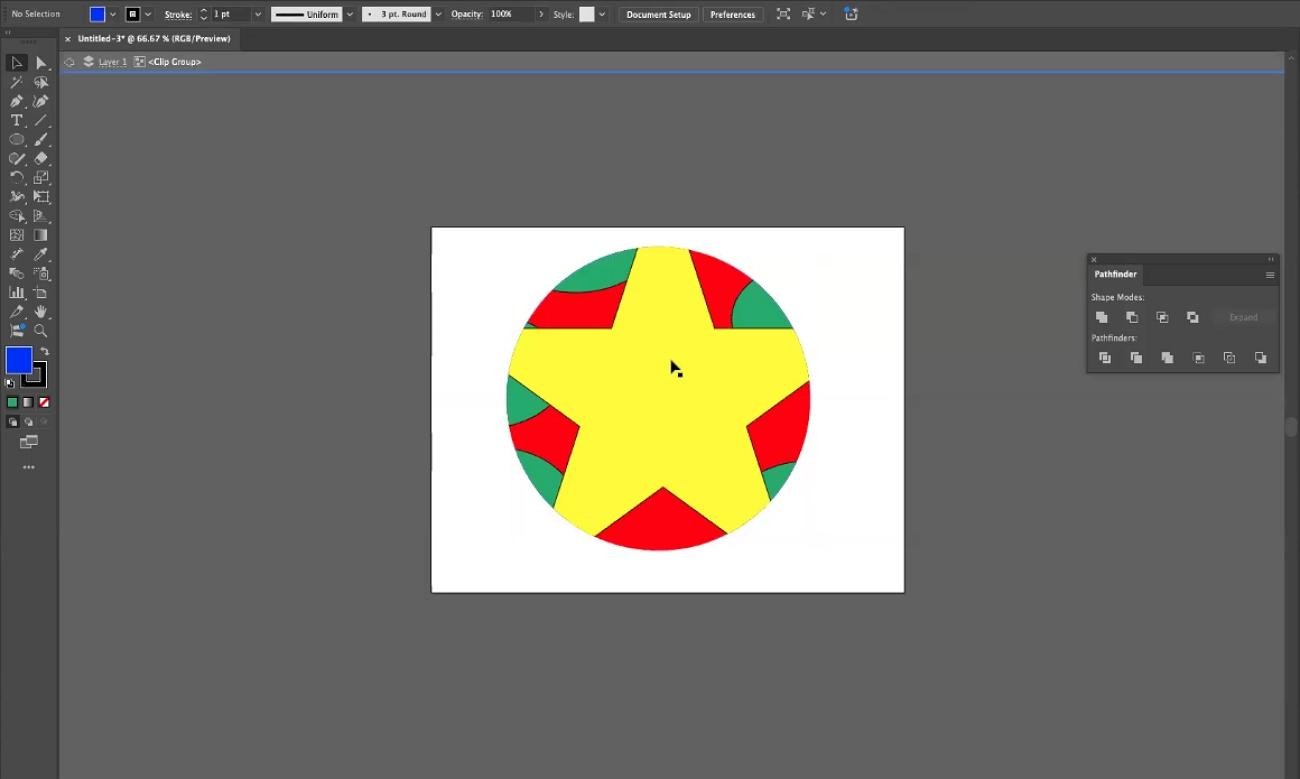
Clipping Masks is a good option for those who want to experiment with layouts and mockups without losing their work. A clipping mask hides the background instead of deleting it, so everything stays editable. Follow the steps below to remove background in Illustrator:
Step 1. After you have placed the image, access the “Pen tool” to draw a closed path around the subject you need to preserve.
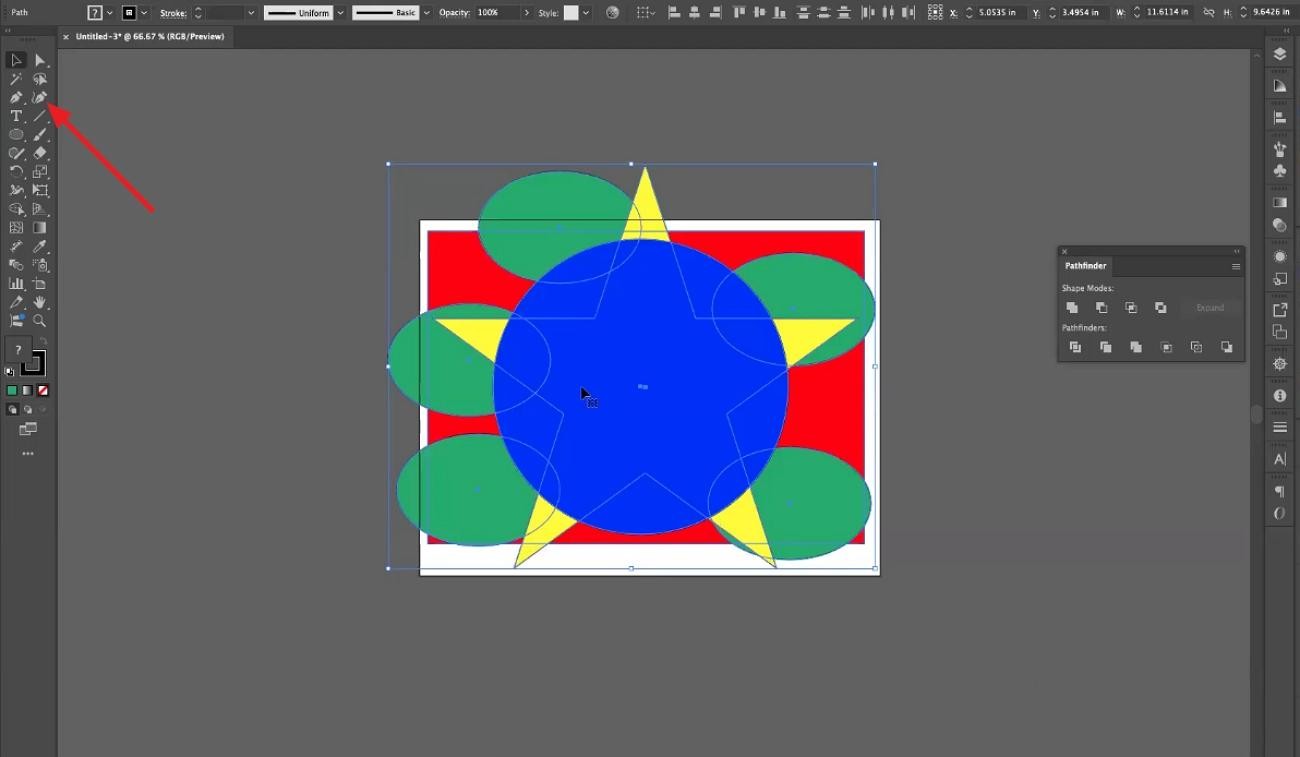
Step 2. Select both the shape and image, and then choose the “Clipping Mask” option from the “Object” menu.
Step 3. Resize the mask shape to adjust which parts of the image remain visible.
Using the Direct Selection Tool
This method is best for editing existing vector graphics where the background consists of simple shapes or solid-colored elements.
The Direct Selection Tool is a quick option for removing the background when it is already made of simple vector shapes or solid areas. However, this method is only suitable for vector graphics, not detailed photos. To get a better idea of how to access this tool, carefully go through the next series of steps:
Step 1. To start, click on the “Direct Selection Tool’ from the left side panel of the interface and create an outline path for your image.
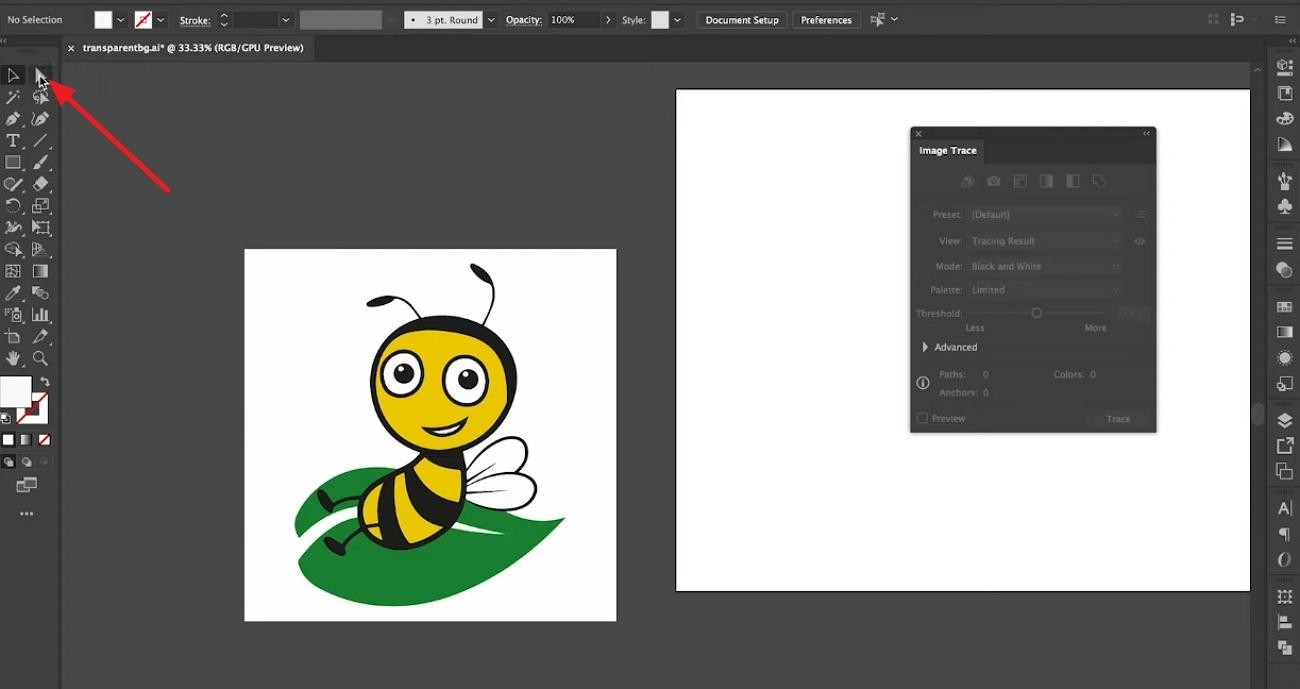
Step 2. You can adjust the blue arrows to tweak the outline or press the “Delete” key or remove it completely.
Background Removal in Illustrator vs Photoshop: Key Differences
Most people who learn how to remove a background from an image in Illustrator can also learn how to do it in Photoshop. Both tools have similar interfaces and tools, but there are a few differences. The table below compares Illustrator with Photoshop:
| Aspect | Adobe Illustrator | Adobe Photoshop |
|---|---|---|
| Core Focus | Vector-based graphics and scalable artwork | Raster-based image editing and pixel-level control |
| Best For | Logos, icons, flat graphics, simple product illustrations | Photos, detailed product images, complex scenes |
| Main Tools | Pen Tool, Image Trace, Magic Wand, Clipping Masks | Quick Selection, Remove Tool, Object Selection, AI-powered automatic selection |
| Speed and Automation | Slow and manual; semi-automation with Image Trace and Magic Wand | Fast; AI automation and one-click background removal |
| Edge Quality and Flexibility | Extremely crisp edges, great for print and branding work | Natural, softer edges for more realistic images and fine details |
Try a Smarter Way to Remove Background (AI Tools Like Zawa)
AI tools offer a faster option for people who find traditional methods in Adobe’s apps too technical. Learning how to remove background in Illustrator is still valuable, but AI tools make background removal easier for all users. Tools like Zawa handle this automatically — upload your image, and the AI isolates the subject in seconds, no manual tracing required. People who create eCommerce listings and social media posts will like this approach.
Key Features
-
Instant Background Removal: Zawa automatically detects the subject in your image after you upload it. It removes the background in seconds with no learning curve.
-
Sharp Detail Preservation: The AI tool preserves hair, fabric edges, and shadows with high precision. Moreover, edge refinements allow polished, professional cutouts in just a few seconds.
-
Perfect for Logos/Stamps: AI isolates signatures, logos, and stamps from dull backgrounds, exporting clean transparent PNGs ready for any layout.
-
Bulk Processing: With this browser-based tool, you can process up to 30 images at once. This makes it ideal for eCommerce teams needing consistent product visuals.
-
All-in-One Editing Workspace: You can change background colors, add graphics or text, and crop or resize in one tool. Zawa offers before-and-after previews so you can see the changes.
How to Use Zawa to Remove Background
Unlike complex tools like Adobe, Zawa’s AI background remover uses a quick three-step process to remove the background from your photo. Check out the steps, which are simpler than learning to remove a background in Illustrator:
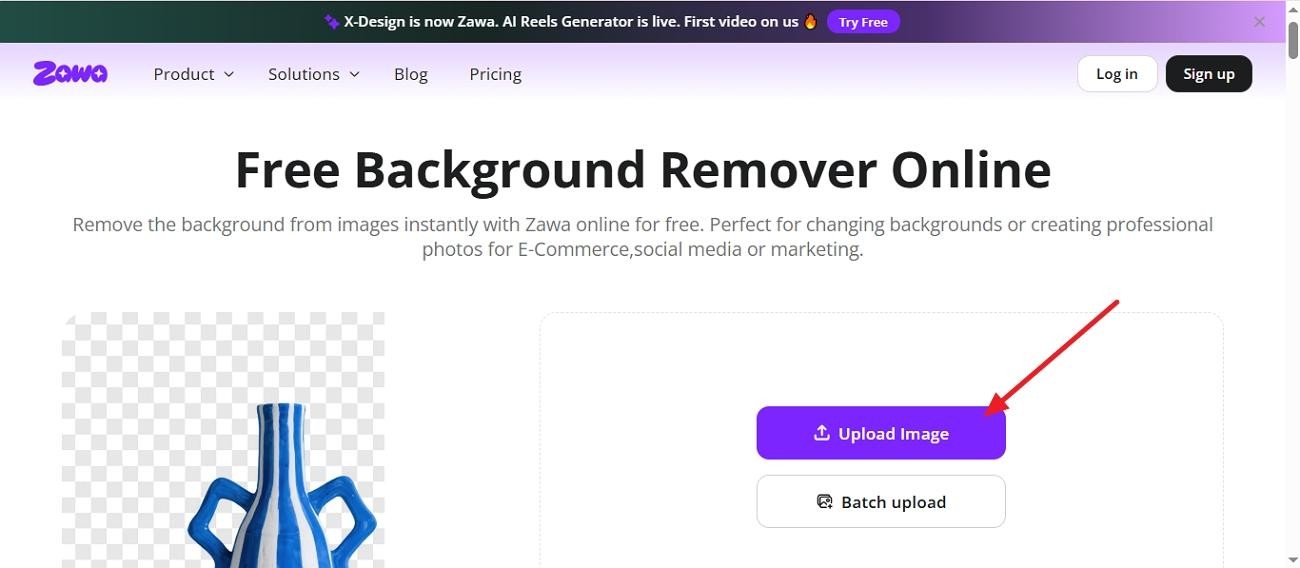
Step 1. Access Zawa and Upload Your Photo
Once you enter the main interface, click the “Upload Image” option to import your photo.
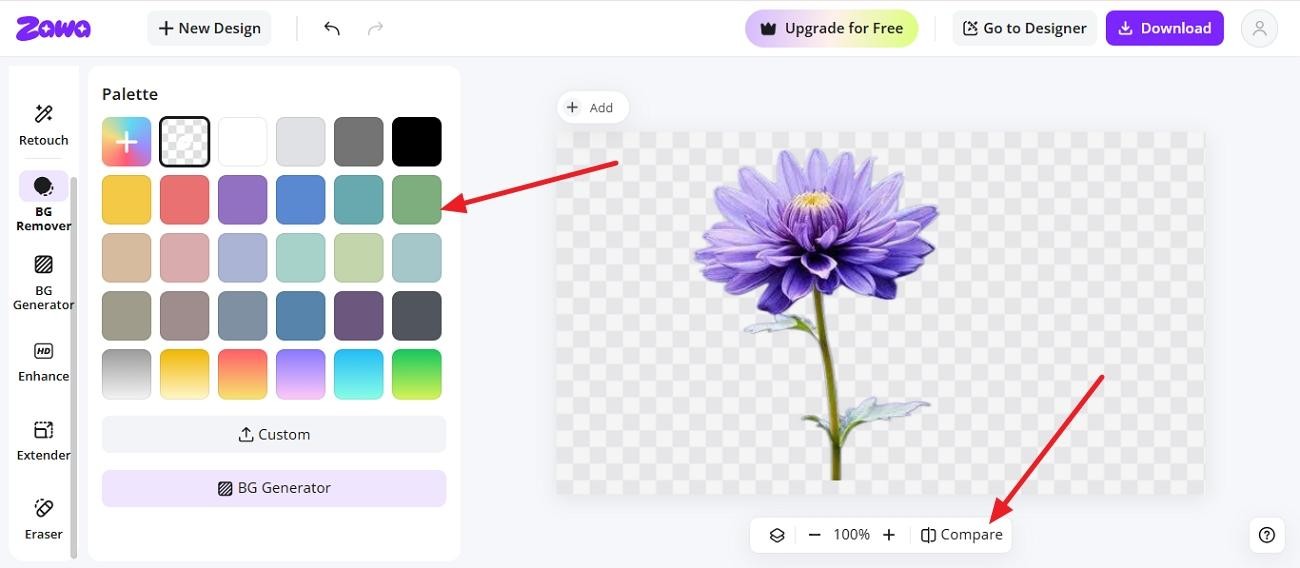
Step 2. Refine and Edit the Background
After the image is uploaded, the AI automatically removes the existing background. Here, change the color by choosing one from the options.
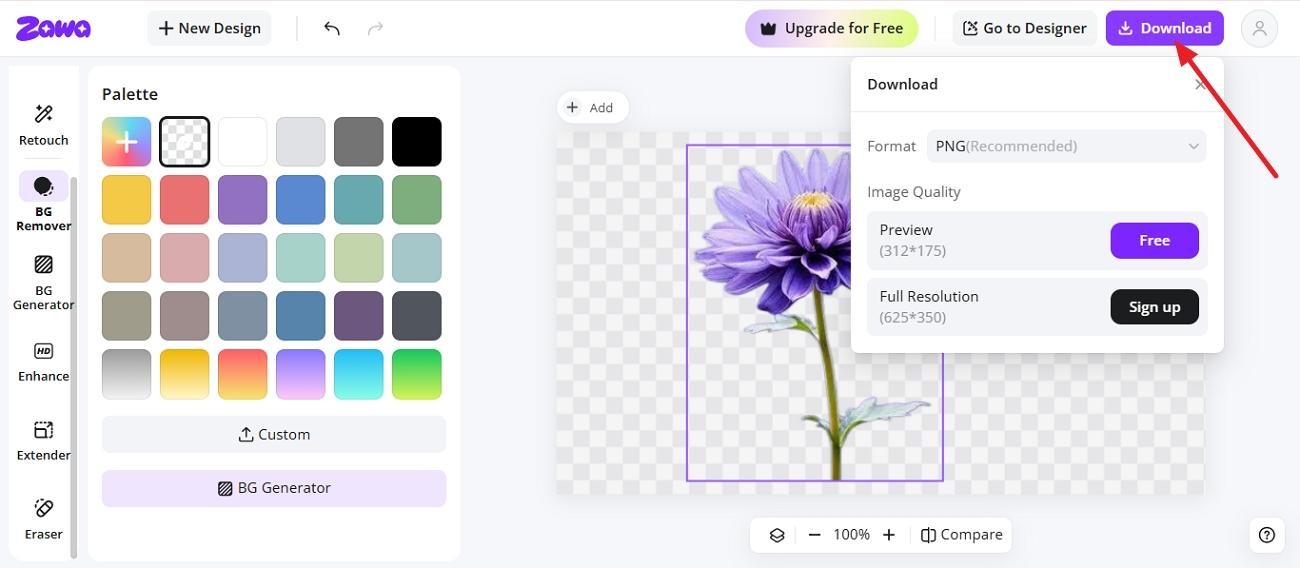
Step 3. Compare and Download
Click the “Compare” button at the bottom of the interface to view the differences between the before-and-after images. Save the image file by pressing the “Download” option from the top bar.
Tips for Better Background Removal Results
Smart choices before editing and removing the background control how natural the final result looks. Review the checklist below to see what you should do before you remove background in Illustrator.
-
Take High-Resolution Images: High-resolution photos provide more edge information for manual and AI processes. This results in clearer choices, more rounded curves, and less jagged or fuzzy edges around the subject.
-
Trace and Refine Selections with Zoom In: Zooming in while tracing and refining selections reveals the smallest gaps, stray pixels, and awkward corners. Small corrections at high zoom create to a much more professional-looking cutout.
-
Hybrid use of the Pen Tool and Image Trace: User workflows and accuracy can be accelerated with a hybrid approach. Use Image Trace to make a quick sketch, and use the Pen Tool to fine-tune edges.
-
Keep an unchanged original layer: It allows you to easily correct errors or edit the background without having to begin again.
-
Combine AI and Manual Tools for Precise Results: AI for Cleanup can do the first pass on background removal to save time. Then import the result into Illustrator, where you can make fine adjustments and vectorize.
Conclusion
Illustrator gives you precise control — but it takes time. If you're regularly processing product photos or social content, an AI tool can handle most of what you need in a fraction of the time. The application allows you to tweak every aspect of your image until you are satisfied. Want to see how fast it works? Try removing a background with Zawa for free — no account needed to get started.
FAQs
-
Can I remove the white background in Illustrator?
Yes. You can learn how to remove a white background in Illustrator using tools such as the Magic Wand or Image Trace. These methods isolate the subject and leave a clean, transparent background.
-
Does Illustrator have automatic background removal?
Illustrator does not have a one-click background remover like some apps. However, Image Trace and Magic Wand offer semi-automatic workflows that speed up the process.
-
Do I need design skills to use Zawa AI background remover?
Basic computer skills are enough to use Zawa’s AI background remover. The tool handles subject detection automatically, so no advanced design or software knowledge is required.
-
How to remove a background in Illustrator for free online?
Illustrator itself is paid software and requires a subscription. For free online options, users can try tools like Zawa for background removal.
-
How to remove backgrounds while maintaining high image quality?
The best way to maintain high image quality is by using high-resolution images. Moreover, be sure to save in formats that support transparency, such as PNG.
You May Be Interested

Remove Fold of Scanned Image: Best AI Restoration Guide

How to Remove People From Pictures

[2026 Updated] Best Apps to Remove Person From Picture

Canva Image Upscaler 2026: Full Review & Alternative

How to Remove Image Background in GIMP
