
Canva Image Upscaler Review & Best Alternative (2026)
Review the Canva image upscaler and its 2026 alternative. Enhance sharpness and upscale photos in one click for a clean, high-quality look.


Blurry photos make your designs and products look less professional and less trustworthy. Most "HD" tools online promise magic, but they often add weird, fake-looking details. You just want clear images that stay sharp without learning advanced editing software.
Many creators and small businesses need a quick way to fix blurry images without overediting them or making them look artificial. Canva's upscaler helps improve clarity while keeping results natural. This guide shows easy steps to fix blur fast and get clean, sharp results.
What Does Canva Upscale Image Tool Actually Do?
Unlike many generic upscalers, this tool fixes blur while protecting natural skin tones and details. With Canva's upscale image, you can also edit designs around the photo in the same place.
What is Canva Image Upscaler?
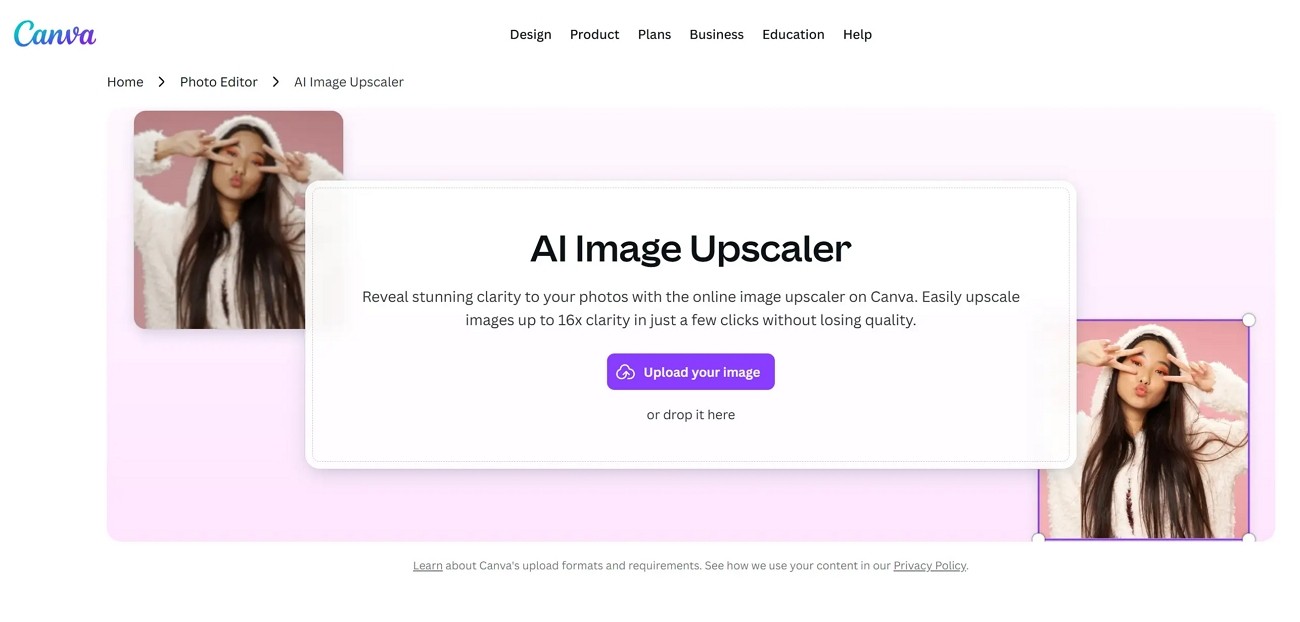
Canva Upscaler uses AI to improve photo clarity and remove light blur easily. It makes small images larger while keeping them clean and natural for designs. You can edit images directly in Canva without switching tools or installing plugins. Beginners and creators use it daily when they need quick, better-looking visuals.
Why Canva Image Upscaler is Trending in 2026
-
High-Speed Workflow: It speeds up editing, so non-designers finish image tasks quickly every day. People save time and skip complex tools, which makes content creation feel easier.
-
Instant Social Media Optimization: Social posts get the correct sizes to make every image look sharp on each platform. Creators enjoy clean visuals ready for feeds, stories, and ads within minutes.
-
Multiplatform Editing: Canva works smoothly on the web and mobile to help you edit anywhere with ease. Projects sync across devices, so you can switch between desktop and mobile without losing progress.
Top Features of Canva Image Upscaler You Should Know
The Canva image upscale tool is simple to use for many different needs. Each option saves time and helps your images look clear and professional:
-
One-click Image Enhancement: One tap workflow makes blurry photos look sharper. Sliders are not needed, which saves effort on every edit.
-
AI Sharpening and Noise Reduction: Smart AI removes grain and light noise to leave visuals clean. Soft and slightly blurry photos become clearer without looking fake.
-
Multiple Upscale Amounts: It allows you to choose from 2x to 16x upscale based on your project. Small images become larger and stay useful for designs and posts.
-
Editing Tools Integration: Upscaling sits inside Canva, so you move straight into design work easily. After upscaling, you can add text, elements, or layouts without switching apps.
-
Drag-and-drop Interface: Uploading images is simple, since you just drag files into your design. No confusing upload steps make beginners feel comfortable using.
Step-by-Step Guide to Upscale Images in Canva Easily
Having explored the features of Canva AI image upscaler, many users wonder how it works. So, follow the steps below to quickly upscale your images in Canva:
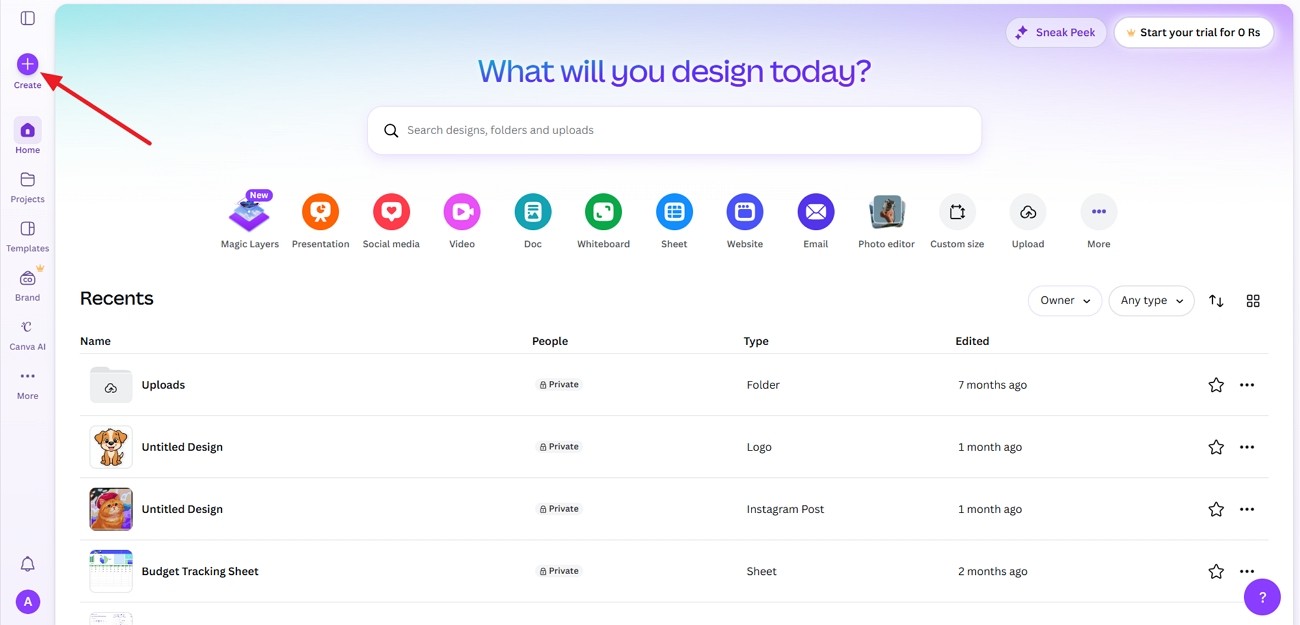
Step 1. Once you enter the main interface, click the "Create" button in the left side panel to create a new design.
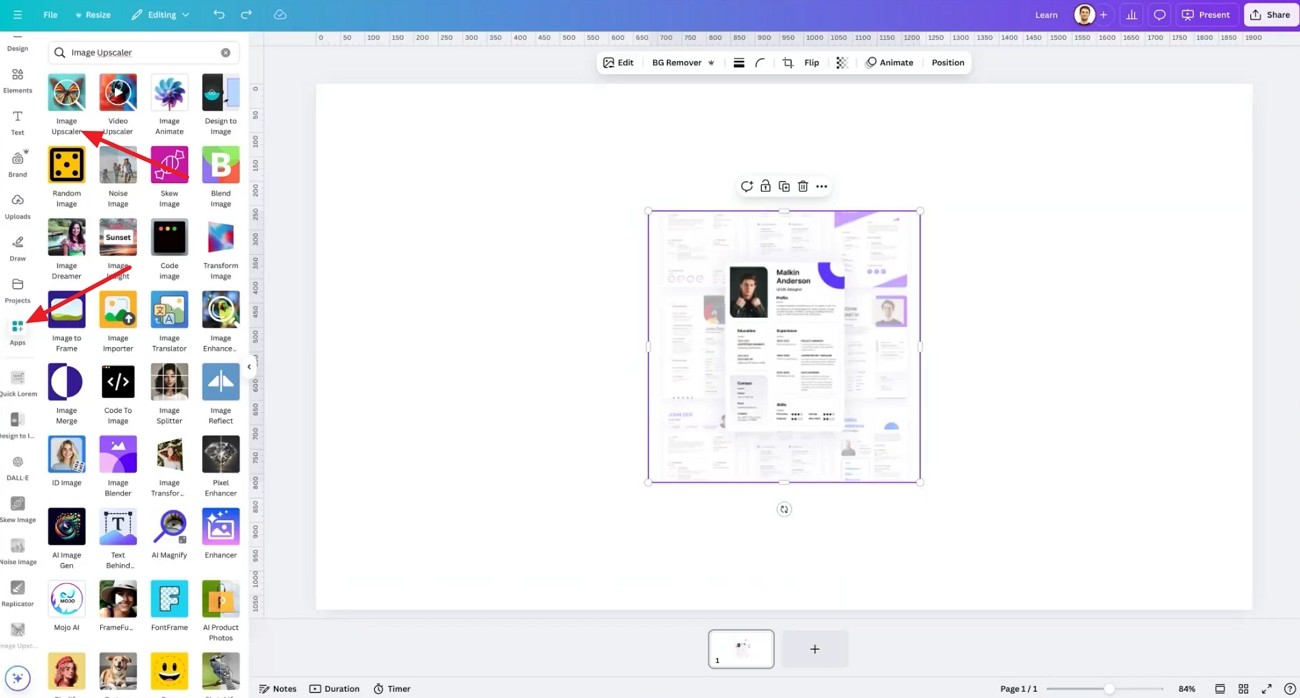
Step 2. Next, drag and drop your image on the canvas. Afterward, click the "Apps" option in the left side panel and search for "Image Upscaler". Then, choose the "Image Upscaler" app.
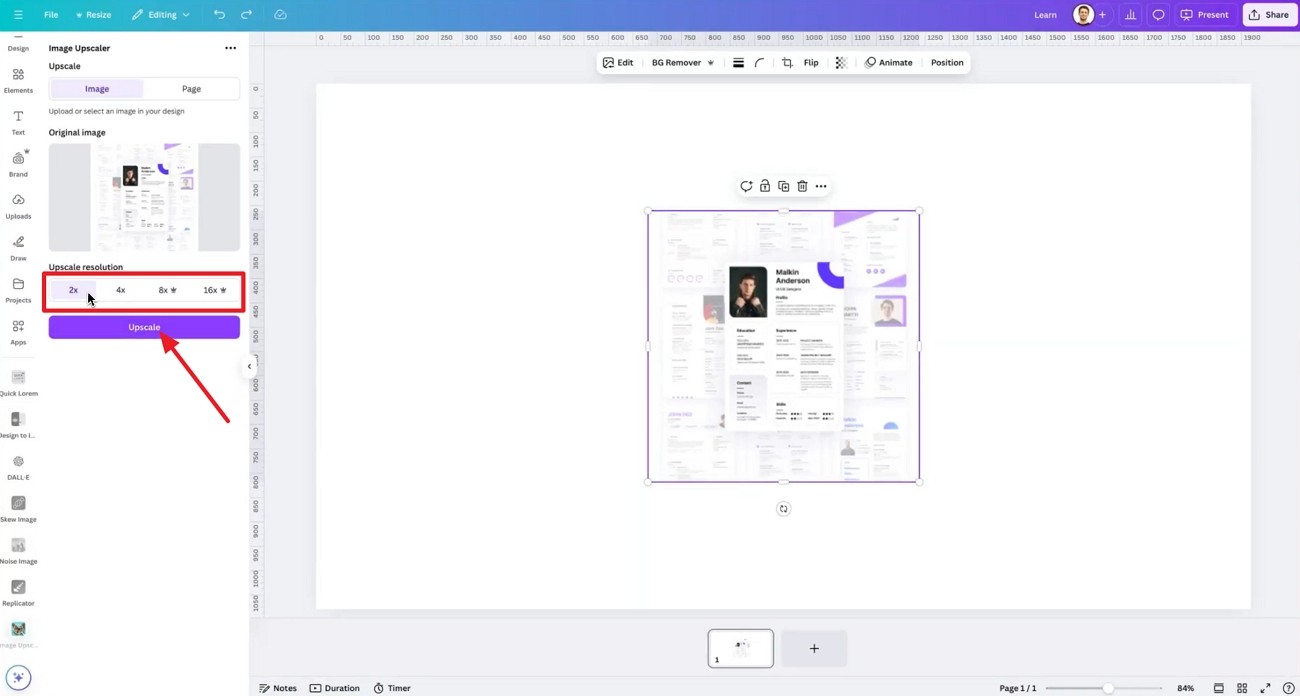
Step 3. Once selected, choose the "Upscale Resolution" and click the "Upscale" button.
Step 4. After the image is upscaled, click the "Replace" button.
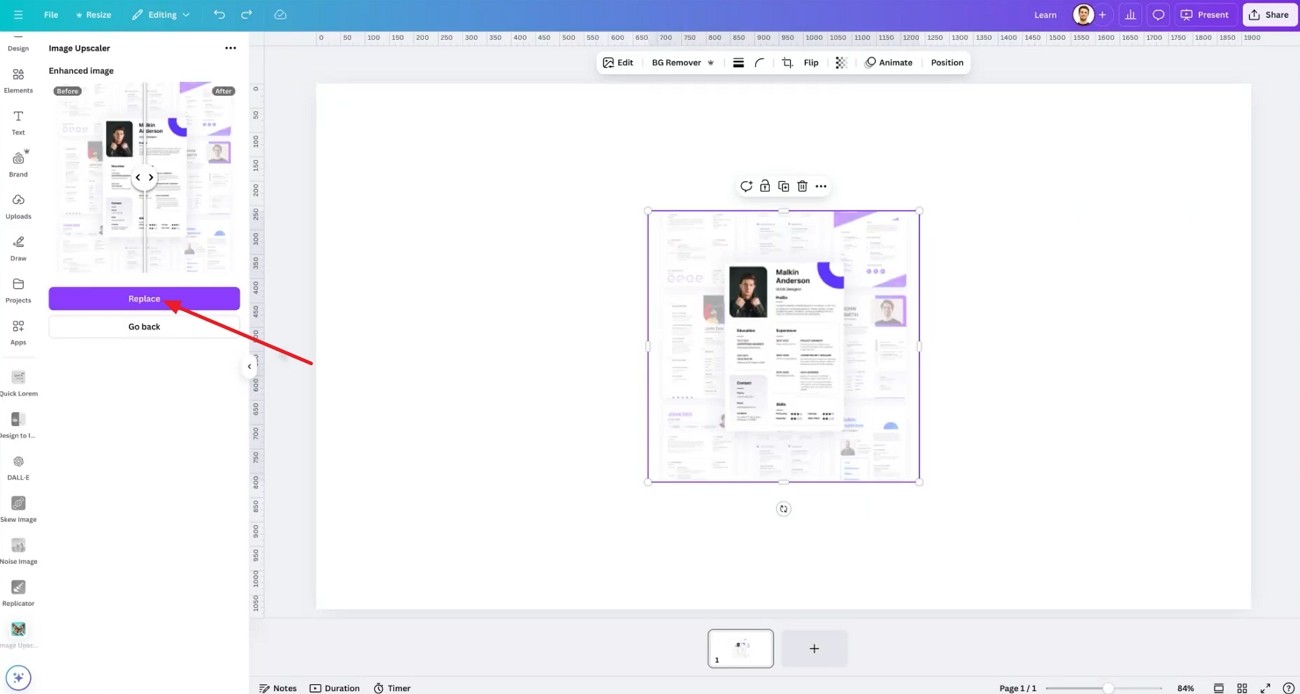
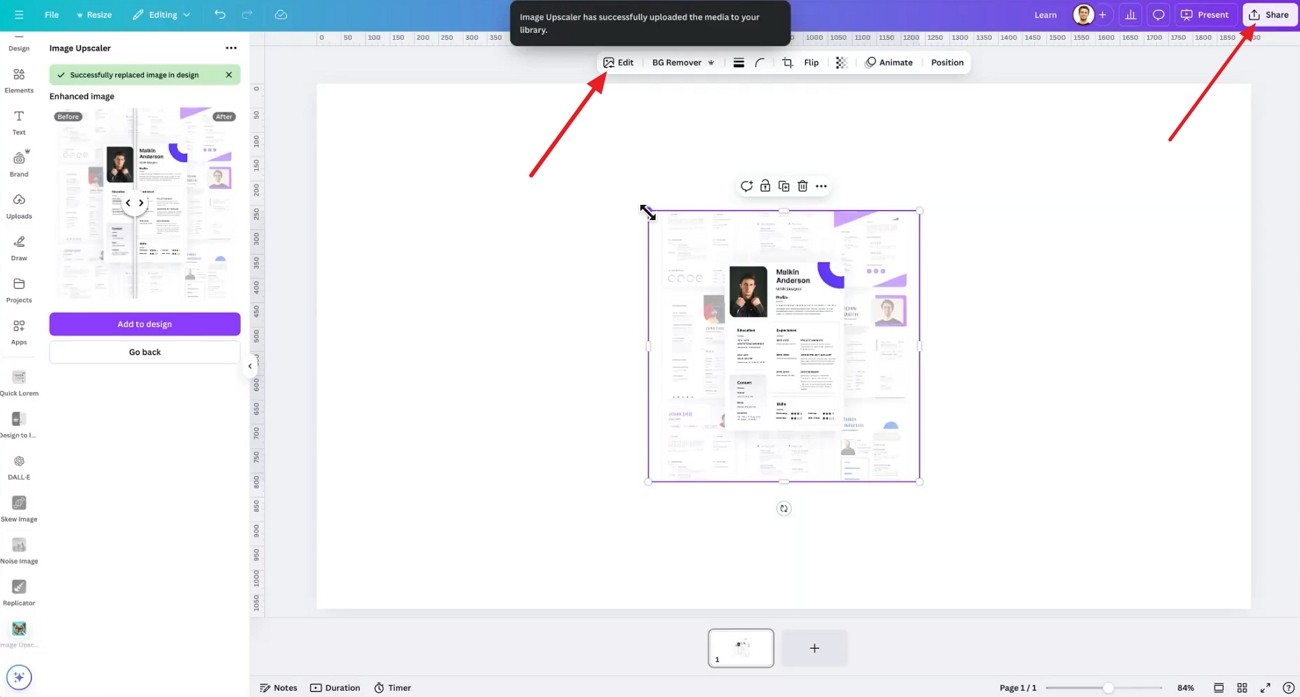
Step 5. Now, press the "Edit" button to further adjust the sharpness. Lastly, press the "Share" button to download the final output.
Best Settings for Canva Image Upscaling
Right upscaling settings stop your photos from looking blurry, grainy, or stretched after changes. Now, let's see which options help upscale image Canva look its best.
-
High Resolution Export: Always choose the highest export quality available in download settings. This keeps your image sharp and detailed when viewed on larger modern screens.
-
2x or 4x Upscale: Pick 2x or 4x instead of pushing the upscale too high. These levels give clearer results, protect details, and avoid strange visual artifacts.
-
PNG File Format: Save your final image as PNG instead of lower-quality JPG exports. PNG reduces visible compression marks and works great for online sharing.
-
Sharpen Image Option: Turn on the sharpen filter to add a bit clearer edge detail. Use it lightly so the photo looks crisp without becoming harsh.
-
Light Brightness Tweaks: Adjust the brightness to prevent the image from looking dull. Small changes help details stand out without washing out colors and ruining contrast.
-
Low Compression Level: Avoid strong compression settings that shrink file size too aggressively. Heavy compression often adds blocks and blur that undo your careful upscaling work.
-
Locked Aspect Ratio: Keep the aspect ratio locked whenever you resize your image. This prevents stretching to make faces and objects look correct.
Do You Need Canva Pro for Better Image Quality?
People wonder if upgrading actually improves image clarity and export quality inside Canva. The free plan handles basic tasks, but Pro unlocks stronger AI, assets, and storage. After learning how to upscale an image in Canva, the next question is value. So look at the table below to compare the Free and Pro plans.
| Feature | Free Plan | Pro Plan |
|---|---|---|
| Upscale Quality | Basic AI upscaling | Cleaner details with stronger AI |
| Resolution Options | Few size choices | Levels like 2x, 4x, 8x, up to 16x |
| AI Tools Access | Limited AI tools | Full Magic Studio (Edit, Expand, and more) |
| Editing Features | Simple crop and basic adjustments | Extras like background remover and finer controls |
| Templates & Assets | Small free library | Large library with many premium assets |
| Export Quality | Standard downloads | Higher-quality exports for serious projects |
| Storage | Low cloud storage | More space, up to about 1 TB |
| Best For | Quick posts and personal use | Business, branding, and detailed client work |
Hands-On Test: Canva Image Upscaler in Action
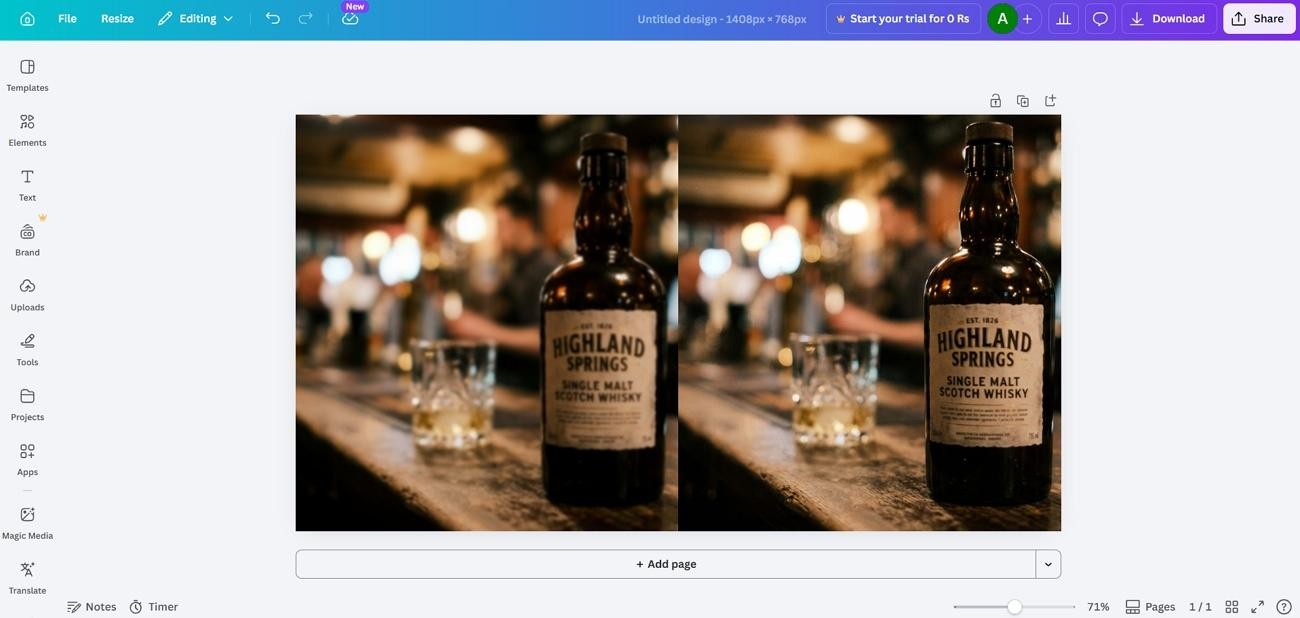
In this test, a slightly blurry product photo was enlarged using Canva’s built‑in image upscaler. After upscaling, the text on the bottle label became noticeably easier to read, and the main edges around the bottle appeared more defined. However, very fine textures in the glass and on the wooden bar remained somewhat soft. The result works well for social media posts, but it still lacks crispness.
Canva Upscale Image Tool: Worth Using in 2026?
The upscaling feature in Canva is good for daily design work. Social posts and simple flyers look sharper without needing extra apps or complex settings. The Canva AI image upscaler is reliable to use and works inside your normal projects.
However, it can struggle with very dark photos. Large print designs or client projects sometimes need more detail than Canva can safely recover. In those rare, tough cases, a dedicated tool like Zawa can give stronger reconstruction power. Notably, Zawa offers a free trial to test its premium AI features—a high-end access that Canva typically keeps behind a Pro paywall.
Zawa: Best Alternatives to Canva Image Upscaler
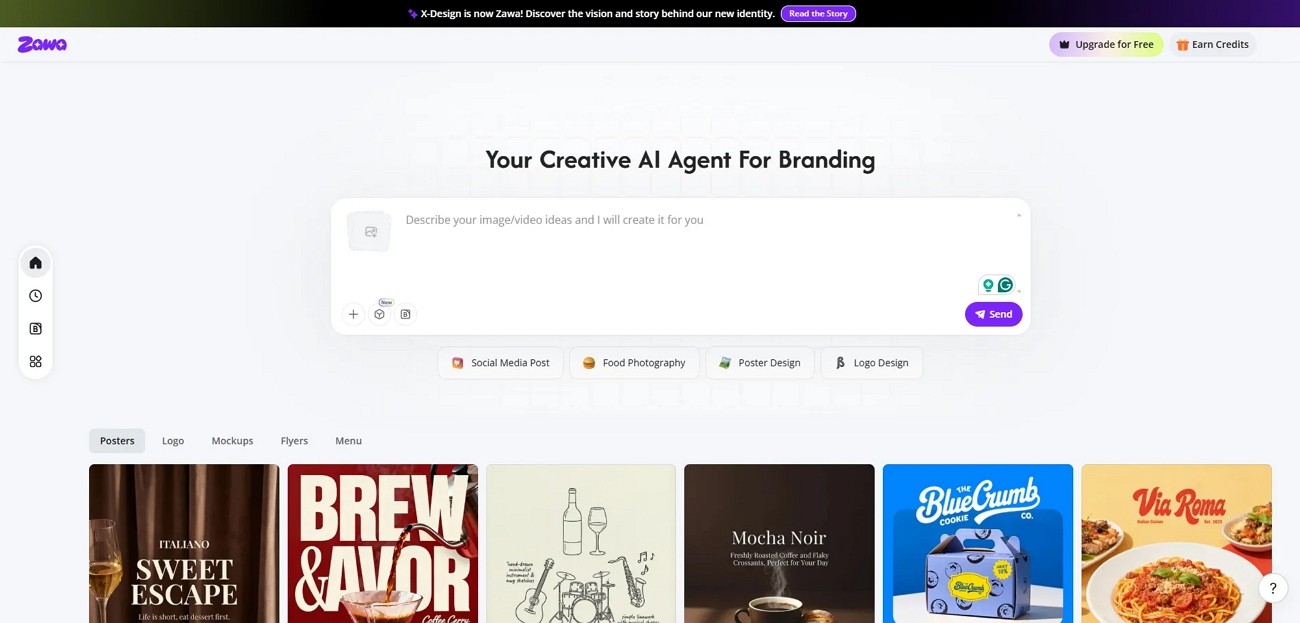
For users who need stronger detail recovery than Canva offers, Zawa can be a practical alternative. It targets photographers and sellers who rely on close-up product images. Zawa works well for e-commerce photos, portraits, and low-light shots needing careful enhancement.
The tool focuses on keeping images sharp and clean while still looking natural. Other than that, it runs online, without installing heavy desktop software.
Key Features of Zawa AI Image Upscaler
Zawa Image Upscaler helps recover more details where some basic tools may struggle. Now, look at the main features that make it a Canva image upscaler alternative.
-
High Resolution Upscaling: It can push images toward 4K resolution while preserving sharp visual detail.
-
Detail Preservation: Keeps fine textures and edges natural rather than making them smooth.
-
Noise and Blur Control: Reduces grain and soft blur, making low-light photos look clearer.
-
Large Size Increase: Lets you enlarge images to 8x without loss of quality.
-
Free-to-Use Accessibility: Lets you experience professional-grade image enhancement and upscaling at zero cost.
-
One-Click Image Enhancement: Offers a one-tap enhancement for better quality with minimal adjustments.
-
Broad Format Support: Works with JPG, PNG, and HEIC to cover most common upload needs easily.
Step-By-Step Guide to Zawa AI Image Upscaler
After knowing what Zawa offers, many users want to actually try it on real images. So, follow the steps below to start using its upscaling tool in a simple way:
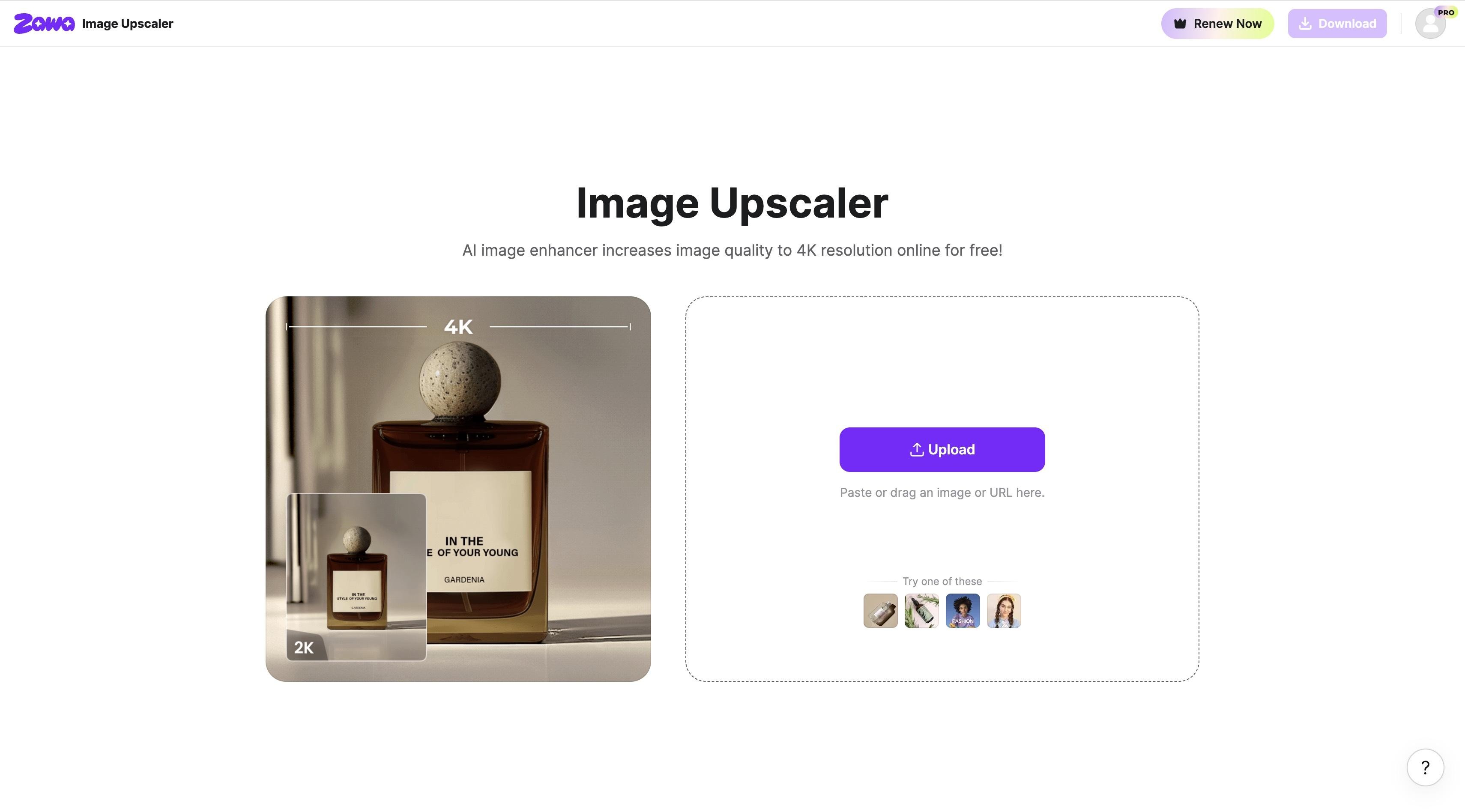
Step 1. Upload Your Image
First, start by uploading an image into the tool. Click the "Upload" button and choose your image to upload.
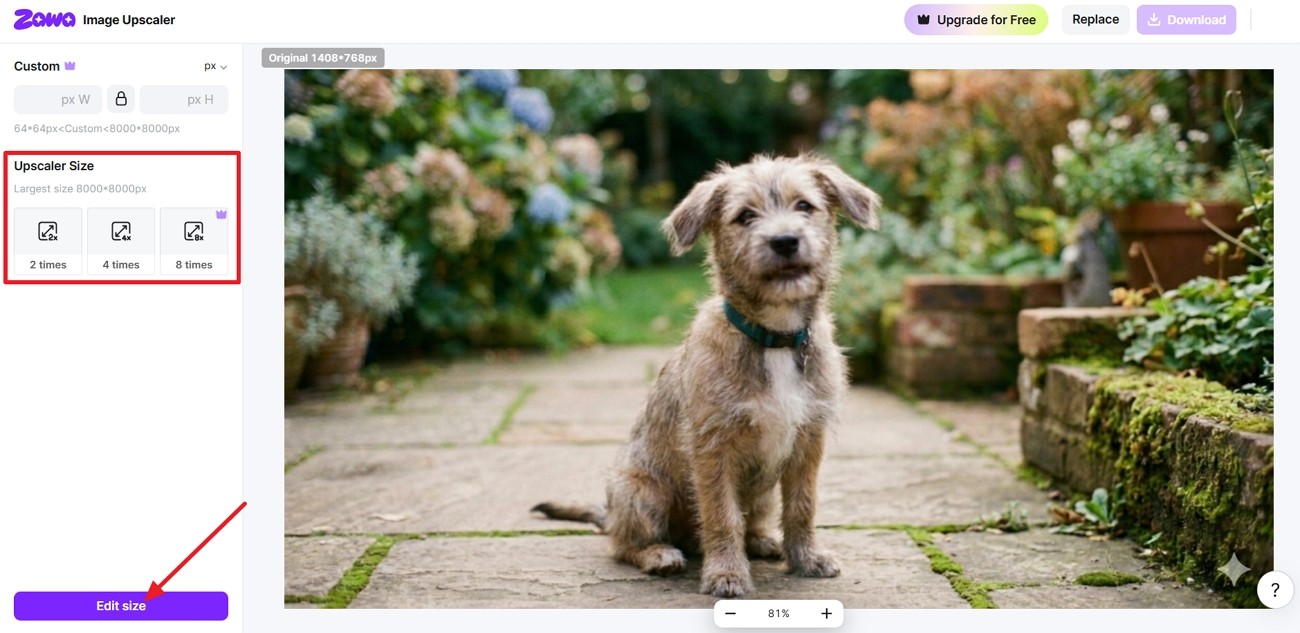
Step 2. Select Output Quality
Next, choose the preferred quality. After that, click the "Edit Size" button. The tool will begin the enhancement process.
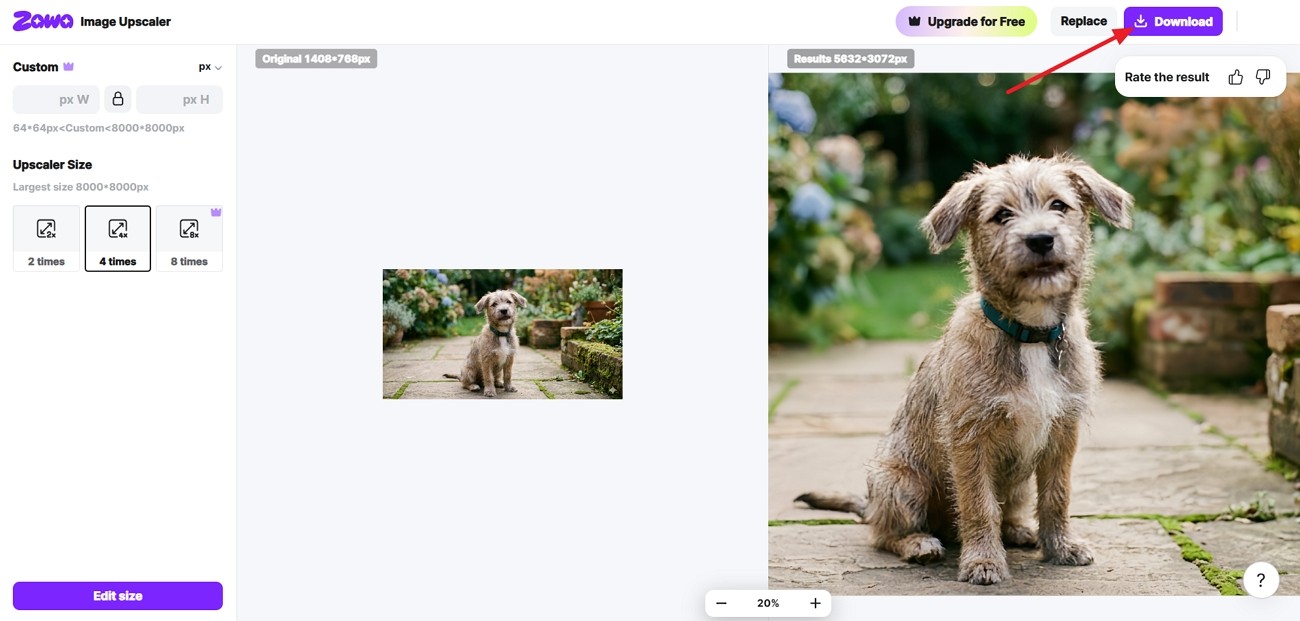
Step 3. Download The Final Image
Once the image is enhanced, compare the before-and-after results. Next, click the "Download" button to save the image.
Conclusion
In conclusion, we explored how the Canva image upscaler works and where it fits best. For most daily designs, Canva gives a quick, simple way to clean up soft images. However, very blurry, noisy, or large-print photos sometimes require more extensive enhancement than Canva can comfortably provide. In those harder cases, trying a dedicated upscaler like Zawa can offer more control without extra hassle.
FAQs
-
Can Canva increase photo quality?
Yes, Canva can improve photo quality by sharpening and reducing slight blur. It works best on decent photos and cannot fully fix extremely low-quality or damaged files.
-
Is Canva's image upscaler free?
Canva offers basic upscaling features for free, which are enough for many simple projects. Some higher-end options and export settings may require a paid Canva Pro subscription instead. For more power, Zawa offers a free trial with specialized AI that delivers sharper 4K upscaling and better texture recovery than Canva's standard tools.
-
How to save Canva so it's not blurry?
Use the highest download quality, choose PNG or JPG, and avoid heavy compression settings. Then, match your canvas size to the final use, and make designs unstretched.
-
Can ChatGPT upscale images?
ChatGPT cannot upscale images because it works with text rather than actual image processing. However, it can explain tools and workflows, like using Canva AI image upscaler correctly.
-
Which is the best free image upscaler?
The best free upscaler depends on your needs, like portraits and large prints. Many users test a few tools, and some prefer Zawa for stronger detail recovery.
You May Be Interested
Try the 10 Best Image Upscalers for Your Photos in 2025
5 Free AI Random Image Generators—Generate Unique Images Instantly Online

4 Solutions to Add a Background in Photos
How Big Is a Wallet-Size Photo? Complete Size Guide

What Makes a Good YouTube Thumbnail That Stops the Scroll
