How to Remove Object from Photo on iPhone: Every Method, by Device (2026)
Every iPhone handles object removal differently, depending on model and iOS version. This guide breaks down each method - native tools, third-party apps, and browser-based AI - so you can use the right approach for your device.


Got an iPhone and want to remove something from a photo? The answer depends on which model you have. Not every iPhone can do this natively, and that trips people up.
iPhone 15 Pro, iPhone 16 series, and iPhone 17 series running iOS 18.1 or later have Apple's built-in Clean Up tool. It handles most object removal without any third-party app. Older models do not have access to this, regardless of which iOS version they are on.
This guide covers all three paths: the native Clean Up tool for supported devices, third-party apps for older iPhones, and a browser-based option that works on any iPhone model. Find your device in the section below and go from there.
Which iPhones Can Remove Objects from Photos - and How
Before jumping into steps, here is a quick breakdown by device. This will save you time.
-
iPhone 15 Pro, 15 Pro Max, iPhone 16 series, iPhone 17 series running iOS 18.1 or later: use the built-in Clean Up tool. Requires Apple Intelligence. No third-party app needed.
-
iPhone 15 (standard) running iOS 17 or later: Clean Up is not available. Apple Intelligence is not supported on the standard iPhone 15. Third-party apps or browser-based tools are the options here.
-
iPhone 14 and older, any model: no native object removal at all. Use a third-party app or browser-based tool.
-
Any iPhone with a browser: Zawa AI Object Remover works in Safari or any mobile browser, with no hardware restriction and no app download required.
Still not sure which category applies? Check your iPhone model in Settings > General > About. Then check your iOS version in the same place.
Keep reading for the exact steps for each path. If you want to remove object from an iPhone photo without an app, the browser-based option in Method 3 is what you need.
Method 1 - Using the Built-In Clean Up Tool (iPhone 15 Pro /16/17, iOS 18.1+)
Clean Up is Apple's on-device AI tool for removing objects from photos. It was introduced with iOS 18.1 as part of Apple Intelligence and runs entirely on the device. Nothing gets uploaded to a server.
It is genuinely good at removing small background distractions. Power lines, strangers in the background, litter on the ground, blemishes. Tap a suggestion or brush over something manually, and the algorithm reconstructs the background behind it. For many everyday edits, it does the job without any setup at all.
Step-by-Step: Remove an Object with Clean Up
The object eraser on iPhone goes by the name Clean Up. Here is how to find it and use it.
Step 1: Open the Photos app and tap the photo you want to edit.
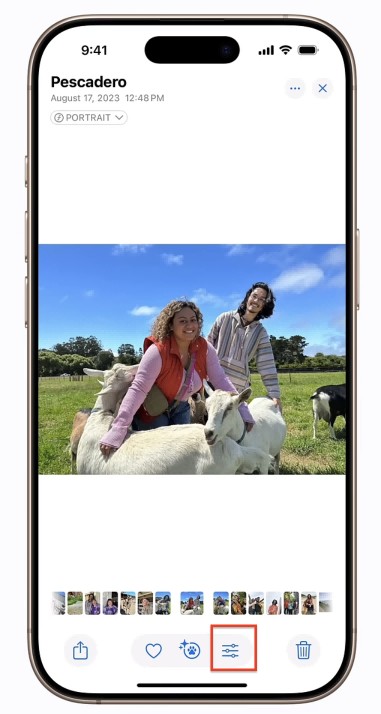
Step 2: Tap Edit at the bottom right. In the bottom toolbar, tap the Clean Up icon. It looks like an eraser. The tool loads and scans the photo automatically.
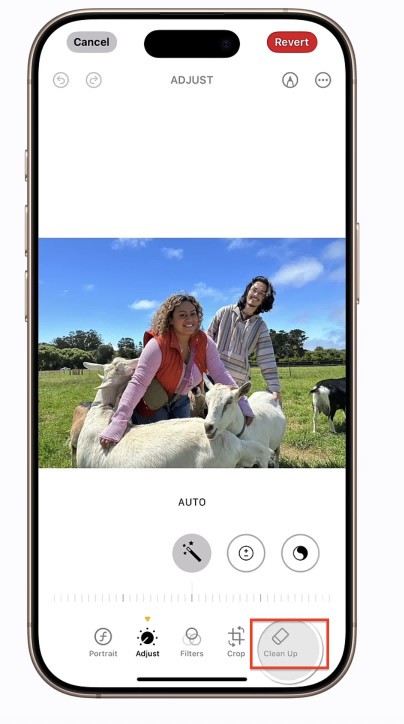
Step 3: If the tool finds distractions, it highlights them. Tap any highlight to remove it immediately. You do not need to draw anything yourself for these.
Step 4: For objects that were not highlighted, use your finger to brush, tap, or circle them. The removal processes in a few seconds.
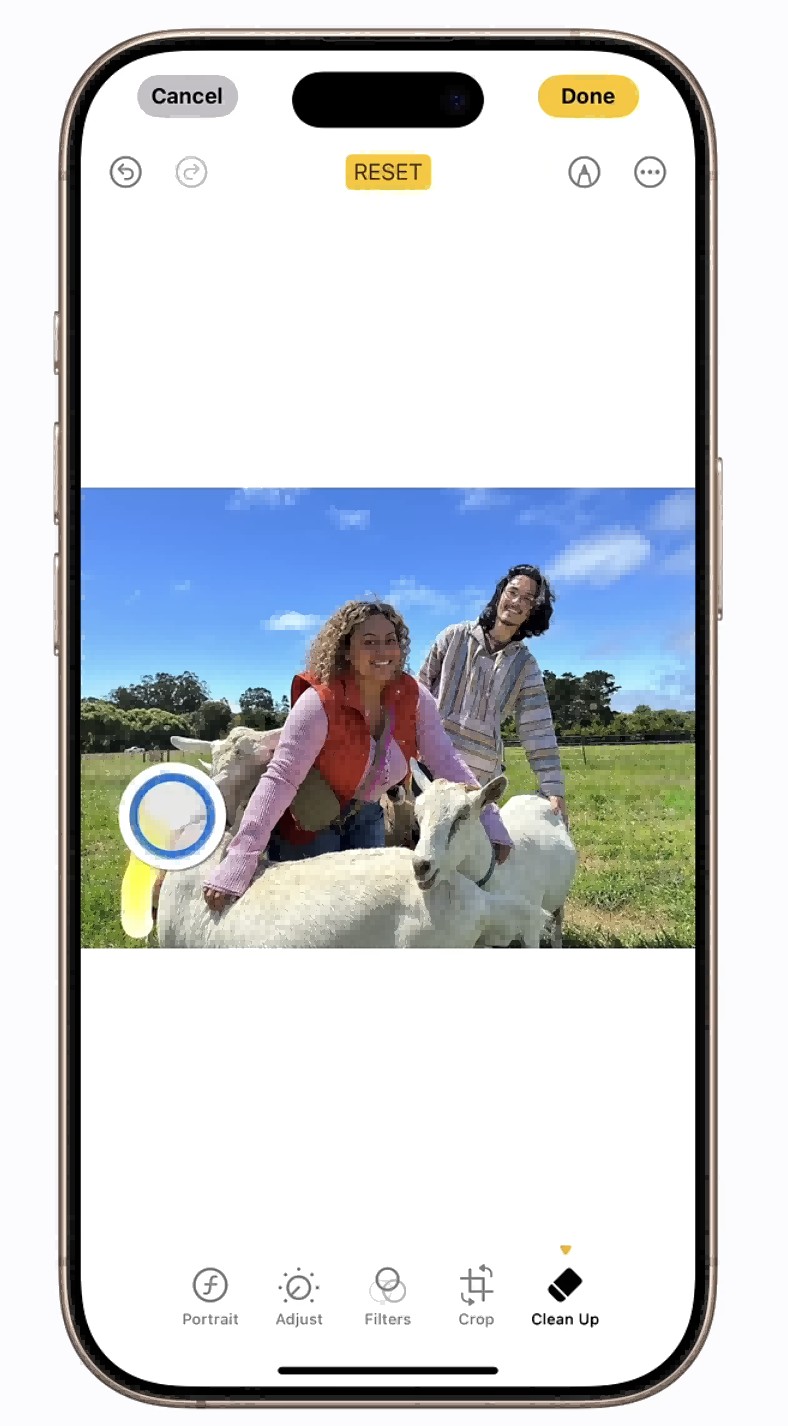
Step 5: Tap Done when finished. The edit saves automatically. To undo everything later, go back into Edit and tap Revert to Original.
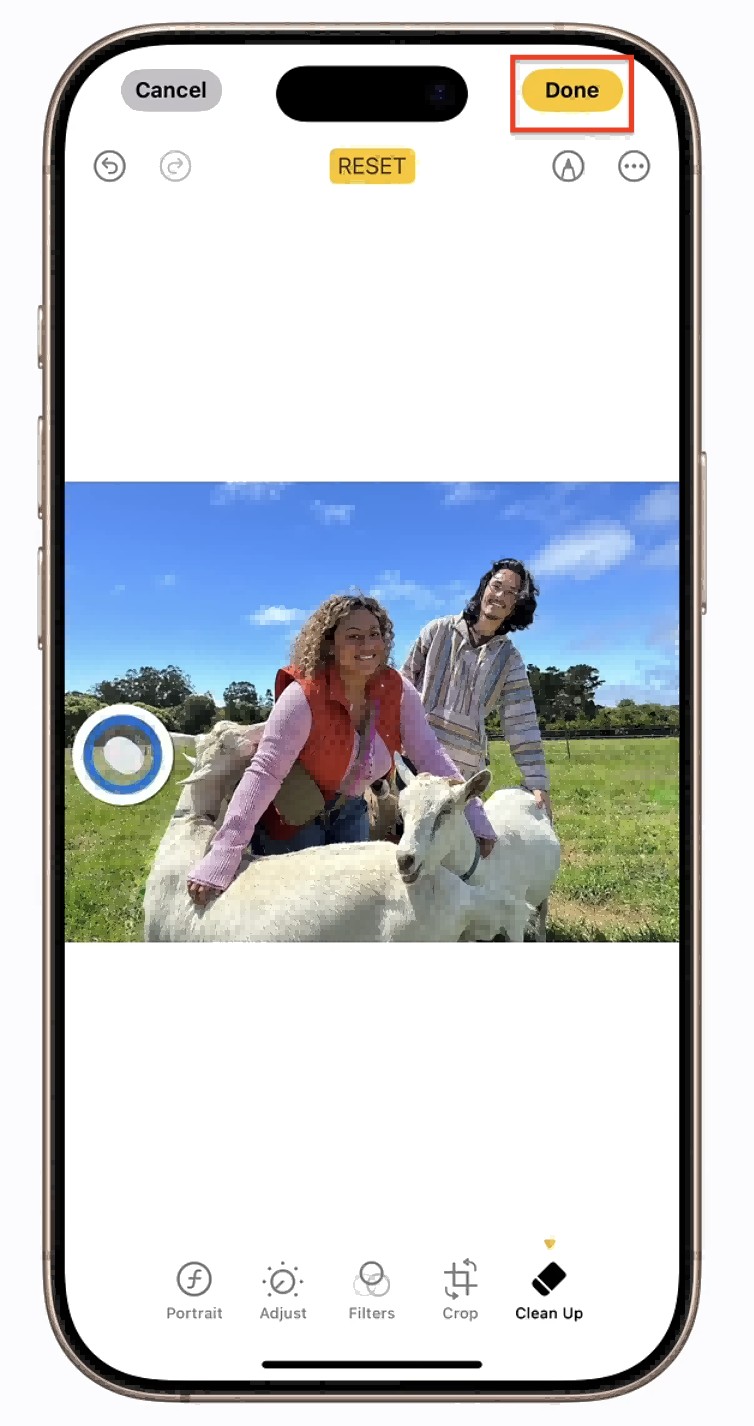
Tip: before brushing over a small or edge-adjacent object, pinch in to zoom to 200 or 300 percent. At that zoom level your finger covers only the boundary of the object, not the surrounding content. This gives the AI tighter edge data and produces a cleaner fill.
What Clean Up Can and Cannot Do
It helps to know the limits before you rely on it.
Works well: Removing background people, power lines, wires, shadows cast by objects, blemishes. It also detects and removes an object's shadow or reflection automatically in many cases. It works on any photo in your library, not just ones taken with your iPhone.
Does not work: Editing Live Photos (Clean Up disables Live Photo when you save), videos, or removing watermarks. It has no detection for text overlays.
Limitation to know: Larger objects leave more visible reconstruction artifacts. The tool is most reliable on small background distractions. Ask it to remove a large foreground subject and the fill starts to show.
The Hardware Restriction - Why Older iPhones Cannot Use This
Clean Up requires Apple Intelligence. Apple Intelligence only runs on iPhone 15 Pro, 15 Pro Max, and the full iPhone 16 and 17 lineups. The standard iPhone 15, and everything before it, does not qualify.
This is a hardware limitation tied to the Neural Engine in those chips. Updating to iOS 18.1 on an older device will not enable the feature. It simply will not appear in the editor.
If Clean Up is missing from your Photos editor after updating iOS, this is almost certainly why. Check your device model. If it is not on the supported list, move on to Method 2 below.
Method 2 - Using Mobile Apps on Older iPhones (iPhone 14 and Earlier)
Without Apple Intelligence, third-party apps are the main route for removing objects from photos on older iPhones. Adobe Lightroom is one of the most commonly used. Others include TouchRetouch and Snapseed.
These apps work, but they come with friction that the Clean Up tool avoids. It is worth knowing what you are getting into before you go this route.
The Typical Workflow on a Mobile App (e.g. Adobe Lightroom)
Download the app from the App Store. Most require an account and a setup step before you can edit anything. Then import your photo, find the healing or removal tool, paint over the object with your finger, wait for the AI to process, preview the result, and export.
On paper that sounds straightforward. In practice the friction shows up in a few specific places.
The Real Limitations of Editing on a Phone Screen
-
Finger brushing: A fingertip covers more surface than most people expect. Selecting a tight boundary around a thin wire, a small face in the background, or a logo on someone's shirt requires multiple attempts. The margin for error is small and the cost of overshooting is a messy reconstruction that is hard to undo precisely.
-
Screen size: To get accurate enough to work with, you need to zoom in. Once zoomed in far enough, the object you are trying to erase is partially off-screen. Scrolling while maintaining selection accuracy on a 6-inch screen is genuinely awkward.
-
Resolution compression: On older hardware, the processing load is real. AI object removal on an A14 or A15 chip takes 10 to 30 seconds per edit. Run several in a session and the phone gets warm. Battery drops faster than during normal use.
-
Export quality: Export quality is another thing to check before you start. Several apps on the free tier compress the output or add a watermark of their own. You may need to pay for removing objects from photos iPhone feature to actually get a clean full-resolution file out.
If you are wondering how to remove something from a picture on iPhone without dealing with these limitations, the next section covers a cleaner path.
None of this makes the apps unusable. For occasional edits where you do not need pixel-perfect accuracy, they are fine. But if you are working on a photo where detail matters or you need a clean result the first time, the mobile editing environment works against you.
No Hardware Lock, No Small Screen: Remove Objects from iPhone Photos with Zawa
Here is where things get more flexible. Zawa AI Object Remover runs in a browser. It works on any iPhone regardless of model and it also opens on a desktop, which is where you get the most precise control.
The advantage over mobile apps is that you are not fighting a small screen or limited hardware. On a computer you have a mouse, a proper-sized canvas, and the ability to zoom in without losing your place. The same removal task that takes multiple attempts on a phone screen often takes one on a desktop.
Zawa also supports Quick Start auto-detection for categories like Text, Overlay Watermark, Unwanted People, Eyeglasses, and Glare. Toggle the right category and it finds and removes those elements without you drawing anything. That is the same kind of convenience as Clean Up, but available on any device.
Step-by-Step: Using the Zawa app to remove an object on mobile
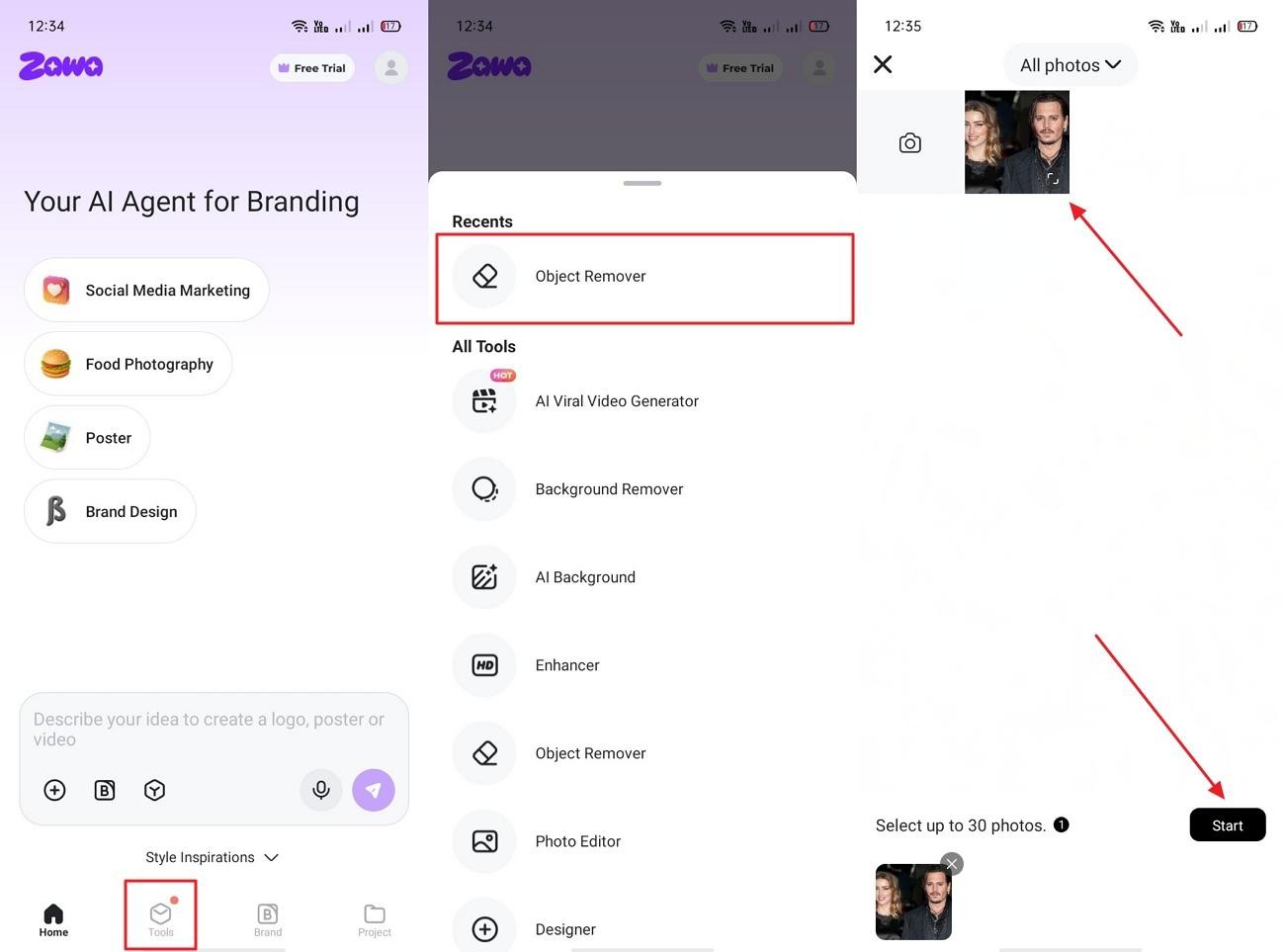
Step 1. Open the app, tap “Tools” and opt for “Object Remover”. Next, select the picture and hit the “Start” button.
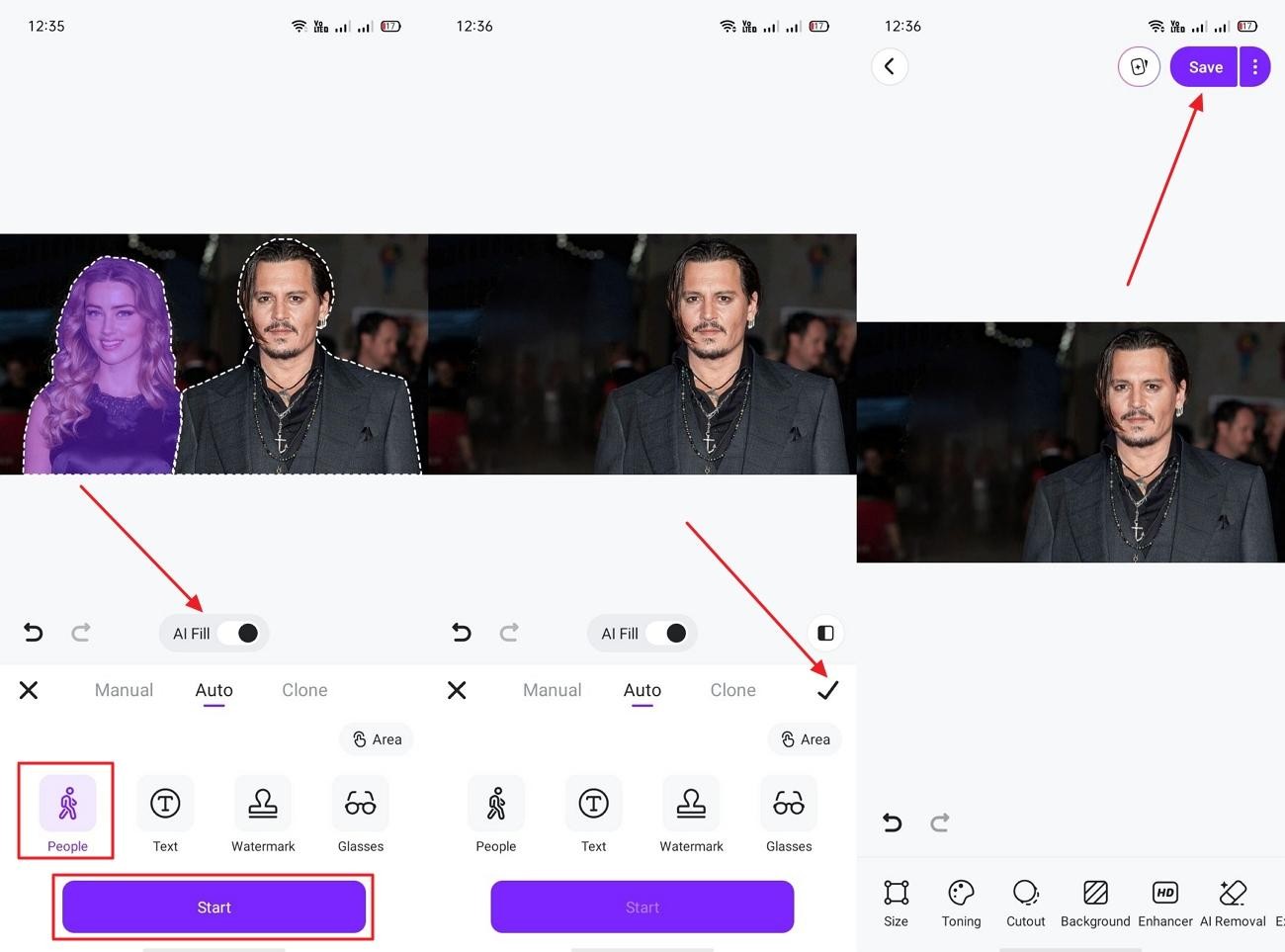
Step 2. Later on, toggle on “AI Fill” and choose “People”, then tap “Start”. Once the object is removed, opt for “Tick” and then tap “Save”.
Step-by-Step: Using the Zawa app to remove an object online
Step 1: Transfer and Upload Photo
If you prefer to remove objects on a computer, first transfer the photo from your iPhone to your computer via AirDrop on Mac or USB on Windows. Then go to Zawa and click Upload. A Batch upload option is available for multiple photos.

Step 2: Choose Your Removal Mode
The left panel has two sections. Quick Start detects and removes categories automatically: toggle on Text, Overlay Watermark, Unwanted People, Eyeglasses, or Glare. For manual control, use the Advanced section to pick Brush, Box, or Draw, adjust the size, and click Apply Now.

Step 3: Download Your Edited Photo
Click Download at the top right. Choose JPG or PNG. The Advanced Editing panel alongside gives quick access to Image Enhance, AI Background Removal, Image Upscale, and Photo Editor without leaving the page.

Pro Tips for Cleaner Object Removal on iPhone
These apply whether you are using Clean Up, a third-party app, or Zawa. Good habits here make a visible difference in output quality.
Zoom In Before You Brush
On Clean Up or any mobile app, pinch in to at least 200 percent before painting over an object. At full image view, your finger tip covers far more area than you intend. Zooming in first means your stroke lands only on the object boundary, giving the AI better edge data to work from.
On Clean Up specifically: zoom in, brush the object, then zoom back out to check the reconstruction before tapping Done. The fill often looks fine close up but shows a texture mismatch at normal view.
Work in Small Passes, Not One Big Stroke
One large brush stroke across a complex object asks the algorithm to reconstruct a big area all at once. That increases the chance of visible patching, especially near edges.
Break the selection into smaller passes instead. Start in the middle of the object. Work outward toward the edges in separate strokes. Each small pass gives the AI a limited reconstruction task with more surrounding context to draw from.
Match Brush Size to the Object
A brush that is too large captures content outside the object boundary. That surrounding content gets sampled into the reconstruction and produces color or texture mismatch.
Use a small brush for detail work: wires, text, straps, or any object near another subject. Use a larger brush only on clearly isolated objects with clean space around them.
Always Check at Full Resolution Before Saving
AI reconstruction artifacts are easy to miss at preview or thumbnail size. A fill that looks perfectly clean on your phone screen can show smearing, repeated texture, or color mismatch when viewed at full size on a monitor or in print.
Before saving or exporting, zoom to 100 percent on the edited area. Check for anything that looks off. If you see a problem, undo and redo with a tighter selection rather than accepting an imperfect result.
Conclusion
The right method for removing an object from a photo on an iPhone comes down to your device.
If you have an iPhone 15 Pro, 16 series, or 17 series running iOS 18.1 or later, the built-in Clean Up tool handles most edits well with no setup required. It is the most convenient path for supported devices.
For older iPhones, third-party apps work but come with real friction: limited screen space, finger precision issues, slower processing, and export restrictions on many plans.
The Zawa AI Object Remover sidesteps the hardware restriction entirely. It runs in a browser on any device. Opening it on a desktop gives you better precision and a smoother editing experience for photos where detail matters. The remove object from photo iPhone workflow does not have to be tied to which model you own.
FAQs
-
Does Apple have a magic eraser?
Not by that name. The equivalent feature is called Clean Up. It is available in the Photos app on iPhone 15 Pro, iPhone 16 series, and iPhone 17 series running iOS 18.1 or later. It removes objects from photos using Apple Intelligence and works similarly to what other tools call a magic eraser.
-
How to use the object eraser in iOS 26?
In iOS 26 the feature is still called Clean Up and it works the same way. Open a photo in the Photos app, tap Edit, then tap the Clean Up icon in the bottom toolbar. The tool scans and highlights suggestions. Tap to remove, or brush over objects manually. iOS 26 requires the same Apple Intelligence-compatible hardware: iPhone 15 Pro, 15 Pro Max, or any iPhone 16 or 17 model.
-
Can I remove objects from photos on iPhone 14 or older?
The native Clean Up tool is not available on iPhone 14 or earlier. Third-party apps like Adobe Lightroom include AI object removal features that work on older hardware. Browser-based tools like Zawa AI Object Remover work on any iPhone with a browser and require no app installation, which makes them the most accessible option for older devices.
-
Why is the Clean Up tool not showing on my iPhone?
Clean Up requires Apple Intelligence. It only runs on iPhone 15 Pro, 15 Pro Max, and all iPhone 16 and 17 models. If your device is any other model, the tool will not appear regardless of which iOS version you are on. Updating iOS does not add Apple Intelligence to unsupported hardware. Check Settings > General > About to confirm your exact model.
-
What is the best way to remove objects from iPhone photos without losing quality?
On supported devices, the native Clean Up tool preserves full image resolution. For older iPhones, browser-based tools like Zawa generally maintain better output quality than mobile apps on the free tier, which often compress the image or restrict full-resolution export until you pay. For the cleanest results on detail-heavy photos, opening Zawa on a desktop gives you better selection precision than any mobile editing workflow.
You May Be Interested

How to Make Facebook Ads: Complete Beginner-to-Pro Tutorial

7 Best Background Remover Apps

Remove Fold of Scanned Image: Best AI Restoration Guide

How to Remove People From Pictures