1440p vs 4K: Technical Differences, Real-World Scenarios & the Blur Problem (2026)
1440p and 4K share the same 16:9 aspect ratio but differ by 2.25x in total pixel count. This guide covers the technical gap, where each resolution wins in practice, and the specific reason 1440p content looks blurry on a 4K display.

1440p (2,560 x 1,440) and 4K UHD (3,840 x 2,160) are the two dominant resolutions in PC gaming and professional monitor use in 2026. On paper, the difference between them is straightforward: 4K holds 2.25 times more pixels than 1440p. In practice, that gap shows up differently depending on screen size, viewing distance, GPU hardware, and use case.
This 1440p vs 4K resolution guide covers the technical numbers, where each resolution delivers its clearest advantage across gaming, productivity, video production, and security cameras, and the specific reason 1440p on a 4K monitor looks blurry. That last point trips up a lot of buyers who assume a higher-resolution display will automatically make any source look better.
The Technical Blueprint: Pixels, Dimensions, and the Key Numbers
The difference between 1440p and 4K starts with the pixel grid. These numbers matter because they determine pixel density, scaling behavior, and hardware cost.
Side-by-Side Specs
1440p QHD sits at 2,560 x 1,440 pixels, totaling 3,686,400 pixels per frame. At 27 inches, that produces 109 PPI. At 32 inches, it drops to 92 PPI. 4K UHD is 3,840 x 2,160, totaling 8,294,400 pixels. At 27 inches, 4K reaches 163 PPI. At 32 inches, it holds at 137 PPI.
Both share a 16:9 aspect ratio. The pixel count gap is 2.25x, not 2x or 4x. That specific ratio is important because it determines how 1440p scales on a 4K display, which is the root of the blur problem covered later in this guide.
|
Spec |
1440p (QHD) |
4K UHD |
Notes |
|---|---|---|---|
|
Resolution |
2,560 x 1,440 |
3,840 x 2,160 |
Both 16:9 aspect ratio |
|
Total Pixels |
3,686,400 |
8,294,400 |
4K = 2.25x more than 1440p |
|
PPI at 27 inches |
109 PPI |
163 PPI |
+49% pixel density at same size |
|
PPI at 32 inches |
92 PPI |
137 PPI |
1440p softens at 32in |
|
Scale ratio to 4K |
1.5x (non-integer) |
Native |
Root cause of blur problem |
|
GPU for 60fps |
RTX 5060 Ti (~$429 MSRP) |
RTX 5070 Ti (~$749 MSRP) |
2026 verified pricing |
|
GPU for 144Hz |
RX 9070 / RTX 5070 (~$549) |
RTX 5080 (~$999 MSRP) |
High refresh tier |
|
File size (1hr H.264) |
~1.8-2.5 GB |
~4.8 GB |
2-2.5x larger for 4K |
|
Common primary use |
Enthusiast gaming, monitors |
TVs 55in+, pro editing, 4K gaming |
Is 1440p the Same as 4K?
No. 1440p and 4K are distinct resolutions with different pixel counts, pixel densities, and hardware requirements. 1440p is sometimes marketed as '2K,' which adds confusion, but neither label makes it equivalent to 4K. The horizontal pixel count of 1440p (2,560) is exactly 1.5x smaller than 4K (3,840). The vertical count (1,440 vs 2,160) follows the same 1.5x ratio.
That 1.5x difference in both dimensions, rather than a clean 2x or integer multiple, is why 1440p does not scale cleanly onto a 4K panel. It is not a software limitation or a hardware defect. It is a mathematical consequence of the pixel counts involved, covered in detail in the blur section below.
Hardware Demands: 2026 Verified GPU Pricing
The outline for this article referenced the RTX 3060 Ti and RX 6700 XT as the 1440p gaming benchmark. Both are previous-generation cards no longer relevant to 2026 purchasing decisions. The following figures are sourced from verified 2026 retail data.
For 1440p at 60fps on high settings in current titles, the RTX 5060 Ti 16GB is the practical entry point at $429 MSRP (street price currently around $470 to $570 depending on AIB model). The RX 9070 and RTX 5070, both at $549 MSRP, are the recommended mid-range options for sustained 1440p at 100 to 144fps. For high-refresh 1440p at 144Hz and above in demanding titles, the RX 9070 XT ($599 MSRP, ~$690 to $700 street) is the current value leader in rasterization performance.
For 4K gaming at 60fps in demanding titles, the RTX 5070 Ti ($749 MSRP, ~$880 to $1,000 street) and RX 9070 XT are the practical floor. Neither card delivers consistent 60fps at 4K maximum settings in the most demanding 2026 titles without upscaling. For 4K at 120fps or on ultra settings, the RTX 5080 ($999 MSRP, ~$1,250 street) is the relevant tier. Storage adds another cost layer: 4K video files run approximately 2 to 2.5 times larger than 1440p footage at equivalent bitrate and frame rate.
Real-World Scenarios: Which Resolution Wins Where?
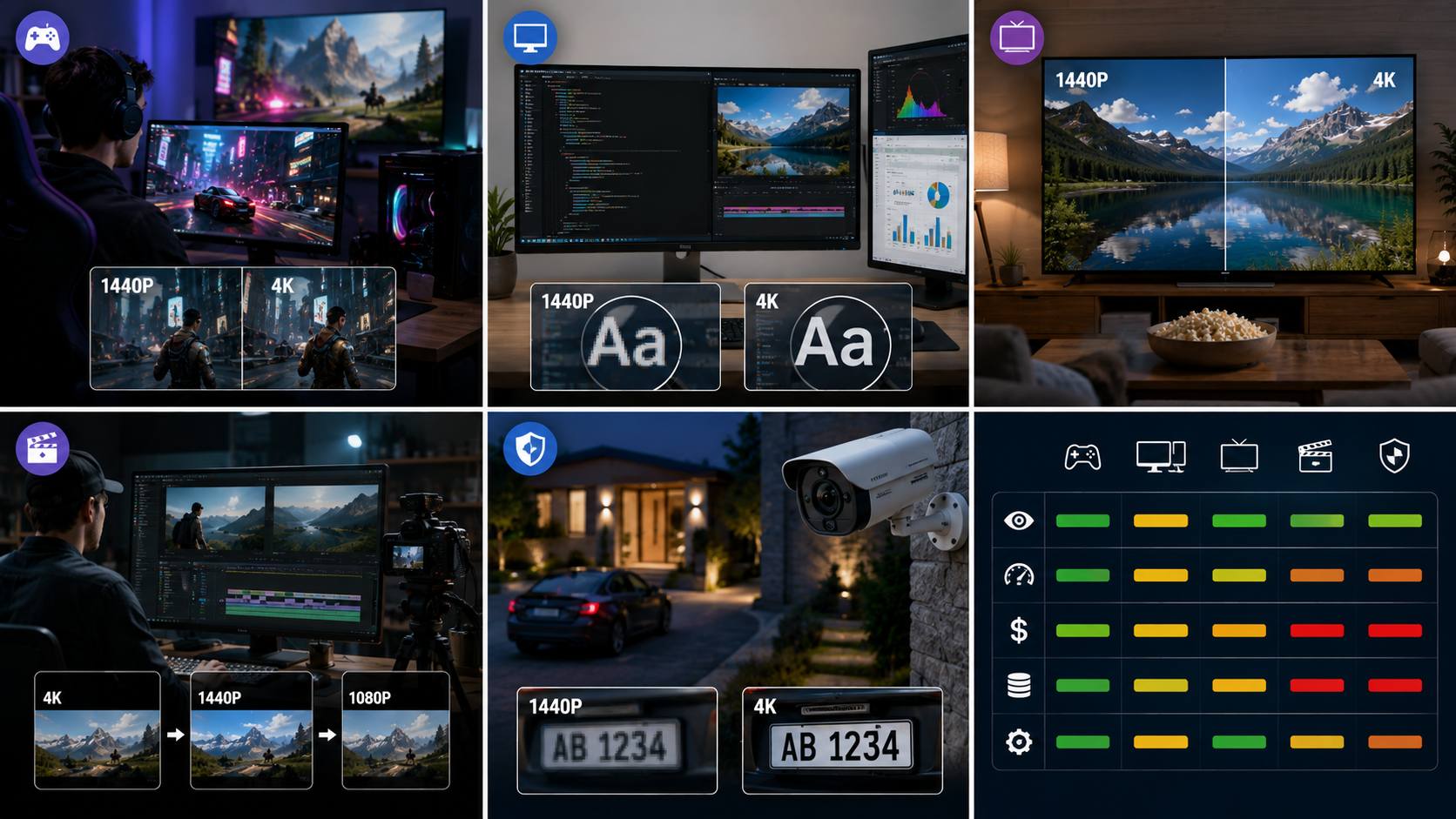
The 4K vs 1440p question does not have a universal answer. The right choice depends on the specific use case. Here is how the comparison breaks down across the scenarios where both resolutions are commonly deployed.
PC Gaming
For most PC gamers in 2026, 1440p remains the more practical choice. The 1440p vs 4K resolution gap in gaming is real, but 4K's advantage costs significantly more in GPU hardware to access. A 1440p monitor at 144Hz or above, paired with a GPU in the RX 9070 or RTX 5070 range at $549, hits the performance and visual quality target most enthusiast buyers are looking for.
4K gaming wins on visual fidelity in single-player, open-world, and cinematic titles. Games like Cyberpunk 2077, Red Dead Redemption 2, and Horizon Forbidden West render environmental detail at 4K that 1440p cannot match. On a large monitor or TV with a high-end GPU, the sharpness improvement is visible and meaningful. The cost to get there is the constraint. Consistent 4K at 60fps in demanding 2026 titles requires the RTX 5070 Ti at $749 MSRP or the RX 9070 XT at $599, and even these cards need upscaling to sustain 60fps at maximum settings in the most demanding titles.
Competitive multiplayer sits in a different category. In CS2, Valorant, and Apex Legends, most players running at a serious level are on 1080p at 240Hz or higher. Reaction time and frame consistency matter more than how sharp the textures are. 1440p at 144Hz works well for players who want better image quality without dropping to the frame rates those titles reward.
DLSS 4 and FSR 4 close the gap further. An RTX 5070 Ti running DLSS 4 renders internally at 1440p and outputs something close to 4K sharpness. The RX 9070 XT does the same with FSR 4. Neither is the same as native 4K rendering, but for someone with mid-range hardware who wants 4K-quality output, these tools make it achievable without a full GPU upgrade.
Monitors for Work and Productivity
On a 27-inch screen, 1440p lands at 109 PPI. That is sharp enough for most desk work without question. Code editors, design tools, video editing timelines, and spreadsheets all render cleanly at 109 PPI for most users at standard desk distance.
4K at 27 inches delivers 163 PPI, which approaches print quality. The difference over 1440p is visible during extended text-heavy work, particularly in small fonts, detailed iconography, and fine color work. Whether that improvement justifies the cost depends on the nature of the work. For casual productivity, 1440p is sufficient. For professional photo editing or color grading, the 4K jump has a practical payoff.
Screen size changes the equation significantly. At 32 inches, 1440p drops to 92 PPI, which some users find soft at desk distance. 4K at 32 inches holds at 137 PPI and maintains consistent sharpness. For anyone buying a 32-inch or larger monitor, 4K is the more defensible choice to maintain text clarity.
TV and Home Entertainment
4K dominates the TV market in 2026. Over 80% of new TV units sold are 4K, and the price premium over 1080p has largely disappeared at 43 inches and above. 1440p TVs occupy a narrow mid-market segment from Samsung and TCL that offers a step up from 1080p OLED for buyers not ready for 4K pricing.
At typical living room viewing distances of 8 to 12 feet, the 1440p vs 4K gap is less visible than at desk distance. Screen size matters more than resolution at longer ranges. On a 55-inch or larger screen with native 4K content from a 4K Blu-ray or a streaming platform delivering at 4K bitrates, the improvement over 1440p is clear. Below 43 inches at room distance, the pixel density advantage of 4K over 1440p is harder to perceive without deliberate inspection.
Video Production and Streaming
Recording in 1440p and delivering in 1080p gives creators 78% more reframing flexibility compared to shooting natively at 1080p. Crop, stabilize, and reframe without hitting the resolution floor before export. For YouTube, 1440p uploads are displayed as '1440p HD' with noticeably sharper desktop playback than 1080p, which benefits channels where visual quality matters.
4K production maximizes post-production flexibility. Shooting in 4K and delivering at 1080p or 1440p leaves the most room to work in post. Zooming in on subjects, stabilizing handheld footage, and repositioning frames all consume resolution. Starting at 4K means those operations do not reduce the final export below the delivery target.
The storage trade-off is real. 4K footage at H.264 produces approximately 2 to 2.5 times larger files than 1440p at the same bitrate and duration. A full shooting day in 4K can require 100 to 300 GB of storage before editing. 1440p runs 40 to 80 GB for the same duration. For long-form content creators managing storage costs, 1440p is a practical format that preserves enough detail for most delivery targets.
Security Cameras
Both 1440p and 4K are used in security camera deployments, and the right choice depends on coverage area and budget. 4K security cameras pick up more usable detail at distance. When you zoom into recorded footage to read a plate or identify a face near the edge of the frame, the extra pixel density gives you more to work with before the image breaks down. A single 4K camera covering a wide outdoor zone will hold readable detail in areas where a 1440p camera would have already run out of resolution.
For home use and small business setups, 1440p sits in a practical position. It reads faces and plates more clearly than 1080p at medium range, but it does not push bandwidth and storage costs the way 4K does. Most existing NVR hardware supports 1440p feeds without an upgrade. 4K cameras need more from the recorder, the network, and the storage — all worth planning for before the install.
Why 1440p Hardware Is Left with Blurry Visuals on a 4K Display
One of the most common complaints from users running a 1440p GPU on a 4K monitor is that 1440p content looks soft and less sharp than expected. This is not a defective panel or a driver bug. It has a specific technical cause that is worth understanding before buying a 4K display for a 1440p gaming rig.
The Non-Integer Scaling Problem
A 4K monitor has a fixed physical pixel grid of 3,840 x 2,160 pixels. When a 1440p signal (2,560 x 1,440) is sent to that display, the monitor must stretch the image to fill all 3,840 x 2,160 physical pixels. The scaling ratio is exactly 1.5x horizontally (3,840 divided by 2,560) and 1.5x vertically (2,160 divided by 1,440).
The problem is that a physical display pixel cannot be fractionally lit. It is either fully on or off. The monitor cannot represent '1.5 pixels' to fill the gap between one 1440p pixel and the next. Instead, the monitor's internal scaler uses interpolation, blending the color values of surrounding pixels to estimate what each fractional position between 1440p pixels should look like.
That blending softens everything. Edge contrast is reduced. Fine text loses definition. Texture detail in games smears slightly. The image on screen is technically at 4K resolution in terms of output pixel count, but the content is visually softer than the same 1440p content displayed on a native 1440p monitor. This is what 1440p on a 4K monitor blurry means in practice. It is a scaling artifact, not a resolution problem.
Why 1080p on a 4K Monitor Is Less Blurry Than 1440p
This is a counterintuitive outcome that surprises many users. 1080p (1,920 x 1,080) scales to 4K (3,840 x 2,160) at exactly 2x in both dimensions: 3,840 divided by 1,920 equals 2, and 2,160 divided by 1,080 equals 2. That is integer scaling.
Integer scaling means each 1080p pixel maps to exactly four 4K pixels in a 2x2 block. No blending is required. No color averaging happens between pixel positions. The scaler simply duplicates each source pixel into four output pixels. The result is a softer image overall compared to native 4K content, but it does not introduce the smearing and edge softness that non-integer scaling creates.
1440p's 1.5x scale to 4K produces more visible blur than 1080p's 2x scale, despite 1440p being the higher-resolution source. The resolution of the input matters less than whether the scaling ratio is an integer. 1080p gets lucky with a clean 2x ratio. 1440p does not. This is why users who switch from 1080p to 1440p on the same 4K monitor sometimes report that 1080p looked cleaner.
What Partially Mitigates the Blur
GPU-level upscaling is the most effective mitigation. NVIDIA DLSS 4 and AMD FSR 4 render the game at 1440p and reconstruct the output at near-4K quality using trained neural networks. This happens before the image reaches the monitor's scaler, so the display receives a 4K-resolution signal rather than a 1440p signal that needs stretching. The result is significantly sharper than display-side interpolation.
Display scaler quality also varies. Premium 4K monitors from LG, Samsung, and Sony include better upscaling processors than budget panels. A high-end scaler reduces the interpolation artifacts from non-integer scaling but does not eliminate them. The blur is less pronounced, not absent.
Viewing distance provides natural mitigation. At room distance of 6 feet or more, the blur from 1440p's non-integer scaling on a 4K display is harder to detect than at desk distance of 2 to 3 feet. Moving further from the screen reduces the angular resolution at which the softening is perceptible.
Content type matters too. Fast-moving video content, where frames change rapidly, makes the interpolation blur harder to detect. Static elements, fine text, sharp geometric edges, and detailed textures in paused frames are where the non-integer scaling blur is most visible.
Elevate Your 1440p Media to 4K with AI Video Enhancer
For 1440p video content that needs to hold up on 4K displays for playback, publishing, or delivery, display-side interpolation is not a good solution. It blurs the output by design. GPU-level upscaling handles real-time gaming well, but pre-recorded video files need a different approach.
Zawa Video Enhancer uses a trained neural network to analyze each frame and predict higher-resolution detail, recovering edge sharpness and texture definition rather than blending existing pixels into a larger container. The result bridges the gap between 1440p source quality and 4K display expectations in a way that standard interpolation cannot. It runs directly in the browser — free to try with new-user credits, no desktop install required. Here's how to use it.
Step-by-Step: Using Zawa Video Enhancer
Step 1: Open the tool and upload your 1440p video
Go to Zawa , find Video Enhancer in the tool panel at the bottom-right of the Zawa workspace.Drop your 1440p video file into the upload zone. MP4, M4V, MOV, AVI, and 3PT files all work. No install is needed. The file uploads directly to the processing interface.
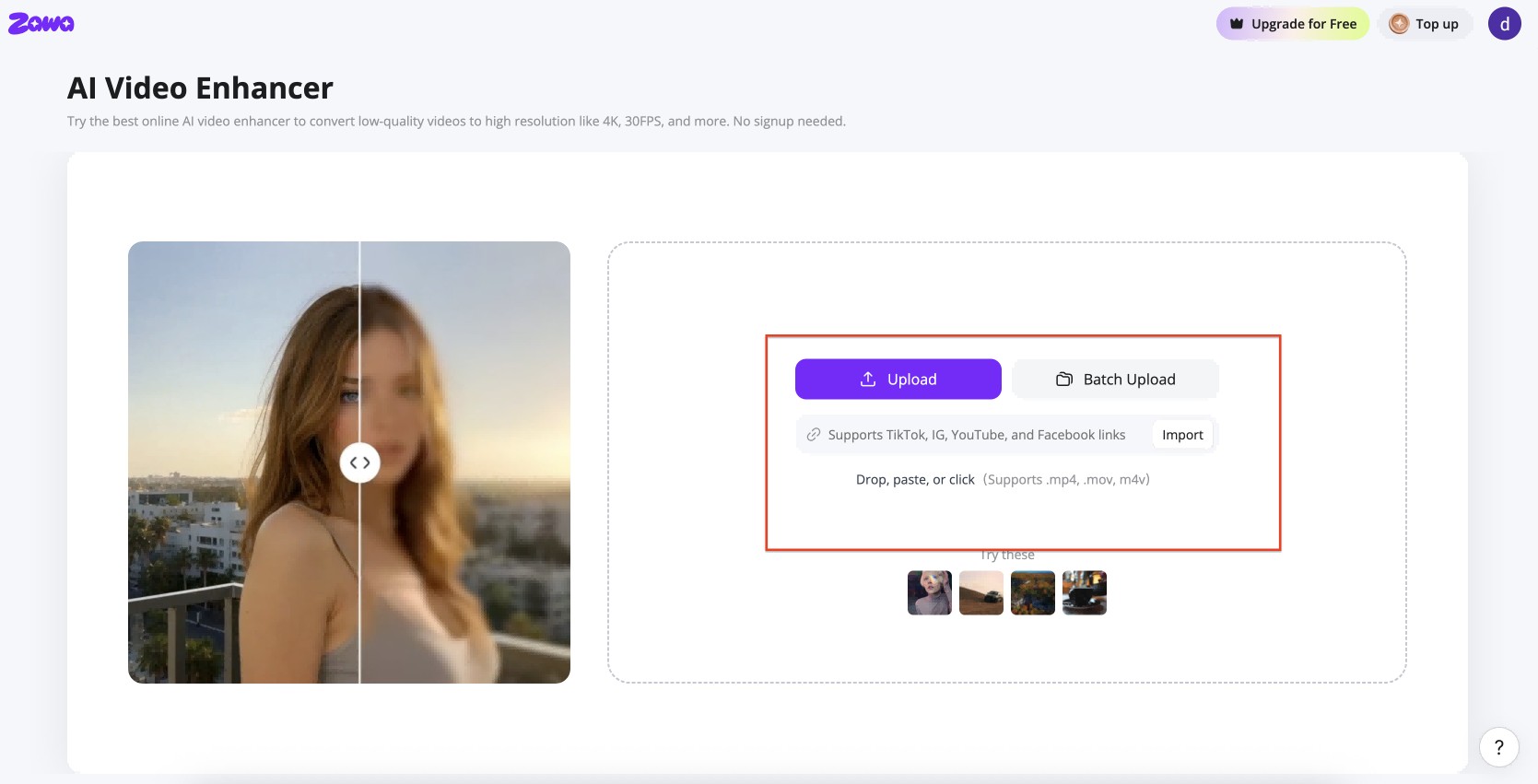
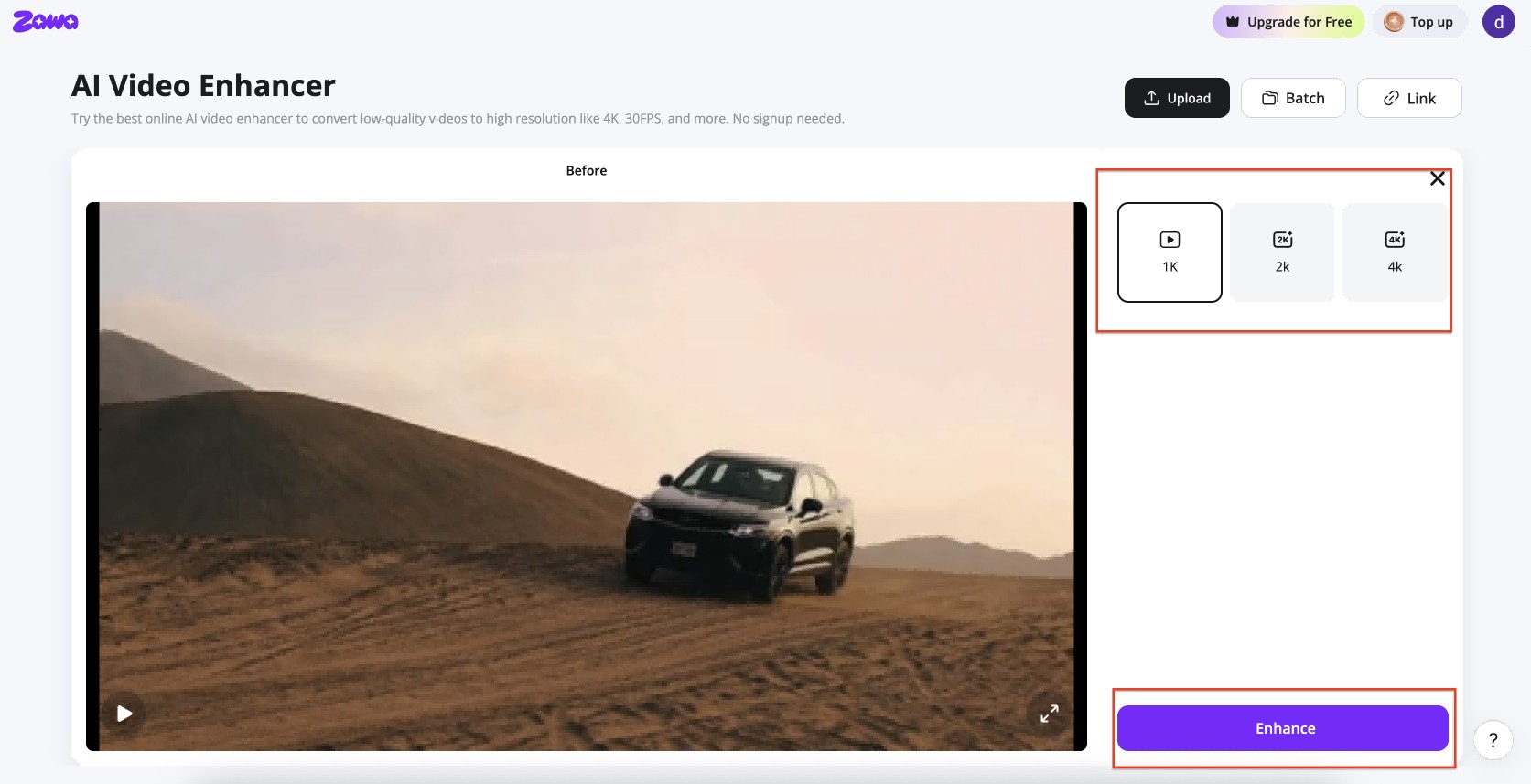
Step 2: Set the output to 4K and run the enhancement
Select 4K as the target resolution in the output panel. Hit Enhance. The tool processes each frame individually, rebuilding detail using the trained model rather than stretching source pixels. Progress updates as the file processes.
Step 3: Check the split-view preview and download
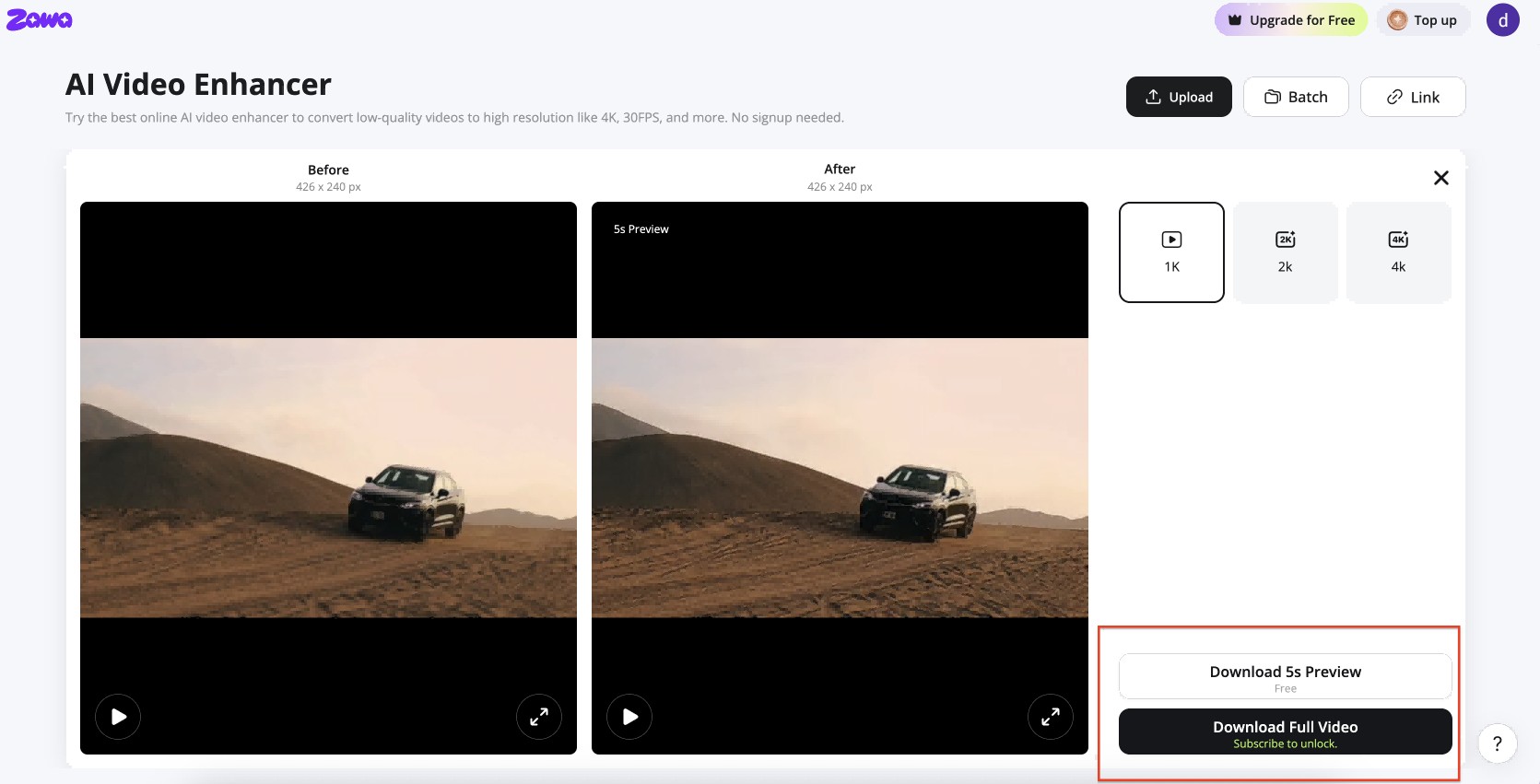
A before-and-after comparison loads when processing is done. Move through the clip and inspect sections with fine texture, sharp edges, or text overlays. Download when the output meets your quality target.
Once your video is enhanced, you can remove watermarks or adjust the background without switching tools — all available at Zawa.
Conclusion
The 1440p vs 4K resolution comparison comes down to what the hardware can support, what the screen size calls for, and what the content will be used for. Neither resolution is universally better.
1440p is the more practical choice for most PC gamers in 2026. The GPU hardware required to drive it well costs significantly less than the hardware 4K demands. At 27 inches and desk distance, 109 PPI is a meaningful improvement over 1080p without requiring a premium GPU budget. For monitors, gaming, and video production workflows targeting 1080p delivery, 1440p is the rational choice at current prices.
4K wins on large screens, for professional color and editing work at desk distance, and for home entertainment on TVs 55 inches and above where native 4K content is available. The price premium for 4K gaming hardware is real and significant. It makes sense when the use case demands it and the budget supports it.
One point worth keeping in mind: if you own a 4K display and a 1440p GPU, do not expect 1440p content to look better on the 4K screen. The 1.5x non-integer scaling ratio produces visible blur that a native 1440p monitor does not. DLSS 4 or FSR 4 sends a reconstructed 4K signal to the display before the monitor's scaler ever touches it. That sidesteps the interpolation problem entirely and produces a noticeably sharper result than letting the panel handle the scaling.
FAQs
Is 1440p the same as 4K?
No. 1440p sits at 2,560 x 1,440 pixels, which works out to 3,686,400 pixels per frame. 4K UHD is 3,840 x 2,160, totaling 8,294,400 pixels. That puts 4K at 2.25 times the pixel count of 1440p. Both use a 16:9 aspect ratio, but they are different resolutions with different hardware requirements and different pixel densities at any given screen size. Saying 1440p is 4K is not accurate, and the '2K' marketing label applied to 1440p does not change that.
Can the human eye tell the difference between 1440p and 4K?
Most people can, but the conditions have to be right. On a 27-inch monitor at desk distance, the gap between 109 PPI and 163 PPI shows up in how sharp text looks and how cleanly fine detail holds. Static images and sharp-edged content make the difference easier to spot. Fast-moving video makes it harder. Move to a couch position 8 to 12 feet from a 55-inch TV and the advantage becomes much harder to detect without a direct side-by-side. How visible the difference is depends on the screen, the distance, and what you are looking at.
Is 4K worth the upgrade from 1440p for gaming?
That comes down to two things: what GPU you have or are willing to buy, and what kind of games you play. For single-player, visually rich titles on a large monitor or TV, 4K delivers clearly superior image quality. The hardware cost is the constraint: the RTX 5070 Ti at $749 MSRP (street $880 to $1,000) and RX 9070 XT at $599 MSRP are the 2026 reference points for 4K at 60fps in demanding titles, with upscaling required to sustain that target in the most demanding games. For high-refresh-rate competitive gaming, 1440p at 144Hz on a GPU in the $549 range remains the dominant enthusiast setup.
Why does 1440p look blurry on a 4K monitor?
The scaling math is the problem. A 4K display has 3,840 x 2,160 physical pixels. A 1440p signal is 2,560 x 1,440. To fill the panel, the monitor has to scale the image up by 1.5x in both directions. That is not a clean number. You cannot split a physical pixel, so the scaler estimates the color of each fractional position by blending the pixels around it. Run that process across the whole frame and you get softer edges, fuzzier text, and texture that looks slightly smeared. It is not a broken display or a driver issue. It is a consequence of how the numbers divide. DLSS 4 or FSR 4 bypasses this by delivering a proper 4K signal to the monitor instead of handing a 1440p signal to the panel's scaler.
Can I upscale 1440p video to 4K quality?
Standard display scaling just stretches the pixels, which produces the same kind of softening described above. AI upscaling works differently. Zawa Video Enhancer runs the footage through a trained neural network that looks at each frame and rebuilds detail at the higher resolution rather than stretching what is already there. The output is sharper than anything a monitor scaler can produce, though it is not the same as footage shot natively at 4K. If the goal is 4K playback that does not look soft on a 4K display, AI upscaling is the tool that actually addresses the problem.
You May Be Interested
How to Increase Resolution of Image Without Losing Quality

Veo 4 Could Change AI Video From Clip Generation to Scene Direction

10 Best AI Video Enhancers to Upscale Your Videos

15 Best AI Video Generators in 2025

Sora 2 vs Veo 3: A Head-to-Head Comparison for Video Content
What Is 1440p Resolution? QHD Explained (2026)