
How to Change Thumbnails on YouTube Shorts Step-by-Step
Struggling to update your Shorts thumbnail? This step-by-step guide shows how to change a thumbnail on YouTube Shorts using simple methods. Learn to pick the best frame, add custom visuals, and boost clicks, visibility, and engagement effortlessly.

YouTube Shorts does not give you the same thumbnail control as long-form videos. There is no direct upload option for a custom image on mobile, and the options differ depending on whether you are setting the thumbnail during upload or changing it after. In this guide, you will find out exactly how to change thumbnail on YouTube Shorts at each stage, including how to change YouTube Short thumbnail after publishing, and a workaround for adding a fully custom thumbnail that YouTube normally does not allow.
What is a YouTube Shorts thumbnail & why it matters
A YouTube Shorts thumbnail is the still image shown before someone taps to watch. In the Shorts feed, videos autoplay as you scroll, so the thumbnail does not do much work there. It matters most in search results, on your channel page, in the desktop carousel, and when the link gets shared externally.
Outside the autoplay feed, the thumbnail is the only visual signal before the tap. In search and on the channel page, viewers decide from a still image. A weak one loses clicks before the video gets a chance.
YouTube recommends 1080 x 1920 pixels for Shorts thumbnails. That matches the 9:16 vertical ratio. Supported formats are JPG and PNG, under 2 MB. Keep text and key visuals in the center of the frame. Aim for the middle 70% vertically and middle 80% horizontally. Outside those boundaries, YouTube's UI covers the image: like buttons, captions, and share icons all overlap the edges.
Where YouTube Shorts thumbnails appear (High-impact surfaces)
Knowing where your thumbnail shows up helps you understand what it needs to accomplish in each context.
-
YouTube search results: When someone searches a topic, Shorts appear in the search results with the thumbnail visible. This is one of the highest-impact surfaces because the viewer is actively looking for content.
-
Channel page Shorts tab: Anyone visiting your channel sees your Shorts as a grid of thumbnails. This is how new viewers browse your content catalog.
-
Home feed recommendations: YouTube surfaces Shorts to non-subscribers based on interest signals. The thumbnail appears here before the viewer has any prior connection to your channel.
-
Desktop Shorts carousel: On desktop, Shorts appear side by side in a horizontal carousel. Thumbnails compete directly with neighboring videos in that row.
-
External embeds and social shares: When a Shorts link is shared on Twitter, WhatsApp, or embedded in a blog, the thumbnail is the image that appears in the link preview. This is the only visual impression you get in those placements since the video does not autoplay.
In every context outside the Shorts feed itself, the thumbnail functions as the first hook. Autoplay does not apply in search, channel pages, or external previews, so the static image carries the full weight of the click decision.
How do I change a thumbnail on a YouTube Short when posting
Platform limitation: When uploading on mobile, YouTube only allows you to select a frame from the video as the thumbnail. Uploading a fully custom image is not supported at this stage. Keep key visual elements away from the bottom and right edges to avoid UI overlap.
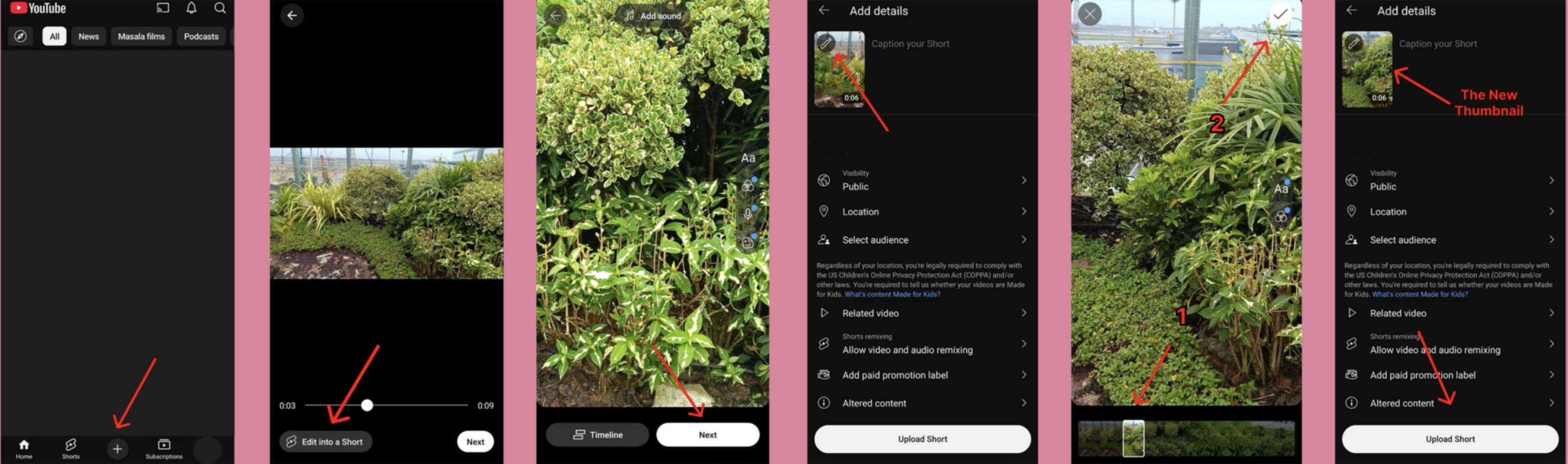
Here is how to set your thumbnail during the upload process on the YouTube mobile app.
-
Open the YouTube app on your phone.
-
Tap the plus icon at the bottom center to create a new post.
-
Select your Short from your camera roll or record directly in the app.
-
On the details screen before publishing, tap the pencil icon on the video preview.
-
Scrub through the video to find the frame you want to use as the thumbnail.
-
Tap that frame to select it.
-
Tap Done, then complete the rest of your upload details and publish.
The selected frame becomes your Shorts thumbnail across all surfaces. If you want a specific visual to appear, you need that visual to exist as an actual frame in your video. The first-frame method covered later in this guide handles exactly that.
How to change the YouTube short thumbnail after posting
Platform limitation: After a Short is published, YouTube's mobile app lets you change the thumbnail, but only by selecting a different frame from the existing video. Uploading a new custom image is not supported on mobile for published Shorts.
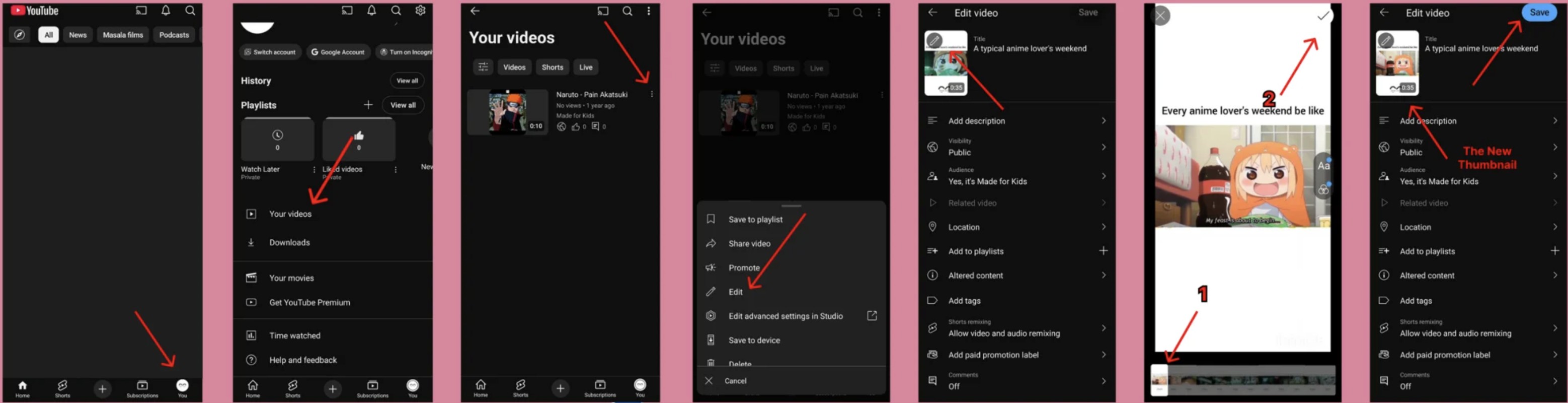
If you want to update the thumbnail of a Short you have already published, follow these steps on mobile.
-
Open the YouTube app and go to your profile.
-
Tap Your videos or go to the Library tab and select your Shorts.
-
Find the Short you want to update and tap the three-dot menu next to it.
-
Select Edit or go into the video details.
-
Tap the pencil icon on the video preview
-
Scrub through the video and select a new frame.
-
Save the changes.
The updated thumbnail should reflect across placements within a few minutes to a few hours depending on YouTube's cache refresh. To change thumbnail YouTube Shorts to something that is not a frame from the existing video, the first-frame method covered next is the only option available on mobile.
If you access your Short via YouTube Studio on desktop (studio.youtube.com), some accounts now have the option to upload a custom thumbnail image directly — the same way you would for a long-form video. This feature is rolling out gradually and is not available on all accounts yet. If you see a custom upload option in the Thumbnail section of your Short's details page on desktop, that is the faster route. If you do not, the first-frame method remains the reliable workaround.
The first-frame trick for customized YouTube Shorts thumbnails
YouTube does not allow you to directly upload a custom image as a Shorts thumbnail on mobile. The workaround is to design your thumbnail as a still image, add it as the first frame of the video, upload the Short, select that frame as the thumbnail, then trim the frame out using YouTube Studio. The viewer never sees the still image because it gets removed from the playable video. Only the thumbnail remains.
Step 1: Design your thumbnail at 1080 x 1920 pixels
Set the canvas to 1080 x 1920 pixels. Use a bold focal image. High contrast between text and background. Three words of text maximum. Keep everything inside the safe zone: middle 70% of the height, middle 80% of the width.
Step 2: Add the thumbnail as the first frame of your video
In your editing app, drag the still image to the very start of the timeline. Give it 0.5 to 1 second of duration. Export the video with this frame included at the front.
Step 3: Upload the Short and select the first frame as the thumbnail
Upload as a Short. Tap the pencil icon during upload. Scrub to the very first frame and select it. That is your custom thumbnail.
Step 4: Trim the first frame in YouTube Studio
Open YouTube Studio after publishing. Go to the video editor for your Short. Use the Trim tool to remove the first frame from the playable version. The thumbnail you selected during upload stays in place. Viewers see the actual video content from the start. The custom image only appears as the thumbnail.
How to do an A/B test on YouTube shorts thumbnails
How test & compare works for Shorts
Test and Compare runs two thumbnails for the same Short at the same time. YouTube splits your audience and shows each group a different version. Watch time and engagement decide which one wins. Once enough impressions are collected, YouTube flags the stronger performer.

Step-by-step setup in YouTube Studio
-
Go to YouTube Studio on desktop.
-
Open the video details for the Short you want to test.
-
Scroll to the Thumbnail section and look for the Test and Compare option.
-
Upload a second thumbnail version. For Shorts, this means preparing a second version of the custom image if you used the first-frame method.
-
Activate the experiment and let it run.
-
Check the performance data under Analytics to see which version is ahead.
Best practices for Shorts testing
-
Hook visibility: One glance should tell the viewer what the Short is about. Test a face vs. a text overlay vs. a product shot to see what clicks in your niche.
-
One variable per test: Change the image, or the text, or the color. Not all three. Multiple changes make the result unreadable.
-
Let it run: 500 impressions is not enough to judge anything. Wait for a few thousand per variation before reading the results.
Mistakes to avoid
-
Testing too many elements: Keep each test focused on one change.
-
Ending tests early: The first few hundred impressions can skew heavily. Early leaders often do not hold.
-
Ignoring mobile: Design on desktop but always preview on a phone. What reads clearly at full monitor size can be unreadable on a 5-inch screen.
YouTube Shorts thumbnail design best practices
A thumbnail that works in the Shorts environment looks different from one designed for regular YouTube videos. The vertical format, smaller display size, and fast-scroll behavior all change what makes a thumbnail effective. Whether you need to change thumbnail YouTube Shorts during upload or refine one after publishing, the design principles below apply in both cases.
Design for small screens first
Most Shorts are watched on phones. A thumbnail that looks detailed and readable on a 27-inch monitor can become unreadable on a 5-inch screen. Design at 1080 x 1920 but preview it scaled down to about 150 x 267 pixels, which is roughly the size it appears in search results on mobile. If the key visual is still clear at that size, the thumbnail is ready. If beginners are not familiar with YouTube thumbnail sizes or don’t have many creative ideas, they can try the Zawa AI Agent. Simply enter an idea to quickly generate thumbnail designs.

Keep text ultra-minimal
One to three words is the practical limit for Shorts thumbnails. Long sentences do not survive the format. Short, high-contrast text that supports what the viewer is about to see works better than a full description. If you need to add text to your thumbnail image quickly, tools like Zawa AI Brand Design let you type directly onto the image, adjust font weight and color, and export at the correct vertical dimensions without rebuilding the layout from scratch.
Use bold colors and contrast
Low contrast thumbnails disappear in the feed. The text needs to stand out from the background and the background needs to stand out from neighboring thumbnails. Bright, saturated colors in combination with white or black text tend to hold up well after YouTube's compression. If your thumbnail features a person, a slight background blur or a solid color behind the subject helps keep the focal point clear. Zawa background tools let you remove or replace the background of a photo in a few clicks, which is useful for creating that isolated subject look without a complex editing workflow.
Align thumbnail with hook
The thumbnail and the first second of the video should match visually. If your thumbnail shows a result, the video should deliver that result. Mismatched thumbnails lead to short watch times because viewers feel they were shown something misleading. Short watch time is a negative signal that YouTube uses to limit distribution.
Use the "safe zone" for Shorts UI
YouTube's UI overlays cover parts of your thumbnail in the Shorts feed: the like and dislike buttons sit on the right side, the caption appears at the bottom, and the channel avatar is in the lower left. Keep all critical text and visuals within the middle 70% of the vertical height and middle 80% of the horizontal width. Anything outside the YouTube thumbnail safe area may be covered during playback.
Confirm thumbnail display before publishing
After selecting a thumbnail during upload, tap the video preview to check how the selected frame looks in the Shorts context. If you are using the first-frame method, confirm the still image appears correctly at this stage before publishing. Once published, changes require going back into the edit flow, which adds extra steps.
Conclusion
YouTube Shorts gives you limited but workable thumbnail controls. During upload, you pick a frame from your video on mobile. After publishing, you can change that frame selection, but you still cannot upload a fresh custom image directly through the app. The first-frame method is the reliable workaround for adding a fully designed thumbnail to any Short.
How to add thumbnail to YouTube Shorts comes down to how much control you want. For a quick frame selection, the upload flow handles it in under a minute. For a designed thumbnail with specific text, colors, and composition, the first-frame plus YouTube Studio trim method is the approach that works consistently.
Test different thumbnail approaches using YouTube's Test and Compare feature. Track which version drives more watch time, not just more clicks. A thumbnail that attracts clicks but delivers low retention is a net negative signal. The goal is a thumbnail that accurately represents the video and attracts the viewer most likely to watch it through.
FAQs
Why can't I choose my thumbnail on YouTube?
On mobile, YouTube Shorts only allows frame selection from the video itself, not custom image uploads. This is a platform restriction that applies both during upload and after publishing. The first-frame workaround gets around this by placing a designed image as an actual video frame, selecting it during upload, and then trimming it out in YouTube Studio afterward.
Do YouTube shorts thumbnails appear on the shorts feed?
In the Shorts feed, videos autoplay as you scroll, so the thumbnail is not the primary visual in that context. Thumbnails do appear in YouTube search results, on your channel's Shorts tab, in the desktop Shorts carousel, and in external link previews on social platforms and websites. Those surfaces are where thumbnail quality has the biggest impact on clicks.
How can I make my shorts thumbnail more clickable?
Use high contrast between the subject and background. Keep text to one to three words and make it large enough to read on a phone screen. Align the thumbnail visually with what happens in the first two seconds of the video. Test different frames or designed images using YouTube's Test and Compare feature to find what drives more engagement in your specific niche. If you're unsure what kind of text is best for your thumbnail, Zawa AI Agent can also help generate suitable thumbnail copy and headline ideas.
Is there a way to preview how my shorts thumbnail looks before publishing?
During the upload process, after selecting a frame with the pencil icon, you can see a preview of the thumbnail on the details screen before you publish. Check how it looks in that preview at phone scale. If you are using the first-frame method, the still image will appear in this preview, giving you a chance to confirm placement and legibility before the Short goes live.
Does changing the thumbnail affect YouTube shorts algorithm performance?
Changing the thumbnail can affect click-through rate, which is one of the signals YouTube uses to evaluate content. A higher click-through rate from search or recommended surfaces tells YouTube the video is relevant to viewers who see it. However, clicks alone are not enough. Watch time and engagement after the click matter equally. A better thumbnail that leads to stronger overall viewer behavior can improve distribution. One that attracts clicks but leads to immediate drop-off can reduce it.
You May Be Interested

Best YouTube Logo Makers
10 Best YouTube Thumbnail Ideas to Skyrocket Your Views
Best YouTube Thumbnail Size - Create Perfect Thumbnails
Best 5 YouTube Thumbnail Testers in 2026

13 Best Fonts for YouTube Thumbnails
