Best YouTube Thumbnail Size for Content Creators in 2026
YouTube thumbnails play a vital role in boosting click-through rates. Join us as we tell you the ideal size of YouTube thumbnails and the top AI-powered tool, Zawa, for designing appealing YouTube thumbnails.

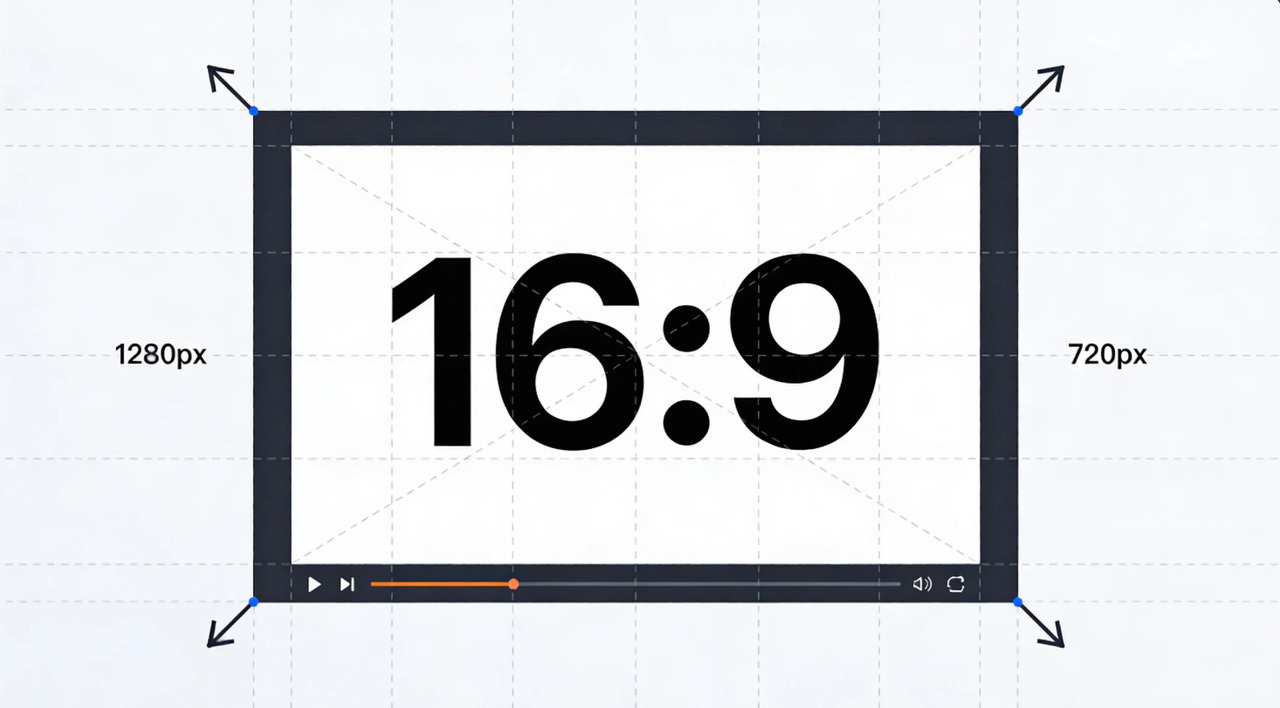
The right YouTube thumbnail size directly impacts how your content gets noticed. Proper dimensions ensure that your thumbnail is sharp and easily visible across devices. If the size is incorrect, the critical elements may be blurred or cropped, reducing their effectiveness. A well-optimized thumbnail enhances the click-through rate (CTR), which signals YouTube to promote the video more. In crux, proper sizing plays a vital role in discoverability and visibility.
YouTube Thumbnail Size Guidelines
YouTube thumbnails are much more than just preview images; they play a crucial role in attracting viewers and enhancing clicks. A well-designed thumbnail easily communicates your video's value, grabs attention, and improves your click-through rates, which directly impacts the video's performance and reach.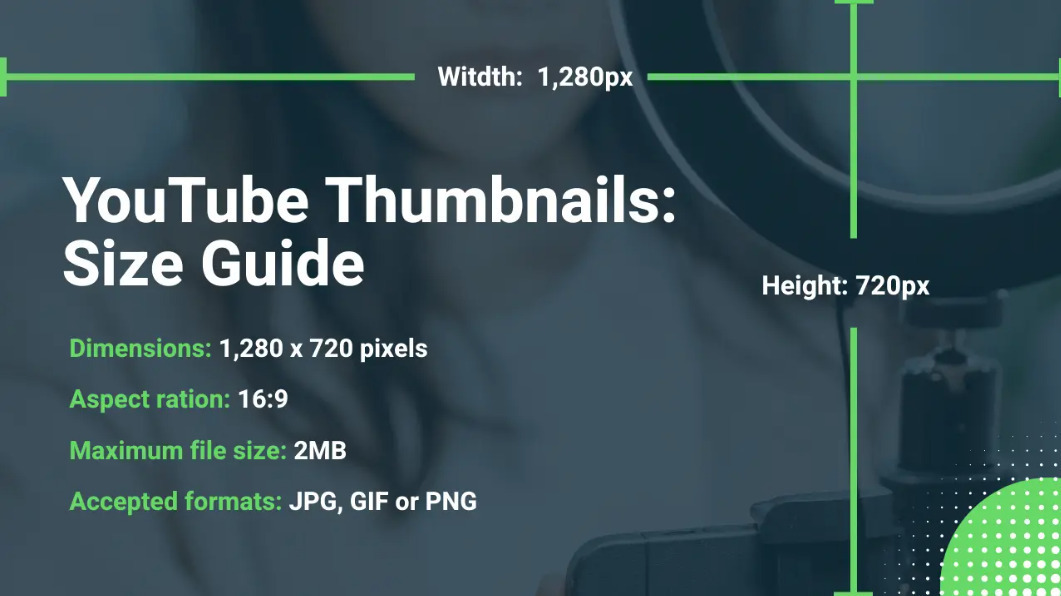
Using the correct size for YouTube thumbnails ensures that your visuals are sharp, consistent, and professional across devices. Here are the ideal YouTube thumbnail size requirements:
-
Recommended size: 1280 × 720 pixels
-
Aspect ratio: 16:9
-
Minimum width: 640 pixels
-
Supported formats: JPG, PNG, or GIF
-
Maximum file size: Keep under 2MB
-
High resolution matters: Larger images scale down better and stay sharp across devices
-
Mobile optimization: Thumbnails appear smaller on mobile, so clarity and proper sizing are crucial.
Popular YouTube Thumbnail Content Ideas
-
Close-up facial expressions
Expressive human faces that convey emotions such as excitement, shock, or surprise quickly attract attention. These visuals create curiosity, allowing the viewers to emotionally connect with the content. You can easily find these types of images on stock websites or capture them yourself.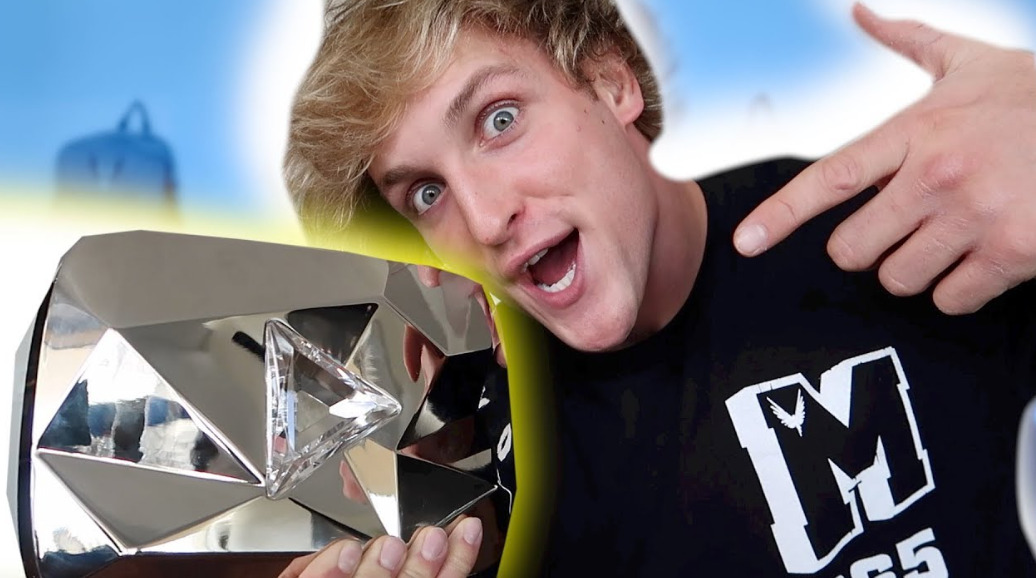
-
Before and after comparisons
This idea is perfect for transformation-based content, such as editing, fitness, or makeovers. Showing the side-by-side view tells the complete story clearly in one frame. These kinds of visuals are extensively available and easy to create. They also enhance curiosity, enticing the viewers to click and see the complete process.
-
Product or object focus
Highlighting a single gadget, object, or tool makes your thumbnail clean and quite easy to understand. This approach works great for tutorials or reviews. Such photos are available easily or can be clicked with minimal effort. A focused subject improves clarity when displayed at smaller sizes.
-
Reaction scenes or screenshots
Using a reaction shot or key moment from your video makes the thumbnail much more authentic. It gives viewers a clear preview of what to expect, enhancing engagement. These images are quite easy to capture, directly from your video. They also add a personal touch, which makes the content feel more relatable.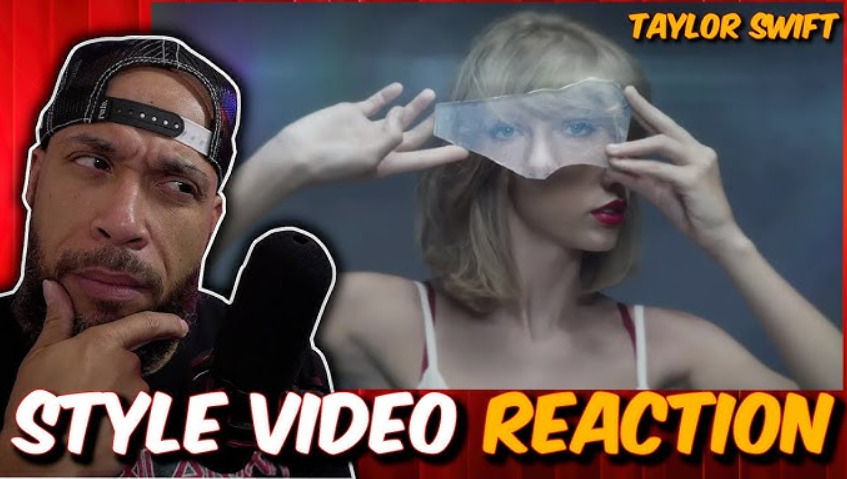
-
Bold text overlays
Adding short, powerful words, such as "SECRET," "INSANE, or "CRINGE," makes your thumbnails more interactive and attractive. Text displays your message quickly, without even watching the video. Simple backgrounds with bold designs are easy to design and find online.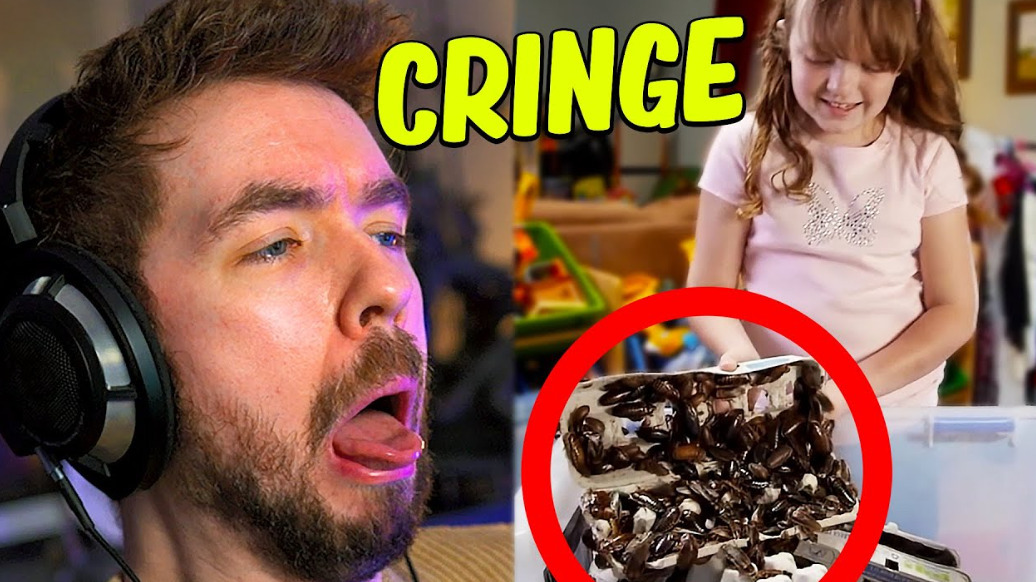
How to upload YouTube thumbnail images
Step 1: Open YouTube Studio
First, go to "YouTube Studio" and click on the "Content" option from the left-hand menu. Choose the video you want to add or change the thumbnail for. Here, all your video settings are managed.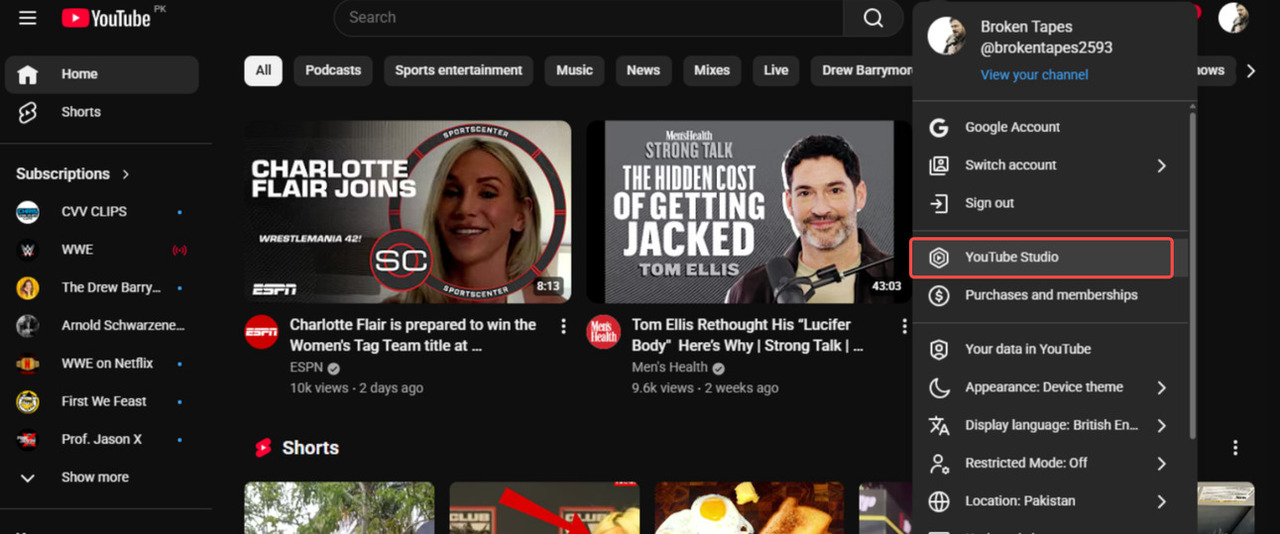
Step 2: Upload or select the video
If you are uploading a new video, proceed to the uploading screen. For existing videos, click on the "Edit" icon to open the video details.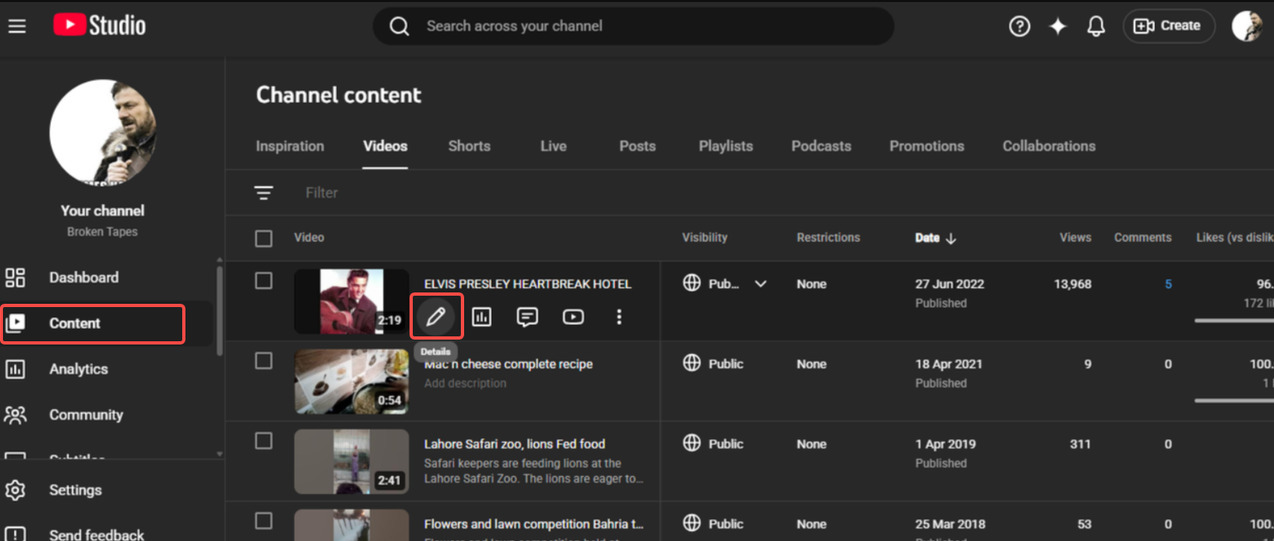
Step 3: Choose the thumbnail option
Scroll down to the "Thumbnail" section and click on "Upload file." Choose the preferred image from your device that meets the correct YouTube thumbnail dimensions.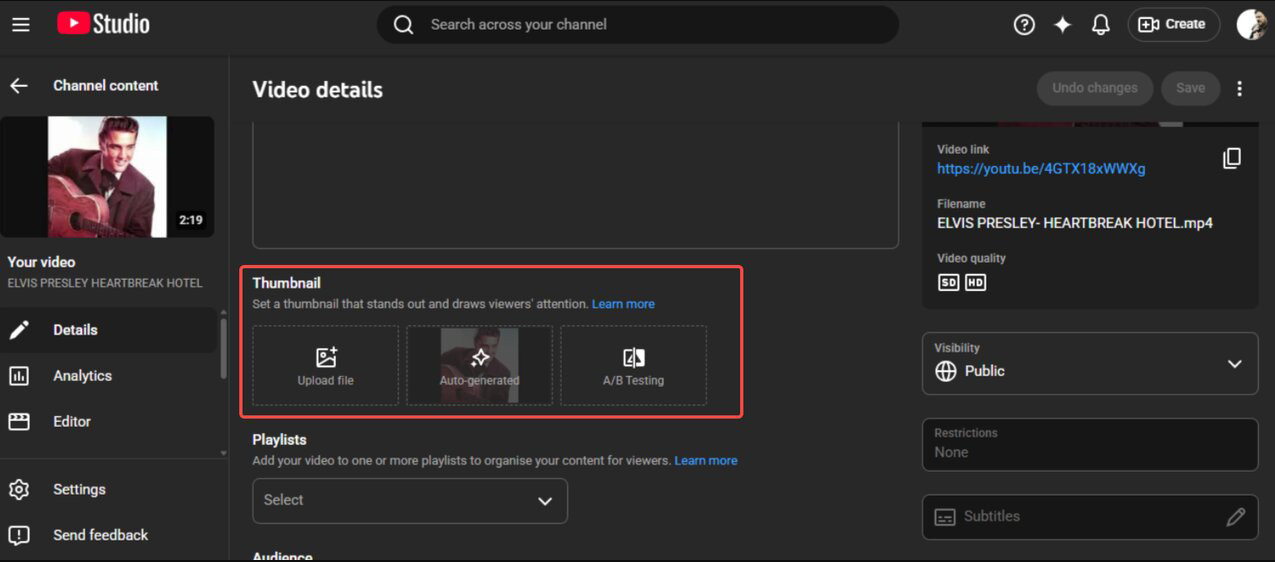
Step 4: Save YouTube thumbnail changes
Once uploaded, click "Save" to apply the thumbnail. Your updated thumbnail will now appear on YouTube across all devices.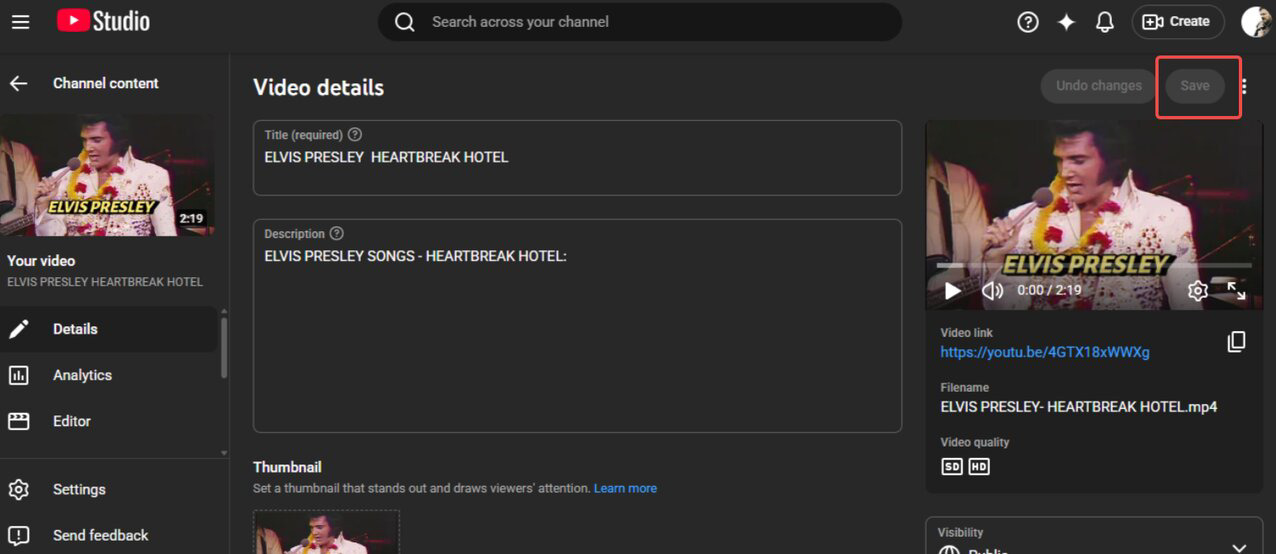
Best Practices for YouTube Thumbnail Sizes
-
Always use the recommended resolution: Stick to the YouTube thumbnail size of 1280 x 720 pixels to ensure your thumbnail looks professional and sharp across all devices. Lower resolutions appear blurry, reducing click-through rates. Zawa's "Resize" option lets you adjust your thumbnails to ideal dimensions without losing quality.
-
Maintain a 16:9 aspect ratio: Using a 16:9 ratio ensures that your thumbnail fits perfectly in YouTube previews without any distortion or cropping. This is the standard ratio across desktop and mobile displays.
-
Use high-contrast visuals: A strong contrast between the background and subject helps the subject to stand out in crowded search results. Clear separation between the elements improves readability and viewer attention.
-
Keep the design simple and focused: Avoid clutter and focus on one key idea or subject in the thumbnail. Too many elements confuse the viewers, reducing engagement.
-
Test how the thumbnails look across devices: A thumbnail may look great on a desktop but may appear crowded or unclear on mobile devices. So, you should always preview the design in multiple sizes to ensure readability and visual balance.
These expert tips show that Zawa is a great tool for making appealing YouTube thumbnails. So, the following section discusses Zawa in detail for making the correct YouTube thumbnail sizes.
Bonus: Create perfect-sized YouTube thumbnails with Zawa
Zawa is an AI-powered design tool that enables creators to edit and enhance visuals, giving professional-grade results. It is also an excellent tool for creating YouTube thumbnails at the correct size. Its "Resize" feature lets you adjust the YouTube thumbnail size. You can also enhance the photo with a variety of AI-powered features, like retouch, background remover, background generator, enhance, extender, and eraser. So, start using Zawa today and design eye-catching YouTube thumbnails to make your videos stand out.
Step 1: Upload your image
To begin, open Zawa's official website and click the "Upload" option in the "AI Photo Editor" section. You can also drag and drop the photo onto the timeline.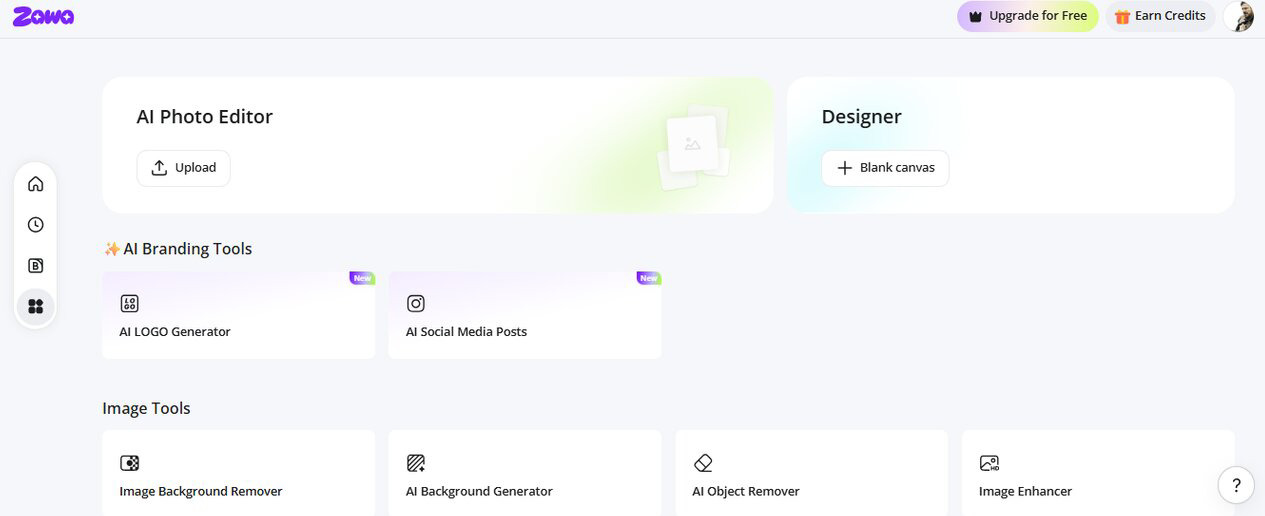
Step 2: Resize the YouTube thumbnail
Next, click the "Resize" option from the left-hand menu and set the dimensions to 1280 x 720 pixels. Choose the 16:9 aspect ratio from the available options.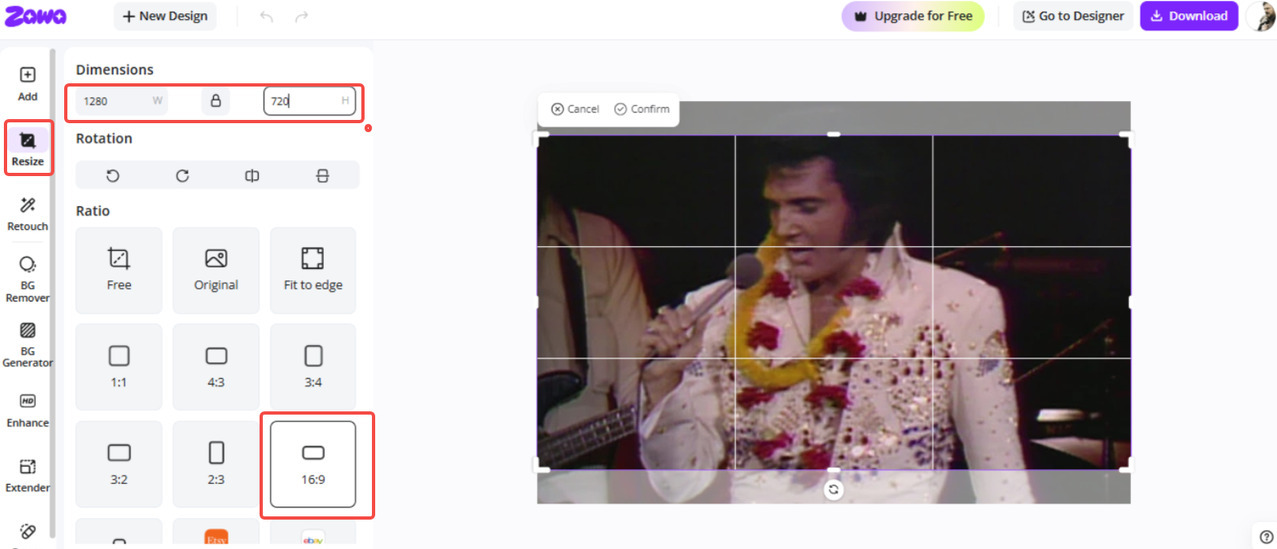
Step 3: Download the image for YouTube thumbnail
Once satisfied with the YouTube thumbnail, click the "Download" option in the top-right corner, then select a format from the available options (JPG/PNG). Finally, click the "Download Full Quality" option to save the YouTube thumbnail to your device.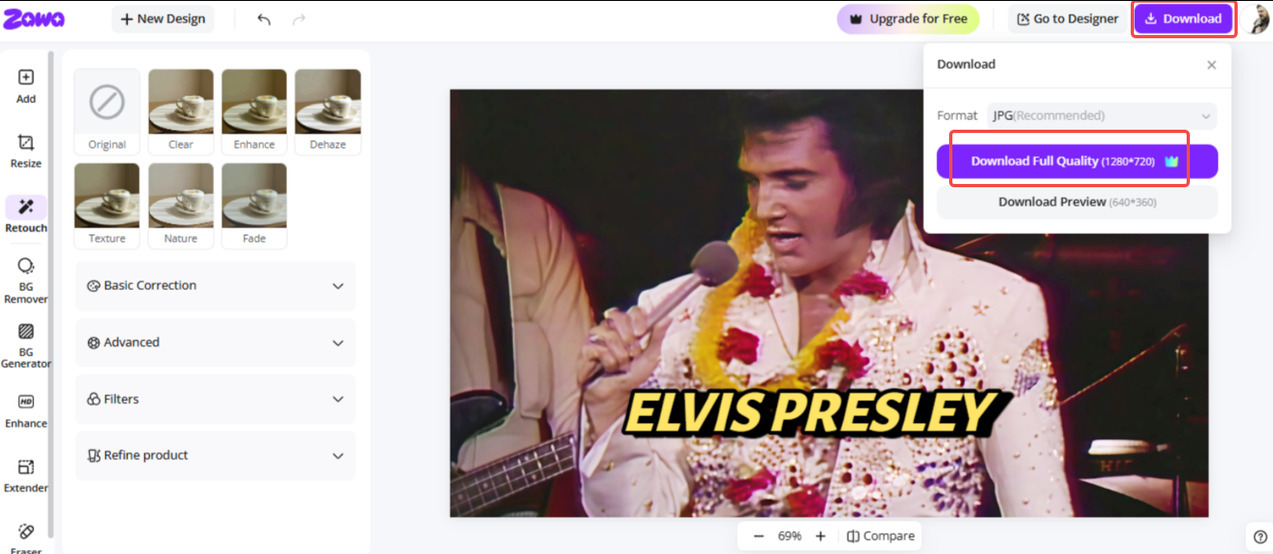
Conclusion
Creating visually appealing thumbnails begins with getting the right sizing and design fundamentals for better audience engagement. YouTube's thumbnail size plays a vital role in ensuring your thumbnails are sharp and high-quality. This article discussed the importance, the ideal size for a YouTube thumbnail, and the top 5 YouTube thumbnail ideas. To make this process effortless, Zawa stands out as the best AI-powered tool. So, get started with Zawa today and start creating appealing YouTube thumbnails that boost your video performance.
FAQs
What happens if I use the wrong YouTube thumbnail dimensions?
Using incorrect YouTube thumbnail sizes can make your images look blurry, stretched, or cropped across different devices. This reduces visual quality, making your videos less attractive to viewers and lowering click-through rates. Poor resizing can also obscure essential elements, such as faces or text. Consequently, your videos get fewer impressions and lower engagement. Zawa's "Resize" tool lets you easily adjust dimensions while maintaining high image quality for professional results.
How to adjust the YouTube Shorts thumbnail size without losing image quality?
YouTube Shorts thumbnails need careful resizing to ensure that they look properly framed on vertical screens. If not properly optimized, the images may become pixelated or lose vital details. Always use high-resolution photos and maintain the proper aspect ratio when resizing. To preserve sharpness, compression should be minimal.
What is the most commonly used YouTube thumbnail aspect ratio for designs today?
The most commonly used YouTube thumbnail aspect ratio today is 16:9, which fits perfectly across mobile and Desktop screens. This ratio displays the thumbnails without any cropping or distortion. It has become the standard for all types of YouTube content, like vlogs, tutorials, and reviews. Zawa offers a variety of aspect ratios, and you can easily choose 16:9.
You May Be Interested

Best YouTube Logo Makers

What Makes a Good YouTube Thumbnail That Stops the Scroll

What Makes a Good Logo? Tips, Rules, and More