
How to Post a Carousel on Facebook: The Right Ways in 2026
Master Facebook carousel posts in 2026! Learn how to create and publish them step-by-step, design best practices, and more expert tips.

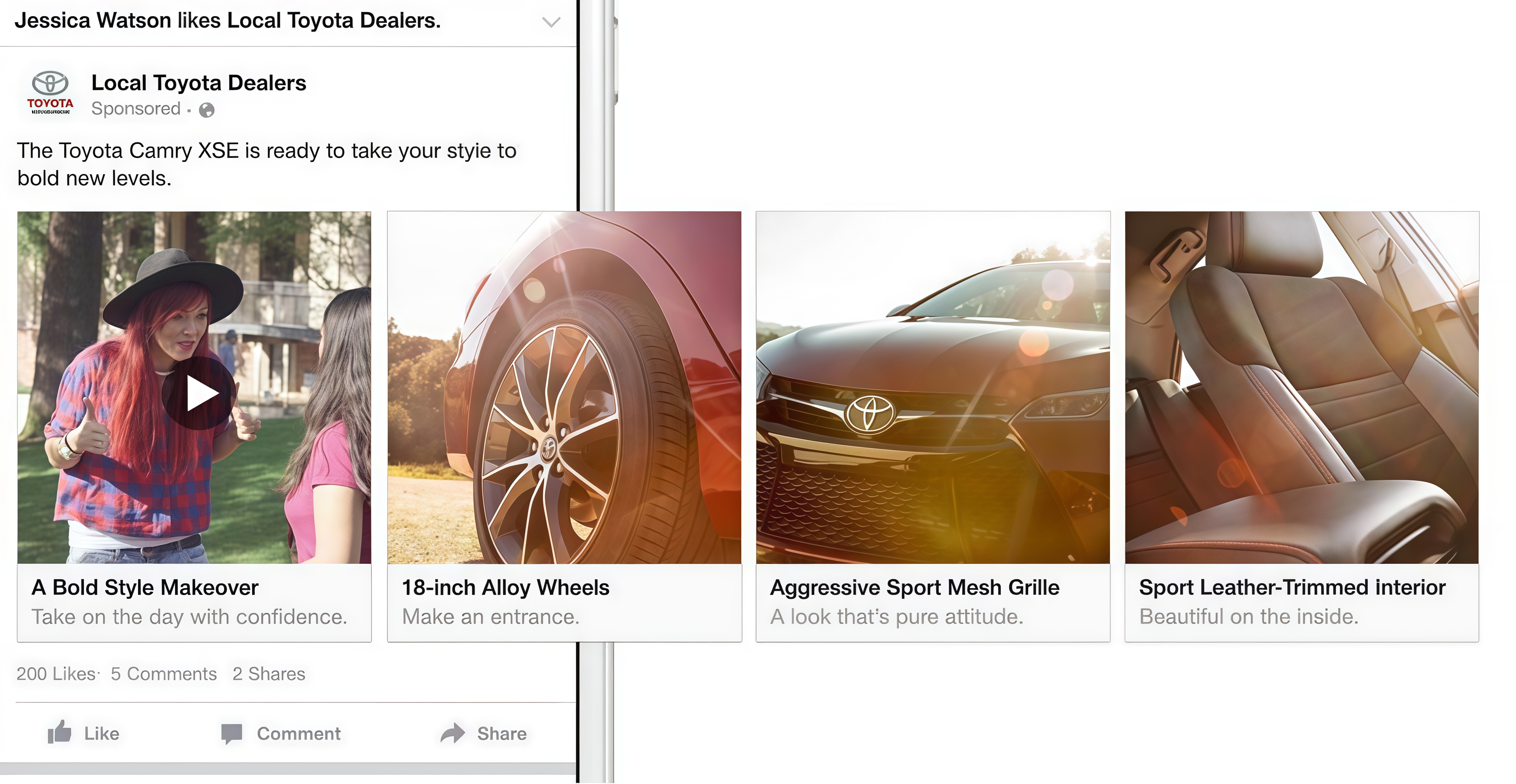
A user wants to showcase a product launch with multiple images. However, the post turns into a messy gallery instead of a clean carousel after they upload it. Situations like this are common because Facebook keeps changing how posting features work. Creating an engaging carousel now takes more than simply adding photos.
Many people use carousels to share travel photos or to launch a product. This guide explains how to post a carousel on Facebook using the right methods. It will help you in creating more professional posts that encourage people to keep swiping.
What Is a Facebook Carousel Post?
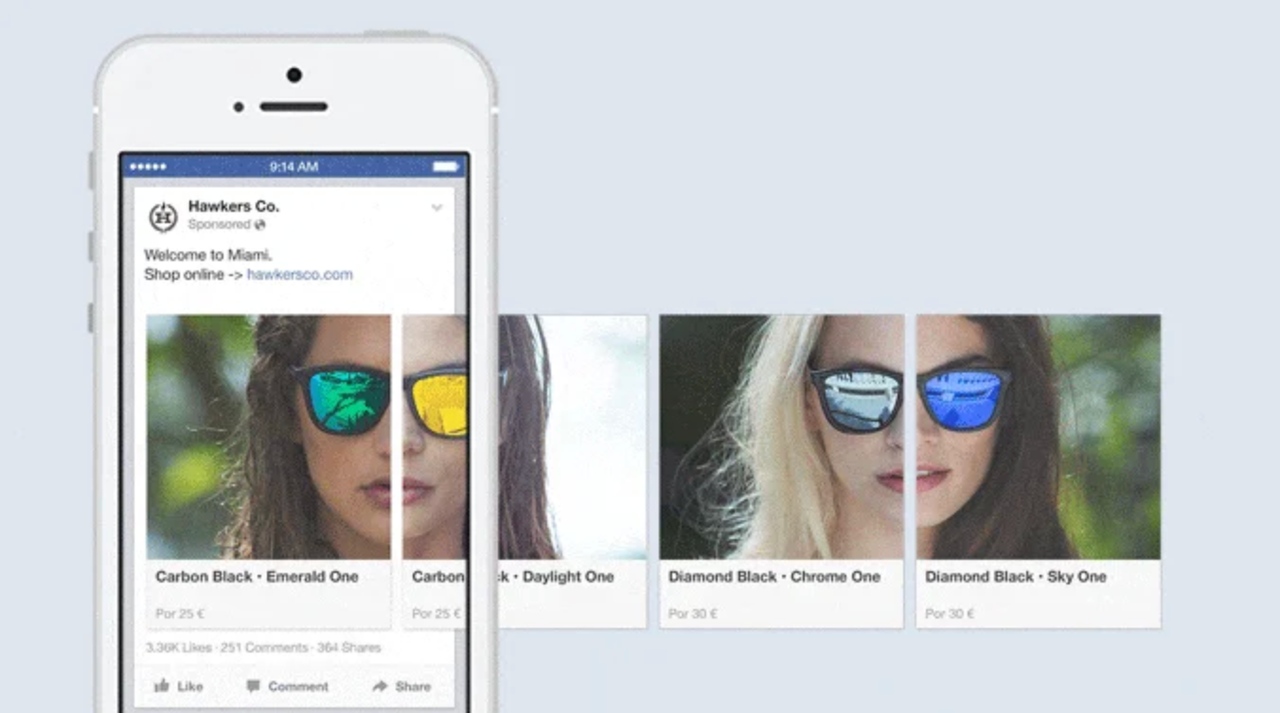
It lets you share more than one photo or video in a single interactive post. content more engaging and easier to explore. Viewers can swipe through separate cards that tell a story instead of relying on one visual. Each card in the Facebook carousel includes its own link or a text message to add flexibility for creators and brands.
The format is used for promotions and audience engagement campaigns because it keeps people interacting longer. Many online shopping websites also use this approach to post about their deals and sales on social media.
Facebook Carousel Size and Spec Requirements (2026)
Many people start by understanding the technical guidelines behind a Facebook carousel post. Following the right size and text limits can prevent blurry results. The following are some specifications and size requirements by the platform:
Picture Specs
| Category | Requirement |
|---|---|
| Recommended Image Size | 1080 × 1080 pixels |
| Aspect Ratio | 1:1 (Square) |
| Maximum File Size | 30MB |
Text Limits
| Text Element | Recommended Limit |
|---|---|
| Primary Text | 125 characters |
| Headline | 32 characters |
| Description | 18 characters |
Proven Methods to Post a Carousel on Facebook
Posting a carousel on Facebook is not limited to a single method. Users can upload this kind of post using different methods. Read the section below to learn about each method in detail:
Using Facebook Ads Manager
This method is widely used by businesses because it offers a full set of targeting tools. It allows you to design structured ad campaigns with multiple cards. Here are some of the key takeaways of this method:
-
Controls: Offers advanced options for targeting, budgeting, and campaign optimization.
-
Paid Carousel Ads: Primarily used to create and run sponsored multi-card posts.
-
Media Uploads: It lets users upload more than one photo and video in a structured format.
-
Custom Card Elements: Users can add a headline and description for each card.
-
Limitations: It requires platform's Ads Manager access and is not ideal for casual posting.
Step-by-Step Guide: Launch a Paid Carousel Ad Campaign
Follow the steps mentioned below to learn how to use this method for creating posts for your page:
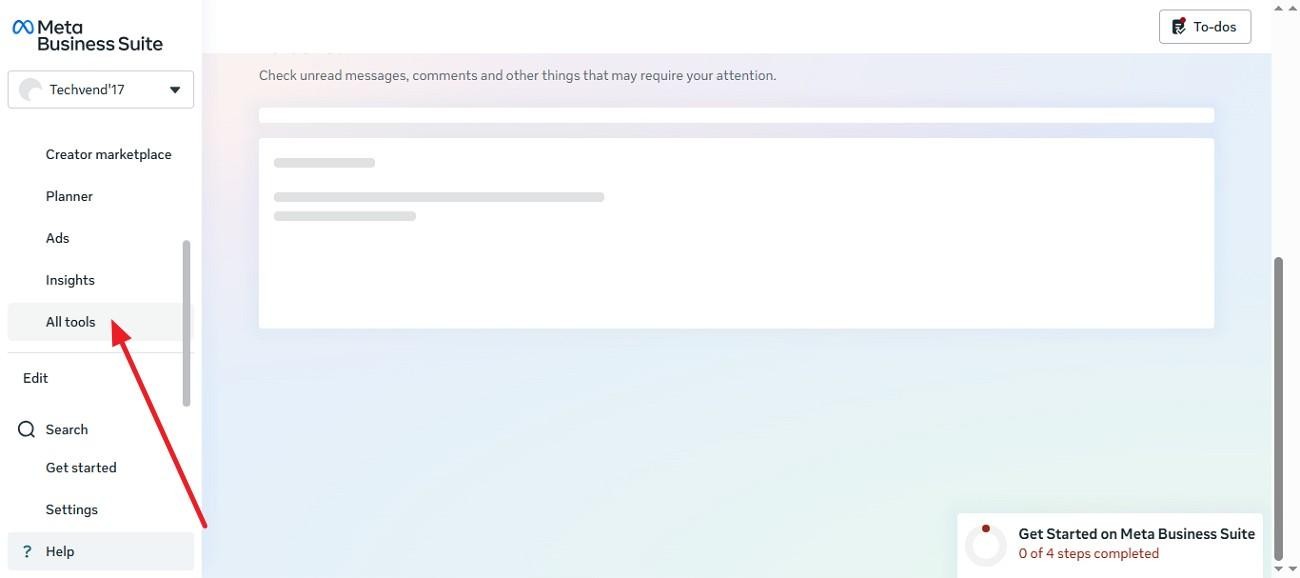
Step 1. Open your page and select "Meta Business Suite" from the options on the left. Now, click on the “All Tools” option from the left to enter the tools options.
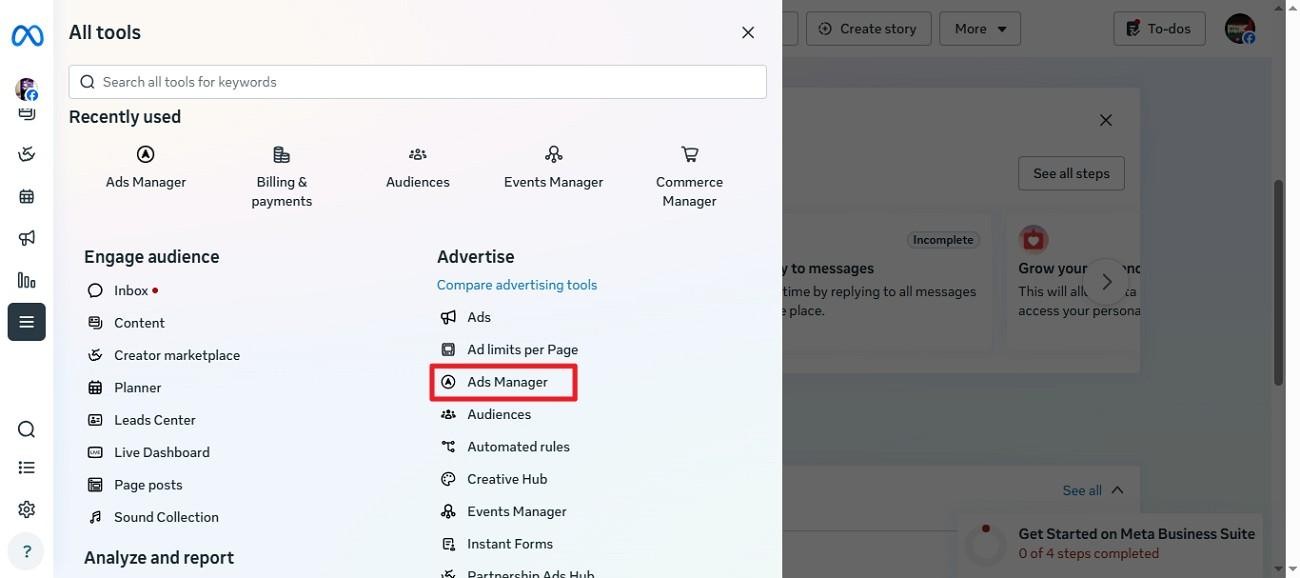
Step 2. Click on the "Ads Manager" option in the next screen to continue.
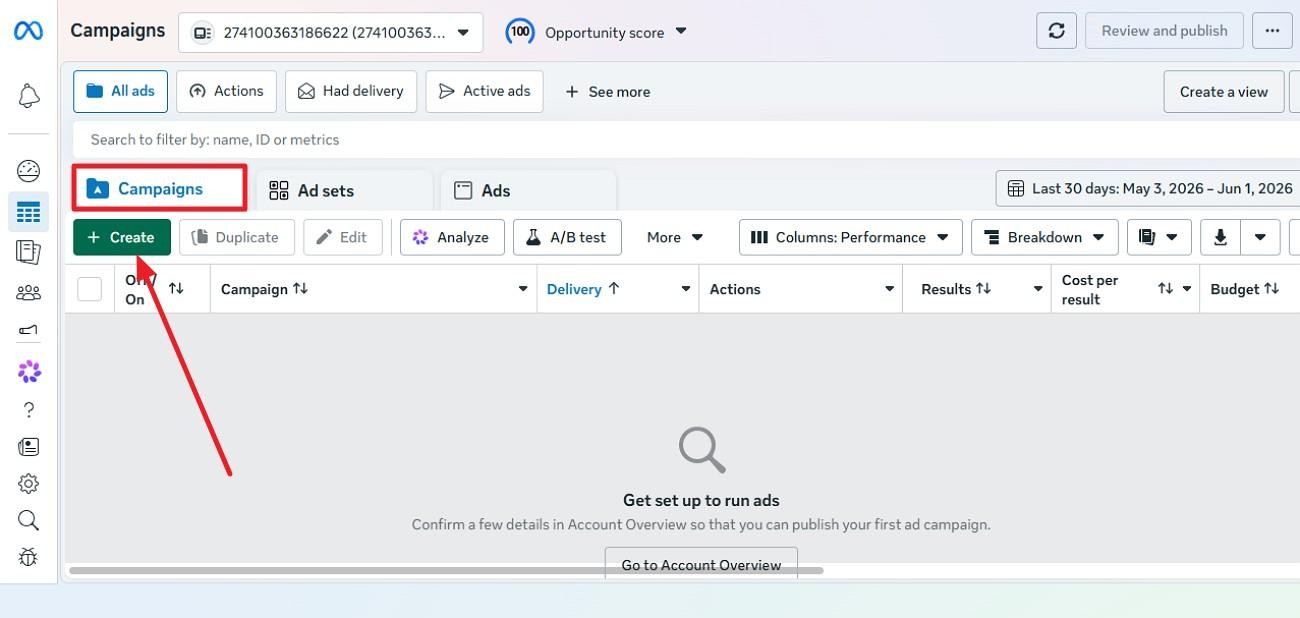
Step 3. Press the "Create" button located within the "Campaign" section in the next interface.
Step 4. Configure different post settings like campaign name and others and hit the “Next” button from the bottom right.
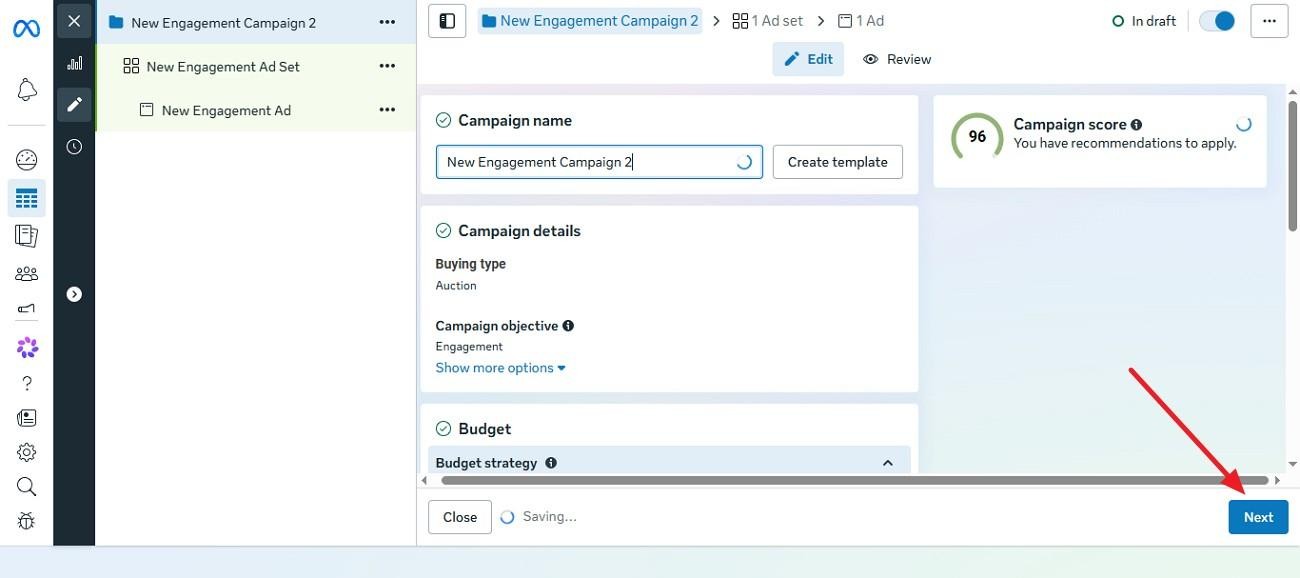
Step 5. Scroll through the page and locate the “Format” section. Select the “Carousel” option by clicking on it.
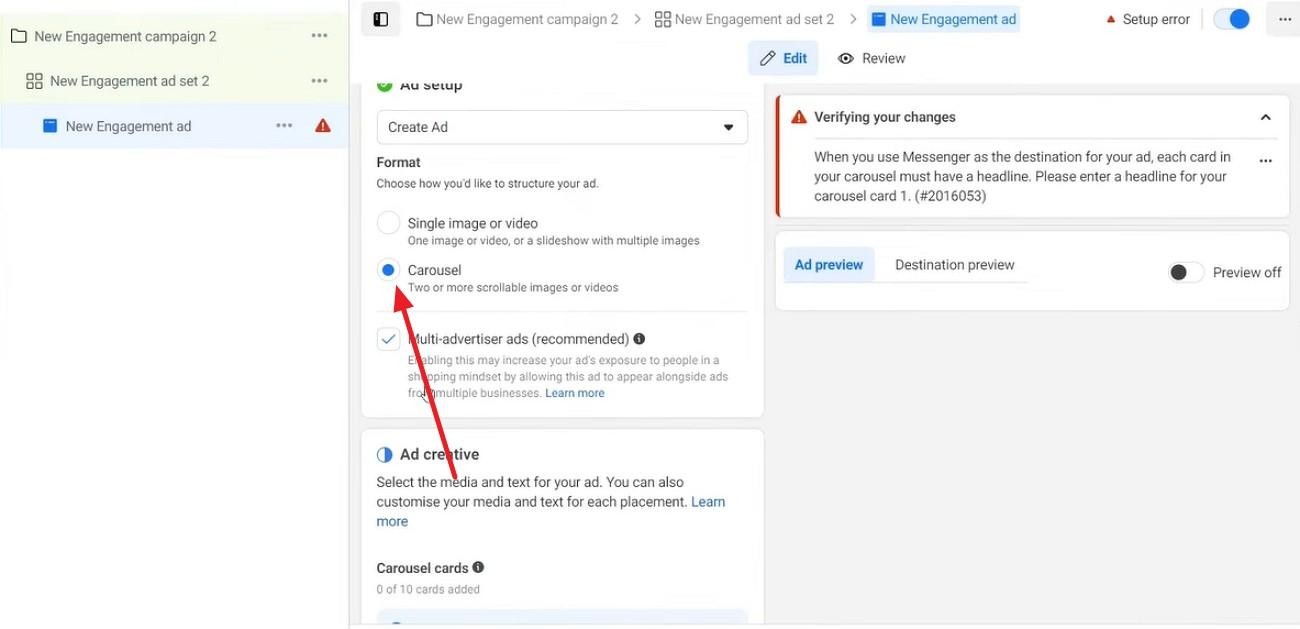
Step 6. Opt for "Add Image Cards" or "Add Video Cards" by expanding the "Add Cards" option.
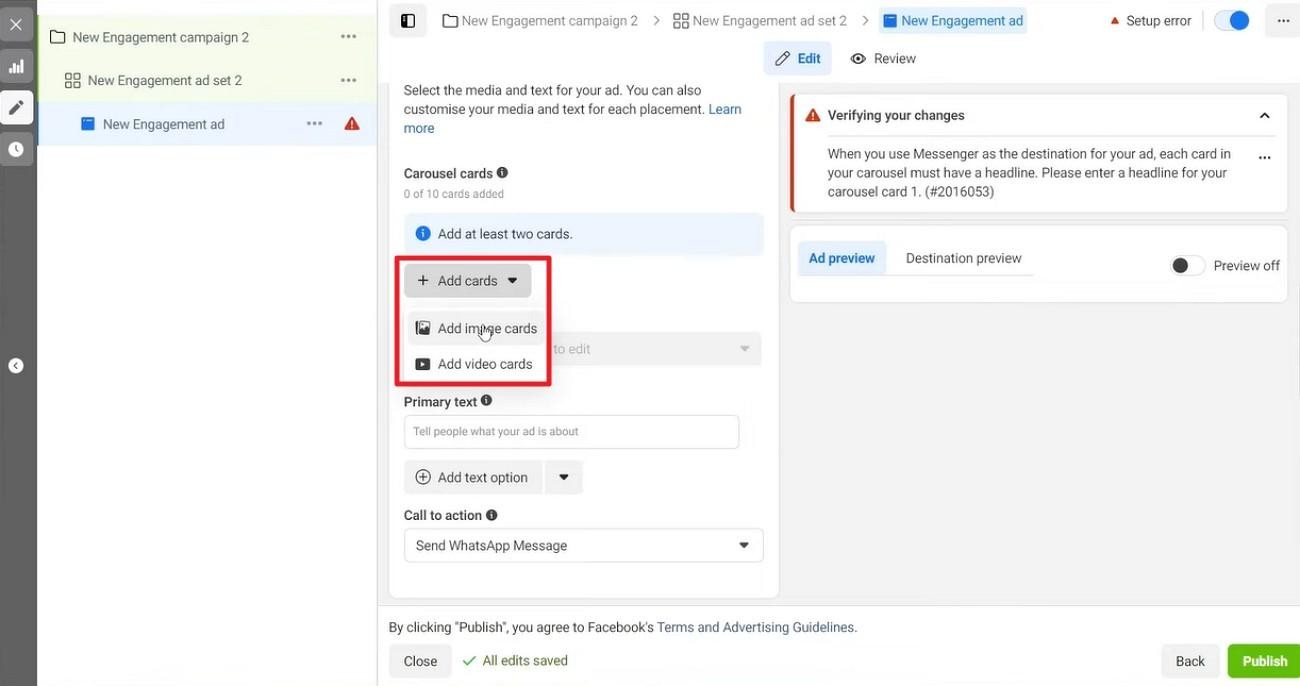
Step 7. Upload photo from device or choose from the account and press the "Continue" button.
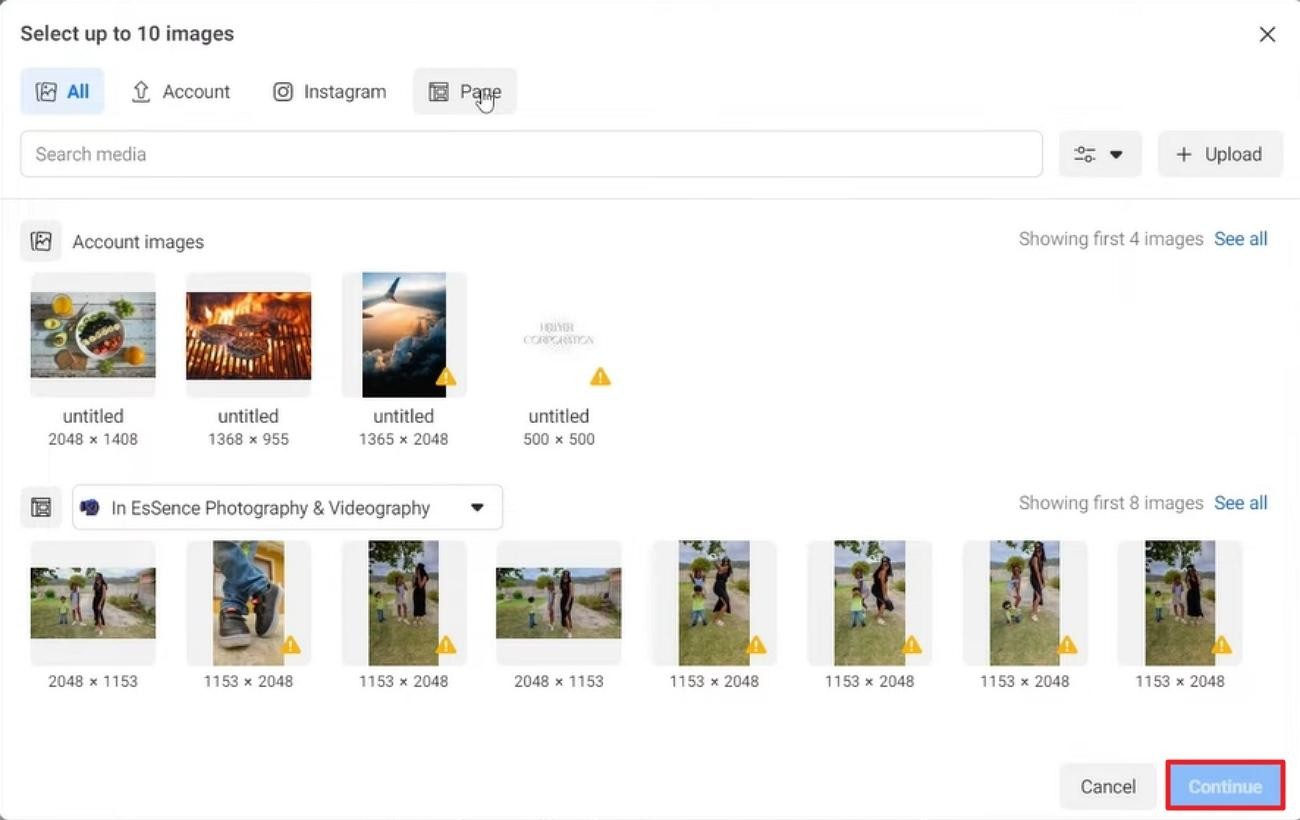
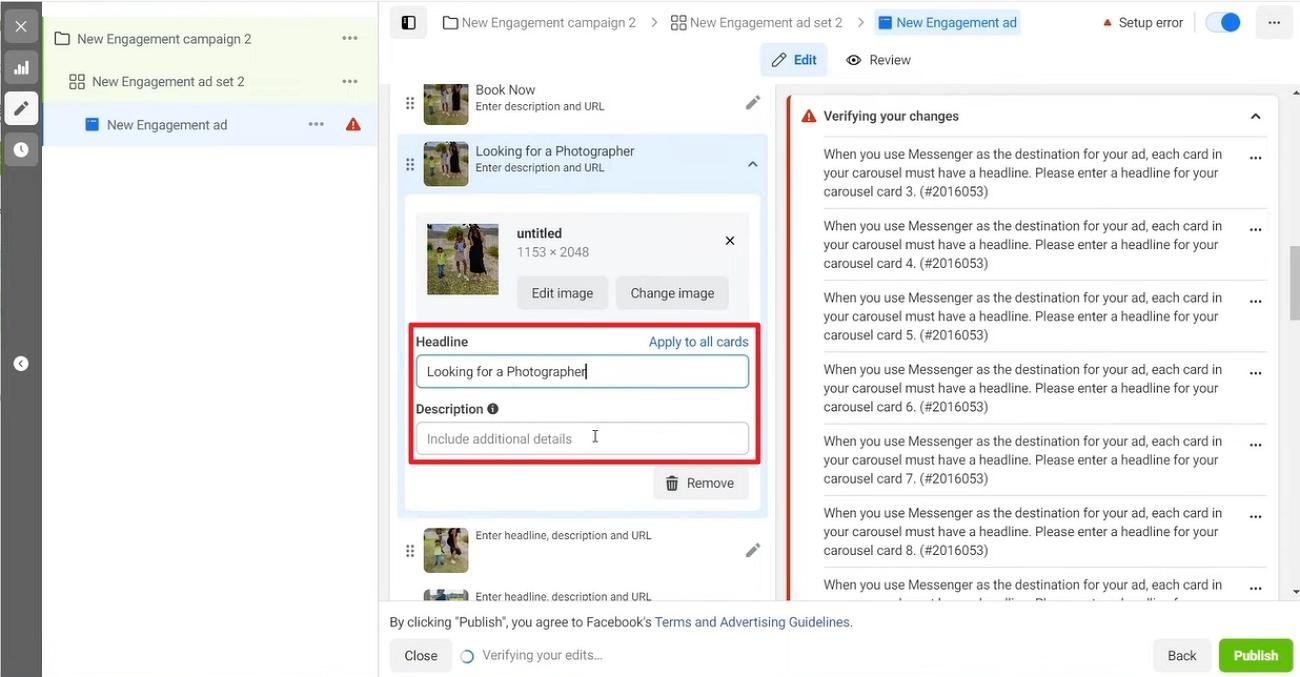
Step 8. Give headlines and descriptions to each picture separately according to your preferences.
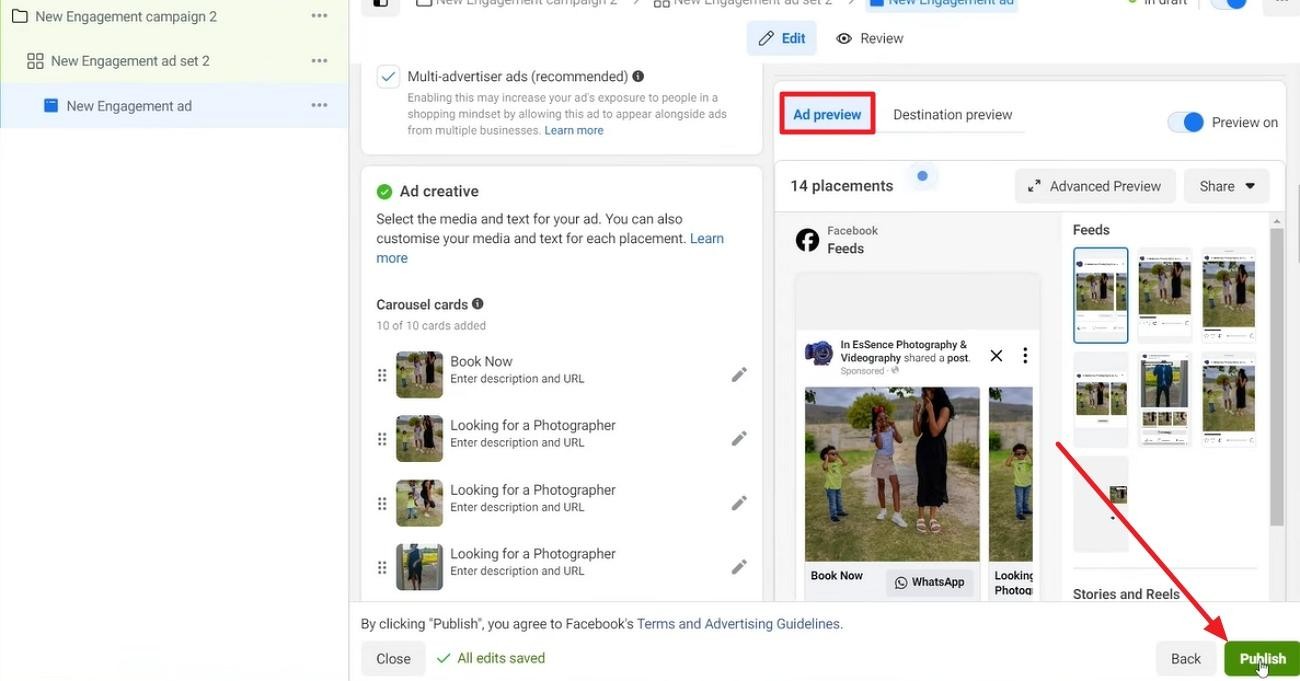
Step 9. Preview the Facebook carousel result from the right and press the “Publish” button when everything looks fine.
Using Facebook Page Post (Organic Carousel)
This method is commonly used for simple content where you want to share multiple visuals in one post without running ads. However, it comes with limitations that can restrict marketing flexibility. Provided below are the key points of this method:
-
Availability: Available for some pages and supported post formats.
-
Link Setup: Users can enter one URL for a website and combine it with multiple images.
-
Multi-Image Support: It allows adding more than one picture in a single post.
-
Use Case: The method is suitable for organic storytelling and engagement posts.
-
Limitation: Does not support unique links or advanced customization for each image.
Step-by-Step Guide: Publish an Organic Carousel Post
Let us have a look at how to use it to create a Facebook carousel post using this method:
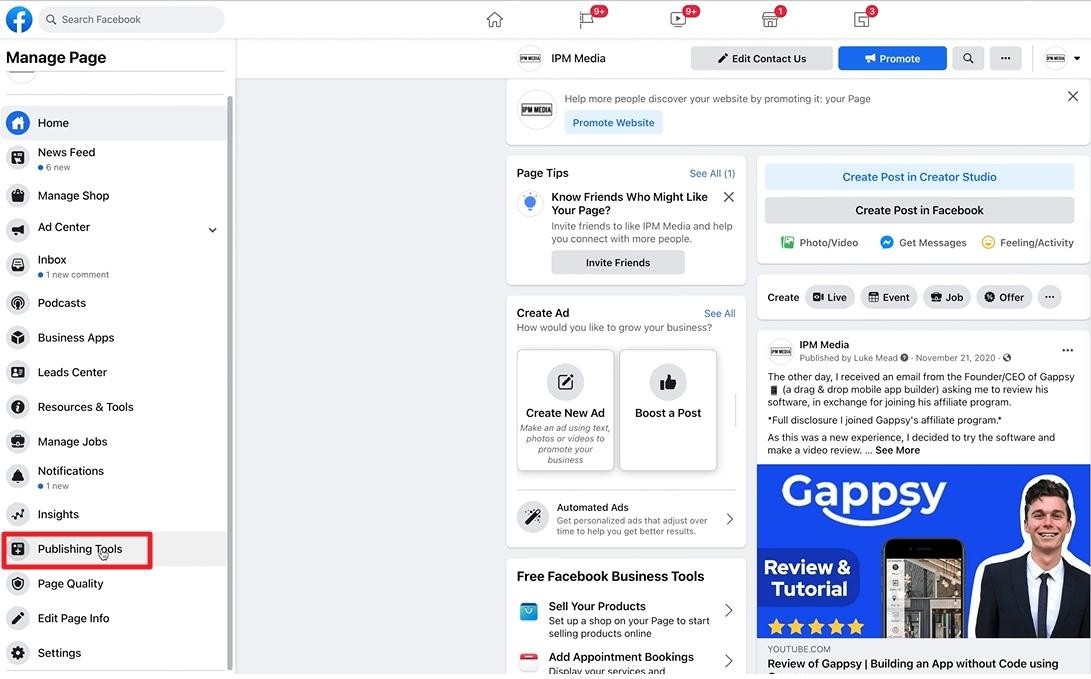
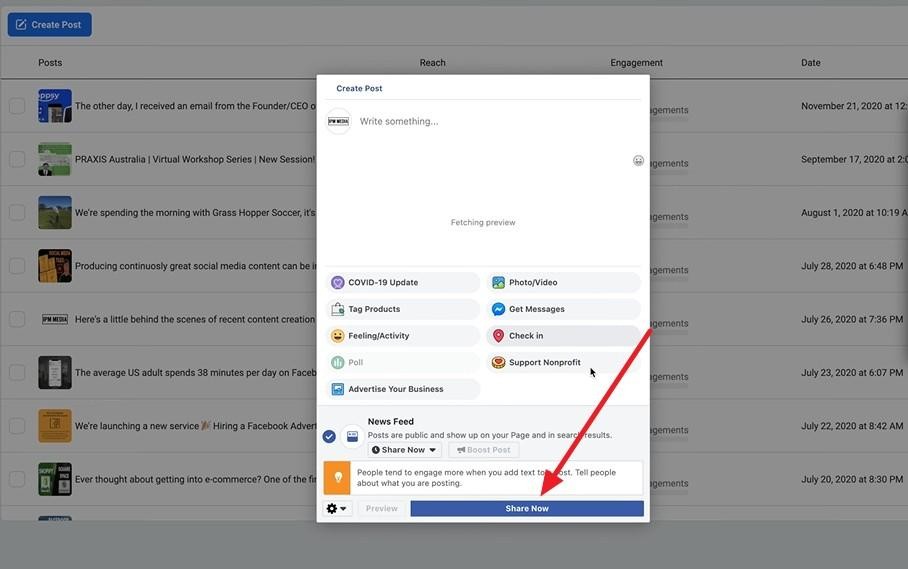
Step 1. Open your page on the browser and choose the "Publishing Tools" option.
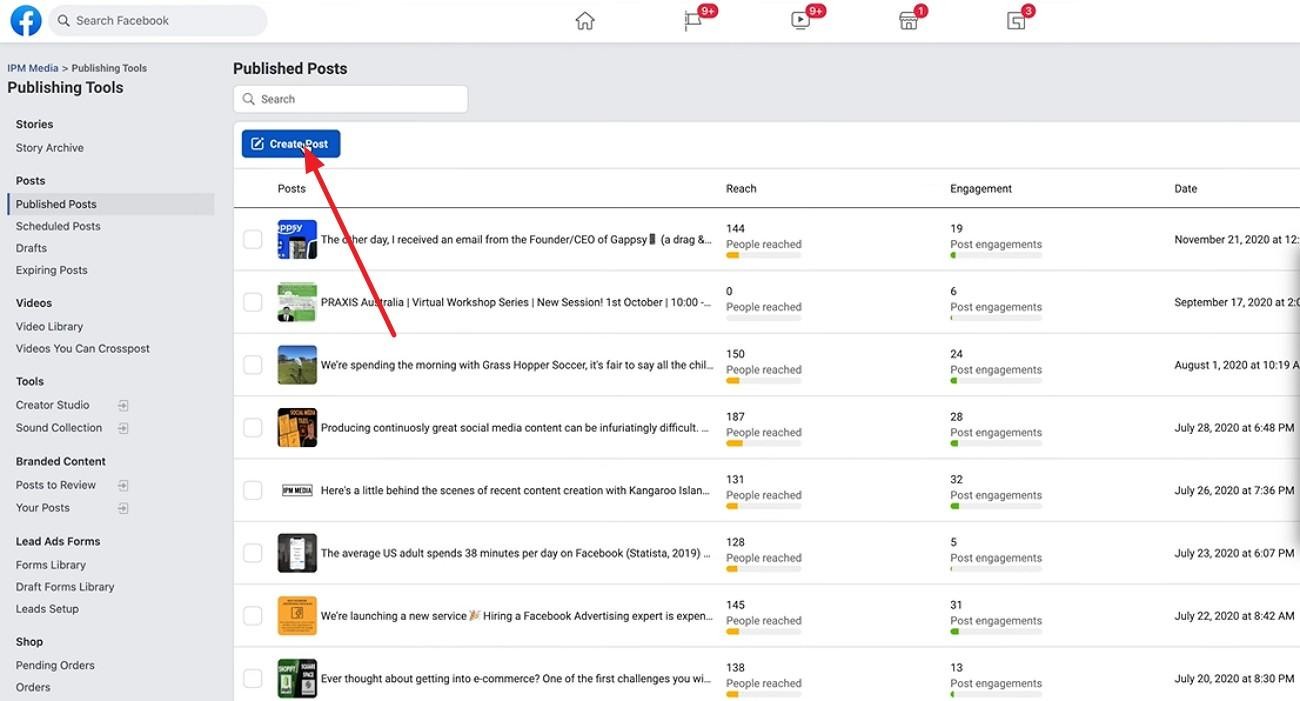
Step 2. Click the "Create Post" button on the next screen.
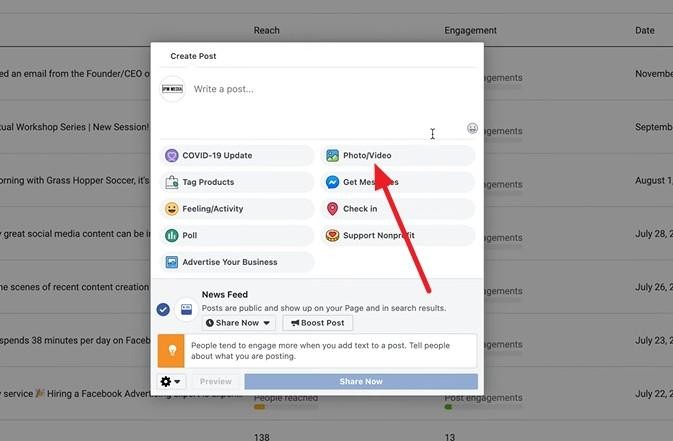
Step 3. Select the “Photo/Video” option from the next pop-up window.
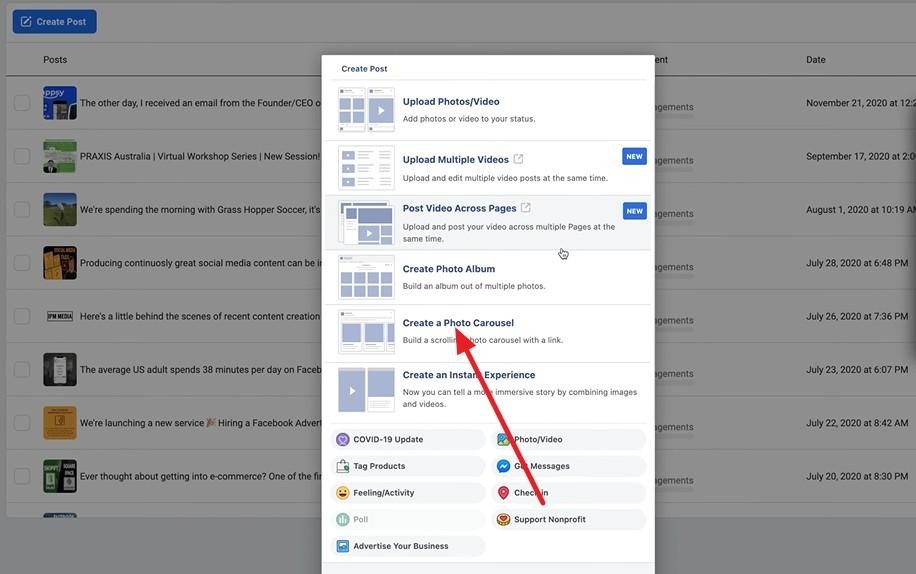
Step 4. Now select the “Create a Photo Carousel” option by clicking on it.
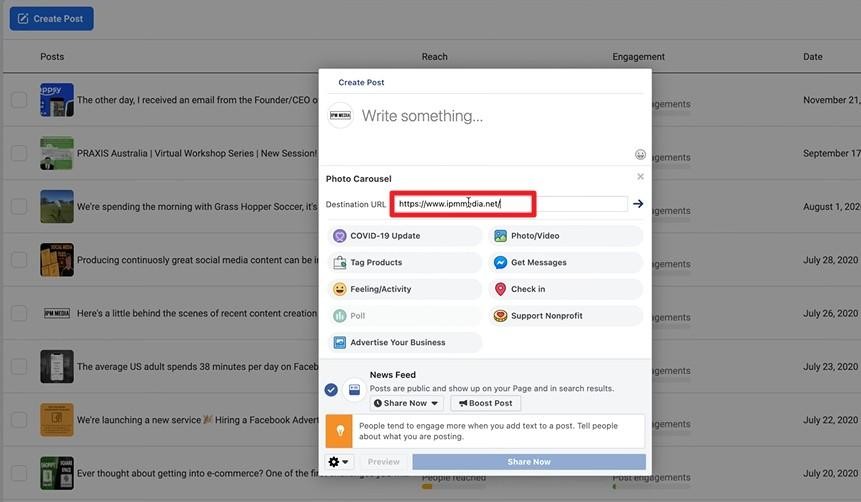
Step 5. Enter the link to your website where you want the viewers to land after viewing your post.
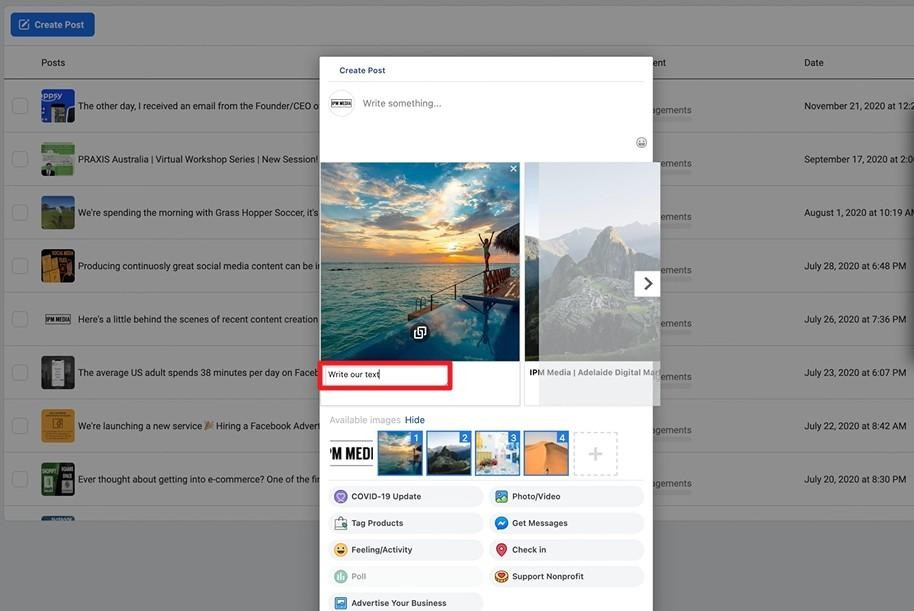
Step 6. Add your photos from your device or account and enter the text description in the textbox.
Step 7. Click the "Share Now" button to post the created carousel on your feed once it is done.
Using Third-Party Tools
This method is used by creators who want more flexibility in designing and scheduling posts. Third-party platforms make it easier to plan content in advance. Some tools also allow more advanced carousel customization, like better control over visuals and links.
Key Points
-
Popular Platforms: Tools like Publer, Planable, or ContentStudio.
-
Content Planning: It helps users design and schedule posts before time.
-
Workflow Efficiency: These tools are useful for managing multiple pages or client accounts.
-
Advanced Features: Some of the tools offer lots of customization options for the posts.
-
Limitation: They require a paid subscription for full functionality.
How to Create Facebook Carousel Assets Using AI
Creating a high-quality carousel on Facebook used to take hours of setup. Many tools have now simplified the entire process. Users can simply provide the raw photos and get a complete set of visuals that are already optimized for engagement. One such tool is Zawa that offers a social post generator feature to automate the creation of structured posts.
Users get the ability to upload their photos and the tool offers various styles suiting the photo style. Moreover, it provides users with different customization options to generate posts according to their preferences.
Key Features
-
Variations for Posts: It creates more than one version for the same photo so users can choose the most suitable style.
-
Different Layout Options: The platform supports various aspect ratios to make it easy to create posts according to different platforms.
-
Purpose Selection: It lets you select from different purpose options to make the post relatable for the audience.
-
Caption Generation: This tool creates engaging captions that match the tone and content of your photos.
-
Text Editing: Users can edit the text that they want to add to the photos to make them more understandable.
Steps To Create Posts With Zawa
After learning about this tool in detail, let us have a look at the steps for creating a Facebook carousel using it:
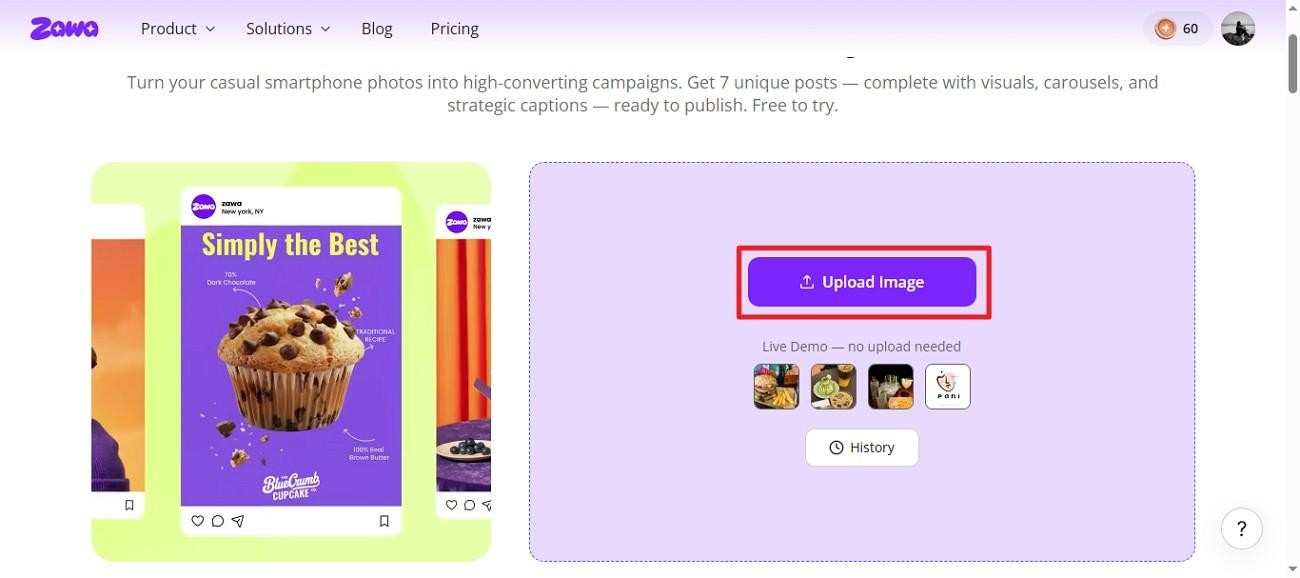
Step 1. Access Zawa and Upload Photos
Begin by accessing the social post generator on your browser and adding your photos using the “Upload Photos” option.
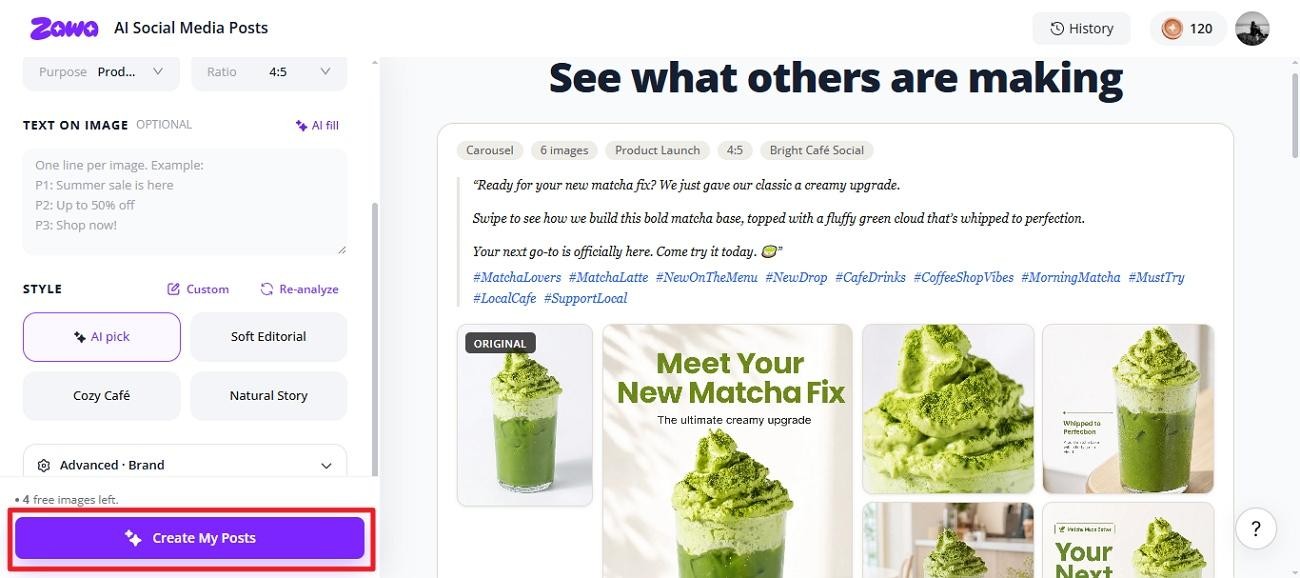
Step 2. Customize Your Post
Different variations for your photos will be generated by the tool, and you can customize the post, such as choosing the aspect ratio and style. Once done, press the "Create My Posts" option to execute the process.
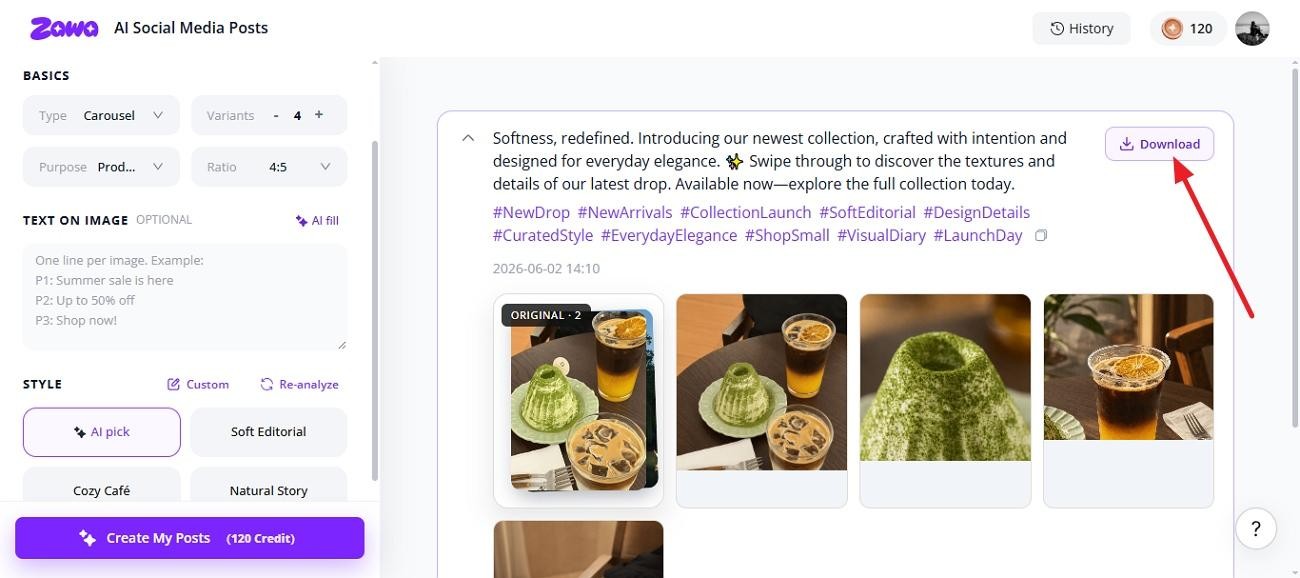
Step 3. Preview and Download Post
Check the created posts and press the "Download" button to save them to your device.
Best Practices for Facebook Carousel Posts
Users who want to learn how to post a carousel on Facebook might make mistakes when creating posts. Follow the tips provided below to improve the overall performance:
-
Keep all slides visually aligned with similar colors and fonts to maintain a professional look.
-
Users should add less text to the photo to keep the message clear and easy to read.
-
It is suggested to arrange slides in an order to make the flow look more natural.
-
Start with a strong hook on the first slide to immediately capture attention.
-
Optimize every slide for mobile viewing to ensure readability on smaller screens.
-
Add a clear call-to-action that guides users toward the next step or engaging with the post.
-
Create seamless visual flow between the slides so transitions feel connected and smooth.
How to Track and Measure Facebook Carousel Performance
The next step is to track the performance once you have created and published your Facebook carousel. Many creators do not know how to do it. Mentioned below are some of the ways through which you can measure the performance of your post:
Key Metrics to Watch
Checking the performance gives a clear picture of how users respond to each element of your post. Below are some of the factors that you should watch to keep the track record:
-
CTR (Click-Through Rate): This shows how many users clicked on your post after seeing it.
-
Click-Through Rate per Card: It helps identify which individual slide attracts the most attention.
-
Conversion Rate: The rate measures how many users completed a desired action after clicking.
Setting Up UTM Parameters for Individual Cards
This technique is useful for tracking traffic from each slide separately. Users can add unique UTM links to different cards to see which card is driving clicks and conversions. This allows more precise campaign analysis and helps users optimize future content.
Troubleshooting Common Facebook Carousel Issues
Many users face issues when creating or publishing Facebook carousel posts for their photos. Here are some of the issues discussed that most users face:
Why can't I see the organic carousel option on my Facebook Page?
This usually happens when the feature is not available for your page or region. It can also be linked to using an outdated page interface or a restricted posting format.
Solution: Try updating your application if you are posting from your smartphone. You can also use Meta Business Suite instead of the basic post editor. Wait for the feature to be introduced in our region or for your account if the problem is still there.
How to fix cropped or blurry images in Facebook Carousel?
This happens because of incorrect image dimensions or heavy compression before uploading.
Solution: Use the recommended size of 1080 × 1080 pixels and avoid compressing files before uploading. Users can also preview the post on mobile before publishing to check the photo quality.
Why is my carousel ad getting rejected by Meta?
Rejection of the post can happen because of policy violations or issues with landing pages or ad formatting.
Solution: Read the policies of the platform and make sure your content follows guidelines. Resubmit the ad after removing any unwanted elements.
Conclusion
To sum it up, this article provided a detailed guide on how to post a carousel on Facebook using different methods. It also explained its certain features and limitations users might face. One such tool that lets users create high-quality posts for social media is Zawa. This platform allows users to generate visually appealing posts without any manual editing.
FAQs
-
Can I mix images and videos in a single carousel post?
Users can generate a carousel including photos and videos as long as they meet the platform’s format and size requirements. This helps make your content more dynamic and engaging for viewers.
-
What is the difference between a carousel and a slideshow on Facebook?
A carousel lets users swipe through multiple individual cards. A slideshow plays images like a video without user-controlled swiping. Whether you want to create Facebook carousel posts, presentation slides, or other visual content, Zawa can help you generate stunning, high-quality images in just a few clicks.After generating an image, you can continue editing it with powerful tools such as image expansion, image enhancement, and background editing to further improve the final result.
-
How many photos can you post in a carousel on Facebook?
Users can add up to 10 photos and videos in a single carousel post. This limit may vary slightly depending on whether you are using organic posts or ads.
-
Can you post a Facebook carousel on a personal profile (not a Page)?
This feature is available for Pages and Ads Manager, not personal profiles. Personal accounts usually support standard multi-image posts instead.
-
What are common carousel ad mistakes?
Common mistakes include using low-quality photos and missing or unclear call-to-actions. Another issue is not optimizing photos for mobile view.
-
How do I share a carousel post on Facebook?
Users can share it just like any other post by clicking the share button below it. You can also copy the post link and send it directly through messages or other platforms.
You May Be Interested

140+ Facebook Bio Ideas: Short, Professional, Unique, and More

20 Best AI Marketing Tools You Should Know in 2026

How to Use an AI Ad Copy Generator to Create High-Converting Ads

Facebook Ad Size: Complete Guide to Dimensions, Formats & Specs

Facebook Cover Photo Size Guide - Specs, Upload, and Design Process

What Is a Carousel Post and How to Use It for Stunning Social Media Feeds

Facebook Marketing Strategy: A Guide to Turn Clicks Into Customers
