Facebook Cover Photo Size Explained - Complete Beginner's Guide 2026
Understanding Facebook cover photo size is essential. Discover mobile cropping rules, desktop layout differences, and safe area tips.


Facebook cover photo size rules define exact dimensions to keep pages consistent across different devices. Wrong sizing can crop headlines and weaken first impressions for key visitors. Layouts shift between desktop and mobile, changing what areas stay visible or get hidden.
Designers need clear guidance on safe zones and compression to protect visual clarity. This guide explains essential requirements, common pitfalls, and steps for reliable cover production.
Why Facebook Cover Image Size Matters?
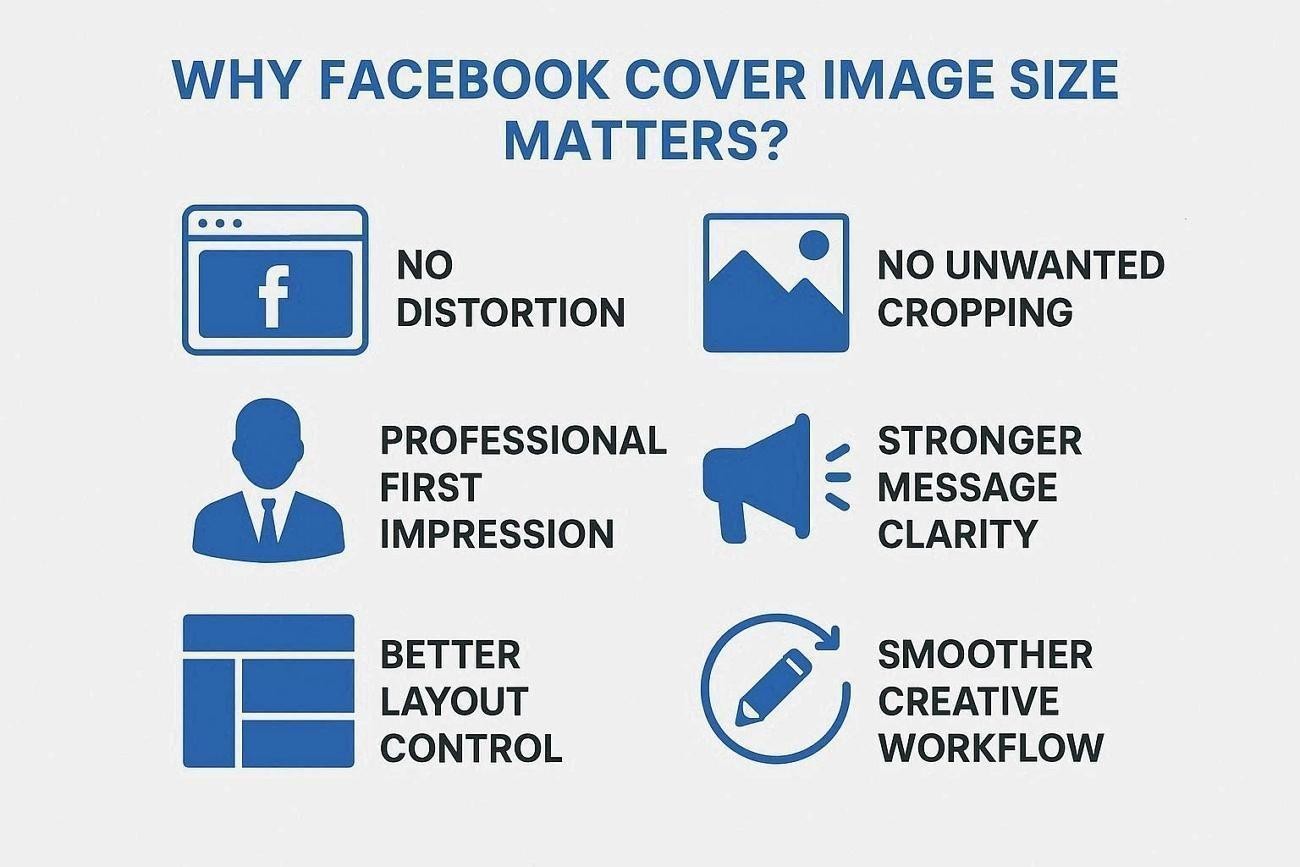
Correct Facebook cover photo dimensions keep images sharp, readable, and aligned with the page layout. They also support consistent branding across different devices, avoiding random crops. The reasons shared below explain the key benefits of using accurate sizing guidelines.
-
No Distortion: Correct sizing prevents stretching, keeping every element in natural visual shape. Visitors see a clean header without warped logos, blurred photos, or uneven edges.
-
No Unwanted Cropping: Dimensions reduce surprise cuts on text product shots near edges. Important details remain visible in the areas on the desktop and mobile.
-
Professional First Impression: A framed cover suggests attention to presentation and detail. New visitors feel greater confidence in the brand before reading posts or checking page content.
-
Stronger Message Clarity: Clear sizing keeps headlines and CTA easy to scan. People can recognize the offer and value of the page at a single glance.
-
Better Layout Control: Accurate dimensions help position key content around profile pictures. Designers can plan compositions that respect overlays, buttons, and icons on every screen.
-
Smoother Creative Workflow: Standardized sizes reduce rework when updating campaigns or new launches. Teams reuse templates, keep files organized, and avoid repeated troubleshooting for fresh designs.
What are The Dimensions of the Facebook Cover Photo?
Clear specs for Facebook cover dimensions help avoid guesswork and keep layouts consistent. They give designers a single reference point to cut rework and prevent production mistakes. The specs table below shows the values you should follow when designing:
| Item | Recommended Value | Description |
|---|---|---|
| Desktop Cover Size | 820 × 312 pixels | Standard view on desktop pages |
| Mobile Cover Size | 640 × 360 pixels | Framing used on mobile screens |
| Suggested Upload Size | 820 × 360 pixels | Upload size that reduces cropping |
| Central Safe Area | 640 × 312 pixels | Best zone for important content |
| Aspect Ratio | Approx. 2.63:1 | Shape ratio across all devices |
| Recommended File Format | JPG or PNG | Suited for photos and graphics |
| File Size Suggestion | Under 100 KB | Helps header image load faster |
Facebook Cover Photo Size - Understanding Safe Zones
The safe zone is the middle area where important content remains visible across devices. It covers the central part of the banner, away from all page edges and corners. Text, logos, and key visuals should live inside this space for reliable visibility. Designers treat this zone as the core canvas when planning Facebook cover image size layouts.
This zone exists due to different screens' crop edges in slightly different ways. Desktop and mobile views show separate parts of the full banner, especially near the sides. Using a safe zone reduces surprises when Facebook trims areas during automatic responsive cropping.
Designing Within the True Safe Frame
The central safe area of 640 × 312 pixels protects key visual elements. Users can place logos, text, and faces inside the safe area for reliable visibility.
Moreover, a larger 820 × 360 pixel canvas surrounds it and supports balanced composition. Designers use this extended area to frame and support key content.
How Mobile Cropping Changes the View?
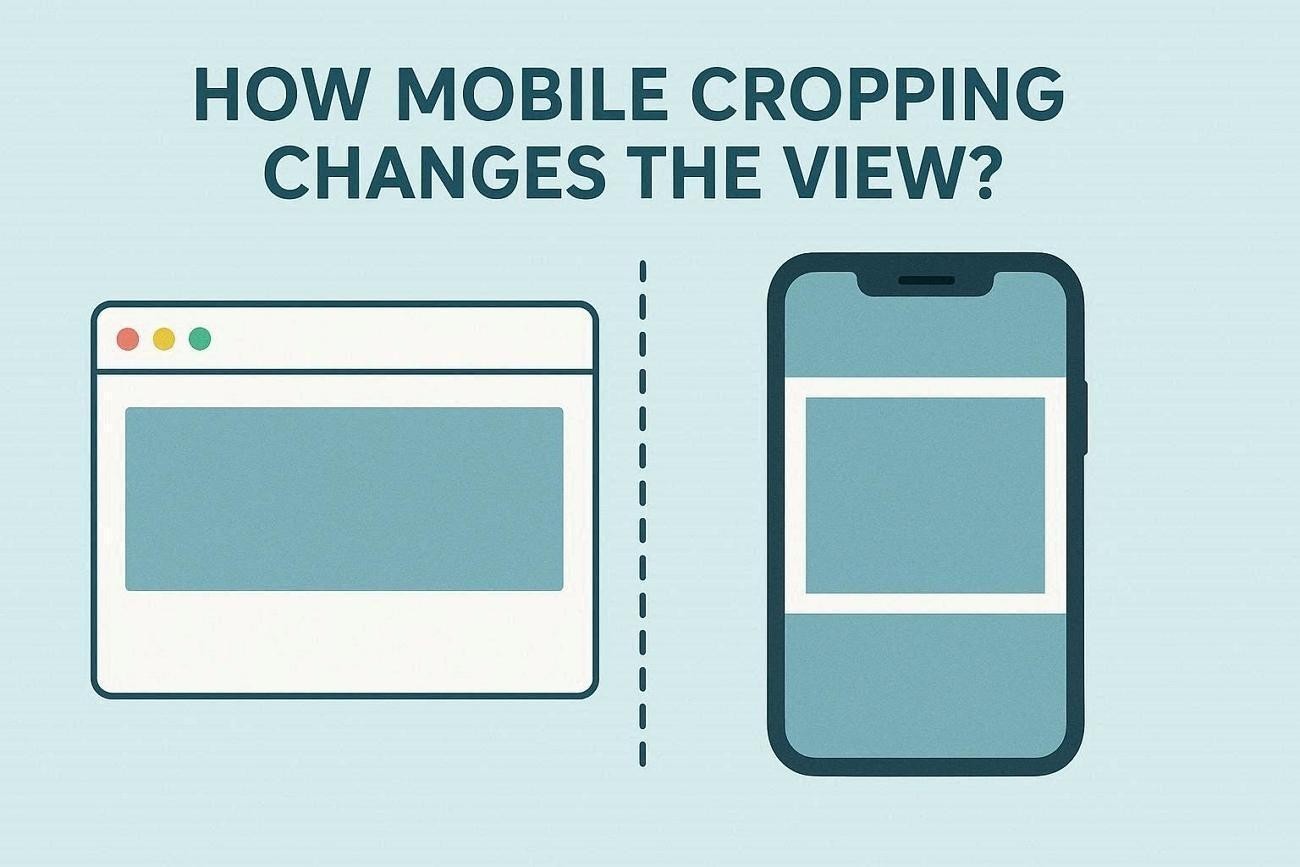
On mobile, Facebook trims roughly 90 pixels from both the left and right sides. This cropping hides edge content, even when everything looks fine in a desktop preview. Knowing this helps designers avoid placing information near edges that may disappear.
Facebook Cover Dimensions - Desktop vs Mobile Display Differences
Display changes by device, not just by the size of the Facebook cover photo. Profile pictures and on-page elements shift positions between views and can hide details. It is important to map these shifts before placing any key visual content.
Desktop View Behavior
On the desktop, the cover appears wide and trimmed at the top edges.
-
Shows More Width: Desktop stretches the banner, revealing extra horizontal background space for wide scenes.
-
Crops Top and Bottom: A narrow strip at the very top and bottom is not visible.
-
Profile Picture Overlaps Bottom-left: A circular profile image covers part of the lower-left header area.
Mobile View Behavior
On mobile, the cover is taller but loses visible content along both sides.
-
Crops Left and Right Sides: Content near the far-left and far-right edges may not appear.
-
Shows More Vertical Height: The visible window feels taller around the center of the design.
-
Larger Profile Overlap: The profile image appears bigger and can block nearby crowded design elements.
Desktop and Mobile at a Glance
The table below focuses only on planning priorities, without repeating details above:
| View | Planning Priority | Good Design Strategy |
|---|---|---|
| Desktop | Wide layouts | Use long horizontal backgrounds |
| Mobile | Central focus | Keep the main subject centered |
Facebook Cover Photo Mistakes to Avoid
Many people make simple mistakes that hurt their page’s first impression. Explore the main issues with Facebook cover photo dimensions:
Using The Wrong Dimensions
Wrong dimensions can crop parts of your cover photo and make it look bad. Always check recommended sizes so your image displays correctly on all devices.
Text-Related Issues
Too much text makes your cover busy and hard for people to read. Tiny or fancy fonts can hurt readability and reduce user interest. Low contrast between text and background makes your message almost invisible to visitors.
Overcrowded Design
Too many design elements confuse visitors and hide your main message. Leave enough empty space, and each element will feel clear and important.
Placing Key Information Wrong
Important details under the profile photo can disappear on different screen sizes. Always remember that the Facebook cover image size changes layouts on phones and desktops.
Poor Quality Images
Low‑quality images make your brand look weak and less trustworthy to people. Always use sharp photos that look good on bigger screens.
Ignoring Safe Zones
Ignoring safe zones can cut off key text or important visual elements. Always place crucial content where resizing will not crop or hide it.
Not Testing On Mobile
Your cover often looks wrong on phones when you never test on mobile.
How to Upload and Test Your Facebook Cover Photo
You want a clean design that looks good at any Facebook cover photo size. Follow the simple steps below to upload, check, and adjust your cover image:
Step 1. When designing a Facebook cover photo, use a size of 820 × 360 pixels for uploading. Keep all logos in the center to avoid cropping.

Step 2. Open Facebook and press the “Upload Photo” option to upload the image. Next, choose the cover image you want to upload.
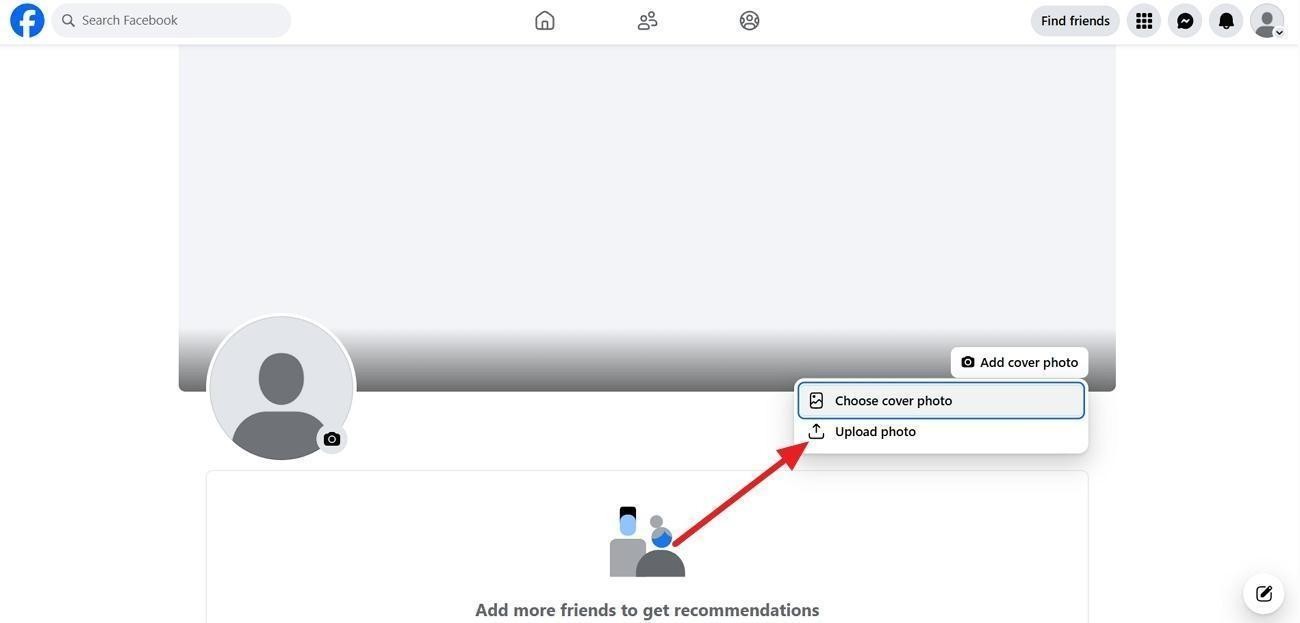
Step 3. Next, position the cover image and click the “Save Changes” option.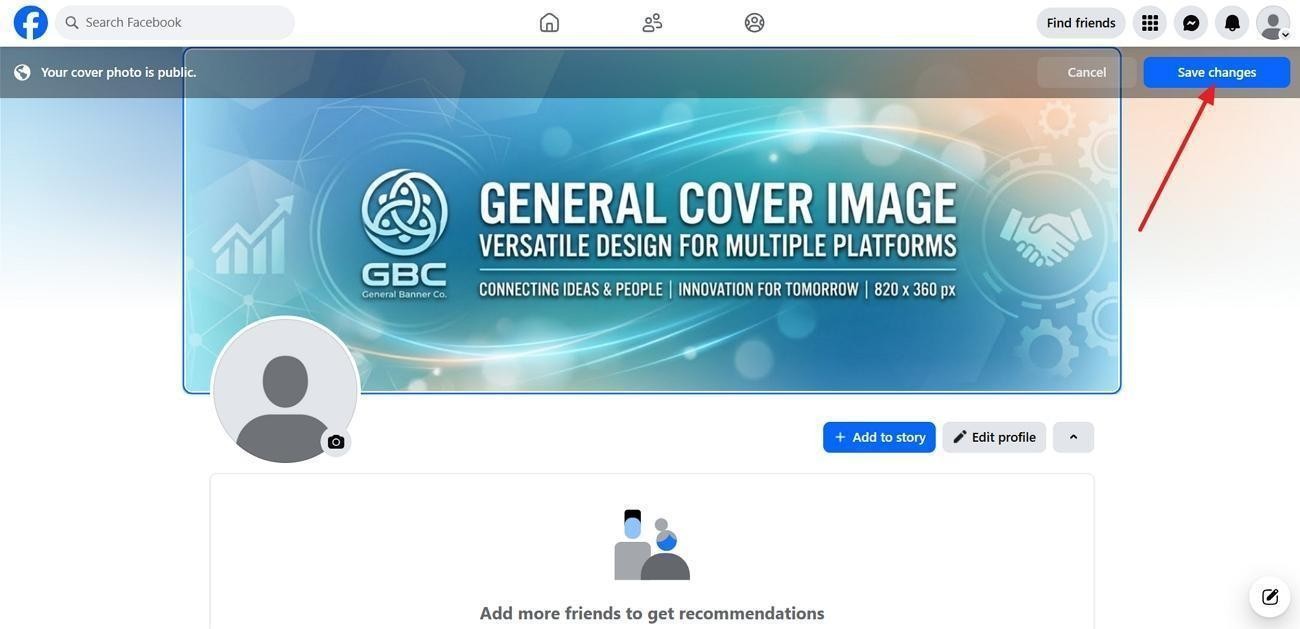
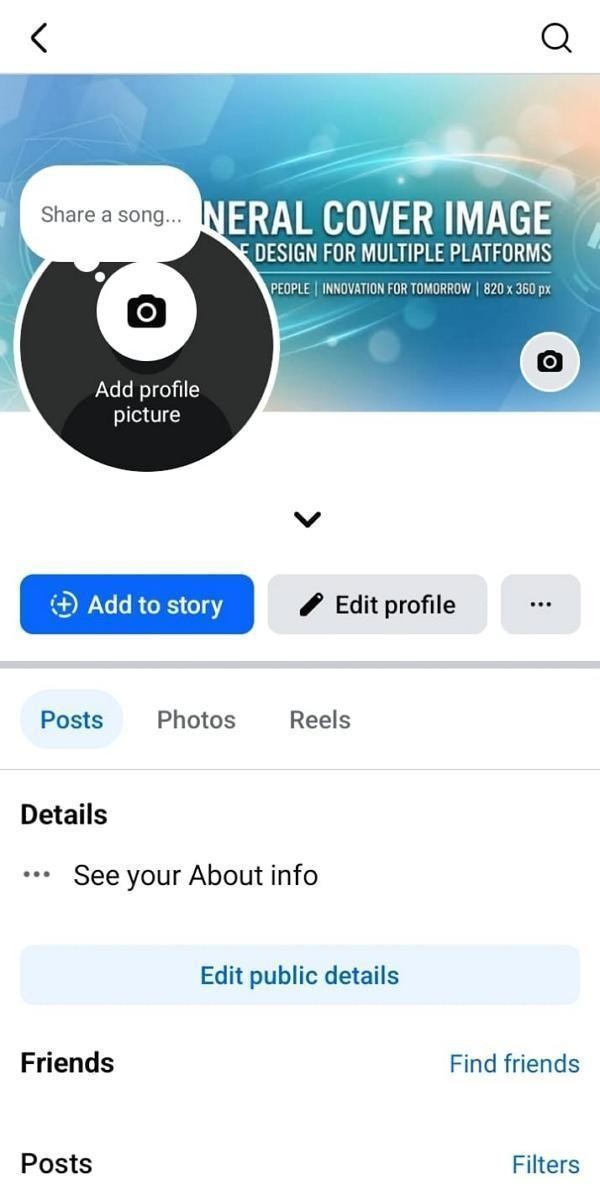
Step 4. Now, view your Facebook profile on a smartphone or other device. Make sure that no vital information is hidden under the profile picture.
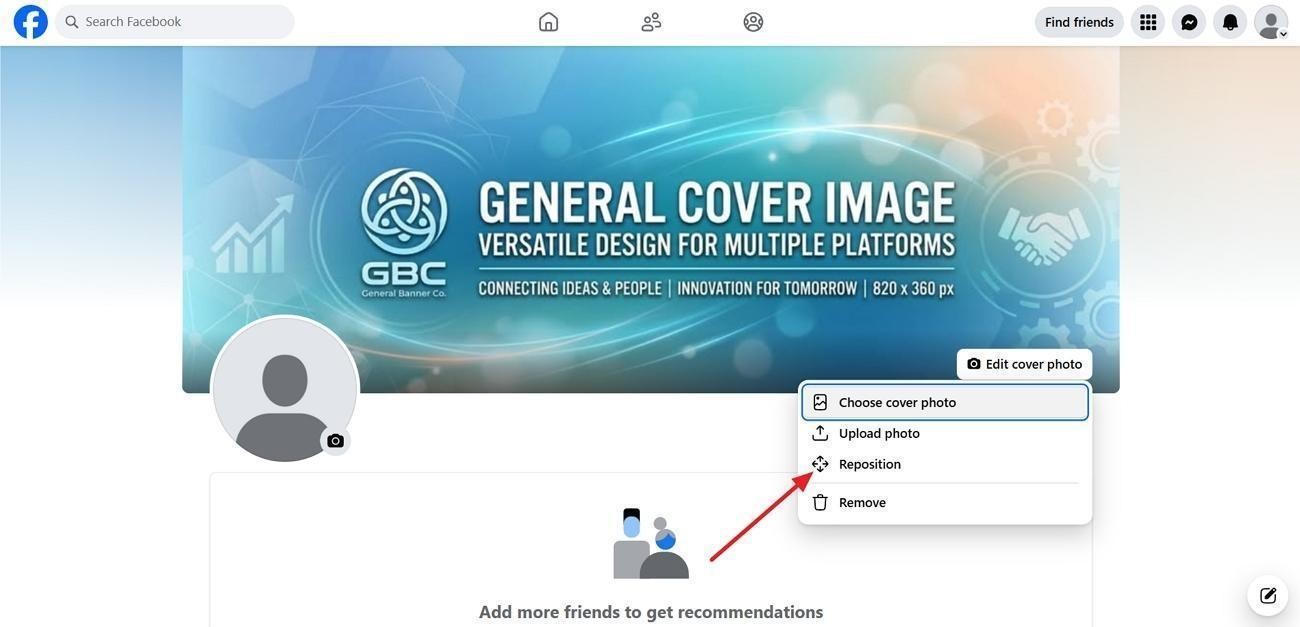
Step 5. In case elements are hiding, click the “Reposition” option to drag the photo. You can also redesign the image.
How to Generate and Edit the Ideal Facebook Cover Photo Size
If you’re designing a Facebook cover for your page, promoting an event, or updating a personal profile, Zawa helps you create clean, clear images that fit. This AI tool gives simple controls for layout, text, and clear brand consistency. You can easily match the right size of Facebook cover photo for any page. Zawa also supports brand kits, smart AI agents, and a built-in online editor.
Key Features
-
AI Agent: A smart assistant that helps you generate and refine brand visuals automatically.
-
Brand Kit: Stores your logos, colors, and fonts for fast, consistent branding everywhere.
-
Online Image Editor: Lets you tweak photos, text, and layouts directly in your browser. And resize images without losing quality.
-
Design Templates: Ready-made layouts for social posts, marketing graphics, and styled food photography.
-
Point To Edit: Click one area and ask AI to change only that selected part.
Steps to Create a Facebook Cover Photo Using Zawa
Zawa AI design tools make it easy to create a professional Facebook cover photo. You can start with a simple text prompt and generate designs directly online. Even without any design experience, you can create stylish, brand-consistent Facebook cover images in just a few minutes.
To create a clean Facebook cover with Zawa, follow the simple steps below:
Step 1. Upload a Reference Cover Image
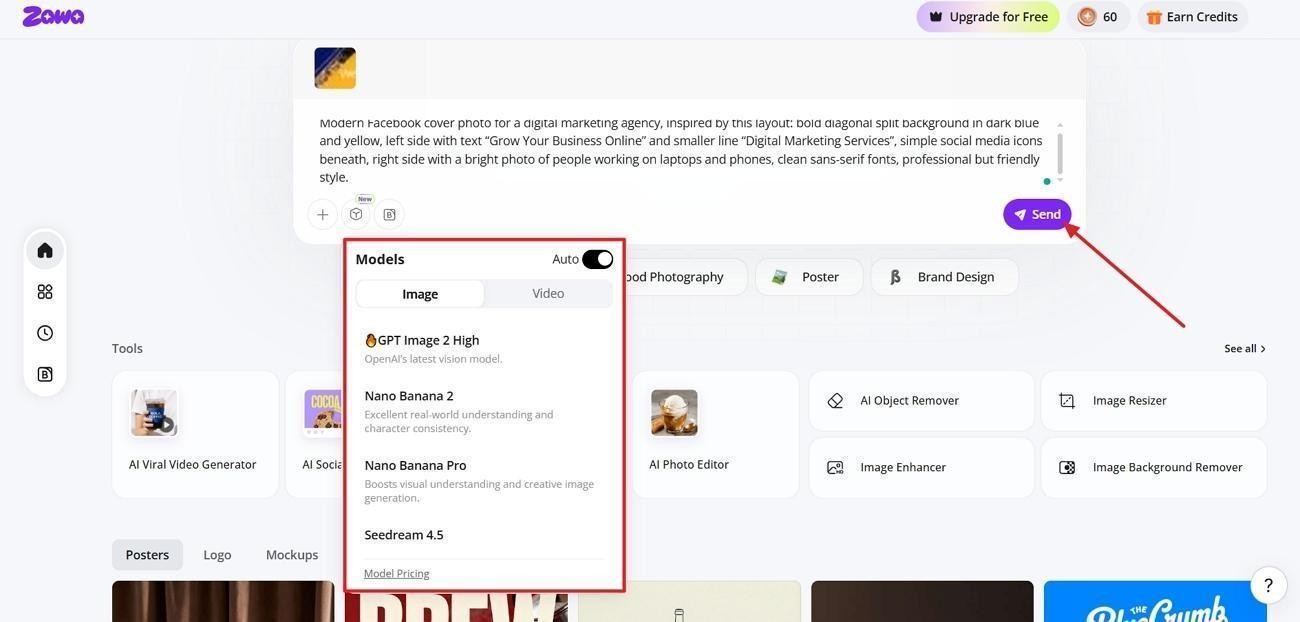
On the main interface, click the “+” icon and press the “Add Image” option to upload a reference image. After that, enter the cover photo description. Choose an AI model and click the “Send” button.
Step 2. Adjust The Safe Zone Resolution
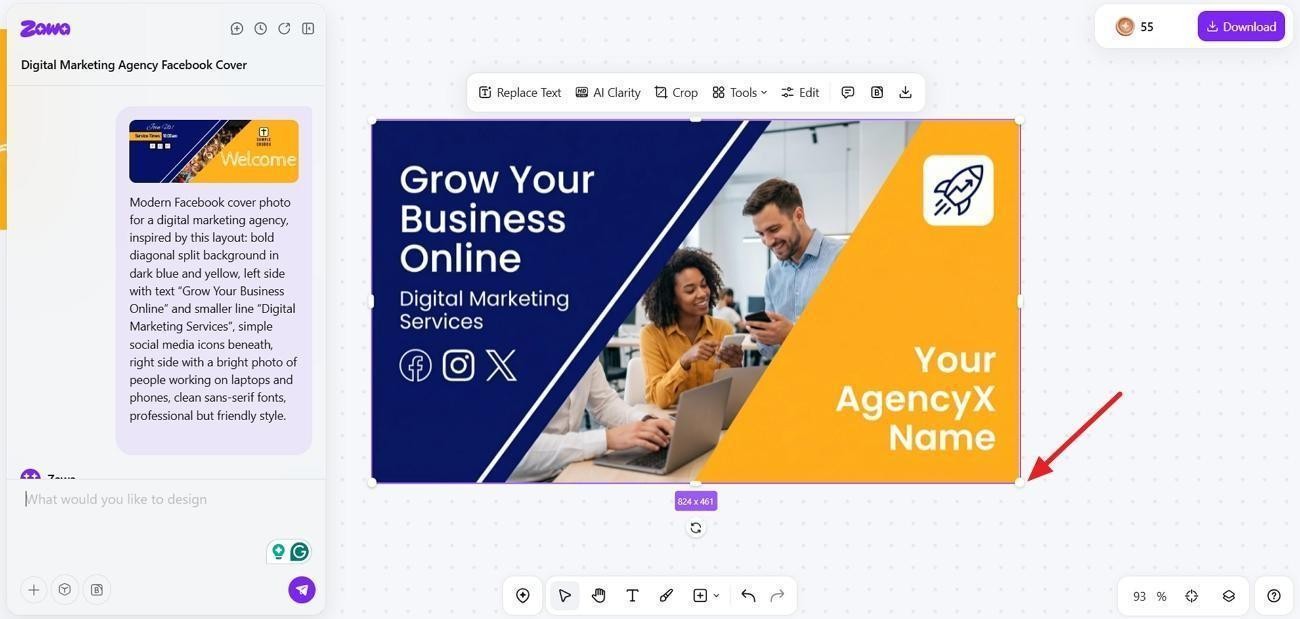
Now, pick one edge of the image and resize it to around 820 × 360 pixels. You can also ask the chat to adjust the resolution.
Step 3. Download Facebook Cover Photo
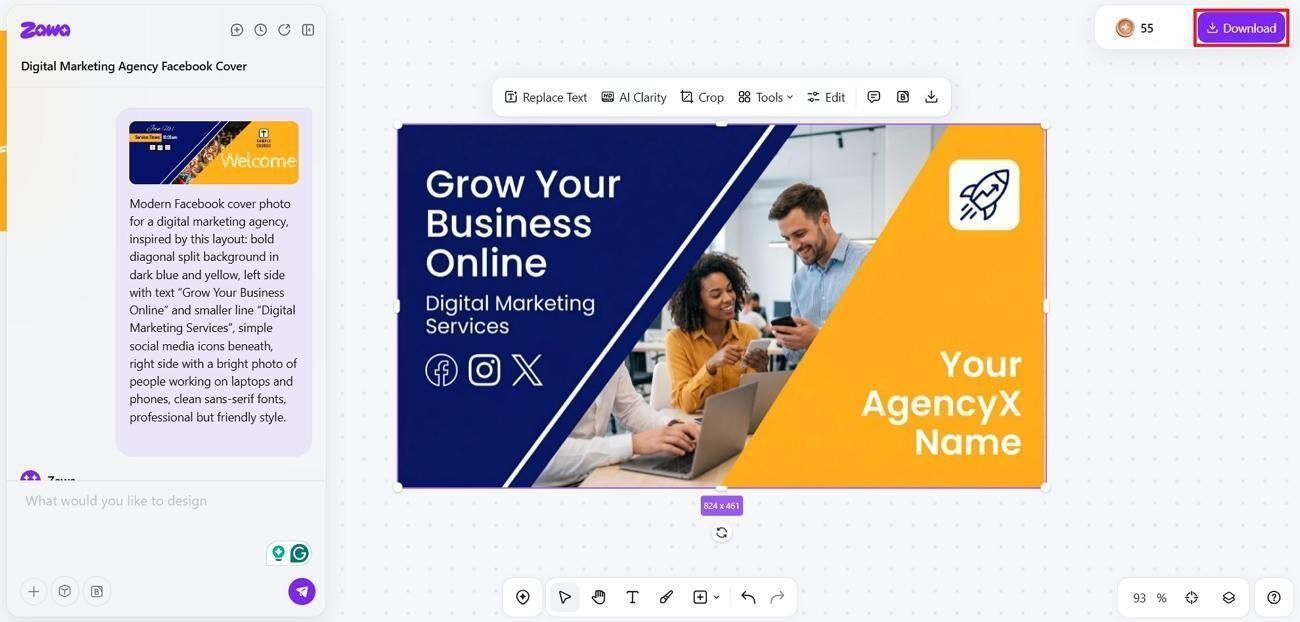
After the image is finalized, click the “Download” option to save it.
Creative Facebook Cover Photo Ideas
These ideas help you design unique covers that still respect Facebook cover photo dimensions. You can match your brand style while keeping every design clear and readable.
Minimalist Cover Photos
Use a clean layout with plenty of empty space and one clear message. Choose simple backgrounds and limited colors to keep the design calm and focused.

Lifestyle photography
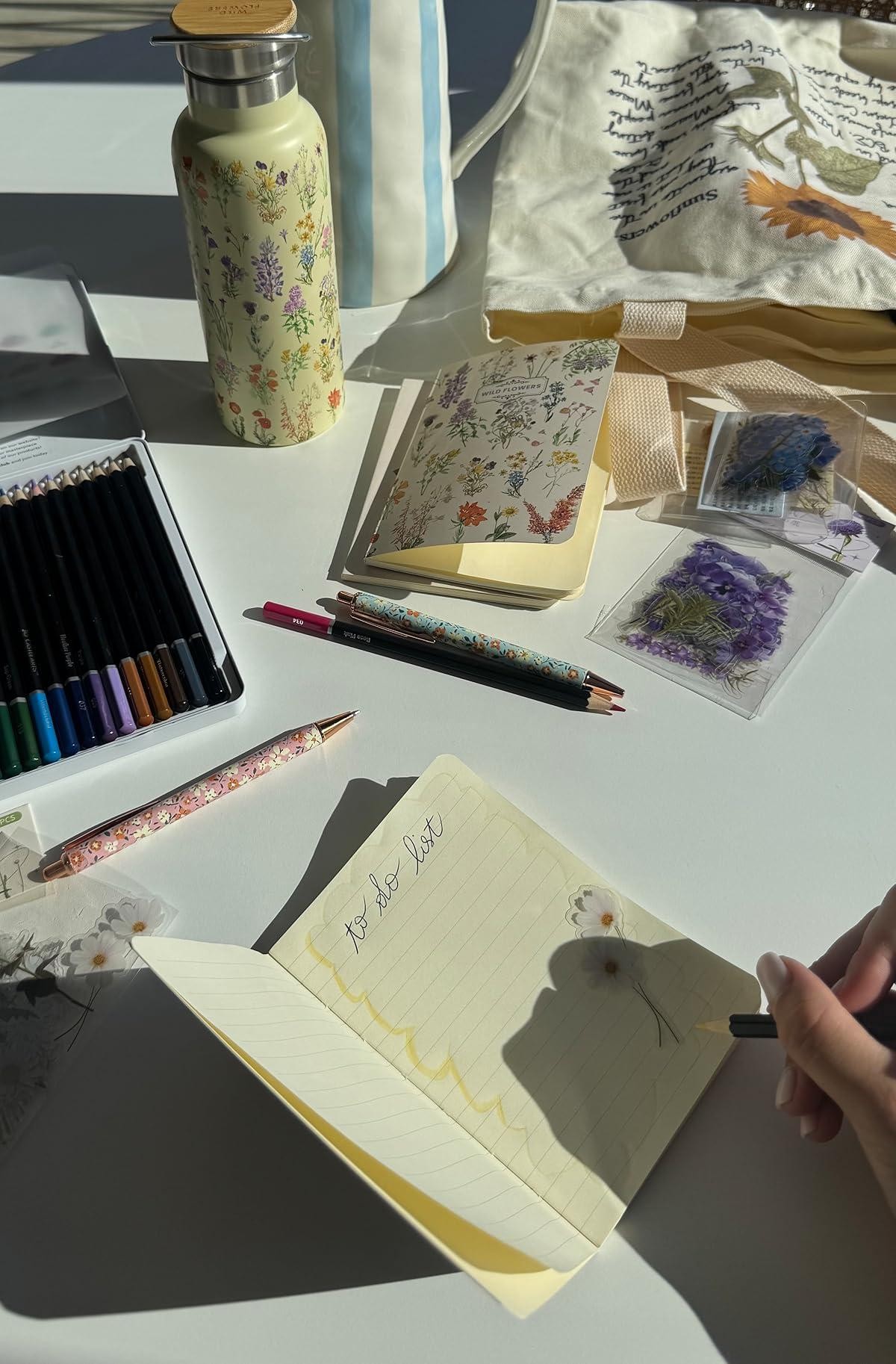
Use real-life scenarios to show how your products fit naturally into everyday moments. Combine authentic visuals with brand storytelling to create an emotional connection and help viewers remember what makes your brand unique.
Product-Based Designs
Place your main products in the center with clear, bright lighting and framing. Add short benefit phrases that explain how each product directly helps the viewer.

Seasonal Covers
Change your cover to match holidays, special dates, or key seasonal themes. Use colors and symbols from each season while keeping your brand style consistent.

Promotional Banners
Highlight current offers using bold text and simple shapes that draw quick attention. Add clear time limits or dates so people know when the deal will end.

Illustrated Cover Photos
Use custom drawings or icons that match your brand tone and message well. Keep illustrations simple, with few colors, so the design stays clear.

Conclusion
In conclusion, you learned how to choose the right Facebook cover photo size. These tips help you design clear, sharp covers that match your brand well. For faster, smarter design work, you can try Zawa to streamline everything.
FAQs
-
What is the size of a Facebook cover photo for HD use?
Use 820 x 360 pixels for a sharp Facebook cover on screens. Another common HD option is 851 x 315 pixels for good clarity. Facebook officially recommends using JPG format for cover images, with a file size of less than 100KB for the fastest loading speed.
-
What is the size of the Facebook cover photo for no crop?
Keep key content within the central 640 x 312-pixel safe zone to avoid cropping.
-
What Facebook cover image size is ideal for business pages?
For most business pages, the ideal size is 820 x 360 pixels. Zawa can adjust layouts automatically to match the recommended Facebook cover photo dimensions.
-
Why does the Facebook cover photo look blurry?
Blurriness usually comes from low resolution and using the wrong aspect ratio.
-
Is the Facebook cover photo a JPEG or a PNG?
Both work, but a high‑quality JPEG is best for photographic covers on Facebook. PNG is better when your cover has sharp logos and detailed text.
You May Be Interested

13 Best Fonts for YouTube Thumbnails
140+ Facebook Bio Ideas: Short, Professional, Unique, and More

50+ Mother’s Day Post Ideas for Instagram, Facebook & More

4 Ways To Remove Backgrounds from Photos

Product Photography-How to Take Product Photos