How to Save Facebook Images on Mobile and Desktop (Step-by-Step Guide)
Discover how to download Facebook images in 2026 using mobile, desktop, and album methods. Learn common issues, best practices for saving photos, and tips to organize and enhance downloaded images using smart AI tools like Zawa.

Scrolling through the old Facebook photos is a habit for many. However, accessing these images requires a stable internet connection. To be able to see old photos posted on this platform, you must download them to your device. Moreover, image backup is also useful for retaining memories and saving images. That's why this step-by-step Facebook image saver will help you learn how to download images on Facebook on your mobile phone or desktop computer.
Why Download Images from Facebook?
Check out the reasons below to understand the benefits of downloading Facebook images for offline access and future use:
-
Save Memorable Photos: Store significant photos from special occasions on your device, along with scanned copies of personal photos.
-
Offline Access and Backup: Download images to view without internet access and preserve a backup in case posts are removed.
-
Organize Content for Future Use: Store and sort photos into folders for easy access later.
-
Post on Other Platforms: Use the downloaded images to upload to social media, messaging apps, or websites.
-
Save Older Photos: Save photos from other posts that are deleted or no longer available.
4 Ways to Download Images from Facebook
Facebook provides an official data export feature. By navigating to Settings → Download Your Information → Photos & Videos, you can download all photos associated with your account. This is the most reliable way to back up your entire Facebook photo library in a single download. If you only need to save specific images, explore the methods below to learn how to download photos from Facebook across different devices and scenarios.
Downloading on Mobile Devices
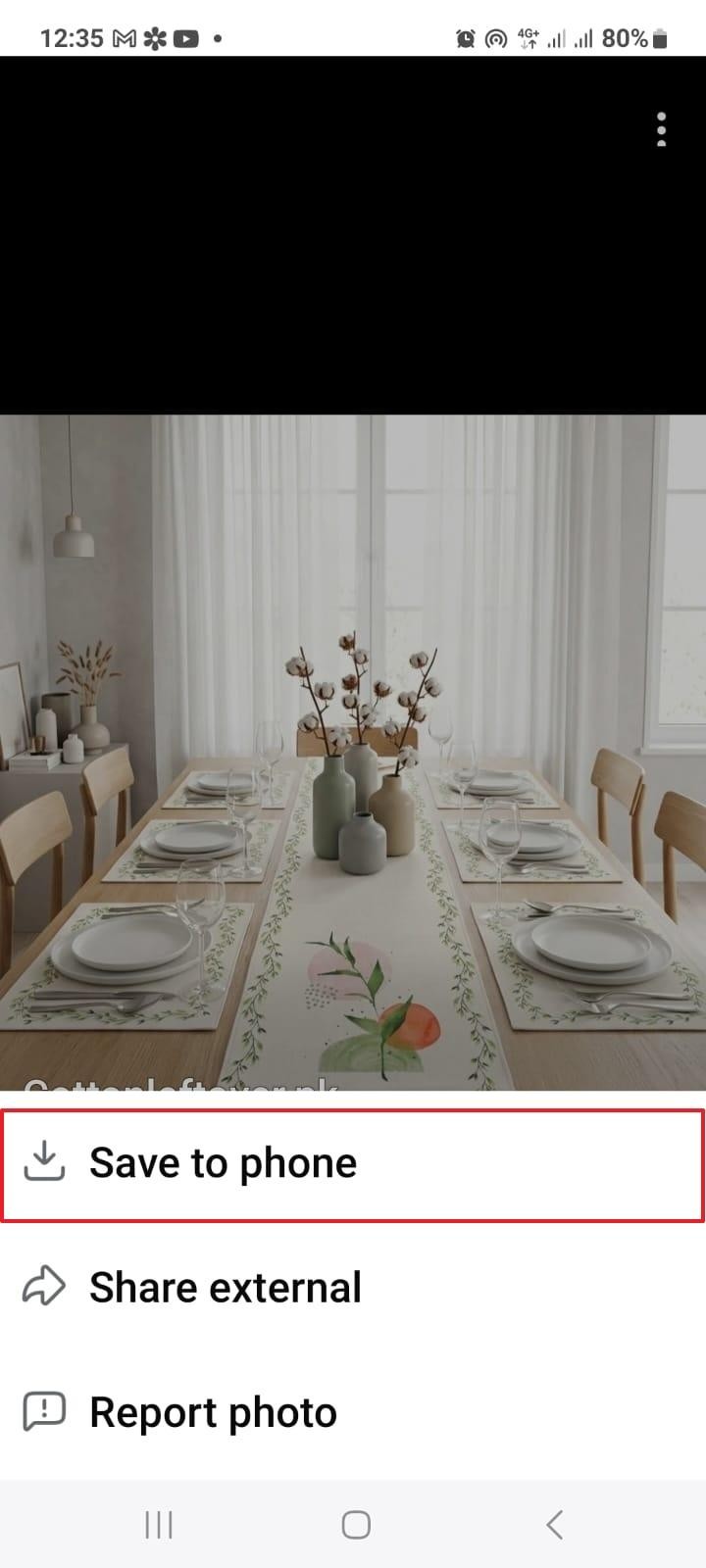
Downloading Facebook images on the phone can be helpful for users who use Facebook on their mobile devices. It allows users to save the images so that they can be accessed offline. Follow the steps below to download a Facebook image on your Android or iOS:
Instructions. Open the Facebook post image that you want to download, and long-press the image. Using the extended menu at the bottom, tap the “Save to Phone” option to save the image on your phone.
Downloading on Desktop
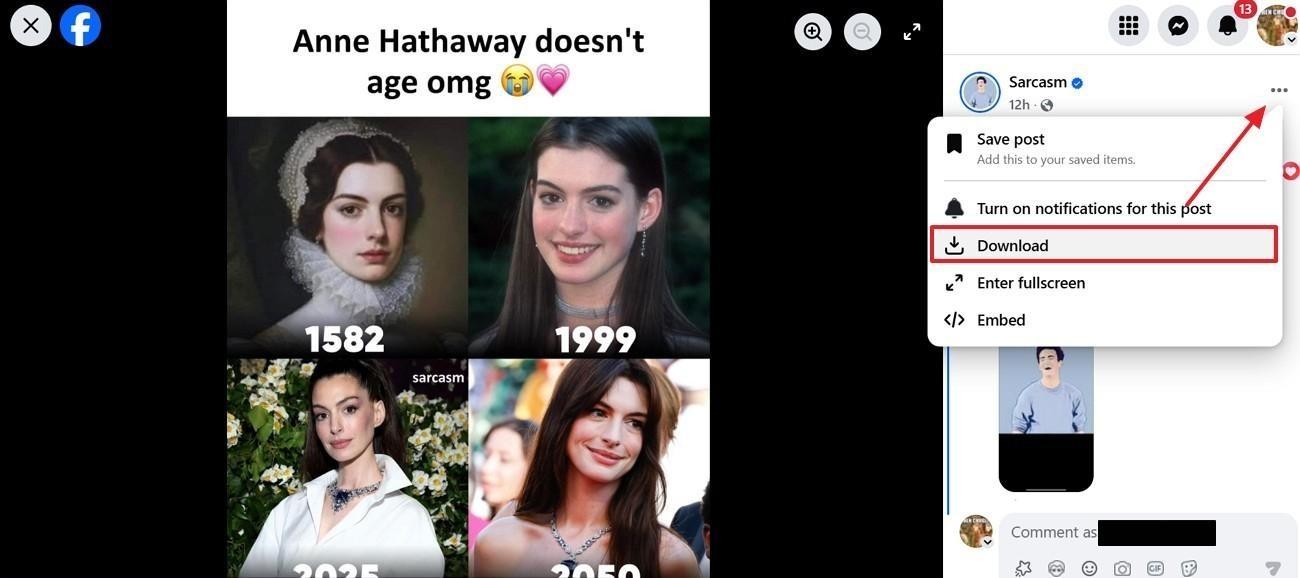
Saving FB images on the PC is ideal for saving high-quality images and organizing them into folders. This action can also make it easier to store large numbers of photos efficiently. The steps below outline the guide on how to download images from Facebook on a PC.
Instructions. On the PC, find and open the image and navigate to the top right corner to “Download” it.
Downloading from Facebook Albums
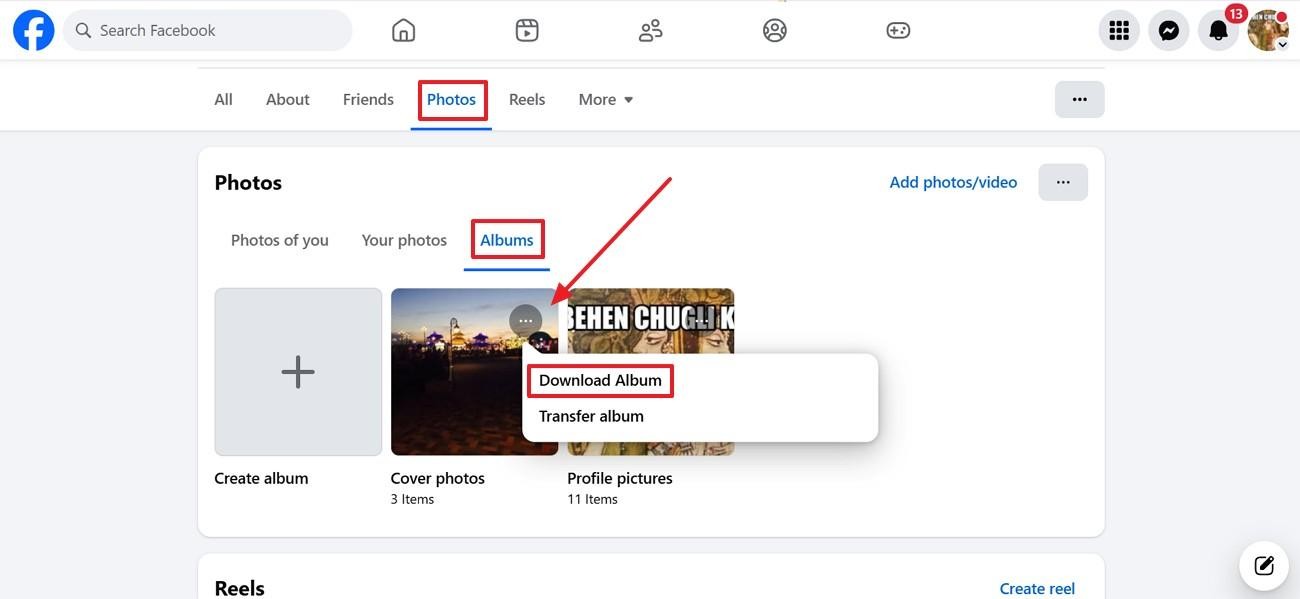
Image downloading from Facebook albums helps users quickly back up collections of memories or important pictures. It saves time and keeps all related photos organized in one place. Follow the guide below and learn how to download Facebook images from the album:
Instructions. In the “Photos” section of your Facebook profile, enter the “Albums” tab and navigate to the desired collection. Select the “Menu” from the top right corner of the album and click the “Download Album” option to save bulk photos.
Downloading Facebook Profile Images
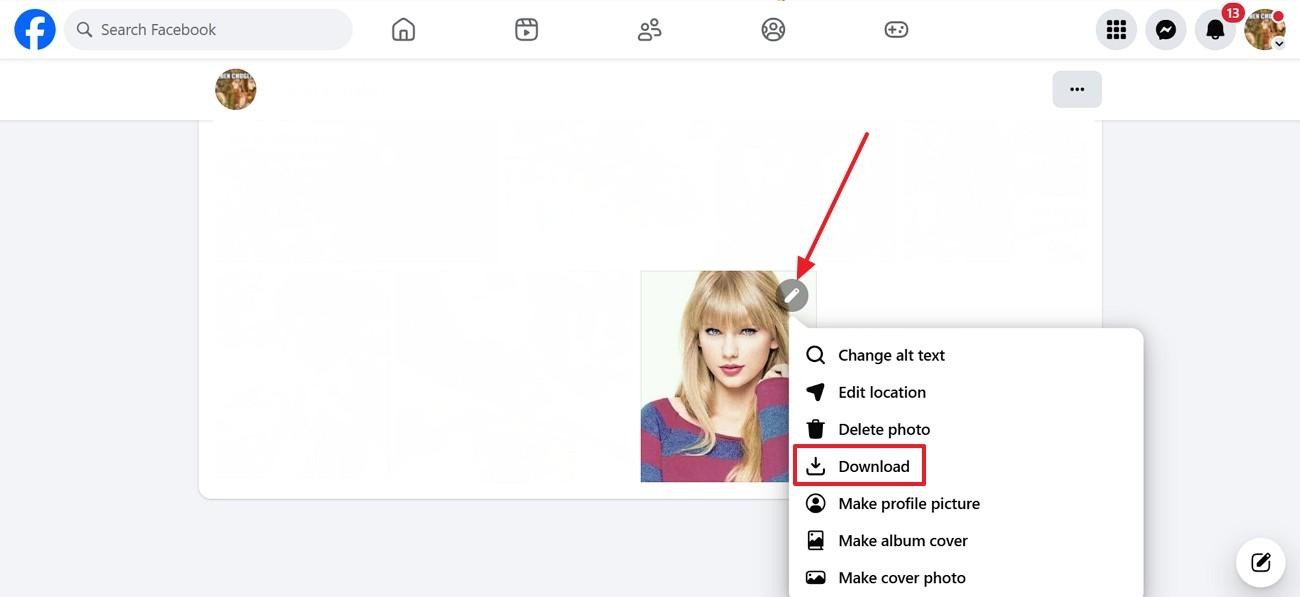
Saving Facebook photos is beneficial because it helps contain photos that can be changed, updated or removed later. With this knowledge, you can also be assured of retaining copies of important profile photos when necessary. The guide below explains how to save Facebook profile pictures on your device:
Instructions. In the “Profile Pictures” album on your Facebook profile, find the desired DP and click the “Edit” button to “Download” the image.
Common Issues When Downloading Facebook Images
Downloading an image through this platform seems like a smooth process. But it introduces the following common problems when downloading all images from Facebook:
-
Lower Quality Image Downloads: Facebook images might also be displayed in lower quality, particularly when downloaded from an original Facebook image that has been compressed.
-
Restricted Privacy Settings: Some photos may not be accessible for download due to privacy settings.
-
Download Options in App: In some instances, there may not be a direct download option, depending on the device or image settings.
-
Low-Resolution Downloads: Facebook may compress uploaded photos, which can make them look less crisp.
-
Album Download Limitations: Some albums may not provide a bulk download option, so users will be allowed to download images separately.
Tips for Organizing Downloaded Facebook Photos
If you have downloaded images from Facebook albums individually, the sequence of the downloads may be disrupted. The following tips will help you organize the downloaded Facebook images for a perfect sequence:
-
Sort Images into Folders by Date or Event: Arrange photos into folders based on specific dates, occasions, or events to make them easier to find later.
-
Rename Files for Easier Search: Give photo files clear and descriptive names so you can quickly search and identify them when needed.
-
Remove Duplicate or Low-Quality Images: Delete repeated or blurry photos to keep your collection clean and save storage space.
-
Back Up Photos to Cloud Storage: Save important images to cloud platforms to protect them from accidental deletion or device issues.
-
Keep Important Memories in Separate Albums: Create dedicated albums for special moments to keep valuable photos organized and easy to access.
Zawa: Editing and Optimizing Downloaded Facebook Images
Your downloaded Facebook images can be refined and reused for various other purposes. Using Zawa, you can access the built-in AI Photo Editor and make necessary changes to the downloaded images. It provides users who want to learn how to download images on Facebook with a bunch of sample images that can be refined. The dedicated image editing tool resizes your pictures and optimizes them for the recent platform-specific aspect ratio.
Key Features
-
Batch Upload: Users can upload complete Facebook albums and edit them to meet modern content creation standards.
-
Image Retouch: The image retouch feature by Zawa offers some basic filters and manual refining options. Users can make basic and advanced color corrections to elevate the look of their old Facebook images.
-
Image Enhancer: Use the dedicated image enhancer to uplift the quality of your image. You can specify the image scene to get the relevant image enhancement.
-
Background Generator:If the old image background is dull, use the Background Generator by Zawa to revamp your photo entirely.
-
Add Elements: Zawa offers a number of elements that can be added to the photo. Text, arrows, lines, and more graphics can be added to make the picture more attractive.
Step-by-Step Process to Edit a Facebook Image Using Zawa
Zawa brings a simplified process of enhancing the quality of a downloaded image from Facebook. Follow the steps below and learn how your images can be elevated using this tool:
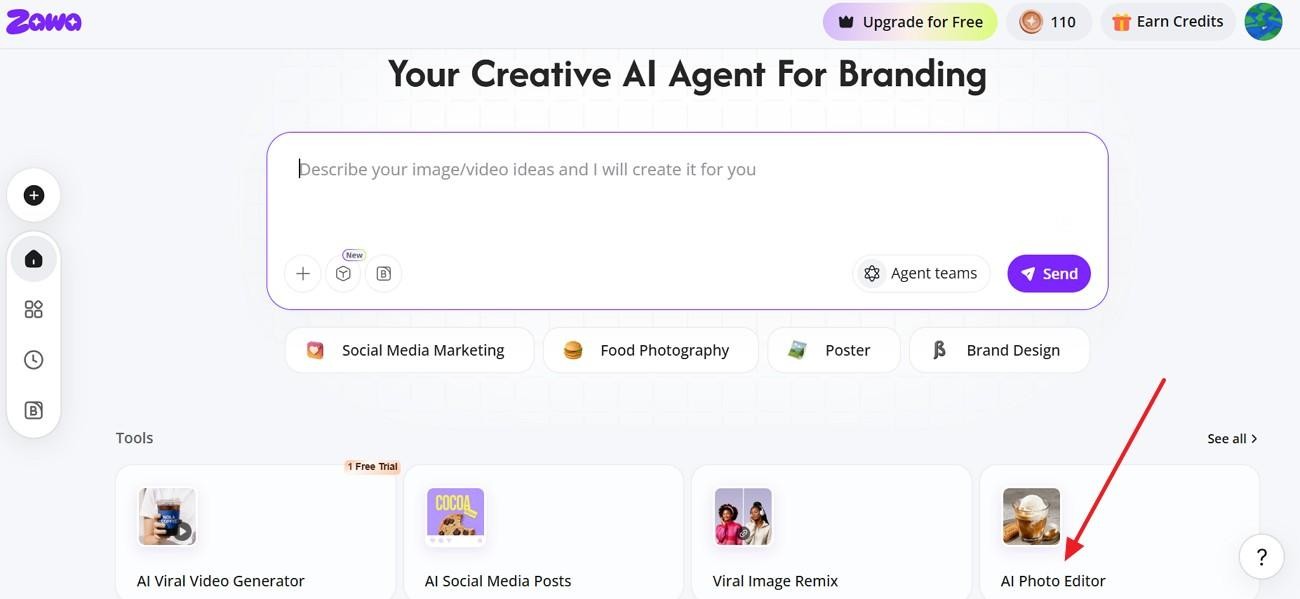
Step 1. Access the AI Photo Editing Tool
From Zawa’s AI Agent page, click the “AI Photo Editor” option and wait for the next screen to open.
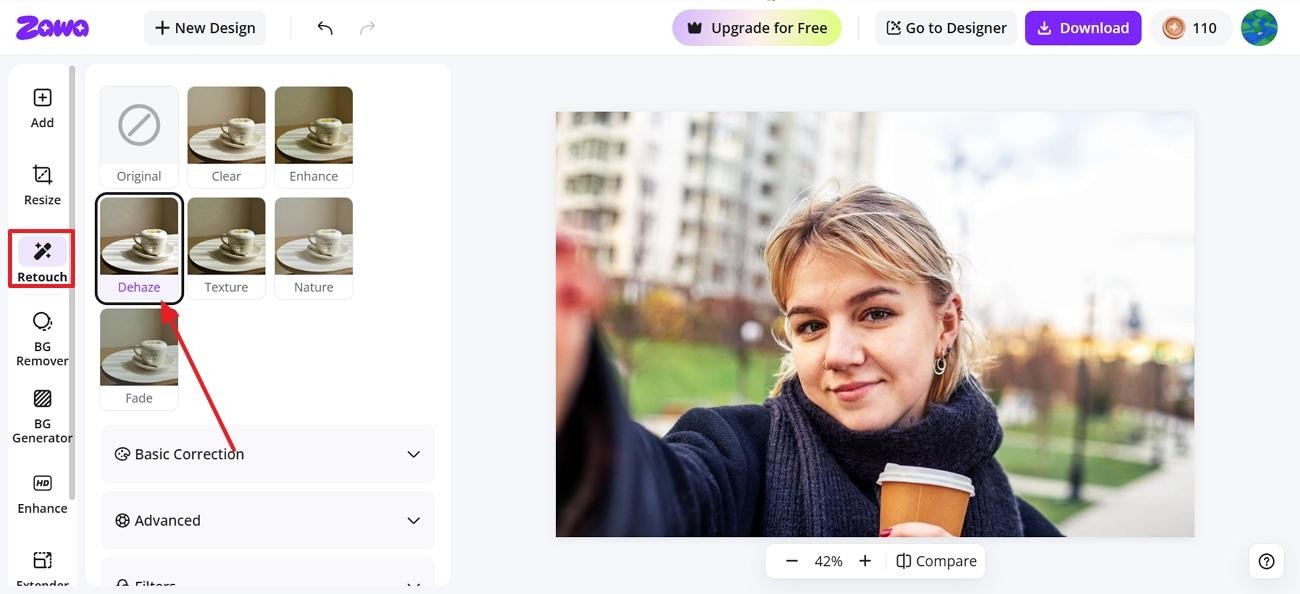
Step 2. Retouch Your Picture to Elevate the Visual
Using the left sidebar, enter the “Retouch” tab and pick the desired filter to apply it to the picture.
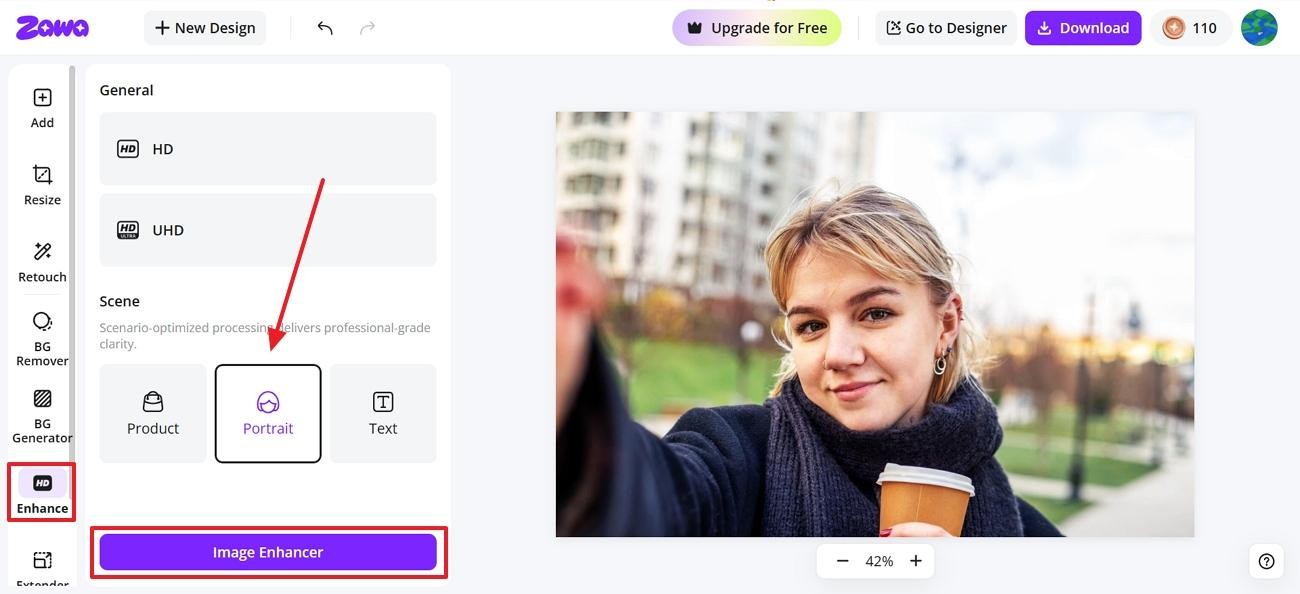
Step 3. Enhance the Downloaded Photo
Expand the “Enhance” option from the left panel and select the scene of the picture. Click the “Image Enhancer” button at the bottom to apply the effect.
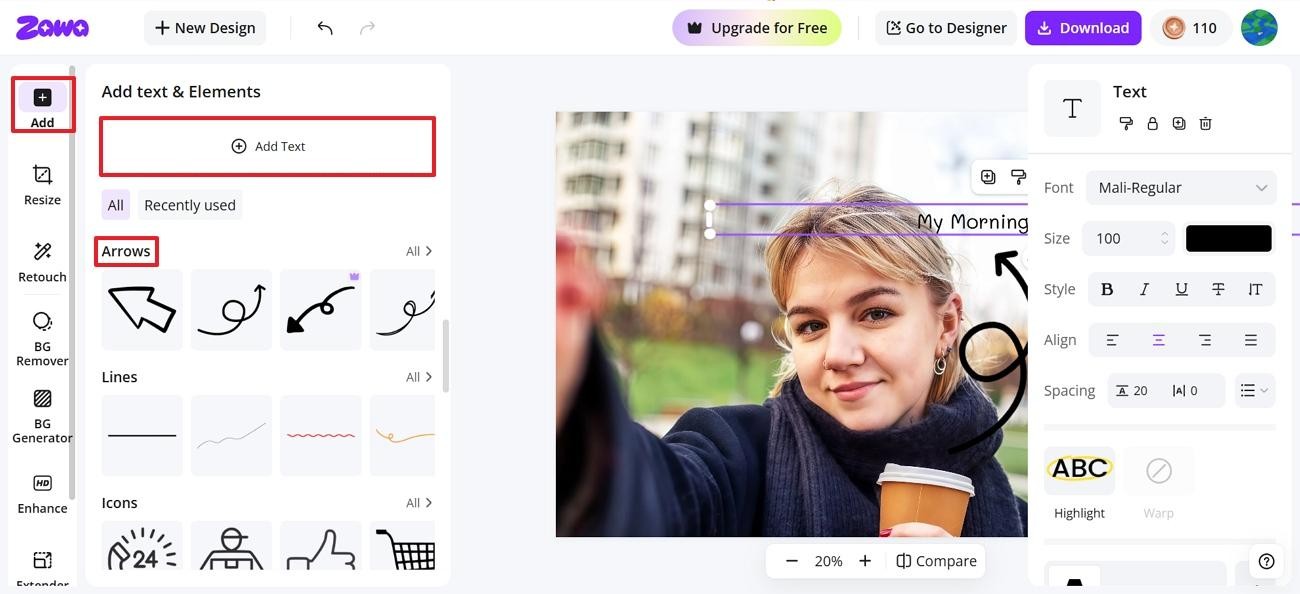
Step 4. Add Elements to Your Image
Click the “Add” tab from the left sidebar and click “Add Text” to type the desired writing. Now, scroll down the panel and apply more elements to the photo to elevate the visual.
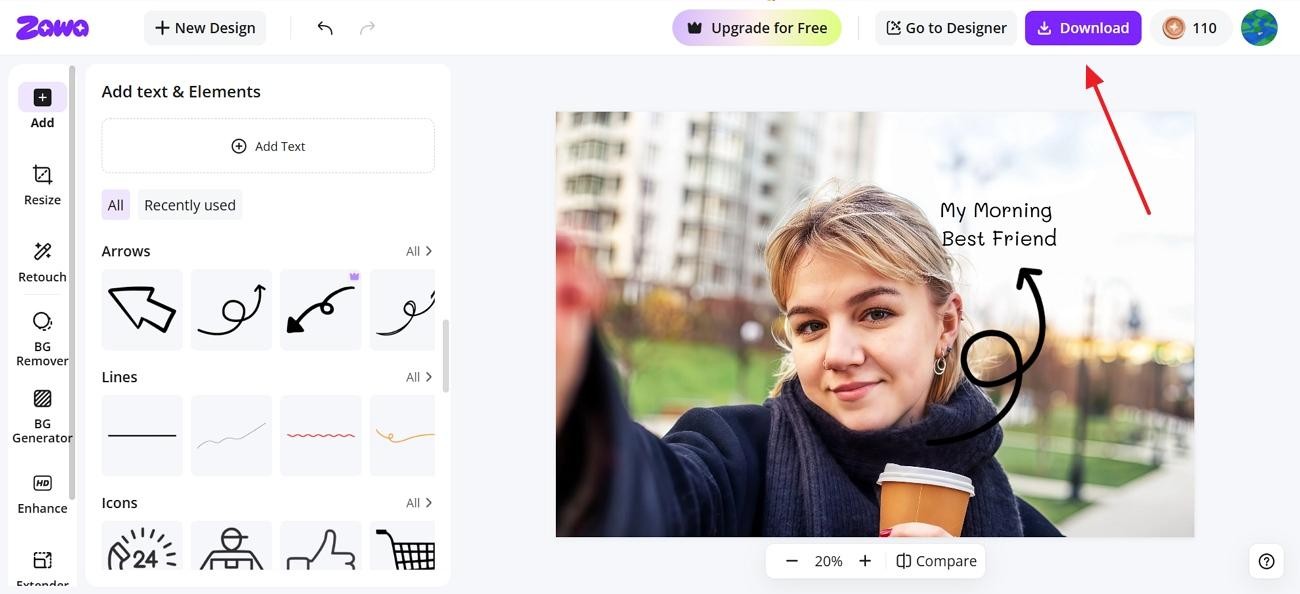
Step 5. Download the Image to Your Device
Once the image is ready, click the “Download” button at the top right to save it to your device.
Conclusion
Conclusively, people often download Facebook images to their devices for image repurposing. This article was a detailed guide on how to download a Facebook image to your PC and your mobile’s gallery. Once the picture is downloaded, you can use Zawa to edit it for an elevated look. This tool provides a dedicated AI Photo Editor that refines the quality of your pictures.
FAQs
1. Why can’t I save some Facebook images?
Privacy settings of the account owner may mean that some Facebook images may not be downloadable. Sometimes, app limitations or download restrictions may also make it impossible to save images.
2. How do I download Facebook profile pictures in full size?
The profile picture can be opened for viewing in full screen before downloading to obtain the best picture possible. In some profiles, you may not have access to the complete-size photo.
3. What permissions are required to download images on Facebook?
You typically have to be able to access the image and have permissions to save files in your device's storage. Access to photos and media permissions may also be requested.
4. Do downloaded Facebook images lose quality?
Images downloaded from Facebook may be of lesser quality because Facebook compresses uploaded images. The final quality is typically determined by the resolution of the original upload and Facebook's compression options.
5. Is It Possible to Download Multiple Facebook Images at Once?
It is possible to download multiple Facebook images at once, either by downloading an entire album or requesting Facebook data. But this feature might not be accessible for each album or account.
6. What is the best way to save Facebook images on mobile?
The simplest method is to visit the image in the Facebook app and download or save it, if offered. Alternatively, the gallery features of your phone can be used to organize downloaded photos.
You May Be Interested
140+ Facebook Bio Ideas: Short, Professional, Unique, and More
How to Use an AI Ad Copy Generator to Create High-Converting Ads

Facebook Ad Size: Complete Guide to Dimensions, Formats & Specs
Facebook Marketing Strategy: A Guide to Turn Clicks Into Customers

6 Bold Text Generators for Facebook in 2026
How to Make Facebook Ads: Complete Beginner-to-Pro Tutorial