Ultimate Guide to Facebook Group Cover Photo Size in 2026 (With Design Tricks)
Discover the correct Facebook group cover photo size in 2026 and learn how to avoid cropping issues. Explore design tips and optimization tricks to create professional Facebook group banners.
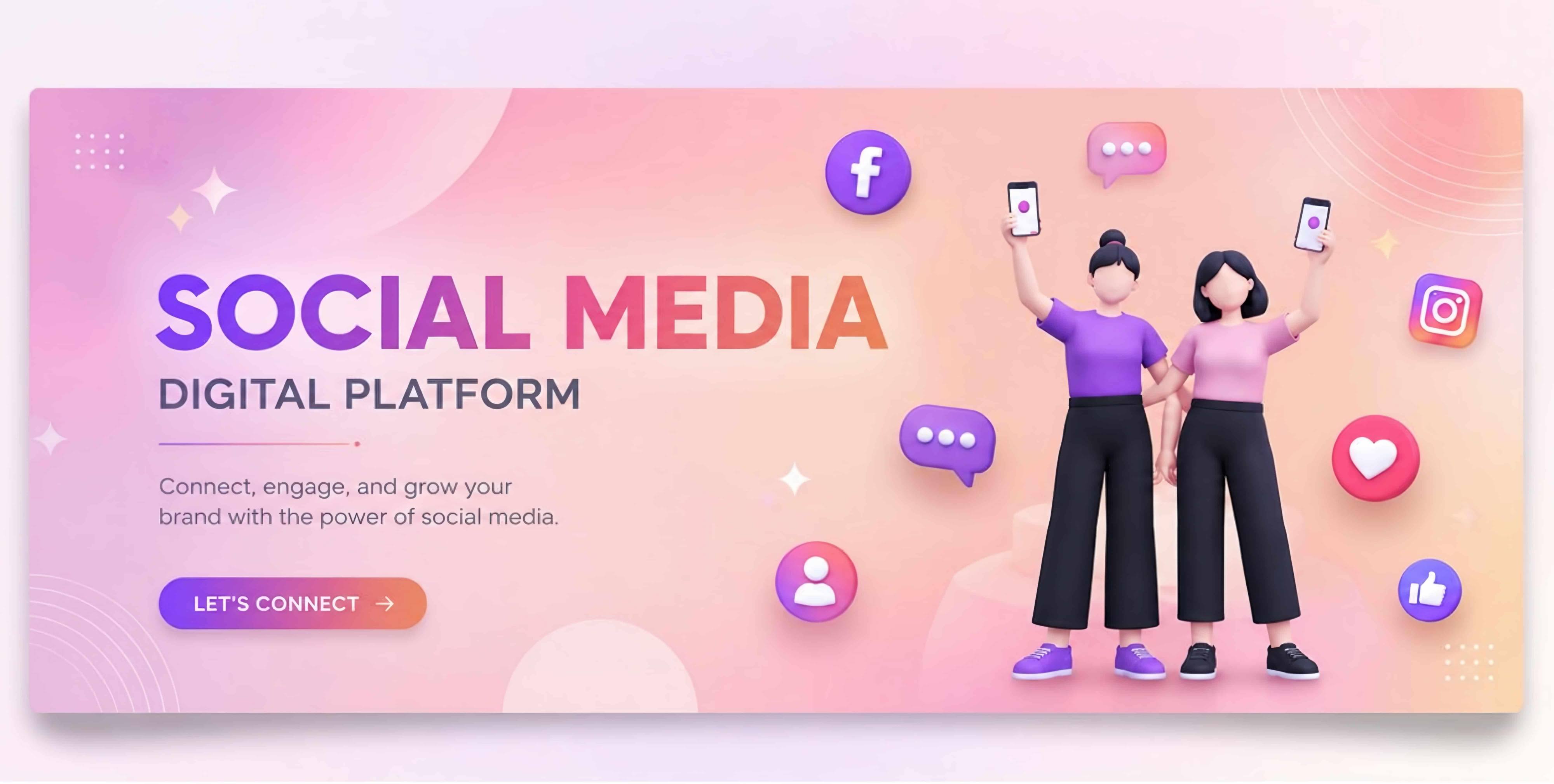
A user spends an hour designing the perfect cover photo for their social media account. They upload it and find the text cropped and the layout ruined. It is a frustrating experience that many group admins and creators still face. With Facebook constantly adjusting its display across devices, getting the cover photo size right matters more than ever.
A strong cover image is not just decoration. It sets the tone and makes your community look professional. This guide covers the ideal Facebook group cover photo size in 2026. It will also discuss practical design tricks to help your banner look sharp and attention-grabbing.
2026 Facebook Group Cover Photo Size Requirements
Understanding the correct FB group cover photo size is important for users. A cover photo that looks good on one device may appear cropped or misaligned on another. The table below shows the latest group cover photo size requirements of the platform:
| Requirement | Details | Why It Matters |
|---|---|---|
| Recommended Size | 1640 × 856 pixels | This is the ideal resolution for creating a sharp and professionally aligned cover photo. |
| Minimum Dimensions | 820 × 428 pixels | The platform allows smaller images and anything below these dimensions may appear blurry or stretched |
| Aspect Ratio | 1.91:1 | Maintaining this ratio prevents distortion and ensures your cover image scales properly across different devices |
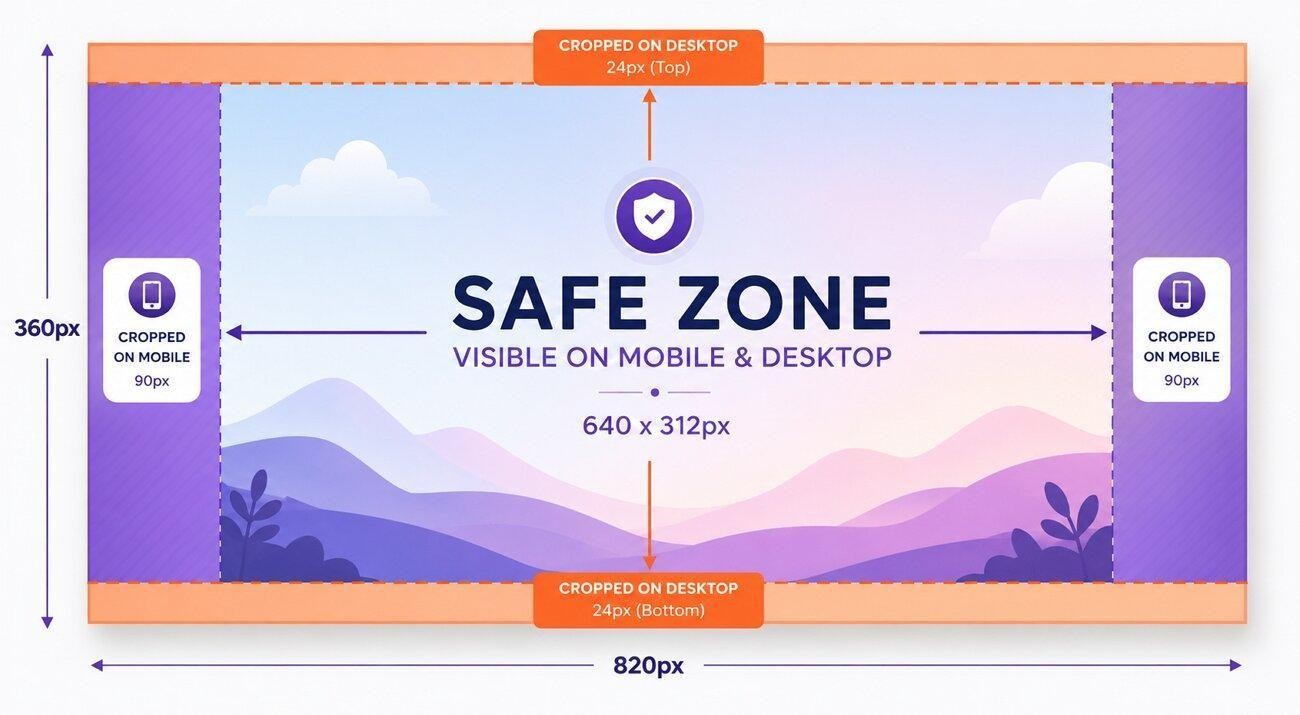
| Mobile View Display | Shows the full 856px height | Mobile users can see the entire cover image. |
| Desktop View Display | Vertically cropped with only 662px visible height | Desktop screens crop the top and bottom sections of the cover photo. |
| Best File Format | JPG or PNG | JPG works well for photos and keeps file sizes smaller. PNG is better for graphics and logos containing text. |
| Maximum File Size | 100MB maximum | The platform allows large uploads, but oversized files can slow down loading and affect user experience. |
| Recommended File Size | Under 5MB | Smaller files load faster and still maintain good visual quality. This helps your group banner display smoothly on slower internet connections. |
Why Using the Right Size Improves Your Group’s Appearance
Choosing the correct Facebook group banner size is not only about meeting the standard size. The right dimensions directly influence how your group looks and how visitors perceive it. Mentioned below are some of the reasons why it is important to choose the right size:
-
Avoids Unnecessary Crop: You are less likely to have your photo cut off on desktop or mobile devices if your photo has the right dimensions.
-
Keeps Text and Logos Visible: Group names and branding elements remain within the safe viewing area to ensure important information is readable.
-
Better First Look: A clear and properly fitted photo makes the group look more organized and trustworthy.
-
Increase Engagement with Users: An attractive photo can encourage people to explore the group and feel more connected.
-
Keeps Up with Photo Quality: Correct sizing prevents stretching and blur that can make your group appear outdated or poorly managed.
How to Prevent Image Cropping on Facebook Group Banners
Things can still go wrong even if your Facebook group banner size looks perfect while designing it. That is why a few techniques can save you from a lot of frustration. Mentioned below are some of the tips that will help you keep your banner looking clean everywhere:
-
Keep Important Elements in the Center: Think of the middle area as your “safe space.” Logos or any key message should stay there so they do not get cut off on desktop.
-
Use Photos with High Resolution: Use photos with clear and sharp details to make them look more professional. Low-quality visuals look blurry or pixelated on large screens once uploaded.
-
Check Results Before Uploading: Always check the results on your mobile and desktop before uploading. It helps you notice any visual issues at the right time.
-
Choose the Right Aspect Ratio: The correct dimension keeps everything aligned and prevents your photo from looking stretched or compressed.
-
Try Different Changes: A big difference can be made in the final result with small changes in positioning.
How to Create a Facebook Group Cover Photo Using an Online Designer
Designing a Facebook group cover photo size does not have to be complicated or time-consuming. Many creators now rely on online design platforms that make the process much simpler. One such tool is Zawa that allows users to create visually appealing cover photos using easy controls. You do not need technical skills to get a polished result with this tool.
It lets you select from different aspect ratios according to your preferences. This makes it especially helpful for beginners who want to create social media banners but do not know how to adjust the size. The platform also offers a photo editor that lets you edit the banner before uploading to the social platform.
Key Features
-
Online Image Editor: Lets you tweak photos, text, and layouts directly in your browser. And resize images without losing quality.
-
Crop Unwanted Corners: This feature lets you quickly remove unnecessary or distracting corners from your design. It helps you focus only on the most important part of the image for a cleaner look.
-
Automated Design Workspace: Zawa organizes everything automatically so you don’t have to set up layouts from scratch. It speeds up your workflow by arranging tools in a smart workspace.
-
Add Effects: You can enhance your visuals with visual effects in just a few clicks. These effects help make your design look more polished and visually appealing.
-
Include and Customize Text: Zawa allows you to easily add text and fully customize it with different fonts and colors. This makes it simple to create titles and captions that match your design style.
-
Eraser Tool to Undo Mistakes: The eraser tool helps you fix errors by removing unwanted parts of your design smoothly. It gives you more control while editing your work without having to start over.
Comprehensive Steps To Create a Cover Photo With Zawa
After learning about this incredible tool in detail, let us have a look at the steps for creating FB group cover photo size using this tool:
Step 1. Start By Choosing the Designer Tool
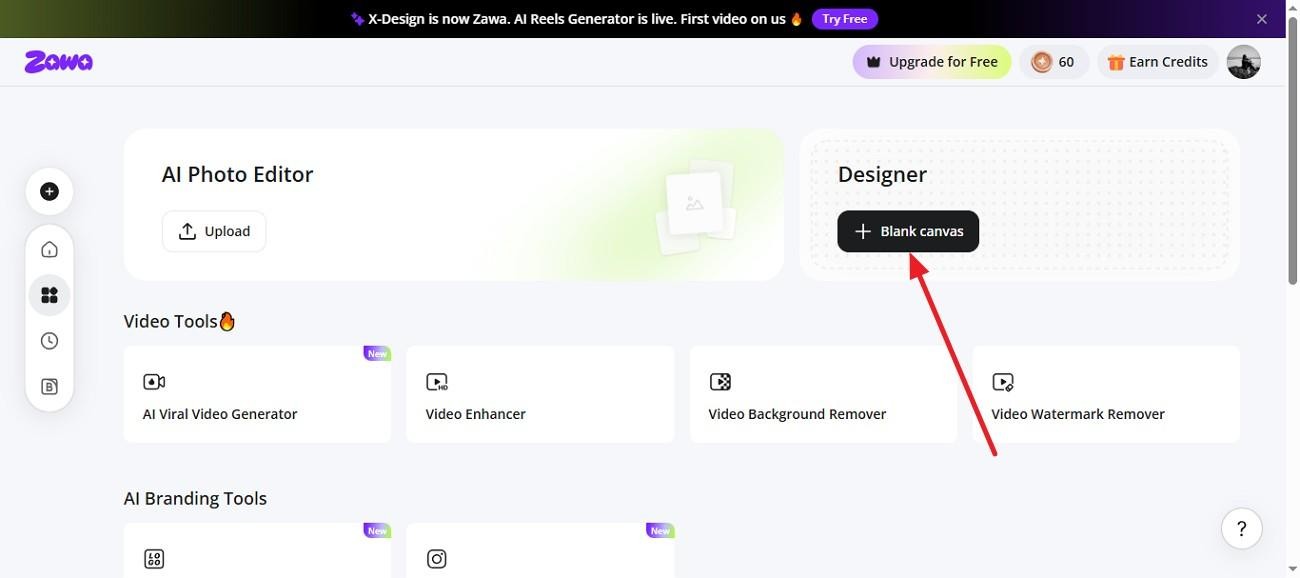
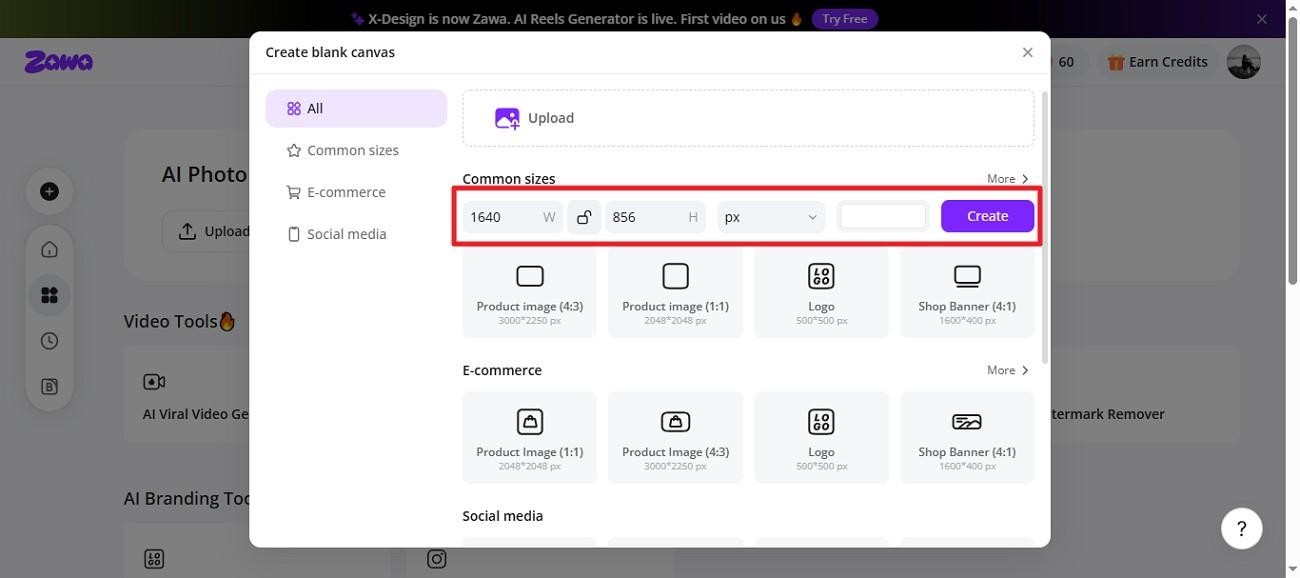
Open Zawa on your browser and choose the "Designer" feature from the homepage. Find the "Blank Canvas" option under it and click on it to proceed.
Step 2. Choose The Aspect Ratio For Cover
Select the aspect ratio(Recommended Size: 1640 × 856 pixels)from the options or enter your dimensions for your preferred aspect ratio. Press the "Create" button after uploading the photo that you want as a cover.
Step 3. Edit and Download Cover
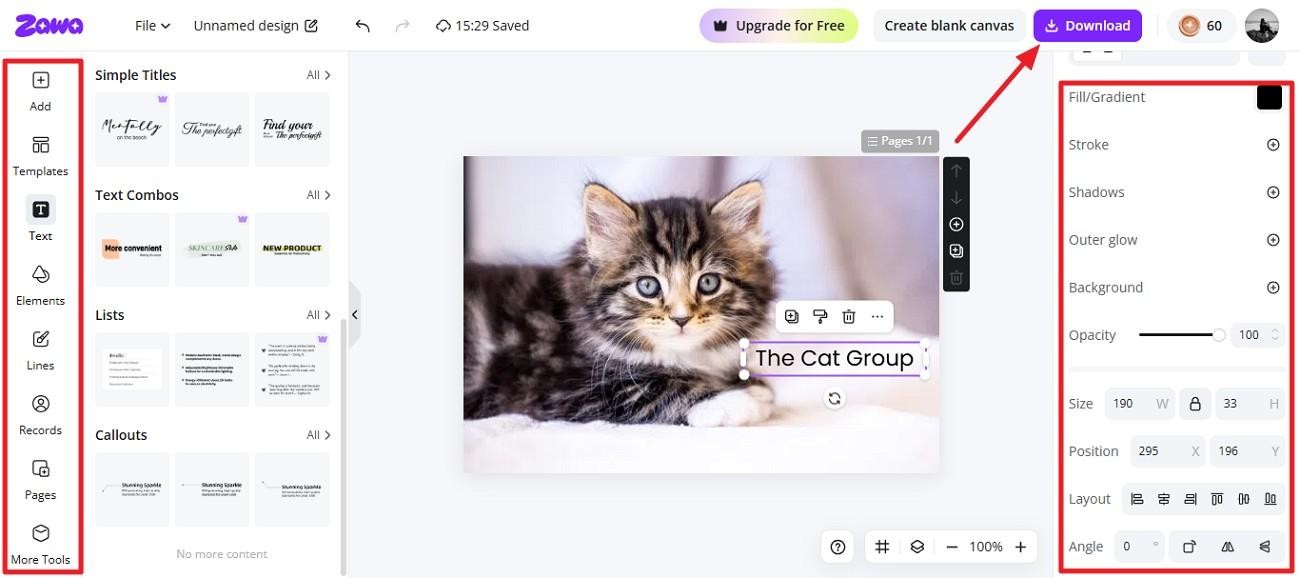
In the following interface, edit the image like adding text from the toolbars located on the right and left. You can crop unwanted corners and add effects of your choice. Press the “Download” button to successfully save the created banner to your device.
Best Practices for Facebook Group Cover Photo Design
A perfect Facebook group banner size can also look cluttered and unprofessional because of some unnoticed mistakes. Mentioned below are some of the habits you can try to avoid any design mishap later:
-
Keep Visuals Clean: Do not try to add lots of text and effects. A clean design is easier on the eyes and helps people understand your group faster.
-
Show Your Group Name Correctly: Your group name or logo should be easy to spot when someone new visits your group. This helps people know and remember your group name.
-
Use Proper Color Contrast: Keep in mind to keep the text visible and not mixed with the background. Text with good color helps everything stay visible for mobile and desktop devices.
-
Select Style That Are Easy to Read: Fancy fonts may become hard to read on smaller screens. Choose something clear and strong when adding text to your cover picture.
-
Check the Photo Before Uploading: Preview how the final photo looks on different devices. This helps you catch cropping or alignment issues before they go live.
Conclusion
To sum it up, this article provided a detailed guide on the Facebook group cover photo size. It also discussed how using the right size and dimension is important for the account. Zawa is one such tool that allows users to create cover photos in no time with different customizations.
Frequently Asked Questions
-
Why does my Facebook group cover photo look blurry?
The photo looks blurry when the quality is too low or when it gets stretched. You can use tools like Zawa to export photos that are properly optimized.
-
What is the safe zone for the Facebook group cover photo?
It is the center area of the photo where important text and visuals are placed. Keeping your logo and main message in this area ensures everything stays visible on both mobile and desktop.
-
What should I include in my Facebook group cover photo?
Include the group name and any branding elements that explain what the group is about. A clean design with relevant visuals and consistent colors helps make your group look more professional.
-
What should I avoid in my Facebook group cover photo?
Do not add text near the edges or choose photos with poor quality. Banners that are not aligned can make your group look unorganized.
-
Can I use a video as a Facebook group cover photo?
The platform allows video cover photos for some groups, but it may not be available for every region. You can use tools like Zawa to create videos for your social media accounts.
You May Be Interested
140+ Facebook Bio Ideas: Short, Professional, Unique, and More

How to Use an AI Ad Copy Generator to Create High-Converting Ads

Facebook Ad Size: Complete Guide to Dimensions, Formats & Specs
Facebook Cover Photo Size Guide - Specs, Upload, and Design Process

Facebook Marketing Strategy: A Guide to Turn Clicks Into Customers

6 Bold Text Generators for Facebook in 2026