LinkedIn Carousels Demystified - Everything You Should Know
Creating LinkedIn carousel posts helps transform ordinary posts into engaging visual presentations. Join us as we tell you the importance, examples, expert tips, and the top AI tool, Zawa, to make an attractive carousel and enhance engagement rates.


LinkedIn carousels turn static posts into swipeable slides that explain ideas with structure. They help present frameworks, data, and lessons without crowding a single cramped post. Strong layouts and sharp typography matter because design supports clarity and keeps attention.
Zawa helps create these slide sequences with consistent styling, clean spacing, and brand alignment. This guide explains essential points for designing carousels that support clarity and performance.
What are LinkedIn Carousels?
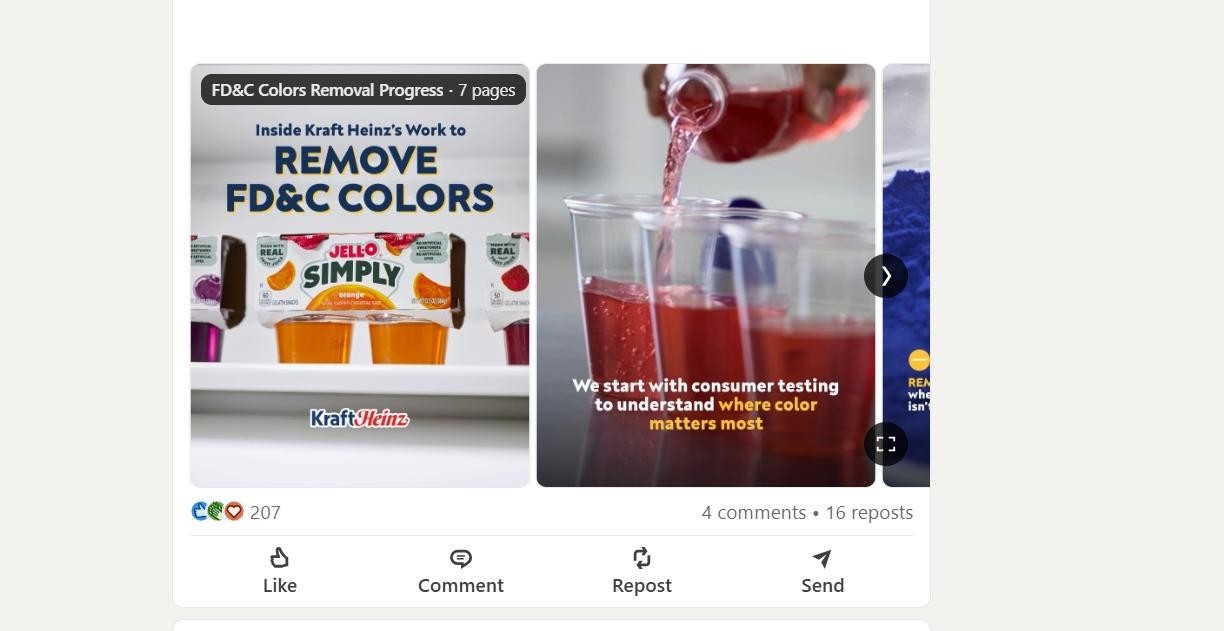
A LinkedIn carousel post appears as a multi-page document inside the feed, encouraging swipes. Each page works like a focused slide, separating concepts or data for easier reading. Carousels upload as PDFs, which LinkedIn renders with forward and back controls.
This format supports annotations, diagrams, and charts arranged for presentation-style storytelling. It fits structured education, teardown analyses, and narrative walkthroughs targeting professionals who make decisions.
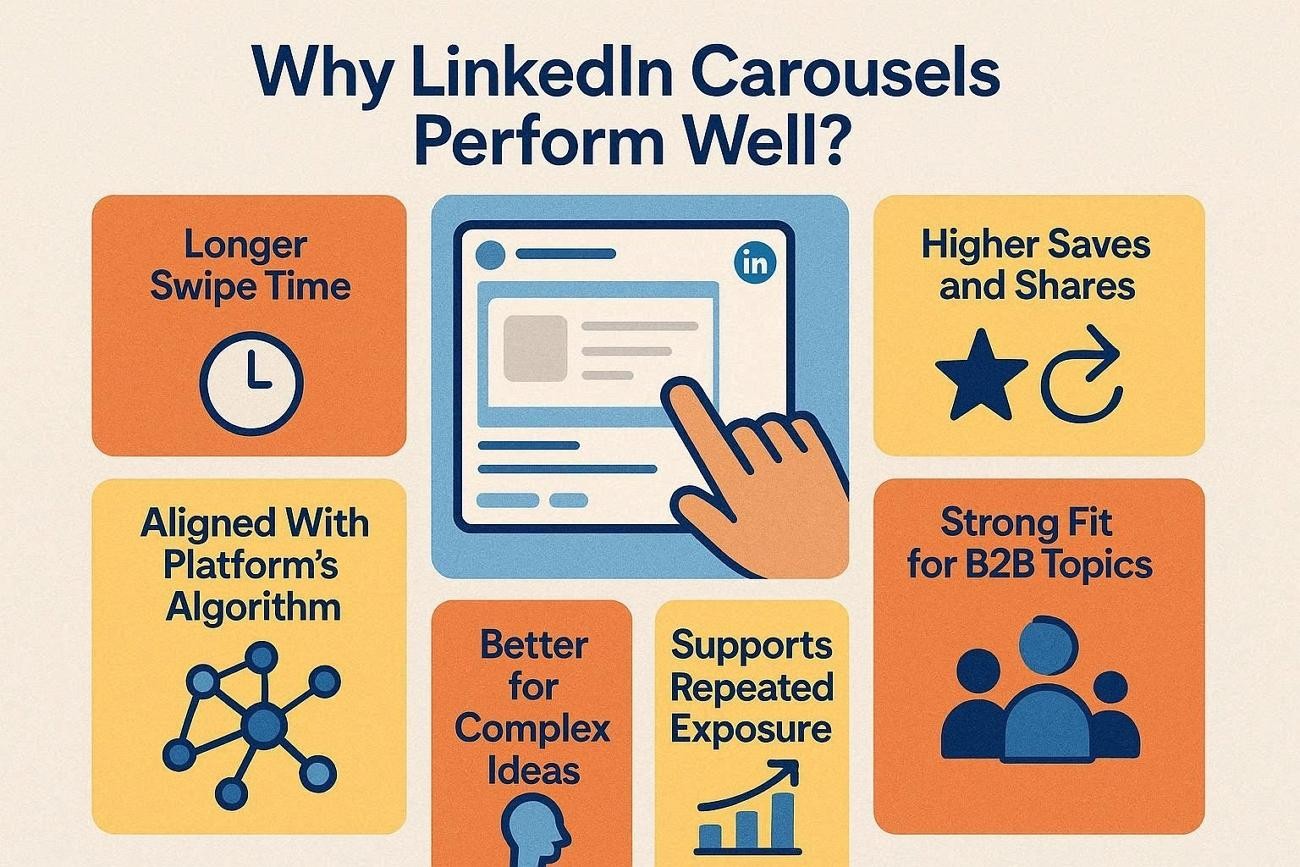
Why LinkedIn Carousels Perform Well?
Content structured as slides often performs better than typical LinkedIn carousel formats. Now, we will unpack the main reasons this format outperforms other post types:
-
Longer Swipe Time: Multiple slides invite swiping, so users stay on one post longer. Longer engagement time may help improve content visibility.
-
Higher Saves and Shares: Carousels feel like mini guides, and people bookmark them for later reference. Saved and shared posts keep circulating, extending engagement far beyond initial posting windows.
-
Aligned with Platform's Algorithm: Native documents keep users on LinkedIn. The algorithm rewards that behavior to push these posts into more relevant feeds.
-
Strong Fit for B2B Topics: B2B buyers want clear explanations presented in sequences. Carousels showcase expertise to make complex solutions understandable without long whitepapers.
-
Better for Complex Ideas: Each slide holds one concept to reduce cognitive overload for professionals. This structure suits frameworks that would be overwhelming as dense paragraphs.
-
Supports Repeated Exposure: Users revisit strong carousels to reinforce messages through viewing sessions. This repeated exposure strengthens authority and trust around the creator’s positioning.
How to Create a LinkedIn Carousel Step by Step
First, create your slides in the correct vertical aspect ratios and export one PDF file. Then, follow the steps below to learn how to post a carousel on LinkedIn:
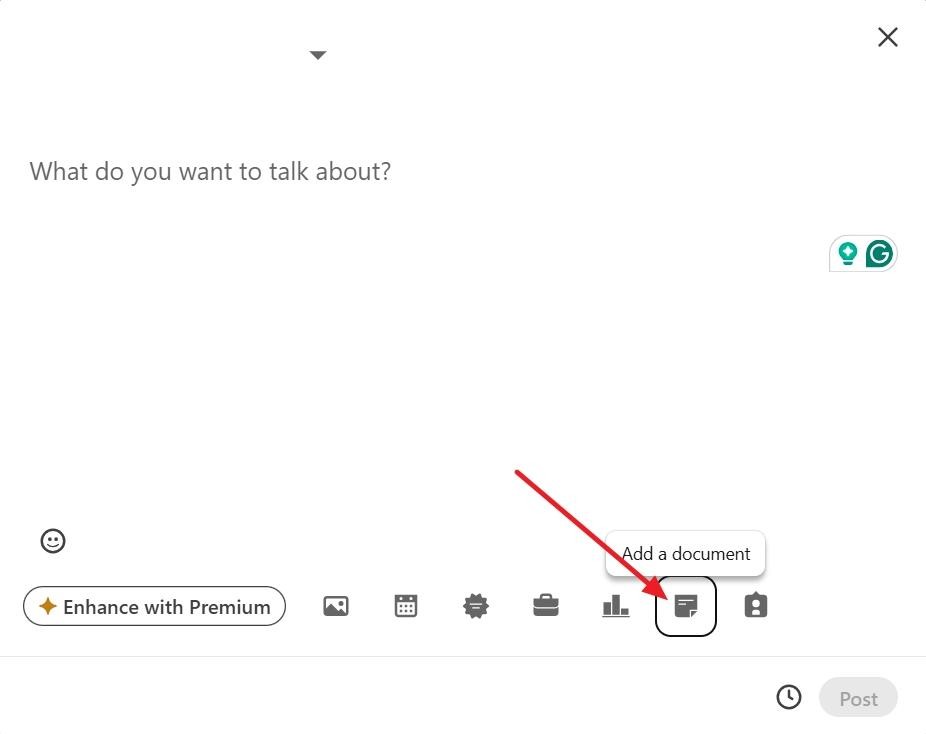
Step 1. First, add the PDF you created in the new LinkedIn post.
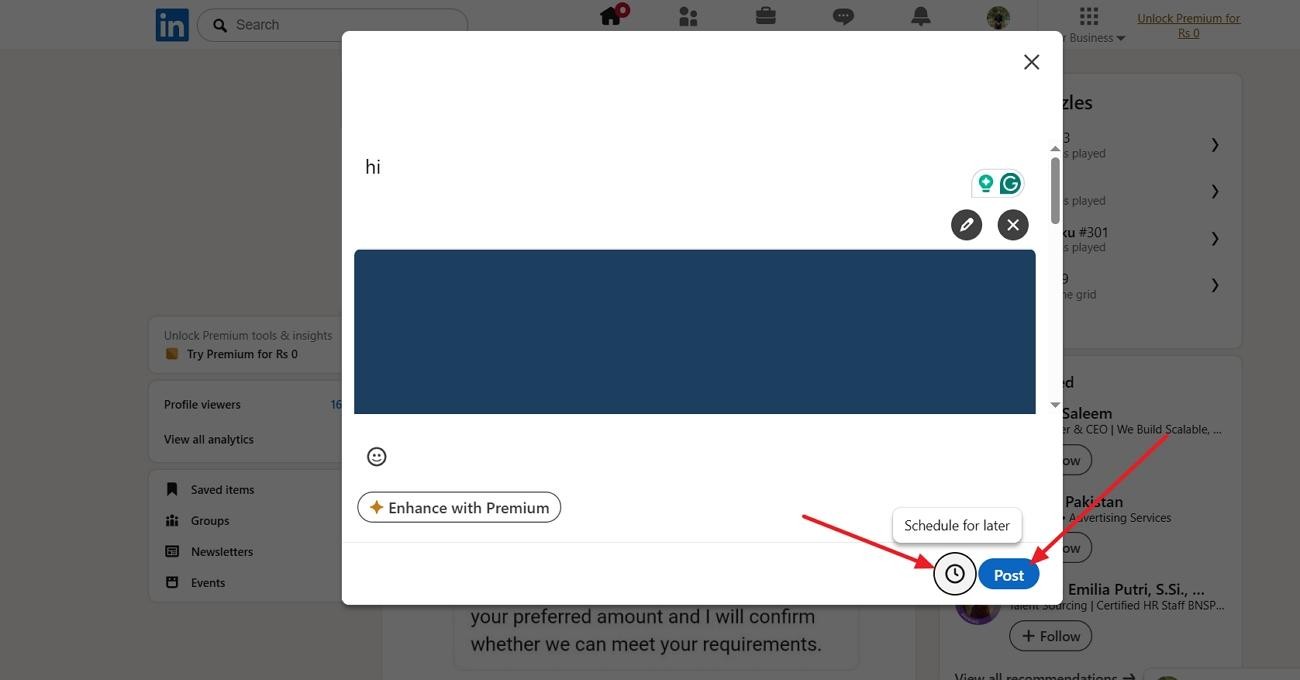
Step 2. After that, enter the post caption and press the “Post” button to publish it. To schedule the post for later, click the “Schedule for Later” button and set a date and time.
LinkedIn Carousel Size and Format Guidelines
After learning how to make a carousel on LinkedIn, you should optimize dimensions. Correct sizes and formats prevent cropping and loading issues across devices. The table below summarizes practical specs for organic carousels and paid carousel ads:
| Item | Recommended/Limit |
|---|---|
| Slide Size (Portrait Organic) | 1080 × 1350px, 4:5 ratio |
| Slide Size (Square Organic) | 1080 × 1080px, 1:1 ratio |
| File Type (Organic) | PDF preferred |
| Max File Size (Organic) | 100 MB hard limit |
| Page Count (Organic) | Up to 300 pages allowed |
| Carousel Ad Card Size | 1080 × 1080px, 1:1 ratio |
| Carousel Ad Cards Per Unit | 2–10 cards |
| Carousel Ad File Types | JPG, PNG, GIF (static only) |
| Carousel Ad File Size | Max 10 MB per card |
| Text Limits in Carousel Ads | Headline 45 characters, description 255 characters |
Best LinkedIn Carousel Examples
The best LinkedIn carousel examples follow clear patterns you can reuse. Let’s explore the key formats and why they work well.
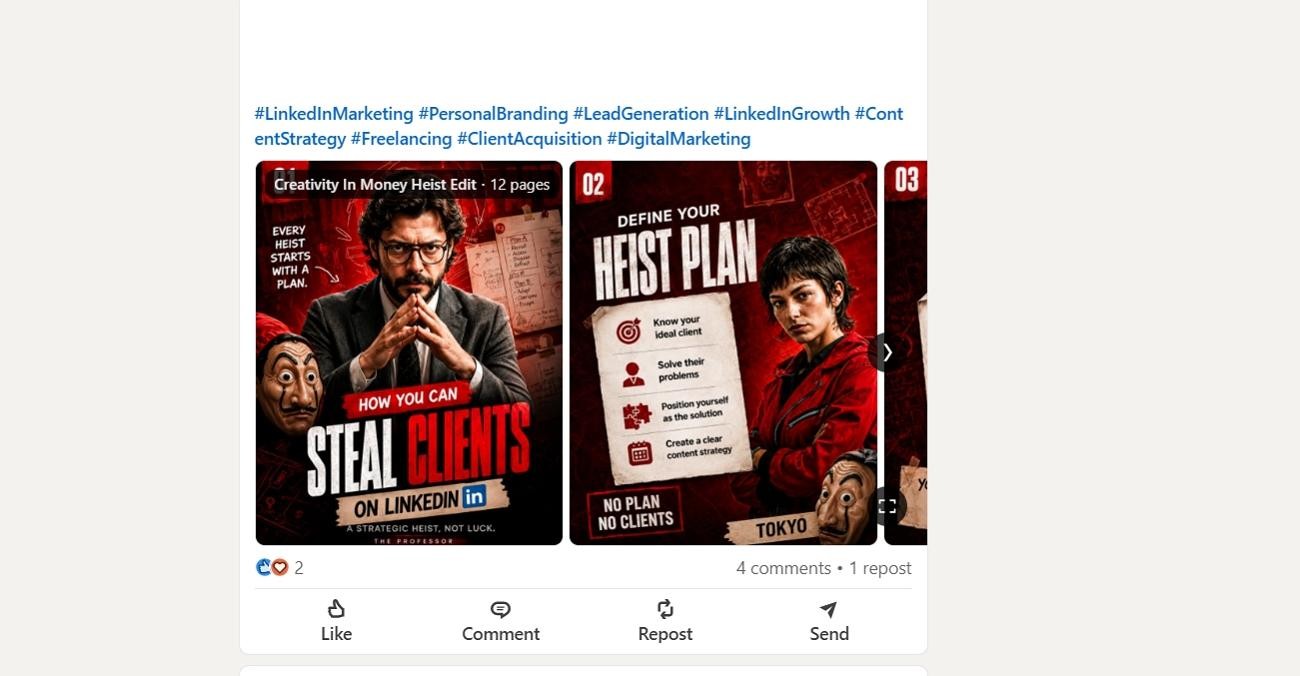
High‑Engagement Carousels
These carousels open with a bold hook that challenges a common belief. Slides then deliver specific, useful points that solve one clear problem. Strong examples also end with a direct CTA that asks for saves or comments.
Storytelling‑Style Carousels
Story carousels move from problem to turning point and then to result. Each slide advances the story using simple language and clean visuals. Readers keep swiping because each slide builds curiosity about the outcome.
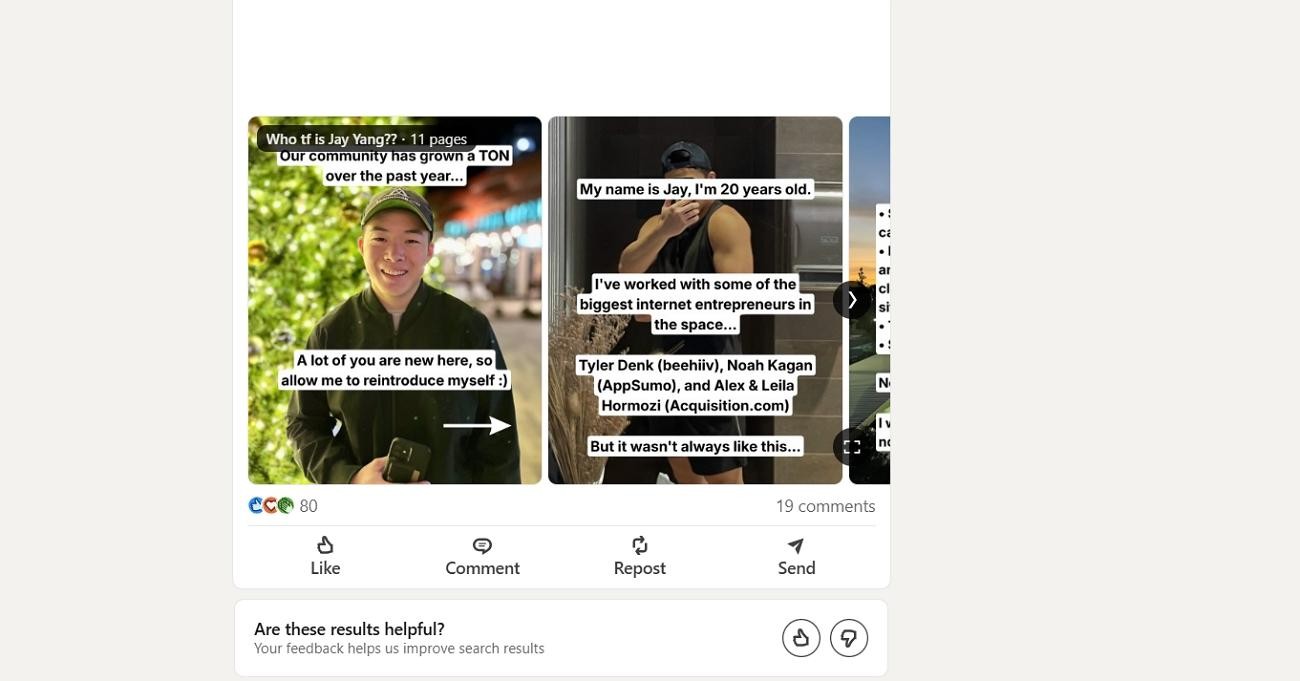
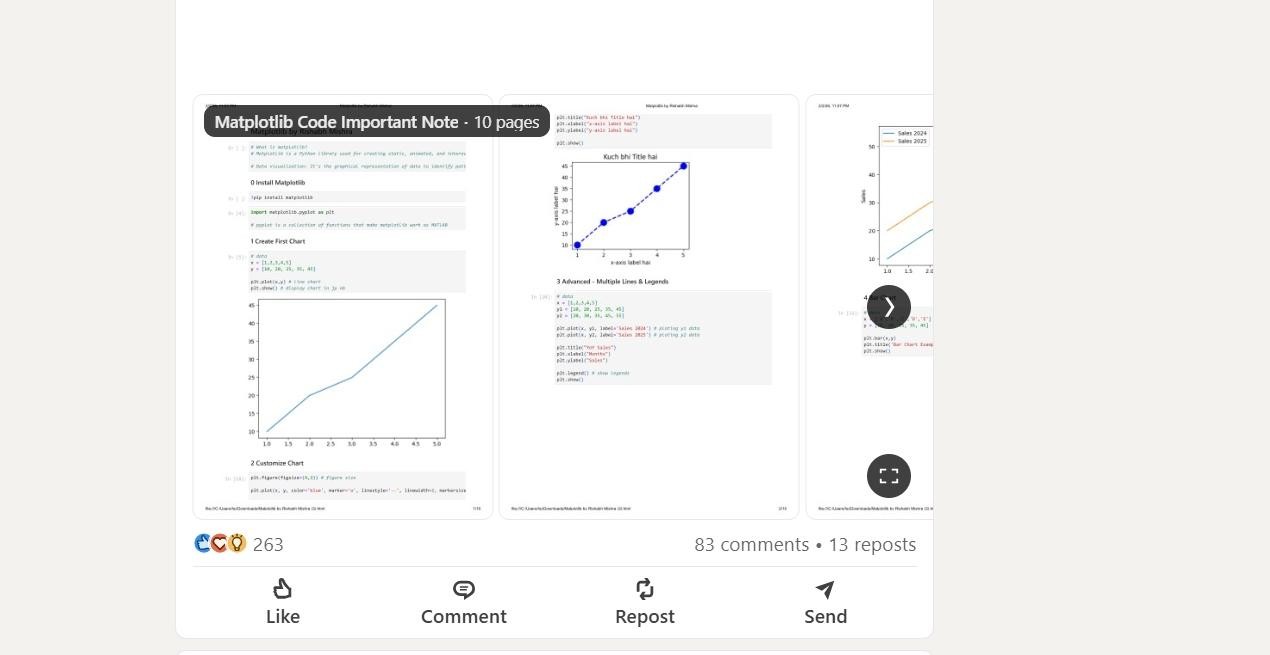
Data Visualization Carousels
Data carousels highlight one insight per slide with charts or clear numbers. Good posts explain what each metric means for the reader’s decisions. Strong designs keep labels large and avoid cluttered graphs or tables.
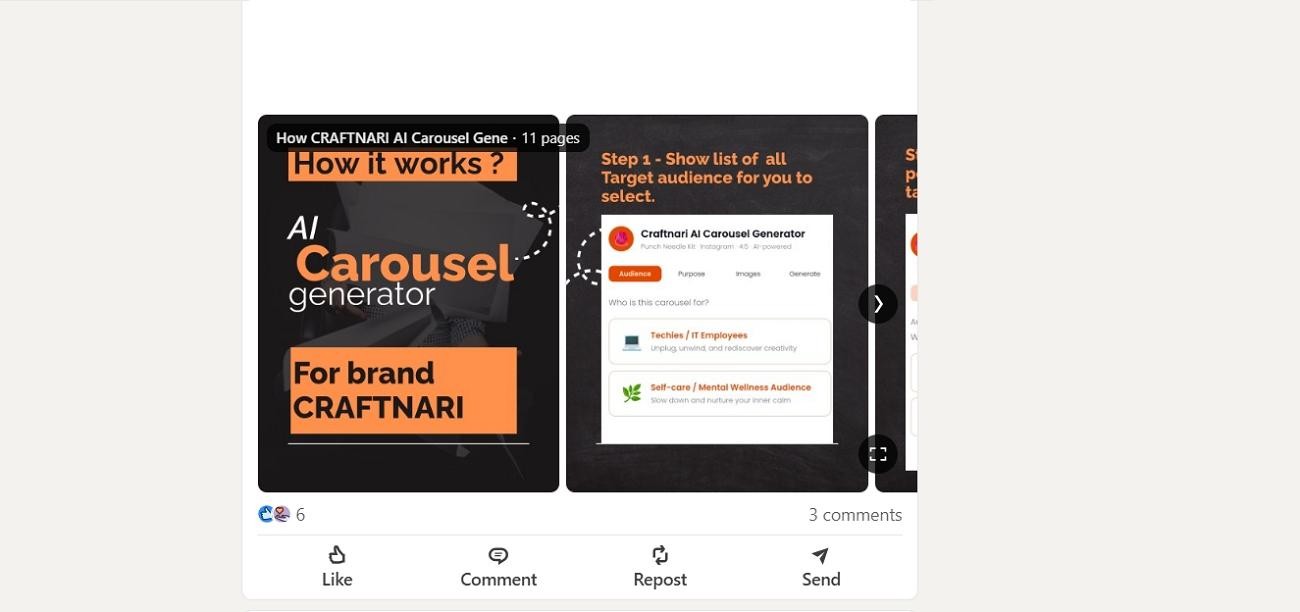
Tutorial‑based Carousels
Tutorial carousels break a process into steps, one action per slide. They use short instructions and visuals that show each step. Readers save these posts because they function like checklists for later.
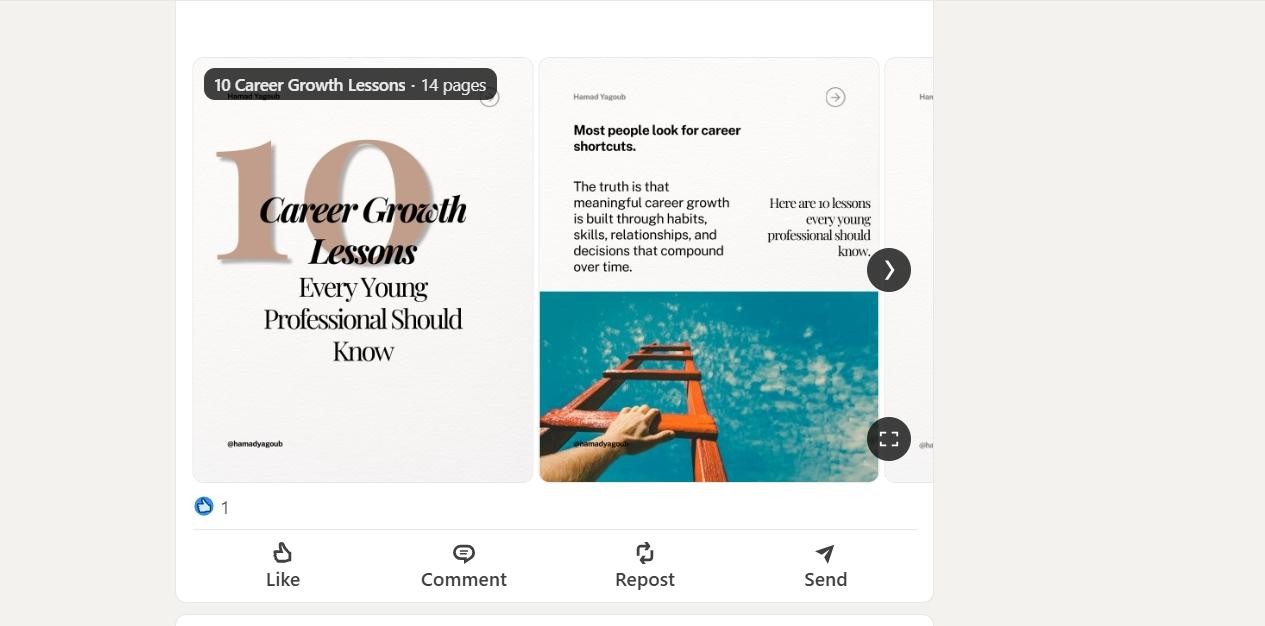
Career and Self‑improvement Carousels
These carousels focus on job moves and daily work habits. Each slide gives one concrete tip rather than vague motivation lines. They perform well as professionals who want practical advice they can apply today.
B2B Marketing Carousels
B2B carousels often share frameworks, mini case studies, or playbooks for teams. They show before‑and‑after results, key steps, and tools used in campaigns. This format helps buyers understand complex offers without reading long reports.
LinkedIn Carousel Posts Best Practices
Well‑chosen best practices help carousels stay clear, useful, and worth engaging with. Let’s explore the LinkedIn carousel post best practices experts repeat across carousels:
Use a Focused Hook Slide
The first slide should state the problem using simple, direct wording. A strong hook promises a result or insight in very few words. Clear hooks help stop scrolling and invite swipes on the next slides.
Keep One Idea Per Slide
Each slide should cover one idea, step, and example, nothing extra. This structure reduces noise and helps readers move through content without confusion. Zawa templates can guide slide structure and prevent cramming multiple ideas together.
Prioritize Readable Typography
Headlines should be large, with high contrast against simple, clean backgrounds. Supporting text must stay short, with comfortable spacing between lines and elements. Zawa’s design presets help keep fonts, sizes, and spacing consistent everywhere.
Design for Saves and Shares
Carousels that teach frameworks, steps, or checklists encourage saves for later use. Ending slides should summarize key points and suggest a next action. Many expert carousels add “Save this” prompts to reinforce that behavior.
Finish With a Clear CTA Slide
Last slide needs a single, direct CTA like follow, comment, or visit. Visual style should match earlier slides, with extra emphasis on the message. Zawa can generate many CTA slide options to test which phrasing converts.
Common Carousel Mistakes
Even good ideas can fail when basic design mistakes appear in LinkedIn carousels. Readability must stay high; otherwise, people stop swiping, and engagement drops fast. The points shared below highlight frequent issues and where they hurt performance:
-
Too much text on slides makes reading tiring and reduces swipe completion rates.
-
Small font sizes force zooming, which leads people to abandon the carousel early.
-
Weak visual hierarchy hides key points because everything competes for attention.
-
Unattractive cover slides fail to stop scrolling and kill engagement before slide two.
-
Missing CTAs waste interest because viewers never see a clear next action.
-
Blurry PDF exports from the wrong sizes or formats make slides look unprofessional.
-
Confusing slide order breaks the story flow and makes the value harder to understand.
Best Tools for Creating LinkedIn Carousels
Different LinkedIn carousel generators suit different workflows and skill levels. Let us share how different options support planning, designing, and exporting carousels:
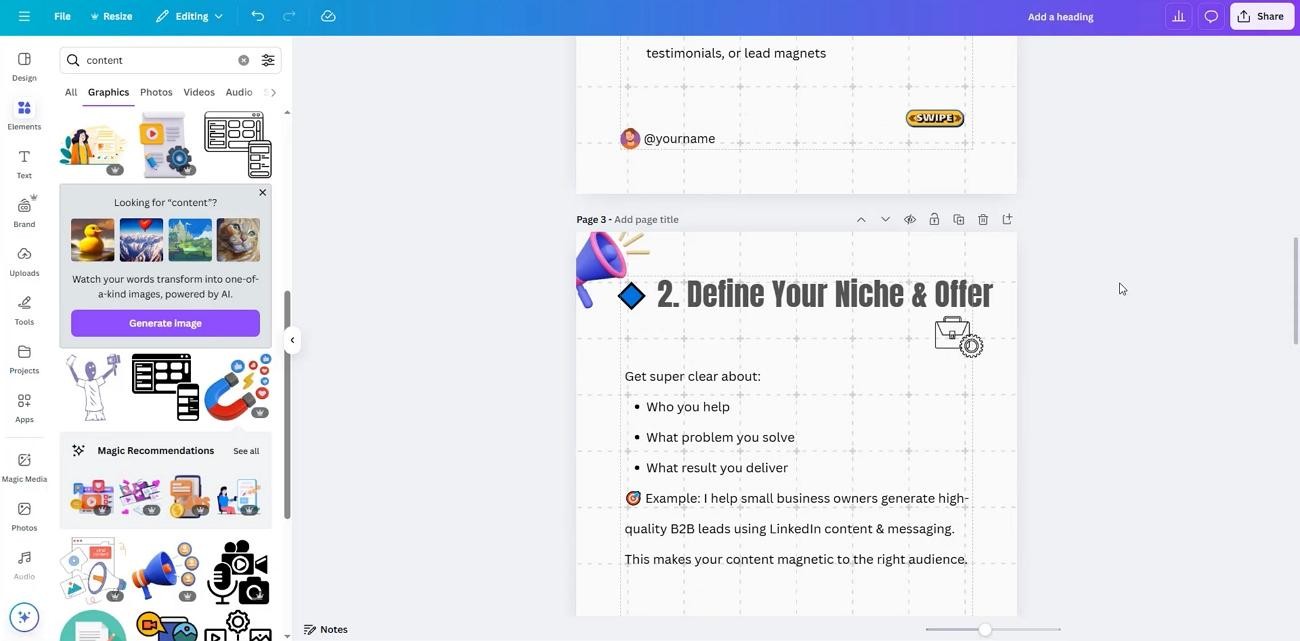
Canva
Canva offers dedicated LinkedIn carousel templates sized around 1200 × 1500 pixels. You can search “LinkedIn carousel,” pick multi-page designs, and customize every slide. Finished carousels export as a single standard PDF, ready for LinkedIn document upload. Brand kits keep fonts, colors, and logos consistent across every carousel slide.
Figma
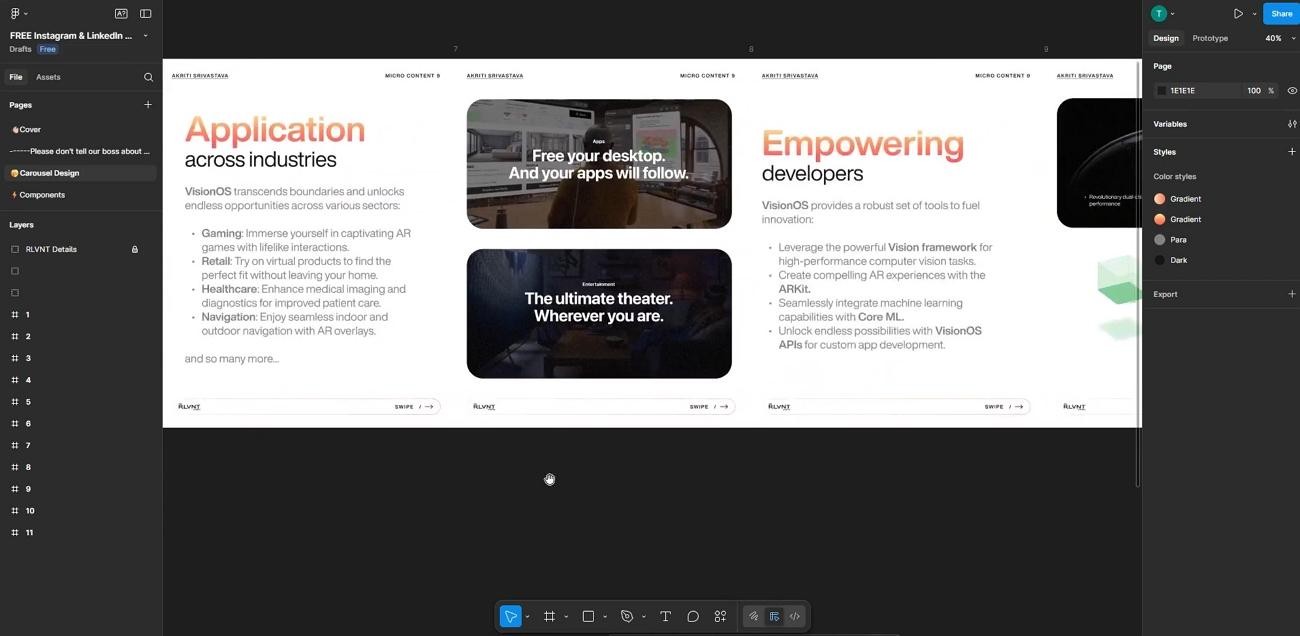
A tool that helps teams design carousels collaboratively in one shared file, with real-time editing. Designers build reusable components for titles, body text, and navigation arrows. Shared libraries keep carousel styles aligned with wider product or brand design systems. Version history and comments help refine slide sequences without losing earlier design ideas.
Adobe Express
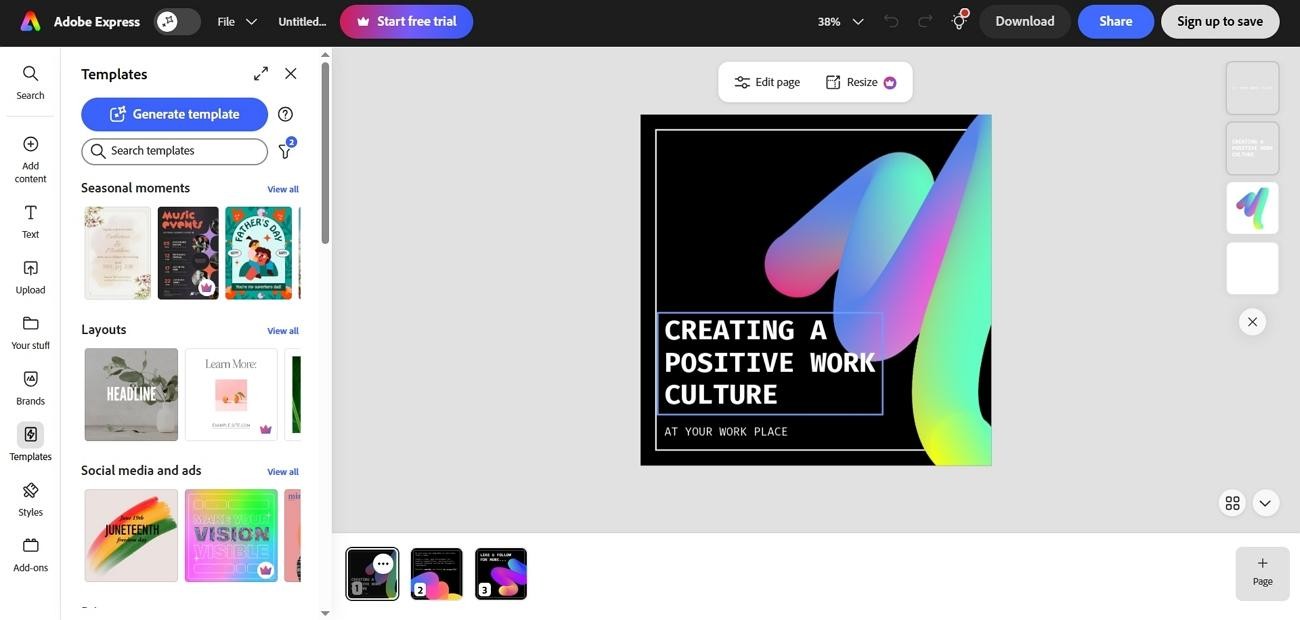
It provides ready-made LinkedIn carousel post templates for different industries and topics. You can upload brand assets once and apply them across all carousel pages. Thousands of icons, graphics, and fonts help highlight key points on each slide. Finished designs duplicate and resize, supporting matching carousels for other channels.
Zawa
A creative branding agent, not just decoration. Its social media post generator assigns 7 themes like product showcase, limited-time promo, and lifestyle tip. Next, we will walk through using Zawa step by step to build LinkedIn carousels.
Make LinkedIn Carousels Effortlessly With the AI Tool - Zawa
Many teams find consistent carousel design hard, even with good LinkedIn carousel generators. Zawa focuses on branding, so carousels follow one clear visual system. Its generator lets you turn simple prompts into multi-slide layouts ready for LinkedIn. Brand kits and themes keep colors and hierarchy aligned across the carousel slides. Finished designs export as HD files that stay sharp and readable in the feed.
Key Features
-
Fast, High-quality Output: Zawa includes a free first trial and returns finished designs in 2 minutes.
-
Platform-ready Sizes: Preset sizes and aspect ratios match LinkedIn and Instagram, removing manual resizing steps.
-
Batch Reference Upload: You can upload multiple reference images, so the AI understands products and context better.
-
All-in-One AI Editing Tools: Beyond carousel creation, Zawa also supports image enhancement, image extender, watermark removal, background removal, and other AI-powered editing features.
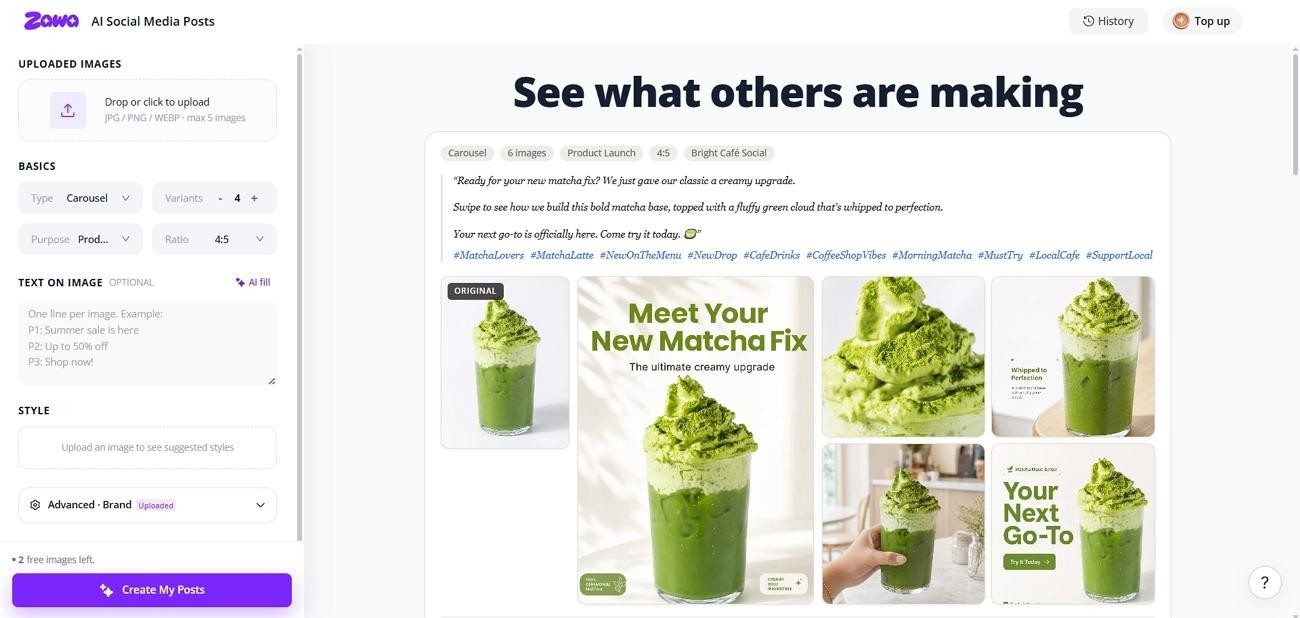
How to Create a LinkedIn Carousel with Zawa
Now, follow the steps below to turn prompts into finished LinkedIn carousels:
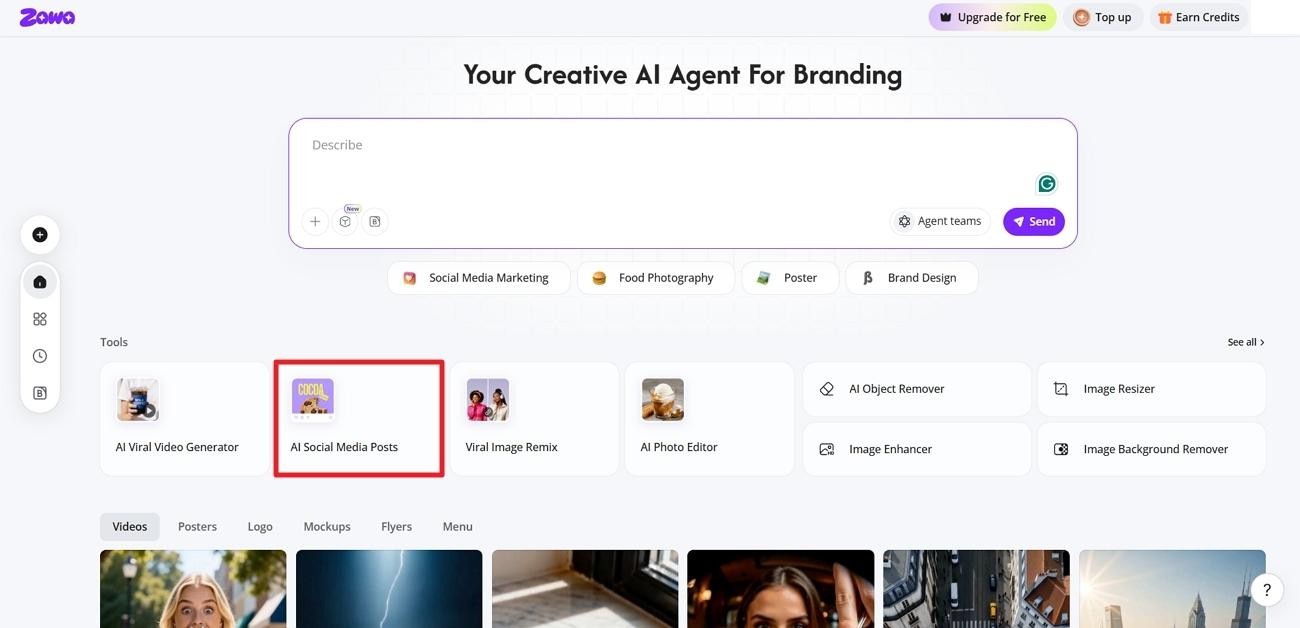
Step 1. Access The AI Social Media Post Generator
On the main interface, press the “AI Social Media Posts” option to enter the tool.
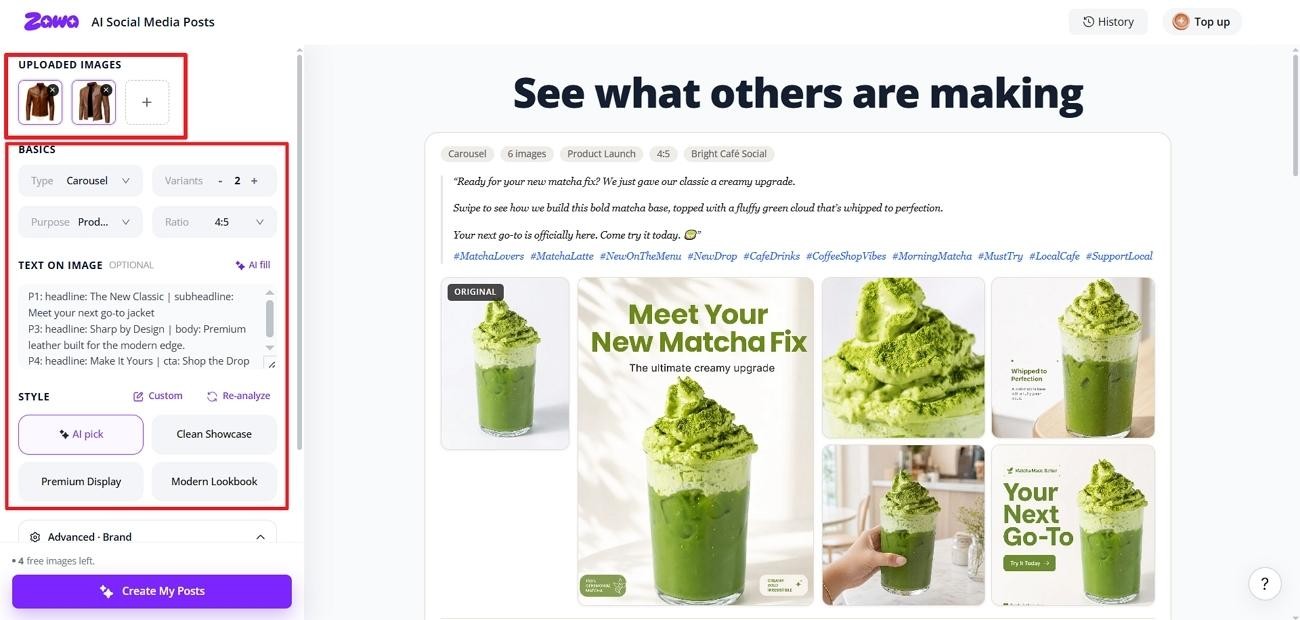
Step 2. Upload Reference Images
Next, upload the reference images of the product or anything your carousel will be about. Choose the “Carousel” type, select the number of variations, and pick the purpose and right orientation. Afterward, write the text on images or click the “AI Fill” option to generate text. Once done, select the “Style” of the carousel.
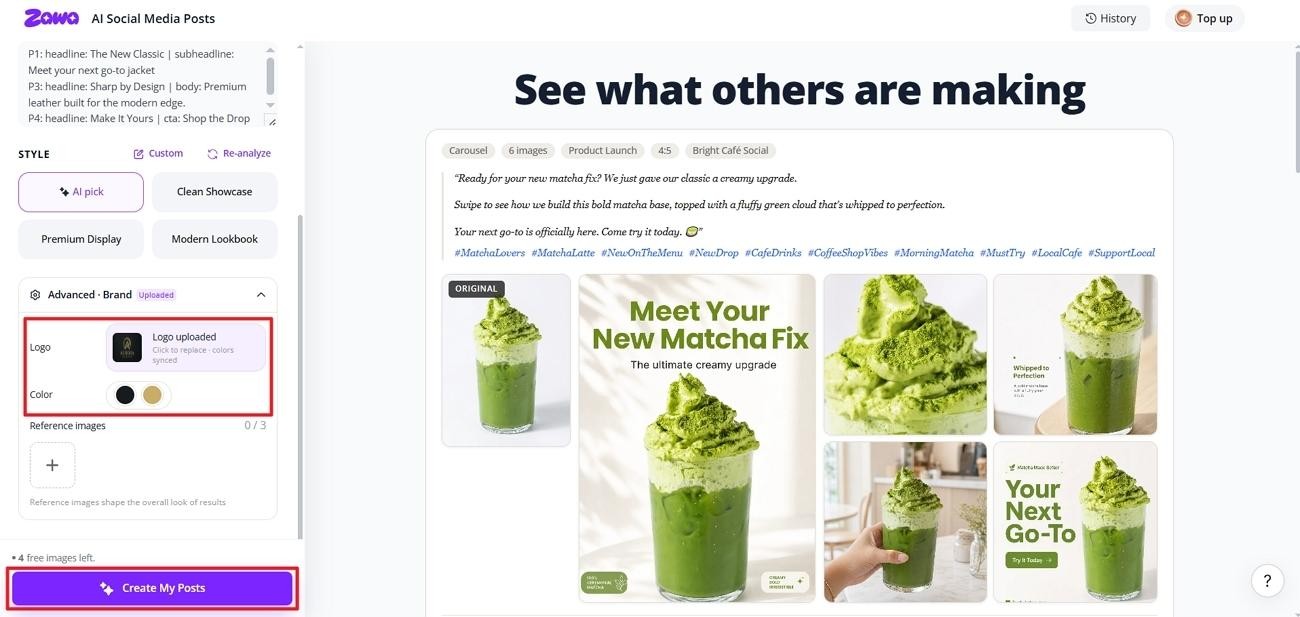
Step 3. Add Your Brand
Optionally, upload your brand logo under the “Advanced Brand” section and choose the color palette. Once done, press the “Create My Posts” button.
Step 4. Download the LinkedIn Carousel
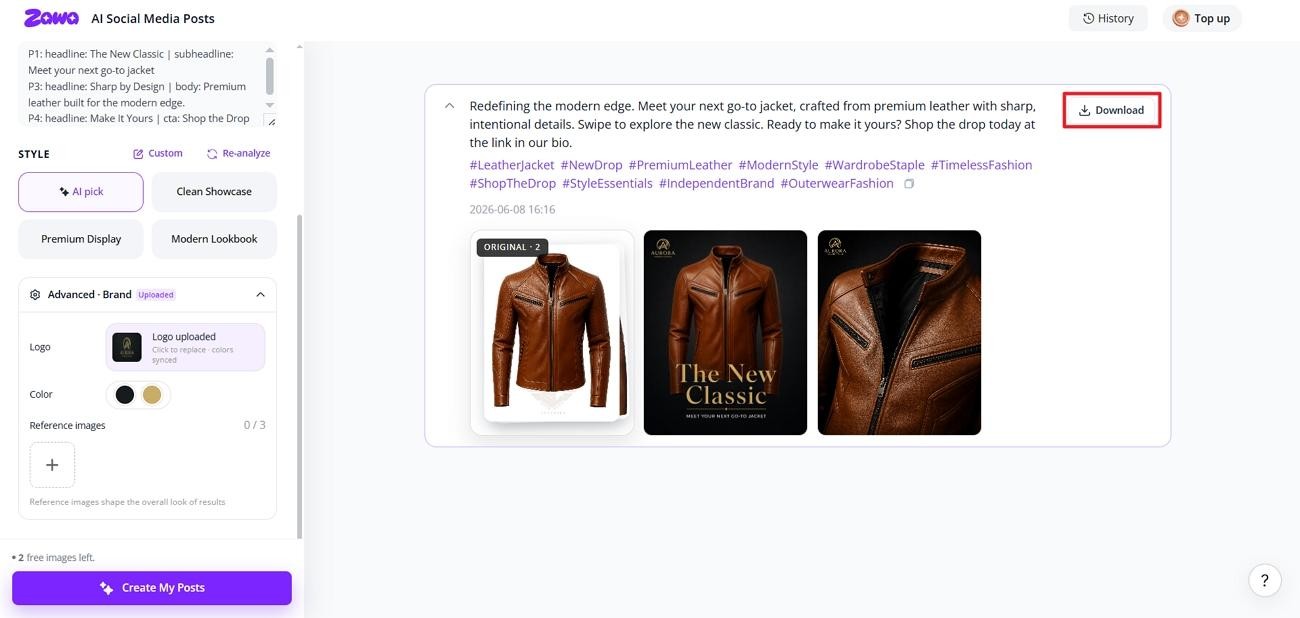
After the LinkedIn carousel is generated, click the “Download” button to save the post.
Conclusion
In conclusion, LinkedIn carousel posts help you share clear stories, build trust, and increase visibility. Throughout this guide, you saw practical examples and expert tips for eye-catching designs. To create similar carousels faster, you can try Zawa for attractive, polished layouts.
FAQs
-
What are the key features of successful LinkedIn carousel ad examples?
Winning LinkedIn carousel ad examples use clear hooks, focused cards, and one goal per sequence. Strong creatives pair each card’s visual with a specific benefit, proof point, or CTA.
-
How to create LinkedIn carousel posts that help enhance the reach and impressions?
Use 8 to 15 slides, one idea per slide, and readable headlines. Zawa helps here by keeping structure, brand style, and slide hierarchy consistent across posts.
-
Which are the best LinkedIn carousel generators for marketing?
Top options include Canva and specialized LinkedIn carousel generators with templates. Zawa stands out for marketers who want brand-aware AI that designs full campaigns, not fragments.
-
Can I add links or clickable elements in a LinkedIn carousel?
Document-style carousels do not support clickable links inside PDF slides themselves. Instead, place main links in the caption or comments, and use text prompts on slides.
-
Can I use videos in a LinkedIn carousel?
PDF-based carousels only show static pages and do not play embedded videos. For motion, use a separate video post and reference it from your carousel content.
You May Be Interested
LinkedIn Ad Specs 2026: Complete Guide for All Ad Formats

What Is a Carousel Post and How to Use It for Stunning Social Media Feeds
How to Post a Carousel on Facebook: The Right Ways in 2026

How to Make Money on Instagram Reels in 2026