Is Fotor AI Photo Enhancer Worth It? Full Review (2026)
Read the full Fotor photo enhancer review. Upgrade photos instantly and explore the best 2026 alternative for cleaner, higher-quality AI image enhancement.


Most AI enhancers trade blur for weird textures. But for creators and marketers, the goal is simple: crisp, natural images without a Photoshop learning curve.
Fotor photo enhancer aims to bridge this gap. This review tests its ability to balance speed with realism—and identifies exactly when its automated fixes fall short of professional needs.
Fotor AI Image Enhancer Explained in Simple Words
Users want sharper photos without learning difficult editing tools and settings. This section explores how Fotor's AI image enhancer improves overall image quality.
What is Fotor AI Photo Enhancer
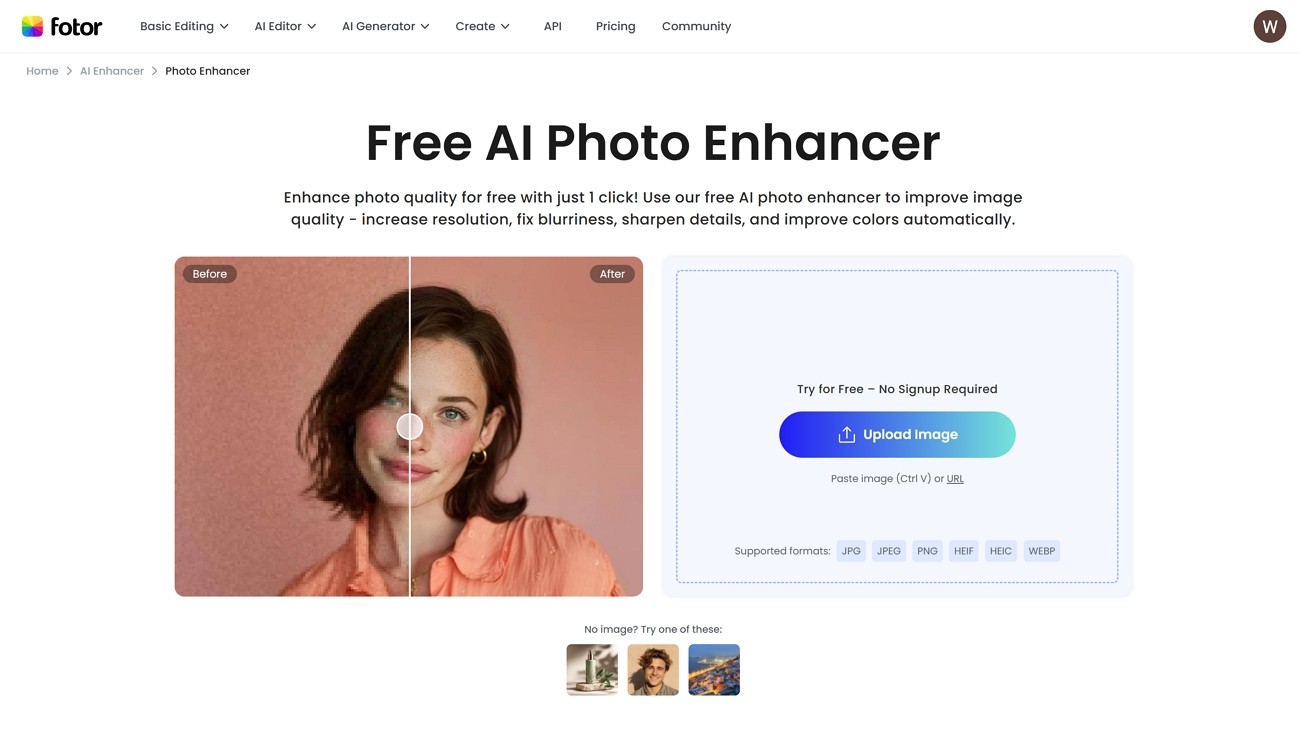
An online tool that improves image quality, Fotor AI Photo Enhancer uses artificial intelligence to analyze the uploaded photos and fix blur problems. You can upload photos, enhance, and view the results within a few clicks.
Moreover, it improves colors with contrast to make photos look balanced. This makes it useful for beginners needing clean image upgrades.
Top Features: Why Fotor AI Image Enhancer Stands Out
Look at the key features that make this tool helpful:
-
One-click Enhancement: It upgrades the whole photo with one click. This saves time when you want fast edits and do not like manual tweaking.
-
Sharpening and Noise Reduction: Fotor makes soft photos clearer and reduces grain in dark areas. This works well for an old picture.
-
Portrait and Face Improvement: This tool improves facial features by clearing eyes and smoothing skin texture. People use it for profile photos and simple client images.
-
Color and Lighting Adjustment: It fixes dull colors and brightens dark parts to make photos look more natural. This helps when your pictures seem flat and have strange color tones.
-
Higher Upscaling: Fotor image enhancer upscales images to 8K. It can be useful when you want HD images for social media and large displays.
-
Fixing Pixelation: This tool smooths blocky areas and reduces pixel blocks in low-quality photos. It helps old, compressed, or tiny images look cleaner and more detailed without strange artifacts.
How to Enhance Photos Using the Fotor AI Tool Easily
Beginners prefer a simple method to fix blurry or dull photos. With Fotor image enhancer, you can improve image sharpness and lighting in just minutes. So, follow the steps below to enhance your photos:
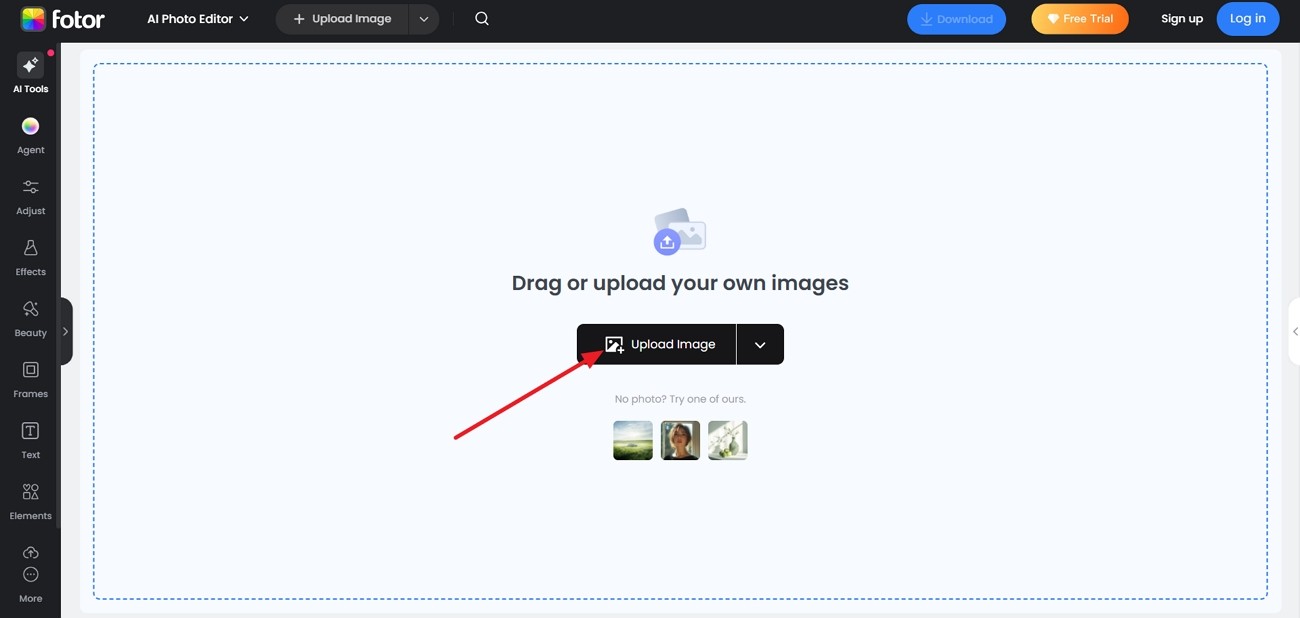
Step 1. After you enter the main editing interface, upload your image. Press the "Upload Image" button and choose the photo to upload.
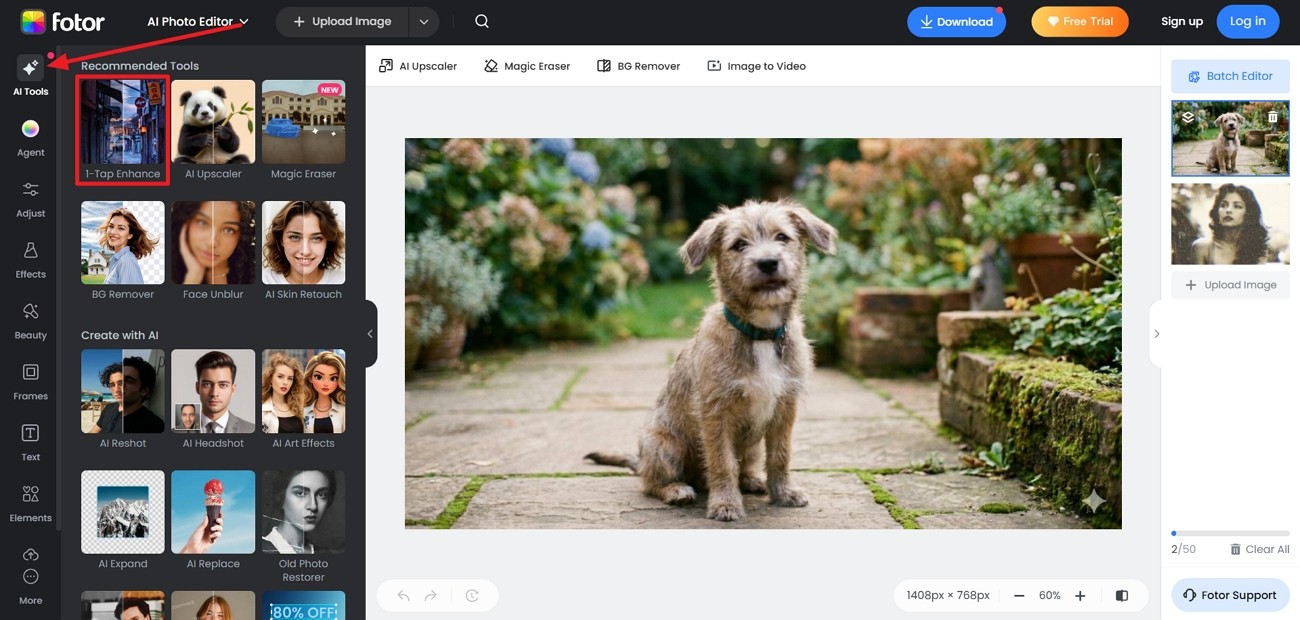
Step 2. Next, click the "AI Tools" option in the left side panel. Afterward, select the "1-Tap Enhance" tool. They will automatically enhance the image.
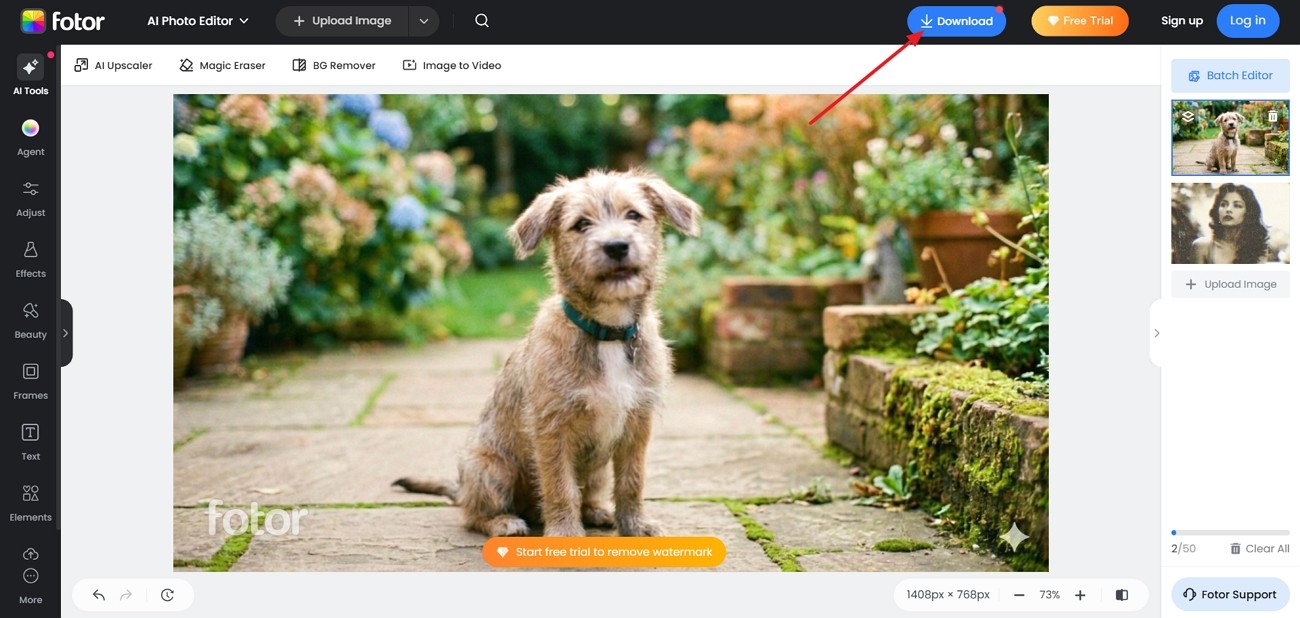
Step 3. Once enhanced, click the "Download" button at the top to save the final image.
Fotor Free vs Pro for AI Image Enhancement: Is It Worth It?
Users with simple needs only do light edits, and others edit images almost every day. The free plan covers basic needs, while the Pro plan adds more advanced tools and support. Choose the plan that best fits your workflow:
| Feature | Free Version | Pro Version |
|---|---|---|
| AI Image Enhancement | Basic one-click enhancement for simple quality fixes | Advanced AI with better detail and accuracy |
| Output Quality | Standard resolution downloads | HD and higher-resolution downloads |
| AI Upscaling | Limited enlarge and sharpen tools | Full upscaling with sharpen, denoise, and enlarge |
| AI Credits | Limited free credits each month | 100 AI credits per month |
| AI Agent Sisi | 2 chats for basic questions | 1,000 chats for ongoing help and ideas |
| Watermark | Some exports include a small Fotor watermark | All exports without any watermark |
| Editing Tools | Core tools like crop and simple adjustments | Full editing toolkit with more precise controls |
| Templates and Assets | Basic templates and collage layouts | 100,000+ templates and assets for branding and marketing |
| Best Suited for | Casual users and quick social posts | Professionals, creators, and teams with many images |
Pros and Cons of Using Fotor to Enhance Images
This tool is often used to quickly fix blur, noise, and low-quality photos. Fotor AI photo enhancer offers helpful AI upgrades, but it is not perfect across the board. Here is a closer look at its strengths and limitations:
Pros
-
One-click enhancement makes basic photo fixing fast for non-technical users.
-
Face enhancement improves eyes and skin details in selfies and portraits.
-
Built-in editor adds crop and design tools in one place.
-
Works on the web, PC, and mobile, so access is very flexible.
-
The free tier lets users test core AI tools before upgrading later.
Cons
-
The free plan has strict daily limits on AI-based features and tools.
-
Some enhanced photos look over-sharpened or artificial at higher settings.
-
Advanced users may miss deeper manual controls for precise editing.
-
High-resolution and full upscaling options often require an active paid subscription.
-
Occasional performance slowdowns happen when many images are processed.
Fotor AI enhancer gives a good starting point, yet it often struggles with demanding image needs. Heavy editing, large upscales, batch tasks, or print-level work can push its tools past their comfort zone. When that happens, Zawa appears as another available option.
Fotor Alternative: Why Zawa is the Smarter Choice for AI Enhancement
For users who feel limited by basic tools in Fotor, Zawa is simply another alternative. It focuses on giving cleaner, sharper results while keeping the workflow simple and beginner-friendly. The tool handles different use cases, from vintage scans to product shots.
Busy creators can use the bulk image enhancer to process 20 images at once and save time. Online access makes it easy to use without needing heavy software and strong hardware. From selfies to screenshots, Zawa keeps details clear.
Key Features of Zawa AI Image Enhancer
Zawa Image Enhancer gives stronger, clearer results than many simple online image tools. Let's explore the features that make Zawa a smart alternative to Fotor AI enhancer.
-
Upscaling Quality: Zawa increases resolution up to 8K and keeps photos sharp on large screens.
-
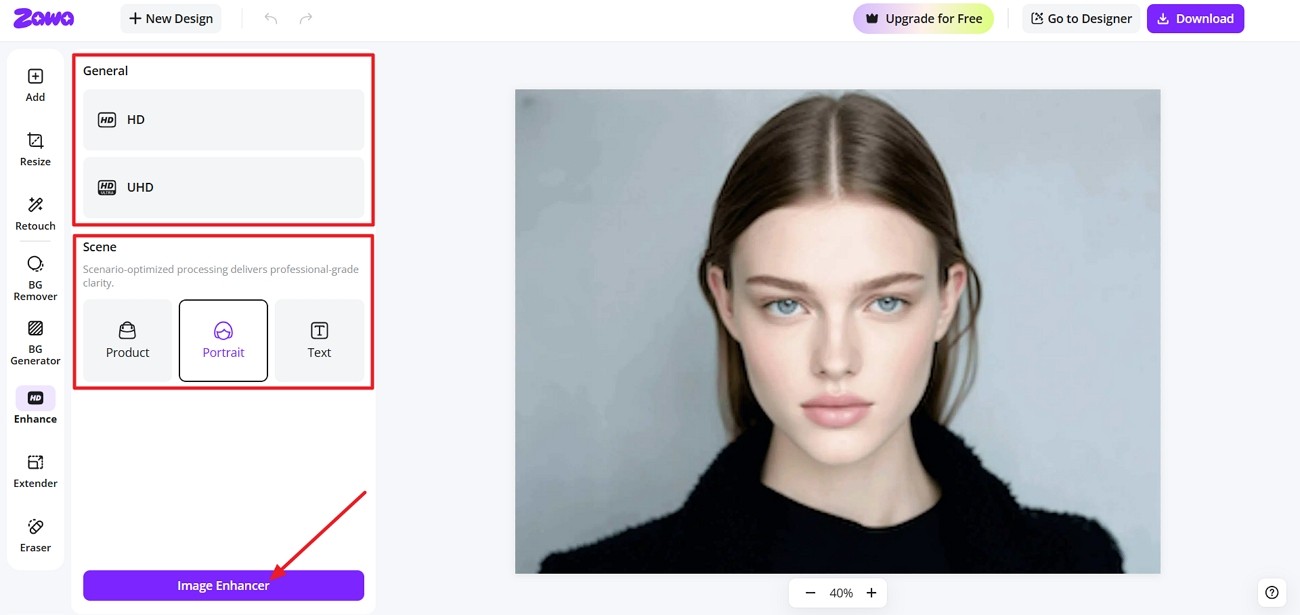
Smart Modes: Users can choose Product, Portrait, or Text modes to match each type of image.
-
Texture Protection: Natural textures and fine details stay visible, so results do not look plastic or fake.
-
Print Sharpening: It reduces the grains and clarifies soft areas to make photos ready for printing.
-
One-Click Use: A single tap upgrades overall quality and removes the need for manual editing.
-
Fast Processing: Images finish processing quickly, and big batches do not slow down work.
-
Free Access: Users can try powerful AI features first and then decide later whether to upgrade.
Step-By-Step Guide to Zawa AI Image Enhancer
After learning what Zawa offers, beginners want a simple guide to getting started. Follow the steps below to enhance your images without complex settings:
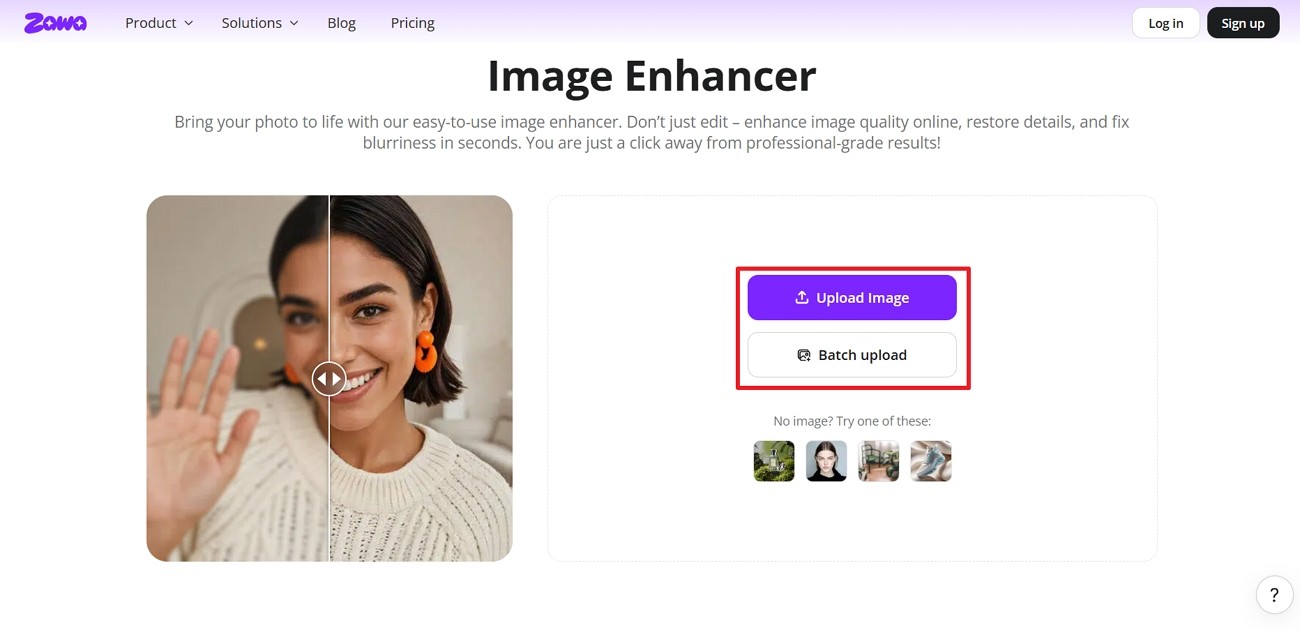
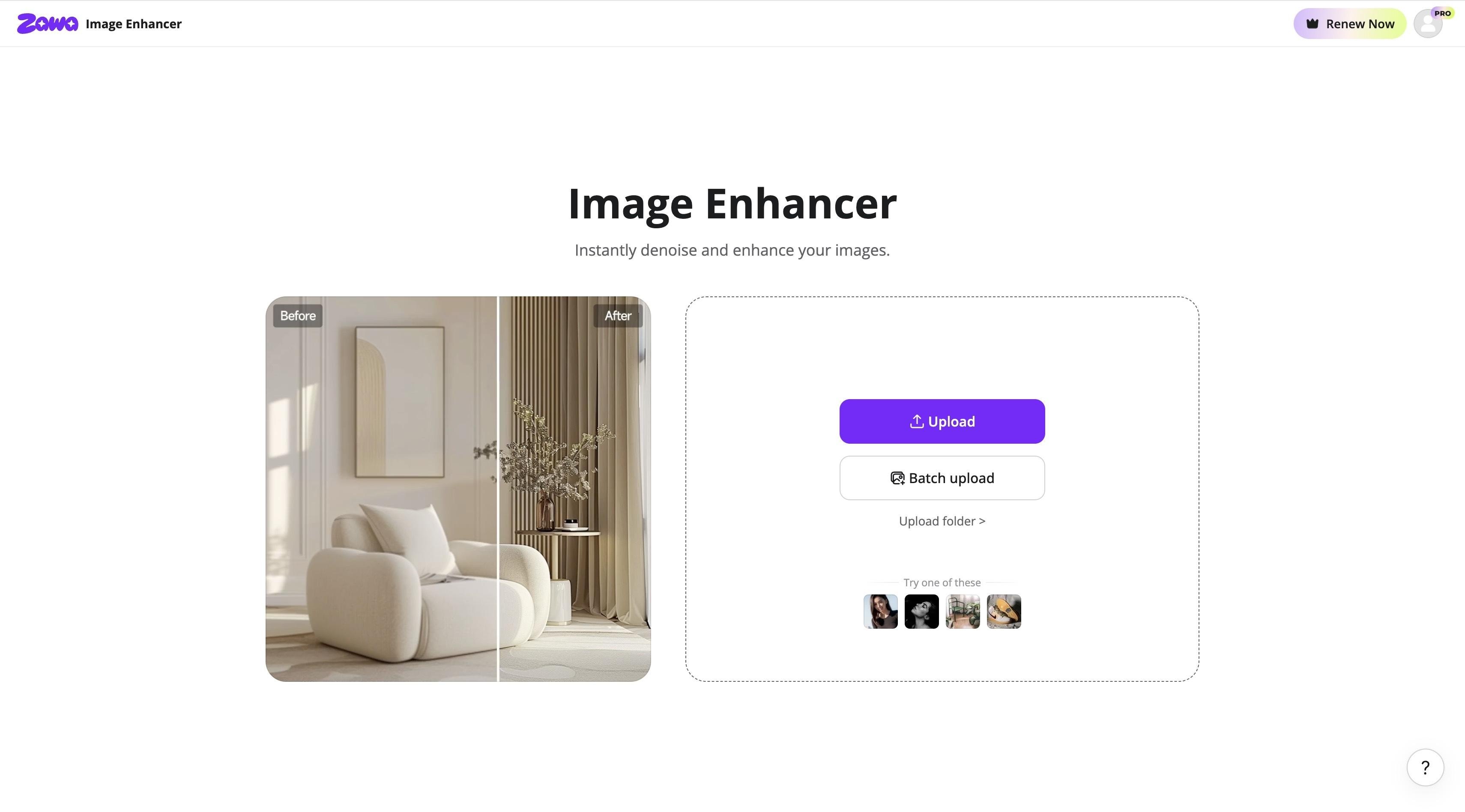
Step 1. Upload Photo to Zawa Image Enhancer
On the main interface, upload your image to Zawa. Click the "Upload" option to upload the image. To upload multiple options, choose the "Batch Upload" option.
Step 2. Choose the Resolution and Scene
Once uploaded, choose the target resolution quality or the scene type. Afterward, click the "Image Enhancer" button.
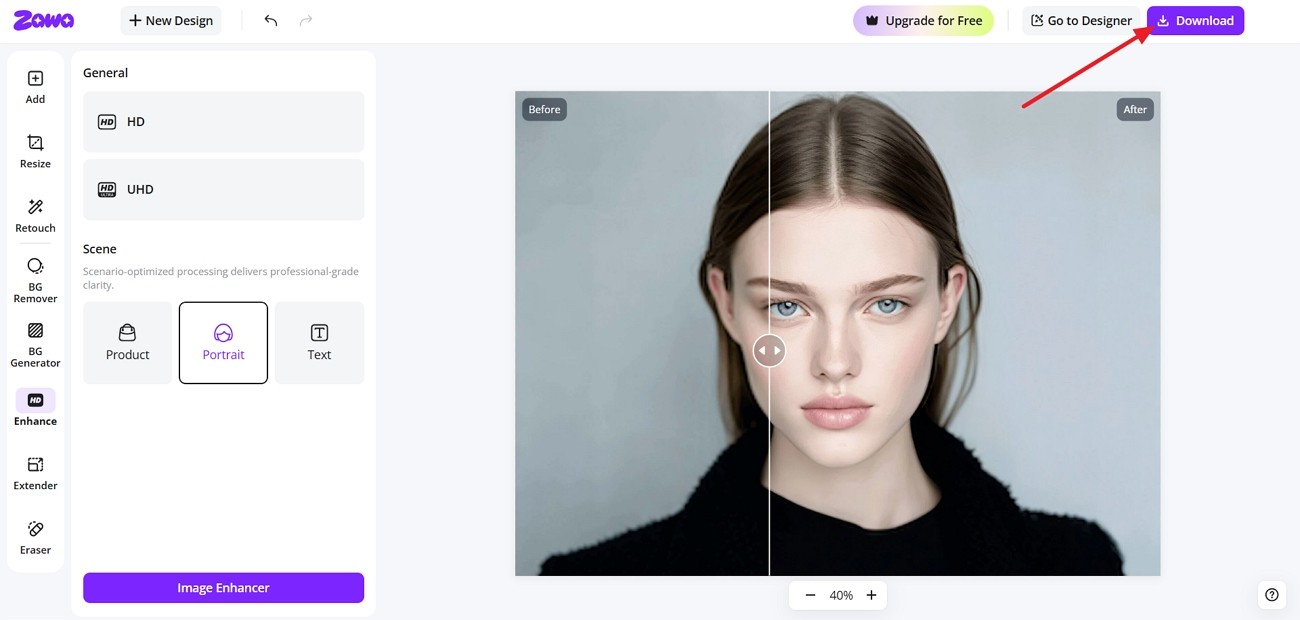
Step 3. Download The Final Image
After the image is enhanced, use the slider to compare the before-and-after effects. Once finalized, click the "Download" button to save the image.
Conclusion
In conclusion, Fotor Photo Enhancer gives a simple way to clean up basic everyday images. It works well for quick fixes and simple social and marketing visuals. However, blurry photos and print-level projects can push it beyond its comfort zone. Zawa fills this gap by focusing on reconstructing authentic details. It restores the sharp textures and visible clarity that basic enhancement tools often miss.
FAQs
-
Is Fotor AI free?
Fotor has a free plan with basic tools and limited AI credits available monthly. More advanced options, higher quality exports, and more AI usage require a paid subscription.
-
Is the Fotor app safe?
Fotor is generally considered safe and uses standard security measures to protect user data. However, some users report issues with trials and support, so always check recent reviews.
-
Is Fotor the same as Canva?
No, Canva focuses more on layouts and designs with multiple pages. On the other hand, Fotor focuses on photo editing tools like Fotor Image Enhancer and other AI effects.
-
Can AI fix blurry photos?
Yes, many AI tools can reduce blur and sharpen photos better than simple manual editing. For instance, advanced tools like Zawa rebuild clear details and provide higher resolution even for everyday blurry photos.
-
Which is the best AI photo enhancer?
Different tools suit different needs, yet many users want strong quality and simple workflows. For sharper details, high resolution, and easy control, Zawa stands out for photo enhancement.
You May Be Interested

How to Remove People From Pictures

35 AI Image Prompt Examples: How to Get Outstanding AI Images
Try the 10 Best Image Upscalers for Your Photos in 2025
How to Remove People From Pictures

5 Tools to Extract & Convert Images to Text
Standard Photo Print Size: A Guide to Choosing the Right Size

Product Photography-How to Take Product Photos