
How to Post Multiple Photos on Instagram for Better Engagement in 2026
Posting multiple photos on Instagram helps you deliver more value in a single post. This article discusses the importance, expert tips, and top methods for posting many photos to keep your audience swiping and interacting.

Learning how to post multiple photos on Instagram is an essential skill to manage your content better. This feature enables you to post many photos in a single post. It creates a swipeable experience for viewers. Join us as we share the top methods to add several photos, including general posts, Instagram Stories, and Reels.
Step 1: Open Instagram and tap the "+" icon
To begin with, launch the Instagram app on your phone and log in to your account if required. Then tap the "+" icon in the top-left corner of the screen.
Step 2: Select "Post" from the menu
Once you tap the "+" icon, a menu will appear with various content options. Select the "POST" option to start making a standard feed post, instead of a Story or Reel.
Step 3: Tap the "Select Multiple" option
Look for the overlapping squares icon labeled "Select Multiple" on the media picker screen. Just tap it to select multiple photos or videos for your post.
Step 4: Choose your photos in order
Tap on the photos you wish to include, and small numbers will appear, highlighting their sequence. Your selected order determines the way they will appear in the carousel.
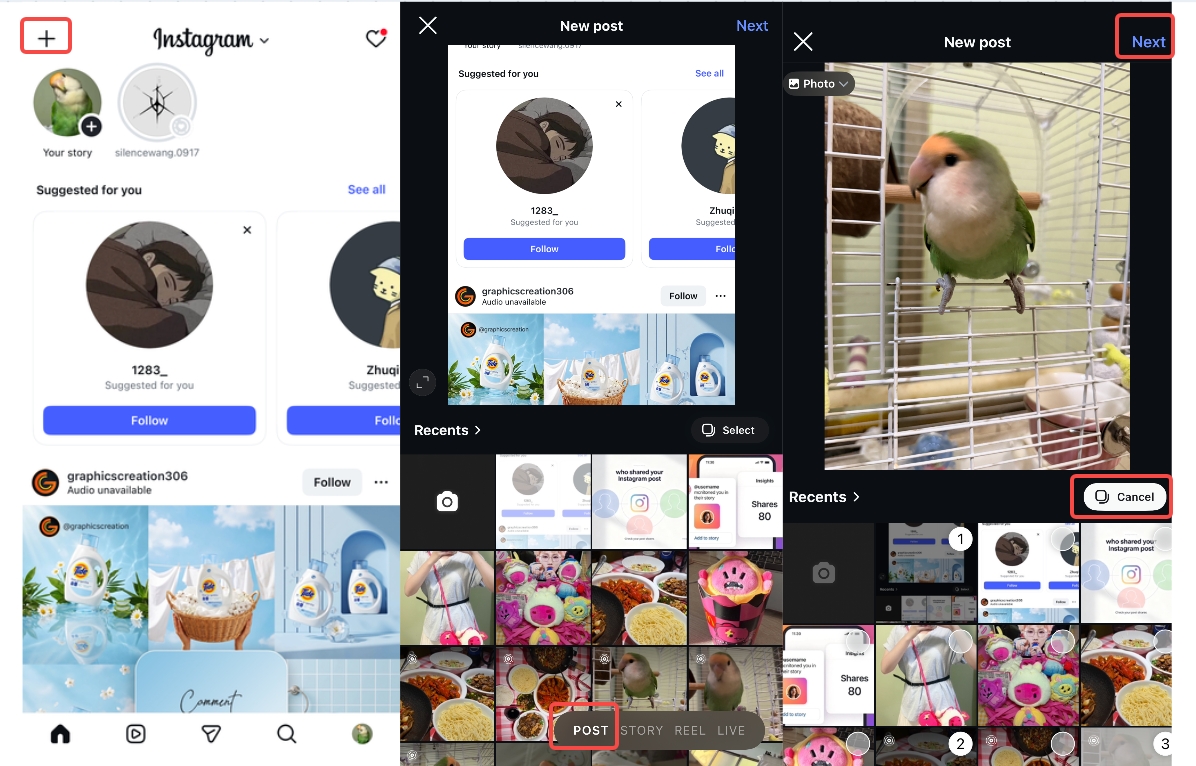
Step 5: Edit photos and add filters
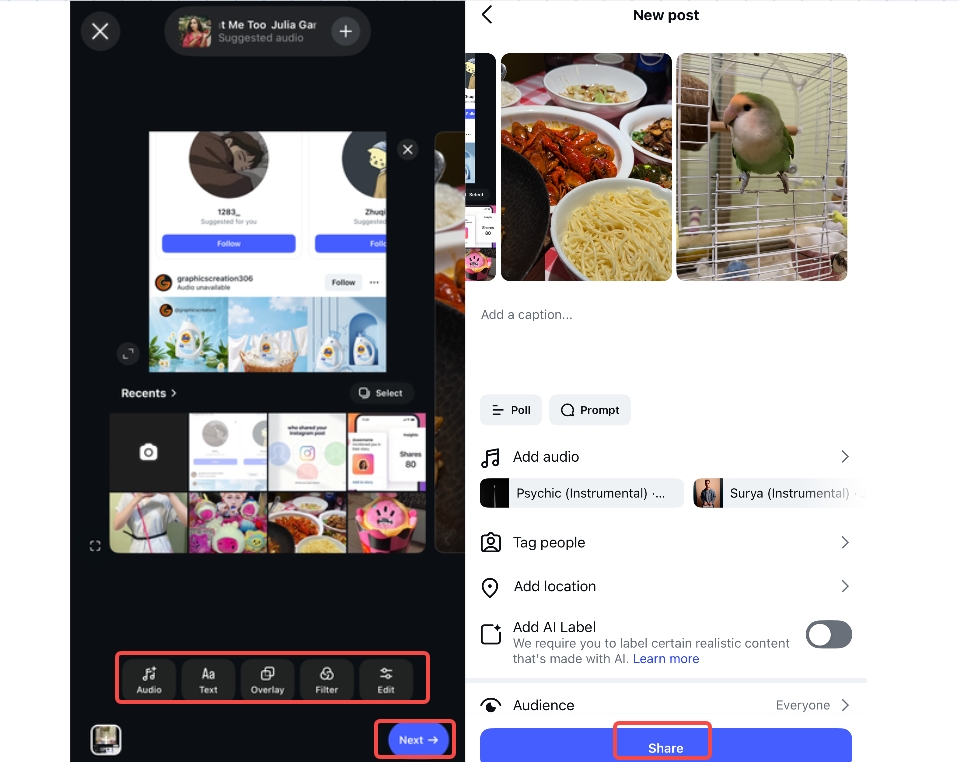
Tap "Next" to access the editing tools, where you can apply filters or adjust each image individually. Plus, you can also make minor edits, such as brightness, contrast, and cropping, for consistency. Tap the "Next" button to proceed.
Step 6: Add captions and tap "Share"
Write your desired captions, tag people, add hashtags, or include a location if required. Once everything is in order, tap "Share" to publish your multi-photo post.
How many photos can you post on Instagram?
Instagram now lets users upload up to 20 photos or videos in a single carousel post. However, some accounts may be limited to 10 items. It is mainly due to the fact that Instagram releases its features gradually through phased rollouts, meaning not all users get updates simultaneously. Some common factors that affect feature availability include app version, device compatibility, account testing, and regional rollouts. Keeping the app updated and checking for new features regularly enables users to access the latest carousel limits sooner.
What is an Instagram carousel post?
An Instagram carousel post is a type of post that lets users share multiple photos in a single upload. Instead of posting the content individually, you can group it into a single swipeable format. Viewers can easily slide left to see each image or clip in sequence. This format is mostly used for storytelling, tutorials, and showcasing collections. Thus, you can organize related content in a single post and keep your feed clean.

How to post multiple photos on Instagram story
Posting several photos on an Instagram story lets you share several moments without uploading them separately. This feature allows you to create a smooth, connected viewing experience for your audience. Whether you are sharing a tutorial or daily updates, it keeps your content organized. Here is how you can do it, step-by-step:
Step 1: Open Instagram and access Story
First, open the Instagram app and click on the "+" icon in the top-left corner of the screen and select the "STORY" option.
Step 2: Tap the Gallery icon
Tap the gallery thumbnail at the bottom left to access your phone's photo library. This allows you to select images for your Story.
Step 3: Enable "Select Multiple"
Tap the stack squares icon in the gallery. This will activate the multi-photo selection mode.
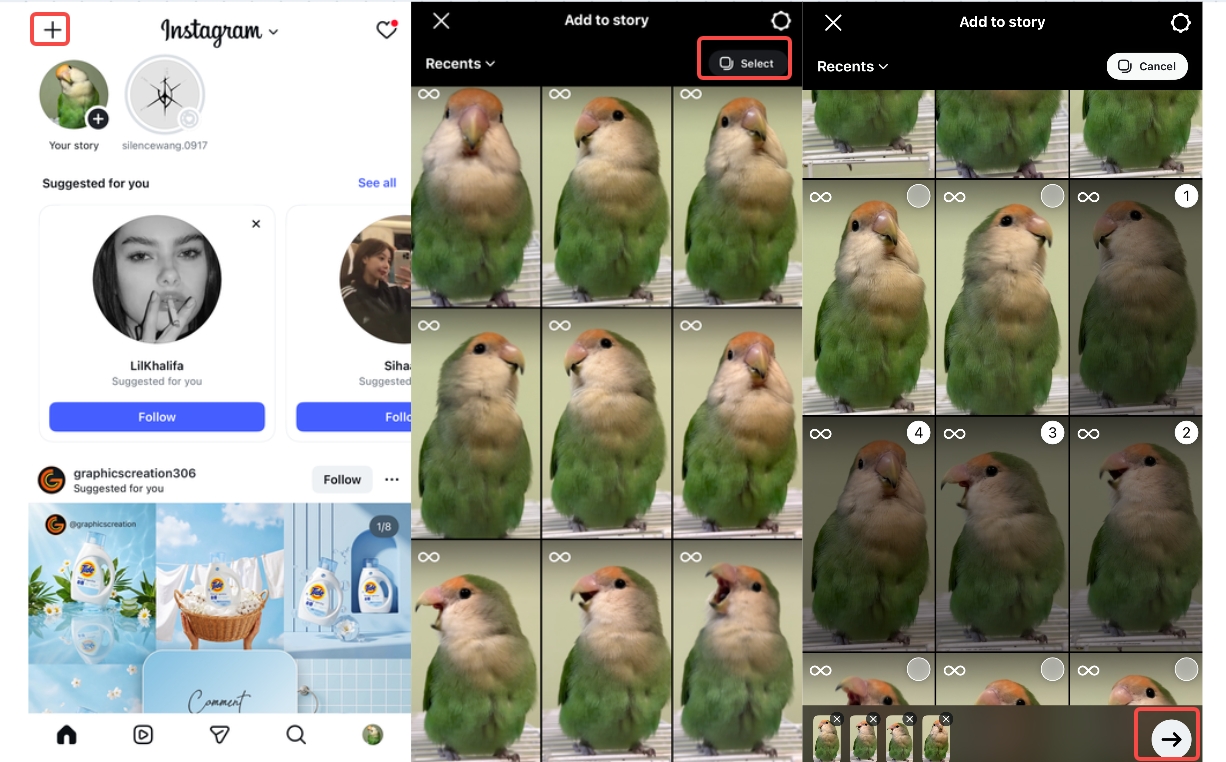
Step 4: Select and edit your photos
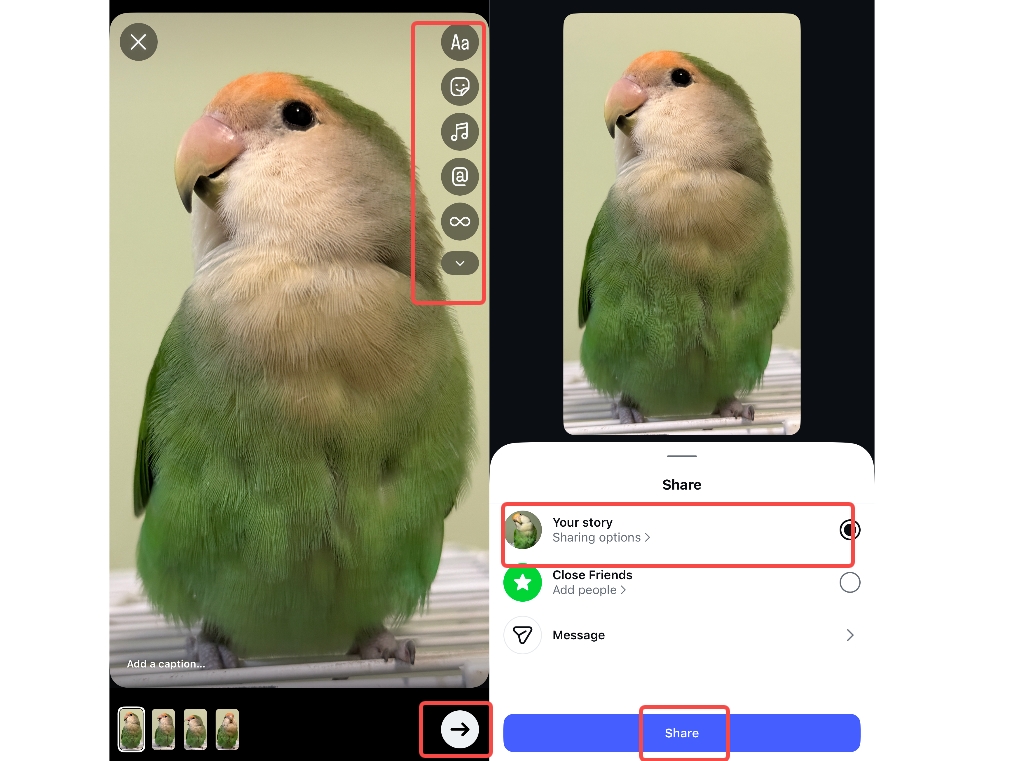
Select multiple photos in order, then tap "Next." You can add text, stickers, filters, or music to each slide individually by swiping between them.
Step 5: Share to your Story
Tap the "Your story" option, then tap "Share" to upload all selected images. Each photo will appear as a separate Story slide in the order that you have selected.
How to post multiple photos on Instagram reel
Step 1: Open Instagram and go to Reels
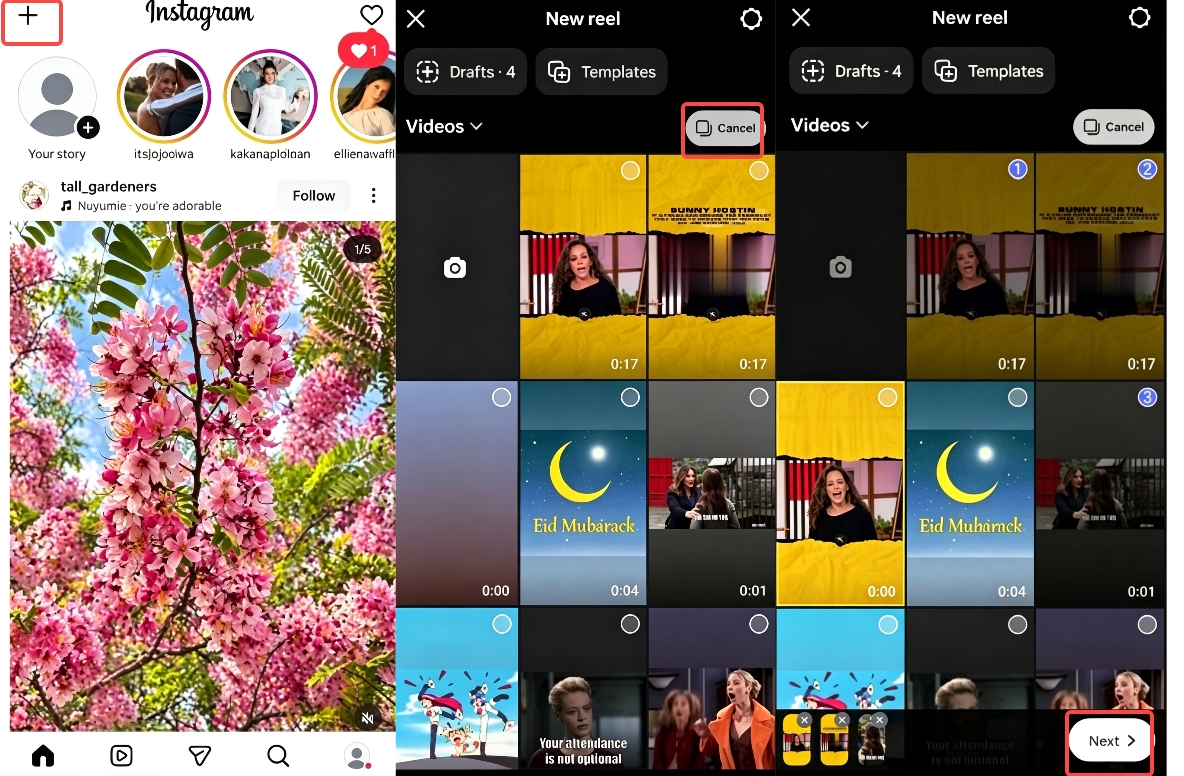
First, open the Instagram app, tap the "+" icon, and then select the "REEL" tab at the bottom. This will open the Reel creation interface, where you can start adding media.
Step 2: Tap the Gallery icon
Tap the Gallery thumbnail in the bottom-left corner of the screen. This will open your phone's photo library, allowing you to select multiple images.
Step 3: Use the "Select Multiple" option
Next, tap the stacked icons, labeled "Select Multiple" at the top-right of the gallery.
Step 4: Select photos and adjust the timing
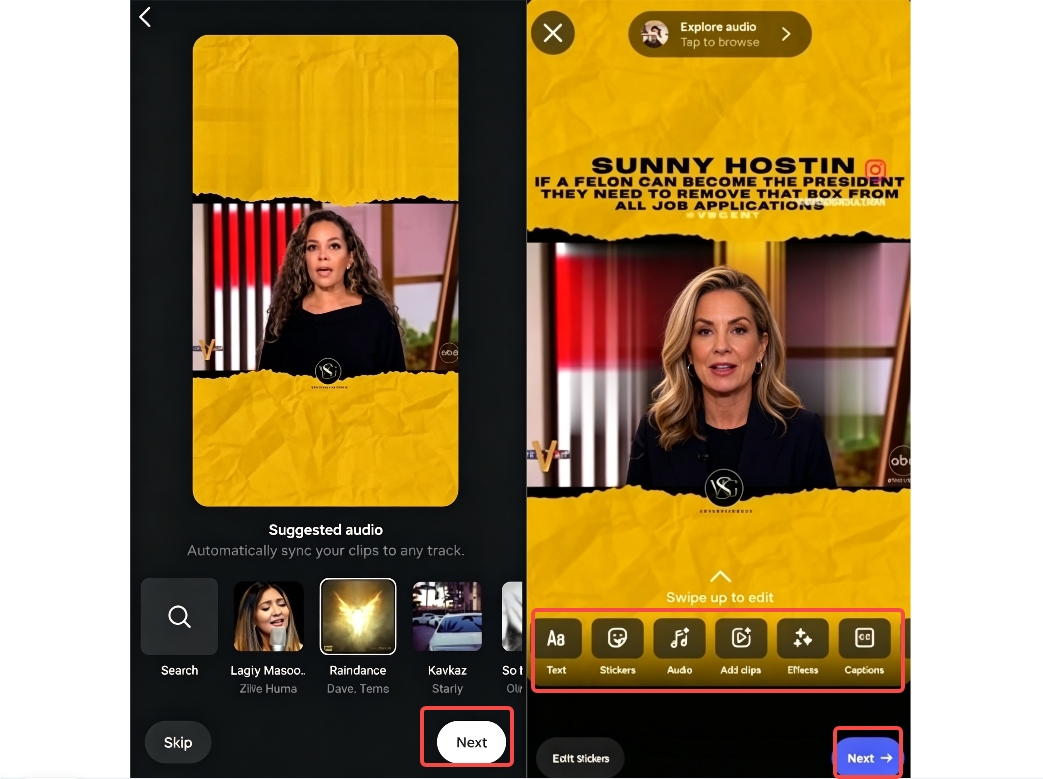
Select multiple photos in order, then tap "Next." Then, Instagram will automatically arrange them into a Reel timeline, where you can adjust the overall duration, sync with music, and add transitions. Tap the "Next" button to proceed.
Step 5: Edit and share your Reel
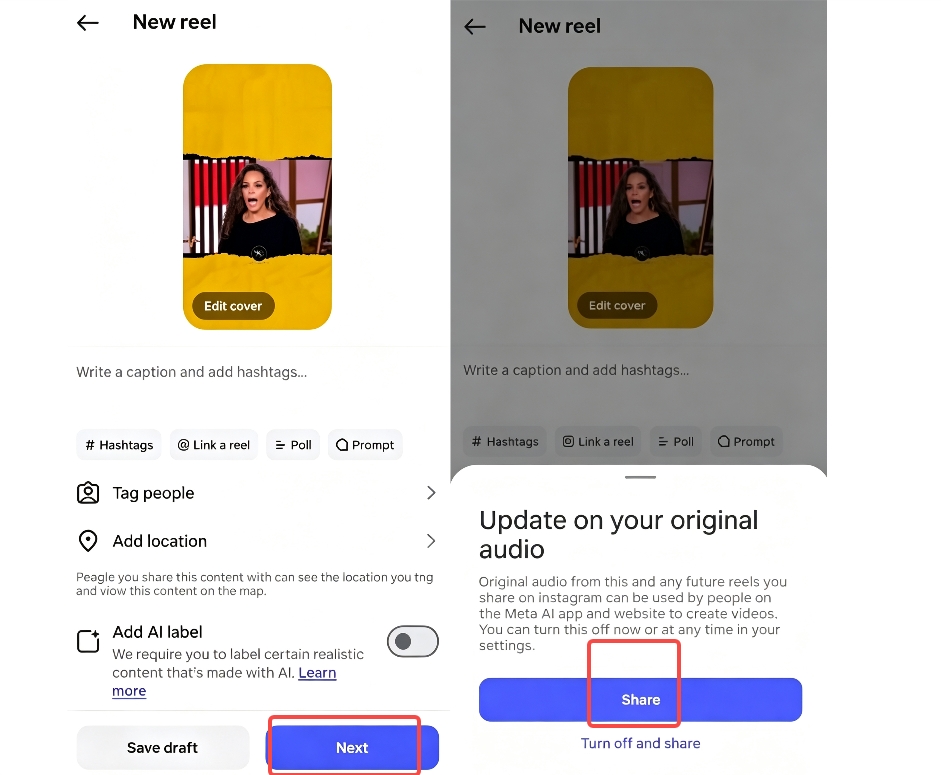
Add music, text, effects, or filters to enhance your Reel. Once done, tap "Next," write a suitable caption, and hit the "Share" button to publish your Reel.
Common problems & fixes of adding several images on Instagram
-
Problem 1: "Select multiple" option not showing
Solution: Ensure that your Instagram app is updated to the latest version from the app store. Restart the app and check again in the gallery section. If the issue persists, log in again or reinstall the app.
-
Problem 2: Photos are uploading in the wrong order
Solution: When posting Instagram photos, choose the images in the exact order you want them displayed because Instagram follows your selection order. You can also reorder them on the preview screen by tapping and holding a photo, then dragging it into place before posting.
-
Problem 3: Images are getting cropped or resized automatically
Solution: Instagram adjusts the photos to fit its supported aspect ratios, such as 1:1 or 4:5. To maintain consistency, you should crop your photos beforehand using a photo editor. This prevents unnecessary cuts or zooming in of your carousel posts.
-
Problem 4: App crashing while selecting multiple photos
Solution: Apps crash mainly due to outdated versions or low device memory. So, update the app, close the background apps, and free up the storage space. Reinstalling Instagram can also solve the crashing issue.
-
Problem 5: Filters are not adding properly to the added photos
Solution: When posting more than one photo on Instagram Story, tap each photo individually on the editing screen. Apply filters and adjustments separately, rather than using the same one for all. In this way, your image looks consistent and properly edited.
Expert tips for making attractive Instagram posts
-
Use high-quality, consistent visuals: Clear, sharp images instantly make your post more appealing. So, maintain a consistent theme or color tone across your photos for a recognizable style. You can enhance balance and sharpness using Zawa's "AI Clarity" feature.
-
Focus on strong composition and framing: Good composition, such as the rule of thirds or centered subjects, can make your visuals more engaging. So, avoid cluttered backgrounds while keeping the focus on the main subject.
-
Plan and generate content strategically: Instead of posting randomly, plan your content around a clear theme or idea. Structured posts perform better and look much more appealing. Create ready-to-published designs with Zawa's AI social media post generator. It lets you generate attractive Instagram posts through ordinary images.
-
Maintain visual consistency across posts: Using similar tones, filters, and layouts across posts builds a cohesive feed. A consistent aesthetic makes your post look attractive and organized.
-
Remove distractions from your image: Messy elements or unwanted objects can reduce your post's impact. Keeping visuals clean ensures that the audience focuses on what matters most. You can clean up images easily with Zawa's "AI Remover" tool.
Conclusion
Mastering how to post multiple photos on Instagram is vital if you wish to create engaging and swipeable content in 2026. Carousel posts are an excellent way to sum up your content in a single Instagram upload, whether you are posting photos, Reels, or Stories. This approach helps to present your content more effectively. To create high-quality Instagram posts, follow expert strategies such as using high-quality visuals and crafting content strategically. Before publishing, you should review your carousel carefully to ensure that every slide adds value rather than repeating the same idea. So try to post multiple photos on Instagram now!
FAQs
What is an Instagram carousel post?
An Instagram carousel post is a post format that lets you upload multiple photos or videos in a single post. Users can swipe left to view each photo in sequence. It is commonly used for tutorials and storytelling. This format allows you to keep the related content organized in a single post. It also makes your feed cleaner and more structured.
How to add multiple Instagram photos to attract more likes and followers?
To add multiple photos on Instagram and attract followers, begin by selecting high-quality, visually consistent photos that share a clear theme. Arrange your photos in a logical sequence so that users keep swiping through the post. To grab attention, use engaging captions, relevant hashtags, and a strong first image. Maintain a consistent editing style across all the images.
How many photos can I add at once in an Instagram post?
Instagram lets you upload 10-20 photos in a single carousel post. This limit is applicable to both personal and business accounts. You can also mix photos and videos within the same post. If you want to share more, you need to create multiple posts. Planning your content within this limit is vital for a better presentation.
How do you post multiple photos on Instagram without cropping?
Instagram automatically adjusts images to fit supported aspect ratios, such as 1:1 or 4:5. To avoid cropping issues, you should edit the images beforehand with a photo editor. Ensure all the images follow the exact same aspect ratio for consistency. You can also add borders in order to fit the full images without trimming them. In this way, the visuals appear exactly as needed.
Can you post more than 10 photos on Instagram?
Yes, you can share a post with up to 20 photos and videos as a single post, also known as a carousel, to your Instagram feed. You can also use Stories or Reels for additional media. In this way, you can distribute your content without overloading one post.
Can I design multiple photos at once for an Instagram post?
Yes, you can design multiple photos together using design tools or AI-powered platforms, like Zawa. They help maintain a consistent theme, layout, and color scheme across all images. Batch designing saves plenty of time, ensuring visual harmony. It is particularly useful for creators and brands.
Why can't I select multiple photos?
This mainly happens when the "Select Multiple" option isn't enabled. Ensure that you tap the stacked squares icon before choosing images. Also, update the app to the latest version. Outdated versions or app bugs can disable certain features. Restarting or reinstalling the app can fix these issues.
How to rearrange photos in a carousel post?
After selecting multiple photos, you can rearrange them on the preview screen. Tap and hold any image, then drag it to your desired position. The order you set here determines how the viewers see your carousel post. Always double-check the sequence before posting. A well-arranged sequence enhances engagement and storytelling.
You May Be Interested

Most Liked Instagram Post Guide - Insights, Top Posts, and Process

How to Craft the Perfect Instagram Bio in 2026: Tips, Mistakes & Tools

How to Get into Real Estate Photography

How to Create Aesthetic Instagram Posts That Stand Out in 2026

13 Best Free Photo Editors for Mac in 2025 to Enhance Your Photos
