
How to See Who Shared Your Instagram Post for Better Viewer Insights
Wondering how to see who shared your Instagram post? If so, read this article to learn about Instagram post sharing and how to see who shared your posts. This simple technique will help you track engagement and better understand your audience.


How to see who shared your Instagram post is a common question among creators looking to track how far their content is reaching. Although Instagram keeps some sharing data private, there are still useful insights that you can access. Today, you will learn the methods to see who shared your Instagram posts, what information is visible, where to find it, and how to better understand your audience activity with Instagram analytics.
Can you see who shared your Instagram post?
Yes, you can see who shared an Instagram post, but only through a professional account. This allows businesses and creators to access insights that show how many times a post was shared. However, this feature isn't present in personal accounts by default.
What Instagram shows about post shares
On Instagram, post insights highlight key metrics that allow you to track content reach. You can see the total share count, which indicates how many times the post was sent or shared. It also features Story reshares, showing how your content was added to someone else's Story.
What you can't see in post shares (And why)
On Instagram, you can't see the exact usernames of people who shared your post or where it was shared. You also don't get the details about private shares through DMs or restricted accounts. This limitation exists mainly to protect the user's privacy and keep interactions secure on the platform. Consequently, only general shared data is available, rather than detailed user-level information.
How to see who shared your Instagram post, reel, & story
General steps (for post & reel)
-
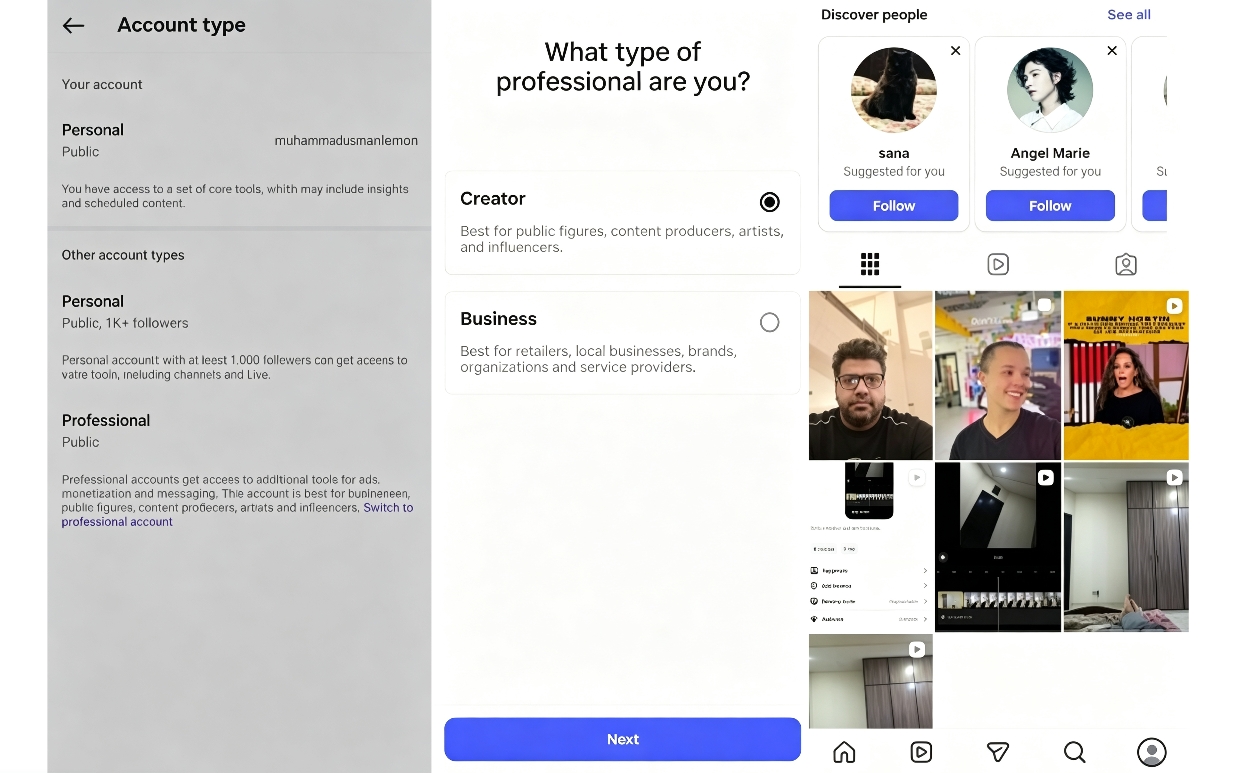
Switch to a Professional (Business or Creator) account
To see who shared your Instagram post, go to "Settings," then "Account" and "Switch account type." Then, select a Business or Creator account. This enables the Insights feature needed to view the sharing data.
-
Open your Instagram profile
Tap the profile icon from the bottom menu to access your content. After that, select the post or reel you wish to analyze.
For post
-
Select the post you want to check
To see who shared your Instagram post, go through your profile feed and select the specific post you want insights on. Ensure that it's published on your account.
-
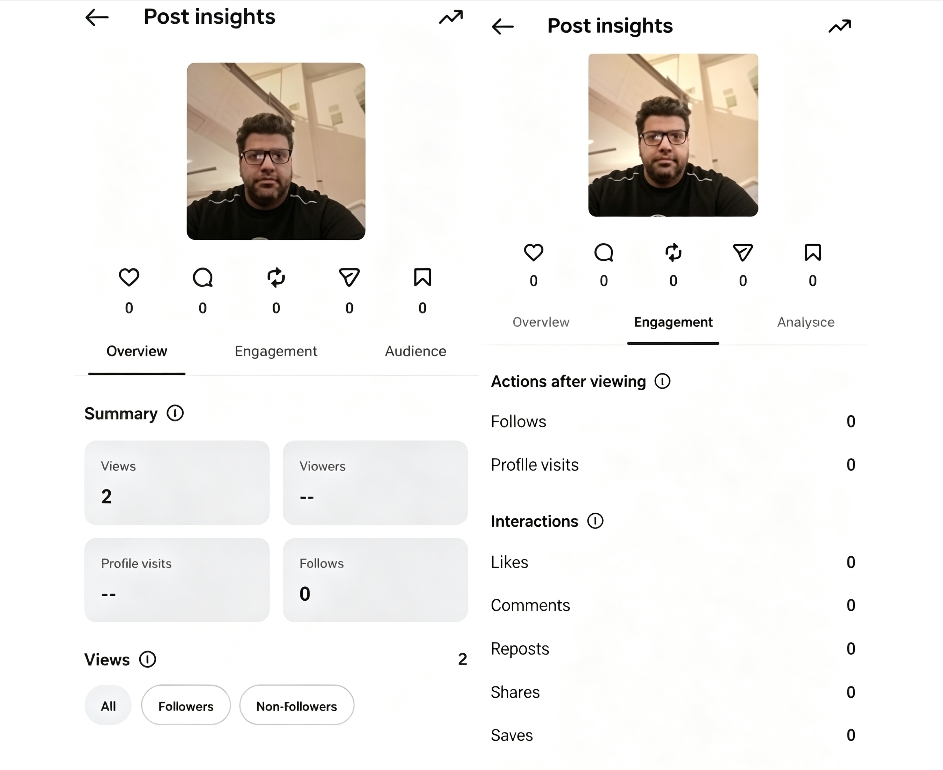
Click on "View Insights"
Tap the "View Insights" button present below the post to open the detailed analytics. This section contains the engagement and sharing metrics.

-
Check "Share Count"
Look for the paper plane icon in Insights to see how many times your post was shared. This number represents the total number of shares across Instagram.
-
Go to the "Engagement" section
Next, go to the "Engagement" option to find out the active reshares/reposts of your post. This highlights the current public reshares that haven't expired.
For reels
-
Open your Instagram reel
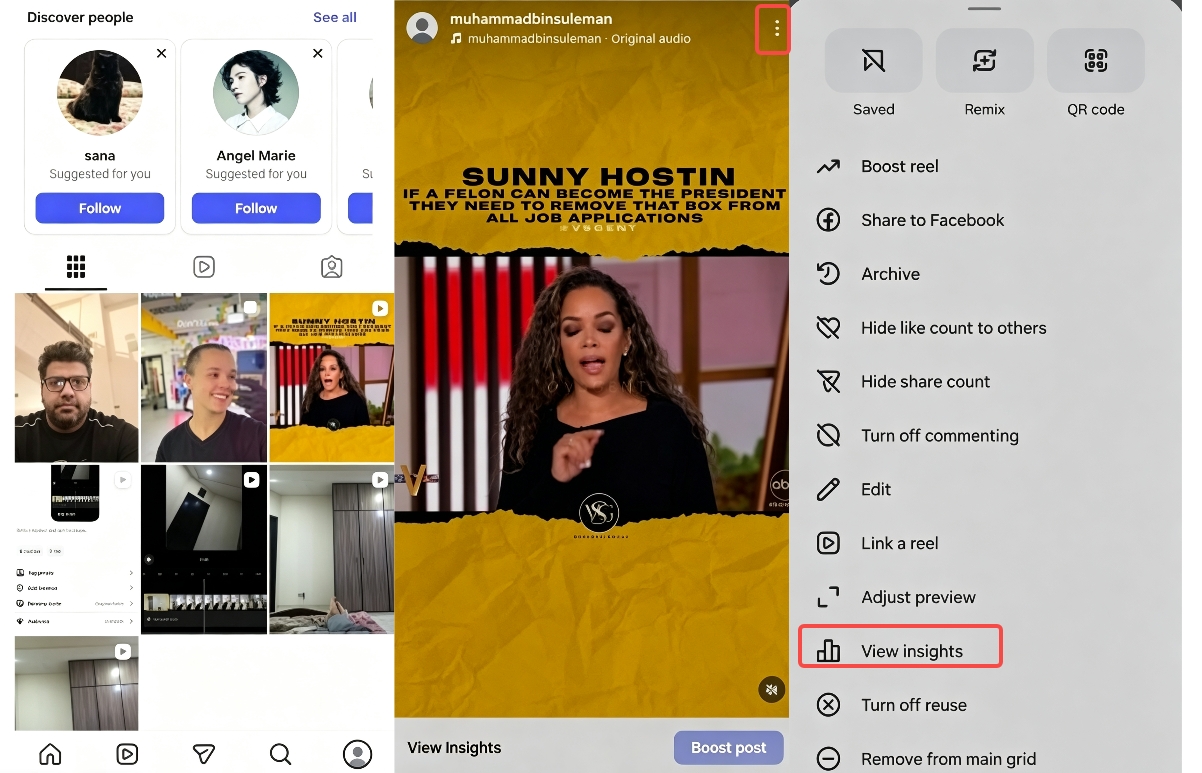
Go to your profile, access the Reels tab, and open the Reel that you wish to review. Ensure that you are viewing your own content.
-
Tap the three-dot menu on the reel
Next, tap the "three-dots" menu in the bottom-right corner of the Reel to open the options.
-
Select "Insights"
Next, select the "View insights" option from the menu to view performance data, including reach, views, and shares.
-
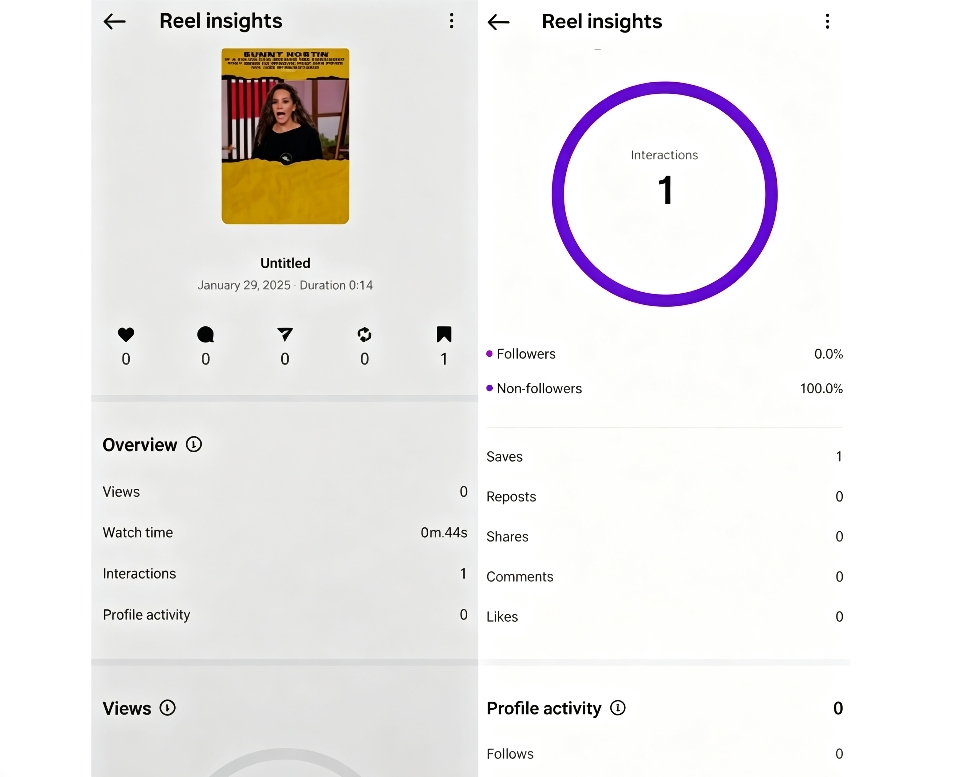
Check for reshares
Next, scroll down and find the "Reposts" option, which will show the overall Story reshares.
For story
Currently, unless the other person tags you when sending or sharing your story (in which case you will receive a notification in your private messages), it is impossible to know exactly who sent or shared your story.
Expert tips to get more Instagram shares
-
Create highly relatable content
Focus on the content that connects with everyday emotions, experiences, or common problems on Instagram. When users feel that the post resonates with them, they are more likely to share it. So, keep your message simple yet impactful, so it goes viral quickly.
-
Use AI tools for viral post creation
Use AI tools, such as Zawa's AI social media post generator, to create engaging captions, ideas, and content formats. It helps you create posts that align with trending styles and audience behavior. Zawa's AI easily transforms ordinary photos into trending posts, which you can edit with its AI-powered features.
-
Add clear and engaging call-to-actions (CTAs)
Encourage users to share the post by adding a simple prompt, such as "Share it with a friend" or "Send it to someone who needs it." A strong CTA influences the viewers' behavior. Ensure that it feels natural and isn't forced.
-
Focus on appealing visuals and strong hooks
Your post should grab attention quickly with bold visuals or an interesting opening line. On Instagram, the users scroll quickly, so the first impression is everything. Strong hooks increase engagement and the overall sharing potential.
-
Keep the content simple and easy to understand
Last but not least, avoid overly complex messages and keep the content clear and direct. Simple posts are easy for users to share with others without explanation. The easier it is to understand, the higher the chances of getting shared.
Conclusion
This article guides you on how to see who shared your posts. Understanding how to see who shared your Instagram post helps you to analyze the audience better and track how your content spreads across Instagram. While Instagram posts share useful insights, such as share counts and Story reshares, they have some limitations, like not showing the usernames of those who have shared your posts. By using expert tips, such as creating relatable content, adding an engaging call-to-action (CTA), and keeping the content simple, you can increase your post reshares and improve overall engagement.
FAQs
Can you see who shared your Instagram post to their story?
Yes, you can see who shared your Instagram post, but only partially on Instagram through the Professional account Insights. You can view the active Story reshares if the option appears; however, not all users are always visible. Expired or private reshares aren't shown in the list.
Does Instagram notify you when someone shares your Instagram story?
No, Instagram doesn't notify you for every Story share. You only get the notification if someone tags or mentions you while sharing. Most sharing activities happen silently, without any alerts. This is part of Instagram's privacy design, which protects users' privacy.
How can I use Instagram analytics to check the story engagement?
You can check Story engagement in Instagram Insights with a professional account, which shows views, replies, and interactions. These metrics help you understand how your audience is interacting with your stories.
Can I see who sent my Instagram post through direct messages?
No, you can't see the usernames of people who sent your post through DMs. You can view only the total share and reshare counts in Insights. Instagram keeps DMs private to protect users' privacy and security. Thus, the conversations remain confidential.
Can you see who shared your post via DM?
No, you can't see who shared your post on Instagram through direct messages. Just the overall share numbers are visible in Insights on professional accounts. Instagram doesn't reveal any individual identities. This is done to protect the user's privacy.
Why can't I see who shared my post?
Instagram restricts this data to protect user privacy and maintain the platform's security. Highlighting the exact usernames could raise privacy and misuse concerns. That's why only general metrics, such as share counts, are provided. This keeps the platform safe and compliant.
You May Be Interested

Most Liked Instagram Post Guide - Insights, Top Posts, and Process

How to Craft the Perfect Instagram Bio in 2026: Tips, Mistakes & Tools

How to Get into Real Estate Photography

How to Create Aesthetic Instagram Posts That Stand Out in 2026
