
Apowersoft Watermark Remover Review (2026): Features, Pricing & Honest Test Results
Apowersoft Watermark Remover handles quick online watermark removal for images and videos - no software install needed. This review covers what it does well, where it falls short, and which tools fill the gaps.

Searched for Apowersoft watermark remover and landed here? Good. Before you pay for credits, here is what you should know.
Apowersoft's online watermark remover is actually PicWish running under a different URL. The Apowersoft page sends your file to PicWish's AI engine. This matters because when you see reviews of either product, they are often describing the same underlying tool.
I tested the image and video removal on three different watermark types. Some results were clean. Others were not. The pricing structure has a trap most users miss. This review covers all of it.
Quick Verdict: Who Should (and Shouldn't) Use Apowersoft Watermark Remover
Honestly, this tool is best for occasional use on simple images. Text overlays on plain backgrounds, stock photo watermarks over clean portraits, that kind of thing.
If you are dealing with textured product images, patterned backgrounds, or video watermarks that sit over changing scenery, you will likely be disappointed with the results.
Good fit: one-off jobs on simple images, browser-based convenience, beginners.
Not a good fit: textured or complex backgrounds, moving watermarks in video, Mac users needing a desktop app, high-volume work.
Rating based on testing: 4.2 out of 5 on simple images. Drops noticeably on anything complex.
What Apowersoft Watermark Remover Can Do ?
Image Removal: Two Modes, Different Use Cases
The editor has two tabs: Auto Removal and Tools.
Auto Removal is the easier path. You pick a removal target from the category buttons: Watermark, Text, Passersby, Logo, Glare, Tattoo, Stickers, Blemishes, Glasses, or Custom. Pick the one that fits what you want removed, hit Remove, and the tool scans and handles it without you drawing anything.

The Tools tab is for when you want control. Brush, Rectangle, Lasso, and Eraser are the four selection tools. Rectangle covers most text watermarks fine. Brush and Lasso let you trace irregular shapes. Brush size adjusts with a slider. A Generative Fill toggle sits at the bottom for harder reconstruction jobs.

Supported image formats: JPG, JPEG, BMP, PNG, TIF, TIFF. Preview before saving works. Batch processing is supported but only through the desktop app, not the browser version.
Video Watermark Removal
For video, you draw a bounding box over the watermark on the frame. You can apply it to the whole clip or limit it to a specific time range, which is handy when a logo only appears in the intro or outro.
Here is the catch: the fill is frame-static. Whatever reconstruction it applies in the selected region, it applies that same fill to every frame. It does not adapt as the background changes. A logo sitting over a plain white wall? Fine. A logo sitting over a busy street scene? You will see it.
Supported formats: MP4, MKV, FLV, MOV, WMV, WebM, 3GP, AVI, ASF, M4V, MPEG, MPG, TS.

Platform Availability
-
Browser version runs on Windows and Mac. No install needed.
-
Desktop app is Windows only. No Mac desktop version exists.
-
A mobile app is available. Developer API is at picwish.com/remove-objects-api.
-
One thing to note: the browser version does one file at a time. Batch processing needs the desktop app.
Apowersoft Watermark Remover Pricing: Free vs. Paid Plans
This is where a lot of users get surprised.
There is a no-cost tier. Daily limits apply and export quality is reduced. Think of it as a test, not something you can rely on regularly.
Pay as you go starts at 300 credits for $14.99. Larger packages go up to 500,000 credits for $2,699. Monthly plans run from $5.99 per month for 50 credits to $399 per month for 50,000 credits.
No unlimited plan.
Here is what catches people: 50 credits disappears fast if you are processing more than a handful of images per week. The monthly price looks reasonable until you realize it covers fewer images than you might expect. User feedback across SaaSworthy, Slashdot, and SpotsaaS consistently raises this point, especially alongside the quality issues on complex files.
That gap between price and output quality on hard cases is the main reason users start searching for an apowersoft watermark remover alternative.
How to Use Apowersoft Watermark Remover
Remove a Watermark from an Image
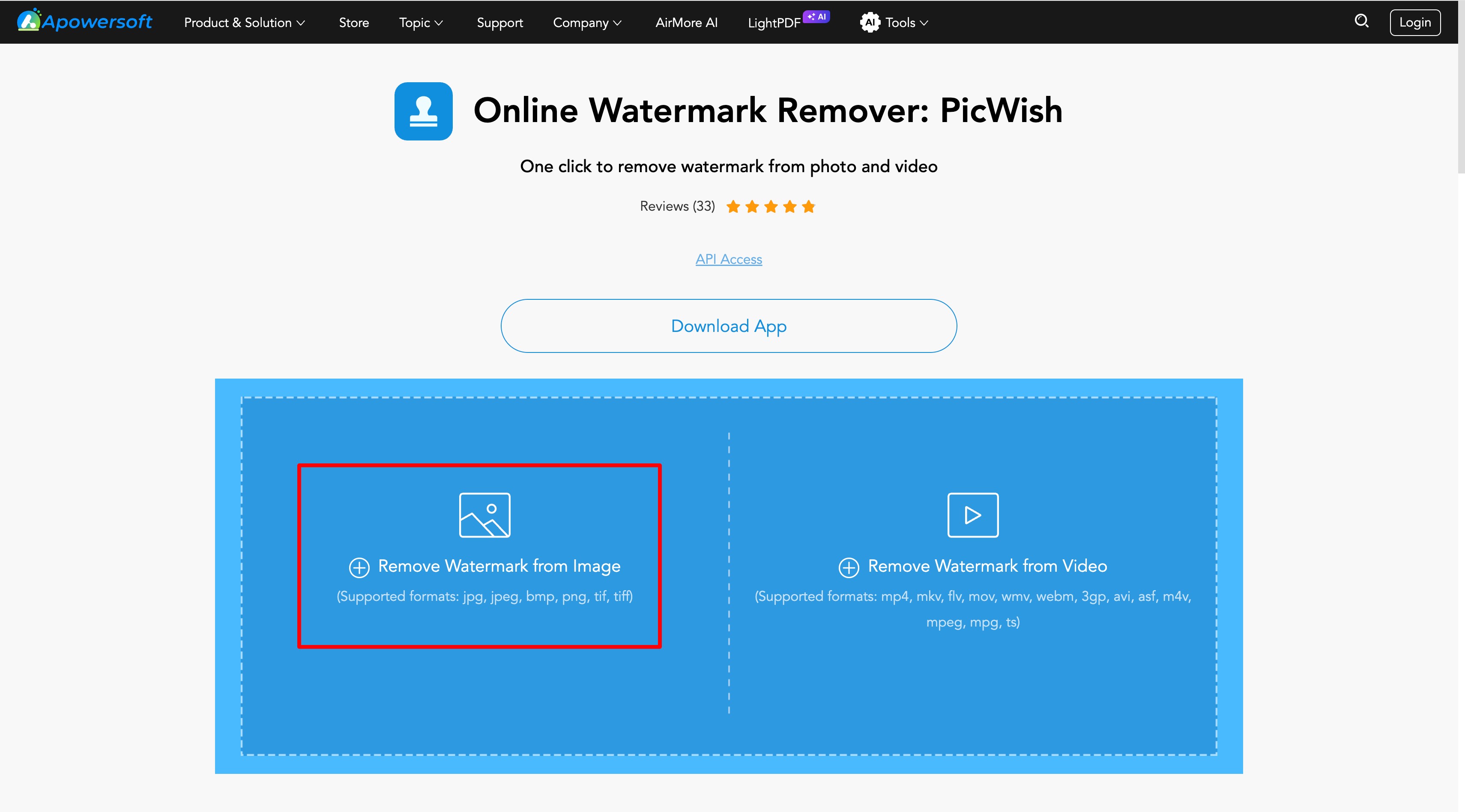
Step 1: Go to Apowersoft Official Website. You will see two tiles on the main page: Remove Watermark from Image and Remove Watermark from Video. Click the image option.
Step 2: Your image opens in the PicWish editor.
Two tabs appear at the top left: Auto Removal and Tools.
For auto removal: click the Auto Removal tab. Select Watermark or Text from the Removal Targets. Click Remove. The tool scans and removes without you drawing anything.
For manual removal: click the Tools tab. Pick Brush, Rectangle, or Lasso from the Manual Refine section. Paint or draw over the watermark. Adjust the brush size if needed. Click Remove when ready.

Step 3: Check the result at full zoom before saving. If the patch is visible, click Undo. Try selecting a slightly wider area around the watermark and run it again. When it looks clean, click Save.
Remove a Watermark from a Video
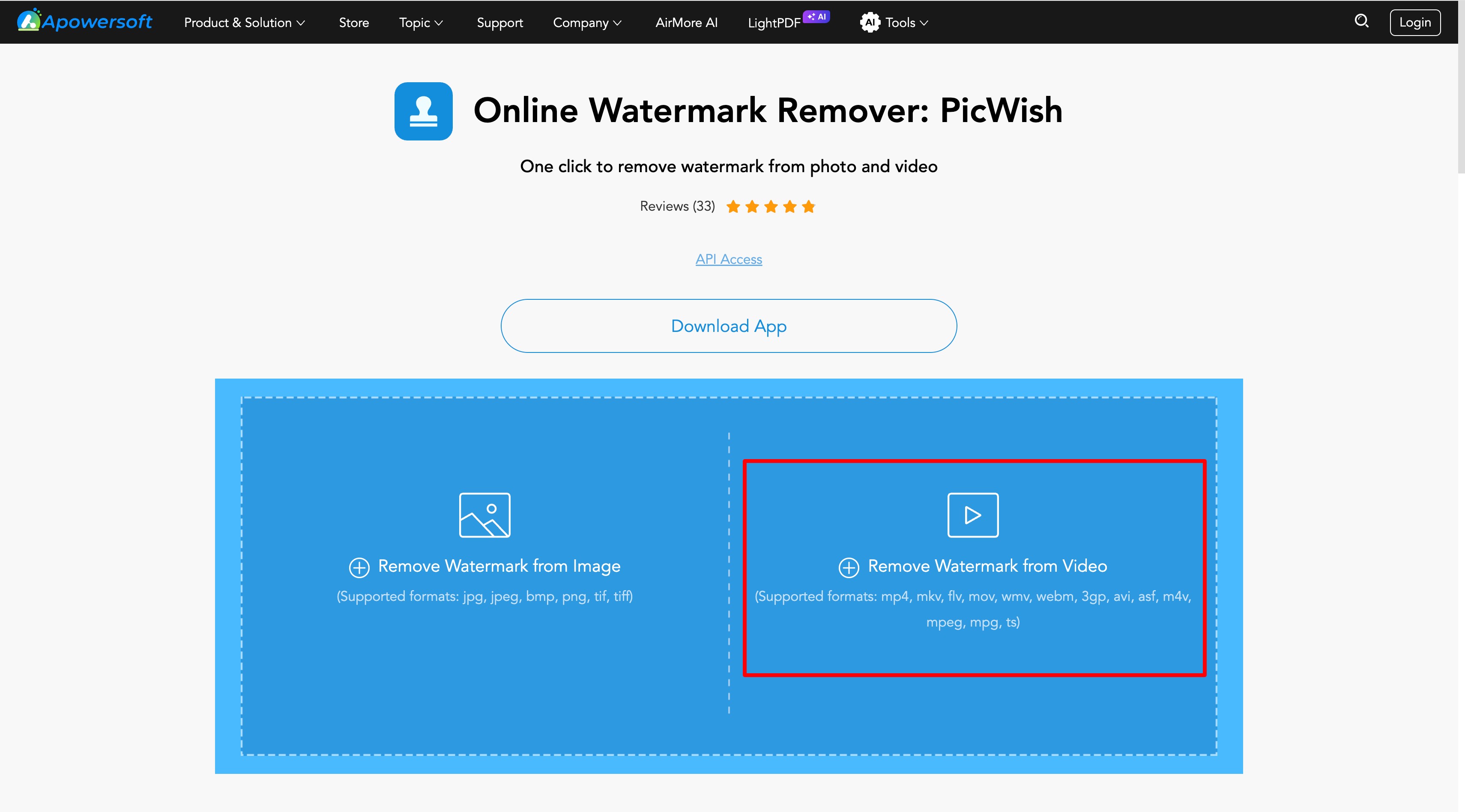
Step 1: On the Apowersoft homepage, click Remove Watermark from Video. Upload your clip. MP4, MOV, MKV, and the other formats listed above are all supported.
Step 2: The video loads in the editor. A bounding box appears over the frame. Drag and resize it to sit tightly over the watermark. If the watermark only appears in part of the clip, set a time range. Select Best Quality from the options on the right for cleaner output. Click Remove.

Step 3: Wait for processing. A 2-minute HD clip takes roughly 3 to 5 minutes on a normal connection. Preview when done. Download if the result works for you.
-
Note: large video files require a stable connection and may take several minutes to process
Real Test Results: What the Output Actually Looks Like
Three tests. Browser version only. I checked every result at 100 percent zoom because preview size lets things look cleaner than they are.
Test 1 - Text Watermark on a Uniform Background
A stock portrait with the depositphotos text watermark repeated diagonally across the entire image. Clean background behind the subject.
Auto Removal with Watermark as the target handled this in one click. The fill matched the skin tones and blurred background accurately. No visible patch at full zoom.
This is the Apowersoft watermark remover at its most reliable. Plain surroundings give the fill algorithm enough consistent data to work from.
Test 2 - Semi-Transparent Logo on a Textured or Detailed Background
A brand logo, semi-transparent, placed over a product image with fine surface texture.
The result had visible patching. The auto fill averaged the pixels around the removed area. On a textured surface, that average does not match the original pattern. At full zoom the replaced region looks noticeably different from the rest of the image.
This is the real limit of the Apowersoft online watermark remover. The tool was built for flat, simple fills. Fine texture reconstruction is a different problem and this algorithm does not solve it.
Test 3 - Watermark Across a Video Clip
A corner logo on a short clip. The scenes behind the logo changed throughout the clip: some simple backgrounds, some more complex.
For the frames with a plain background behind the logo: acceptable output. For frames where the background was more detailed: the static fill became obvious. Same reconstruction applied regardless of what was happening behind it.
Processing time for a 2-minute clip: about 4 minutes on a standard connection.
For the Apowersoft watermark remover review score on video specifically, this frame-static limitation is the defining factor. The tool works on clips where the watermark always sits against a consistent background. It does not adapt to varying scenes.
When Apowersoft Is Not Enough: Zawa AI Object Remover
Tests 2 and 3 show where Apowersoft hits its ceiling. For those cases, Zawa AI Object Remover works differently.
Instead of averaging surrounding pixels, Zawa uses generative inpainting. It looks at a wider region of the image, builds a prediction of what the background behind the watermark likely looked like, and reconstructs from that. On textured or complex backgrounds, the difference in output is visible.
There is also a dedicated video watermark remover in the same Zawa suite.
Step-by-Step: Using Zawa Image Watermark Remover
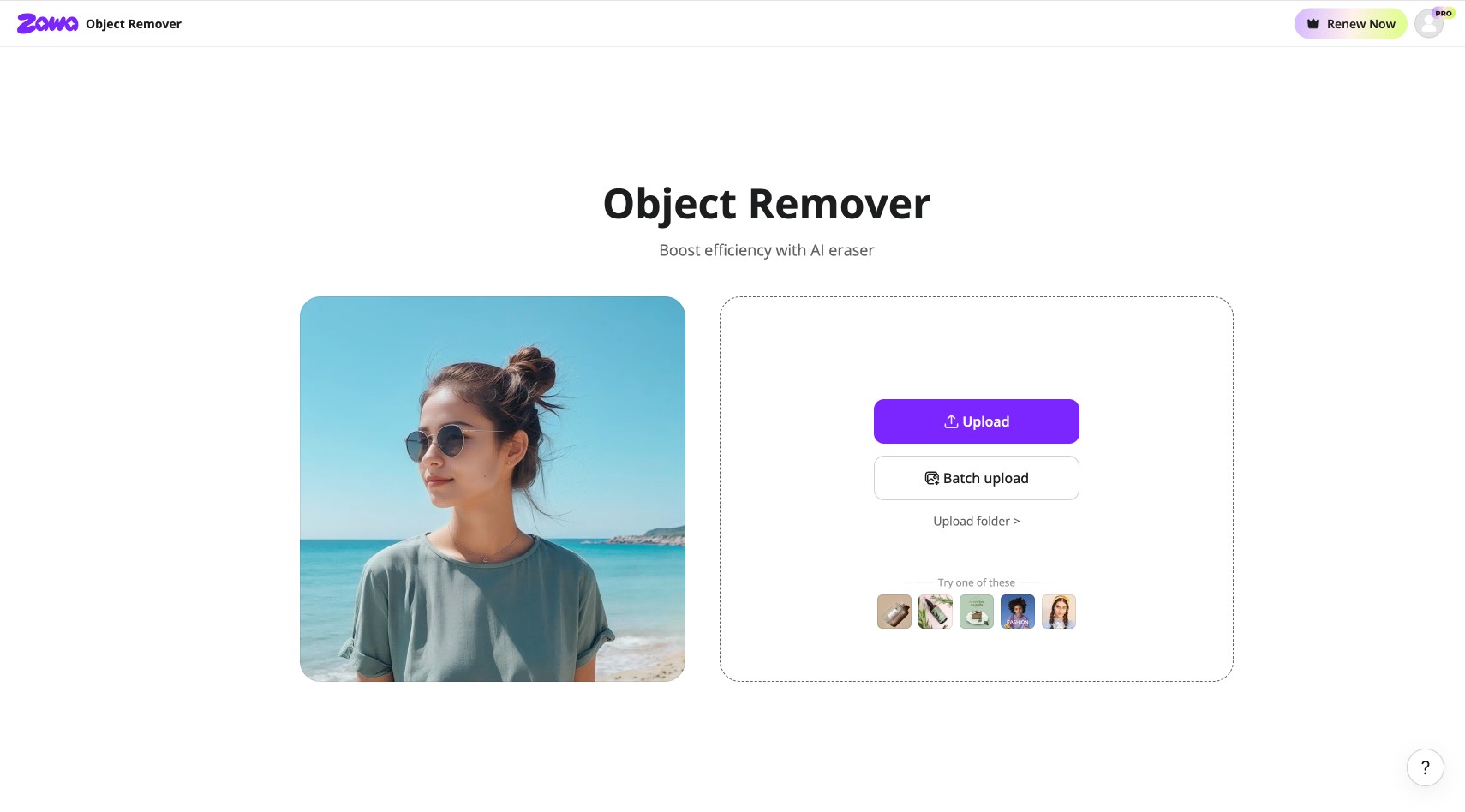
Step 1: Go to Zawa The upload page has a single Upload button and a Batch upload option for multiple files. Drop your image in or click Upload to browse. Sample images are available at the bottom if you want to try before uploading your own.
Step 2: Once the image loads, the left panel splits into two sections. Quick Start at the top handles automatic detection. Toggle on Overlay Watermark and Zawa identifies and removes watermark regions without any manual brushing. The Advanced section below gives you Brush, Box, and Draw tools for precise manual control. Adjust brush size with the slider and click Apply Now.

Step 3: Click Download at the top right when removal is done. Choose JPG or PNG. The Advanced Editing panel that opens alongside the download button also gives quick access to Image Enhance, Background Removal, AI Background, Image Upscale, and Photo Editor from the same page.

Step-by-Step: Using Zawa Video Watermark Remover
Step 1: Go to Zawa. Click Upload Video or drop your file in. Supported formats: MP4, M4V, MOV. Two sample clips are available on the page if you want to test first.
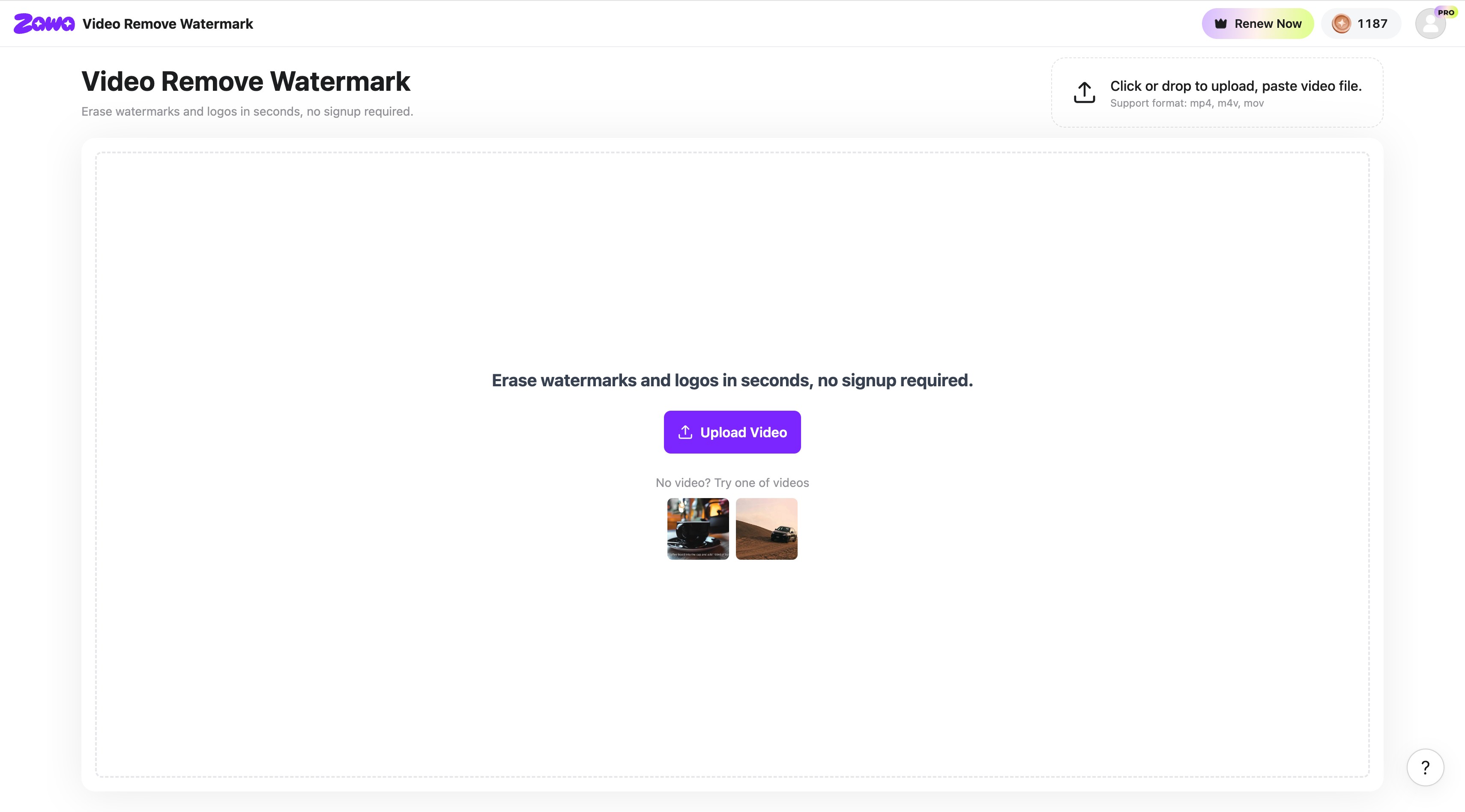
Step 2: After upload, the video loads in the editor. Three tabs appear on the right side: Smart Remove, Remove Watermark, and Remove Subtitle. Click Remove Watermark. The interface identifies the watermark region and presents the Remove button.
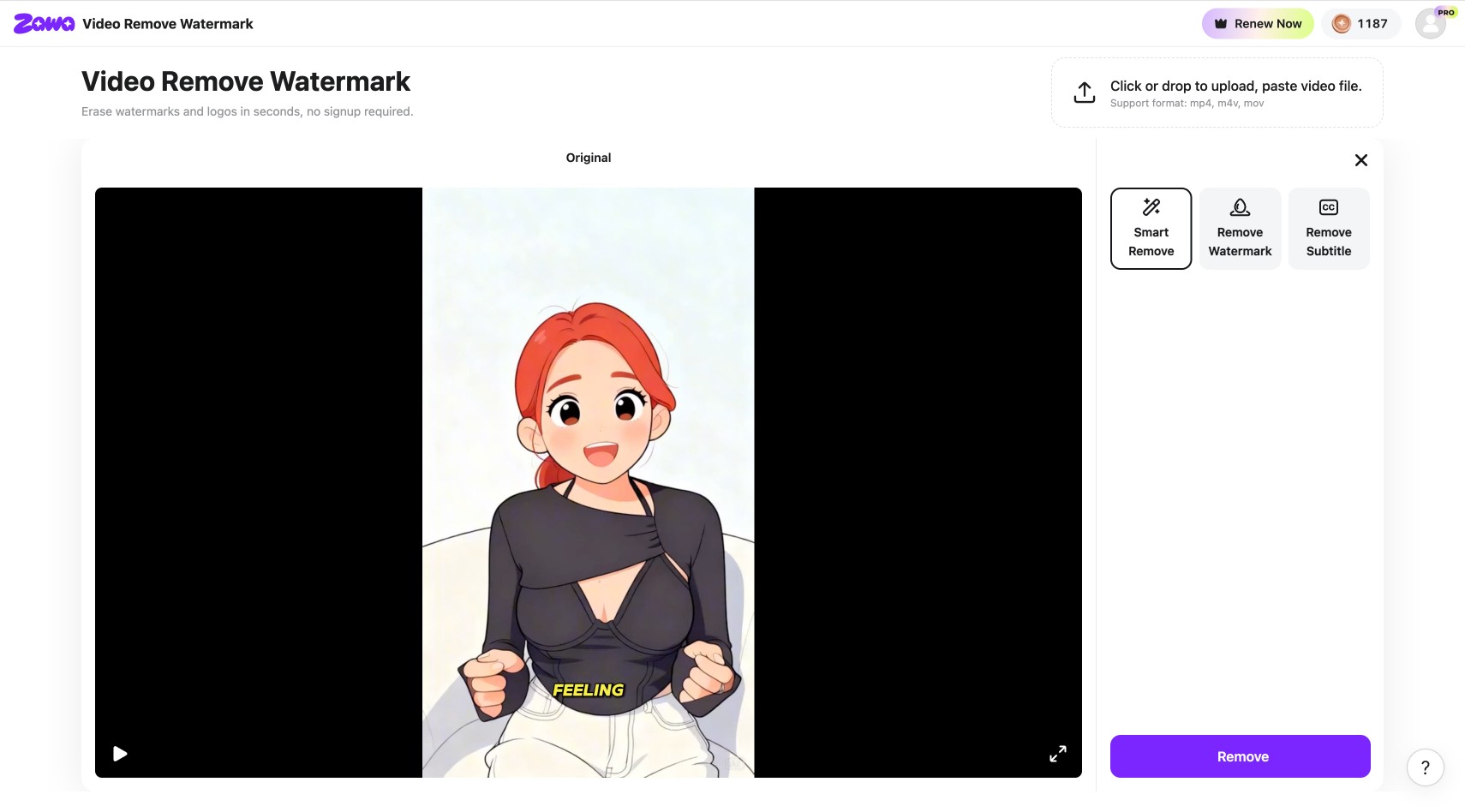
Step 3: Click Remove. Preview when processing finishes. Download the output if the result is clean.
Before You Remove: Copyright, Licensing, and the Crop Alternative
What You Are Legally Allowed to Remove
Removing a watermark from stock photos, licensed footage, or any content you do not own is a copyright violation. Most countries treat this the same way regardless of which tool you use.
Removing watermarks is fine when you own the content, when you have a license that explicitly allows editing, or when the watermark is something you applied to your own work.
Not sure about ownership? Contact the creator first. Do not assume.
When Cropping Is the Better Option
If the watermark is at the edge or corner of the frame, try cropping it out first. No reconstruction. No artifacts. Just a cleaner image.
Use AI removal only when the watermark sits over content you cannot afford to lose. That is the case where it earns its place.
Always Check Output at Full Resolution
A fill that looks fine in preview can look obvious at 100 percent zoom, in print, or on a large display. Build this check into your workflow before using any edited file.
Conclusion
The Apowersoft watermark remover is a practical tool for simple jobs. Clean backgrounds, text overlays, occasional one-off edits. It works well there and the browser access with no install is genuinely convenient.
It is not the right tool for product images with texture, video clips with changing scenes, or anything requiring precise reconstruction. The credit pricing also adds up faster than expected for regular users.
For the cases where Apowersoft falls short, Zawa AI Object Remover and Zawa Video Remove Watermark produce cleaner results on the same inputs. Both run in the browser and are worth testing before you commit to any subscription.
FAQs
-
Is Apowersoft Watermark Remover actually free?
There is a no-cost tier but it has daily caps and reduced export quality. It is enough to test the tool. For regular use or full-resolution output, a paid plan is needed.
-
Does Apowersoft Watermark Remover work on Mac?
The browser version works on Mac. The downloadable desktop app is Windows only. No Mac desktop version.
-
Can Apowersoft remove watermarks from videos?
Yes, for static watermarks that stay in one position. Moving watermarks are not supported. Output quality depends heavily on how consistent the background is behind the watermark across the clip.
-
How accurate is the Apowersoft watermark remover?
Very accurate on plain, uniform backgrounds. Noticeably less accurate on textured or patterned surfaces and complex video. Most user reviews follow the same pattern: works well for simple cases, struggles with complex ones.
-
Is removing a watermark illegal?
Depends on who owns the content. Content you own or have rights to edit: generally fine. Stock images, branded content, licensed footage you do not own: copyright violation in most countries.
You May Be Interested

20 Best AI Marketing Tools You Should Know in 2026

How to Use an AI Ad Copy Generator to Create High-Converting Ads

How to Remove Gemini Watermark?

How to Remove the Kling AI Watermark

The Ultimate Guide to Remove Shutterstock Watermarks from Images
