
10 Best AI Video Upscalers in 2026: Tested, Compared and Ranked
Not all AI video upscalers produce the same results. We tested 10 tools across resolution, speed, and output quality to rank the best video upscaler options in 2026.


AI video upscaling uses neural networks to reconstruct detail at higher resolutions. Standard upscaling just stretches pixels. AI predicts what missing detail would look like and fills it in. The results look sharper. Edges are cleaner. Textures hold up.
Not all tools produce the same output. Some are built for professionals. Some are browser-based and need no install. Some are the best free AI video upscaler options available right now. This guide ranks the 10 best AI video upscaler tools in 2026, with honest notes on pricing, hardware requirements, and which use cases each one actually handles well.
Quick Comparison Table of Best AI Video Upscaler Tools
|
Tool |
Platform |
Best For |
Free Tier |
Pricing |
|---|---|---|---|---|
|
Topaz Video AI |
Windows / Mac |
Professional restoration |
Trial only (watermarked) |
$299/yr |
|
UniFab All-In-One |
Windows / Mac |
Best value lifetime |
30-day trial |
$299.99 lifetime |
|
DaVinci Resolve |
Win / Mac / Linux |
Editors in DaVinci workflow |
Yes (free version) |
Free / $295 Studio |
|
Zawa Video Enhancer |
Browser (any) |
No-install cloud upscaling |
Yes (trial credits) |
Free tier + paid |
|
AVCLabs Video Enhancer AI |
Windows / Mac |
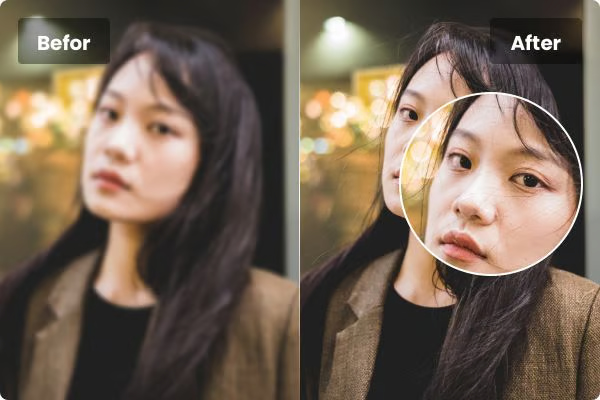
Portrait and face footage |
Free trial |
$39.95/mo or $179.95/yr |
|
HitPaw VikPea |
Windows / Mac |
Beginners, one-click use |
Free trial |
~$349.99 lifetime |
|
CyberLink PowerDirector |
Windows / Mac |
Consumer editor + upscaling |
Free version |
$99.99/yr |
|
TensorPix |
Browser |
Browser upscaling, better quality |
Free credits on sign-up |
$12/mo or pay-per-use |
|
Remini Video AI |
iOS / Android |
Mobile face restoration |
Free (limited) |
$9.99/mo |
|
CapCut Video Upscaler |
Browser / Mobile |
Social media creators |
Yes (no watermark) |
Free / $9.99 Pro/mo |
What Is an AI Video Upscaler?
Standard video upscaling uses math. Bicubic or Lanczos algorithms estimate what missing pixels should look like based on neighbors. The result is a bigger image with the same amount of detail. It often looks soft.
AI upscaling trains a neural network on large datasets of low and high-resolution video pairs. The model learns to predict missing detail. At inference time, it reconstructs edges and textures frame by frame rather than just stretching what is already there. The practical difference: a 720p clip upscaled with this video upscaling software looks sharper and cleaner than the same clip run through bicubic interpolation.
Most desktop tools use NVIDIA CUDA or AMD ROCm for GPU acceleration. Browser-based AI video upscaler online tools offload processing to cloud servers. No GPU required. The trade-off is upload and download time.
The 10 Best AI Video Upscalers in 2026
-
Topaz Video AI
Best for: professional restorers and studios who need the best output quality and can handle the cost.
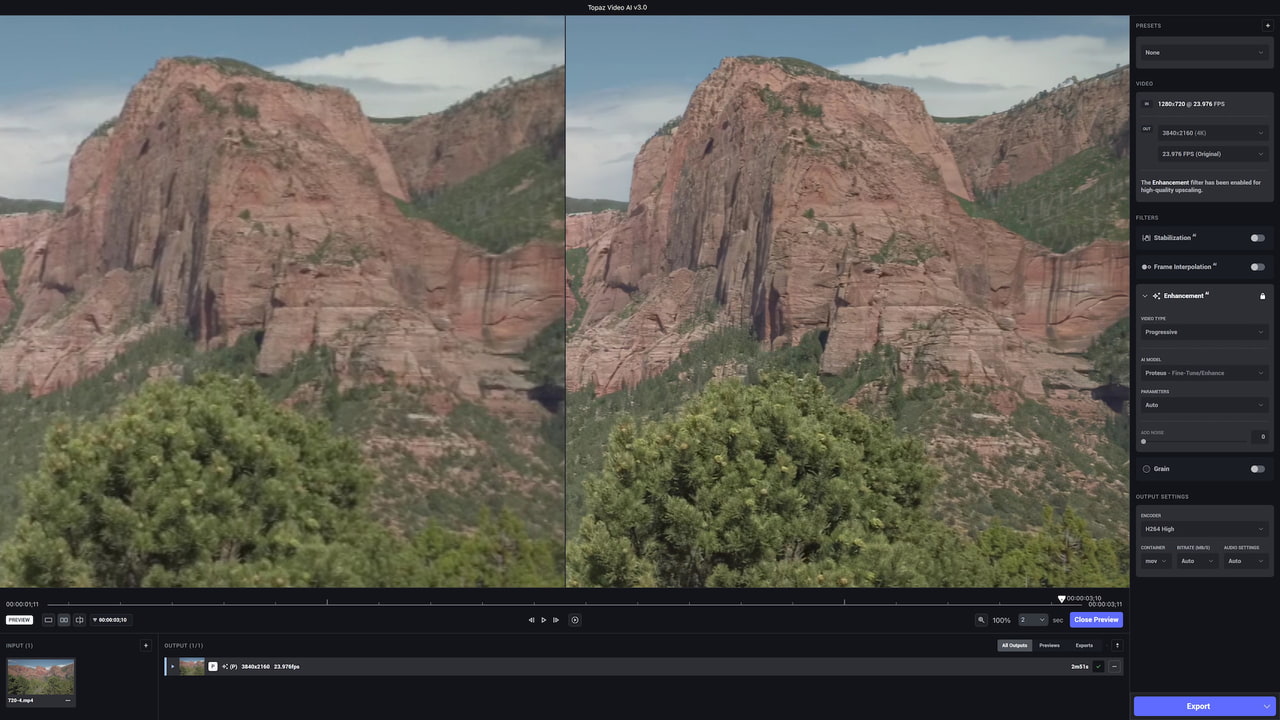
Topaz Video AI is the benchmark for desktop AI video upscaling. It has the largest selection of AI models of any tool on this list. Models like Astra 2 (released April 2026) and the Starlight series handle archival degradation with a level of detail recovery that other tools still do not match. It upscales to 16K, runs frame interpolation up to 120fps, and includes stabilization and deinterlacing. Hardware demands are real. It rewards users with capable GPUs.
Key Features
-
Upscaling to 16K via multiple specialized AI models including Astra 2, Iris v3, and Starlight series.
-
Frame interpolation up to 120fps with slow-motion multipliers up to 16x.
-
Stabilization with rolling shutter correction and motion blur reduction.
-
SDR to HDR conversion built into the workflow.
-
Workspaces 2.0 lets users pause and resume exports across sessions.
Pros
-
Highest output quality on live-action and archival footage of any desktop tool tested.
-
Most model variety: separate models for faces, animation, film grain, low light, and archival degradation.
-
Regular model updates included in subscription.
-
Free demo available with no credit card for hardware testing.
Cons
-
Moved to subscription-only in late 2025: now $299/year with no perpetual license for new users.
-
Requires a capable NVIDIA GPU; CPU-only processing is 10 to 50x slower and often impractical.
Pricing
-
$299/year subscription. Free demo with watermarked output available without credit card.
-
UniFab All-In-One
Best for: creators who want near-Topaz quality with a one-time payment and broader features.
UniFab All-In-One has become the most recommended Topaz alternative since Topaz dropped its perpetual license. It combines 18+ AI tools into one package: upscaling, denoising, frame interpolation, SDR to HDR, audio enhancement, and format conversion. Output quality on live-action footage matches Topaz closely in blind tests. The Autopilot mode selects the best AI model automatically. A solid choice for anyone who wants a best video upscaler without committing to a yearly fee.
Key Features
-
Upscaling to 16K across four specialized models: Equinox, Vellum, Kairo for anime, and Titanus for complex scenes.
-
Autopilot mode reads the footage and picks the right AI model without you having to choose.
-
SDR to HDR conversion that boosts color and contrast in older footage.
-
Frame interpolation for smoother playback and slow-motion output.
-
Audio upmixing from stereo to EAC3 5.1 or DTS 7.1 surround.
Pros
-
Lifetime license at $299.99 covers all current and future modules: no ongoing cost.
-
Output quality matches or exceeds Topaz on many content types in direct comparisons.
-
Autopilot removes the need to manually select models for most workflows.
-
Windows and Mac compatible; faster processing than HitPaw VikPea in speed tests.
Cons
-
Windows 64-bit only for some features; Mac version has occasional compatibility gaps with specific codecs.
-
Less manual per-frame control than Topaz for users who want granular adjustment of individual models.
Pricing
-
$299.99 lifetime license. Standalone modules available at $129.99 to $139.99. Monthly plan at $14.99/month.
-
DaVinci Resolve (Super Scale)
Best for: editors already in the DaVinci workflow who want AI upscaling without extra software.
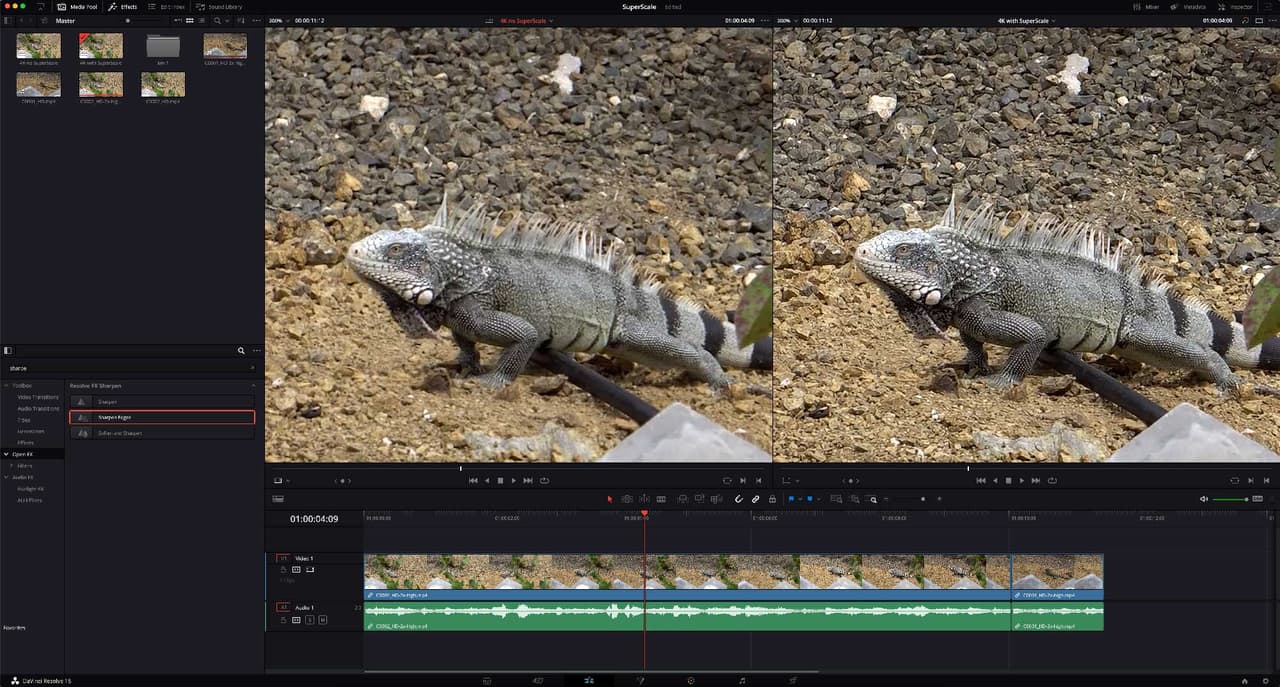
DaVinci Resolve's Super Scale is built into the free version of the software. It uses AI to upscale footage directly on the timeline. For editors who already use DaVinci for color grading and cutting, this is the most practical path to AI upscaling. No separate tool, no extra cost, no export and reimport step. Quality is good, not Topaz-level, but strong enough for delivery at 4K. It is the most accessible best free AI video upscaler for desktop users with no budget.
Key Features
-
Super Scale AI upscaling built into the free DaVinci Resolve version at up to 6K output.
-
Integrated into the full editing, color, and audio workflow with no round-trip export required.
-
DaVinci Neural Engine covers noise reduction and object removal in the same timeline as upscaling.
-
Runs on Windows, Mac, and Linux: no other major AI upscaler has a native Linux build.
-
DaVinci Resolve Studio costs $295 once and unlocks higher resolution output and extra AI tools.
Pros
-
Free to use for most delivery situations: no watermarks, no clip length cap, no cost.
-
No additional software needed for editors already using DaVinci Resolve.
-
Linux support makes it the only practical desktop AI upscaler option for Linux users.
-
Studio license is a one-time $295 purchase with no subscription.
Cons
-
Super Scale quality is below dedicated tools like Topaz and UniFab on fine texture and archival footage.
-
Learning curve is steep for users new to DaVinci; not a single-purpose upscaling tool.
Pricing
-
Free (DaVinci Resolve). $295 one-time for DaVinci Resolve Studio.
-
Zawa Video Enhancer
Best for: users who need AI video upscaling in a browser without installation, GPU hardware, or desktop apps.
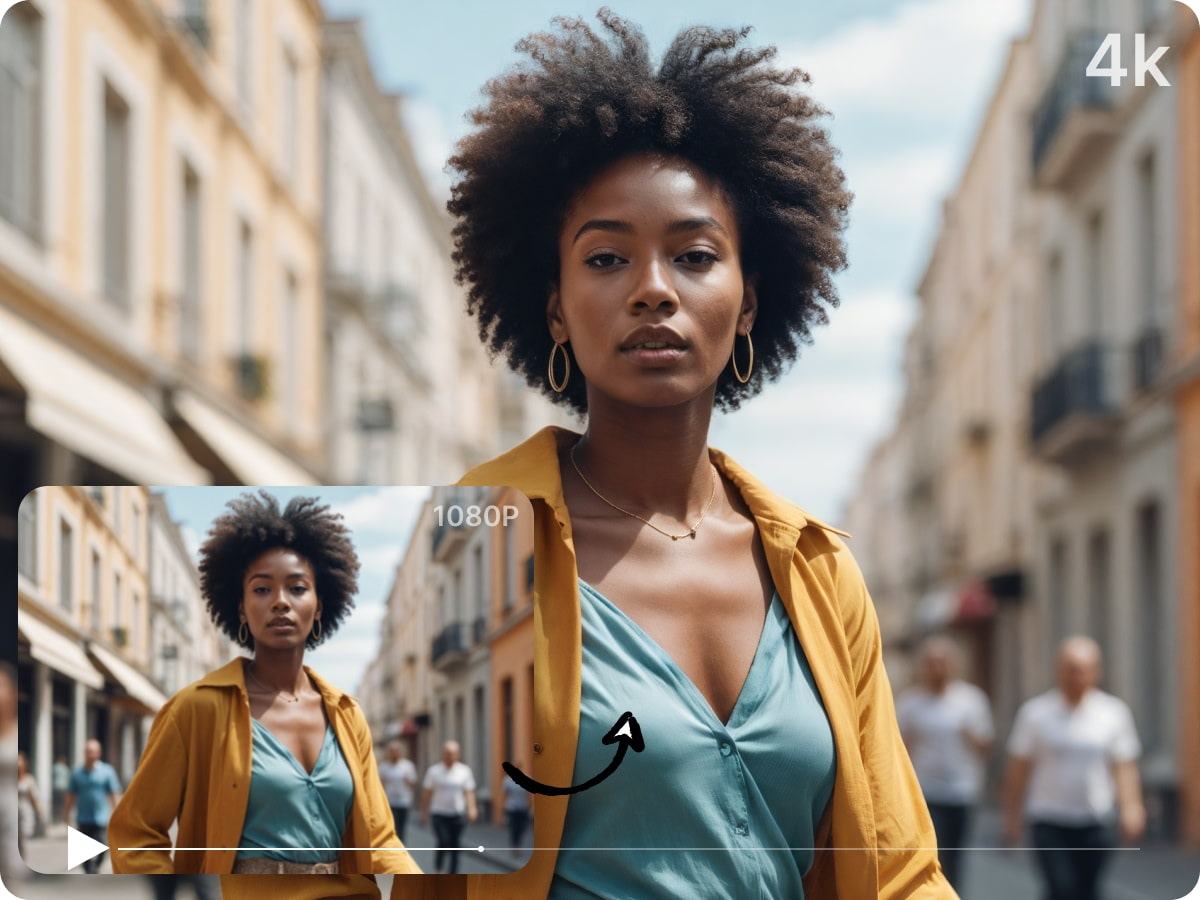
Zawa is a browser-based AI video upscaler that helps improve video clarity by upscaling videos to higher resolutions in the cloud.Upload the file, pick the output resolution, and the AI processes it on Zawa's servers. No GPU needed on your end. No install. It works on any device with a browser. For users with older hardware, shared machines, or anyone who wants a quick clean result without a desktop setup, Zawa is the most practical no-friction option on this list.
Key Features
-
Browser-based processing on cloud servers: no GPU, no install, works on any operating system.
-
Output resolution options of 1K, 2K, and 4K.
-
Supports MP4, MOV, M4V, AVI, and 3GP input formats.
-
Preview before downloading so you can check quality before committing.
Pros
-
Works on old laptops, tablets, and shared machines: GPU is never a requirement.
-
Drop in a file and go: no install, no settings to configure, no model to pick.
-
Artifact cleanup and noise reduction run at the same time as upscaling in one pass.
-
Free tier lets you test on real footage before deciding whether to pay.
Cons
-
Long clips take longer than local GPU processing on fast desktop hardware: upload and server queue time adds up.
-
Your footage goes to external servers for processing: avoid using it for confidential or sensitive material.
Pricing
-
Free tier available. Paid plans unlock higher resolution and longer clip support.
-
AVCLabs Video Enhancer AI
Best for: creators specializing in portrait and talking-head footage who need dedicated face refinement.
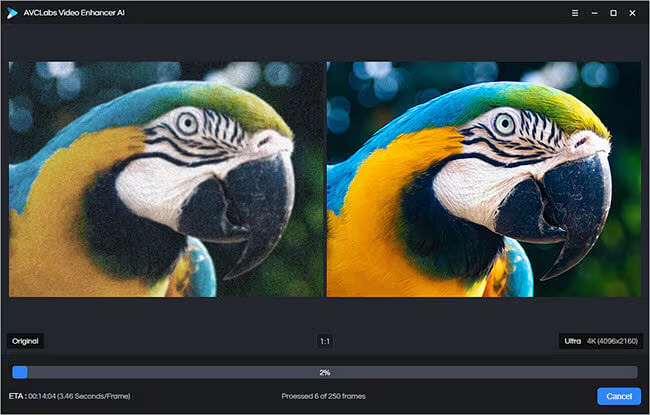
AVCLabs is built around its face-focused AI models. It does things other tools skip: dedicated facial detail reconstruction, smart colorization for black and white footage, and a clean portrait enhancement pipeline that keeps skin texture natural. If your library is mostly interview footage, vlogs, or family recordings with faces, AVCLabs produces results that general-purpose upscalers cannot match on that specific content type. It upscales to 8K and supports batch processing for large libraries.
Key Features
-
Dedicated face enhancement model for portrait and talking-head footage.
-
Upscaling up to 8K with noise reduction and deinterlacing built in.
-
Smart colorization for black and white footage.
-
Motion interpolation for smoother playback.
-
Batch processing across multiple files simultaneously.
Pros
-
Best face reconstruction output of any tool on this list for portrait-heavy footage.
-
Clean colorization results on archival black and white footage.
-
Batch processing handles large libraries efficiently.
-
Windows and Mac compatible with clear model labeling for non-technical users.
Cons
-
Weaker than Topaz and UniFab on general-purpose and complex scene upscaling outside of portrait content.
-
Subscription pricing is less competitive than lifetime alternatives for heavy users.
Pricing
-
$39.95/month or $179.95/year. Free trial available.
-
HitPaw VikPea (formerly HitPaw Video Enhancer)
Best for: beginners who want a simple one-click desktop upscaler with low learning curve.
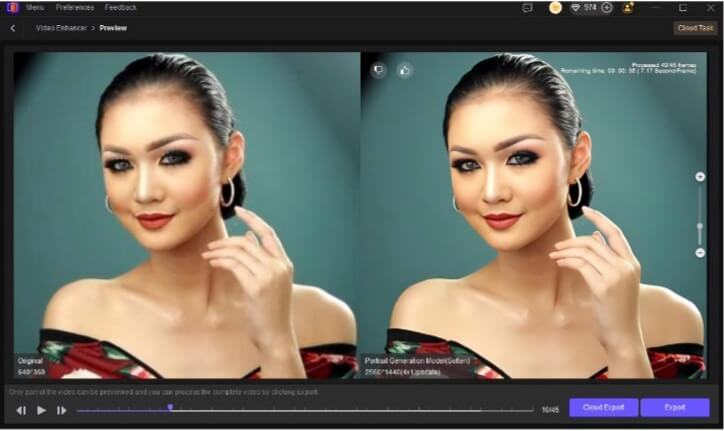
HitPaw VikPea keeps things simple. The AI assistant detects the video type automatically and selects the most suitable model. One click starts the enhancement. The interface labels each model clearly so new users know what to choose. It covers animation, portrait, and general footage with dedicated models. Not the right pick for advanced users who want per-frame control, but for someone who wants to drop a file in and get a usable 4K output with minimal friction, it delivers.
Key Features
-
AI assistant automatically detects footage type and recommends the best model.
-
Specialized models for animation, portrait, natural scenes, and compressed footage.
-
Upscaling to 8K with noise reduction and artifact removal.
-
One-click enhancement requiring no manual parameter adjustment.
-
Batch processing for multiple files in a single queue.
Pros
-
Simplest interface of any desktop video upscaler tested: minimal decisions required from the user.
-
AI model auto-detection removes the need to understand which model to apply.
-
Lifetime license option avoids ongoing subscription costs.
-
Windows and Mac support with consistent results on standard footage types.
Cons
-
Limited advanced manual controls: users who want to adjust strength, sharpness, or per-model settings have few options.
-
Weaker than Topaz and UniFab on complex or heavily degraded archival footage.
Pricing
-
~$349.99 lifetime. Free trial available.
-
CyberLink PowerDirector AI
Best for: enthusiast editors who want a full timeline editor with integrated AI upscaling.
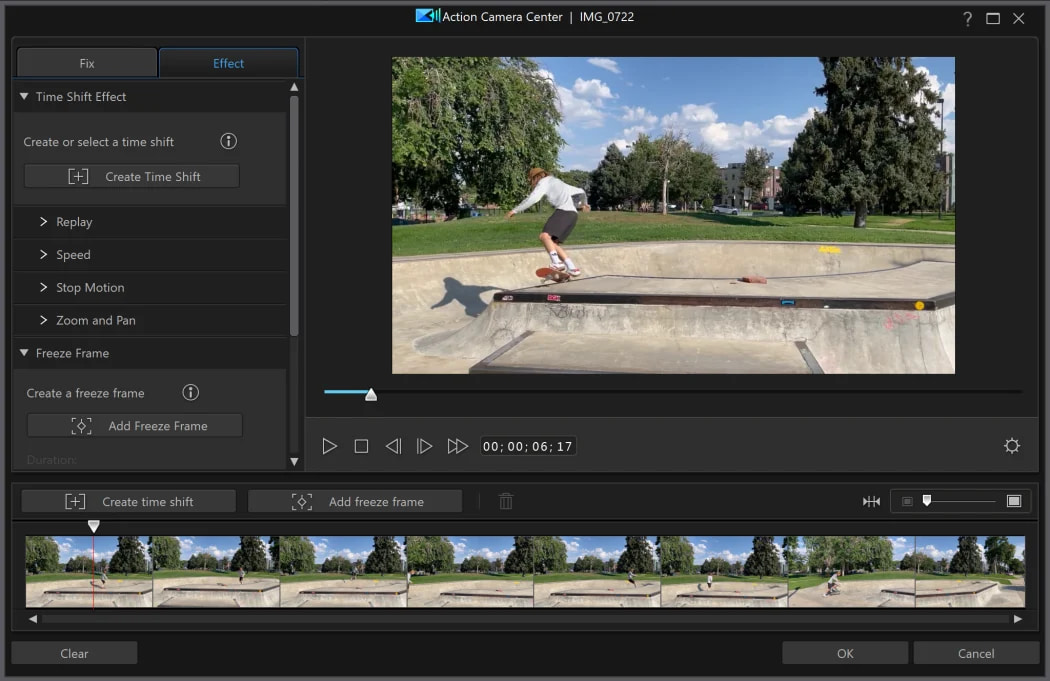
PowerDirector is a consumer video editor first and an upscaler second. But its AI upscaling is solid for the target audience. It handles SD to HD and up to 8K enhancement, noise removal, and color correction from within the editing timeline. For creators who do not want to use a separate upscaling tool, PowerDirector covers the enhancement step alongside trimming, audio mixing, and export in one app. Not the best stand-alone upscaler, but a practical all-in-one for casual to enthusiast creators.
Key Features
-
AI upscaling from SD to HD and up to 8K resolution integrated into the editing timeline.
-
Noise reduction, deblurring, and color correction from within the editor.
-
AI motion tracking, background removal, and subtitle generation in the same workflow.
-
Frame interpolation for smoother output on lower frame rate source footage.
-
Available on Windows and Mac with iOS and Android companion apps.
Pros
-
No separate tool required: upscaling, editing, color, and audio happen in one application.
-
Accessible interface designed for non-professional users with clear preset options.
-
Regular AI feature updates included in the subscription.
-
Strong for creators who want to learn video editing alongside enhancement.
Cons
-
Upscaling quality is below dedicated tools like Topaz and UniFab on fine detail and complex scenes.
-
AI credit system for advanced features adds hidden costs on top of the subscription price.
Pricing
-
$99.99/year. Free version with limited features available.
-
TensorPix
Best for: browser-based AI upscaling with no install and better quality than most free online tools.
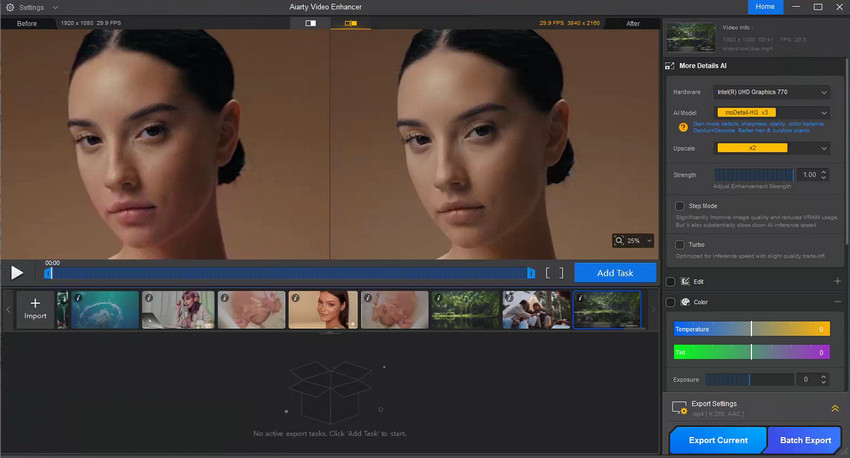
TensorPix is an AI video upscaler online that runs entirely in the browser. It is stronger than most free cloud options. Models handle upscaling to 4K, frame rate boosting, stabilization, and color correction. The free tier gives credits on sign-up so you can test quality before paying. Processing happens on cloud servers. No GPU on your device is needed. For one-off clips or creators without powerful desktop hardware, it sits above most free alternatives in output quality without needing an install.
Key Features
-
Browser-based cloud processing: no GPU or install required.
-
Upscaling to 4K with multiple AI models.
-
Frame rate boosting for smoother playback.
-
Video stabilization and color correction available alongside upscaling.
-
Preview before downloading to check output quality.
Pros
-
Free credits on sign-up allow quality testing before purchase.
-
Better output quality than most free browser-based tools on standard footage.
-
Works on any device including mobile browser.
-
Pay-as-you-go option at $2.50 per credit suits occasional user.
Cons
-
Processing is slow on longer clips at high resolution: browser tools cannot match local GPU speed on fast hardware.
-
Limited manual control: users cannot adjust model parameters or apply custom settings.
Pricing
-
Free credits on sign-up. $2.50 per additional credit pay-as-you-go. Monthly plan from $12/month.
-
Remini Video AI
Best for: mobile-first creators who need fast facial reconstruction on smartphone videos.
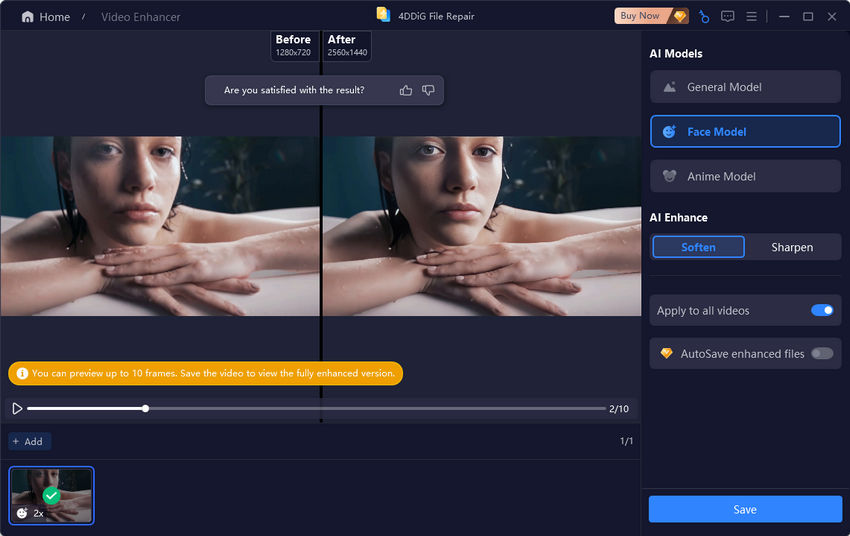
Remini is a mobile app built around one thing: face restoration. It is aggressive. It pushes facial reconstruction harder than any desktop tool on this list. On blurry, compressed, or low-resolution smartphone clips, it recovers face detail that other tools leave soft. The trade-off is that non-face content gets less attention. Backgrounds and fine scene detail are not the priority. For family videos, social clips, or old phone recordings where the faces are the point, Remini solves the problem quickly and without a desktop setup.
Key Features
-
Aggressive facial AI reconstruction optimized for smartphone and low-resolution portrait footage.
-
Video enhancement for vertical mobile clips with no desktop required.
-
Photo enhancement included in the same app.
-
Quick processing suited to short social media clips.
-
iOS and Android support with a simple one-step interface.
Pros
-
Best face reconstruction output on mobile footage of any app teste
-
No desktop or GPU needed: processes on Remini's cloud servers from your phone.
-
Handles blurry and heavily compressed phone recordings well.
-
Fast for short clips: social-length videos process in under a minute on most connections.
Cons
-
Non-face content like backgrounds and scene detail receives minimal enhancement compared to face-focused processing.
-
Monthly subscription required for full access; free tier has heavy usage limits.
Pricing
-
Free with limited daily uses. $9.99/month for full access.
-
CapCut Video Upscaler
Best for: mobile-first and social media creators who need quick AI enhancement in an existing editing workflow.
CapCut includes AI video upscaling in its free tier. No watermark on the upscaled output. It works in the browser and on the mobile app. For creators already using CapCut for editing, the upscaler is right there in the same tool. Quality is below dedicated upscalers on complex footage, but for social media delivery at 4K it is more than adequate. It is the most accessible no-cost video upscaler on this list with no artificial output restrictions on the free plan.

Key Features
-
AI upscaling up to 4K included in the free tier with no watermark on output.
-
Integrated into CapCut's editing workflow: no separate upload or round-trip required.
-
Noise reduction and sharpening alongside resolution enhancement.
-
Works in the browser and on iOS and Android apps.
-
AI caption generation, background removal, and templates available in the same platform.
Pros
-
Genuine free access with no watermark: the most accessible no-cost video upscaler on this list.
-
No install required for browser use; also available as a mobile app.
-
Integrated editing and upscaling in one tool removes the need to switch applications.
-
4K output in the free tier without resolution caps that many free tools apply.
Cons
-
Output quality on complex footage and fine detail is below dedicated tools like Topaz, UniFab, and AVCLabs.
-
Cloud processing means uploading footage to CapCut's servers: privacy consideration for personal or sensitive footage.
Pricing
-
Free. CapCut Pro at $9.99/month unlocks additional AI features and export options.
Bonus: How to Upscale Video Using Zawa Video Enhancer
Zawa is a browser-based tool that integrates AI upscaling, noise reduction, and artifact removal into a single workflow. Because processing happens on cloud servers, it operates without requiring high-end local GPU hardware, desktop installations, or manual configuration. Here is how it works:
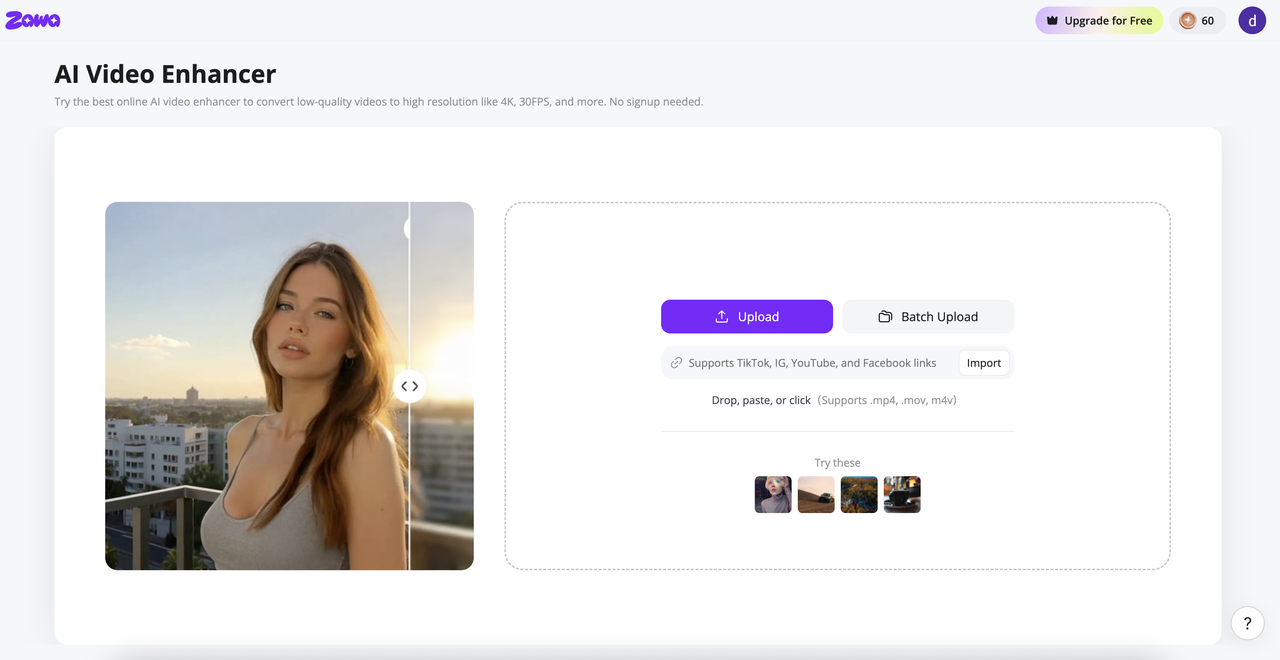
Step 1: Open Zawa Video Enhancer and upload your video
Go to Zawa. Drop your file into the upload zone or paste a link. MP4, MOV, M4V, AVI, and 3GP are all accepted. Sample videos are available on the page if you want to test before uploading your own footage.
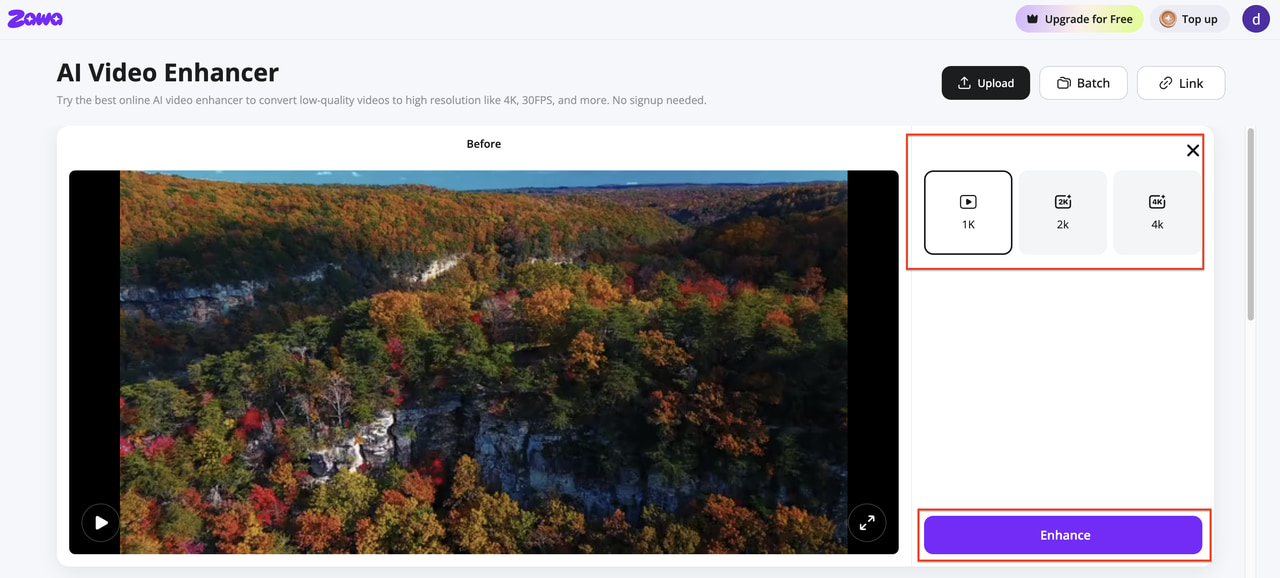
Step 2: Choose your output resolution and start the upscaler
Select 1K, 2K, or 4K from the output options depending on your delivery target. Hit the upscale button. Zawa processes the video frame by frame, enhancing video clarity while upscaling it to the selected resolution.
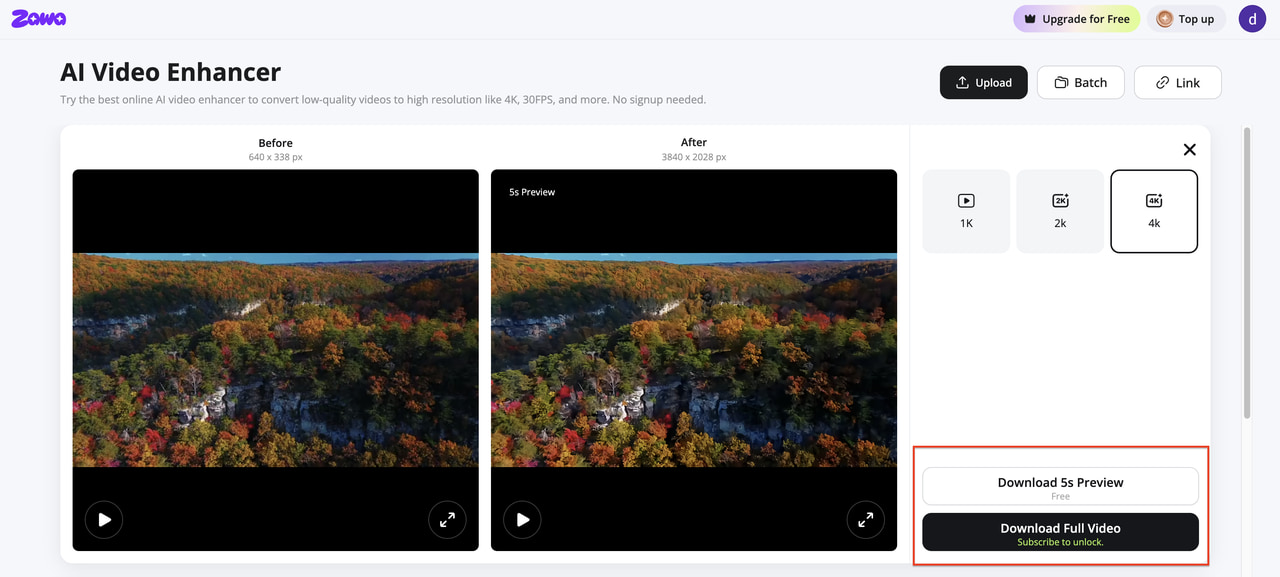
Step 3: Preview the result and download your video
A split-view comparison loads when processing finishes. Scrub through sections with fine detail or fast movement to check output quality. Download the enhanced file when the result meets your requirement.
Tips to Get Better Results from AI Video Upscalers
Start with the Highest Quality Source Available
The model works with what you give it. A heavily compressed file contains less information for the AI to reconstruct from. The output reflects that. When the original high-quality file still exists, use that. A social media download of something already compressed twice will not upscale as cleanly as the file that came directly out of your editing software.
Match the AI Model to the Content Type
Advanced tools like Topaz and UniFab have separate models for animation and live action. Use the wrong one and the output shows it. Anime content run through a live-action model loses the clean line art. Live footage run through an animation model gains an artificial sharpness that looks processed. For archival or degraded footage, run noise reduction or artifact removal first. Do not apply maximum settings on everything at once.
Review the Output at 100 Percent Zoom Before Export
Upscaling artifacts are easier to catch at full pixel view. Zoom in to 100 percent and check edges around high-contrast areas, fine textures like fabric or foliage, and fast-moving subjects. Common issues: unnatural halos around edges, ghosting on motion, and incorrect texture reconstruction on fine patterns. If any appear, reduce the enhancement strength and re-run rather than accepting the result.
Conclusion
Picking the right tool comes down to what you actually need. If output quality is the priority and you have the hardware, Topaz Video AI is still the benchmark. If you want lifetime ownership without a yearly fee, UniFab All-In-One matches it closely at a one-time price. DaVinci Resolve handles upscaling for free inside an editor most professionals already use. Zawa, TensorPix, and CapCut cover the no-install browser use case at different price points. And for mobile footage where faces are the focus, Remini does things desktop tools do not bother optimizing for. Start with the tool that fits your platform and budget. Most offer a free tier or trial. Test on your actual footage before committing to a paid plan.
FAQs
What is the best free AI video upscaler?
DaVinci Resolve is the strongest free desktop option. Super Scale AI runs with no watermarks, no length limits, and no cost. For browser access, Zawa and TensorPix both offer free trial credits. CapCut gives 4K upscaling in its free tier with no watermark on output.
What is the difference between AI upscaling and standard upscaling?
Standard upscaling uses math. Bicubic or Lanczos algorithms fill in missing pixels by averaging neighbors. The result is smoother but not sharper. AI upscaling trains on matched low and high-resolution pairs. The model predicts what missing detail would actually look like and reconstructs it. The output has sharper edges and more accurate textures.
Is there quality loss when upscaling?
AI upscaling does not recover detail that was never captured. It predicts and reconstructs plausible detail. On clean, lightly compressed source footage, the output looks genuinely sharper. On heavily compressed or damaged footage, the output is a reconstruction. It looks better on screen than the original, but it is not a true restoration of the original capture.
Can AI upscaling fix heavily compressed or damaged footage?
Partially. Models with dedicated restoration modes (Topaz Starlight series, UniFab Titanus) reduce visible compression artifacts and recover some edge sharpness on degraded footage. The worse the source, the more the output is a guess rather than a restoration. No tool restores information that was discarded at the compression stage.
Are free AI video upscalers safe to use with personal videos?
Browser-based tools upload footage to external servers. For home videos, family clips, or social content, that is usually fine. For confidential footage, client material, or anything sensitive, use a local desktop tool instead. DaVinci Resolve, Topaz, UniFab, HitPaw VikPea, and AVCLabs all process footage locally on your machine.
You May Be Interested
Try the 10 Best Image Upscalers for Your Photos in 2025

What Is Video Bitrate and How Does it Affect Video Quality?

10 Best AI Tools in 2025 for Powerful Image, Video, and Voice Generation

10 Best AI Video Enhancers to Upscale Your Videos
