What Is Video Bitrate? The Complete Guide (2026)
Learn how video bitrate affects video quality, file size, and streaming performance. Compare CBR vs. VBR and find the best bitrate settings for YouTube, Twitch, and TikTok.


Video bitrate is the amount of data encoded per second of video. It is measured in kilobits per second (Kbps) or megabits per second (Mbps). Set it too low and the footage turns blocky. Set it too high and files grow too large to upload or store.
Understanding what is bitrate in video is one of the most useful things a creator can learn. It directly controls how sharp or degraded footage looks after export. This guide explains how it works, covers CBR versus VBR, and gives exact video bitrate settings for YouTube, Twitch, TikTok, and Instagram.
What Is Video Bitrate?
Bitrate is not resolution. It is not frame rate. It is the amount of data used to represent one second of footage. Resolution and bitrate are separate controls. Both affect quality. Neither replaces the other.
The Core Definition
Video bitrate equals the amount of data processed per second. The units are bits per second (bps), Kbps, or Mbps. One Mbps equals 1,000 Kbps, which equals one million bits per second.
A 1080p clip at 8 Mbps uses 8 megabits of data every second. The same clip at 2 Mbps uses 2 megabits. More data means more detail preserved in each frame. Less data means the encoder throws away pixel information to shrink the file. That lost data shows up as blocking, halos, and smearing.
To estimate file size, multiply bitrate (Mbps) by duration in seconds and divide by 8. A 10-minute video at 8 Mbps works out to 8 x 600 / 8 = 600 MB.
How Bitrate Relates to Resolution and Frame Rate
A 4K video at 2 Mbps looks worse than a 1080p video at 10 Mbps. Resolution sets the pixel count ceiling. Bitrate determines how much of that potential the encoder actually preserves. They are independent settings.
Frame rate multiplies the data requirement. At 60fps, there are twice as many frames to encode per second as at 30fps. To get the same quality at 60fps, the bitrate needs to roughly double. Upscaling a low-bitrate file to 4K does not fix it. The compression artifacts from the original encode travel with the file.
How Bitrate Is Measured in Practice
Audio uses Kbps. HD video uses Mbps. One thing that trips people up: Mbps and MBps are not the same. Mbps is megabits per second, which measures data rate. MBps is megabytes per second, which measures file size. One MBps equals 8 Mbps. This comes up when comparing export settings to download speeds.
How Does Bitrate Affect Video Quality?
The relationship between bitrate video and quality is not perfectly linear. The same bitrate produces different results depending on the codec, the content, and the encoding settings.
The Bitrate-Quality Relationship
Below the minimum viable bitrate for a given resolution, compression artifacts appear. Blocking looks like square patches over detail. Ringing looks like halos around sharp edges. Banding appears as visible steps in smooth gradients.
Fast content needs more data. Gaming footage, sports, and action sequences have more pixel change between frames than a talking-head clip. That movement requires more bits to encode cleanly. Allocate 20 to 50 percent more bitrate for fast-motion content at the same resolution.
There is also a ceiling. For 1080p H.264, quality gains become imperceptible above roughly 15 to 20 Mbps. Pushing past that point grows the file without improving the image.
Codec Efficiency and Bitrate
The codec determines how efficiently data is used. H.264 is the most compatible option. It is the standard choice for broad device support.
H.265 (HEVC) is 40 to 50 percent more efficient than H.264. It delivers the same quality at roughly half the bitrate. A YouTube upload in H.265 at 8 Mbps can match or beat H.264 at 15 Mbps.
AV1 is an open-source codec with no licensing fees. Google, Mozilla, and others developed it together. Its efficiency is similar to or better than H.265. YouTube and Netflix use AV1 for delivery. If your GPU supports AV1 hardware encoding (available on recent Nvidia, AMD, and Intel cards), it is the highest-quality upload path for YouTube in 2026.
VP9 is Google's older open-source codec. YouTube uses it for playback on older devices. It is roughly 30 to 40 percent more efficient than H.264.
CBR vs VBR: Choosing the Right Bitrate Control Mode
Bitrate control mode decides how the encoder spreads data across a video. The choice affects both quality and streaming reliability.
Constant Bitrate (CBR)
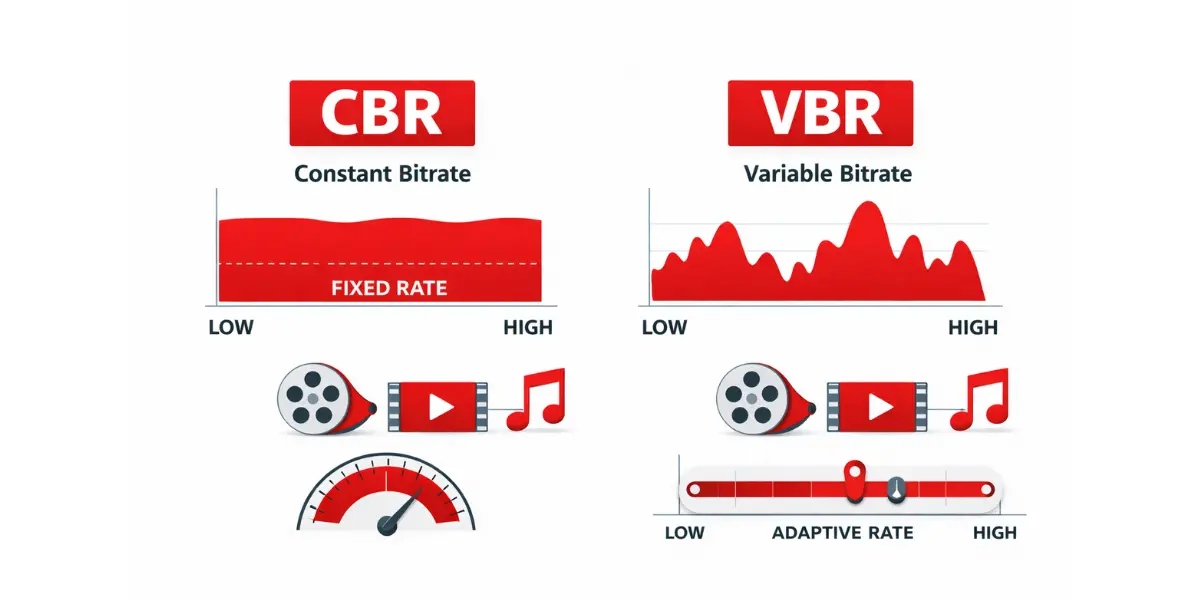
CBR encodes every second at the same bitrate. Simple scenes and complex scenes get the same data. This is less efficient. A slow, static shot does not need as much data as a fast action sequence. But CBR has one big advantage: the bitrate never spikes.
Live streaming requires CBR. Twitch, YouTube Live, and every other streaming platform need a steady, predictable data flow. A VBR spike can exceed the platform's ingest limit and cause dropped frames or stream rejection. Always use CBR for live video.
Variable Bitrate (VBR)
VBR allocates more data to complex scenes and less to simple ones. The encoder targets an average bitrate across the file. A VBR export set to 10 Mbps average might hit 18 Mbps during a chase sequence and drop to 4 Mbps during a static interview shot.
The result is better quality at the same average file size. For VOD uploads to YouTube, Vimeo, or local storage, VBR is the better choice. File size efficiency matters more than a stable instantaneous rate in those contexts.
Other Modes: CQP and CRF
CQP (Constant Quantization Parameter) targets a constant quality level rather than a fixed bitrate. The encoder uses whatever data it needs to hit that quality target. CRF (Constant Rate Factor) works the same way in x264 and x265 encoders. Lower CRF values mean higher quality and larger files. CRF 18 is near-lossless. CRF 28 is visibly degraded.
Both CQP and CRF are the right choice for master files and archival encodes. Quality matters more than predictable size in those situations.
The Video Bitrate Cheat Sheet: Recommended Settings by Platform
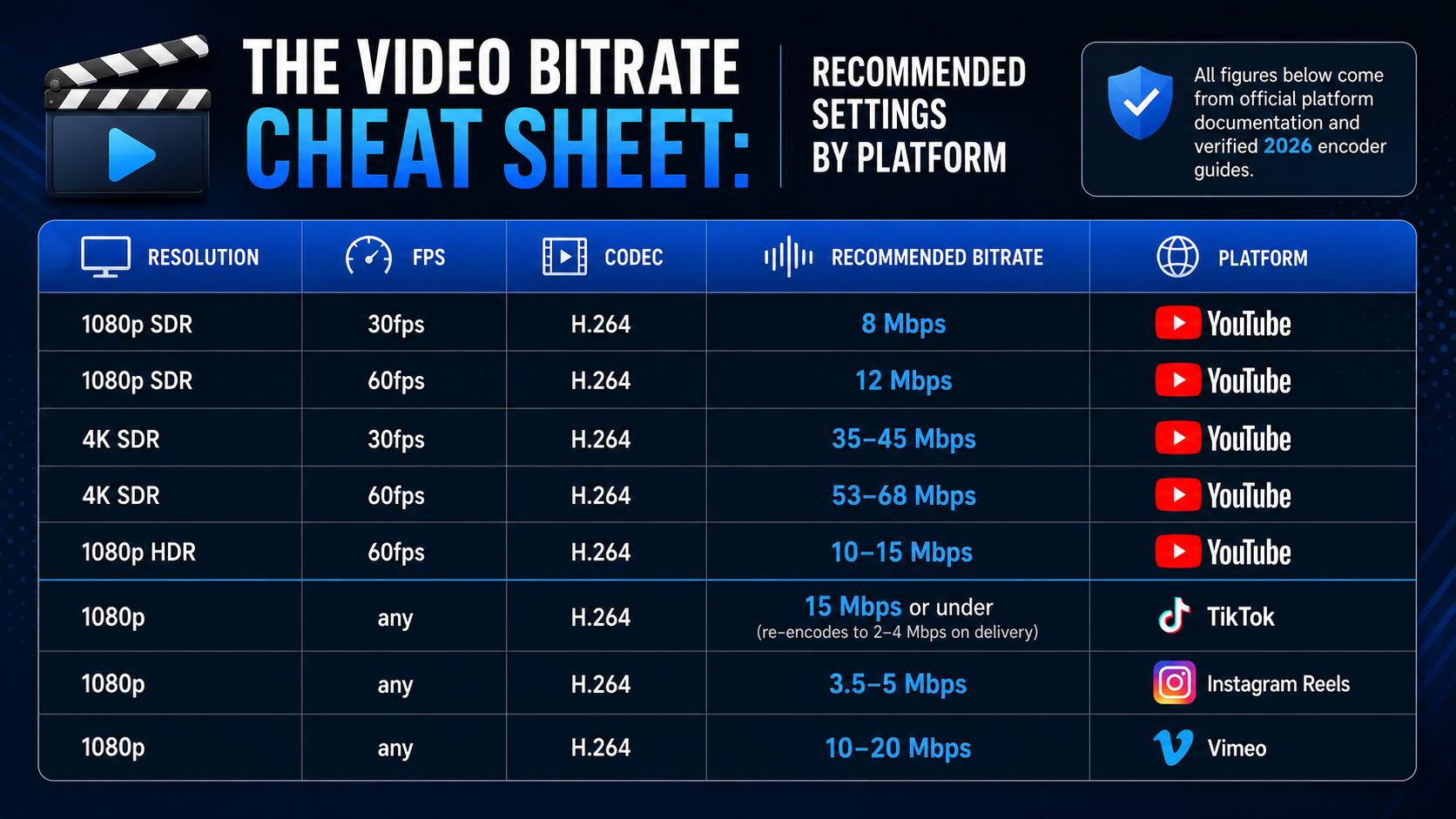
All figures below come from official platform documentation and verified 2026 encoder guides.
Recommended Upload Bitrates for VOD (YouTube, TikTok, Instagram)
|
Resolution |
FPS |
Codec |
Recommended Bitrate |
Platform |
|---|---|---|---|---|
|
1080p SDR |
30fps |
H.264 |
8 Mbps |
YouTube |
|
1080p SDR |
60fps |
H.264 |
12 Mbps |
YouTube |
|
4K SDR |
30fps |
H.264 |
35-45 Mbps |
YouTube |
|
4K SDR |
60fps |
H.264 |
53-68 Mbps |
YouTube |
|
1080p HDR |
60fps |
H.264 |
10-15 Mbps |
YouTube |
|
1080p |
any |
H.264 |
15 Mbps or under |
TikTok (re-encodes to 2-4 Mbps on delivery) |
|
1080p |
any |
H.264 |
3.5-5 Mbps |
Instagram Reels |
|
1080p |
any |
H.264 |
10-20 Mbps |
Vimeo |
A note on TikTok and Instagram: both platforms heavily compress stored assets on delivery. TikTok re-encodes uploads to roughly 2 to 4 Mbps regardless of upload quality. Instagram Reels does the same. Uploading above 15 Mbps to TikTok or above 15 Mbps to Instagram produces no visible improvement in the delivered video. The platform's encoder, not the uploaded file, controls delivery quality.
Recommended Live Streaming Bitrates (Twitch, YouTube Live, TikTok Live)
|
Platform |
Resolution |
FPS |
Codec |
Recommended |
Max Allowed |
|---|---|---|---|---|---|
|
Twitch |
1080p |
60fps |
H.264 CBR |
6,000 Kbps |
6,000 Kbps (hard cap) |
|
Twitch |
720p |
60fps |
H.264 CBR |
4,500 Kbps |
6,000 Kbps |
|
Twitch |
720p |
30fps |
H.264 CBR |
3,000 Kbps |
6,000 Kbps |
|
YouTube Live |
1080p |
30fps |
H.264 CBR |
4,500-9,000 Kbps |
15,000 Kbps |
|
YouTube Live |
1080p |
60fps |
H.264 CBR |
4,500-9,000 Kbps |
15,000 Kbps |
|
YouTube Live |
4K |
30fps |
H.264 CBR |
13,000-34,000 Kbps |
51,000 Kbps |
|
YouTube Live |
4K |
60fps |
H.264 CBR |
20,000-51,000 Kbps |
51,000 Kbps |
|
TikTok Live |
720p |
30fps |
H.264 CBR |
2,000-2,500 Kbps |
3,000 Kbps |
|
Facebook Live |
1080p |
30fps |
H.264 CBR |
3,000-4,000 Kbps |
4,000 Kbps |
|
Kick |
1080p |
60fps |
H.264 CBR |
6,000 Kbps |
6,000 Kbps |
Every platform in the table above requires CBR for live delivery. VBR bitrate spikes can push past the platform's ingest limit and cause dropped frames or outright stream rejection. Always set CBR in OBS or your streaming software before going live.
Does a Higher Video Bitrate Always Mean Higher Quality?
No. There are three situations where adding more bitrate does nothing.
When More Bitrate Helps
When the current bitrate sits below the minimum viable threshold for the resolution and content type, more bitrate directly reduces visible artifacts. This is the most common scenario for anyone asking what bitrate should I use after noticing blocky or smeared footage.
Fast-motion content benefits most. Gaming footage, sports, and action sequences encode poorly at standard bitrates. Allocating 20 to 50 percent more than the baseline recommendation for these content types produces a visible quality improvement.
When More Bitrate Does Not Help
Above roughly 15 to 20 Mbps for 1080p H.264, quality stops improving. The codec has captured all the detail available at that resolution. More data adds file size with no visible return.
Re-encoding a heavily compressed source at a higher bitrate does not recover lost detail. If the original file was encoded at 2 Mbps, exporting it again at 20 Mbps just compresses already-degraded data a second time. The artifacts baked into the source file stay.
On platforms that transcode uploads, the delivery bitrate is set by the platform's encoder, not the uploaded file. YouTube delivers 1080p at roughly 4 to 8 Mbps. TikTok delivers at 2 to 4 Mbps. Uploading above the recommended ceiling provides no delivery quality benefit. What it does provide is better source material for the platform's re-encoder, which can reduce artifacts in the output.
The Platform Transcoding Reality
Every major streaming platform re-encodes uploaded video. This is not optional and cannot be bypassed. YouTube converts all uploads to AV1, VP9, and H.264 variants for different devices. The output quality is determined by YouTube's encoder settings, not the upload bitrate.
The benefit of a high upload bitrate is not higher delivery quality. It is more source data for the platform's encoder to work with. For most creators, uploading at 15 to 20 Mbps for 1080p gives YouTube's encoder enough to work with. Going higher than 50 Mbps for standard 1080p rarely produces a better result and slows upload and processing time.
How to Fix Low-Bitrate Footage with AI Video Enhancer
Footage encoded at too low a video bit rate shows up as blocking, edge halos, color banding, and motion smearing. Re-encoding the file at a higher bitrate does not fix this. The artifacts are in the source data. Any re-encode compresses that already-degraded signal again.
Standard re-encoding is not the solution. The detail is gone. It cannot be recovered by giving the same damaged file more bits to work with. That needs to be clear before looking at what actually helps.
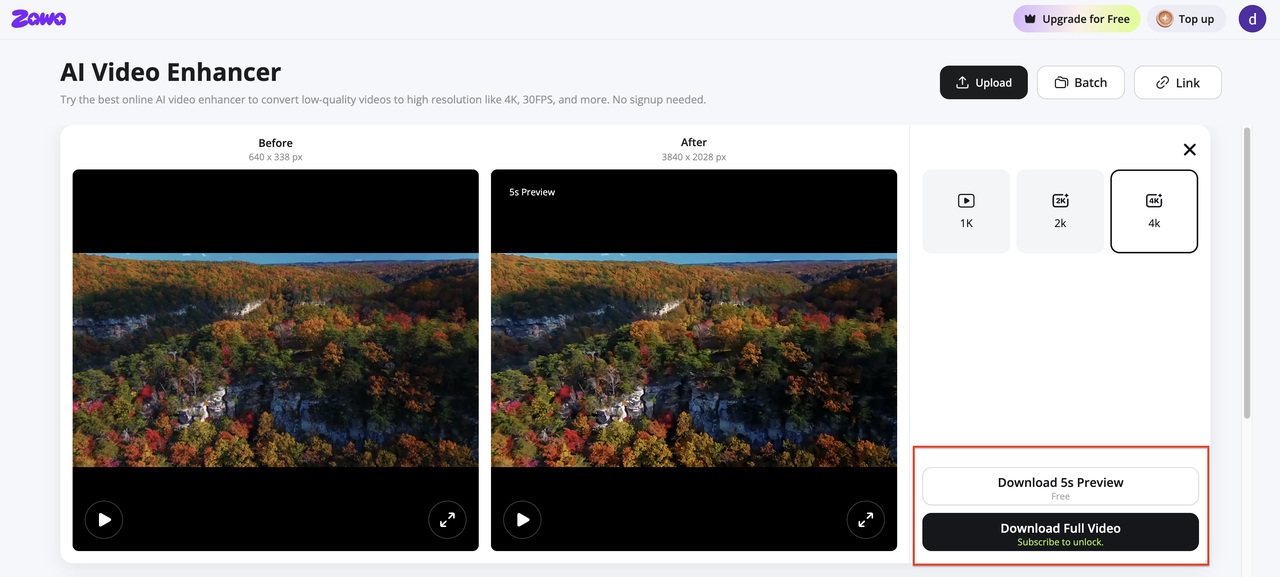
Zawa Video Enhancer uses AI to analyze each frame and reconstruct detail based on learned patterns from clean, high-quality reference footage. It reduces visible blocking and banding. It restores edge sharpness. It reduces visible blocking, banding, and edge halos by reconstructing detail at the frame level — and can output at 1K, 2K, or 4K if a resolution upgrade is also needed.The tool runs in the browser — free to try with new-user credits, no desktop install required.
What AI Video Enhancement Does for Low-Bitrate Footage
Compression artifact reduction is the most immediate gain. AI models trained to recognize blocking, ringing, and banding can reduce their visibility even when the underlying data is gone. The model predicts what clean edges look like and reconstructs them. Smeared or haloed edges from heavy compression become sharper.
Resolution upscaling works the same way. Rather than stretching existing pixels, the AI predicts what detail would exist at the higher resolution and fills it in. Low-bitrate footage from video calls, archived recordings, screen captures, and social downloads becomes more watchable on modern screens.
Step-by-Step: Using Zawa Video Enhancer
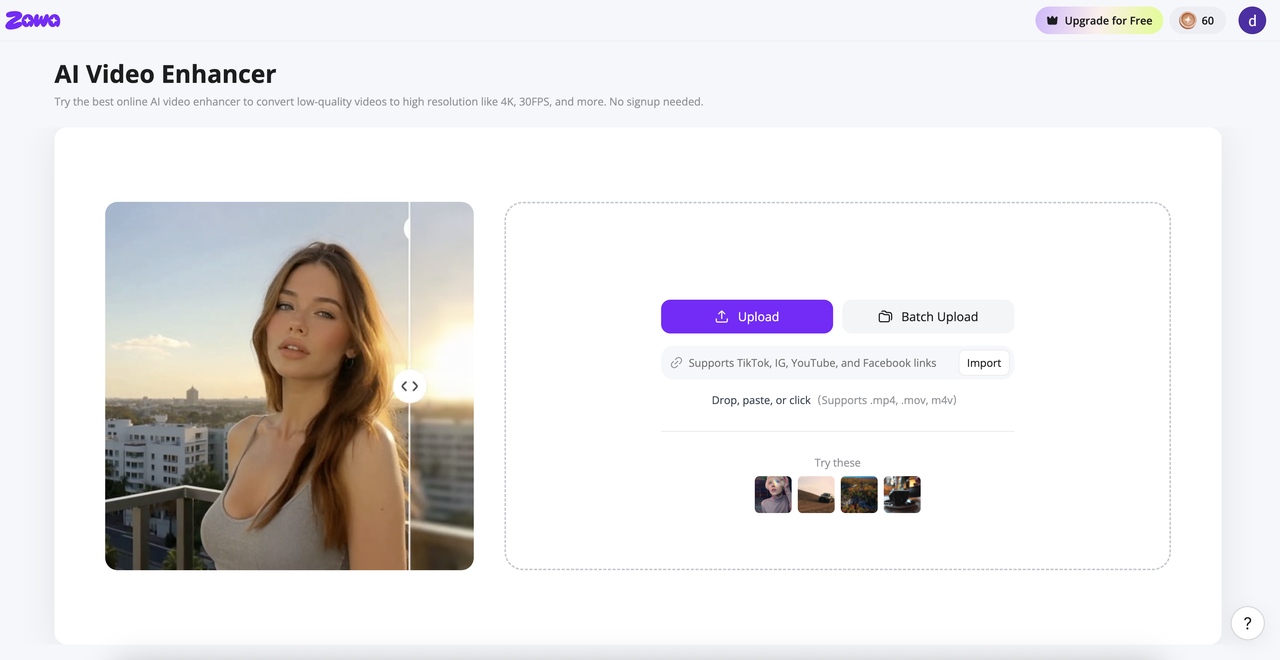
Step 1: Open zawa video enhancer and upload your video
Drop the file into the upload zone or paste a link. MP4, MOV, M4V, AVI or 3PT are all accepted. The tool works in the browser. No installation is needed.
Step 2: Choose the target resolution and run the enhancement
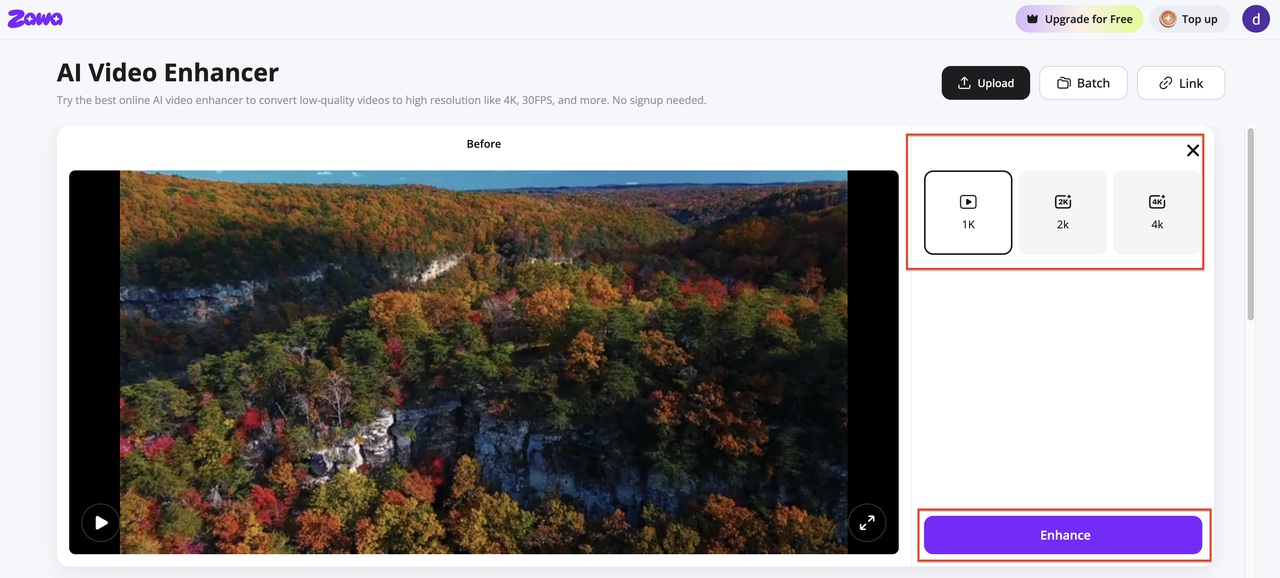
In the output panel, select your target resolution — 1K, 2K, or 4K. Click Enhance. Zawa processes each frame, reducing artifacts and reconstructing detail rather than stretching existing pixels, outputting at a smooth 30FPS. Click Enhance. Zawa processes each frame, reducing artifacts and reconstructing detail rather than stretching existing pixels.
Step 3: Preview and download
A split-view comparison loads when processing finishes. Scrub through sections with fine detail or fast movement. Download when the output looks right. After enhancing your video, you can also use Zawa to edit the background, remove watermarks, and make other adjustments.、
Conclusion
Video bitrate controls how much data represents each second of footage. Resolution and frame rate set the ceiling. Bitrate determines how much of that ceiling the encoder actually reaches.
For most creators, the right video bitrate settings are 8 Mbps for 1080p at 30fps on YouTube, 12 Mbps for 1080p at 60fps, and 35 to 45 Mbps for 4K at 30fps. Use VBR for uploads. Use CBR for live streaming. Do not go above the platform's recommended range expecting better delivery quality. The platform re-encodes everything.
When footage is already degraded from low bitrate, re-encoding will not fix it. AI video enhancement from Zawa Video Enhancer can reduce visible artifacts and restore edge sharpness at the frame level, which is as close to a fix as the technology currently allows.
FAQs
What is the difference between bitrate and resolution?
Resolution is the pixel count of the frame. 1920 x 1080 or 3840 x 2160. Bitrate is how much data the encoder uses to fill those pixels per second. A high-resolution clip at low bitrate looks worse than a lower-resolution clip at high bitrate. Both settings affect quality. Neither one is a substitute for the other.
Does bitrate affect video quality?
Yes. Bitrate is one of the most direct controls on output quality. Too low, and compression artifacts appear as blocking, banding, and edge halos. Too high on a platform that re-encodes uploads, and the extra data makes no difference to the viewer because the platform's encoder controls delivery quality, not the upload file.
What is the bitrate for 4K 30fps video?
For YouTube uploads, the official recommendation is 35 to 45 Mbps for 4K SDR at 30fps using H.264. For 4K at 60fps, that rises to 53 to 68 Mbps. Using H.265 at the same resolution can achieve equivalent quality at roughly half the bitrate due to the codec's higher efficiency.
Does uploading at a higher bitrate improve quality on YouTube or TikTok?
Up to the recommended ceiling, yes. Both platforms re-encode all uploads to their own delivery specs. Uploading at 15 to 20 Mbps for 1080p gives YouTube's encoder better source material. Above that threshold, there is no visible benefit. TikTok delivers at 2 to 4 Mbps regardless of the upload bitrate. Uploading above 15 Mbps to TikTok produces no improvement in what viewers actually see.
Can low-bitrate video be fixed after the fact?
Standard re-encoding cannot recover lost detail. The artifacts are baked into the source file. AI tools like Zawa Video Enhancer can reduce the visibility of those artifacts and restore some edge sharpness through frame-level reconstruction. The output is a reconstruction, not a true recovery of the original. It is the most effective option available when the original high-bitrate file is gone.
What happens if my bitrate is too high?
For local storage, nothing bad happens except a larger file. For live streaming, exceeding the platform's maximum ingest bitrate causes dropped frames or stream rejection. For platform uploads, going well above the recommended ceiling produces no better delivery quality and slows upload and processing time. The platform's encoder determines what viewers see, not the uploaded file's bitrate.
You May Be Interested

10 Best AI Video Enhancers to Upscale Your Videos

15 Best AI Video Generators in 2025
10 Best AI Video Enhancers to Upscale Your Videos

10 Best AI Photo Enhancers to Try in 2026

Gemini Images Too Blurry? Here’s How to Make Them Crystal Clear in Seconds
How to Resize an Image Without Losing Quality: A Beginner’s Guide