Enhance Video Quality: Pro Tips & AI Tools for Stunning Results
Discover how to enhance video quality from start to finish, optimize camera settings, fix lighting, upscale resolution, and use AI tools like Zawa Video Enhancer to turn low-quality videos into HD cinematic visuals.


Having a low-quality TikTok video or YouTube short is extremely annoying. Blurry footage can destroy even the most engaging video clips and storytelling posts. Your videos can become sharper and more clear if you learn how to improve video quality.
Tools such as AI video enhancers can enhance video quality and lessen noise quickly. In this guide, we'll discuss how to ensure maximum video quality across all your clips. This guide also covers an AI tool that can fix low-quality footage after the fact — useful when shooting conditions weren't ideal.
What Causes Poor Video Quality?
Low-quality clips are due to reasons including, bad lighting, wrong camera settings, and unsteady video footage. Below, we have compiled a list that discusses why poor video quality happens.
-
Low Resolution Recordings: Shooting content in low-grade quality leads to fewer pixels forming, so the little details vanish when you cut the footage. To give superior quality to the clip, film in at least 1080p for better video quality.
-
Less Lighting: Filming in the dark forces the camera to increase its ISO, which adds noise and grain. Using soft lamps or natural window light can immediately make video quality better.
-
Wrong Camera Settings: A high ISO or a slow shutter speed can blur your image noticeably. Understanding fundamental exposure and autofocus settings helps improve video quality significantly.
-
Extreme Video Encoding: Exporting clips with a low bitrate or re-saving them many times takes away fine details. Having balanced export settings keeps edges sharp and textures clear, rather than vague.
-
Shaky Footage: Filming by hand without stability support leads to motion blur that looks unprofessional. Therefore, placing your phone on a steady surface can boost video quality instantly.
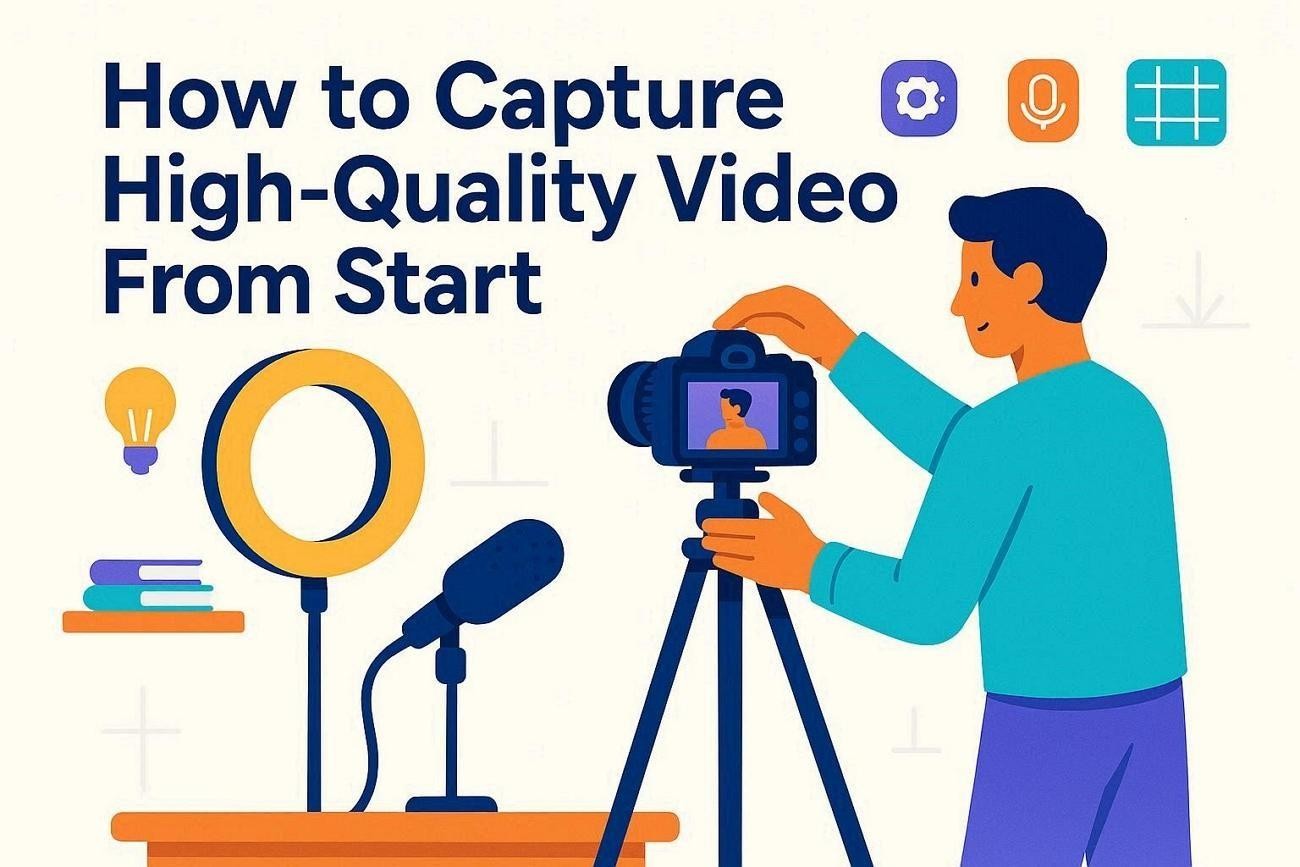
How to Capture High-Quality Video From Start
From the previous section, it is clear that high-quality clips begin with the proper atmosphere. Here, we will explain how creators can ensure HD clips from the beginning:
Proper Lighting Setup
Your camera includes more details and colors in the video if adequate lighting is ensured. So, try to position your subject facing a window or a diffused lamp. Using this method helps to avoid rugged shadows and make video quality higher.
Record in 4K or 1080p Resolution
To provide more flexibility for cropping later, professionals advise recording in 1080p. If your device supports it, you should film in 4K, as it adds more detail, which is helpful when repurposing content for platforms.
Adjust ISO and Exposure Correctly
Keeping ISO as low as possible makes both the footage clearer and digital noise less. You can adjust the modes manually to balance brightness, so highlights are not blown out and shadows stay visible.
Place Your Camera on Smooth Surfaces
We discussed before how shaky footage instantly makes great videos feel amateur and distracting. Therefore, use a tripod or a smooth desk to hold your camera steady while shooting footage.
Focus on Subject Clarity and Framing
Getting excellent shots is possible if you tap to focus on your subject, keeping their face sharp and clear. You can place the subject of the video slightly off-center to direct attention and create more cinematic visuals.
Prioritize Clean Audio Recording
People will overlook slightly imperfect visuals more than noisy or muffled audio. In cases where background noise is evident, get an external mic to improve the clip's audio. Reducing background audio is a good way to contribute to enhance the video quality.
Improve Video With AI Tools: Enhance Video Quality Using AI Technology
There are times when meeting all the conditions still results in low-resolution videos. Creators don’t need to be annoyed if this is the case. Tools such as Zawa bridge the gap when stable footage, bright lighting, and HD recording fall short. The AI software analyzes each frame to sharpen details, reduce noise, and intelligently improve video resolution.
Zawa helps creators enhance videos and images quickly with no editing skills required. It offers AI watermark removal, viral video generation, image remixes, and powerful upscaling in a simple interface. Beginners and professionals can use Zawa for generating ready-to-use content in 13 languages.
Key Features of Zawa AI Video Enhancer
-
Bulk Video Improvement: Batch-upload multiple clips into the tool to speed up your editing workflow. Every clip is quickly enhanced and can be downloaded all at once.
-
Online Video Enhancement: Zawa supports video links from TikTok, Instagram, and YouTube for fast online enhancement. Instantly paste the link on the interface, instead of downloading the video for quick refinement.
-
Supports Multiple Input Options: Enhances a wide range of video files in popular formats, including MP4, M4V, MOV, AVI, and 3PT formats , without additional conversion steps. Users can import various formatted files and export them in HD.
-
Offers High-Definition Resolution: Unlike many AI tools, this AI tool offers 4K resolution for blurry clips. It repairs blurry or pixelated footage and upscales it cleanly to 1080p or 4K.
Step-by-Step Quality Upgrade Process
Anyone can learn how to boost video quality in a few easy steps. In the following section, we have detailed a comprehensive guide to using Zawa’s AI Video Enhancer for fixing your pixelated clips.
Step 1. Import Your Blurry Video
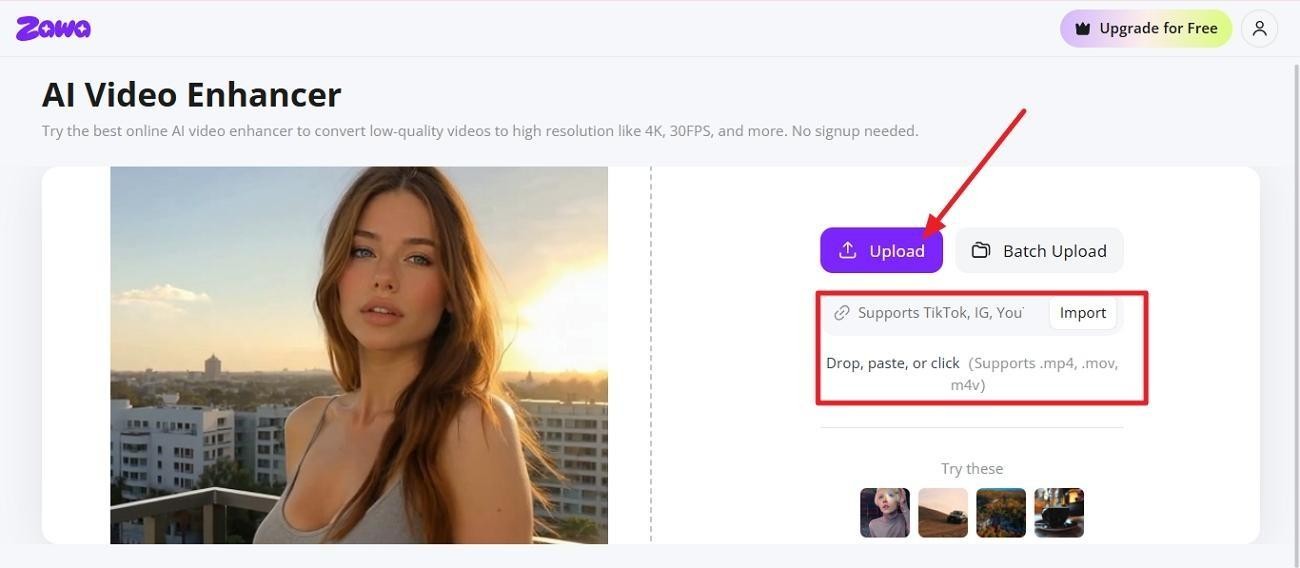
Find AI Video Enhancer in the tool panel at the Zawa workspace. MP4, M4V, MOV, AVI, and 3PT files all work. Initiate by accessing the tool and click on the “Upload” option to upload the source video from your laptop or mobile. Alternatively, you can share a URL from any social media platform to refine it.
Step 2. Select Your Preferred Resolution
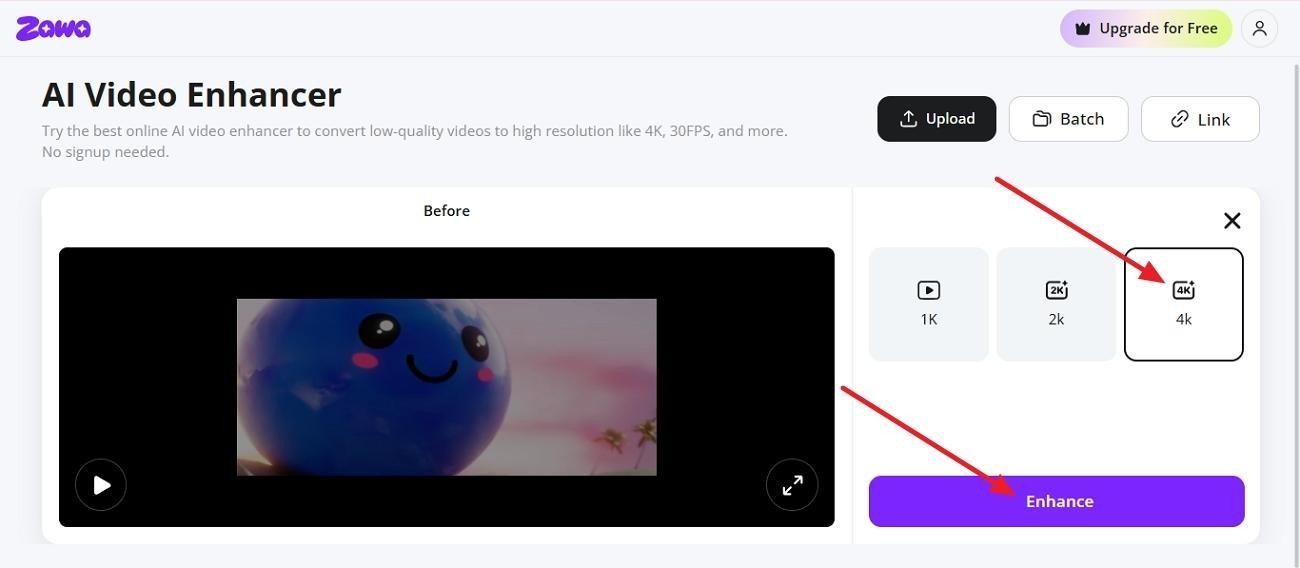
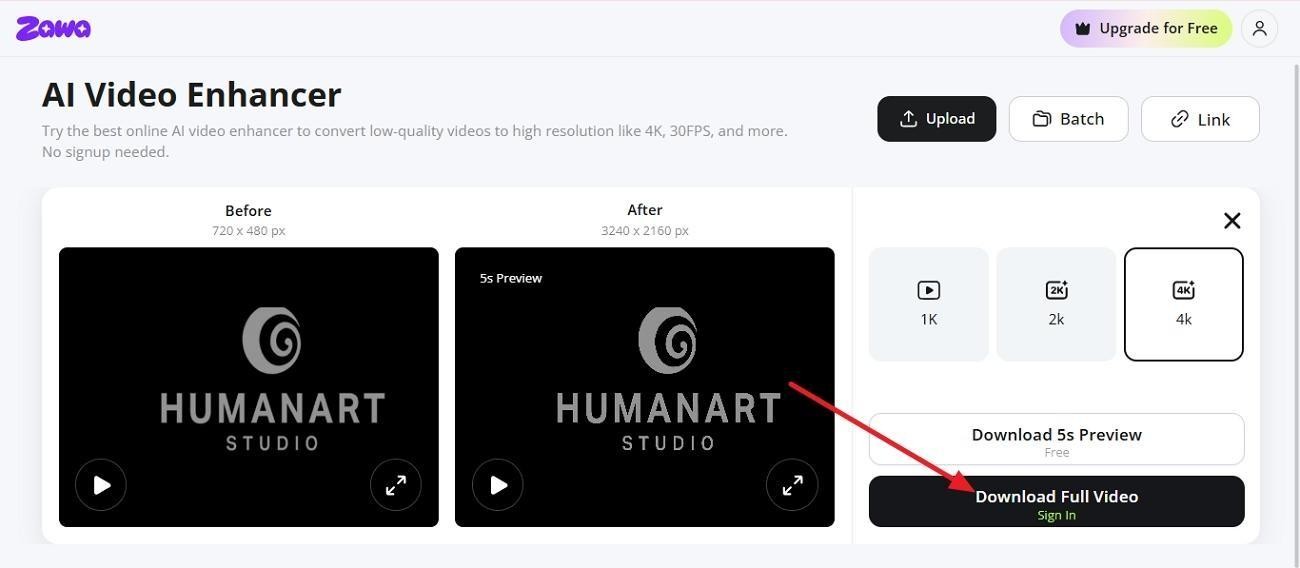
Choose any resolution choice that you want, i.e., “1K,” “2K,” or “4K.” Then, select the “Enhance” option, so the tool starts improving the clip’s quality.
Step 3. Compare New Video’s Quality and Export
To finish, review the before-and-after clips side by side to check the differences. Review the before-and-after comparison. Download a 5-second preview to check first, or click Download Full Video to export the complete clip to your device.
5 Best Settings for High-Quality Video Export
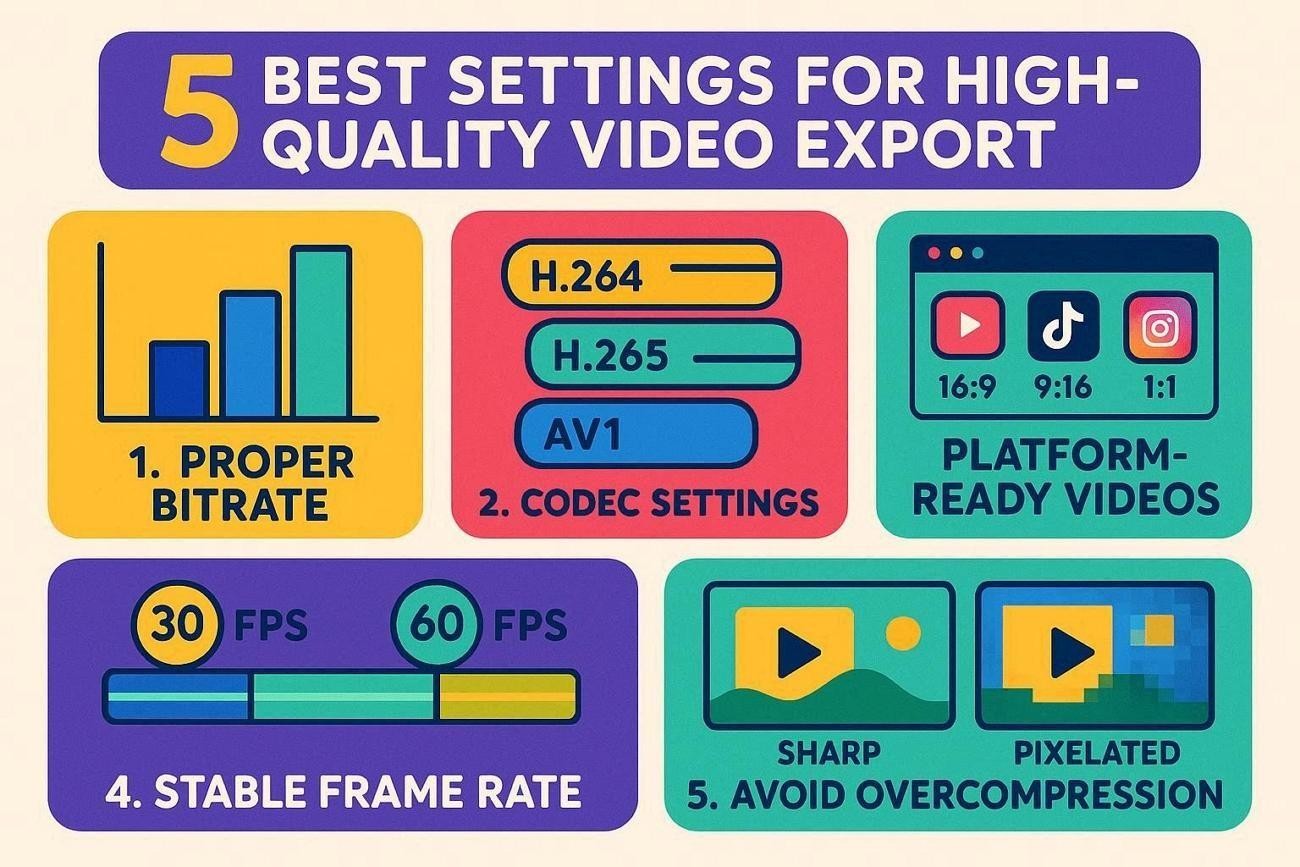
There are a few various ways that help you make video quality better. By closely following these rules, you can be sure to avoid poor resolution. We have outlined the ideal settings for consistently producing high-quality clips:
-
Select the Proper Bitrate: The details of your video are controlled by bitrate. The bitrate controls how much data your video uses each second. For most cases, you should use 12–15 Mbps for 1080p videos and 45–60 Mbps for 4K videos.
-
Codec Settings: Picking the video codec is important as it makes your video smaller without losing quality. Aim for H.264 for compatibility or H.265/AV1 for smaller high-quality videos.
-
Make Videos Platform-Ready: Different social media sites like YouTube, TikTok, and Instagram have preferences for video resolution, bitrate, and aspect ratio. For example, YouTube likes 16:9 HD videos while TikTok and Instagram select vertical videos.
-
Keep Frame Rate Stable: Many creators export at 30fps for general posts or 60fps for fast action movie clips. A stable frame rate influences motion, making it smooth. This feature also helps avoid stutters in video playback.
-
Stop Over-Compression: It is advised to avoid exporting the same file again and again. Meanwhile, you should also make sure you don’t set the bitrate extremely low. Over-compressing your video file removes tiny details and produces visible artifacts.
Why High-Quality Video Matters - 5 Reasons
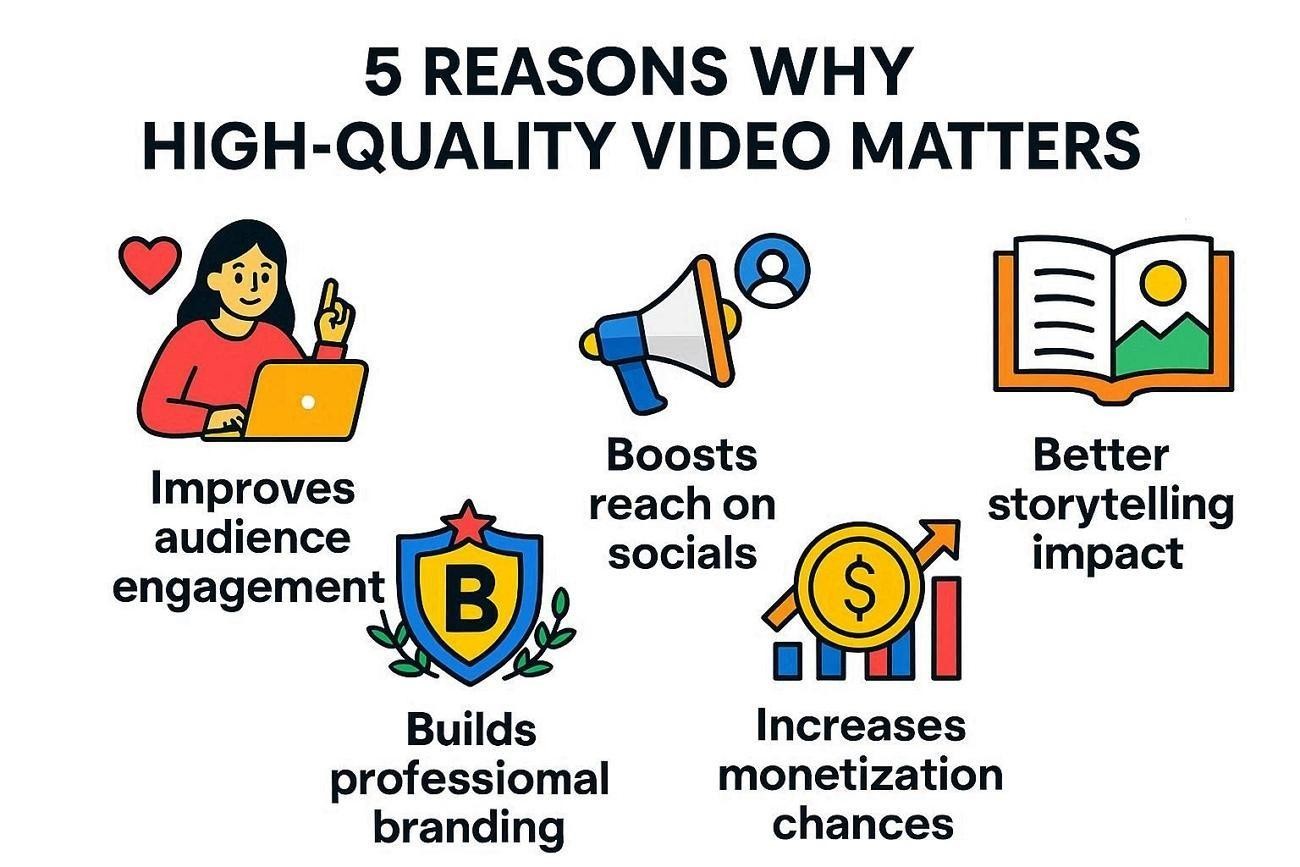
Throughout the entire article, we have been explaining how to improve video quality. However, it is just as essential to understand why one should maintain high-quality footage. To understand the reasons better, read the following purposes of keeping HD quality videos.
Improves Audience Engagement
People keep watching as long as the content has engaging visuals. Therefore, high-quality videos keep the animations looking sharp, smooth, and easy to watch. Clear videos receive way more views as compared to blurry or noisy clips. In the end, platforms are more likely to recommend such content to other people.
Builds Professional Branding
Polished videos makes content look more trustworthy and reliable to your audience. For example, brands and clients prefer creators whose videos are consistent and visually appealing. You easily outperform others and build authority in your niche over time.
Boosts Reach on Socials
Platforms often suggest videos that look high-quality because they improve the overall user experience. You’ll notice that social clips with clear visuals usually have higher visibility. Better quality increases your chances of having your content appear on the explore or recommended pages.
Increases Monetization Chances
When your content is engaging, has top-notch visuals, and high number of views, there is a better chance of brand partnerships. Sponsors and brands alike favor collaborations with creators who generate clean and professional-looking videos. This leads to more paid offers and higher earning potential over time.
Better Storytelling Impact
Instead of distractions like blur and noise, the viewers can focus on the message you’re conveying. Having sharp product shots or refined facial expressions make emotions and details easier to see. Overall, it makes your story clips more interesting and timeless for those who are watching.
Conclusion
In a nutshell, the issue of low-quality clips persists even in 2026. A video’s quality directly affects viewer response, future collabs, and money-making offers. This article discusses pro tips to ensure that your footage stays on-brand and HD from the start. We have also explored an AI tool such as Zawa for improving video quality.
FAQs
-
What's the difference between 1080p and 4K?
1080p and 4K are video resolutions that determine the details and sharpness of your video clips. 1080p is usually standard video quality, while 4K clips produce and show much finer details. Therefore, filming and exporting in 4K is better suited for big production screens.
-
What is the best resolution for high-quality videos?
The platform you are uploading to decides the appropriate resolution. In most instances, many content creators save clips in 1080p as a reliable standard. Higher resolutions guarantee that your posts and clips look ready for future projects and further editing requirements.
-
Can AI really improve video quality effectively?
AI tools can enhance clips by reducing the noise and making details sharper, without manual keyframing. For example, tools like Zawa can analyze frames and improve clarity without complex manual editing. However, final results rely heavily on the original footage quality, so very poor clips will have some limits.
-
How do I convert blurry video to HD?
You can improve blurry footage by using AI upscaling tools and proper export settings. Platforms like Zawa help restore details and make videos appear sharper and cleaner. Still, those clips that are severely out-of-focus can't be restored to the best quality, even with AI tools.
-
Why is my 1080p video blurry?
A clip in 1080p looks blurry due to low bitrate, poor lighting, or unsteady filming. Another reason it may appear soft is if you view it on a larger screen without properly scaling the clip. The best way to maintain clarity is to make sure the lighting is bright with stable shooting and the correct export settings.
You May Be Interested

10 Best AI Video Enhancers to Upscale Your Videos

15 Best AI Video Generators in 2025
10 Best AI Video Enhancers to Upscale Your Videos

10 Best AI Photo Enhancers to Try in 2026

Gemini Images Too Blurry? Here’s How to Make Them Crystal Clear in Seconds