What Are Compression Artifacts? Causes, Examples, and Solutions
Discover how to identify and fix video compression artifacts, including blocking, pixelation, banding, and noise. Learn traditional fixes and AI-powered restoration with Zawa.


Digital images, videos and audio files often need smaller storage sizes. To achieve this, compression removes or simplifies data during file saving. When too much information disappears, visible or audible quality problems can easily appear. These flaws are known as compression artifacts, and they affect overall clarity.
However, the issue usually depends on format, settings, and repeated editing. Blocky pixels, blurry edges, banding, noise, and distorted sound are common warning signs. Understanding their causes helps you choose better export settings and reliable tools. With careful compression choices, files can stay smaller without losing practical usefulness.
Understanding Video Compression Artifacts
Video compression artifacts are visual defects created when compression reduces video file data. They may appear as blocky pixels, blurred edges, banding, or visible noise. Usually, these problems happen when codecs discard important image information during encoding. Lower bitrates can make motion, shadows, and gradients look unstable very quickly. Therefore, balanced export settings help preserve clarity without creating oversized videos.
How Video Compression Works?
Once you know what artifacts are, it becomes easier to understand how video compression works and why it can affect image quality.
Reduces File Size By Removing Visual Data
Video compression reduces file size by removing details viewers may not easily notice. It can simplify similar colors, repeated pixels, fine texture, and motion data. However, aggressive settings may also remove useful information. As a result, the video becomes lighter, but visible defects can appear in complex scenes during export.
Intra-frame vs. Inter-frame Compression
| Type | How It Works | Best Use |
|---|---|---|
| Intra-frame Compression | Compresses each frame as a separate image. | Useful for editing, because every frame stays independent. |
| Inter-frame Compression | Saves only changes between nearby frames. | Useful for smaller files, streaming, and online video sharing. |
The Most Common Types of Video Compression Artifacts
After understanding how compression works, it becomes easier to identify the video artifacts that affect clarity. Thus, below are the most common types of video compression artifacts:

-
Macro-blocking
When the bitrate drops, the encoder groups details into larger blocks. These blocks become obvious in shadows, skies, and fast movement. As the clip plays, faces and backgrounds look tiled. Repeated exports usually make the same blocky damage stronger and wider.
-
Mosquito Noise
When compression struggles with fine edges, tiny moving specks appear. They often buzz around subtitles, logos, wires, and outlines. This noise follows the subject, so the still edges look restless. Busy backgrounds and animation can make it more noticeable during playback.
-
Color Banding (Contouring)
Smooth gradients need enough color steps to look naturally soft. When compression reduces those steps, stripes begin to form. Skies, shadows, and soft lighting show the bands first. The result feels flat because colors no longer blend smoothly.
-
Color Bleeding
During compression, color detail may weaken before sharpness does. With poor chroma sampling, bright tones drift past their borders. Text, lips, clothing, and signs may look stained on screen. This makes clean edges appear strangely soft, dirty, or misplaced.
-
Temporal Flickering / Ghosting
Inter-frame compression predicts changes between one frame and another. When that prediction fails, motion may flicker or smear. Ghosting appears as faint trails behind moving objects across frames. Low light, camera pans, and repeated patterns reveal it quickly.
Understanding Why Video Compression Causes Artifacts
With the main types covered, the next step is understanding why each compression artifact appears during video processing.
-
Bitrate Set Too Low: When a video has too little data, the encoder starts cutting what it thinks matters less. Texture, movement, shadows, and small details are usually the first to suffer.
-
Too Many Exports: A video loses more quality each time it is exported again. After several rounds, the damage becomes more visible and harder to clean.
-
Wrong Codec Choice: Some codecs handle detail better than others. A poor choice can still create rough visuals, even when the file size looks large.
-
Extra Compression After Upload: Platforms like YouTube, Instagram, and TikTok often compress videos again after upload. This can soften the image or add new visible flaws.
-
Low-Quality Recording Settings: If the original clip is weak, editing cannot recover everything later. Low resolution, poor lighting, and low camera bitrate leave less detail to protect.
Is Your Video Corrupted? How to Identify Compression Damage
Before blaming corruption, review the following video artifacts that often appear during playback:
-
Blocky Areas in Detailed Scenes: Crowded visuals usually reveal the problem first. In trees, shadows, walls, or busy backgrounds, the image may break into small square patches when the file lacks enough video data.
-
Blurry Textures and Missing Details: Fine surfaces do not always survive heavy compression. Hair may lose strand detail, grass may look painted, and fabric or skin can appear softer than in the original shot.
-
Strange Patterns Around Moving Objects: Fast action puts extra pressure on the video file. Ripples, trails, or rough marks around the subject may be seen when moving cars, hand gestures or camera pans are used during sports clips.
-
Uneven Color Transitions: A clean sky should move gently from one shade to the next. When the color data is reduced, smooth areas may show bands, rings, or harsh steps instead.
-
Flickering Noise Around Edges: Thin lines are easy to disturb during playback. Subtitles, logos, wires, and sharp borders may shimmer or look restless, especially in low-quality exports.
How We Traditionally Minimize Compression Artifacts?
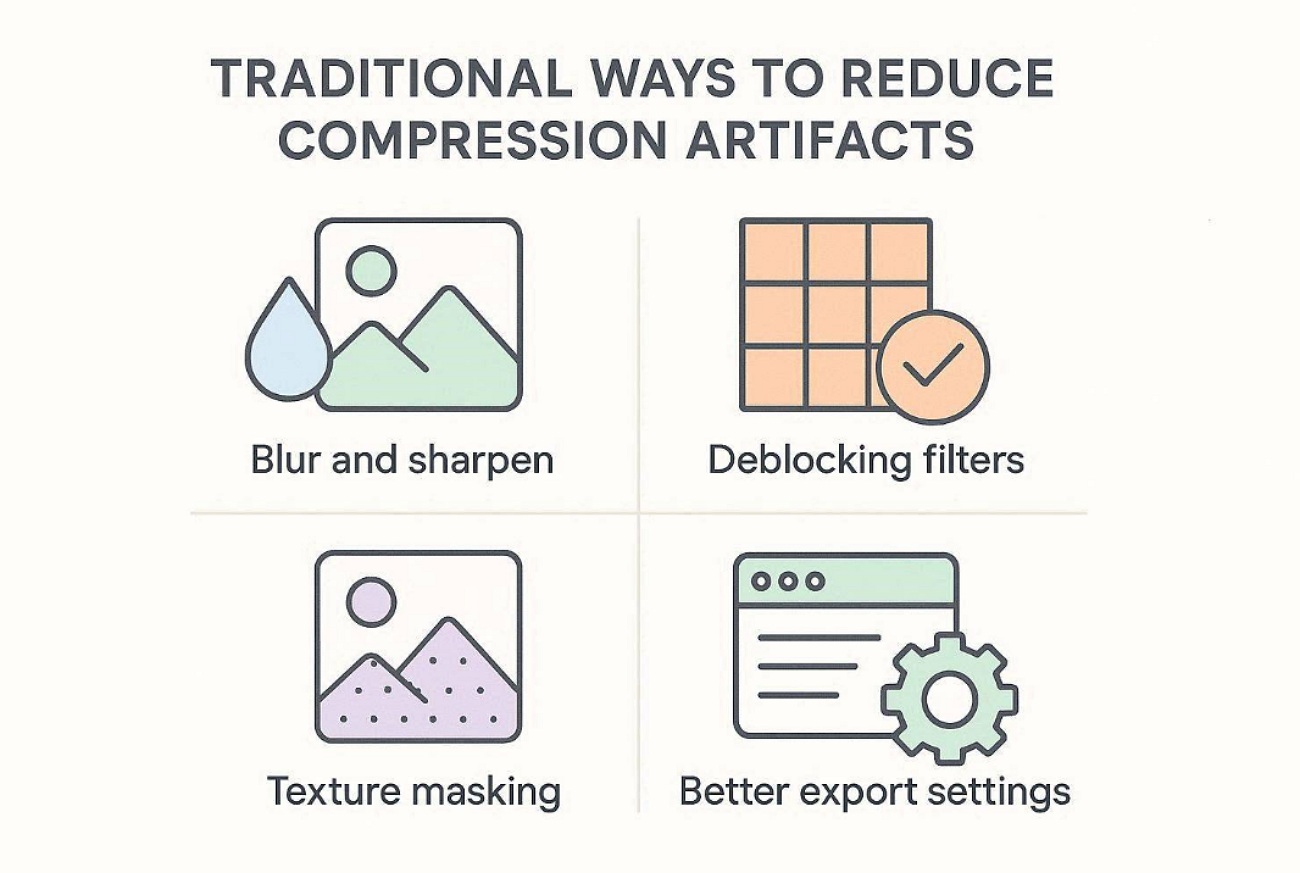
Once you have detected the artifacts from video compression, there are some conventional methods to minimize their effects. The following methods are designed to reduce distortions and make for a cleaner and more natural looking image:
-
The Blur-and-Sharpen Technique
This method softens harsh blocks before restoring selected edge detail. Editors apply a slight blur to reduce visible pixel-level roughness first. Then, sharpening brings back clarity without exaggerating damaged areas. It usually works best for mild artifacts, not badly degraded footage.
-
Spatial and Temporal Deblocking Filters
Deblocking filters smooth block edges that appear between compressed image sections. Spatial filters work within one frame to clean visible boundaries. Temporal filters compare nearby frames and reduce moving compression defects. Together, they improve playback smoothness while keeping natural detail balanced.
-
Masking to Preserve Textures
Masking helps editors protect important textures during selective artifact reduction. Instead of filtering the whole frame, only damaged areas change. Faces, hair, fabric, and text can retain sharper detail. This approach needs careful adjustment, because strong masks may look unnatural.
-
Native Tool Settings
When exporting, most editing software will have options to set compression quality. Users can increase bitrates, select improved codecs, or tweak the presets. These settings prevent new artifacts more effectively than repairing damage later. Good source quality also improves results during final export.
The Destruction of Fine Textures by Traditional Artifact Removal
Traditional filters can reduce visible video artifacts, but they often soften useful detail too. Skin texture, hair strands, fabric patterns, and background details may lose natural sharpness. As a result, the video looks cleaner, yet flatter and less realistic. This limitation is why modern AI solutions now offer a more selective repair approach.
How AI Solves the Problem of Video Compression Artifacts
Traditional filters often smooth damage, yet they can erase useful texture. Zawa AI Video Enhancer offers a modern way to improve weak footage. It uses AI to analyze each frame and reconstruct lost detail — reducing blocking, banding, and mosquito noise rather than simply smoothing the image. The tool runs in the browser, free to try with new-user credits, no desktop install required. This approach helps users treat compression artifacts without heavy manual editing.
Moreover, the online workflow keeps the process simple for creators. Users can upload a video and apply enhancements through the browser. Instead of rebuilding every frame manually, AI studies visual patterns. Then it improves clarity where blur, noise, or softness appears. For compressed clips, this can make restoration more practical and accessible.
Key Features
-
4K Resolution Upscaling: Enlarges low-resolution footage toward HD or 4K for sharper viewing results.
-
Blur Repair Support: Improves soft clips where compression, movement, or old recording reduced clarity.
-
Three-in-One Enhancement: Handles denoising, sharpening, and compression artifact removal in a single pass — no multi-tool workflow needed.
-
Bulk & Link Upload: Process up to 30 videos at once, or paste a TikTok, Instagram, or YouTube link directly without downloading the file.
-
Noise and Artifact Reduction: Targets grain and compression artifacts that distract from clean playback.
Stepwise Guide to Solve the Problem of Video Compression Artifacts With Zawa
After reviewing Zawa’s key features, the following steps show how to reduce video compression artifacts more easily:
Step 1. Upload a Video or Add a Link.
Go to zawa, or find Video Enhancer in the tool panel at the bottom-right of the Zawa workspace. Click Upload to add your file directly, in bulk, or paste a TikTok, Instagram, or YouTube link.You can also use Batch Upload or import a supported video link.

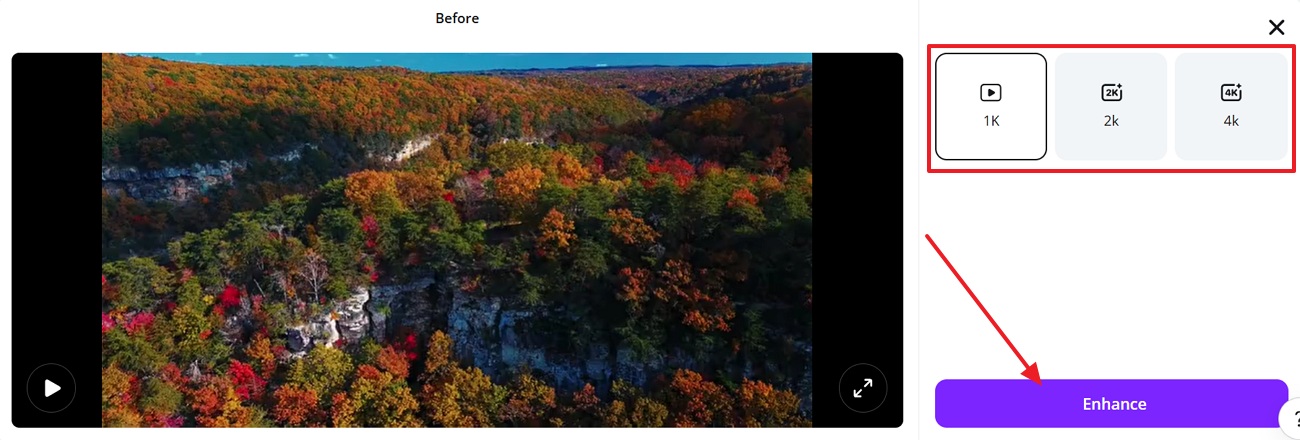
Step 2. Pick a Resolution and Enhance.
Once the video loads, choose the needed resolution from 1K, 2K, or 4K. Afterward, press “Enhance” to let Zawa process the video quality.
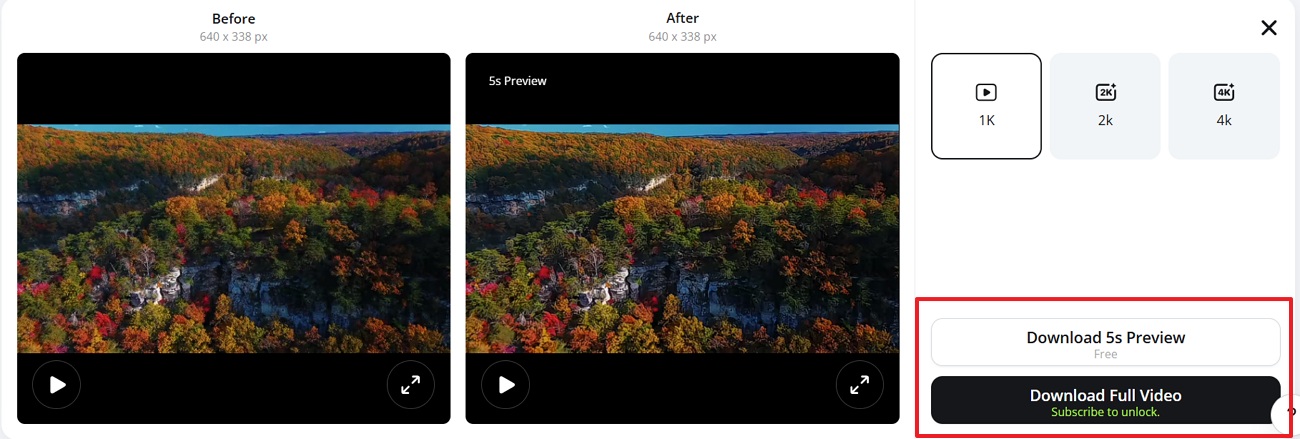
Step 3. Compare and Download Video.
After the processing finishes, compare the “Before” and “After” preview panels. Next, select the “Download the 5-second Preview” or “Download the Full Enhanced Video.”
Video enhancement is just the first step. Zawa's all-in-one AI platform also supports video watermark removal, background removal, and other editing tools—all in one place. Try it free at Zawa!
How to Avoid Compression Artifacts: Best Practices
Fixing damaged footage helps, but prevention works better from the beginning. The following practices reduce compression artifacts before the video reaches export or upload:
-
Start with a Clean Video: A poor recording is hard to fix later. Shoot in the best quality your camera allows, keep the lighting steady, and avoid shaky footage where possible.
-
Stop Re-Exporting the Same Clip: Video quality drops when you export the same file many times. Save one clean master copy and use it whenever you need a new final version.
-
Do Not Push the Bitrate Too Low: A low bitrate is one of the main reasons videos look blocky. Choose a setting that fits the video’s size, movement, and upload platform.
-
Pick a Codec That Handles Detail Better: Old codecs can lose detail more quickly during compression. H.265 and AV1 are better choices for sharp scenes, fast motion, and smaller file sizes.
-
Prepare the File for the Platform: YouTube, TikTok, Instagram, and other platforms compress videos after upload. Follow their suggested format, resolution, and bitrate to keep the final result cleaner.
Conclusion
To conclude, compression artifacts can make a video look blocky, blurry, noisy, or shaky. You can avoid many of these problems with clear footage, the right codec, fewer exports, and a fair bitrate. For old or damaged clips, Zawa AI Video Enhancer can help make the video clearer in a simple way.
FAQs
-
How do bitrate and resolution affect video compression artifacts?
Bitrate provides image data, while resolution decides how many pixels need to be preserved carefully. Low bitrate at high resolution often creates blocks, blur, and rough motion details.
-
Why does my video look blocky after export?
Blocky video usually means the export bitrate was too low for content complexity. Fast action, shadows, or repeated textures make compression blocks more noticeable after rendering.
-
What causes macro-blocking in videos?
Macro-blocking appears when compression groups limit detail into visible square image sections onscreen. It worsens with low bitrate, busy scenes, poor codecs, or repeated exports.
-
Can compression artifacts be removed completely?
Complete removal is difficult because compression permanently discards original visual information during encoding. Good tools can reduce defects, but perfect restoration is rarely fully guaranteed afterward.
-
Can old compressed videos be restored successfully?
Old compressed videos can improve when enough source detail still remains recoverable inside. AI enhancement may improve softness, reduce noise, and restore steadier color balance.
You May Be Interested

10 Best AI Video Enhancers to Upscale Your Videos

15 Best AI Video Generators in 2025
10 Best AI Video Enhancers to Upscale Your Videos

10 Best AI Photo Enhancers to Try in 2026

Gemini Images Too Blurry? Here’s How to Make Them Crystal Clear in Seconds
How to Resize an Image Without Losing Quality: A Beginner’s Guide