
How to Make Video Clearer: Simple Guide to Improve Video Quality
Discover how to make videos clearer using AI video enhancers, desktop editing tools, mobile apps, and pro filming techniques to fix blurry and low-quality footage fast.


Blurry footage can make a useful video feel rushed and unprofessional online. Moreover, it often hides faces, product details, text, and important moments. When clarity drops, even strong content can lose its impact quickly.
Therefore, many users search for how to make a video clearer. However, the goal is not to overedit every single frame. Instead, a clearer video should look natural, balanced, and easier to understand.
Why Your Video Looks Blurry or Unclear? 5 Reasons
A blurry clip usually reflects technical, lighting, recording, or playback issues. Understanding the following reasons helps you make the video clearer without overediting:
-
Low Resolution Recording: This means that fewer pixels are recorded, and details will be faint from the outset.
-
Bad Lighting: Dark scenes add noise to the picture, creating a very grainy and uninteresting look.
-
Camera Shake: Movement that is caused by unsteady hands is blurred, particularly at high speed recordings or handheld recordings.
-
Heavy Compression: Shrinking the file removes textures, edges and other helpful visual information.
-
Streaming Issues: Weak playback or buffering can reduce resolution while the video is playing.
Enhance Video Clarity Online: Using a Smart AI Video Enhancer
A rough looking clip can weaken a message before viewers understand its purpose. Zawa AI Video Enhancer gives creators a simple online way to improve dull, soft, or low resolution footage. It supports cleaner visuals for social media, ads, presentations, product clips, and personal memories without complex editing work.
With AI based enhancement, the tool studies each frame and improves resolution, color, sharpness, and overall clarity. It helps users make videos clearer while keeping the result natural. This makes it useful when recorded footage needs improvement before publishing, sharing, saving, or presenting across modern platforms.
Key Features
-
AI Frame Enhancement: It automatically processes frames, enhancing the clarity, sharpness, color adjustments, and the overall visual quality.
-
Resolution Upscaling: Clips can be upscaled to 1K, 2K, or 4K resolution for improved visual clarity on larger displays.
-
AI Color Correction: Allows for adjusting colors, improving visual consistency and enhancing the footage for a more polished look.
-
Noise Removal: The AI eliminates grain, compression artifacts and other undesirable visual noise to produce smoother, cleaner videos.
-
Video Stabilization: Minimizes shaky and motion blur effects and creates a smoother more professional appearance.
-
All-in-One AI Video Toolkit: Beyond video enhancement, Zawa also supports video watermark removal and video background removal for cleaner, more professional-looking videos.
Stepwise Guide to Enhance Video Clarity Online Using Zawa AI Video Enhancer
Having discussed the key features, it is time to take a look at the tool. To enhance the clarity of videos, the following guide will explain how to use Zawa AI Video Enhancer:
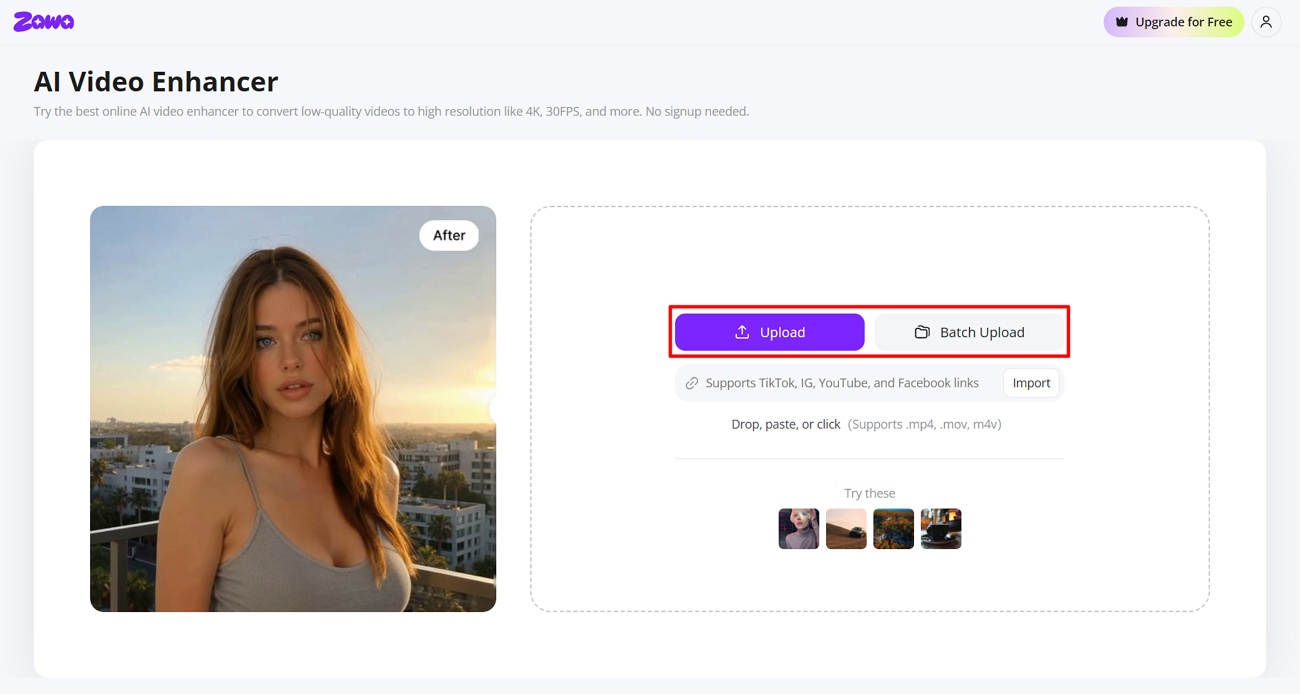
Step 1. Add Your Video to Zawa AI Video Enhancer
Open Zawa AI Video Enhancer and click the “Upload” button from the main screen. You can also drag, drop, paste, or import a supported video file into the upload area.
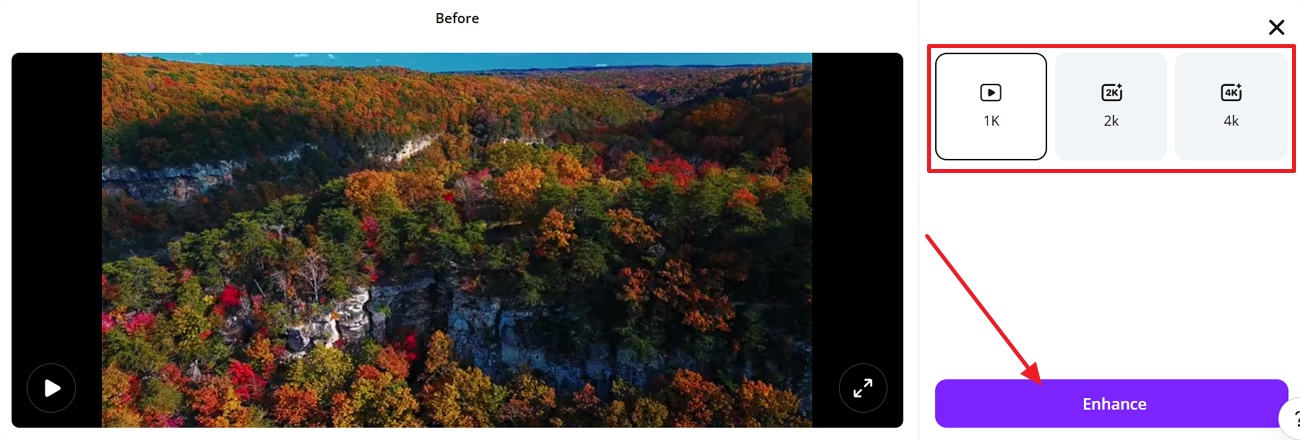
Step 2. Choose the Preferred Quality and Start Enhancement
After the video loads, choose the required quality option from 1K, 2K, or 4K. Then, press the “Enhance” button and let the AI process the video automatically.
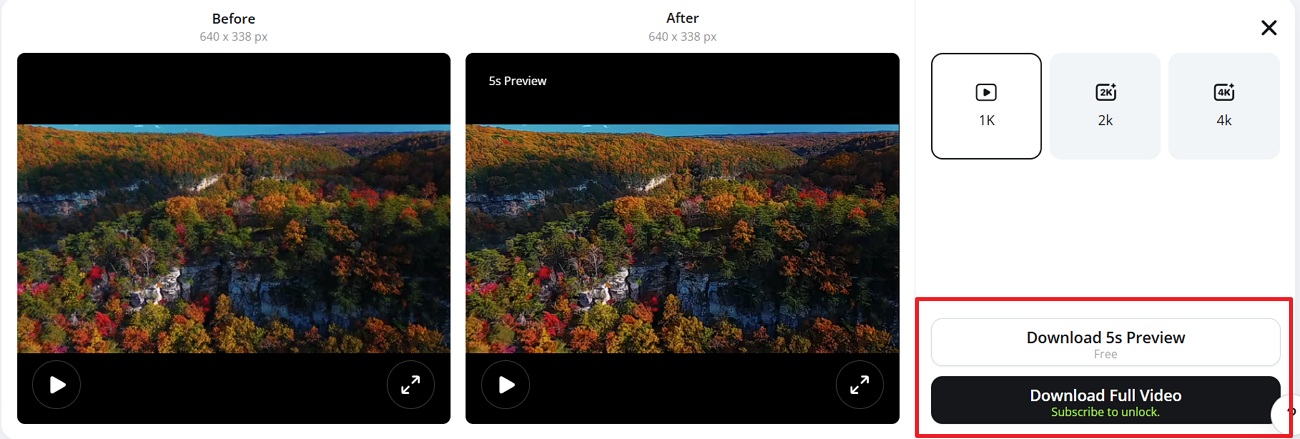
Step 3. Compare the Preview and Save the Enhanced Video
Once processing finishes, compare the before-and-after preview to check the clarity improvement. Finally, “Download the 5-second Preview” or unlock the full enhanced video for saving.
Make Video Clearer on Desktop (Premiere Pro Editing Tools)
Online tools are helpful, but desktop editing offers more detailed control. The section below shows how Premiere Pro can make a video clearer manually:
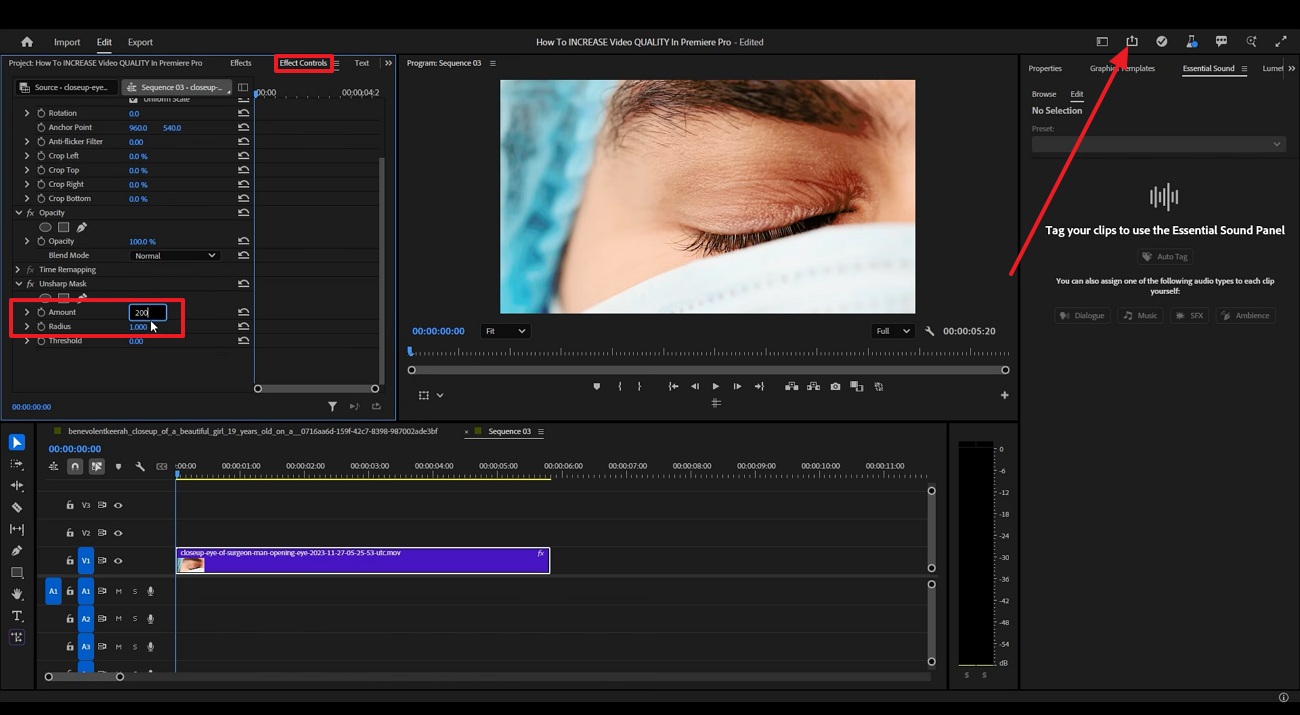
Step 1. Add the video in Premiere Pro and keep the clip selected on the timeline. Then, go to “Effects” in the Edit tab, search “Unsharp Mask,” and drag it onto the video clip.
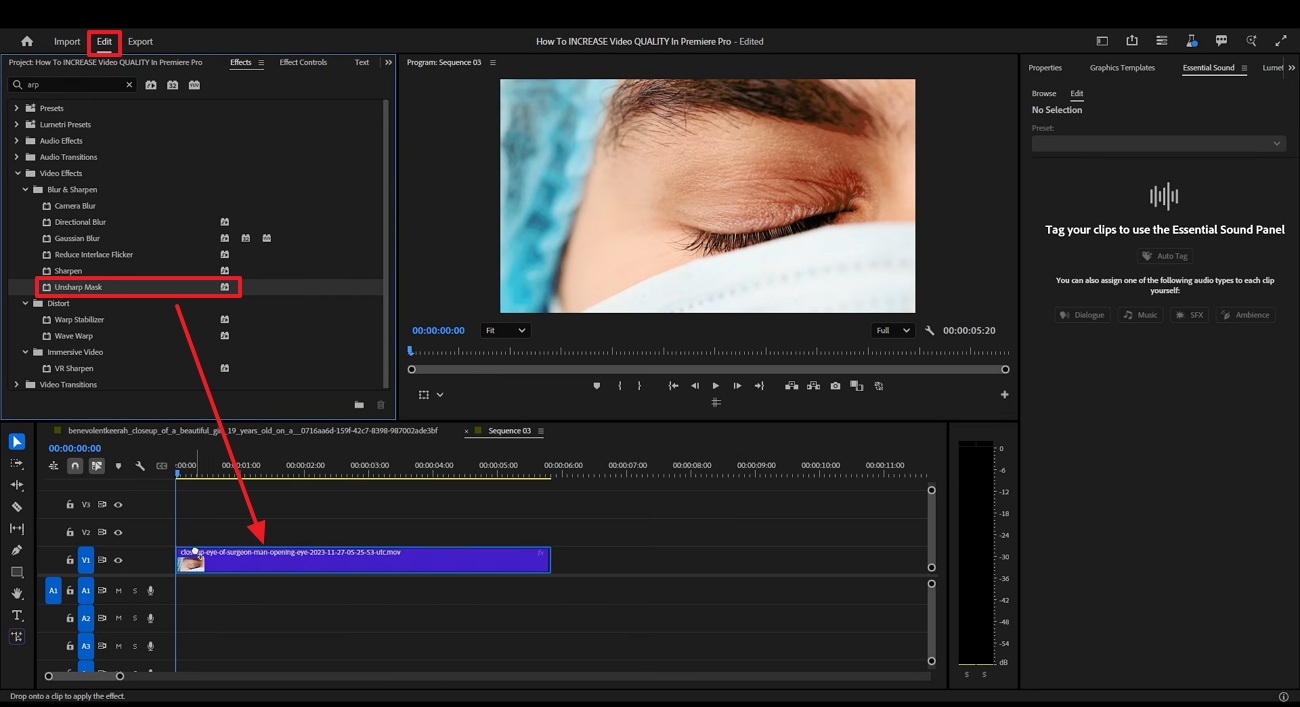
Step 2. Next, choose the “Effect Controls” and increase the Unsharp Mask amount carefully. Preview the result, click the “Export” icon, and save the clearer video in a suitable quality.
How to Fix Blurry Videos on iPhone & Android
Mobile users often need a quicker way to improve blurry clips before sharing them. Zawa, formerly X-Design, offers an AI-powered creative app for visual enhancement, branding, and editing. Moreover, its mobile access makes it useful for users who prefer phone-based editing.
For anyone learning how to make a video more clear, Zawa can be presented as a simple mobile example. The app helps users enhance visuals, improve presentation quality, and prepare cleaner media without opening a desktop editor for quick posting. Below are the steps to fix blurry videos with Zawa AI Video Enhancer on iPhone/Android:
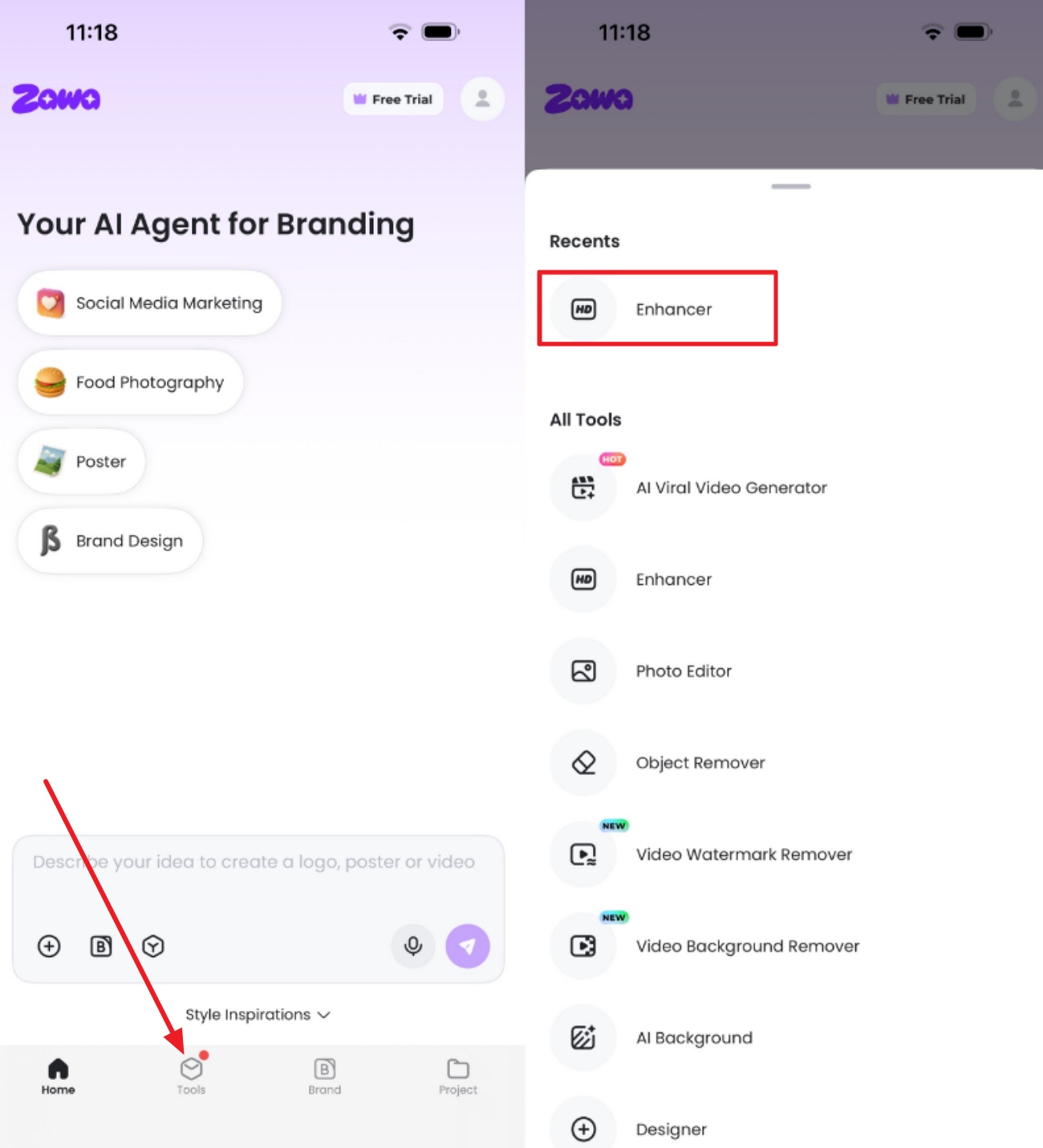
Step 1. Open the Enhancer Tool in Zawa
Launch the Zawa app and tap “Tools” from the bottom menu. From the tools list, choose “Enhancer” to start improving the blurry video or visual file.
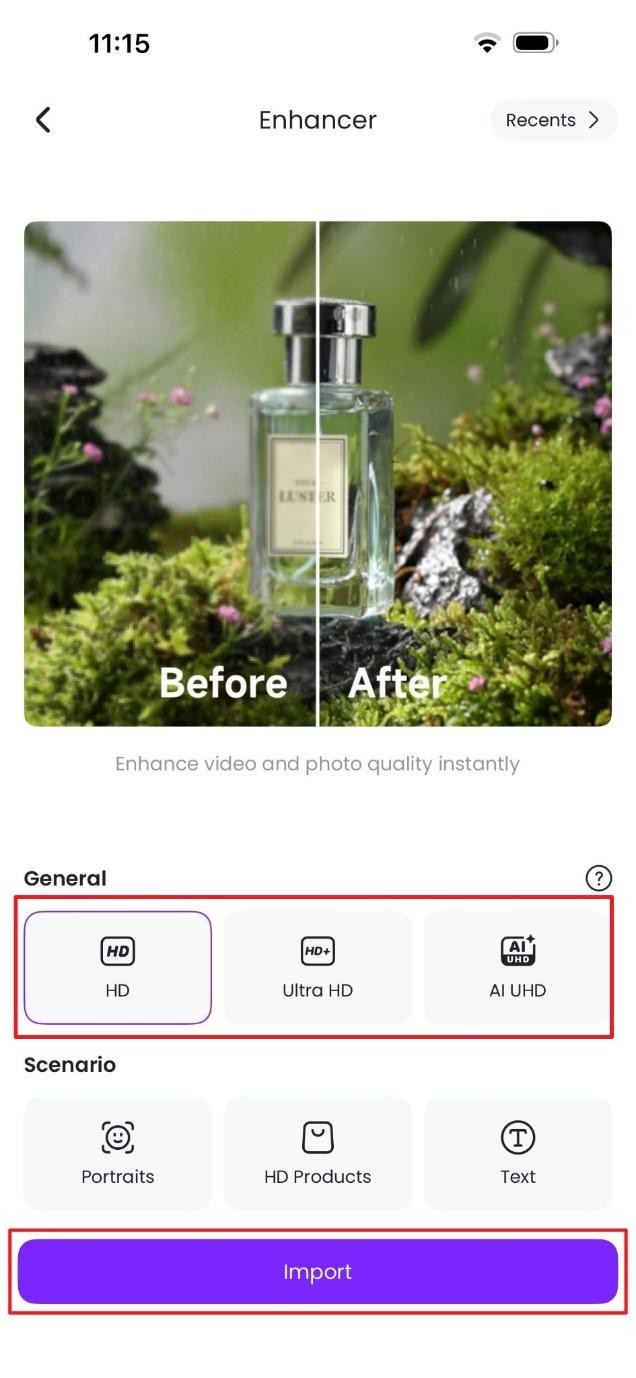
Step 2. Select Enhancement Quality and Import the File
On the Enhancer screen, choose 1k, 2k, or 4k based on your clarity needs. After that, tap “Import” and select the video from your phone gallery.
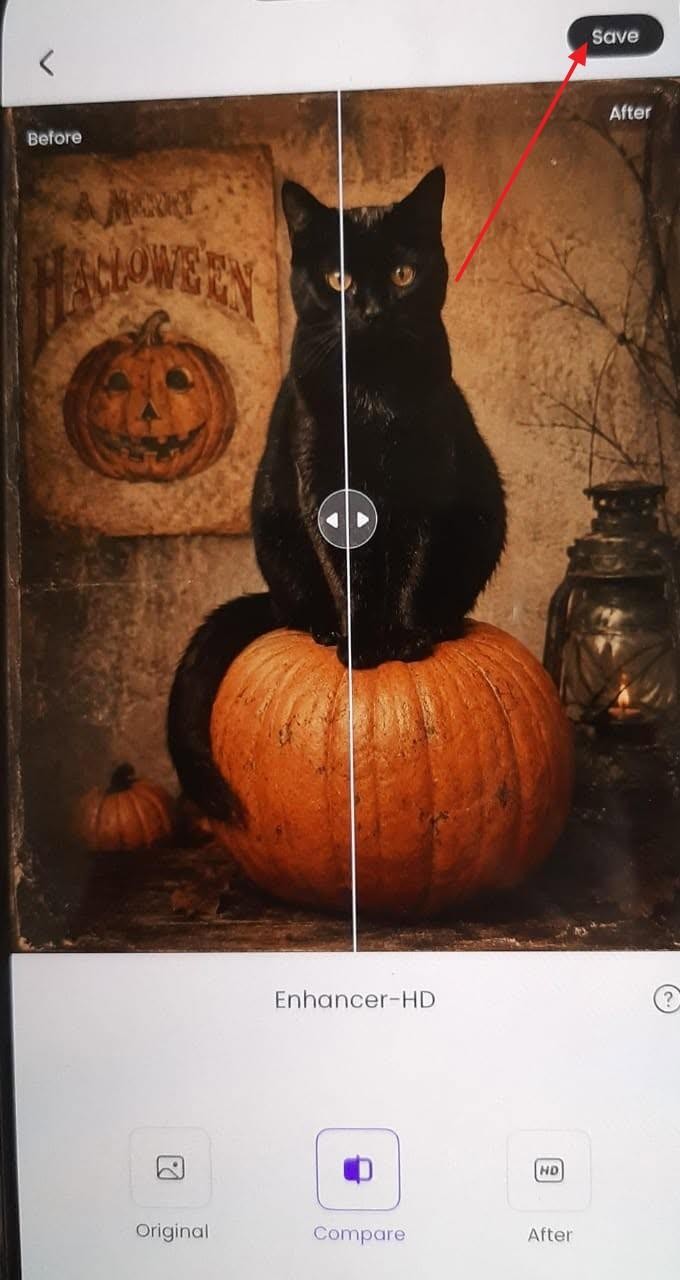
Step 3. Compare the Result and Save the File
Once Zawa finishes the enhancement, use the before-and-after preview to check the improvement. Finally, tap “Save” from the top corner to store the clearer file.
Why Zawa Online & App Beat Heavy Desktop Tools
Heavy desktop editors work well, but they often slow simple enhancement tasks. The reasons below show why Zawa feels easier for clearer video:
-
Cloud-Based Processing: Processing happens online, so computers avoid heavy rendering and demanding hardware requirements. Users can enhance clips without buying powerful systems or dedicated graphics cards.
-
Cross Device Access: Cross device access lets users work through phones, tablets, browsers, or laptops easily. No heavy setup is required to quickly improve media from different devices.
-
Automatic Video Enhancement: Enhances clarity without requiring users to manually navigate complicated editing controls. Beginners can get cleaner results without learning layers, masks, or timelines first.
-
Regular AI Improvements: Online AI updates keep enhancing quality, improving without repeated manual plugin installs. Users receive newer improvements without handling version conflicts or upgrading files themselves.
-
Lightweight Editing Workflow: Browser and app access avoids large downloads, crowded folders, and storage pressure. The workflow stays lighter for quick edits, previews, and final sharing tasks.
Stop Blurry Footage: 4 Tips to Use Before You Edit
Before asking how to make a blurry video clear, check the recording conditions first. The following simple filming habits can prevent softness before any editing tool becomes necessary:
Use Proper Lighting While Shooting
Good lighting shapes how clearly a camera records edges and texture. Place the subject near a soft, steady light source. Dim settings often create grain, especially on phone cameras. Even exposure ensures that colors do not appear washed, unnatural or dull.
Keep Camera Stable Using Tripod or Gimbal
Camera stability matters most when subjects or hands keep moving. Use a simple tripod for fixed scenes, tutorials, or interviews. A gimbal helps ordinary walking shots feel smoother and controlled. Without support, small shakes can soften frames during playback quickly.
Record in Higher Resolution
Higher resolution records cleaner visual detail for later editing work. Select one of 1080p when doing standard projects, and 4K when doing general versatility. Additional pixels are useful in the process of cropping, stabilizing or resizing the footage. They usually reduce visible quality loss after final compression and export.
Focus Correctly Before Recording
Focus should be checked before every important video recording session. On phones, tap the subject first before pressing record. With cameras, use autofocus carefully or adjust manual focus slowly. A short test clip confirms whether the subject looks clearly sharp.
Conclusion
In conclusion, learning how to create a clearer video begins with knowing why footage is soft. Better lighting, stable recording, proper focus, export settings, and AI enhancement can all improve video clarity.Desktop tools offer manual control, while mobile and online tools support quicker edits. For a simpler workflow, Zawa AI Video Enhancer is worth considering when clarity needs light improvement fast.
FAQs
-
How do I convert blurry video to HD?
Use an enhancer or editor to carefully upscale the resolution and improve visible sharpness. Export in HD settings, but remember that upscaling cannot restore every missing visual detail.
-
Can I fix a video that was recorded in low resolution?
Yes, enhancement tools can sharpen edges and upscale the clip for better viewing. However, results depend on the original footage and how much usable detail remains.
-
Can I make a video clearer for free?
Free tools can improve brightness, contrast, sharpness, and basic resolution to some extent. Many free versions include limits, watermarks, shorter previews, or reduced export quality.
-
Can AI improve video clarity?
AI can analyze frames, reduce noise, sharpen details and quickly upscale resolution. It works best when the video still contains enough visible information to improve. Tools like Zawa can enhance blurry videos and also offer features such as video watermark removal and video background removal. However, the results depend on the quality of the original footage.
-
Does making a video clearer increase file size?
Often yes because higher resolution and bitrate usually need more storage space overall. Compression settings can reduce size, although too much compression may soften the quality again.
You May Be Interested

Try the 10 Best Image Upscalers for Your Photos in 2025

What Is Video Bitrate and How Does it Affect Video Quality?

10 Best AI Tools in 2025 for Powerful Image, Video, and Voice Generation

15 Best AI Video Generators in 2025
How to Resize an Image Without Losing Quality: A Beginner’s Guide
