Noise Reduction Software: Best 10 Tools for Cleaner, Sharper Images in 2026
Explore the top 10 noise reduction software tools, including online and desktop options. Remove grain, enhance clarity, and fix low-light photos with AI denoisers.


High ISO settings and low-light environments often generate digital noise that obscures fine image details. Rather than giving up on a noisy file, using the right noise reduction software can actually recover textures you thought were lost. AI-powered processing now restores underexposed shots previously classified as unusable. This guide evaluates the ten most effective tools of 2026. You can discover the ideal tool for your workflow, whether you need a quick fix online or a heavy-duty desktop app.
What is noise reduction software?
You might think of noise reduction programs as a way to clean up your pictures digitally. Your camera sensor has a hard time seeing well when you snap images in the dark. These tiny, colorful dots called ''noise''or ''grainy'' patches make a photo look muddy and lose its punch.
The noise-reduction software then comes in to remove the grit. Tools these days are quite smart. They not only make the whole picture blurry; they also distinguish real texture from random noise. The idea is to make the background less rough while keeping the vital edges sharp. It is the finest approach to save a blurry picture and make it look polished and professional.
We will look at the ten different possibilities to help you select the right one. First, we'll look at five rapid online programs, then five powerful desktop programs for your computer.
Top 5 online noise reduction programs in 2026
These online tools are great if you need a quick fix and don't want to install a lot of software. They employ AI in the cloud to do hard work for you.
-
Vance AI
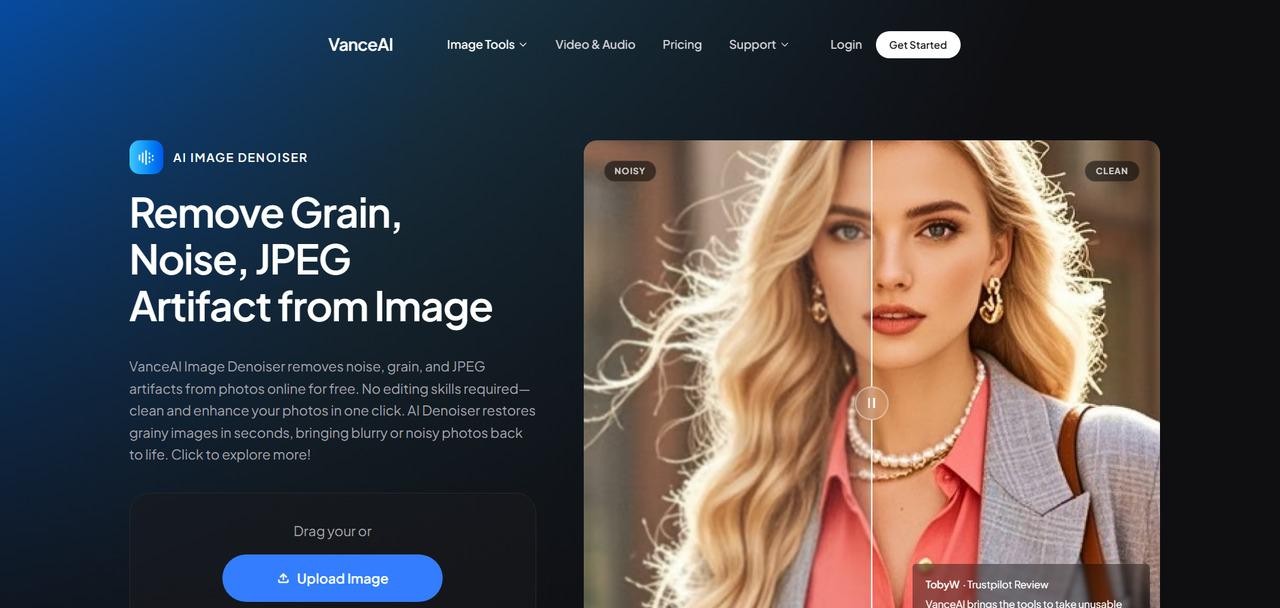
Vance AI is a great noise-reduction software for anyone who wants to achieve professional results with little to no effort. It reduces noise by using deep learning models. These models tell apart distracting grain from key textures like skin or fabric. It does a great job of cleaning up night photos and wildlife photos taken at high ISO settings. It often brings back sharpness that seemed to be gone forever. The performance is very rapid; it can process most high-resolution photographs in only a few seconds. It is a good solution for photographers who need to save "bad" photos and make them into portfolio pieces.
Pros:
-
It uses advanced AI to bring realistic details back to portraits. It focuses on skin, hair, and clothing. For animal photos, it highlights textures like feathers and fur.
-
With just one click, the software easily removes JPEG artifacts and blurry skies in night images.
-
It has a built-in upscaler that lets you remove digital noise while also increasing image resolution.
Cons:
-
People who have a lot of photos may find the credit-based pricing system to be limiting and hard to understand.
-
You have fewer customization options here, so you can't control things as much as with desktop software.
-
Zawa
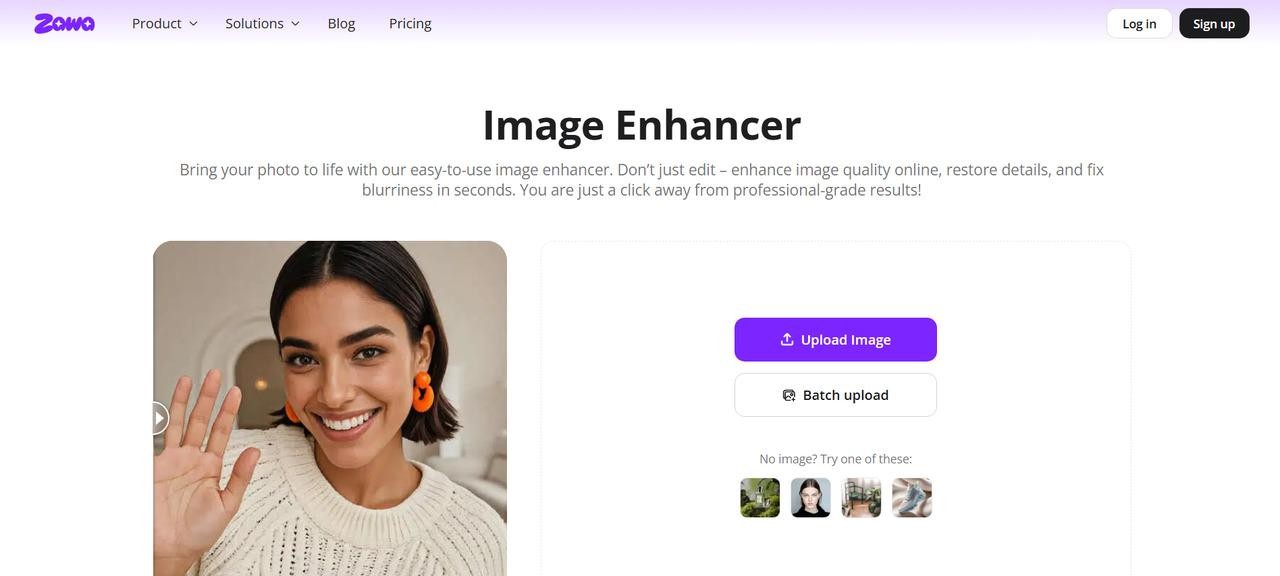
Zawa stands out for its integrated AI approach to image enhancement. This noise-reduction software is designed to remove complex artifacts common in smartphone shots and in compressed web images. The performance is great because it balances denoising with automatic color correction. This means that your shot will not only look cleaner, but also more colorful. It works especially well for people who make content on social media and need a "one-click" fix. Beyond social media, Zawa is also a powerful asset for brand design, ensuring marketing materials look sharp and professional. The AI is programmed to avoid the "plastic" look that makes AI-edited portraits look bad.
Pros:
-
It offers true 4K enhancement. You can enlarge images up to 8 times their original size. This keeps them clear and natural-looking.
-
With the batch processing tool, you can enhance up to 20 pictures at once with just one click. This saves you hours of work on brand assets or product photos.
-
All heavy lifting is done on powerful cloud servers, meaning you can enhance high-resolution files instantly. This allows you to get professional results without draining your own computer's resources.
Cons:
-
You can export only a limited number of high-resolution files per day with the free version.
-
If your internet speed is sluggish, it may take a little longer to process big files.
-
Pixlr
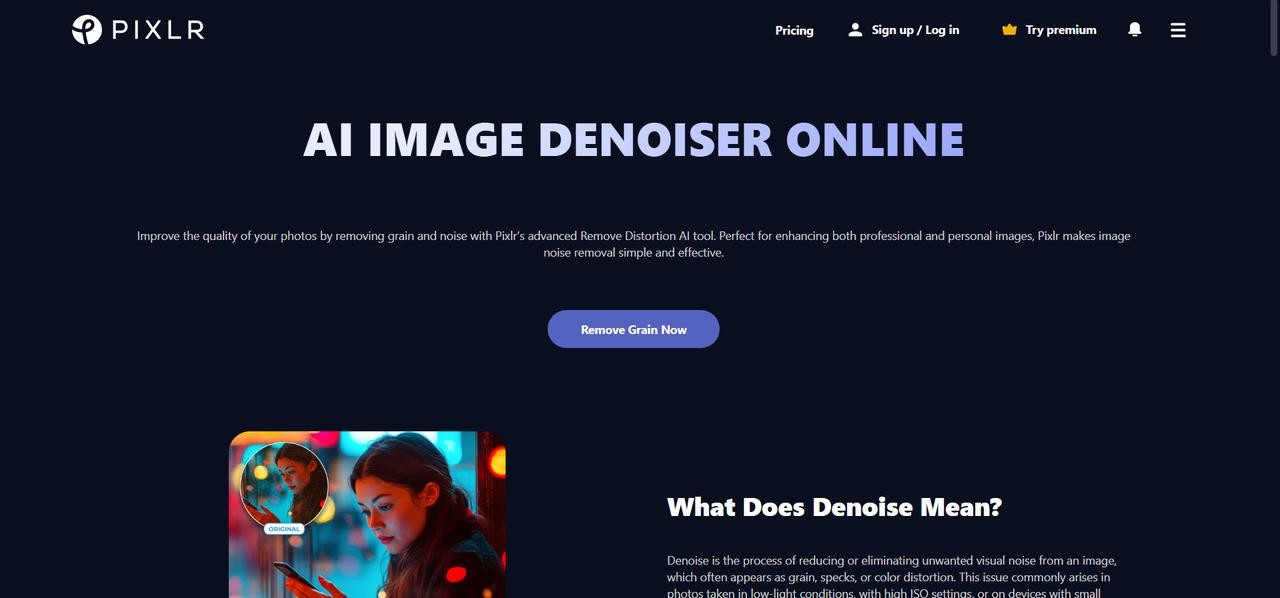
Pixlr has a remarkably powerful Denoise AI feature built directly into its famous web-based editor. It's fast and easy to use, which makes it the best choice for people who only need to repair grain in family or vacation images. It can reduce noise quite well in pictures shot with entry-level cameras and cellphones in low light. Pixlr's AI finds edge patterns to keep the image sharp, unlike older web tools that just blur it. It is a great, lightweight way to make quick changes on the go without a powerful computer.
Pros:
-
It restores clarity to small details, like fabric patterns and building features. This avoids the "muddy" look common with regular blur tools.
-
You can prepare photos for printing or social media quickly. Just remove the ISO grain and increase the resolution four times.
-
The AI reduces low-light artifacts in night photos. It makes stars and city lights shine bright and clear instead of pixelated.
Cons:
-
Ads support the free version, which can be irritating while you're editing.
-
It doesn't have deep, manual sliding scales common in professional desktop software.
-
Fotor
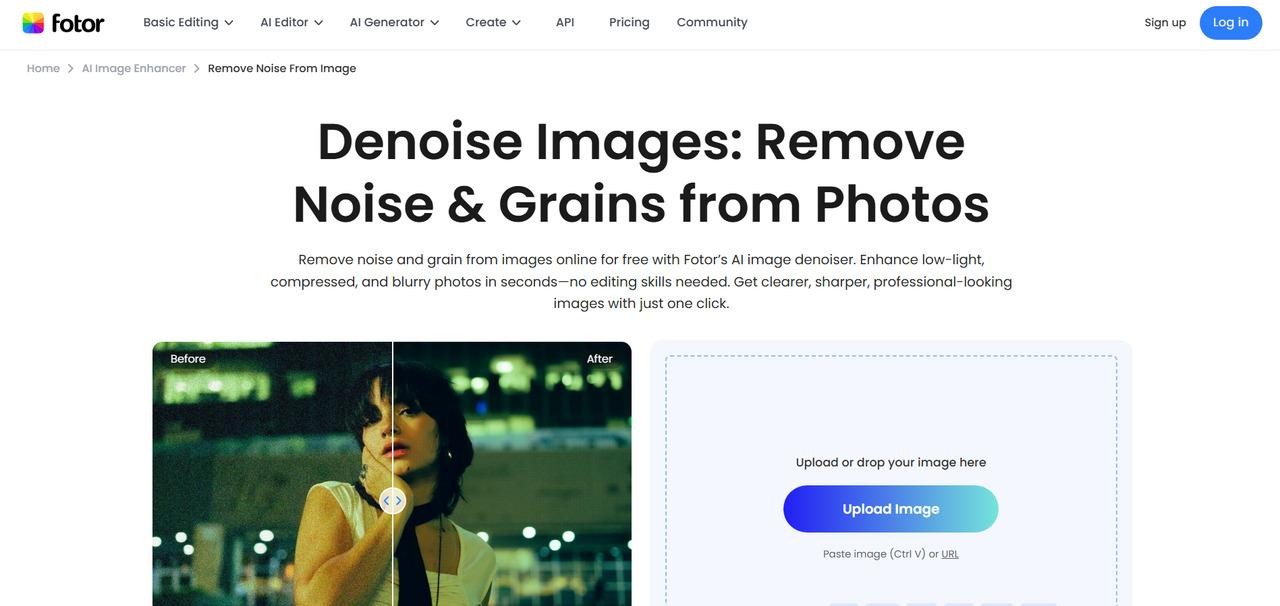
Fotor's AI enhancer sees noise reduction as just one aspect of a whole image makeover. When it comes to underexposed photos, it really shines. It raises the shadows and lowers the grain that usually shows up in dark areas. The denoising software uses a clever detail reconstruction method, which means it fills in the holes where noise has damaged the image's texture. It is a really useful tool for beginners who want their images to look like they were edited by a pro without having to learn how to use complicated sliders. Fotor ensures your final product stays sharp and balanced.
Pros:
-
It can fix photos that are blurry and grainy from messaging apps. This makes them look clear again.
-
The tool is great for indoor events because it can lighten dark shadows while removing noise.
-
It has a manual denoising slider for people who desire more control over the balance between clarity and detail.
Cons:
-
Sometimes, the "1-Tap Enhance" option makes colors too bright, which makes the picture look fake.
-
The web version can be slow when processing high-resolution files, which may cause the browser to lag or freeze.
-
Media.io
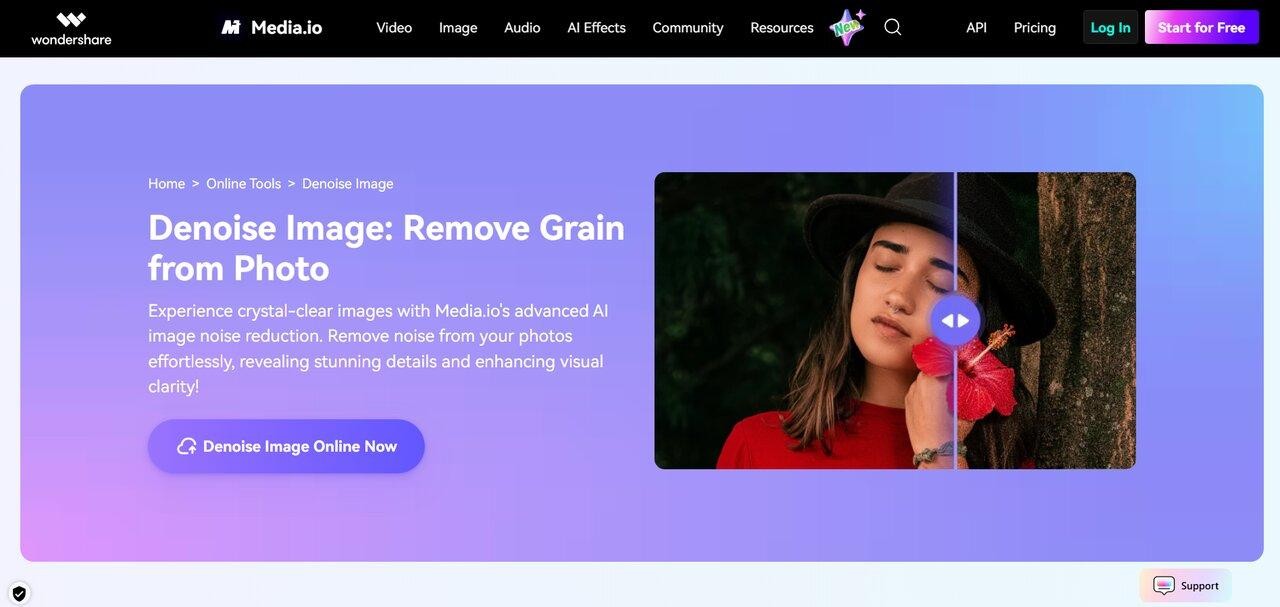
Media.io has a special AI denoising software designed to quickly and automatically remove noise. Its power comes from complex algorithms that target "chroma" noise. This noise creates annoying purple and green spots in night images. The performance is best across a wide range of devices, so it works just as well on a tablet as on a desktop browser. It automatically deletes your files after processing, thus it's a great tool for anyone who cares about data privacy. This online program helps creators quickly and safely clean up images. You won't have to handle complicated workflows.
Pros:
-
It offers a "one-click" experience that is absolutely easy, automatically scanning and removing noise, so you don't need to know how to edit.
-
The program protects your data by using SSL encryption and destroying all processed photographs within a few hours.
-
You don't have to install any software because it works perfectly on mobile, desktop, and tablet browsers.
Cons:
-
You need a stable internet connection. Everything happens in the browser, and processing large files can take a long time.
-
The free version has some limits. It may add watermarks and cap high-resolution downloads until you subscribe.
Here's a helpful comparison of top AI solutions for image noise and restoration in 2026. This will guide you in making the best choice.
|
Feature |
Vance AI |
Zawa |
Pixlr |
Fotor |
Media.io |
|---|---|---|---|---|---|
|
Best For |
High-ISO wildlife & night shots |
Professional branding & social media |
Quick web-based edits |
One-click image rescue |
Privacy & fast denoising |
|
Denoising Engine |
Deep convolutional neural networks |
Context-aware AI (Next-Gen) |
Basic AI softening |
Automated detail reconstruction |
Chroma noise filters |
|
Max Upscale |
8x resolution |
Ultra HD (Lossless) |
4x super scale |
2x standard |
2x standard |
|
User Interface |
Functional/professional |
Modern & intuitive |
Ad-supported editor |
Feature-rich / busy |
Clean & minimalist |
|
Processing Speed |
Fast (Server-based) |
Instant (Real-time Preview) |
Moderate |
Variable |
Fast |
|
Primary Strength |
Texture recovery |
Perfect detail/color balance |
Extreme accessibility |
Shadow brightening |
Data security & privacy |
Browser-based tools are great for small adjustments since they are so easy to use. But genuine professional power is on the desktop, where dedicated hardware can unlock the full potential of high-end AI restoration.
5 best desktop noise reduction software for Win & Mac
Here are five top desktop programs for Windows and Mac. They help you find the best solutions for high-end restoration.
-
Topaz Labs
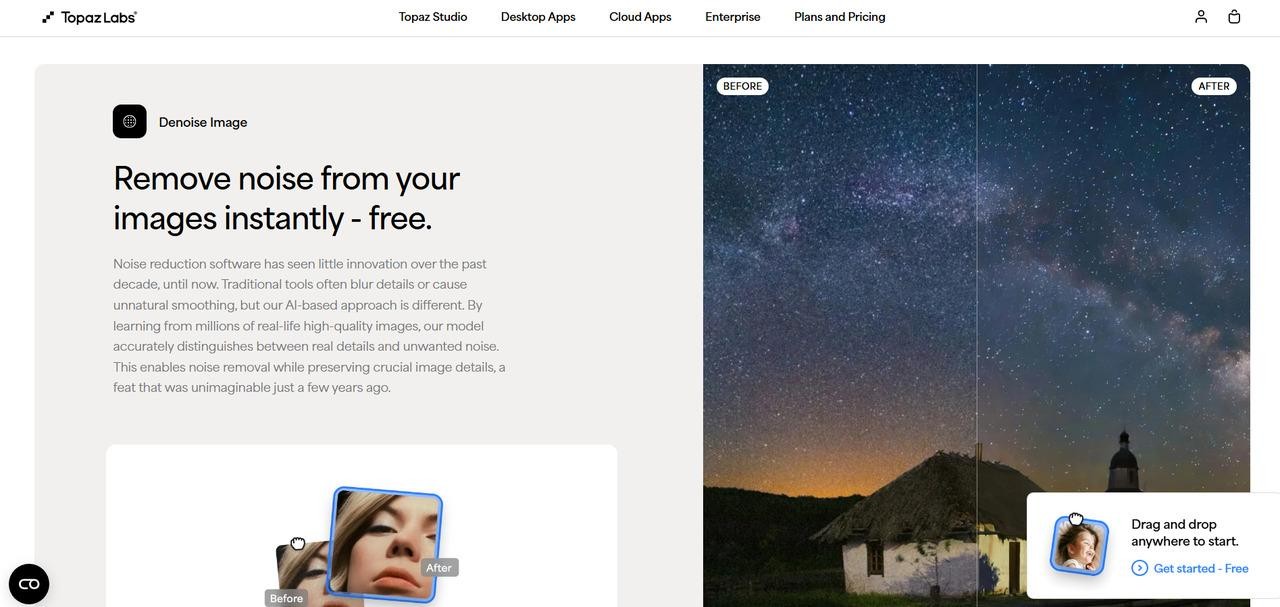
Topaz Labs is a top desktop app. It has changed how photographers manage digital noise. In 2026, it shares the spotlight with Topaz Photo. Still, it's a pro favorite for its precise performance. The software uses deep learning models that were trained on millions of images. This denoising software helps it tell the difference between distracting grain and important textures. You can shoot at high ISOs in tough lighting, like at night or during fast action. This lets you capture clear, lifelike details with confidence. Whether used as a standalone tool or a plugin, it offers a level of control that standard editors simply cannot match.
Pros:
-
It has specific AI models, such as "Low Light" and "Severe Noise," that let you address different forms of grain without compromising clarity.
-
The app features a powerful "Recover Original Detail" slider. It also has a masking tool, which lets you adjust specific areas of your photo to keep them looking real.
-
It does a great job of keeping tiny textures, like fabric weaves or animal fur, from making things look "plastic" or too smooth. This problem often occurs with less advanced AI programs.
Cons:
-
The processing requires significant resources and requires a modern GPU. Users with outdated hardware may experience significant lag or slow rendering.
-
Because it is an older-style tool, it doesn't have the fully automatic "Autopilot" functions found in modern suites. This means you have to make more manual adjustments to achieve excellent results.
-
Adobe Lightroom
In 2026, Adobe Lightroom changed a lot. It went from being a simple tool for organizing photos to an AI powerhouse. With the "Denoise AI" feature in the Develop module, photographers can easily clean high-ISO RAW files. They can do this without leaving the main program. It uses Adobe's own machine learning to analyze data from the camera sensor and distinguish noise from real image information. Recent updates have boosted performance. It's now a "one-stop shop" for culling, editing, and professional-level noise reduction. It is the best solution for photographers who want a fast, smooth workflow without constantly switching between apps.

Pros:
-
The most recent update from April 2026 lets AI denoise run in the background. This means you may continue editing or deleting other photographs while the algorithm denoises your image.
-
It creates results that appear very real. It also keeps the "photographic soul," something many other top AI tools find hard to do.
-
The program is now very well optimized for modern hardware. Windows users can process things up to five times faster, and Mac users can take advantage of extensive M4 chip integration.
Cons:
-
You can only use the AI denoise function on RAW files; it won't work on JPEGs, TIFFs, or HEIC files.
-
Your hard drive space can fill up quickly during a long session because it creates a separate, large DNG file for each denoised image.
-
Adobe Photoshop
Adobe Photoshop remains the top choice for creative pros. It offers great manual control and uses advanced AI technology from 2026. Photoshop offers the unique advantage of layer-based editing. It also uses the same advanced "Denoise AI" engine as Lightroom via Camera Raw. This lets you apply surgical noise reduction to specific parts of a shot without changing the whole shot. Its new Neural Filters and Generative Fill features can do more than just remove noise. They can also restore details that were lost due to excessive noise. It is the best solution for anyone who needs to clean, upscale, and touch up an image, all in a single high-precision workspace.

Pros:
-
Layer masking lets you easily remove noise from backgrounds. This keeps all the details of your subject intact, giving you great control.
-
Includes the "Neural Filters" suite. It can smooth skin, enhance facial features, and remove digital grain automatically.
-
Offers a fully creative environment where you can use noise reduction alongside complex compositing, color grading, and high-end retouching tools.
Cons:
-
The program is rather complicated, and beginners will have a hard time understanding how to use it compared to "one-click" AI apps that work on their own.
-
It requires significant monthly funding and high-end technology to deliver the most complex AI-accelerated features smoothly.
-
Luminar Neo
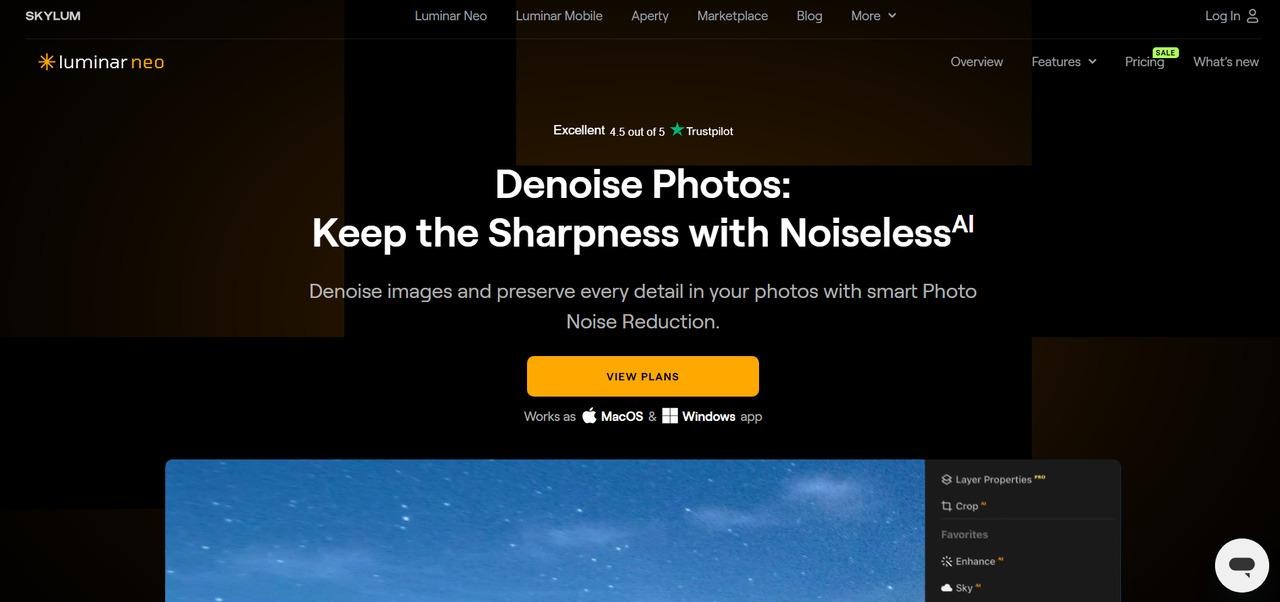
In 2026, Luminar Neo became the most creative desktop editor. Its "Noiseless AI" plugin eliminates technical issues. This powerful denoising software uses deep learning to intelligently remove digital grain while keeping edges clean and textures realistic. Neo's AI automatically analyzes your picture and suggests the best noise-reduction level: Low, Middle, or High. This is different from typical editors. It is the best bridge for photographers who want excellent results without having to learn much. Luminar Neo's main goal is to make your images look bright and clear in just a few clicks, whether you're repairing a blurry landscape or a low-light portrait.
Pros:
-
It has a very easy-to-use "one-click" workflow that lets the AI figure out how loud the noise is and suggest the appropriate setting. This makes it the most beginner-friendly professional tool.
-
The program has sliders for "Chroma Noise" and "Luminance" that let you fine-tune the results. This ensures you remove the unattractive digital artifacts while preserving the photo's "soul."
-
It works perfectly as a plugin for both Photoshop and Lightroom, so you can use its better Noiseless AI engine without having to give up your current library management.
Cons:
-
The app is known for using a lot of resources, so you need a powerful computer with a dedicated GPU and at least 16GB of RAM to avoid slow processing times.
-
It works really well, but it doesn't always have the raw "reconstruction" ability that Topaz does for very blurry or extensively damaged high-ISO photos.
-
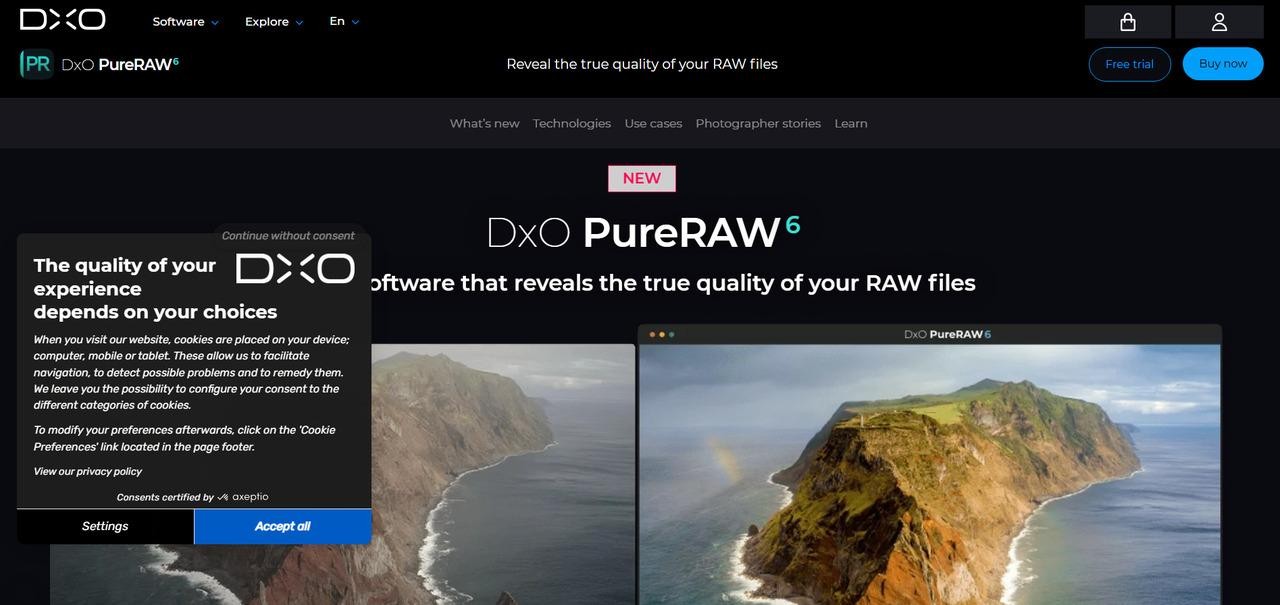
DxO PureRAW
DxO PureRAW is still the best "pre-processor" for photographers who want everything to be perfect before they even start editing their photos. PureRAW is different from regular editors because it is the first stage in your workflow. It uses its groundbreaking DeepPRIME XD3 engine to demosaic and denoise photographs simultaneously at the RAW level. It doesn't just remove noise; it also corrects lens distortion and chromatic aberration with mathematical precision, using lab-calibrated optical modules for more than 100,000 camera-lens combinations. This is the best alternative for high-ISO shooters who need to preserve detail in the most challenging lighting conditions while keeping their images perfectly natural and grain-free.
Pros:
-
It removes noise during the first RAW conversion, preventing the "mushy" artifacts that typically occur when noise is removed after the image has already been made.
-
It automatically sharpens edges and fixes distortion better than any other general-purpose editor by using custom-built lab profiles for your camera and lens.
-
The 2026 version has better DNG compression, which lets you export clean, processed files that take up a lot less space than uncompressed versions from before.
Cons:
-
This is merely a pre-processing tool, so you'll still need other applications like Lightroom or Photoshop to color grade, trim, and make final artistic changes.
-
The DeepPRIME engines powered by AI only work with RAW data; you can't use their greatest features to clean up JPEGs or other compressed files.
Here is a full breakdown of the 5 best desktop noise-reduction programs for Windows and Mac, with a focus on performance and technical features. This will help you compare the best options in the professional market.
|
Feature |
Topaz DeNoise AI |
Adobe Lightroom |
Adobe Photoshop |
Luminar Neo |
DxO PureRAW |
|---|---|---|---|---|---|
|
Best For |
Extreme texture recovery |
Rapid batch workflow |
Layer-based precision |
Creative automation |
Professional pre-processing |
|
Denoising Engine |
Deep reconstruction AI |
Proprietary RAW AI |
Generative denoise |
Noiseless AI extension |
DeepPRIME XD3 |
|
File Support |
RAW, JPEG, TIFF |
RAW exclusive (for AI) |
All formats |
RAW, JPEG, TIFF |
RAW exclusive |
|
Primary Strength |
Restoring fine details |
Seamless ecosystem |
Selective masking |
One-click suggestions |
Optical lab corrections |
|
System Load |
Very high (GPU) |
Moderate (Optimized) |
Moderate to high |
High (RAM Intensive) |
Moderate (Background) |
|
Max Control |
Manual fine-tuning |
Slider-based |
Pixel-level control |
AI-guided presets |
Automated correction |
Bonus tips: how to perform AI noise reduction using Zawa?
Zawa has a really easy-to-use platform for polishing your pictures in seconds if you're seeking a web-based solution that works like a desktop.
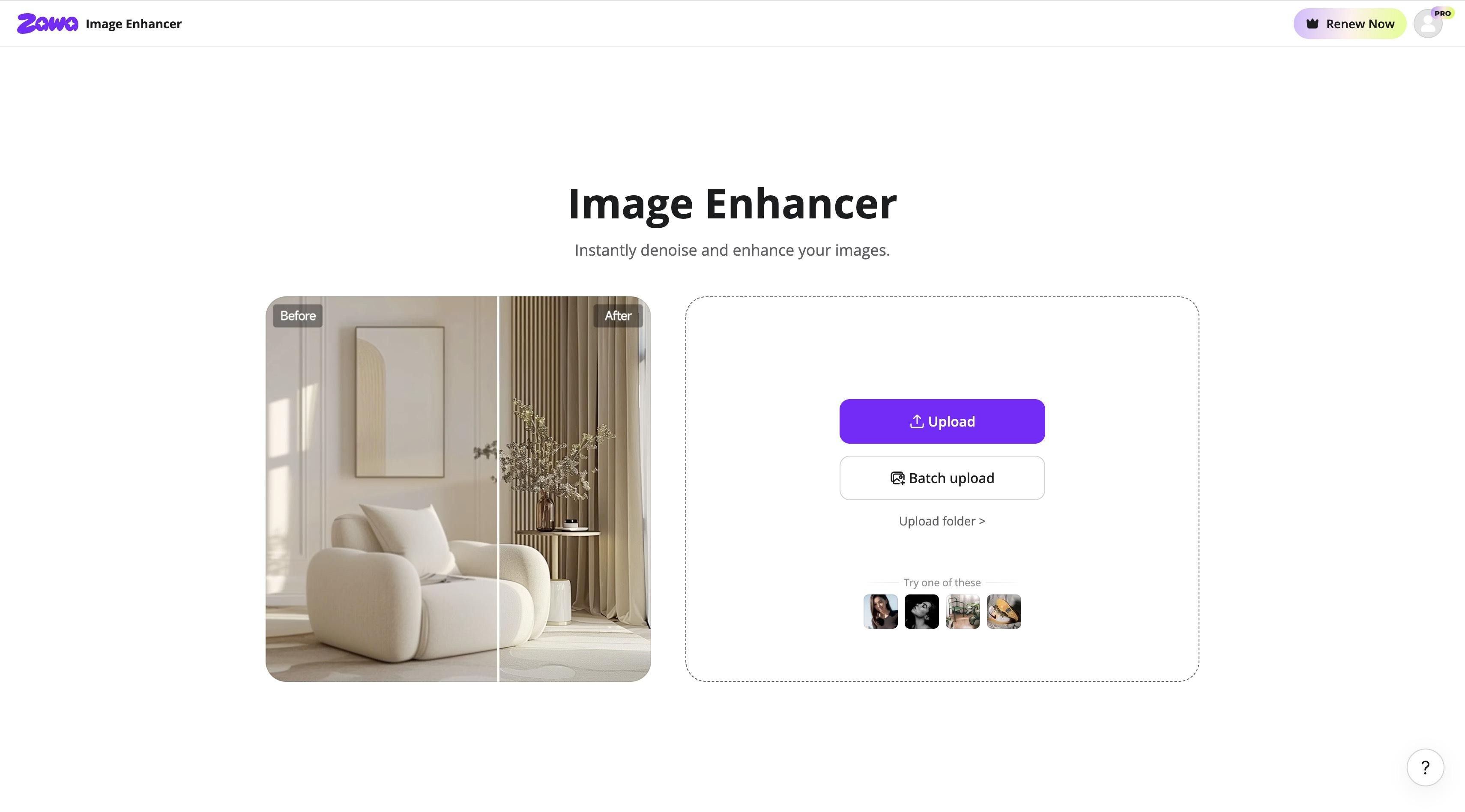
Step 1: Upload your noisy image
Launch the Zawa Image Enhancer tool. You can either drag and drop your blurry or noisy photo into the upload zone or browse your device to find the exact photo you want to recover.
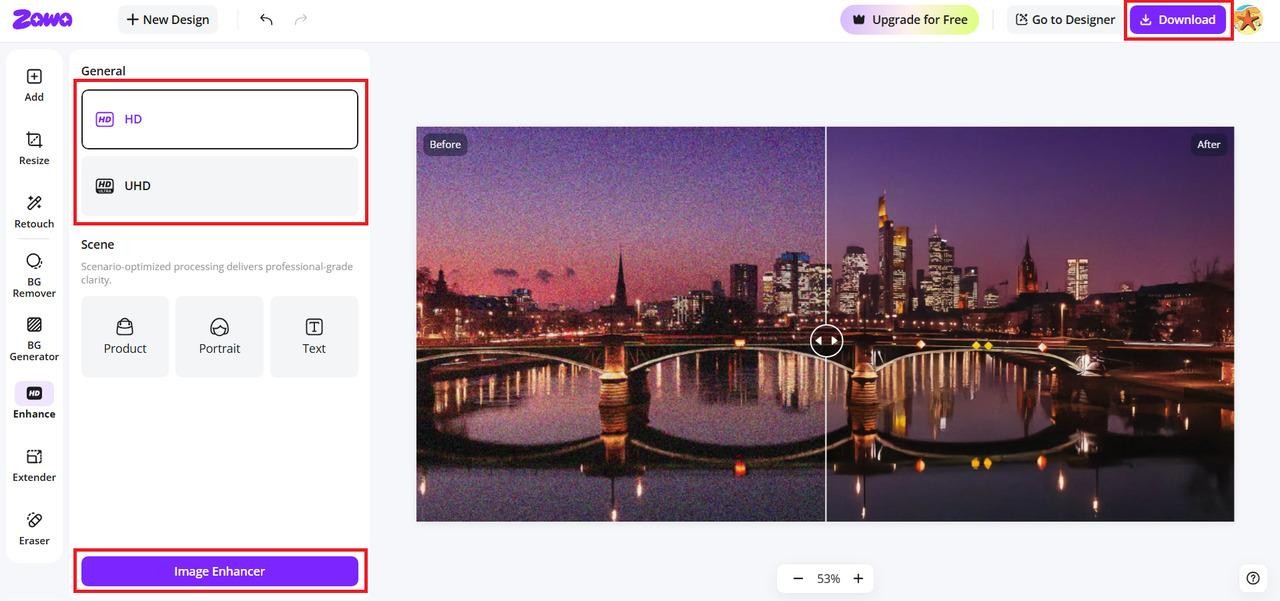
Step 2: Enhance and export
After your picture shows up on the canvas, go to the options tab and choose the resolution you want: HD or UHD. To start the noise reduction procedure, click the "Image Enhancer" button. When the AI is done sharpening the details, just click "Download" in the upper-right corner to save your clear new photo as a high-quality PNG or JPG.
When is denoising software used?
Denoising software is a useful tool for many types of visual projects. Here are the times when you might need to use it the most:
-
Low-light photography: When you take pictures at night or in dark rooms, your camera's sensor often makes grainy artifacts. Denoising software removes these shadows so you can see the details concealed in the dark.
-
High ISO images: When you raise your ISO, your sensor becomes more sensitive, but it also introduces more digital noise. These features let you use quicker shutter speeds without losing the sharpness of the final image.
-
Smartphone photography: Small sensors in phones struggle with low light and often produce "muddy" textures. AI denoisers make mobile photographs look more like they were captured with a high-end DSLR camera.
-
Astrophotography: To capture images of the stars, you have to leave the camera open for a long time, which can cause noise on the sensor. Software helps you see the tiny pinpricks of stars in the night sky that are different from the random, colorful grains.
-
Old or compressed images: Scanned old photos and low-resolution files often exhibit heavy pixelation and artifacts. New software can smooth out these rough spots, bringing ancient memories back to life.
-
Video production: Moving pictures can exhibit noise that causes flicker, especially in dark parts of a frame. Specialized denoising filters make sure that every second of your footage looks smooth and professional.
Tips to keep in mind while using the noise reduction program
Using a program to reduce noise is an art. It's easy to go too far and ruin the charm of your initial shot. To always receive the greatest outcomes, remember these tips:
-
Avoid over-processing: If you move the sliders too high, your subjects will start to look like plastic or wax. Instead of making the picture look phony, try to make it look natural with a small amount of grain.
-
Preserve image details: Keep an eye on small details like hair, skin pores, or fabric to keep the image clear. You want to get rid of the distracting grit without losing what makes the picture look natural.
-
Use RAW files when possible: Use RAW files instead of JPEGs. RAW files have a lot more info. The software has more "information" to work with when you work with these files, which makes the finish much cleaner and more professional.
-
Zoom in while editing: You can't see how your work really looks from afar, so zoom in as you edit. You can see exactly how the software is treating each pixel and edge by zooming in to 100% or 200%.
-
Balance noise reduction and sharpening: These two parameters typically work against each other. If you sharpen too much, the noise may come back, so go for a happy medium where the picture is clear, but the grain stays gone.
Conclusion
In 2026, the landscape of AI noise reduction has reached a pinnacle of efficiency, offering specialized paths for every creator. Whether you rely on the surgical, pixel-level reconstruction of desktop titans like Topaz Labs and DxO PureRAW, or the rapid, batch-friendly ecosystem of Adobe, professional results are more accessible than ever. Meanwhile, online tools like Zawa provide a practical alternative by delivering lossless, UHD-quality enhancement directly through your browser. This is a huge help when you need to quickly polish brand assets or process product photos on the go, as it handles heavy lifting without taxing your computer's hardware resources. By selecting the right tool, from high-end desktop software to agile web solutions, you ensure that clarity and detail always define your visual storytelling.
FAQs
-
What is noise removal software used for?
It digitally cleans up your images, removing the "grainy" or "sandy" look that bad lighting can give them. It helps the picture look better, so your photographs look clear and professional rather than fuzzy or distracting. With a program like Zawa, you can turn even a dirty, speckled photo into a clear, polished picture that's ready to share.
-
What is the free AI tool for noise reduction?
Most of the time, well-known software is expensive, but there are smart web-based tools that help you clean up images for free. Zawa is a great pick here because it lives in your browser and gives you high-end AI capability for free. It's the best way to achieve a professional, "clean" look on a budget while keeping things quick and easy.
-
Can photo noise reduction software improve low-light photos?
Definitely! It really saved those dark, brooding pictures that turned out a little "muddy." The program separates the real picture from the digital noise that appears when your camera has trouble in low light. Zawa does a great job of this by making the shadows brighter and bringing back the features that the grain was trying to hide.
-
Do I need professional skills to use noise reduction programs?
Not at all; you don't need a degree in editing to restore a blurry picture now. Modern tools are designed to be "one-click" wonders that do all the hard work behind the scenes while you sit back and watch. Zawa makes this very easy with a user-friendly interface that anyone can learn in seconds, even if they don't know much about technology.
-
What settings work best in noise reduction software for photography?
The golden rule is "less is more"; if you want to remove the grain without making people's skin look like smooth plastic. Most people find that a medium setting works best to keep things looking natural and sharp rather than over-processed. Zawa takes the guesswork out of this by automatically picking the best settings for your specific photo, ensuring a perfect balance every time.
You May Be Interested

4 Solutions to Add a Background in Photos
How Big Is An 8x8 Photo

How Big Is a Wallet-Size Photo? Complete Size Guide

How to Remove People From Pictures

35 AI Image Prompt Examples: How to Get Outstanding AI Images