What Is Deinterlacing in Video Editing? Beginner's Guide
Understand deinterlacing, compare interlaced and progressive video formats, explore popular deinterlacing methods, and learn how AI tools like Zawa improve old footage.


No matter how good your video content is, having visible artifacts on the screen can negatively impact its engagement. Thankfully, modern AI video editors offer deinterlacing features that enhance the video quality by removing distortions. This utility also smooths fast-moving scenes by converting interlaced fields into full progressive frames, reducing motion distortion. To learn more about what is deinterlacing, follow this blog.
What Is Deinterlacing? Why Do You Need It?
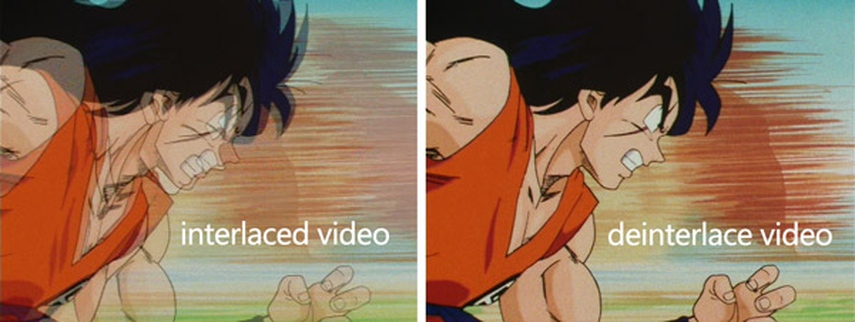
Deinterlaced video is the conversion of an interlaced video signal to a progressive format. Interlacing is good for old-style CRTs, but can produce visual artifacts on newer displays. However, deinterlacing helps overcome these problems by converting the frames back into complete images. Thus, this results in smoother videos and greater compatibility with existing technology.
The Historical Origin: Why Old Footage Was Divided Into Fields
Initially, an interlaced video was created for analog TV broadcasting to save bandwidth without sacrificing any smoothness of moving images. The image was broken up into two offset frames, each of which was shown in turn at a high frequency. Understand the reasons why you may want to perform video deinterlacing by going through the following:
-
Removes Visible Combing Lines: Deinterlacing eliminates the horizontal lines that show up in interlaced video.
-
Improves Playback on Modern Screens: Makes old videos display correctly on today's TVs, monitors, and smartphones.
-
Reduces Flickering and Motion Artifacts in High-speed Scenes: Makes motion smoother in high-speed scenes.
-
Improves Video Quality Prior to Editing: Deinterlacing yields a smoother starting point for color correction, upscaling, and restorations.
-
Increases Compatibility With Modern Platforms: Most streaming services and social media platforms are optimized for progressive video.
-
Enhances AI enhancement results: Deinterlaced footage enables more precise video enhancement by AI.
Interlaced vs. Progressive Video: The Ultimate Showdown
Modern video standards have changed, and visual quality has gained immense importance. The following table demonstrates the ultimate showdown of interlaced and progressive video:
| Feature | Interlaced Video | Progressive Video |
|---|---|---|
| How Frames Are Displayed | Displays alternating odd and even fields | Displays the entire frame at once |
| Image Quality | Can show combing artifacts and flickering | Produces cleaner and sharper images |
| Motion Handling | Smoother motion for traditional TV broadcasts | Smoother and more natural on modern displays |
| Visual Artifacts | May show jagged edges and scan lines | Minimal artifacts when properly encoded |
| Compatibility | Designed for older CRT televisions | Optimized for modern TVs, monitors, and mobile devices |
| Editing Performance | Often requires deinterlacing before editing | Easier to edit and process directly |
| Streaming & Social Media | Less suitable for modern platforms | Preferred by YouTube, TikTok, Instagram, and streaming services |
| File Processing | May need additional conversion steps | Ready for most modern workflows |
| Common Formats | 480i, 576i, 1080i | 720p, 1080p, 1440p, 4K, 8K |
How Deinterlacing Works: The Most Common Methods
There are several types of deinterlacing video methods, each employing a different technique to create a progressive video from an interlaced video. The appropriate approach will vary based on the type of footage, how much movement is involved, and the quality of the video desired. In this section, we’ll explain some of the most popular techniques for video deinterlacing:
Motion-Adaptive Deinterlacing (The Standard)
Motion-adaptive deinterlacing is a technique that sees the video as two dynamic and static frames, thereby enhancing the video quality. This technique is useful for retaining high contrast detail in flat regions and smoothing out motion artifacts in dynamic regions. To execute motion-adaptive deinterlacing, follow this guide:
Instructions. First,detect moving and non-moving areas in the frame, then apply interpolation to moving sections. Now, preserve detail in static areas and combine the processed sections into a progressive frame.
Weave Deinterlacing (The Simplest)
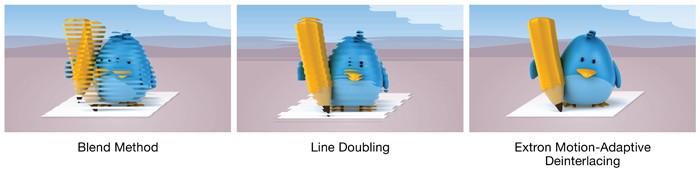
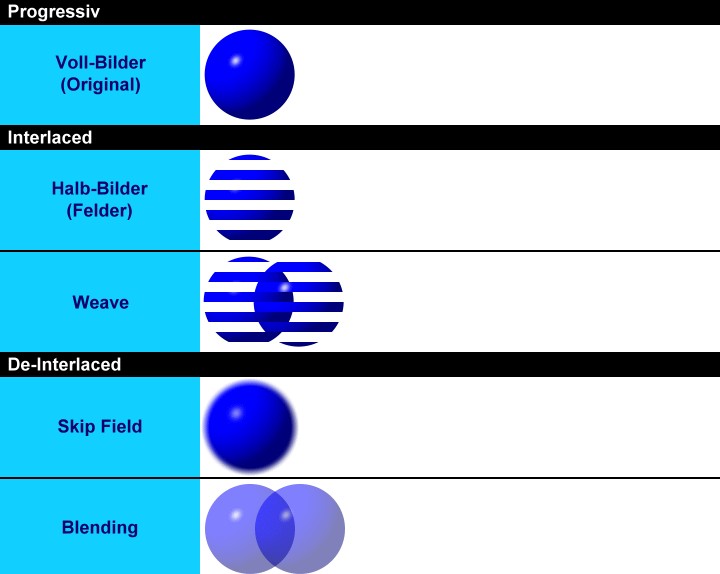
Weave deinterlacing combines two interlaced fields into a single full frame without modifying them. It works best when there is little or no movement between fields. This technique preserves maximum image detail in static footage. However, motion-heavy scenes may show visible combing artifacts. To learn how weave video deinterlacing can be executed, follow the guide below:
Instructions. To begin with, take two consecutive interlaced fields and merge them together into one full frame. Now, display the combined image as a progressive video.
Bob Deinterlacing (Line Doubling)
Bob deinterlacing processes each field separately and doubles missing lines to create full frames. This increases motion smoothness during playback. It reduces combining artifacts in fast-moving scenes. However, image sharpness may decrease because missing lines are recreated. The following guide explains how you can do bob deinterlacing on your video:
Instructions. To start the process, separate the interlaced fields and duplicate or interpolate missing lines.
Convert each field into a full frame. Lastly, display the reconstructed progressive video.
Field Blending (Blend)
This method combines adjacent fields by blending image information together. This softens visual transitions between frames and reduces harsh combing artifacts and flickering. The guide below is how field blending can be done on your videos to get a deinterlaced output:
Instructions. To start, take adjacent interlaced fields and blend image data between fields. Now, generate a smoother progressive frame and display the processed output.
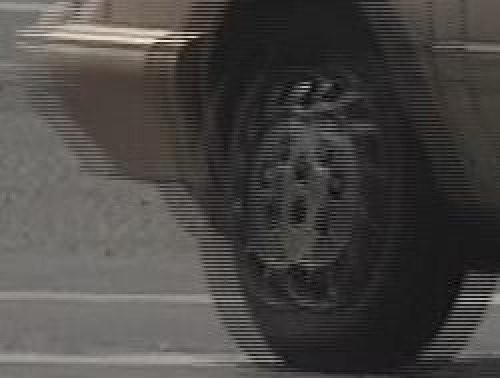
Motion-Compensated Deinterlacing (The Advanced/Archival)
This type of deinterlacing tracks object movement between fields and reconstructs frames more accurately. It uses advanced motion analysis to improve detail retention. Follow this guide to use the motion-compensated deinterlacing technique on your videos:
Instructions. First, analyze movement between fields and track object motion patterns. Now, reconstruct missing image data and create detailed progressive frames.
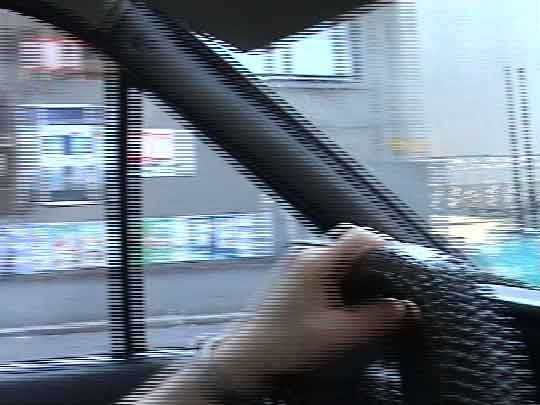
Which Deinterlacing Method Works Best?
For any particular type of footage and its intended use, the best deinterlacing method varies. Balanced results can be achieved with motion-adaptive deinterlacing video. However, motion-compensated deinterlacing is often the better choice for higher quality restoration and archival purposes.
Step-by-Step: How to Deinterlace Footage in Premiere Pro
Deinterlaced footage in Premiere Pro allows the conversion of interlaced video to progressive for better display on today's screens. Premiere Pro allows you to set field options and use flicker removal to minimize interlacing artifacts from your videos. This section will tell you how to deinterlace a video in Adobe Premiere Pro:
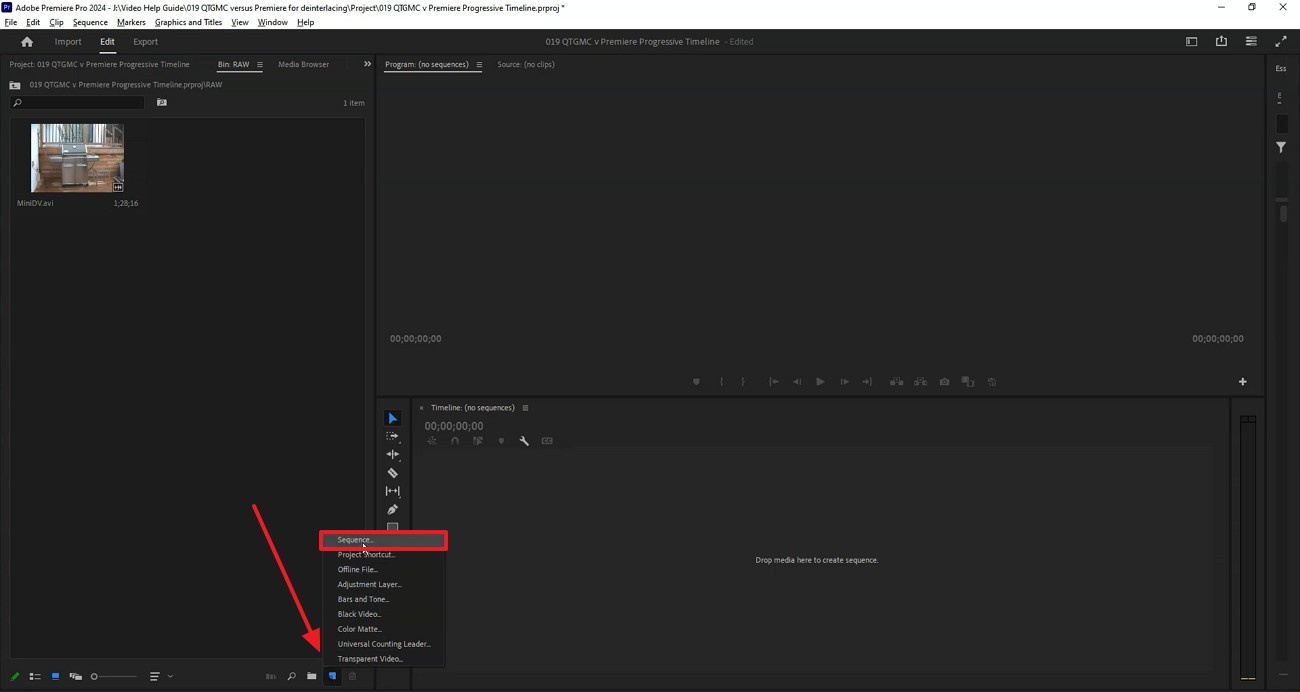
Step 1. After importing the video, expand the “New Item” menu from the bottom left and select the “Sequence” option to open a window.
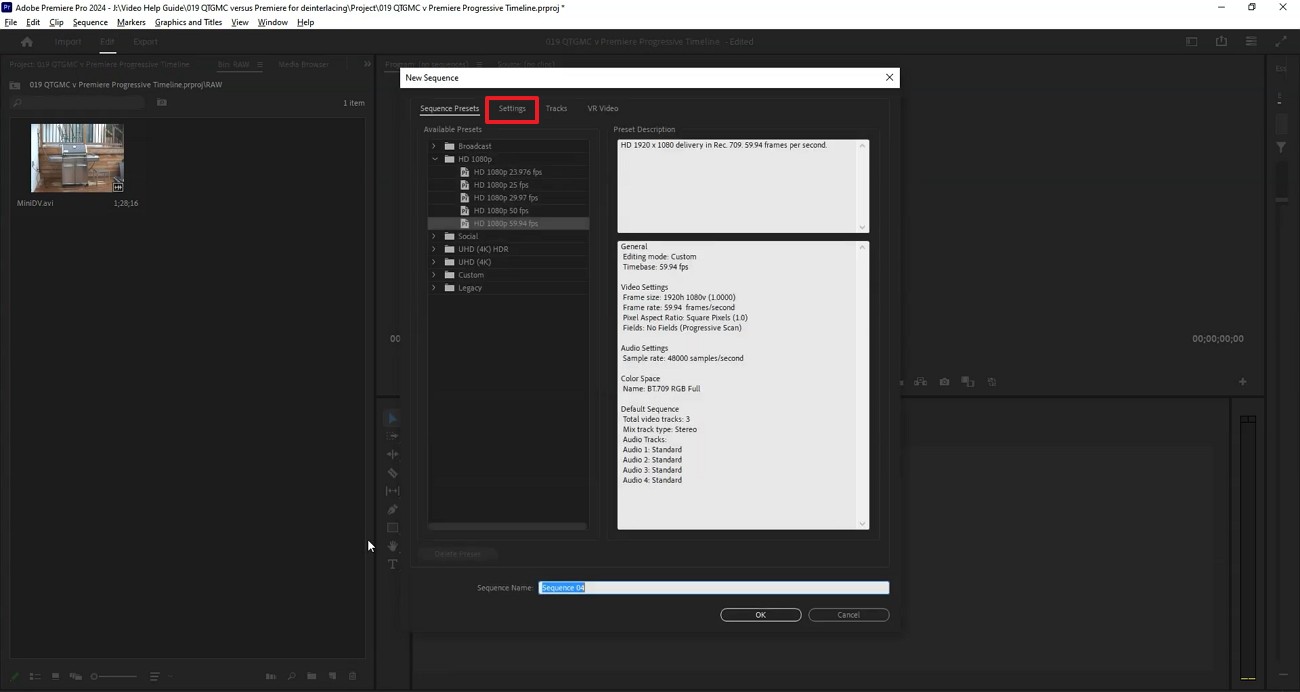
Step 2. In this window, enter the “Settings” tab to continue.
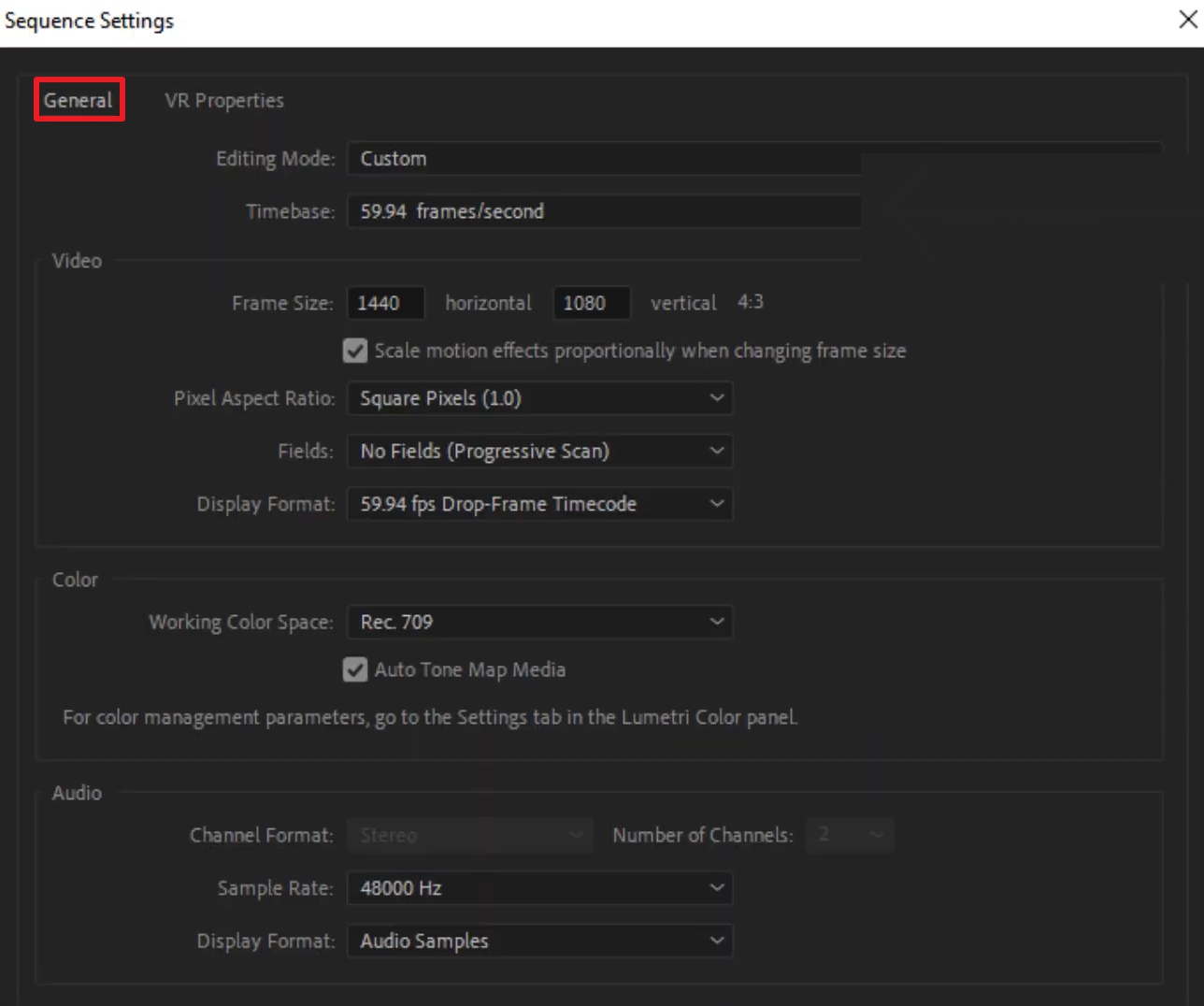
Step 3. In the “Sequence Settings” window, enter the “General” tab and ensure that the frame size is as shown in the image below. From the Fields menu, set the No Fields option to continue.
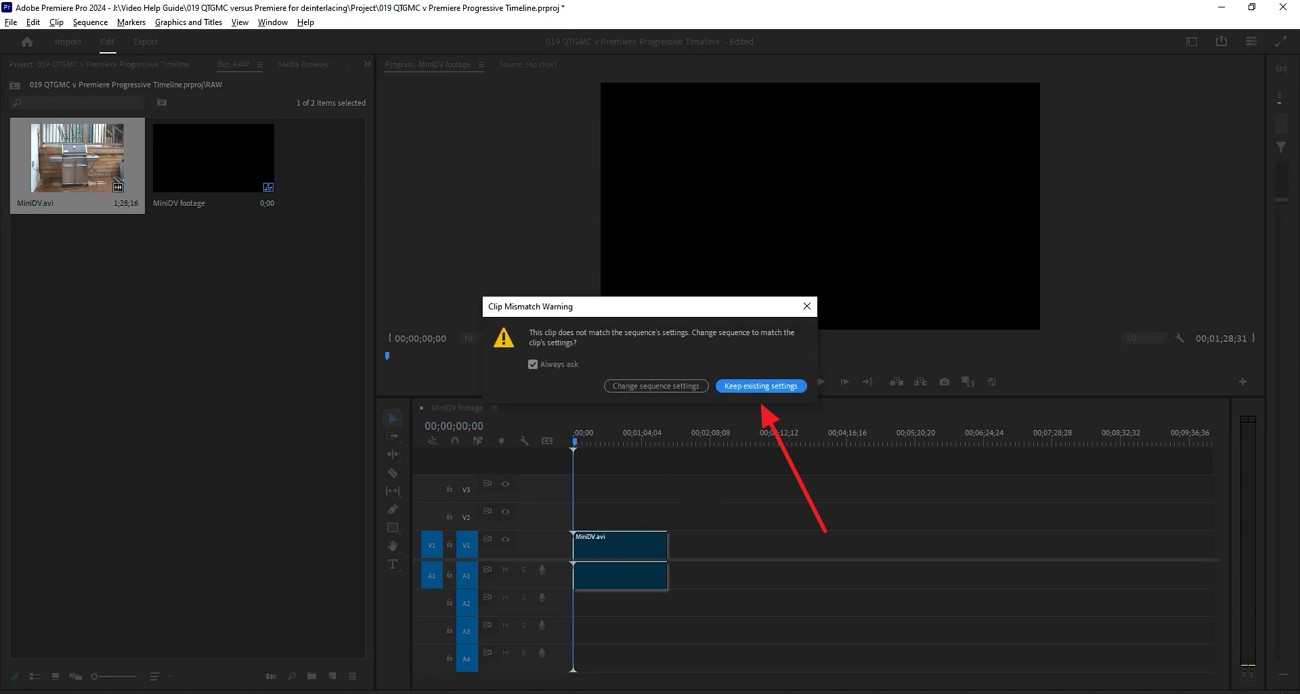
Step 4. After making the deinterlace effect, drag the video from the media window to the timeline. Using the following dialogue box, select the “Keep Existing Settings” option.
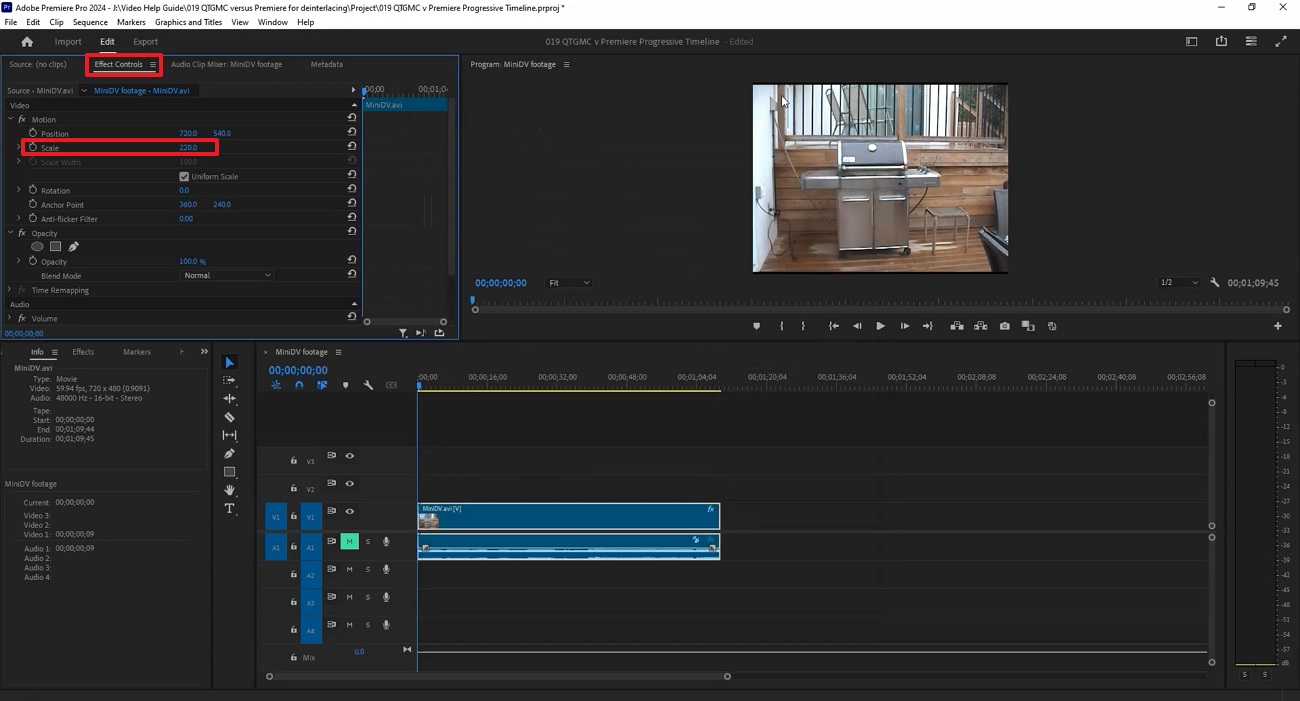
Step 5. In the “Edit” tab, enter the “Effects Control” section and set the “Scale” to 200 or above.
The Challenges of Traditional Deinterlacing
As seen in the deinterlace procedure of Premiere Pro, the traditional upscaling process is complex and has a window of errors. The following points point to the difficulties encountered in conventional deinterlacing of video signals:
-
Loss of Sharpness in Processing: Some deinterlacing techniques may cause loss of fine details, resulting in a less clear overall picture.
-
Motion Artifacts in Fast-Moving Scenes: Even though some scenes may be difficult to shoot, they will still have visual artifacts, particularly when there's lots of action.
-
Resolution Halving and Ghosting: Standard blending techniques can lose the important vertical pixels or cause the double-image blur known as resolution Halving and Ghosting.
-
Technical Knowledge and Manual Fine-Tuning: Conventional deinterlacing methods can involve technical expertise and manual adjustments.
-
Deinterlacing Inconsistency: Deinterlacing may not work as well over different types and conditions of video material.
Next-Gen Deinterlacing: Enter Deep Learning and Neural Networks
Manual video upscaling methods are complex and require a professional for proper execution. After deinterlacing, old footage often shows compression artifacts and softness from the conversion process. Zawa Video Enhancer can restore edge detail and upscale the output to 1K, 2K, or 4K — recovering sharpness that the deinterlacing conversion reduced. It runs in the browser, free to try with new-user credits, no desktop install required.The entire process is carried out quickly, saving the users’ time. Besides uploading a video, you can use the simple drag-and-drop technique to fetch videos for upscaling.
Key Features
-
Batch Upload: Zawa enhances the users’ productivity by enabling them to upload batch videos.
-
Video URL Support: Besides uploading the video from your device, you can paste the online URL for enhancement. Zawa provides support for Instagram, TikTok, and YouTube to quickly deinterlace.
-
File Format Support: Supports MP4, M4V, MOV, AVI, and 3PT formats — upload directly, in bulk, or paste a TikTok, Instagram, or YouTube link.
-
High Resolution Upscale: Import low-quality videos and upscale them to up to 4K and 30 FPS to create high-resolution videos and smoother play.
-
Video Upscale Preview: After the upscaling process, you will be able to see the video and make sure the process has worked well.
-
Additional Video Tools: Zawa also offers a range of AI-powered video tools, including video watermark removal, background removal, and short-form video generation, helping users create and edit content more efficiently.
Step-by-Step Guide to Using Zawa for Video Deinterlacing
Zawa replaces the need for manual video enhancement by offering its AI-powered Video Enhancer. The following steps explain how you can execute video deinterlacing using this tool:
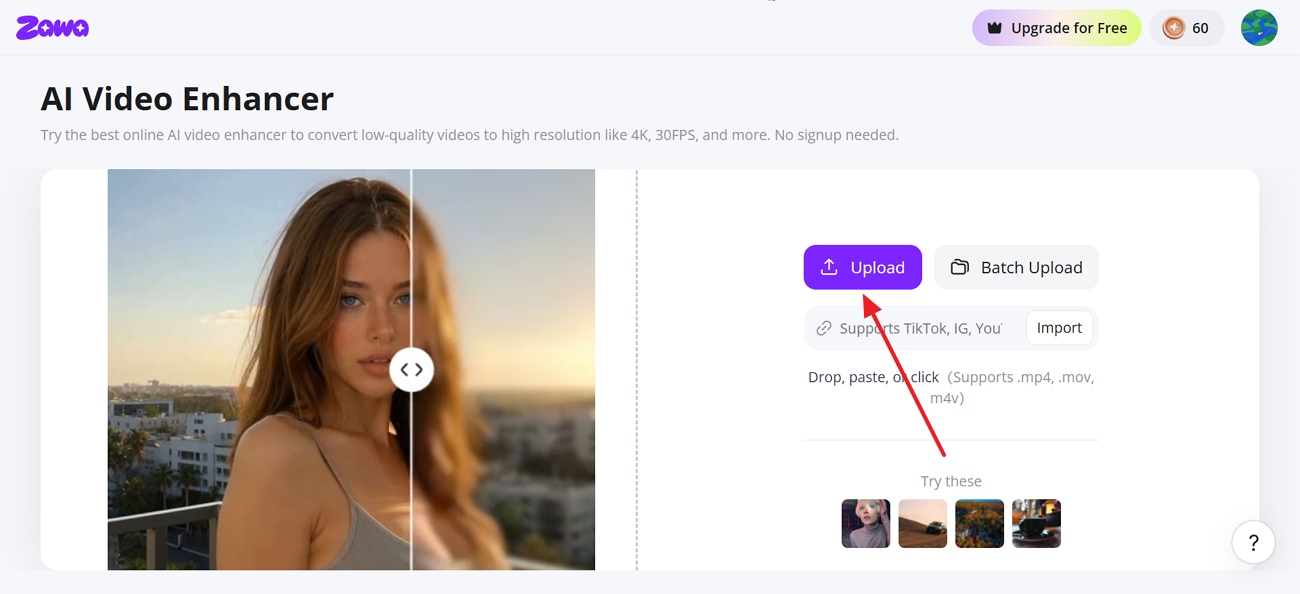
Step 1. Upload a Video on Zawa
To start the process, click the “Upload” button and fetch the low-quality videos from your device.
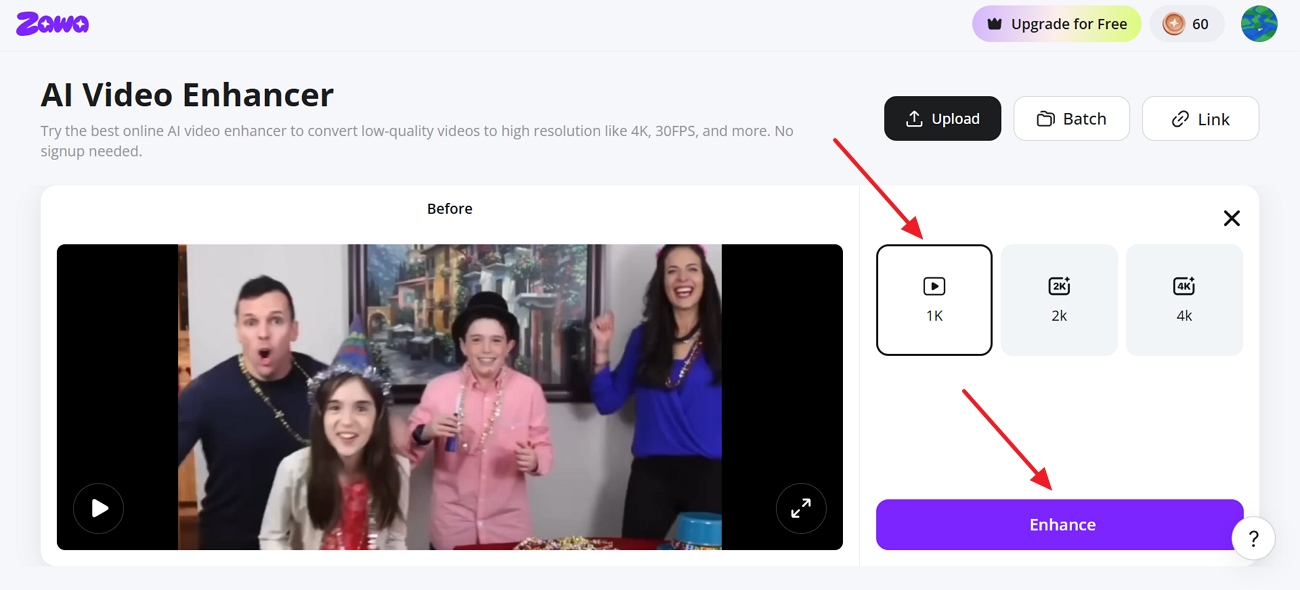
Step 2. Select the Video Quality
In the output panel, select your target resolution — 1K, 2K, or 4K. Click Enhance — the tool processes each frame, rebuilding edge detail and reducing artifacts at the higher resolution, outputting at 30FPS.
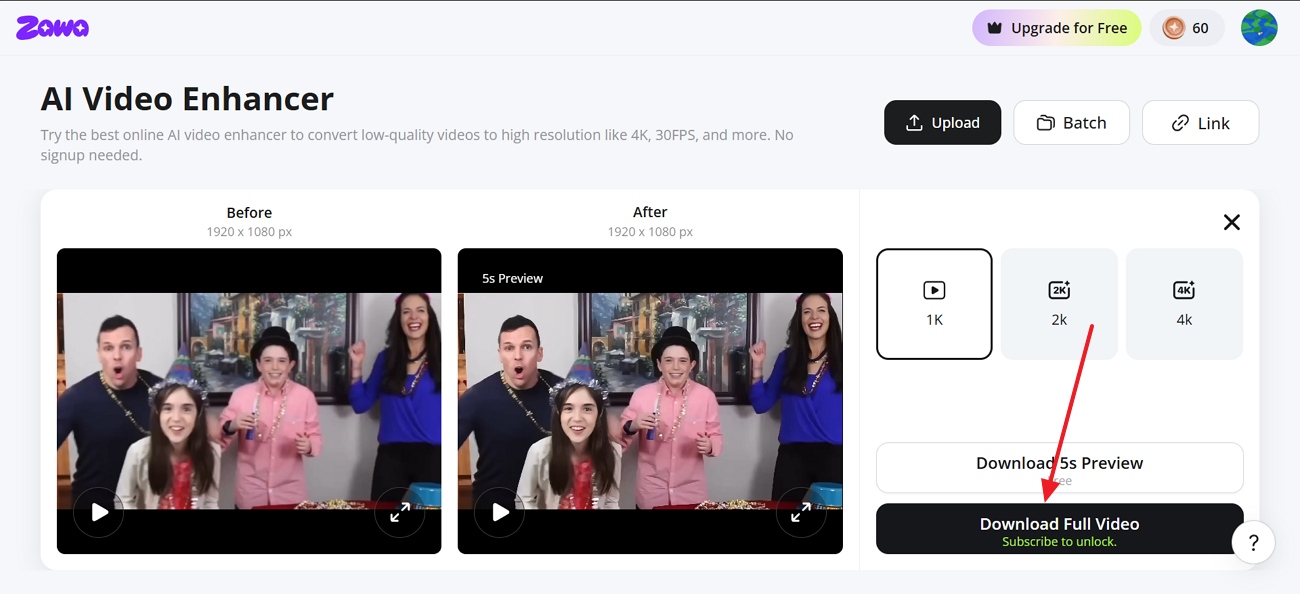
Step 3. Download the Deinterlaced Video to Your Device
Once the video is enhanced, preview the results and click the “Download Full Video” to save the output on your device.
Conclusion
Video quality plays a big role in the online engagement of your videos. If you have low-quality footage, use the deinterlacing technology to upgrade its quality. Although manual deinterlacing is effective, it calls for expert hands and a lot of time. This article answered the question of what is deinterlacing and explored an effective artifact remover. Zawa replaces the need for traditional deinterlacing by offering its AI Video Enhancer.
FAQs
-
Should deinterlacing be on or off?
The deinterlaced option is usually enabled on older, interlaced videos to minimize the visual artifacts and enhance picture quality on newer screens. For a video that is still in its old format, tools such as Zawa can help to simplify and enhance the deinterlacing.
-
Does deinterlacing improve quality?
Deinterlacing video can help eliminate combing lines, flickering, and motion artifacts in interlaced video, enhancing perceived video quality. Tools powered by artificial intelligence, like Zawa, can further optimize deinterlaced videos for cleaner and sharper videos.
-
Which deinterlacing method provides the best quality?
Animation-compensated deinterlacing is normally the highest quality, since it can better sense movement and retain more detail. In the case of high-quality restoration or archival projects, more sophisticated AI tools such as Zawa can contribute to improved results.
-
Why does interlaced video look strange on modern screens?
When a video is sent as interlaced, it appears strange on current screens, as most TVs are progressive in nature, not interlaced. This mismatch might result in combing lines, flickering, or jagged motion when playing back.
-
Is 4K interlaced or progressive?
Most 4K video is progressive because modern displays and streaming platforms are optimized for progressive formats. Interlaced 4K formats exist in some broadcast environments, but progressive 4K is far more common.
You May Be Interested

10 Best AI Video Enhancers to Upscale Your Videos

15 Best AI Video Generators in 2025
10 Best AI Video Enhancers to Upscale Your Videos

10 Best AI Photo Enhancers to Try in 2026

Gemini Images Too Blurry? Here’s How to Make Them Crystal Clear in Seconds
How to Resize an Image Without Losing Quality: A Beginner’s Guide