
What Is Frame Rate? FPS Meaning, Standards, and How to Choose (2026)
Frame rate is the number of still images shown per second to create the illusion of motion. Whether you are shooting video, gaming, or streaming, the frame rate you choose shapes how smooth, cinematic, or realistic the result looks.


Think of frame rate as a flipbook. Each page is a still photograph. Flip fast enough and the images blur into motion. That number, how many pages flip per second, is what fps measures.
The frame rate meaning goes beyond the count. It shapes whether footage looks cinematic or clinical, choppy or smooth. It determines file size, hardware load, and whether a platform will accept the footage at all. This guide covers the frame rate definition from first principles, every major standard from 24fps to 240fps, and what to do when existing video is too choppy to use.
What Does FPS Mean? Frame Rate Defined
Before deciding which frame rate to use, it helps to understand the mechanics and where the commonly confused terms actually differ.
The Core Definition
A single frame is a still image. Video is a rapid sequence played in order. The frame rate definition in practice is how many frames appear per second. At 24fps, 24 still images flash past in one second. At 60fps, 60 do.
Once the rate passes roughly 16fps, the brain stops seeing individual images and reads them as movement. Below that, the gaps are obvious and video frame rate looks like a slideshow. Above it, the illusion holds. Push it higher and motion gets progressively smoother. This is what frame rate means when applied to video.
Not all frame rates feel identical above the threshold. 24fps looks different from 60fps because each produces a different amount of motion blur between frames. Decades of cinema have trained audiences to read specific rates as specific contexts.
Frame Rate vs. Shutter Speed
People often mix these two up because they share a settings menu. They do different jobs. Frame rate is how many images the camera records each second. Shutter speed is how long the sensor stays open to capture each one.
The 180-degree shutter rule links them: set shutter speed to double the frame rate. At 24fps, that means roughly 1/48s. At 60fps, 1/120s. Following this rule produces natural-looking motion blur on moving subjects. A faster shutter than the rule allows makes motion look sharp and stuttery. Slower, and frames smear into each other. In gaming, shutter speed is not a direct control. Frame rate is set by GPU rendering throughput.
Frame Rate vs. Refresh Rate
Frame rate belongs to the source, a camera, game engine, or video file, and counts images pushed out per second. Refresh rate belongs to the monitor and counts how many times the panel redraws its pixels per second, in hertz.
Take a 144Hz monitor running a game at 60fps. The panel redraws 144 times a second whether or not new frames are ready. When no new frame has arrived, it repeats the last one. Flip it around: a game pushing 200fps into a 60Hz monitor cannot display most of those frames. The panel catches a frame mid-render and tears horizontally. G-Sync and FreeSync fix this by letting the monitor follow the GPU rather than a fixed clock. Tearing disappears and the input lag of traditional V-Sync goes with it.
Frame Rate vs. Frame Pacing
Frame rate tells you the average count per second. Frame pacing tells you whether frames arrive at consistent intervals. A game benchmarked at 144fps averages one frame every 6.9 milliseconds. If some arrive after 3ms and others after 20ms, the motion is uneven even though the counter looks fine. That inconsistency is micro-stuttering, and the eye catches it.
Poor frame pacing comes from driver issues, V-Sync misconfiguration, CPU bottlenecks, or VRAM overflow. A stable 60fps with clean pacing often feels smoother than a fluctuating 100fps with erratic delivery. Frame pacing is why 1% low frame times matter as much as average fps.
A Brief History of Frame Rates
Early film was hand-cranked with no standard, ranging from 14 to 26fps. In 1927, sound sync forced a consistent rate and 24fps was adopted as the minimum that allowed clear audio while minimizing film stock use. Television standardized at 30fps in North America and Japan (NTSC, 60Hz grid) and 25fps in Europe and Africa (PAL, 50Hz grid). From the 2010s onward, digital cameras and streaming platforms made 48, 60, 120, and 240fps viable production and delivery options.
Why Frame Rate Matters: The Real-World Impact
Frame rate touches more than smoothness. It feeds into file size, hardware load, audio sync, and platform compatibility.
Motion Smoothness and Viewer Perception
Fast content is where the frame rate gap shows first. A sports pan at 24fps turns into a smear. The same shot at 60fps stays sharp edge to edge. Gaming footage, action sequences, and rapid camera movement expose low frame rate limits immediately.
The soap opera effect is worth naming. Viewers watching 30 or 60fps drama often feel something is off. The footage looks too clean, too present. That reaction comes from decades of associating 24fps with serious storytelling. Higher frame rates work against that in narrative content. Below 30fps, fast pans show visible judder. Above 60fps, judder disappears. Frame pacing is what turns a high fps number into actual smooth motion: if frames are not landing at regular intervals, the inconsistency is visible even when the counter looks fine.
File Size, Storage, and Bandwidth
60fps footage requires approximately 2.5 times more storage than 24fps at the same resolution and bitrate. One hour of 4K at 60fps produces roughly 2.5 times more data than the same hour at 24fps. For live streaming, higher frame rates demand proportionally more upload bandwidth. YouTube supports up to 60fps for standard uploads. 120fps and above is not supported for direct delivery on most major platforms.
Audio Synchronization
Mismatched frame rates between capture and project timeline cause audio drift. A 24fps recording dropped into a 30fps timeline will slip out of sync. In short clips it is barely noticeable. In long-form content, voices and lip movements separate clearly. Match frame rates at capture and confirm export settings match the project before finishing.
Platform and Device Compatibility
Netflix, Disney+, and most streaming services deliver at 24 or 30fps. YouTube accepts and displays 60fps uploads. Instagram and TikTok handle 60fps Reels, though encoding varies. PC monitors in 2026 go up to 360Hz. PS5 and Xbox Series X target 60fps as standard, with 120fps available in optimized titles. In VR, below 72fps motion sickness risk climbs sharply. Most developers target 90fps as the comfort floor. Meta Quest 3 supports up to 120Hz, and research confirms judder essentially disappears at that threshold.
24 fps vs. 30 fps vs. 60 fps (and Beyond): When to Use Each
Each frame rate fits a different purpose. Picking the wrong one for the content type is noticeable. Here is what each standard actually delivers.
24 fps: The Cinematic Standard
Cinema has used 24fps since the late 1920s and still does. The motion blur baked into every moving frame is what audiences identify as film. Hollywood, streaming originals on Netflix and HBO, and most narrative video content use 24fps because it is what cinematic content is supposed to look like. The trade-off: fast action and sports at 24fps produce motion blur that obscures detail where sharpness matters.
25 fps: The PAL Television Standard
Europe, Africa, and most of Asia standardized on 25fps through PAL television, which ran on a 50Hz electrical grid. It is close enough to 24fps that the motion difference is imperceptible in narrative content. Choose 25fps when producing for European broadcast to avoid frame rate conversion at delivery.
30 fps: The TV and Social Media Standard
North America, Japan, and South America landed on 30fps through NTSC, and it stuck. Most smartphones default to it. Most social platforms assume it. Live TV, news broadcasts, YouTube tutorials and vlogs, social media content, and gaming capture all commonly use 30fps. For general-purpose web video, 30fps plays on every platform without issues and avoids the file size jump that comes with 60fps.
60 fps: Smooth, High-Action, and Gaming
60fps is where motion stops being a limiting factor in most video content. A fast pan stays sharp. A sprinting athlete does not blur. The jump from 30fps to 60fps is visible without side-by-side comparison. Sports broadcasts, action videos, gaming content on YouTube and Twitch, and 4K delivery all commonly use 60fps. It is the standard target for PC gaming and next-gen console play.
120 fps and Above: Slow Motion and Competitive Gaming
120fps has two uses: slow-motion capture and competitive gaming at high-refresh monitors. Shooting at 120fps and playing back at 24fps produces 5x slow motion. At 240fps, the factor reaches 10x. Most consumer cameras support 120 to 240fps only at reduced resolutions (typically 1080p) due to sensor read-out limits. 240fps is not a standard delivery format on any major platform.
High Frame Rates vs. Low Frame Rates: Pros and Cons
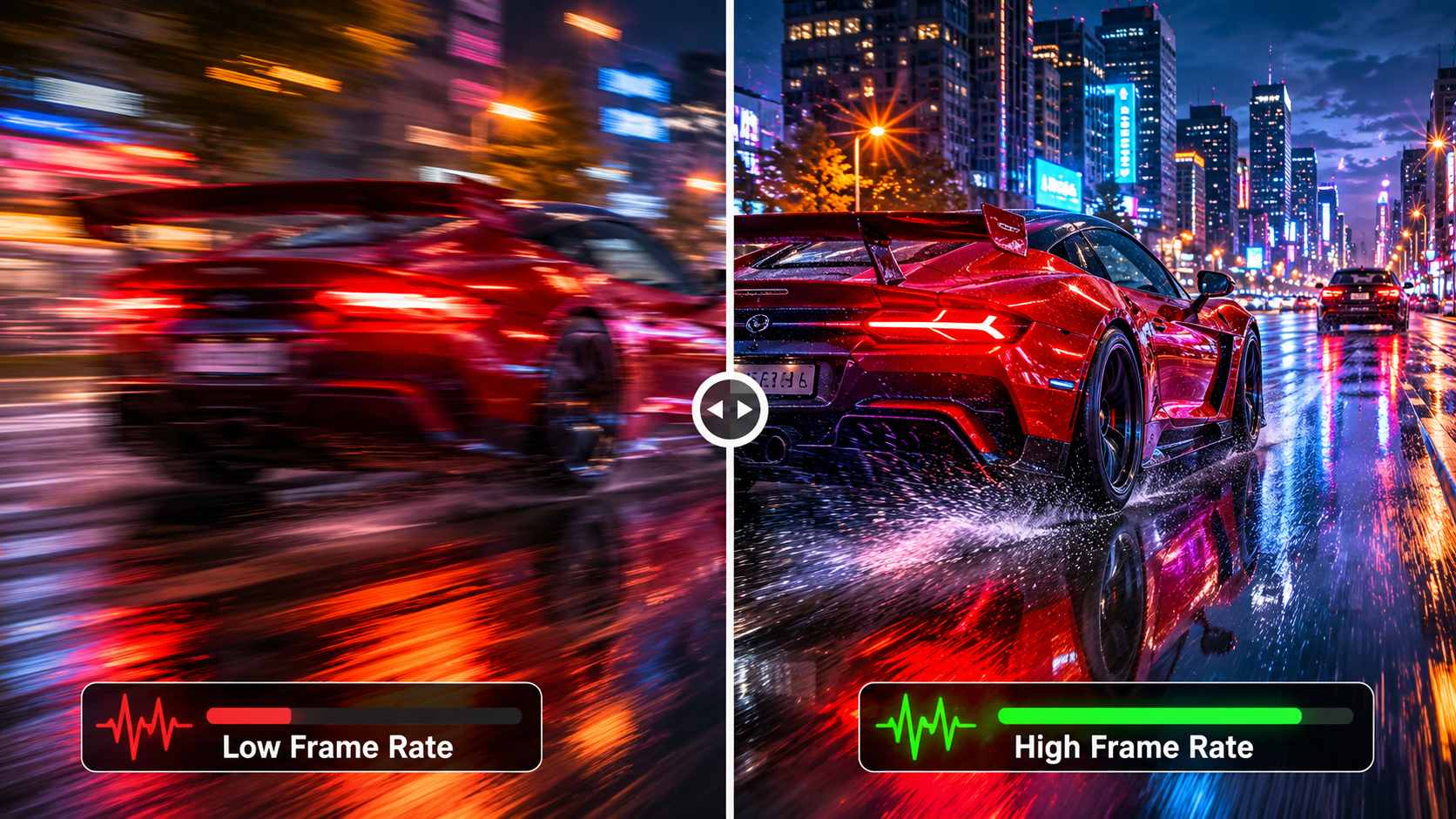
The right frame rate is not always higher. The table below compares both ends across the factors that matter most.
|
Factor |
Low FPS (24-30) |
High FPS (60+) |
Notes |
|---|---|---|---|
|
Motion smoothness |
Natural blur; film look |
Sharp; minimal blur on fast subjects |
Both are valid creative choices |
|
Cinematic feel |
Strong; audiences expect 24fps |
Reduced; reads as TV or live content |
Genre dependent |
|
File size |
Smaller; ~2.5x less than 60fps |
Larger; more data per second |
Same resolution and bitrate |
|
Hardware demand |
Lower encoding load |
Higher; more frames to render |
Matters for live streaming |
|
Platform support |
Universally supported |
60fps widely supported; 120fps limited |
YouTube caps delivery at 60fps |
|
Best use case |
Film, narrative, vlogs, drama |
Sports, gaming, action, slow-motion |
Match to content type |
When High FPS Helps
Sports, action video, and gaming content benefit most. Fast-moving subjects stay sharp at 60fps and pans are smooth without the judder that appears below 30fps. Input lag in games drops significantly: 144fps means less than 7ms between frames versus 33ms at 30fps. Slow motion requires high capture rates, shoot at 120fps to play back at 24fps for clean deceleration. In VR, staying above 72fps is the minimum for most headsets to avoid motion sickness.
When Low FPS Is the Right Choice
Narrative film and drama use 24fps as a deliberate creative choice. The motion blur is part of the aesthetic, not a limitation. Interview and talking-head content rarely shows any meaningful difference between 24 and 30fps. Storage is the practical argument: 24fps files are roughly 2.5 times smaller than 60fps at the same resolution and bitrate. Long productions with large volumes of footage feel that difference in cost.
How to Fix Low Frame Rate Video Using AI Video Enhancer
Low frame rate video, whether from older recordings, choppy security camera footage, archived film, or compressed screen captures, plays back with visible judder on modern displays. Standard frame interpolation blends adjacent frames to fill the gaps, which works adequately on slow content but produces ghosting on fast-moving subjects where the blend smears between two positions.
Zawa Video Enhancer uses AI frame interpolation instead. A neural network analyzes the motion trajectory between existing frames and predicts what an intermediate frame would actually look like, rather than blending. The output is sharper and more natural on subjects with fast edges and defined movement, exactly where standard blending fails. It increases frame rate up to a fluid 30fps and runs in the browser at Zawa without a desktop install.
What AI Frame Interpolation Does
Standard interpolation takes two frames and averages them. AI interpolation trains on real video to learn how objects move and generates a frame that reflects a physically plausible intermediate position. That distinction matters most on subjects with hard edges moving across the frame quickly. Standard blending smears them. AI interpolation tracks them.
Step-by-Step: Using Zawa Video Enhancer to Improve Frame Rate
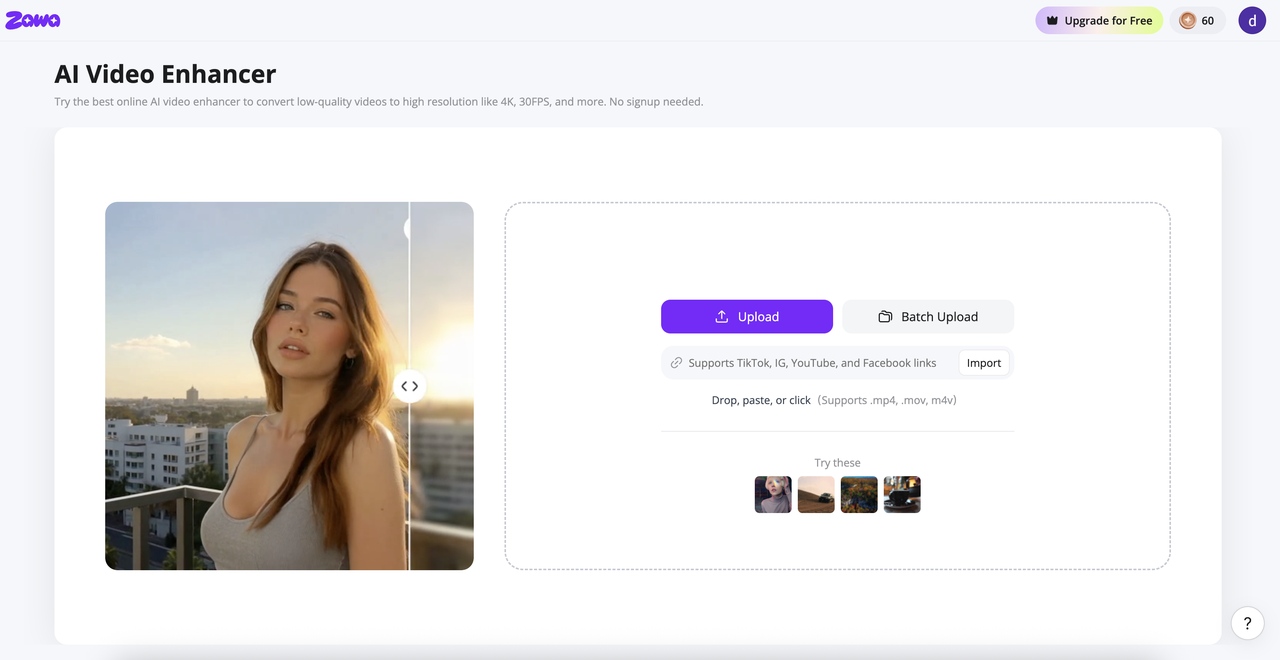
Step 1: Open the tool and upload your low frame rate video
Find Video Enhancer in the tool panel at the bottom-right of the Zawa workspace. MP4, M4V, MOV, AVI, and 3PT files all work. No install required. The file loads directly into the processing interface.
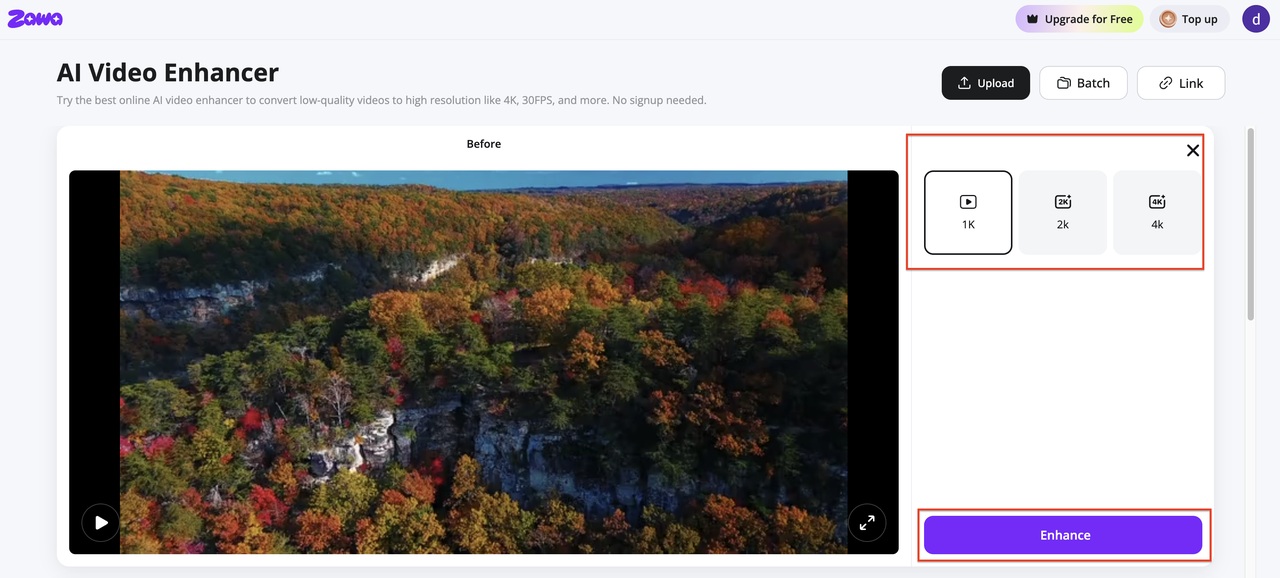
Step 2: Select the enhancement mode
The panel shows available output options. n the output panel, select your target resolution — 1K, 2K, or 4K. Hit Enhance. The tool processes each frame using AI, rebuilding detail at the higher resolution and outputting at a smooth 30FPS.The tool processes each frame and generates predicted intermediate frames using the AI interpolation model.
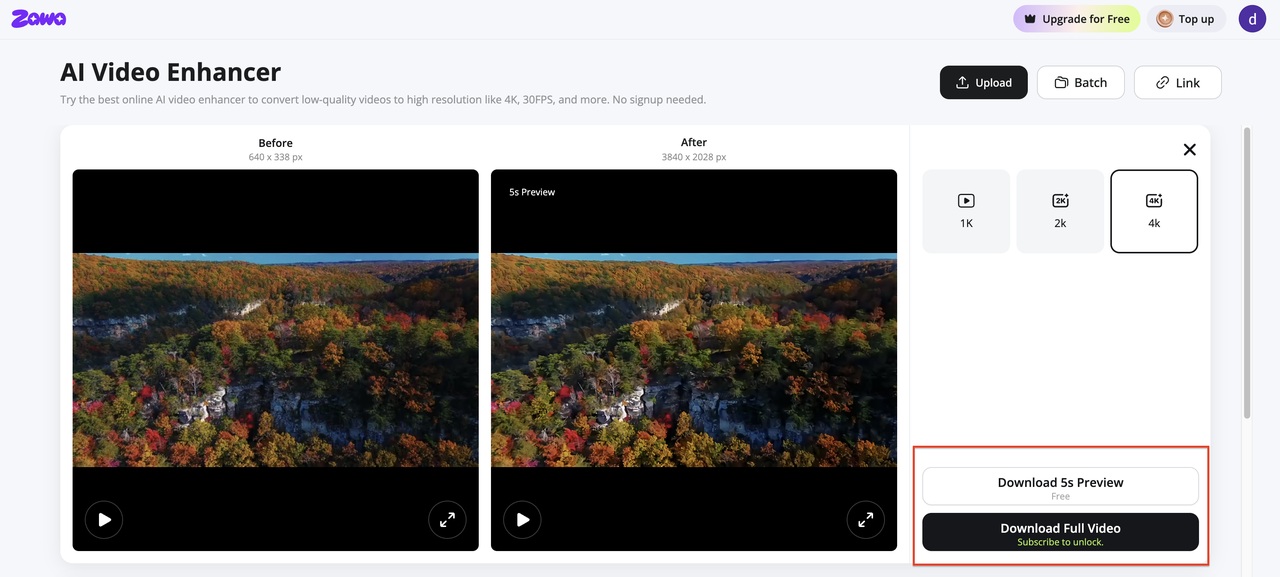
Step 3: Preview the result and download the enhanced video
A comparison view loads when processing finishes. Scrub through sections with the most movement to confirm interpolation handled them cleanly. Download when the output looks right.
After enhancing your video, Zawa offers additional AI-powered tools, including video watermark removal and background removal, helping you complete your entire editing workflow in one place.
Conclusion
Frame rate is one of the most consequential settings in video and gaming, and one of the most misunderstood. What is frame rate, at its core? It is how many still images appear per second, and that single number ripples into motion quality, file size, audio sync, hardware demand, and platform compatibility.
24fps is not inferior to 60fps. It is a different tool for a different context. 60fps is not overkill for gaming or sport: it is the minimum that eliminates judder in fast-motion content. Frame pacing matters alongside the raw count. Refresh rate and frame rate need to match or be bridged with adaptive sync. And when footage is too choppy to use, AI frame interpolation recovers fluid motion in a way standard blending cannot.
FAQs
What is the difference between 24 fps and 30 fps?
The motion blur is the main difference. At 24fps, moving subjects leave a slight trail between frames that the brain reads as natural. At 30fps, that trail is shorter and the image looks more clinical. In a static talking-head shot, most viewers cannot pick the difference. In a fast pan or action cut, 24fps shows the blur and 30fps does not. File size is smaller at 24fps. Smartphones and social platforms default to 30fps.
Which is better, 30fps or 60fps?
Depends on the content. Gaming, sport, and anything with fast movement: 60fps. The sharpness in motion is obvious and input lag in games drops noticeably. Narrative content, vlogs, and interviews: 30fps does the job and files are smaller. Neither is objectively better. One fits fast motion and one fits everything else.
Does a higher frame rate always mean better quality?
It depends. A film shot at 24fps is not lower quality than a YouTube vlog at 60fps. The motion blur 24fps produces is a creative choice built into the look of cinema for a century. Bumping narrative content to 60fps does not improve it. Quality means matching the frame rate to the intended context.
What frame rate should I use for video?
Narrative or cinematic content: 24fps. Everyday YouTube, social media, tutorials, talking-head content: 30fps. Sport, gaming, action, or anything you plan to slow down in post: 60fps. If slow motion is the goal, shoot at 120fps and play back at 24 or 30fps. Start with the delivery platform, work backwards from what it expects.
Is 4K better at 30 or 60fps?
Resolution and frame rate are separate controls. 4K at 30fps is fine for most content and keeps files manageable. 4K at 60fps is the right call when fast motion needs to stay sharp. A wildlife documentary at 4K/30fps looks great. Gaming footage at 4K/30fps shows motion blur many viewers find distracting. The storage difference is real: 4K at 60fps produces roughly 2.5 times more data than 4K at 30fps at the same bitrate.
You May Be Interested
How to Increase Resolution of Image Without Losing Quality
Veo 4 Could Change AI Video From Clip Generation to Scene Direction

10 Best AI Video Enhancers to Upscale Your Videos

15 Best AI Video Generators in 2025

Sora 2 vs Veo 3: A Head-to-Head Comparison for Video Content

5 Free AI Random Image Generators—Generate Unique Images Instantly Online
