How to Remove CapCut Watermarks: Best Methods for a Clean Video Export
Learn how to remove CapCut watermarks from your videos without reducing quality. Follow this step-by-step guide to create clean, professional-looking content.


A visible watermark can be distracting when you want a cleaner or more branded final video. As a result, many viewers scroll past clips that look like templates. Therefore, knowing how to remove CapCut watermarkgives you full control over your look. This article covers official options plus smarter ways that work for different video situations. You will also see how a dedicated AI watermark remover produces clean results without cutting parts.
Does CapCut Add Watermarks to Videos?
For users asking, "Does CapCut have watermark remover?" Yes, it provides a few built-in options. The watermark often shows up as a short clip at the end. Some template-based projects may also show a watermark inside the video. These built-in options work only for certain watermark types before you export the video.
Identify Which CapCut Watermark You Have
Understanding how to remove CapCut watermark starts with checking your watermark type. Thus, below are the different watermark types and where they usually appear inside videos:
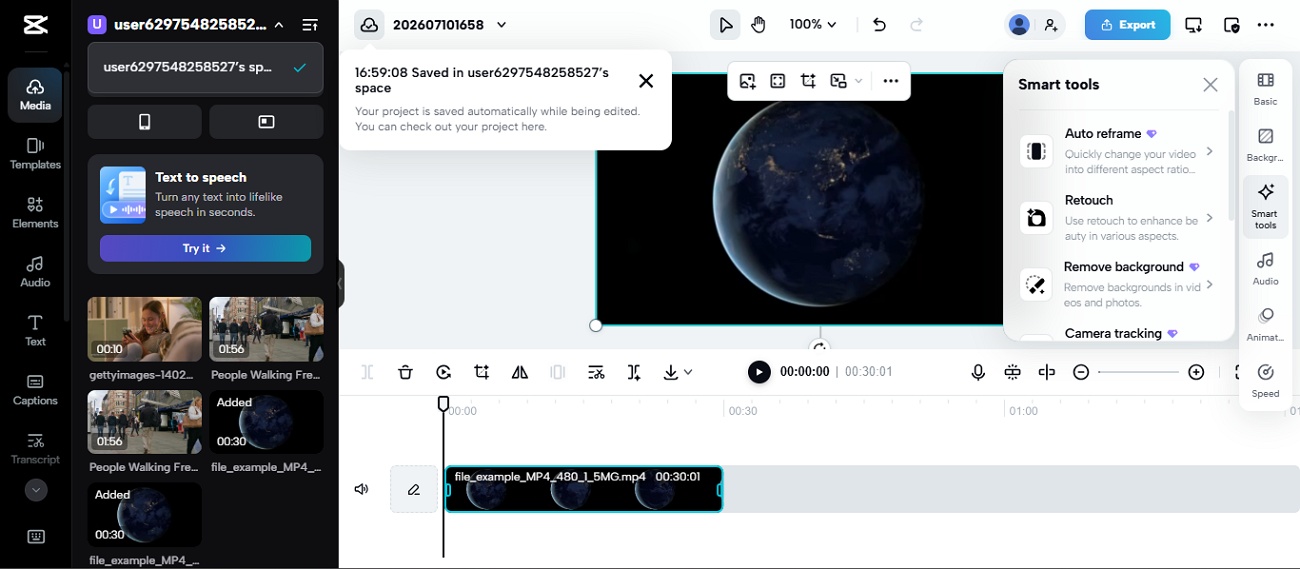
Ending Clip Watermark
This watermark appears as a separate CapCut clip after your main video ends. Watch the last 1 to 3 seconds of your exported video clip. Your original video remains unchanged because the watermark appears in a separate ending section.
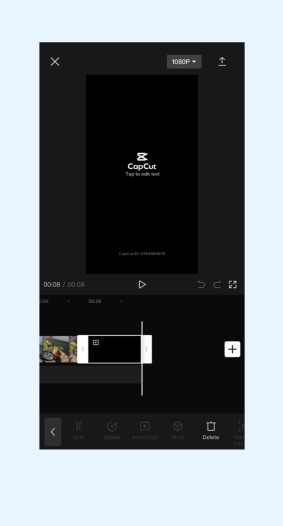
Template Watermark
Template watermarks appear when you use a ready-made CapCut template design. You may see a small logo in one corner throughout the clip. Some templates also add a styled ending built right into the design.
Export Branding
The watermark appears after exporting, even when your editing timeline looks clean inside. A small CapCut logo often appears near one corner after saving your finished video.
Logo Added Inside the Video
This is a logo or sticker that you placed on your video yourself. It appears as a separate layer above your video in the editing area. The logo may stay inside the corners, the center, or move using animation during playback.

How to Remove CapCut Watermark in CapCut First
Many users ask, “Does CapCut have watermark remover?” before editing their videos. You will explore the different methods below to remove watermarks using CapCut:
Export Videos Without the Ending Watermark
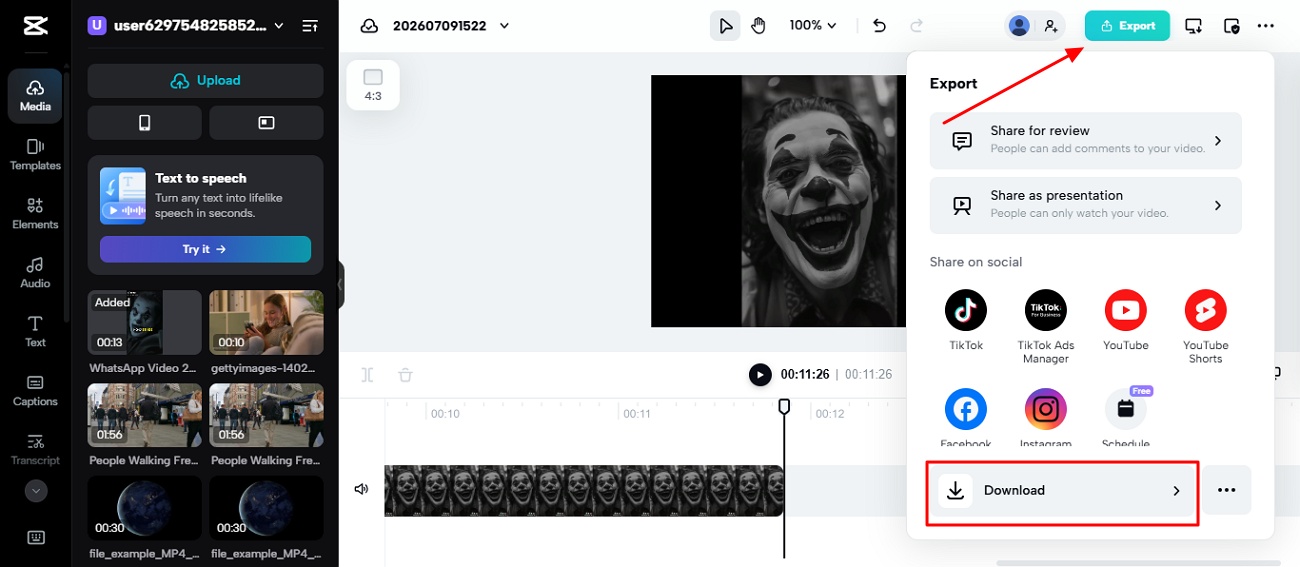
Delete the ending CapCut clip before exporting to remove the closing watermark. This keeps your video looking just like the original, without changing anything important. It works best for videos that show branding only in the last clip section. Follow the given steps to learn how to remove CapCut watermark:
Step 1. After adding your video, click the “Split” icon and mark where the unwanted section ends. Now, press on the middle segment you just created and press the “Delete” key.
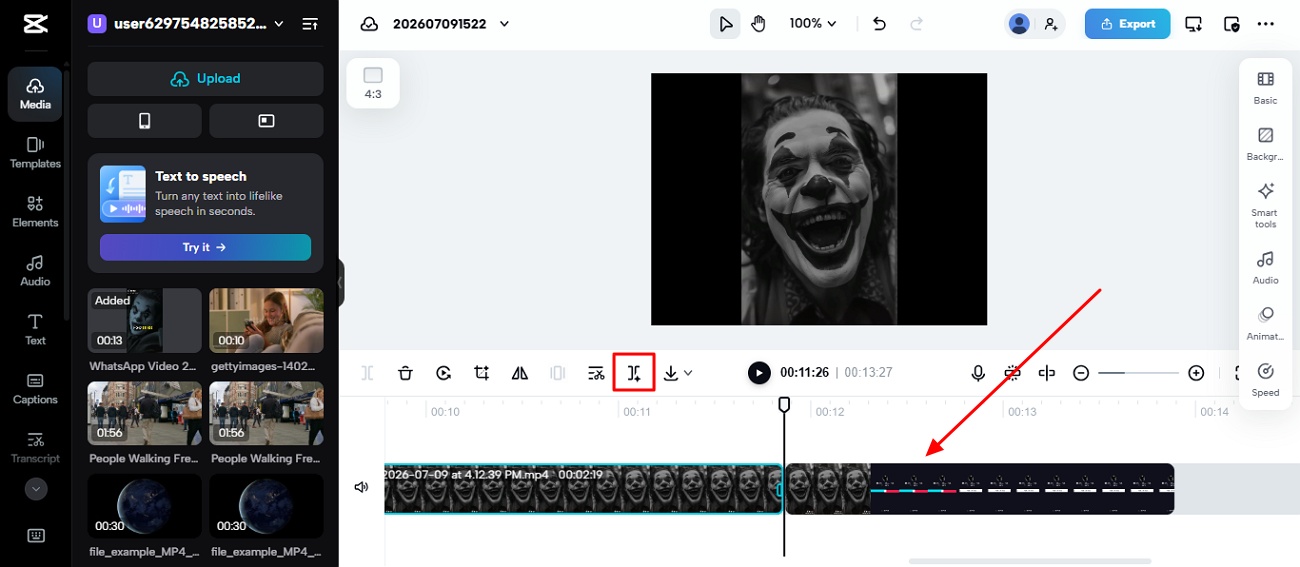
Step 2. Once it is removed, opt for “Export” and press “Download.”
Remove the Watermark Before Exporting
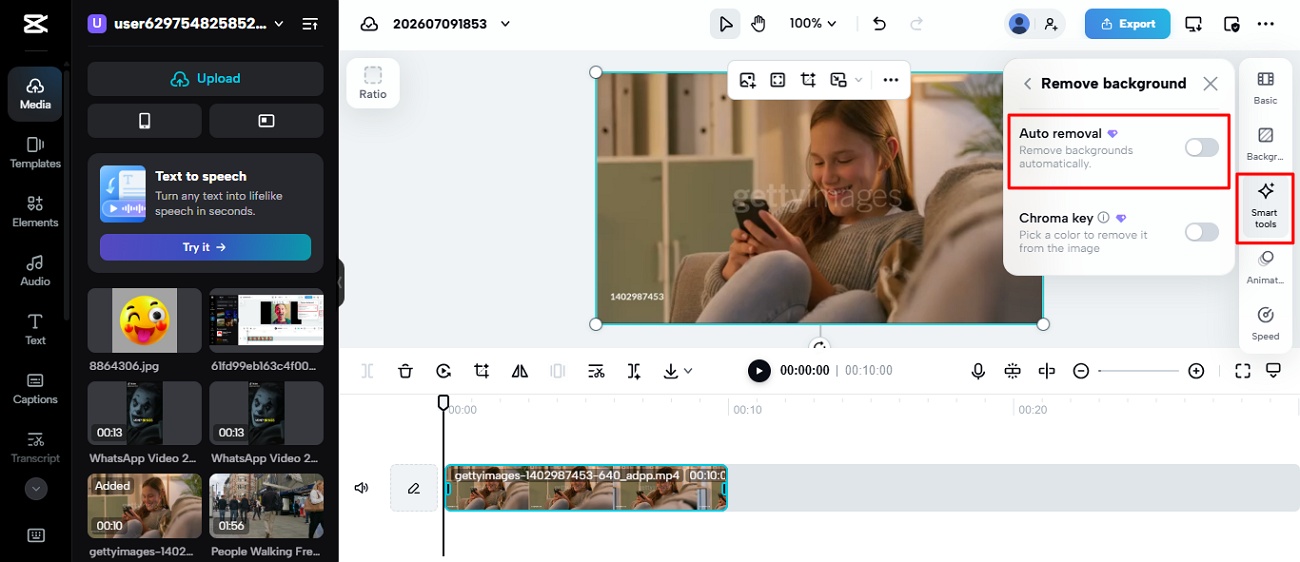
CapCut lets you remove some watermarks before exporting, depending on your project type. Enabling available branding settings creates cleaner videos without adding unnecessary clips. This method works only when it provides a built-in removal option for your project. Review the instructions below to remove the watermark using Auto Removal:
Instructions: Open the tool, go to the “Smart tools” section, and enable the “Auto Removal” option. Once the mark is removed, download the video to your device.
Crop or Trim the Watermarked Area
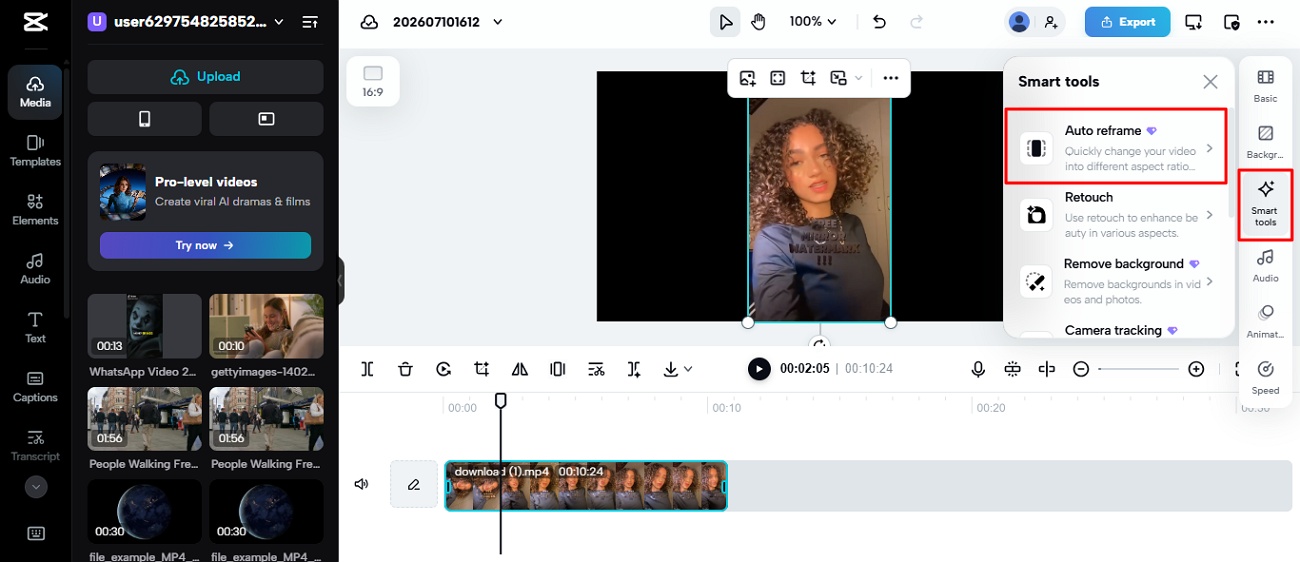
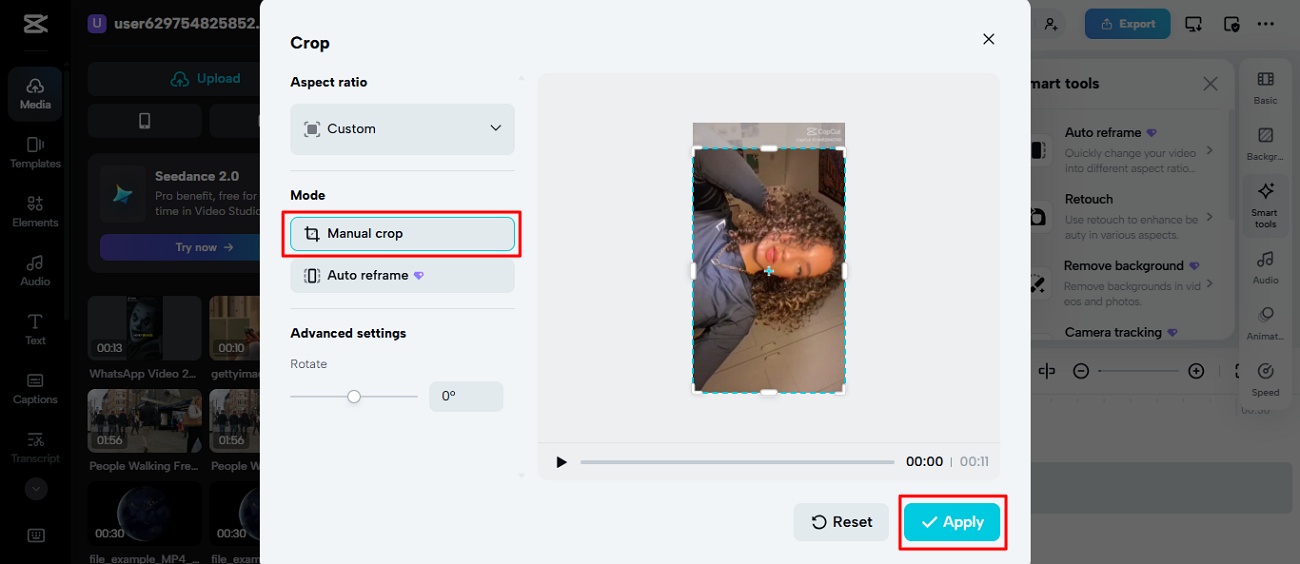
You can also use the crop tool to cut out the corner with the watermark. This works best when the mark sits near one small video edge. However, cropping can remove other important content near that same area. Adhere to the steps below to remove watermarks using crop tools:
Step 1. From the right panel, click “Smart Tools” and select “Auto Reframes.”
Step 2. Choose “Manual Crop” and adjust the video accordingly, then press “Apply”. Once it is done, export the video for sharing or future editing.
Cover the Watermark with Overlays
Add a sticker shape or logo directly over the visible watermark area. Try to match the overlay to the video's colors and style so it feels less noticeable.This method works fast but can look obvious on close inspection. Go through the guidelines to apply overlays on the watermark area:
Step 1. Open CapCut, import the video, tap “Overlay”, and choose a sticker from your device.
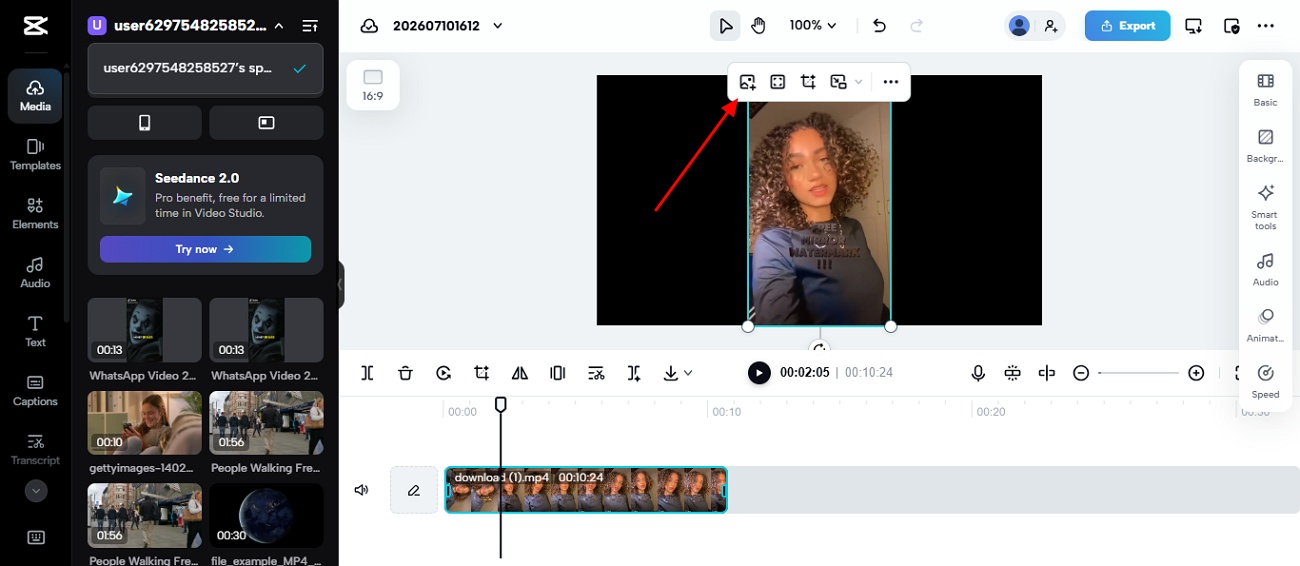
Step 2. Now, move and resize the overlay until it fully covers the watermark on screen, then opt for “Export.”
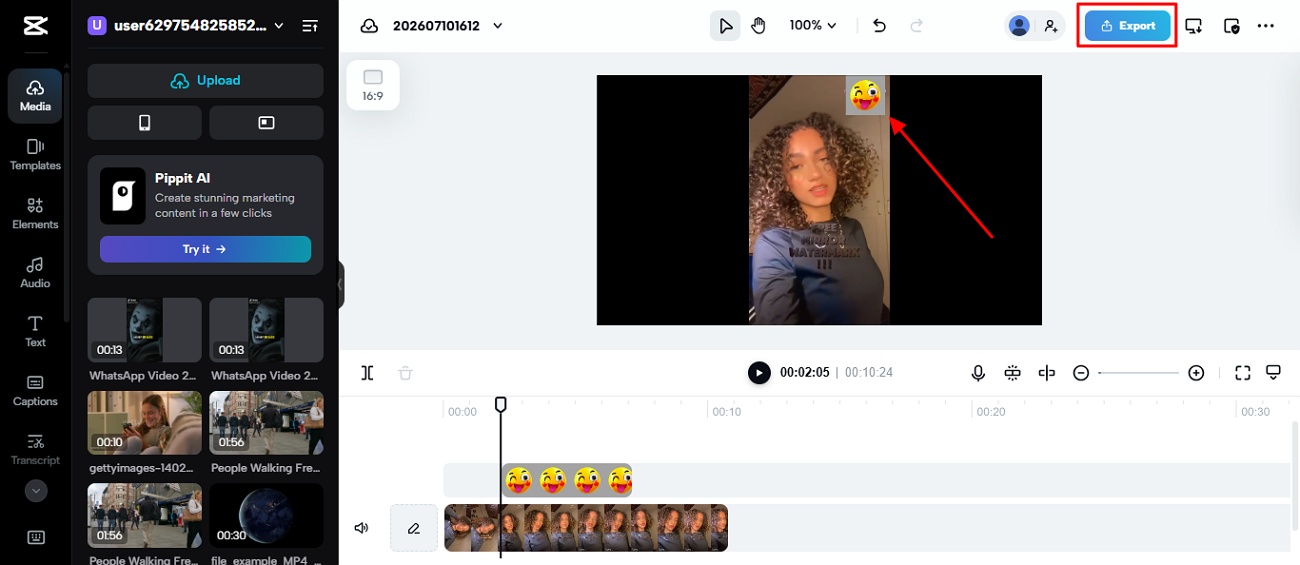
What If the Watermark Is Already Embedded in the Video?
Sometimes the watermark becomes part of the video pixels, not just an overlay. This happens when your clip already had a logo baked in before you imported it. So many people ask, Does CapCut have remove watermark for embedded marks?
Embedded watermarks cannot disappear by turning off simple export settings or the timeline. In this case, simple cropping or trimming will not remove it fully. So, you need an AI-based tool that can detect and rebuild the hidden background.
What Happens If You Use the Wrong Removal Method?
Understanding how to remove CapCut watermarks helps protect vital parts of every finished video. The following section explains common mistakes to avoid before choosing the best removal option during editing projects:
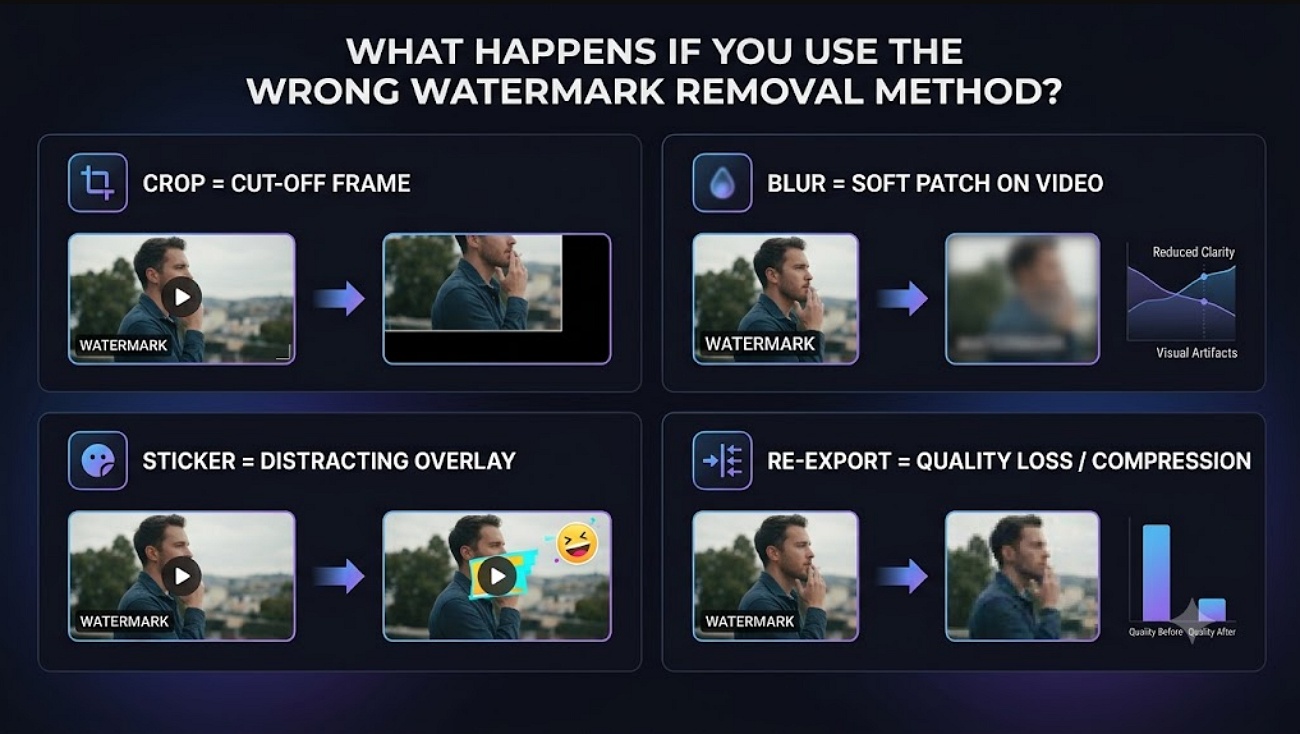
Cropping Can Cut Off Important Content
Cropping removes the watermark by cutting away part of your original video frame. Subtitles, faces, or edge details may disappear after you crop your finished video. Vertical videos can also look too close, making it harder for viewers to notice important details.
Blurring Makes Videos Look Edited
Blurring hides the watermark but often creates a soft patch inside your finished video. Heavy blur can also affect nearby details, making important parts appear less clear. This method sometimes works, but often makes videos look altered instead of clean.
Stickers and Overlays are Easy to Notice
Covering a watermark with a sticker or emoji just adds a new distraction. It often looks odd if the overlay does not match your video style. Large stickers can block faces or other important parts of your video.
Re-Exporting May Lower Video Quality
Saving the same video many times can slowly make it blurry. Formats such as H.264 and H.265 compress videos again whenever you export finished files.
Clean Up CapCut Videos with AI-Powered Watermark Removal
Sometimes, covering or blurring a watermark may create new issues in the video. Essential parts of the frame may get cut off; thus, the final result can look less natural. Zawa offers a smarter alternative to removing watermarks without damaging video quality. Apart from hiding the marked area, it analyzes the surrounding scene and fills in the missing space to match the background.
Thus, logos can be removed without sacrificing important people or visual details that appear in the video. The platform has a Batch feature that lets you remove the watermarks from multiple videos at once. Its AI creates cleaner videos while keeping important backgrounds and details across all completed projects.
How to Remove a CapCut Watermark with Zawa
Zawa makes it simple for beginners to remove CapCut watermarks using smart tools. Adhere to the given steps to remove watermarks quickly with better-looking video results:
Step 1. Upload Your CapCut Video
Access the official website of “Zawa” and click the “Upload Video” option to import CapCut videos.
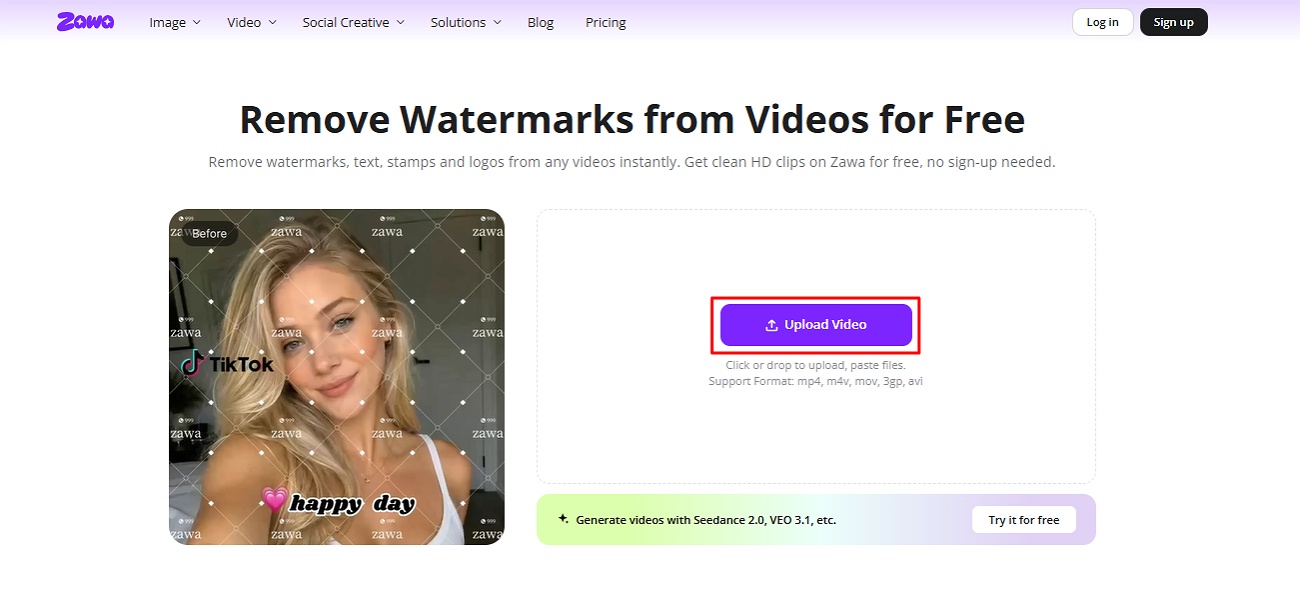
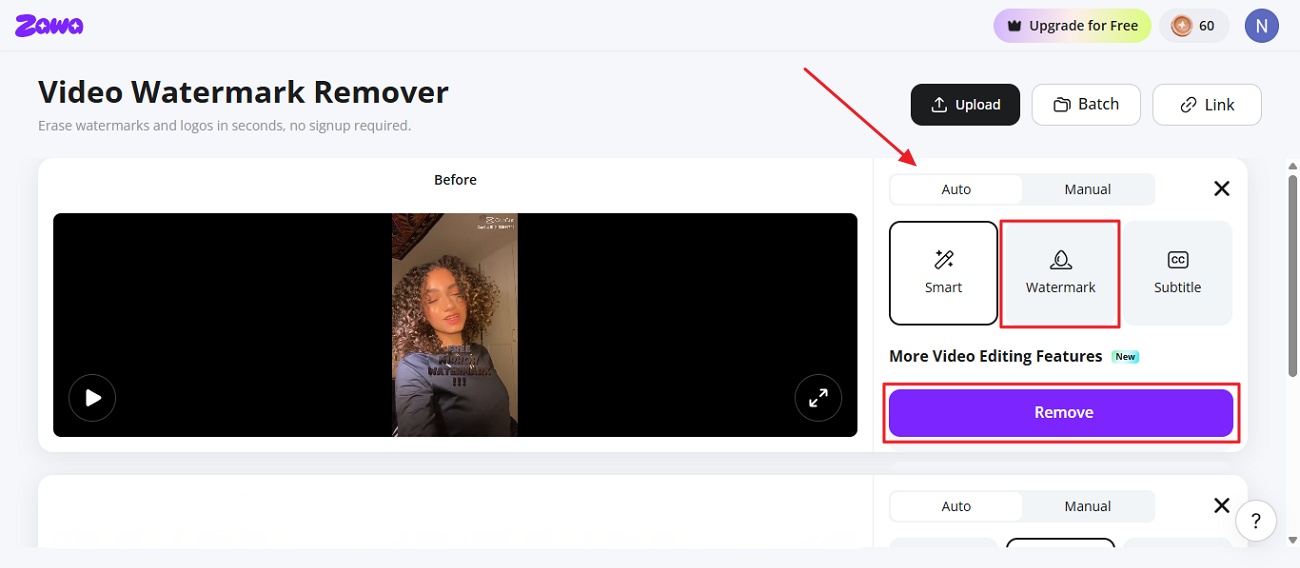
Step 2. Detect and Remove the Watermark
After that, select the “Auto” option and opt for “Watermark”, then press the “Remove” button.
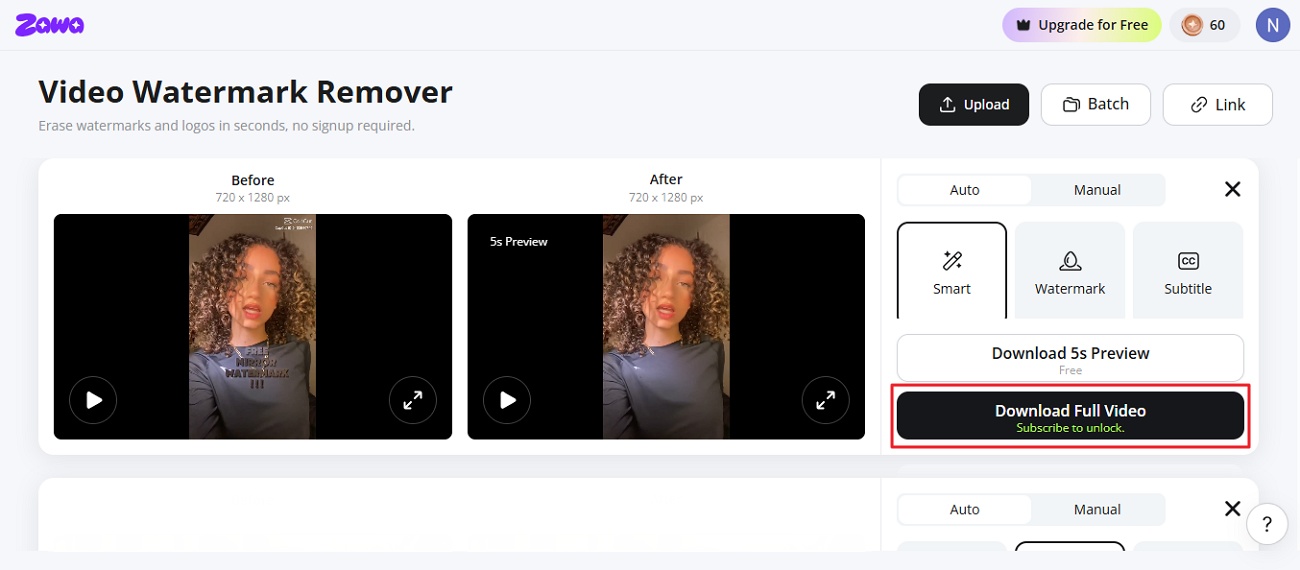
Step 3. Preview and Download the Video
Once the watermarks are removed from the video, opt for the “Download Full Video” button to save it.
Why Use Zawa Instead of CapCut?
CapCut is good for basic edits, but removing watermarks needs smarter. This specific part explains why Zawa is a good choice to remove watermarks:
-
Remove Watermarks: Erase any desired watermarks without losing any part of your video.
-
Restore Background: Remove the type of watermark from your video, and then fill the hidden background.
-
Batch Process: Allows the removal of watermarks from multiple videos simultaneously.
-
Faster Editing: Gives an HD and 4K quality after removing the watermark to keep your videos clear.
-
Save Time: Lets you clean watermarks without any sort of manual work via AI processing.
Conclusion
In conclusion, a clean video without a watermark looks more professional and trustworthy.This article showed youhow to remove the CapCut watermark using manual or AI methods. Sometimes, manual fixes like cropping or blurring can damage your video's quality or framing. If you want an easy way with no editing skills needed, Zawa removes watermarks while keeping your video sharp and clear.
Frequently Asked Questions
-
Does CapCut have a built-in watermark remover?
Yes, CapCut does provide a true built-in watermark remover inside it. You can crop, trim, blur, or cover the mark yourself manually. Alternatively, Zawa now offers a much faster AI-based solution instead.
-
Does CapCut always add a watermark?
No, CapCut only adds a watermark under certain specific export settings. Free plans, templates, and certain export modes usually add this small watermark. You need to buy a paid plan to solve this problem.
-
Can I remove a CapCut watermark after exporting?
Yes, you can remove a watermark after your video downloads completely. Editing tools like Zawa can remove watermarks while keeping your video looking clear naturally. Yet this works even if the watermark got baked into the video itself.
-
Will AI remove watermarks without reducing quality?
Good AI tools can remove watermarks while keeping strong video quality intact. Zawa supports HD and 4K quality video exports. However, some basic tools still produce lower quality after repeated video exports.
-
Is it legal to remove a CapCut watermark?
It is usually legal to remove a watermark from your own content. Problems can arise if you remove watermarks from someone else's work. Always check the specific platform rules before removing any watermark from content.
-
What is the easiest way to get a clean video export?
The simplest way is to use an AI tool specifically built for watermark removal. Zawa lets you upload, select and download a video. You don’t need any editing skills or additional software to do this process.
You May Be Interested

How to Remove Watermark in Photoshop (7 Methods)

The Ultimate Guide to Remove Shutterstock Watermarks from Images

Hidden Tricks to Remove Getty Watermarks Using AI & Photoshop (2026 Guide)

How to Remove the Kling AI Watermark