How to Remove Moving Watermark in Filmora Without Losing Video Quality
Learn how to remove moving watermarks from videos using Filmora's built-in tools. Follow this step-by-step tutorial to achieve clean, professional-looking results.


Filmora’s moving watermark can spoil a clean edit fast. It moves across the frame, covers faces, hides captions, and distracts from the main scene. Even a strong video can look unfinished once that mark appears in the export.
This guide explains how to remove moving watermark in Filmora with safe fixes, manual options, and AI cleanup. You will see when blur or crop fails, and how Zawa can help keep the video cleaner without making it look patched.
What Is the Filmora Moving Watermark?
Filmora adds a watermark when a video is exported from the free version. In some exports, the mark does not stay in one fixed corner. It appears as a moving brand overlay, so the watermark becomes part of the final rendered video. However, static and moving watermarks create different editing problems.
A static mark is simple because it stays in one part of the frame. You may crop that edge or cover it if the main subject is safe. That said, a moving mark is different. It keeps changing place during playback, so basic cover work can look messy. In that case, re-export, tracking, or AI tools work better.
When the Watermark Appears
Filmora adds its watermark when a video is exported from the free version or an account that is not licensed. A mark can also appear when paid effects, stock media, or templates are used without the required purchase.
Why Users Want to Remove It
Users remove it when the video is meant for publishing, client delivery, ads, or brand work. Many also look to remove the watermark from a video online without blur, since a trial mark can make the edit look unfinished and distract viewers.
Why Moving Watermarks Are Hard to Remove
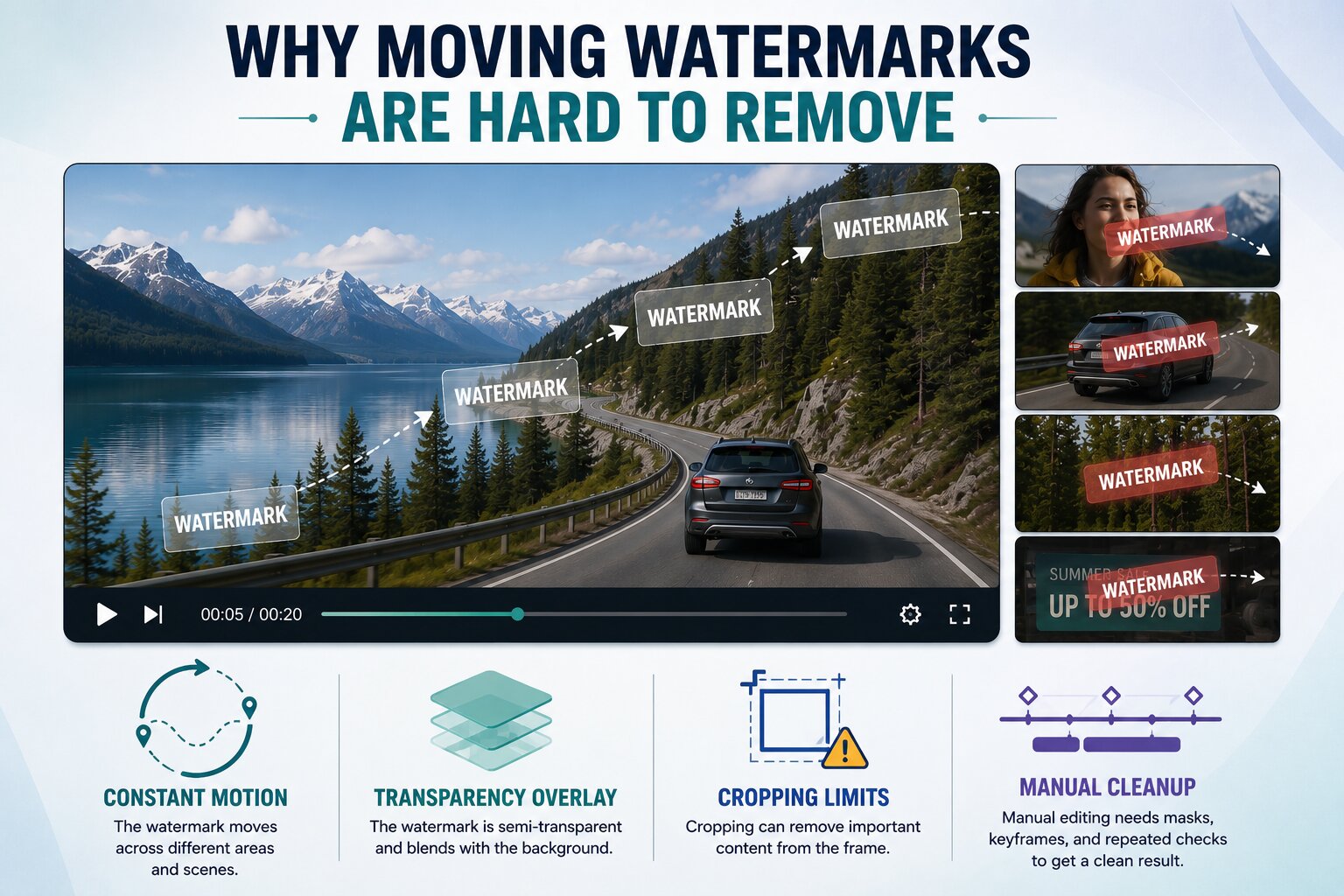
A fixed logo gives the editor one area to repair. A moving watermark does not stay the same as it travels through different parts of the frame, so the background, subject, and timing keep changing. For example, when the watermark passes over a face or subtitle, a simple blur often becomes obvious and distracting.
-
Constant Motion: A moving watermark rarely follows one clean path. When it crosses a pan, zoom, or moving subject, the editor has to adjust the mask across the clip instead of placing it once.
-
Transparency Overlay: Filmora’s watermark is usually layered over the video, not pasted like a solid sticker. Some background color still shows through it, so the covered area needs careful frame repair.
-
Cropping Limits: Cropping is only safe when the watermark sits near a plain edge. Once it touches captions, faces, logos, or product details, the frame starts losing content that viewers actually need.
-
Manual Cleanup: Manual work means drawing masks, setting keyframes, and checking the clip again and again. It can look fine for a few seconds, then show flicker, soft spots, or uneven patches later.
Why AI Delivers Better Results
Many users search for how to remove the moving watermark in Filmora after blurring leaves a cloudy patch. AI handles this better because it tracks the mark while the clip plays, then fills the area using nearby frame detail. Thus, this keeps faces, captions, and textured backgrounds cleaner than a basic blur or crop.
Legal Ways to Remove Filmora Watermarks
Filmora watermarks should be handled through proper account, license, or project access. The following options keep the work safe and avoid damaging the final video:
Upgrade to a Paid Filmora Plan
Activate a paid Filmora plan before exporting the project again. This gives the cleanest file because the watermark is removed during export. The limit is simple: it will not fix an old watermarked video unless the project file is still available.
Re-export Your Original Project
Open the original Filmora project, check the timeline, and export it again through the licensed account. Your cuts, captions, sound, and export quality stay as they were in the timeline. The problem starts when the project file is gone, moved, or still points to media that is no longer on the device.
Recover the Project File
Look in the folder where Filmora saved the edit, then check autosave, cloud backup, or the old laptop. A working project can be exported again from the paid account. Broken media links may leave AI repair as the next option to remove a watermark from a video online without blurring.
Want an Easier Fix? Zawa AI Handles It in Minutes
When the original Filmora project is missing, the usual fixes become limited. Cropping can cut the frame, while blur often leaves a soft patch. For users searching for how to remove the moving watermark in Filmora, Zawa gives a cleaner route by working on the exported video directly.
If re-exporting is no longer possible because the original project is unavailable, AI repair tools become the next practical option. the Filmora project is gone, Zawa becomes a practical fallback. It follows the mark through the clip and fills the covered part from nearby details. A beginner can upload the file, mark the area, and preview the repair without handling masks or frame-by-frame edits.
Key Features
-
AI Motion Tracking: Zawa follows the watermark as it moves through the clip. This helps when the mark crosses a pan, zoom, caption, or moving subject.
-
Smart Background Reconstruction: The tool rebuilds the covered area by reading nearby frame details. This gives a cleaner result than placing a blur over the mark.
-
Scene-Aware Object Recovery: Some watermarks pass over faces, hands, products, or text. Zawa handles those areas with more care, so the repaired part does not look randomly patched.
-
Preserve HD and 4K Quality: The tool keeps the export close to the uploaded file's quality. A clear source video still gives the best final result.
-
Cloud-Based AI Processing: Zawa processes the video online, so the cleanup does not depend on your laptop’s editing power. It also helps when you need a quick fix without installing another heavy program.
-
Simple Workflow for Beginners: The cleanup stays simple from the first upload to the final preview. Users can mark the watermark area and save the cleaned video without working through masks, layers, or keyframes.
How to Remove a Filmora Watermark with Zawa AI
Before starting the steps, make sure the video is yours, then follow this simple workflow for how to remove moving watermark in Filmora with Zawa AI.
Step 1. Upload Your Video
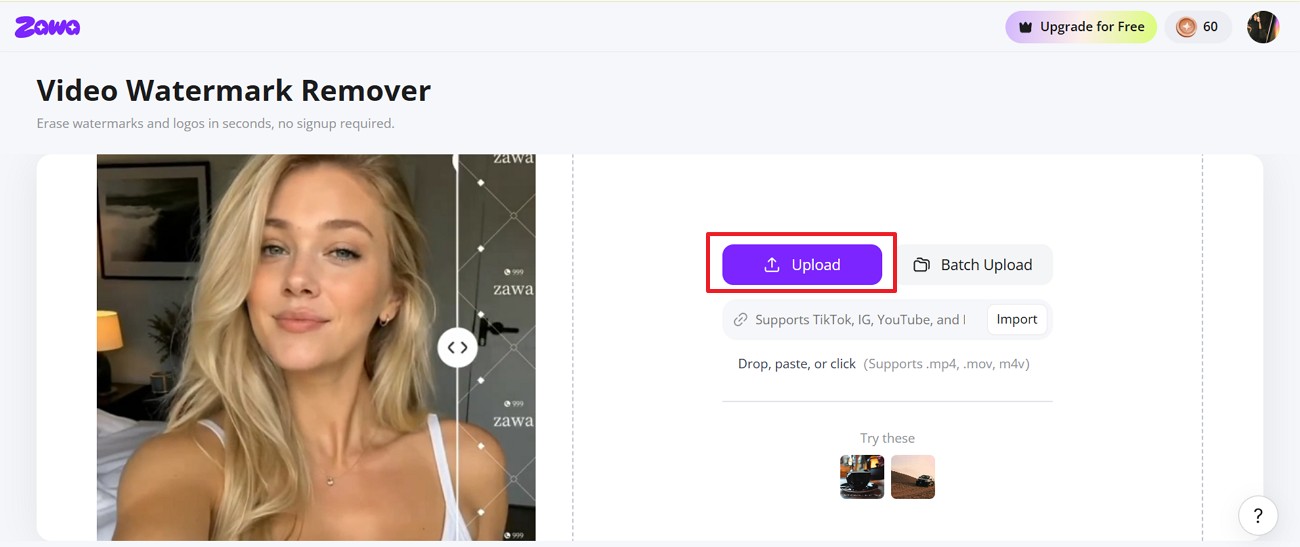
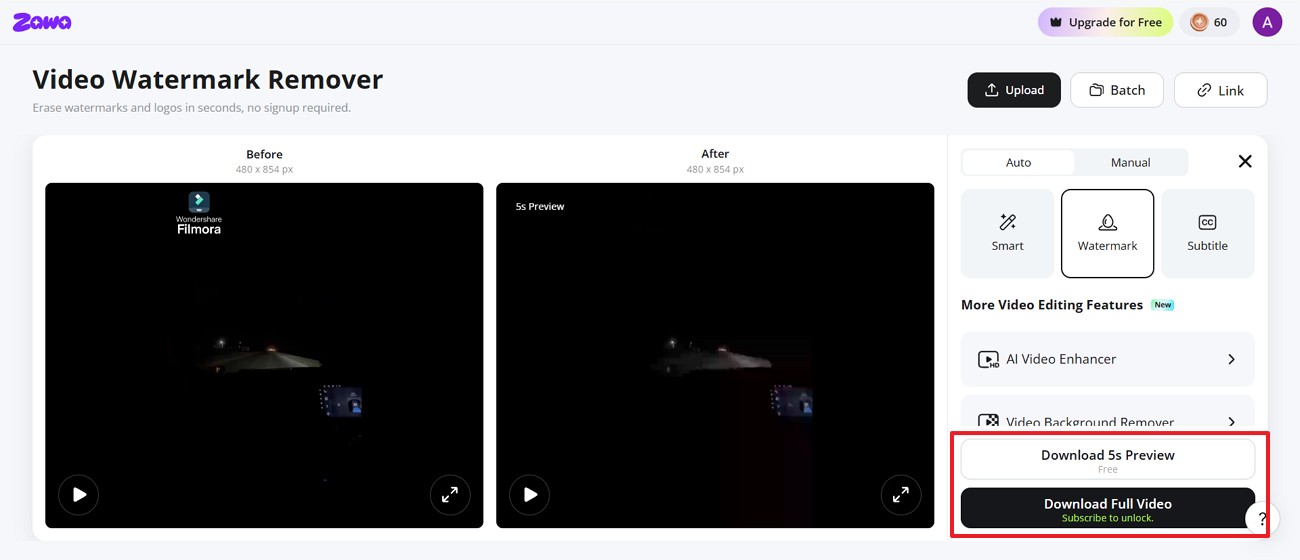
Open Zawa’s Video Watermark Remover and click “Upload.” You can also use “Batch Upload” for more than one file or import a video link from supported platforms.
Step 2. Choose Watermark Removal
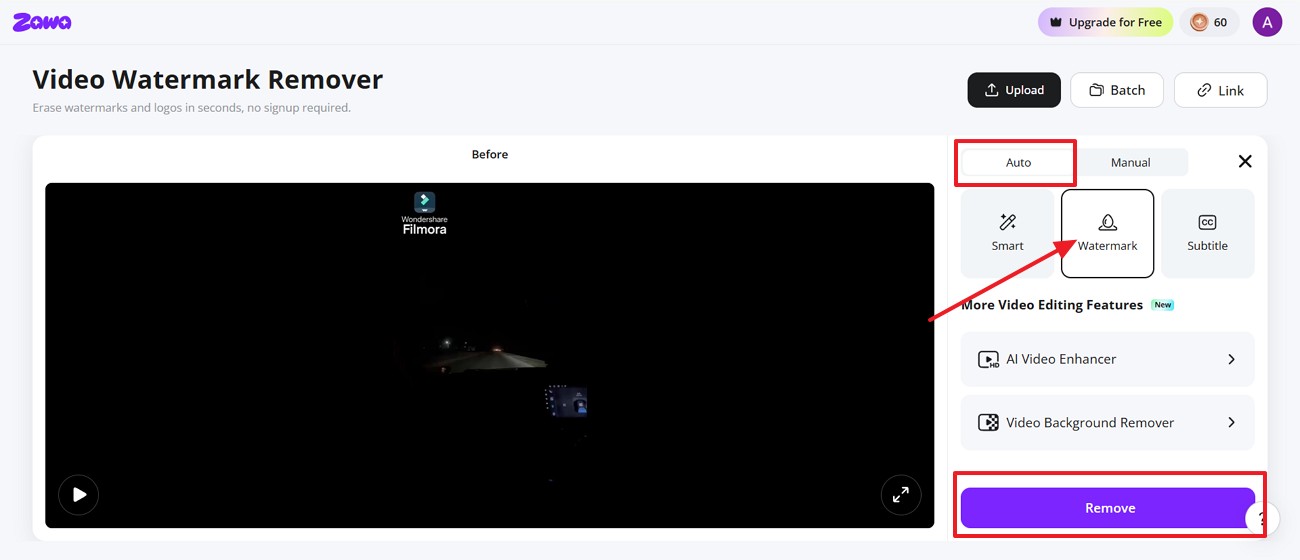
After the video opens, go to the right-side panel and keep the mode on “Auto.” Select the “Watermark” option, then press “Remove.”
Step 3. Preview and Download
Check the “Before and After” preview to review the result. You can download a short preview first to confirm the cleanup quality. When the video looks clean, choose “Download Full Video” to save the final version.
Zawa vs. Traditional Methods
Not every method gives the same finish. Some only hide the mark, while others repair the area more carefully. The table below shows which option works better when you need to remove a watermark from a video online without blurring:
| Method | Best For | Quality Result | Main Con |
|---|---|---|---|
| Paid Filmora Export | Users with the original project file | Best and cleanest result | Requires a paid plan |
| Re-export Project | Users who still have the timeline | Keeps original quality | The project file must be available |
| Cropping | Watermark near the edge | Quick but limited | Cuts an important video area |
| Blur or Mosaic | Non-professional drafts | Hides the mark partly | Looks edited and soft |
| Manual Masking | Skilled editors | Can work on short clips | Slow and difficult |
| Zawa Removal | Exported videos with moving watermarks | Cleaner than crop or blur | Results depend on source quality |
Which Solution Should You Choose? - Verdict
Choose the official Filmora route when the project file is still saved. Upgrade the plan, sign in with the right account, and export the timeline again. This gives the cleanest result because the watermark is removed during export, not repaired after damage.
When the project is gone, AI removal becomes the practical choice. Zawa helps with how to remove a moving watermark in Filmora by tracking the mark and repairing the covered area. Still, start with the best-quality video you have, then preview the result before downloading the final version. This avoids rough blur and keeps the edit more publishable.
Frequently Asked Questions
-
Can I remove a moving watermark?
You can, but the cleanest route is the original Filmora project. Anyone learning how to remove moving watermark in Filmorashould re-export from a paid account first; AI repair is mainly for exported files.
-
Will AI reduce video quality?
Good AI removal should not ruin the whole video. The result depends more on the source file, so blurry, compressed, or low-light clips may still show marks after cleanup.
-
Is watermark removal legal?
Watermark removal is fine for your own videos or files you are allowed to edit. It becomes risky with stock clips, client assets, or another creator’s work without clear permission.
-
Are online AI tools safe?
It depends on the tool, not the word “AI.” Before uploading a video, check whether the site explains file deletion, storage time, and privacy terms. For client work, private clips, or business videos, skip any tool that hides these details.
-
How long does AI removal take?
A short social clip may process in a few minutes. Longer videos, large files, 4K exports, or moving watermarks across busy scenes usually need more time.
- What’s the easiest removal method?
The easiest clean method is re-exporting the original Filmora project with an active paid license. When the project file is missing, an AI watermark remover is usually easier than cropping, blurring, or manual frame repair.
You May Be Interested

How to Remove Watermark in Photoshop (7 Methods)

The Ultimate Guide to Remove Shutterstock Watermarks from Images

Hidden Tricks to Remove Getty Watermarks Using AI & Photoshop (2026 Guide)

How to Remove the Kling AI Watermark