How to Fix Pixelated Photos: Best Ways to Clear Blurry Pictures
Learn how to fix pixelated photos and make a picture less pixelated in seconds. This guide provides the ultimate solutions for enhancing resolution using advanced AI tools or Photoshop.


Pixelated photos lose their sharpness because the original detail is gone. Most editing tools just stretch the image bigger, which makes pixelation worse. This guide covers methods that actually recover lost detail, whether you’re fixing an old photo, a blurry screenshot, or a low-res product image.
What is a pixelated photo and why does it happen?
The pixelated image resembles a mosaic of visible squares because the pixels will become apparent, producing a picture that appears to be made up of grains rather than having clear edges. It happens when a low-resolution image gets stretched beyond its original size, or when heavy compression strips away image data. Low-resolution images don’t contain enough detail to hold up when resized. That’s what makes fixing pixelated images hard to fix: the missing detail can’t be recovered by simple resizing alone.
How to fix pixelated photos: Top tools to unpixelate images fast
The process of removing pixelation from photos has become easier with the help of AI-based applications that offer an instant increase in clarity.
Zawa (web-based tool): Instantly unpixelate images online
Zawais a browser-based image enhancer that uses AI to sharpen blurry photos and fix pixelation. It detects edges, fills in missing detail, and restores texture in hair, skin, and text. Most basic tools just resize the image. Zawa reconstructs what was lost, so the result looks sharper rather than just bigger. It runs entirely in the browser, so no software installation is needed.

How to fix pixelated images using Zawa
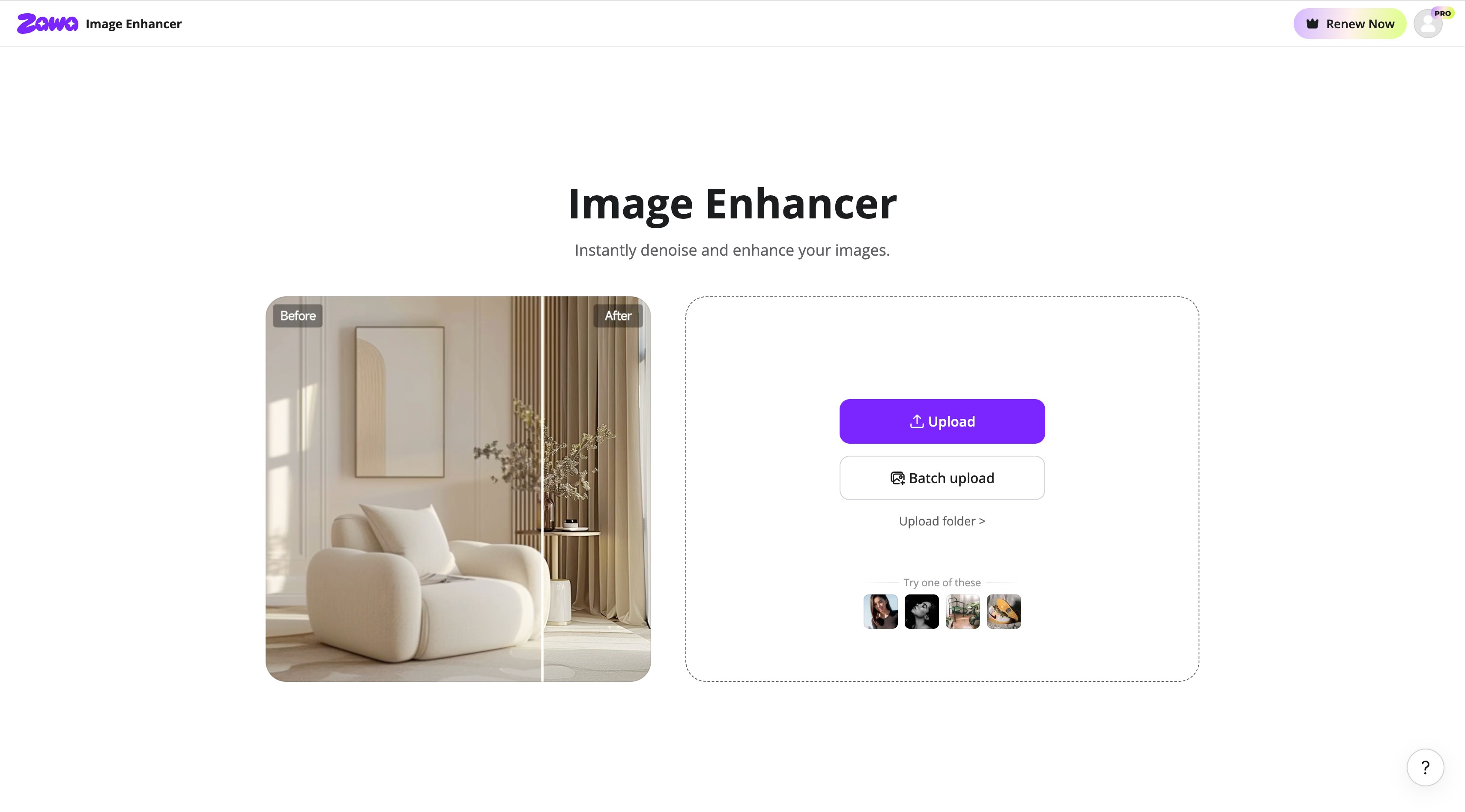
Step 1: Upload your picture to Zawa
Launch the Zawa image enhancer tool. Upload your picture to begin the step-by-step process for pixelated images.
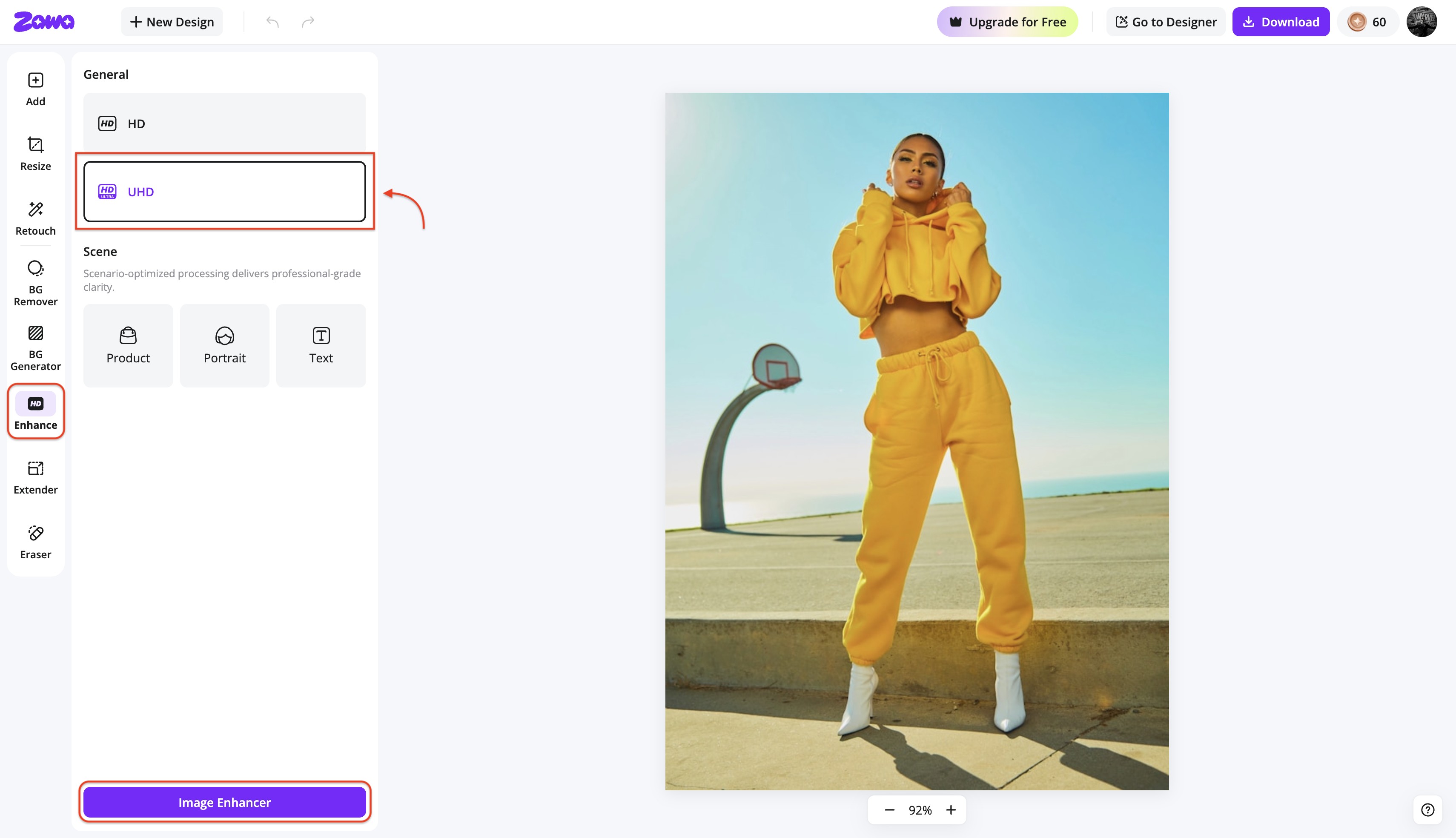
Step 2: Enhance using AI
Select your resolution, "HD or UHD," and then click "Image enhancer" to edit your picture. AI will automatically recognize details and eliminate pixelation.
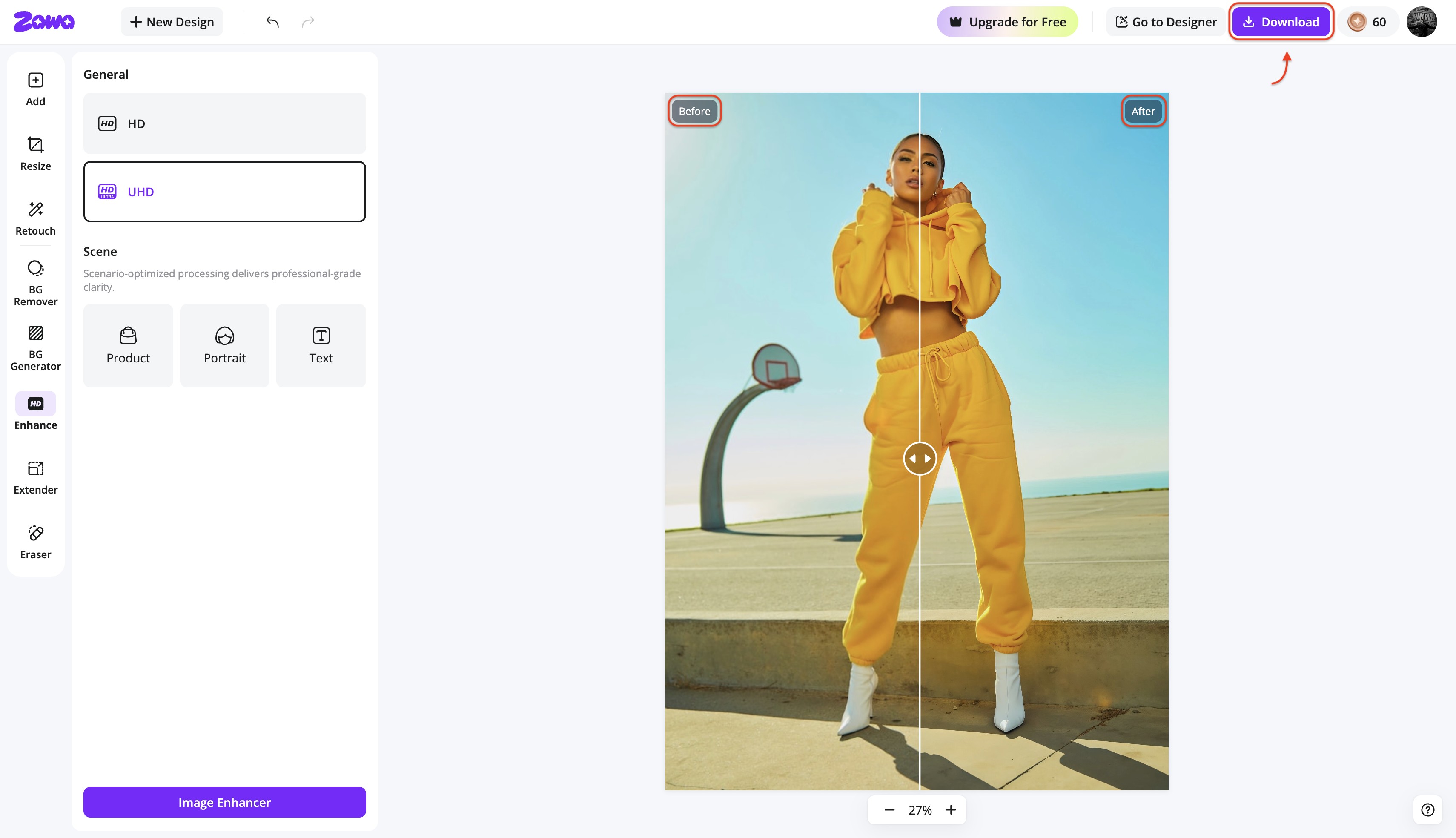
Step 3: Download the enhanced picture
Preview the results after applying the changes to your picture and save the high-resolution picture by clicking "Download".
Zawa mobile app: Fix pixelated pictures on the go
Using the Zawa app, you can fix your pixelated pictures immediately with intelligent AI technology on your phone. This tool helps in sharpening your pictures, making them clearer and improving their quality in no time.

How to unpixelate an image using the Zawa app
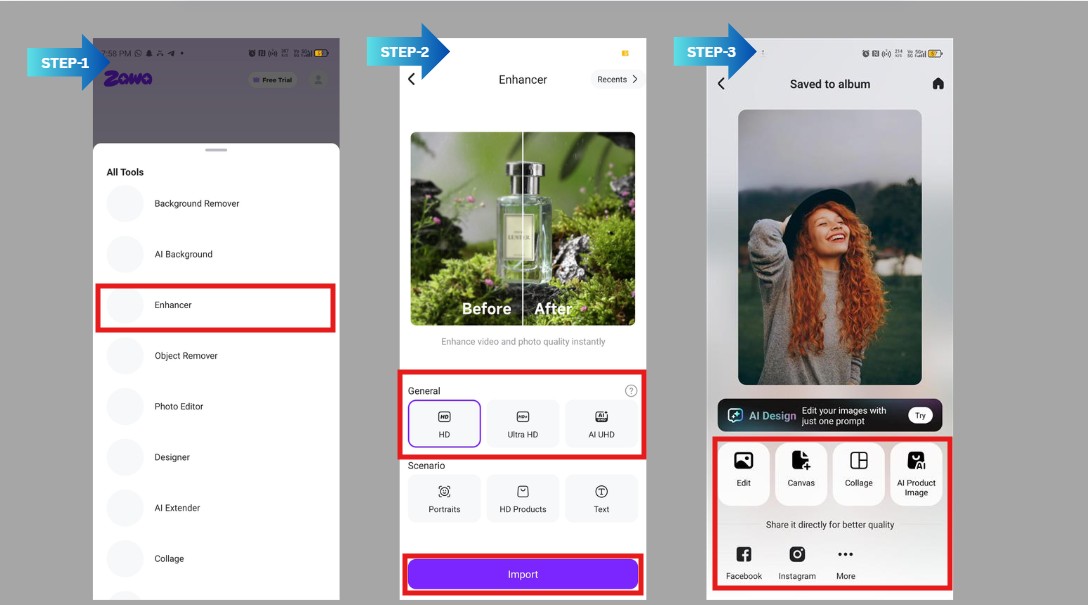
Step 1: Select the Enhancer
Launch the Zawa application and tap the "Enhance" or "Unpixelate" tool to start improving the quality of your image. AI technology will analyze your image and make it sharper.
Step 2: Import your image
Choose one option: "HD", "Ultra HD", or "AI UHD", then import your blurry image from your camera roll. The application accepts different file types and loads up the image instantly for processing.
Step 3: Save or download
After processing, preview the outcome and "Save" it for future use.
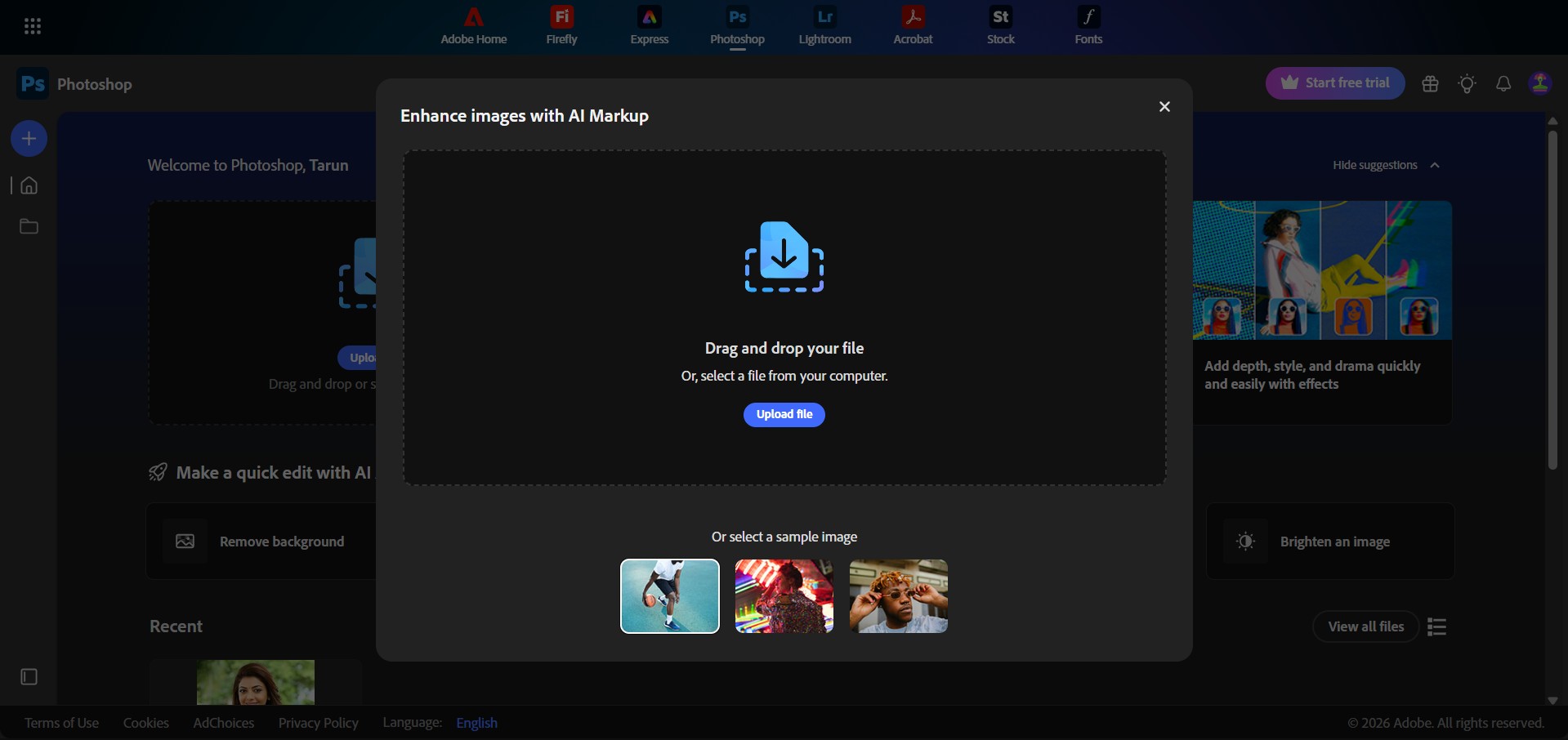
Photoshop (PC desktop): Professional way to depixelate images
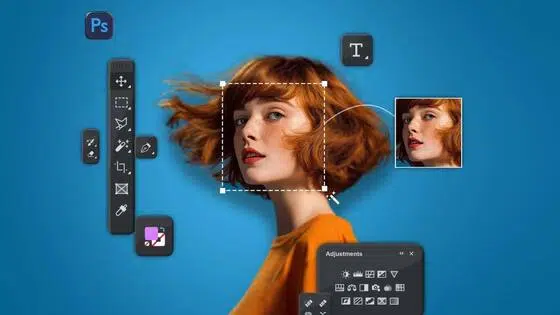
Adobe Photoshop is a good choice for those who prefer having complete freedom to fix pixelated images. The software provides many options, such as resampling, noise reduction, and sharpening, that make the images clearer. Adobe Photoshop gives much more flexibility than automatic software, because in Photoshop, you can make all the corrections manually.
How to fix pixelated photos in Photoshop
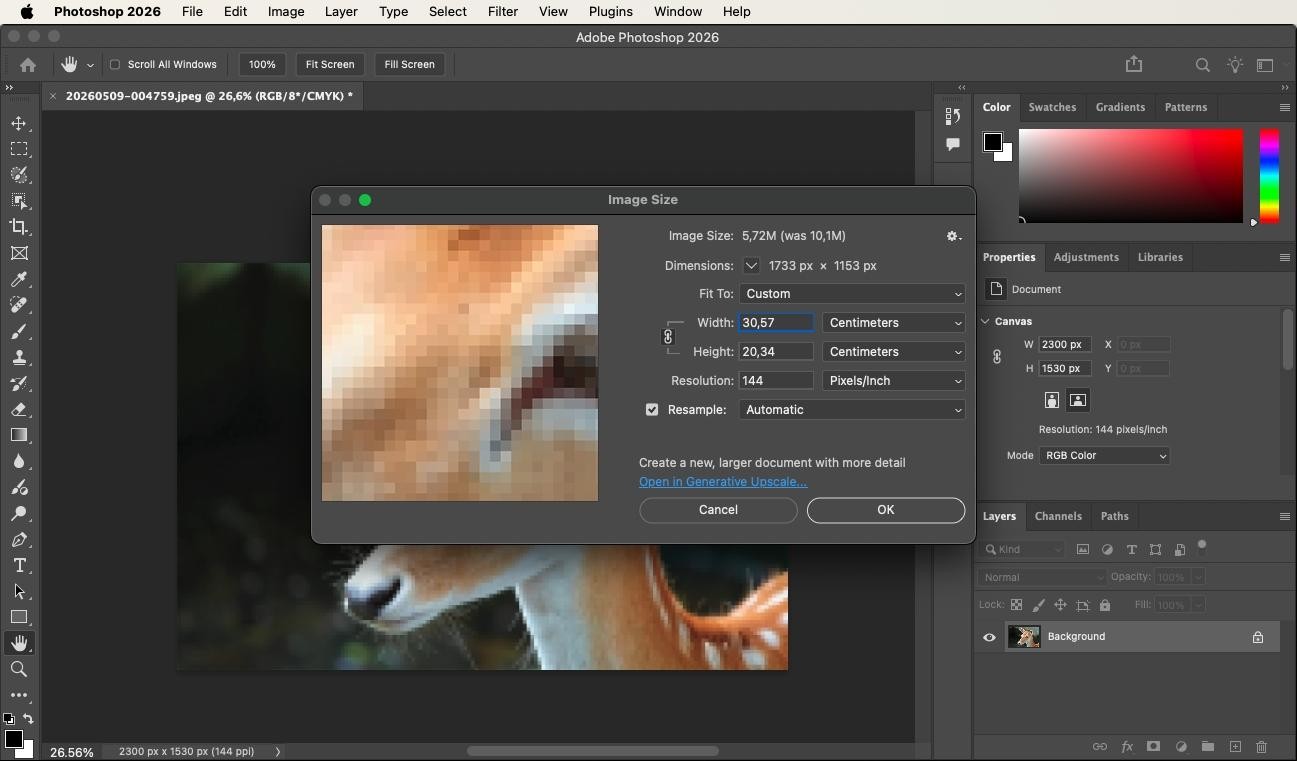
Step 1: Adjust image size
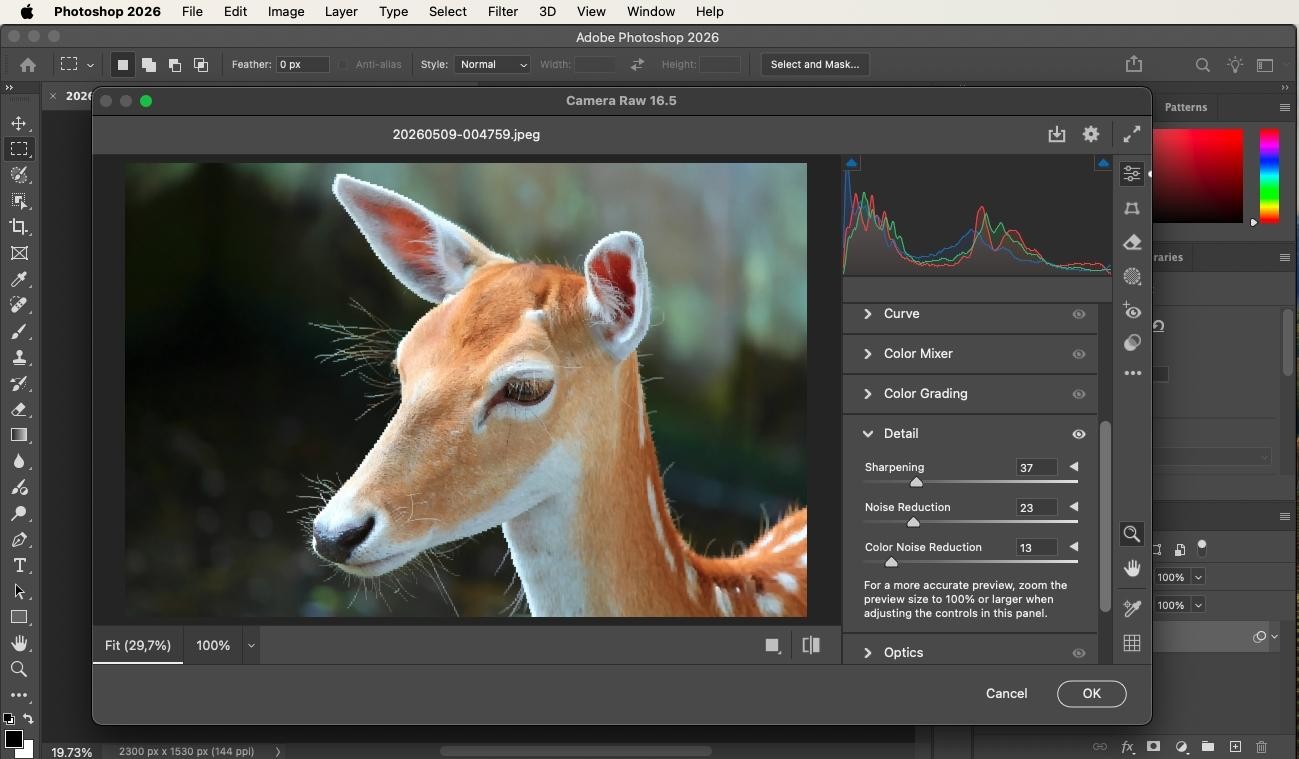
In Photoshop, choose the "Image" option, then click "Image Size" to resize your image. Make sure you tick resampling, then increase the resolution.
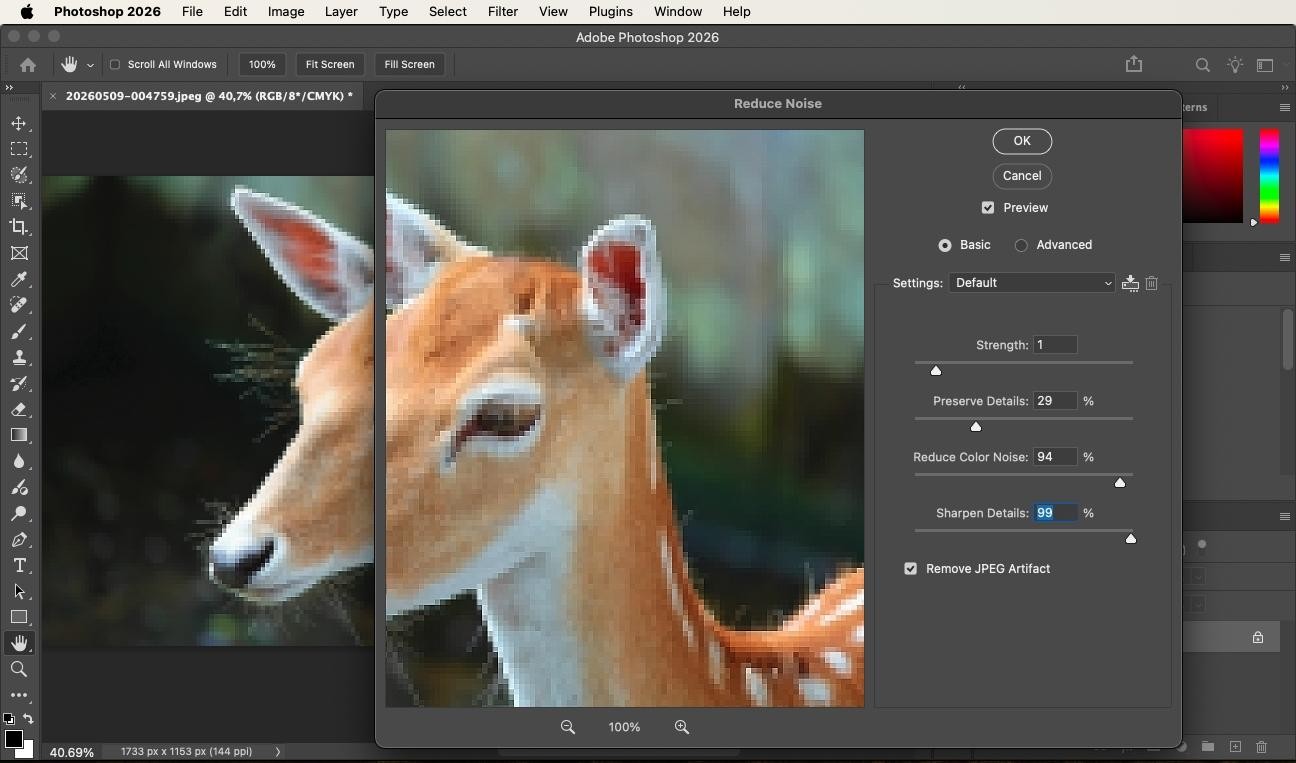
Step 2: Apply enhancement tools
Apply "Filters" such as "Reduce Noise" and choose Smart Sharpen tools wisely. Make necessary changes using the sliders to achieve better results. This will ensure that the details are sharp.
Step 3: Refine and download the final image
Go to Filters > Camera Raw Filter > Sharpening to access additional enhancement and refinement sliders. Once satisfied, "Download" the optimized image in formats like PNG or JPG without blurring.
Best practices to avoid image pixelation in the future
Use these tips to keep images sharp and avoid long-term pixelation.
-
Shoot in RAW mode: The RAW format stores all of the information captured by the camera sensor without any alteration. Therefore, it enables you to edit images without losing quality and avoids pixelization when making changes or scaling the image.
-
Avoid digital zoom: Digital zoom crops parts of the picture and then enlarges it, so your picture won't be as sharp. It is recommended that you use optical zoom or go closer to what you are shooting.
-
Check export settings: Incorrect settings when exporting an image can affect its overall quality. You should use high-quality resolution and correct proportions, as well as a minimum amount of compression to prevent any pixelation in the picture.
-
Use lossless storage: Formats such as PNG and TIFF are used for lossless images. Thus, you can maintain the photo's original quality even after several edits, since no data is lost in this case.
-
Calibrate your lighting: Good lighting improves picture clarity and helps avoid pixelation. Better light at the source means less correction needed later for the picture.
-
Use vector formats for logos: Vector formats, including SVG and AI, let you create images that scale infinitely. They are recommended for creating high-quality and clear logos.
Conclusion
Understanding how to fix pixelated photos is essential for ensuring high-quality images. There are different techniques for fixing pixelated photos. Among these methods, Zawa serves as a highly effective choice. It utilizes precise AI technologies to reconstruct missing textures and lost data. Its intuitive interface ensures a user-friendly experience that makes it easy to achieve professional results.
FAQs
-
Why are my pictures so pixelated?
Photos become blurry if their resolution is too low, they are highly compressed, or have been scaled up past their original dimensions. Blurry images can be avoided by using high-res images that don't need to be stretched too much.
-
Can AI unpixelate a picture?
Yes, with machine learning techniques, an AI tool can examine an image and fill in missing parts to restore its quality. Unlike the basic process of enlarging or resizing an image, AI tools (such as Zawa) use sophisticated methods to enhance the image's texture and edges.
-
How to fix pixelated photos on a phone?
One can fix pixelated photos on their mobile phones using AI-enhanced software (such as the Zawa mobile app). They automatically reconstruct missing pixels and refine edge clarity, restoring image sharpness.
-
What resolution is required to prevent pixelation in 300 DPI prints?
For 300 DPI images, the pixel dimensions should match the print size (e.g., 3000×2400 pixels for 10×8 inches). High-resolution images will be sharp. It helps you avoid having to repair pixelated images.
-
Is pixelating the same as blurring?
No, blurring and pixelation are not the same. Blurring makes an image appear less clear because its pixels have been averaged out. This means that blurring is a way of smoothing out the details of an image, but there are no distinct squares.
You May Be Interested

Product Photography-How to Take Product Photos

Gemini Images Too Blurry? Here’s How to Make Them Crystal Clear in Seconds
How to Make a Picture Less Blurry and Restore Sharpness
How to Fix Unfocused Pictures and Restore Image Clarity

How to Remove People From Pictures
How to Sharpen an Image in Photoshop: 2026 Guide & Top AI Alternative