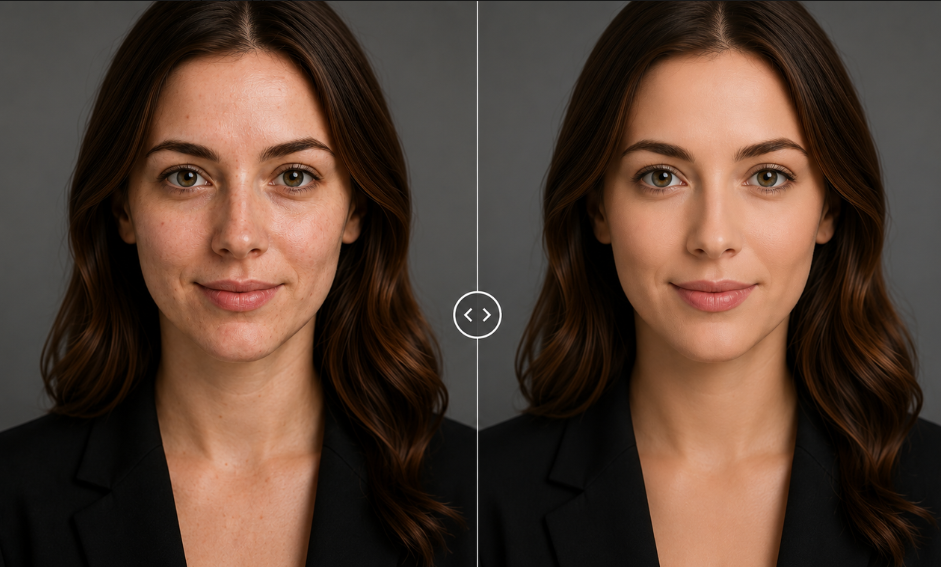
Create Natural-Looking AI Videos from Photos Without Uncanny Results
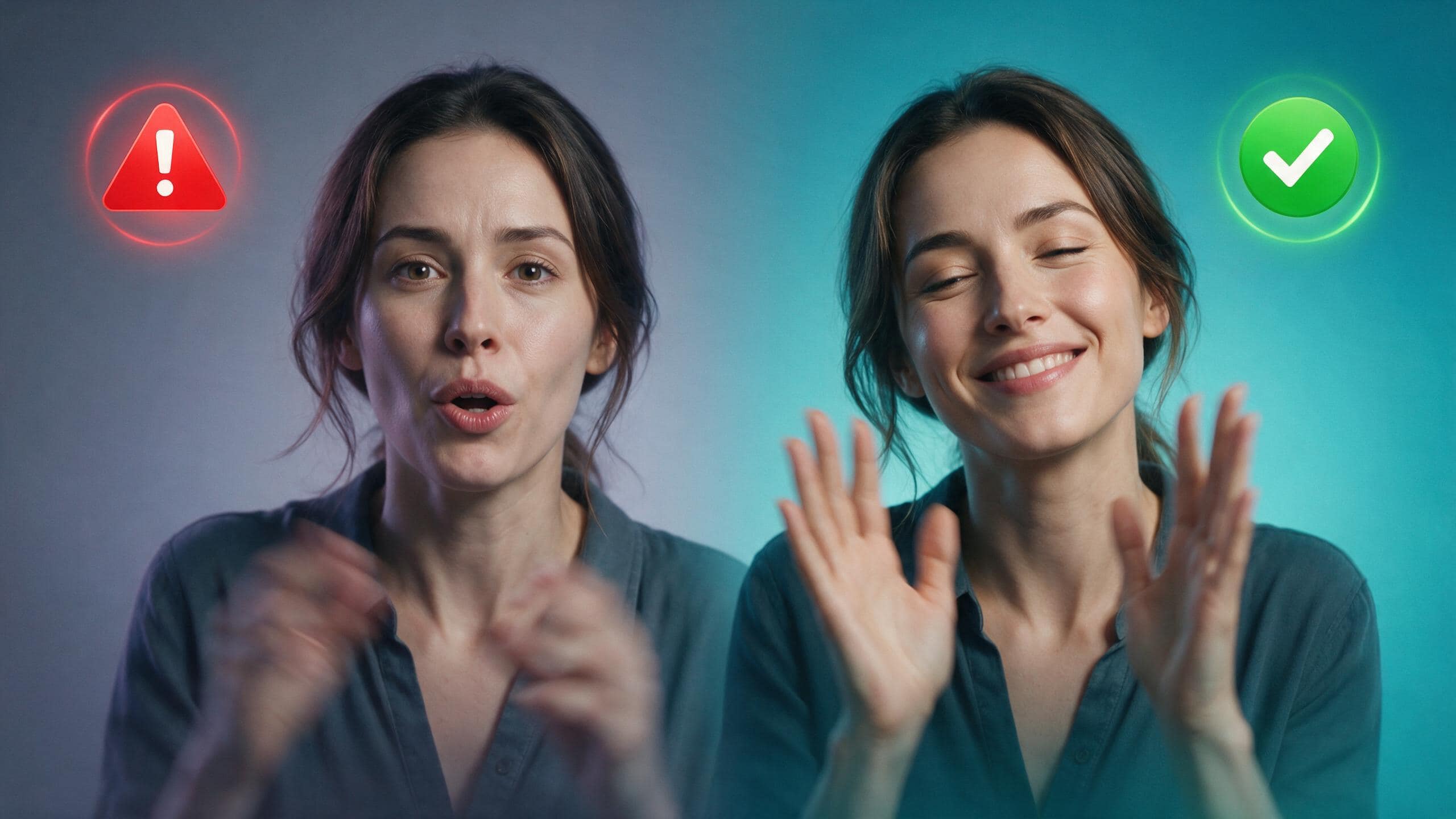
Ever tried turning a photo into an AI video and got an eerie, unnatural result? Left side shows the typical "uncanny valley" – stiff expressions, mismatched lips, blurry hands. Right side shows what it should look like – smooth blinks, natural smiles, realistic motion. Our latest guide breaks down exactly how to make AI videos from photos without looking strange.

A single photograph can now speak, blink, smile, or become part of a promotional video. However, the first result does not always look convincing. Eyes may drift, teeth can change shape, and a simple head turn sometimes bends the background.
So, start by checking the photo, not the animation settings. Anyone learning how to make an AI video of a photo without looking strange needs a clear face, balanced lighting, and a natural pose. Gentle movement and accurate speech timing reduce awkward expressions. The next sections explain common issues and Zawa’s role.
Why Some AI Photo Videos Look Strange
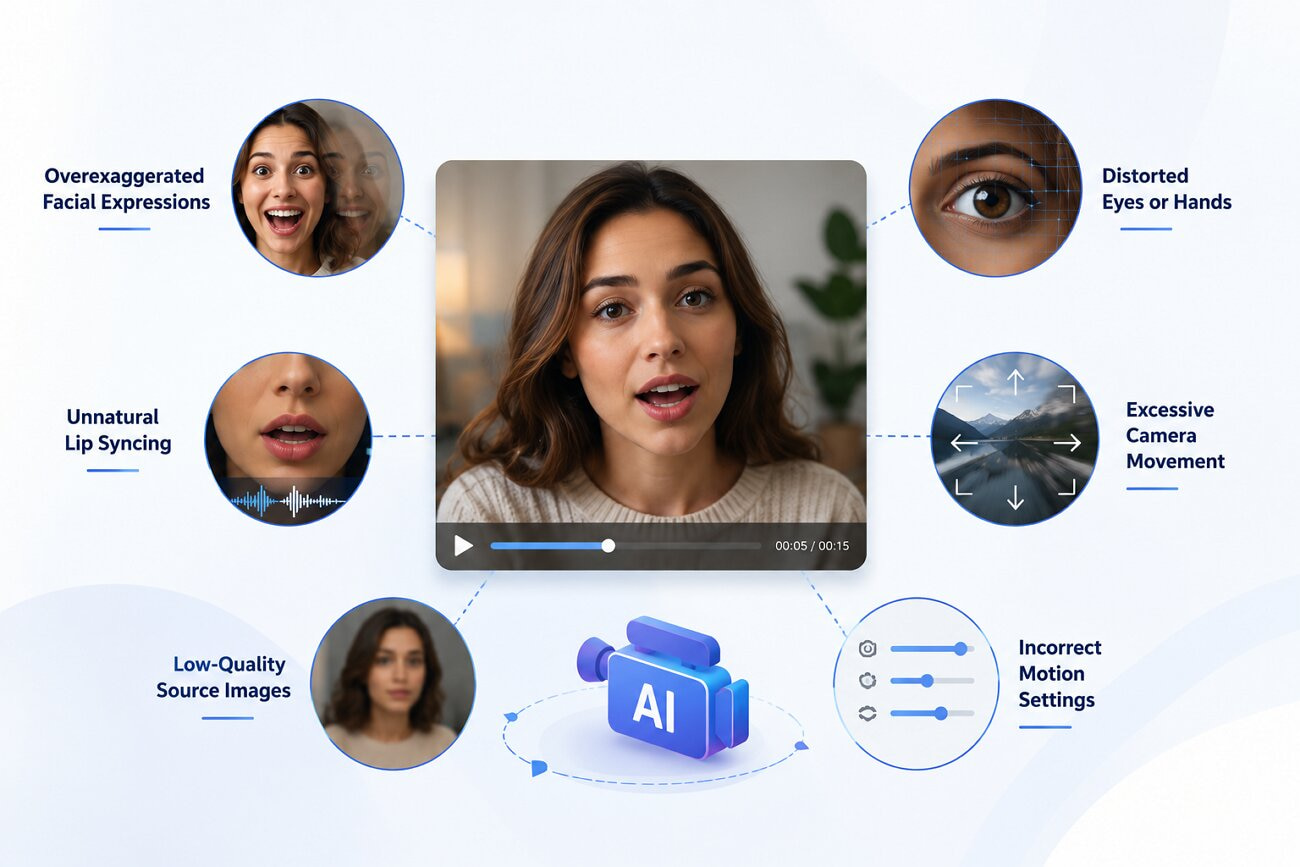
Even a clear photo can look awkward once movement is added. The issues below often explain why the final animation feels unnatural:
Overexaggerated Facial Expressions
The face starts looking odd when the animation pushes a normal expression too far. A small smile may widen unnaturally, while the cheeks and jaw stop matching the original photo.
Unnatural Lip Syncing
Sometimes the voice continues while the mouth has already stopped, or the lips form a different sound. You notice it more when the speaker talks quickly or the face is turned sideways.
Distorted Eyes or Hands
Eyes sometimes drift, blink unevenly, or change size during the clip. Hands are harder to animate when fingers overlap, blur together, or sit near the frame edge.
Excessive Camera Movement
Wide pans and sharp zooms make the tool invent areas missing from the original photo. Anyone learning how to make an AI video of a photo without looking strange should keep camera movement restrained.
Low-Quality Source Images
A compressed or blurry picture gives the tool fewer details to follow. Hair, jewelry, lips, and clothing edges may flicker or change shape from one frame to another.
Incorrect Motion Settings
The motion must fit the photo’s pose and purpose. A formal portrait needs slight facial movement, while a product shot usually works better with a gentle camera push.
What Makes an AI Photo Video Look Realistic?
A realistic result depends on more than adding movement to a still image. The following elements help the animation stay natural from one frame to the next:
Source Photos Quality
Start with the clearest version of the photo available. Visible eyes, lips, hair, and clothing edges give the animation a stable base. To make an AI video of a photo without looking strange, blurry screenshots or heavily compressed images usually create the first visible problems.
Correct Facial Alignment
Both eyes, the mouth, and the jaw should remain clearly visible in the source image. Strong side angles, tilted faces, or covered features often cause uneven blinking and unstable mouth movement.
Subtle Head and Body Movements
Real movement is rarely constant, and that is exactly why restraint matters here. Small shifts, brief pauses, and soft motion tend to look far more natural than repeated nodding or overly active gestures.
Smooth Camera Motion
Keep the camera moving slowly. A slight zoom or push works better than a wide sweep, which may reveal areas the original photo never captured. This matters when learning how to make an AI video from a photo without looking strange.
Realistic Lighting
Watch how light falls across the face during movement. Shadows that shift, vanish, or brighten on their own can make the subject look pasted over the background.
Accurate Lip Synchronization
The lips should keep time with the voice, not move before or after the spoken words. Cleaner audio, shorter lines, and a steady speaking speed usually make that easier to achieve.
Stable Background Animation
The background should support the subject, not compete with it. Straight lines, walls, shelves, or objects that wobble and flicker can quickly make the whole video feel artificial.
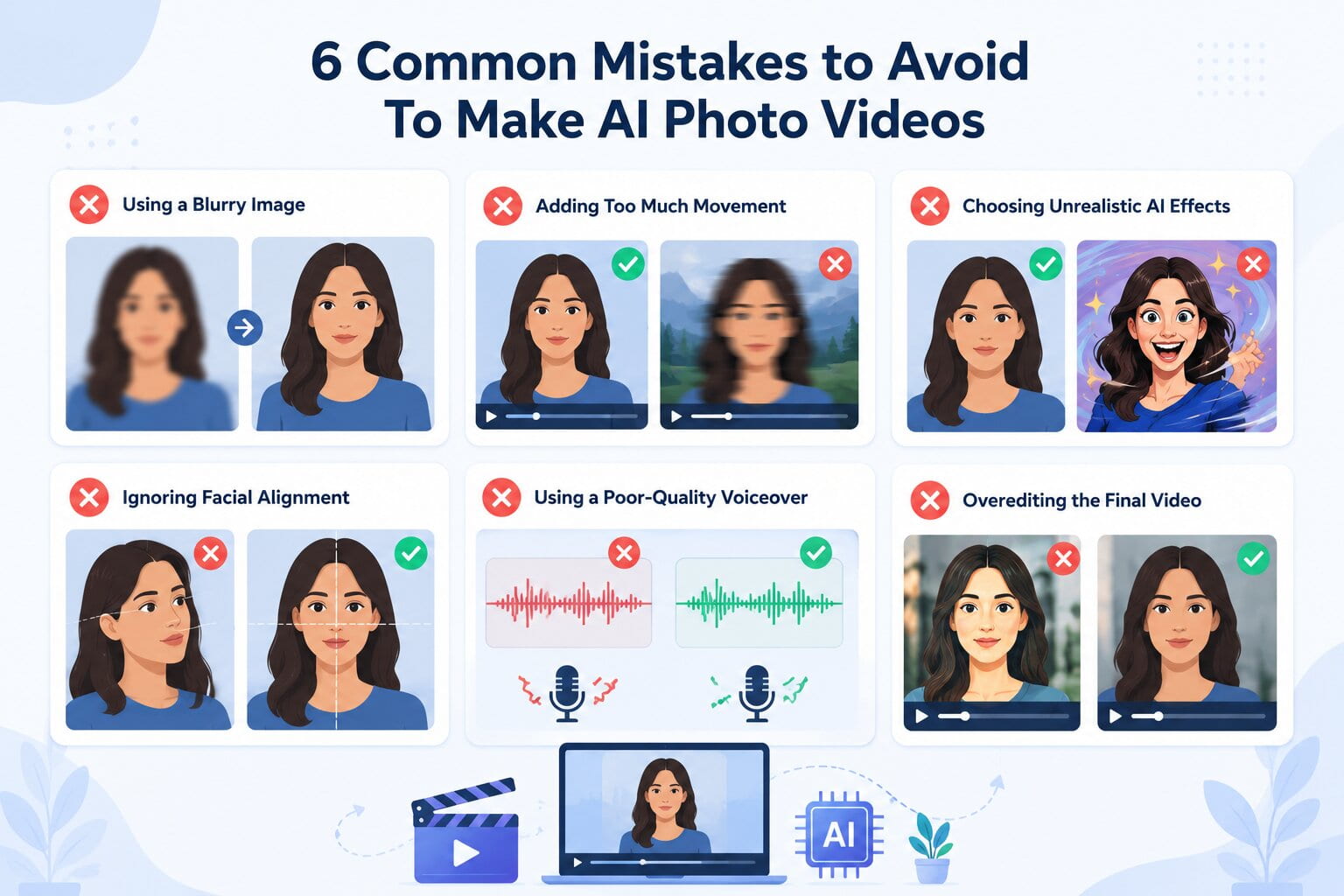
6 Common Mistakes to Avoid To Make AI Photo Videos
Some choices look harmless during setup but become obvious once the photo starts moving. Check the following mistakes before you create the video or save the final version:
Using a Blurry Image
Soft or pixelated photos leave the eyes, lips, hairline, and jaw without firm edges. Once motion begins, those areas may flicker, stretch, or change shape between frames.
Adding Too Much Movement
Wide head turns, or sweeping camera moves, ask the tool to create details outside the original shot. For “how to make AI video of a photo without looking strange,” keep the motion close to the pose already shown.
Choosing Unrealistic AI Effects
A calm portrait loses its natural look when paired with sudden smiles, fast spins, or dramatic transitions. Keep the effect subtle enough that the viewer notices the subject first.
Ignoring Facial Alignment
Photos taken from a steep angle leave part of the face unclear. When one eye or section of the mouth is hidden, blinking and speech often shift out of place.
Using a Poor-Quality Voiceover
Rushed or noisy audio can throw off the mouth movement, even when the image looks fine. Record in a quiet place, speak clearly, and review difficult names before rendering.
Overediting the Final Video
Heavy sharpening, repeated filters, or excessive smoothing may introduce new distortions. When learning how to make an AI video from a photo without looking strange, a cleaner regeneration often works better than hiding errors with more effects.
Create Realistic AI Photo Videos with Zawa
Faces may drift once a still photo begins moving across several frames. Lips can miss the dialogue, while walls or hair suddenly start trembling. Strong motion also turns a relaxed portrait into something awkward and unfamiliar. These problems become easier to avoid when timing and movement stay controlled.
Zawa combines those controls within one workspace, simplifying each editing decision. Its controls show how to make an AI video from a photo without looking strange. Furthermore, the following features address the problems that usually make animated photos feel awkward:
Natural Facial Movement
A blink should look incidental, not like a programmed facial command. Zawa keeps small expressions close to the face, as already shown in the photo.
Smooth Motion Without Distortion
Within Zawa, frame transitions remain steadier around hair, clothing, and facial edges. This control reduces visible flicker, stretching, and sudden shape changes onscreen.
Realistic Talking-Photo Lip Sync
The platform times visible mouth movement against recorded or generated speech. Each phrase, therefore, feels more closely connected to the animated face.
Intelligent Camera Motion
Zawa’s camera controls use smaller pans and zooms around still portraits. Original framing stays intact without revealing areas the photo never captured.
Original Facial Feature Preservation
Its face-preservation system keeps eyes, lips, and jawlines visually consistent throughout. The person remains recognizable after speaking, blinking, or turning slightly onscreen.
Pre-Animation Image Enhancement
Before animation, Zawa improves soft edges and lightly compresses facial details. That cleanup gives later movement a clearer visual reference to follow.
Natural AI Voiceovers
Zawa includes voice choices for advertisements, explainers, products, and social clips. Users can match tone, language, and delivery with the intended audience.
How to Make an AI Video from a Photo Using Zawa
Once the photo and motion choices are ready, the creation process becomes easy. Follow the steps below to create and export it in Zawa:
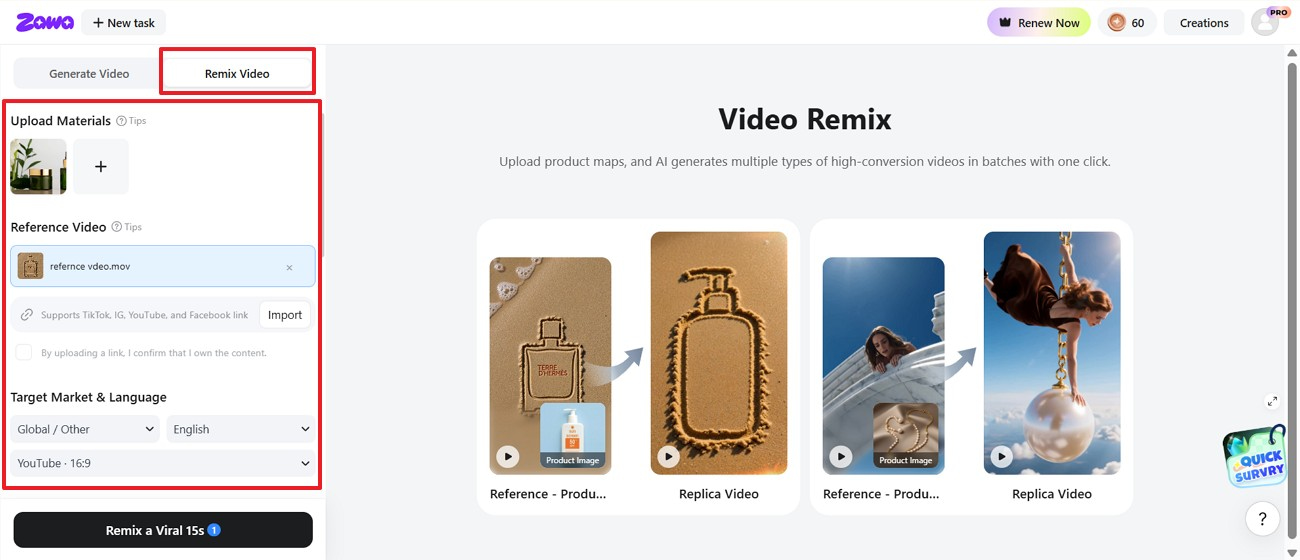
Step 1. Upload the Photo and Reference Video
Choose “Remix Video,” upload your photo, then add or import a reference clip. Next, carefully select the target market, language, and preferred platform format.
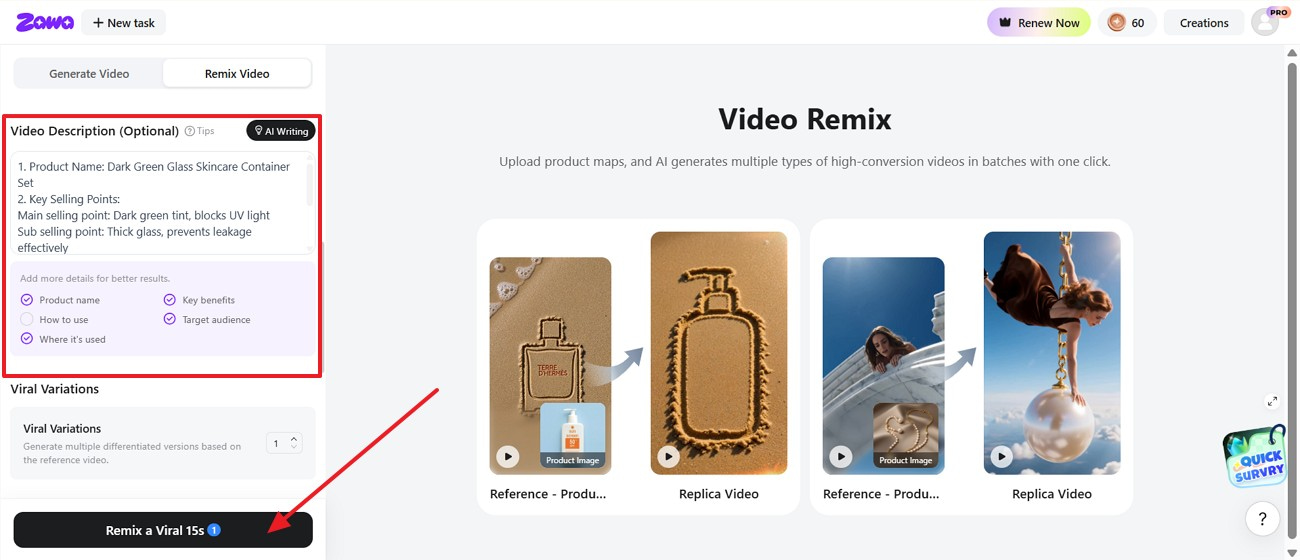
Step 2. Add Video Description to Generate
Enter the “Video Description,” selling points, benefits, audience, and usage details. Choose the number of variations, then click “Remix a Viral 15s.”
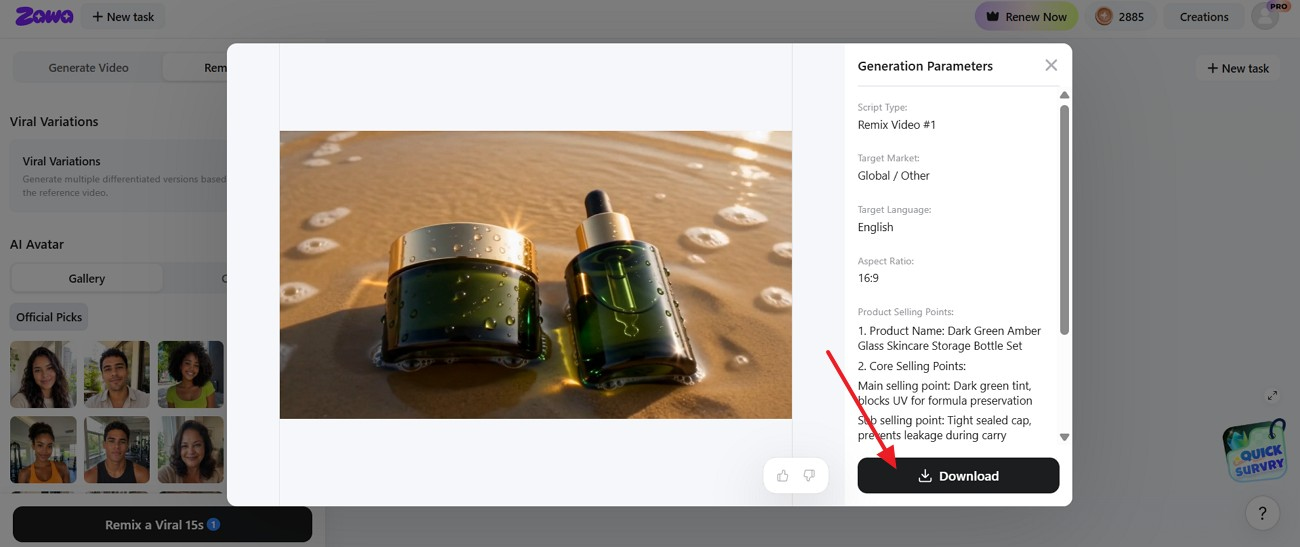
Step 3. Export the Final Video
Now, review the video, and once you are satisfied with the results, select the “Download” button to export the video to your device.
Conclusion
To conclude, natural-looking photo videos rarely come from adding more effects. A clear image, sensible movement, steady lighting, and accurate lip timing matter far more. When learning how to make an AI video from a photo without looking strange, review the face, background, and voice before exporting. Zawa brings these checks into one place, making the final process much easier to manage.
Frequently Asked Questions
-
Why do some AI photo videos look unnatural?
Unnatural results usually start with a weak source image or motion that asks too much from it. Blurry eyes, a hidden mouth, harsh head turns, poor lip timing, and a wobbling background quickly expose the animation.
-
Can AI animate a single photo realistically?
A single photo can work surprisingly well, especially for short talking clips or gentle portrait motion. The face needs to be clear, the lighting even, and the movement modest enough to stay within what the image actually shows.
-
How can I make AI face animations look more natural?
Start with a sharp portrait where both eyes and the mouth are visible. Keep smiles, blinks, head turns, and camera moves small, then watch the finished clip closely for drifting features or changes around the jaw.
-
Does Zawa improve photo quality before animation?
Zawa can tidy slight softness or compression before movement is applied. That helps when the picture is basically clear already, but it will not rebuild a badly blurred face or restore details missing from the original.
-
Can I add voiceovers to AI photo videos?
Voiceovers are supported. You may upload a finished narration or work with an available AI voice. Clean, evenly delivered speech gives the mouth animation a clearer timing reference, particularly in short talking-photo clips.
-
What type of photo works best for AI animation?
A photo with one clearly visible face usually gives the animation more reliable detail to follow. For “how to make AI video of photo without looking strange,” avoid cropped features, heavy filters, deep shadows, and crowded backgrounds.
-
Can I create social media videos from a single photo with AI?
One still image is enough for a short social video, provided the format suits the platform. After generation, check whether captions remain readable and whether the face, product, or logo changes unexpectedly during motion.
You May Be Interested

Media.io AI Video Upscaler Review: Is It Worth It in 2026?
13 Best Free Photo Editors for Mac in 2025 to Enhance Your Photos
Try the 10 Best Image Upscalers for Your Photos in 2025
Dessert Photography Tips for Stunning Food Photos