Instagram Watermark Remover: Why It Matters and How to Fix It
A TikTok badge on an Instagram Reel is not just a cosmetic issue. Instagram's algorithm actively suppresses watermarked content in the recommendation feed. This guide covers the watermarks that hurt your reach, how to remove them, and how to avoid the problem entirely next time.

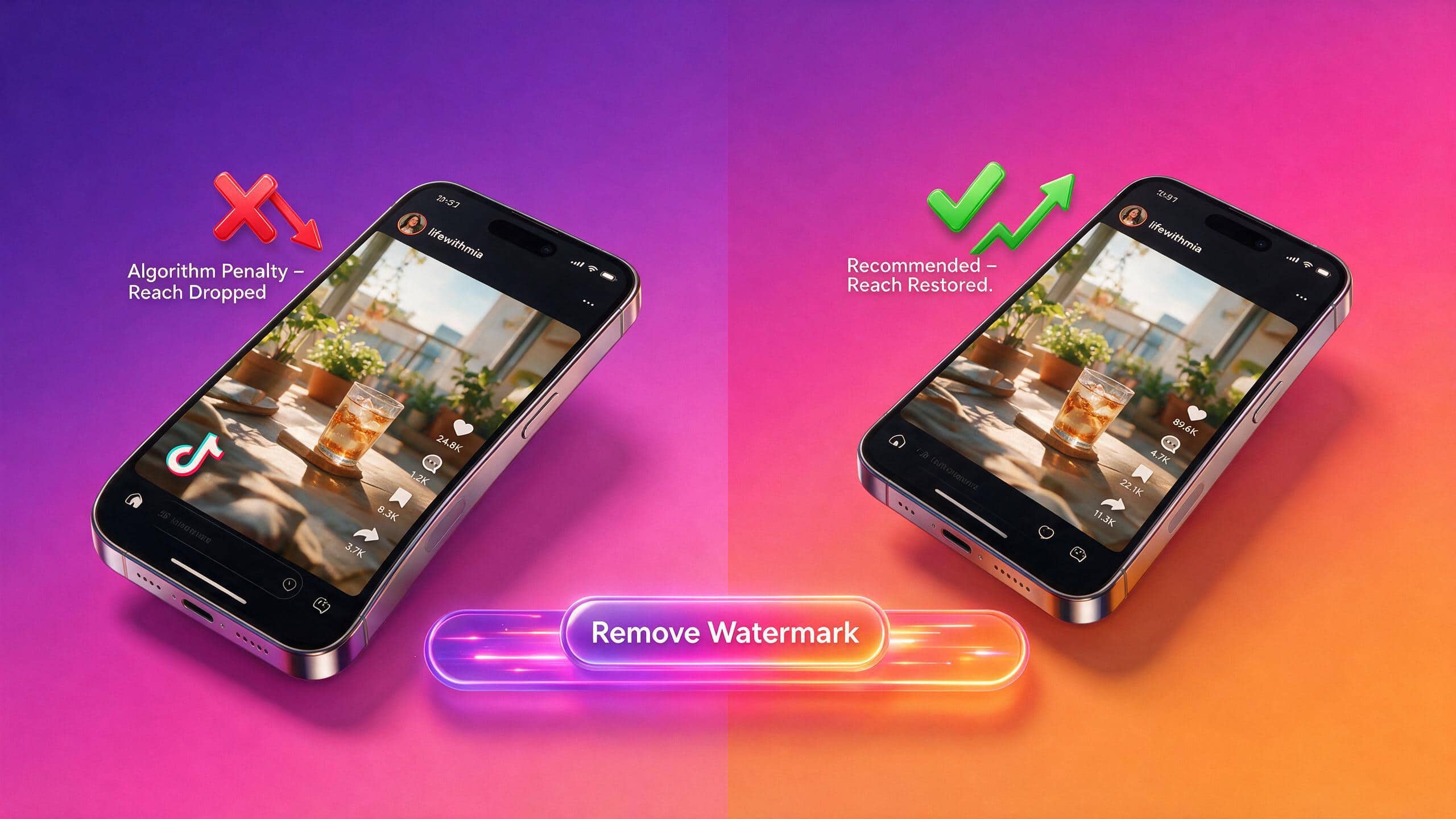
Most creators discover the Instagram watermark problem the hard way. A video that performed well on TikTok goes flat on Reels, and the TikTok badge sitting in the corner is why. Instagram's algorithm treats third-party watermarks as a signal that the content was made for another platform. The reach penalty is real and documented. This guide covers the three types of watermarks that cause problems on Instagram, how to remove each one, and what Zawa Video Enhancer does for the quality side of that workflow.
The Instagram Algorithm and Watermarks: What Is Actually Happening
Meta has confirmed that videos with watermarks from other platforms receive reduced priority in the Reels recommendation feed. It is not a ban. The content still goes out to existing followers. But it loses organic discovery reach, which is where new audience growth actually happens. Understanding the mechanism makes the fix obvious.
Why Visible Watermarks Hurt Your Reach
According to Metricool's 2026 Instagram Reels Guide, the three signals that matter most to the Reels algorithm are watch time, DM sends per reach, and likes per reach. Watch time is the strongest single signal. Up to 50 percent of viewers drop off before the fourth second, and Instagram heavily weighs whether they keep watching past that point. DM shares now carry more weight than likes to reach new audiences. When someone sends a Reel to a specific friend, Instagram reads that as the strongest possible endorsement.
Where watermarks come in: Instagram now uses an Originality Score to assess whether a Reel is genuinely made for the platform or recycled from somewhere else. A visible TikTok logo is one of the clearest signals that the content was not created natively for Instagram. Metricool confirms that accounts posting 10 or more reposts within 30 days can be excluded from all recommendations, including Explore, the Reels tab, and Suggested Posts. Content with third-party watermarks gets flagged the same way. The platform actively penalizes it regardless of how good the content itself is.
The fix is not just cosmetic. Removing the watermark removes the signal that triggers the penalty. It does not fully restore the reach a natively made Instagram video would have earned, but it gives the Reel a fair shot at recommendation instead of being filtered out before it even reaches new audiences.
The Three Watermarks That Actually Cause Problems
-
TikTok watermark on a downloaded video: The bouncing TikTok logo in the lower-left corner is the clearest algorithmic signal of cross-posted content. This is the most common scenario.
-
Instagram's own watermark on downloaded Reels: When you save a Reel from the Instagram app, the downloaded file carries a username and Instagram logo. If that file gets re-uploaded or shared to another platform, the badge travels with it.
-
Third-party editing tool badges: Apps like CapCut, VEED, and others add their own branding to free exports. These trigger the same algorithmic response as platform watermarks on Reels.
How to Remove a TikTok Watermark Before Posting to Instagram
This is the most searched scenario. You have a TikTok clip that performed well and you want to put it on Reels without the badge. Three practical options depending on what you still have access to.
Option 1 — Re-export From the Original Project
If the video was edited in CapCut, a phone camera, or any editing app where the original project still exists, this is the cleanest fix. Export a fresh version directly from the project without going through TikTok at all. No watermark in the file, no metadata signal, no quality loss from a removal pass. This is the only option that produces a truly native-quality file. If the original project is still available, always start here.
Option 2 — Download Without the Watermark Before Posting
TikTok's own app allows watermark-free downloads before a video is posted. Go to the editing screen, tap the download arrow before hitting Post, and the saved file has no badge. This only works on videos that have not been posted yet.
For videos already live on TikTok, third-party downloader tools can serve the original file without the badge. Quality varies depending on whether the tool serves the original file or a re-encoded version. Do not name specific tools here as they change frequently and some have questionable privacy practices. Stick to tools with a clean track record for serving original-quality files.
Option 3 — Remove the Watermark With an AI Tool
If the original project is gone and you only have the watermarked download, an AI inpainting tool can reconstruct the background behind the badge. Inpainting is different from cropping or blurring. It analyzes the pixels surrounding the watermark and generates what the background would look like if the badge were never there. On simple backgrounds like plain walls, solid colors, or sky, the result is clean and invisible at standard viewing sizes.
Where it struggles: fast motion in the watermark zone, complex or textured backgrounds, and moving watermarks. These produce artifacts or flickering in the reconstructed area. If the background behind the TikTok badge is busy or moving fast, the result will show some imperfection.
How to Remove the Instagram Watermark From a Downloaded Reel
This scenario is slightly different. It comes up when creators save their own Reels from the app and want to share them elsewhere, or when a Reel gets re-used and the Instagram badge needs to come off before it goes somewhere new.
Why the Instagram Download Badge Exists
Instagram adds a username handle and logo to videos saved using the native in-app download option. It is designed to attribute content when it gets shared off the platform. From a creator's perspective it functions as a watermark the moment the file is repurposed. The badge is baked into the downloaded file at the point of saving. It is not removable by re-uploading into Instagram, because it is embedded in the pixel data, not a floating layer.
Removing It
-
Crop method: if the badge sits at the edge of the frame and a thin crop is acceptable, this is the fastest approach with no quality degradation from a removal pass
-
AI inpainting: the same approach as TikTok watermark removal; reconstruct the background where the badge was; cleaner result than crop when frame content matters
-
Best practice going forward: save Reels from the original editing project rather than from Instagram's in-app download; the original file carries no badge
Third-Party Editing Tool Watermarks on Instagram Content
Platform watermarks are the most visible problem, but editing tool badges cause the same algorithmic response on Instagram. CapCut badges, VEED branding, and BeeCut logos all get flagged by the Originality Score the same way TikTok logos do.
Which Tools Add Watermarks to Free Exports
-
CapCut free tier: Adds the CapCut logo to exports. Very common among Reels creators given CapCut's dominant position in short-form editing.
-
VEED free tier: 'Made with VEED' badge in the lower-right corner on all free exports.
-
BeeCut free tier: BeeCut logo on all free exports.
-
InShot and similar mobile editors: Various badge placements on free tier exports depending on the app and version.
These are different from platform watermarks but trigger the same algorithmic response. The Originality Score does not distinguish between a TikTok logo and a CapCut badge. Both signal that the content was not made natively for Instagram.
The Fix
Upgrade the editing tool to a plan that removes export branding. Most tools offer this at a reasonable cost.
Switch to a tool that does not watermark free exports: DaVinci Resolve on desktop, certain CapCut export paths, or Zawa Video Watermark Remover at zawa.ai/video-watermark-remover for a clean AI-powered removal without adding any new badge to the output.
Watermark Removal with Zawa: The most convenient alternative
If the original project file is gone and you only have the watermarked clip, Zawa Video Watermark Remover is the most straightforward fix. It uses AI inpainting to reconstruct the background behind the watermark rather than cropping or blurring it. No install needed, no badge added to the output, and a free 5-second preview before you download.
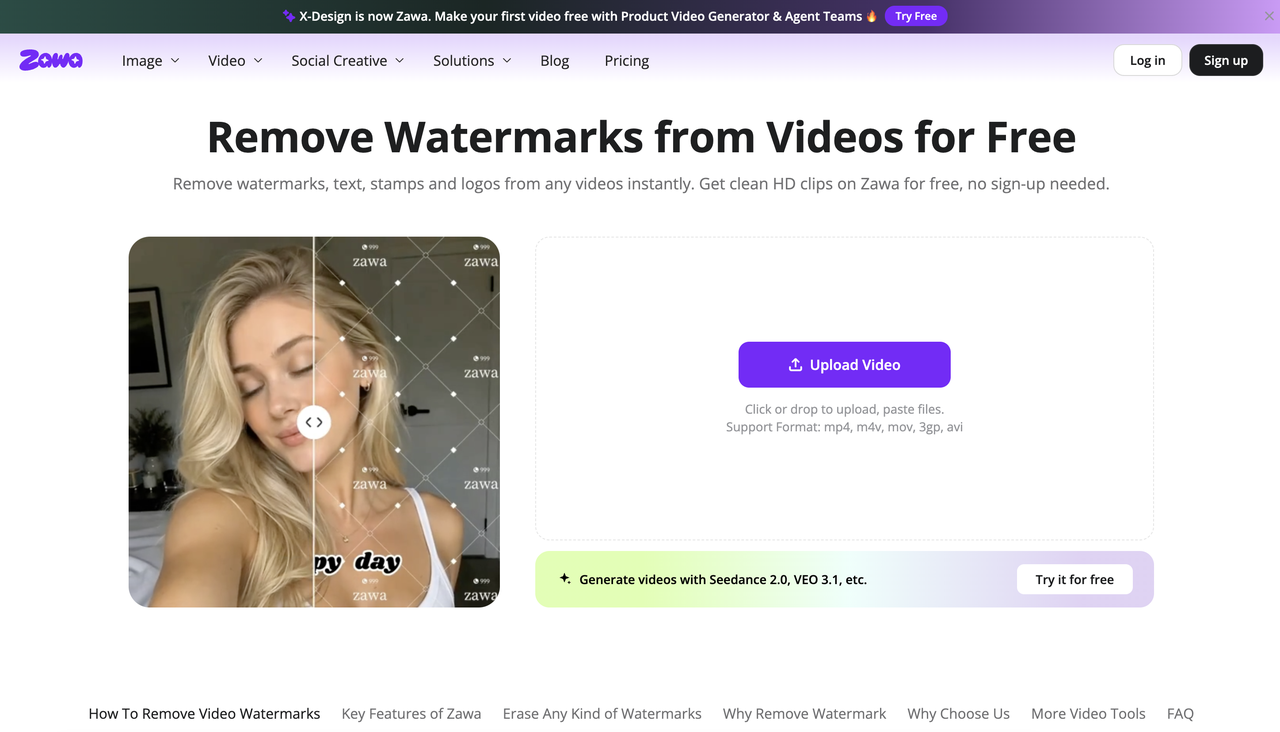
Step-by-Step: Using Zawa Watermark Removal
Step 1: Open Zawa and upload your watermarked video
Go to zawa.ai/video-watermark-remover and upload your file. MP4 and MOV are accepted. No account needed to access the upload interface or run the free 5-second preview.
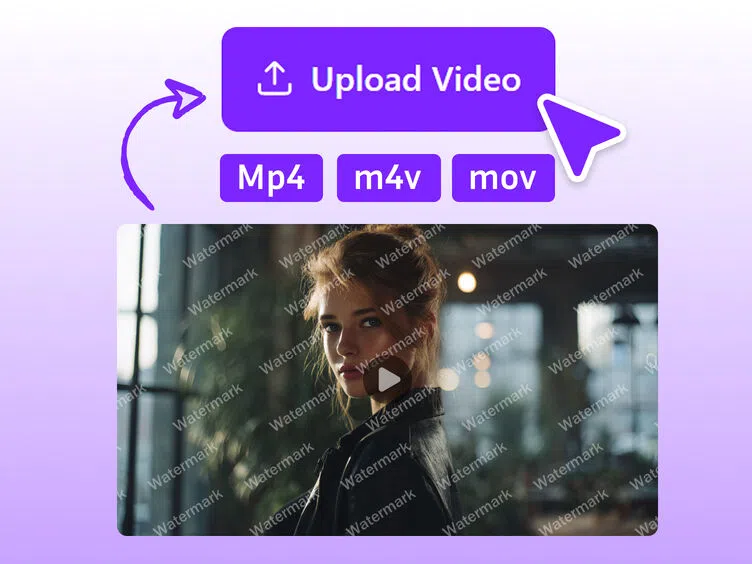
Step 2: Let AI detect the watermark or select it manually
Zawa scans the video and detects the watermark position automatically across all frames. If it misses anything, brush over the area manually. Moving watermarks are tracked frame by frame without extra input from you.
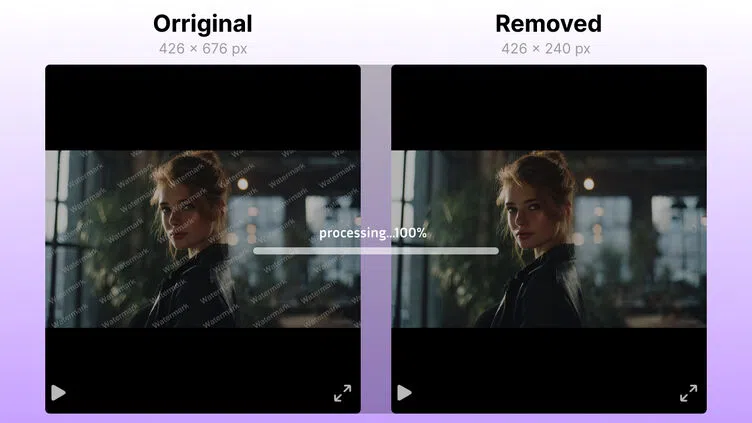
Step 3: Preview the result and download the clean file
A 5-second preview loads when processing finishes. Check the reconstructed zone for any smearing or texture mismatch. If it looks clean, download the full watermark-free file using a paid plan.

How to Avoid the Watermark Problem Entirely Next Time
The removal workflow exists because most creators are fixing a problem that could have been avoided upstream. These habits stop it from happening again.
-
Always export from the original project before posting to any platform. The pre-upload file has no watermark and no platform metadata.
-
Record in your phone's camera app. Edit in your tool of choice. Then send the export to each platform directly. Never download from one platform and upload to another..
-
Use editing tools that do not watermark free exports, or upgrade the ones you rely on to a plan that removes branding from the output.
-
If cross-posting is a regular part of your workflow, keep an archive of original clean exports from every piece of content.
FAQs
Does Instagram penalize all watermarks or just TikTok?
Instagram's confirmed position covers watermarks from other platforms and third-party editing apps. Creator branding added manually is not penalized. TikTok logos, CapCut badges, and VEED branding all get flagged the same way by the 2026 Originality Score.
Can I remove a watermark from a Reel I downloaded from Instagram?
Yes. The crop method works if the badge sits near the frame edge. AI inpainting tools reconstruct the background behind the badge without cropping the frame. Neither method makes the file a native Instagram export. It is still a platform download underneath.
Does removing the TikTok watermark fix Reels reach completely?
Partially. It removes the clearest algorithmic signal of cross-posted content. But the algorithm also reads the video structure, metadata, and style. These all signal whether the content was made for Instagram or somewhere else. A cleaned-up re-upload will do better than a watermarked one. But it will not match a video made natively for Instagram from scratch.
What is the best free Instagram watermark remover?
For removing TikTok or other platform watermarks: AI inpainting tools handle corner badges on simple backgrounds well without cropping the frame. For improving video quality after removal: Zawa Video Enhancer upscales and reduces compression artifacts with no output watermark on the free tier. Find it at zawa.ai/video-enhancer/edit.
Why does my Instagram Reel look blurry after I remove the watermark?
Watermark removal does not cause blur on its own. The source video was probably already soft from being downloaded and re-exported several times. Each compression pass degrades sharpness. Running the cleaned file through Zawa Video Enhancer before uploading to Reels restores sharpness and reduces the artifact buildup from multiple passes.
You May Be Interested

How to Remove Gemini Watermark?

How to Remove CapCut Watermark: Manual & AI Methods Guide

How to Remove Moving Watermark in Filmora: Official & AI Solutions

How to Remove the Kling AI Watermark

50+ Mother’s Day Post Ideas for Instagram, Facebook & More

130+ Unique Instagram Bios for Girls