
BeeCut Watermark Remover Reviewed: What It Does, Where It Falls Short, and Better Options
BeeCut markets a watermark remover, but it does not use AI to reconstruct the background. It crops, blurs, or overlays the watermark area instead. The free tier also adds its own watermark to every export. This review covers exactly what BeeCut does, where it fails, and what to use instead.

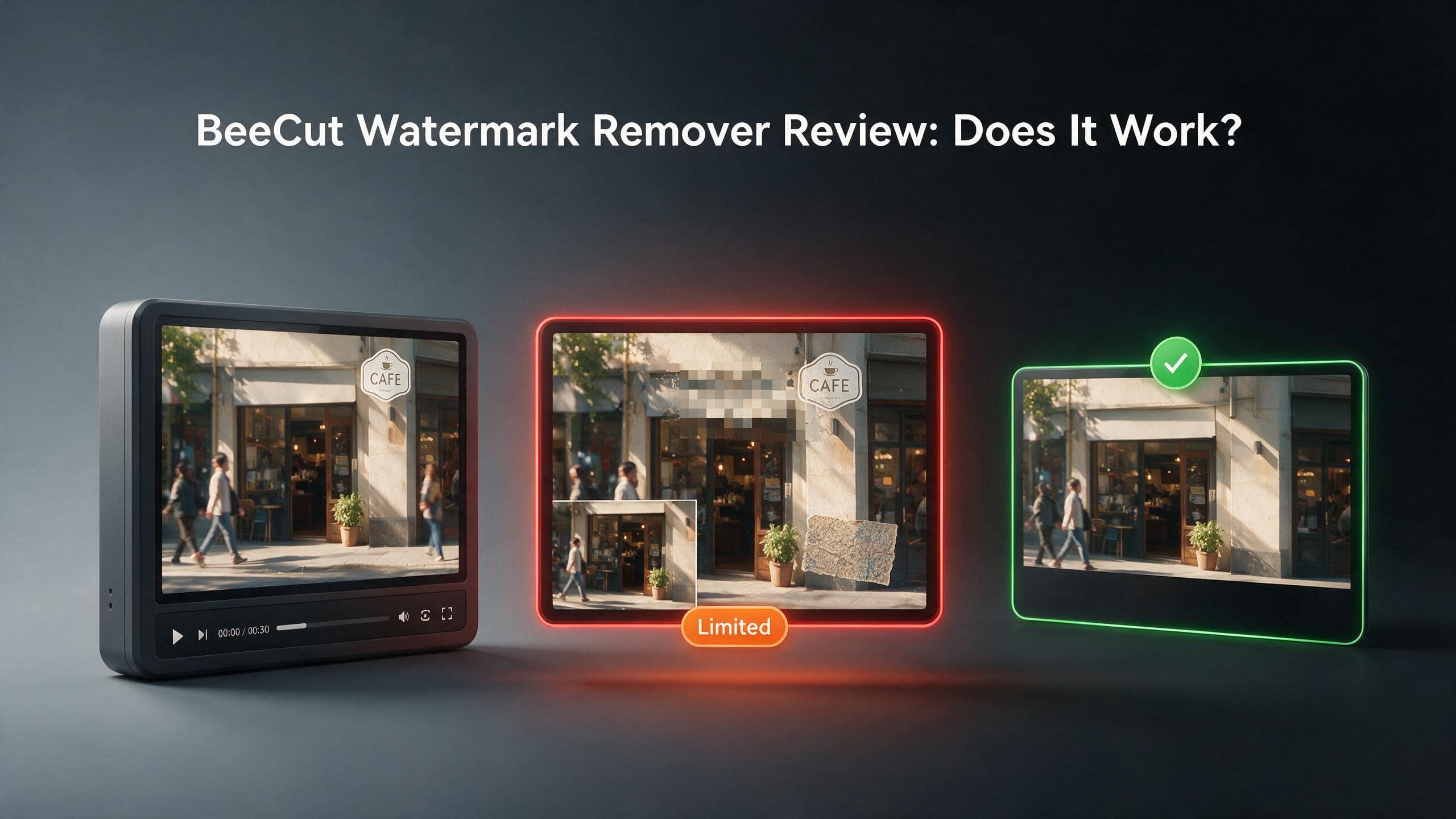
BeeCut is a lightweight video editor from iSkysoft aimed at beginners and casual creators. Watermark removal is one of the features most people search for before downloading. The honest answer is that BeeCut does not erase watermarks the way modern AI tools do. It hides them using crop, mosaic blur, or element overlays. The free tier adds BeeCut's own watermark to every export. This review covers how the tool actually works, what the paid plans unlock, where the results fall short, and when it makes sense to use something else.

What Is BeeCut and What Does Its Watermark Remover Do?
BeeCut is a product from iSkysoft, designed as a simple all-in-one video editor for social media creators. Its watermark remover is part of the broader editing suite rather than a dedicated removal tool.
BeeCut at a Glance
BeeCut runs as a browser-based online editor and as a downloadable desktop app for Windows and Mac. It targets beginners and casual content creators who want quick edits without a steep learning curve. The core editing features include trimming, splitting, merging, text overlays, filters, transitions, picture-in-picture, speech-to-text, and aspect ratio presets for TikTok, Instagram, and YouTube.
The watermark remover is one of the advertised features but it is not a standalone AI tool. It sits within the editor as a set of manual hiding methods. No account or installation is required to use the online version.
How BeeCut's Watermark Removal Actually Works
BeeCut does not use AI inpainting to reconstruct the background behind a watermark. There is no pixel reconstruction and no background fill. Instead, three methods are available for hiding watermarks.
-
Three methods available for hiding watermarks:
-
Crop: drag the frame edges to remove the portion of the video containing the watermark; loses that section of the frame permanently.
-
Mosaic/blur: place a pixelated or blurred box over the watermark area; the watermark is hidden but a visible patch remains.
-
Sticker or element overlay: cover the watermark with a sticker, shape, or logo; hides it but leaves a visible replacement element.
-
This is the same approach crop-and-cover editors used years ago. The watermark area is obscured, not removed. There is also no preview before downloading. You have to export and download the file to see whether the result actually worked.
What BeeCut's Watermark Remover Cannot Do
-
Cannot reconstruct background pixels underneath the watermark: the content in that area is either gone (crop) or hidden (blur/overlay)
-
Cannot track or remove moving watermarks automatically: manual frame-by-frame masking would be required
-
Cannot remove a watermark positioned over a face, key action, or center-frame content without visible impact on the video
-
Cannot produce a result where the watermark area looks like it was never there
How to Use BeeCut Watermark Remover
The workflow is simple. The results depend heavily on where the watermark sits in the frame and which hiding method fits the content.
Step-by-Step: Removing a Watermark with BeeCut Online
Step 1: Open BeeCut and upload your video
Go to beecut.com and open the online editor or download the desktop app. Drag your video into the upload zone. No account is needed for the online version. The file loads directly into the editing timeline.
Step 2: Select a removal method and mark the watermark area
Choose between crop, mosaic, or element overlay depending on where the watermark sits. For edge watermarks, drag the crop handles to cut the border. For center or important-area watermarks, place a mosaic block or sticker over the badge.
Step 3: Apply the effect and preview your edit
Apply the chosen method and scrub through the timeline to check the result. The mosaic box should fully cover the badge with no visible edge. If the crop cut too much from the frame, undo and adjust the border size before trying again.
Step 4: Export and download the file
Hit export and download the output. On the free tier, the file will carry BeeCut's own watermark. To remove that, a paid plan is required. Check the exported file before sharing, as there is no in-app preview before download.
Which Method Works Best for Which Watermark Type
-
Corner watermark near the edge of the frame: crop works cleanly if losing a thin border is acceptable; no visible patch left behind.
-
Corner watermark over important content: mosaic blur is the practical option; the patch is visible but keeps the surrounding content intact.
-
Center-frame or large watermark: none of BeeCut's three methods produce a clean result; the removed or obscured area is obvious at any viewing size.
-
Text watermarks (timestamps, "Made with X"): mosaic works for small text; larger text labels require cropping if positioned near an edge.
-
Moving watermarks: BeeCut has no automatic tracking; manual overlay adjustment frame by frame is impractical in the browser tool.
BeeCut Free Tier and Pricing: What You Actually Get
BeeCut's pricing structure surprises many users who expect a genuinely free watermark removal tool.
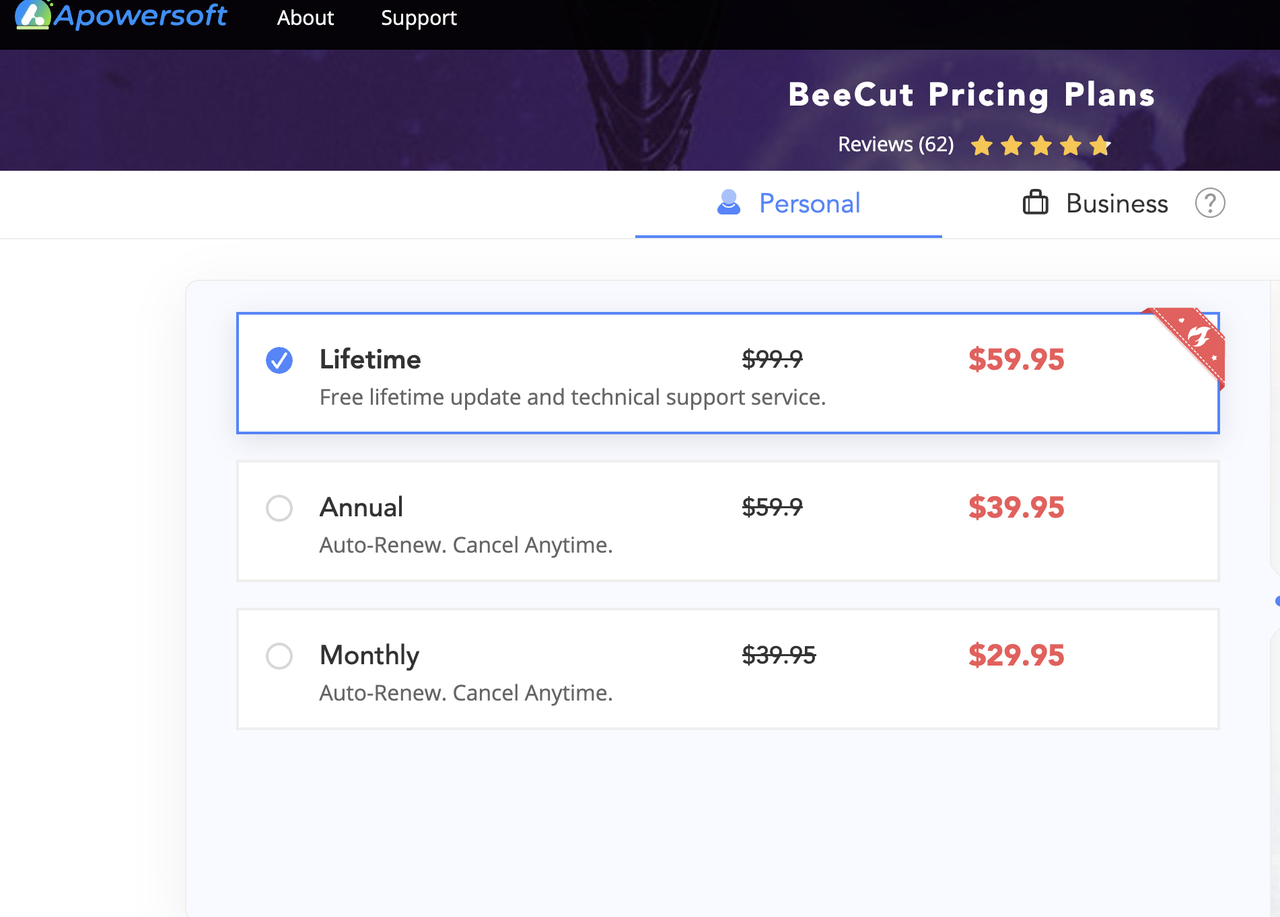
Free Tier Limitations
-
Every video exported on the free tier includes a visible BeeCut watermark baked into the output file.
-
The watermark removal feature is accessible on the free plan but the exported result carries BeeCut's own branding: the original watermark is hidden but replaced with a new one.
-
No preview before export on the online tool: you must download the file to check the result, which wastes time if the output needs adjustment.
-
Resolution and export length restrictions apply on the free tier.
Paid Plan Pricing (2026)
The monthly plan runs $29.95 per month. The annual plan comes to approximately $59.95 per year. The lifetime plan is $59.95 as a one-time purchase. Paid plans remove the BeeCut export watermark and unlock full-resolution export and longer video processing.
Is the Pricing Competitive?
At $29.95 per month for a tool that uses crop and blur rather than AI reconstruction, the cost is hard to justify against alternatives. CapCut provides a full feature set including AI tools at a lower monthly cost or for free on many export paths. DaVinci Resolve gives professional-grade editing tools at no cost.
The lifetime plan at $59.95 is more reasonable for users who want a simple beginner editor long-term and do not need AI-level watermark removal. Free alternatives with no output watermark, like DaVinci Resolve and CapCut's basic export, cover most of what the free BeeCut tier offers without the branding on the output.
BeeCut Watermark Remover: Real-World Results
Based on testing and verified third-party reviews, here is an honest account of how BeeCut performs across different watermark removal scenarios.
Where BeeCut Performs Adequately
-
Static corner watermarks (TikTok badge, lower-right logo) on landscape video where cropping a thin border is acceptable: the crop tool removes these cleanly with no visible patch.
-
Simple text overlays near the frame edge: mosaic covers the text without major distortion to the surrounding content.
-
Quick edits where the goal is fast delivery rather than invisible removal: BeeCut's simple interface means less time spent on setup.
Where BeeCut Consistently Falls Short
-
Center-frame watermarks: cropping removes too much of the frame; mosaic and overlay leave an obvious patch directly in the viewer's eyeline.
-
Complex or textured backgrounds: the mosaic box looks out of place against detailed backgrounds where an AI reconstruction would blend seamlessly.
-
Moving or animated watermarks: no automatic tracking means manual adjustment is required; impractical for anything longer than a short clip.
-
High-quality delivery requirements: the mosaic blur method is not suitable for professional client work or content where visible artifacts are unacceptable.
-
No preview before download: every test of the output requires a full export and download cycle, slowing down iteration.
BeeCut vs. Alternatives: Which Tool Should You Use?
BeeCut sits in a specific use case. Understanding where it fits and where it does not saves time before committing to a workflow.
|
Feature |
BeeCut |
Media.io (AniEraser) |
Zawa Video Watermark Remover |
DaVinci Resolve |
|---|---|---|---|---|
|
Removal method |
Crop, blur, overlay |
AI inpainting (brush) |
AI auto-detect + inpaint |
Manual crop/overlay |
|
AI background reconstruction |
No |
Yes |
Yes — frame by frame |
No |
|
Own watermark on free export |
Yes |
Yes |
None added |
No |
|
Output resolution free tier |
Restricted |
720p cap |
5s preview; paid for full |
Full — no restriction |
|
Preview before download |
No |
No |
Yes — 5s preview |
Yes (timeline) |
|
Batch processing |
Yes (desktop) |
Yes (desktop app) |
Paid plan |
Yes |
|
Pricing to export clean |
$29.95/mo or $39.95/annual or $59.95 lifetime |
Subscription or credits |
$5.83/mo (annual) |
Free |
|
Browser-based |
Yes + desktop |
Yes + desktop |
Yes |
Desktop only |
When BeeCut Makes Sense
-
You need a simple all-in-one beginner editor and watermark removal is one of several tasks, not the primary goal.
-
The watermark sits near the frame edge and cropping a thin border is acceptable for the use case.
-
You want a lifetime purchase option rather than a recurring subscription.
-
The content is for personal or informal use where a mosaic patch or slight crop is not a problem.
When to Use Something Else
-
You need invisible watermark removal with background reconstruction: use Media.io (AniEraser) for AI inpainting.
-
You need watermark-free export without paying: use DaVinci Resolve (desktop, free, no output watermark) or CapCut (free basic export).
-
You need to improve video quality alongside removing a watermark: use Zawa Video Enhancer for upscaling and artifact cleanup after the watermark is handled.
-
You are producing content for professional delivery where any visible patch or crop is unacceptable: BeeCut's methods are not suitable.
How to Get Clean Video After Watermark Removal with Zawa Video Watermark Remover
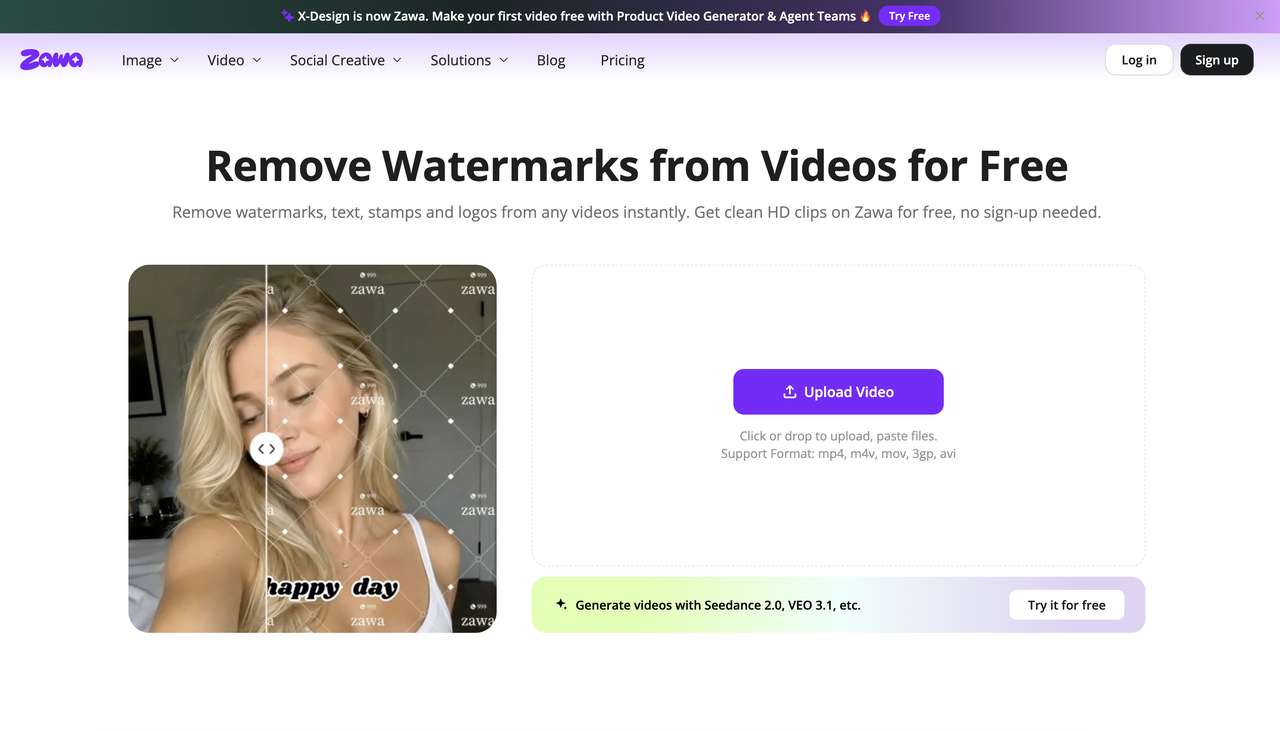
BeeCut's crop and blur methods often leave footage that has visible patches or lost frame sections. For creators who need the watermark area to actually disappear rather than be covered, Zawa Video Watermark Remover handles the removal step properly using AI.
Features
-
Uses AI to detect logos, badges, text overlays, and watermarks across the video frame automatically.
-
Reconstructs the background pixels behind the watermark rather than cropping or covering: the removed area blends into the surrounding content.
-
Tracks moving watermarks frame by frame without requiring manual timeline masking for each position change.
-
Runs in the browser at zawa.ai/video-watermark-remover: no install, no GPU required, works on any device.
-
Free 5-second preview before committing to download: no BeeCut-style output badge on any output.
-
Full-length watermark removal requires a paid plan: Plus plan from $5.83/month (annual) includes Full HD, 10 uses/day; Pro plan provides 30 uses/day.
Step-by-Step: Enhancing Video Quality with Zawa After Watermark Removal
Step 1: Open Zawa and upload your edited video
Go to zawa.ai/video-watermark-remover and upload your file. MP4, MOV, and M4V are supported. No account is needed to access the upload interface or run the free 5-second preview.
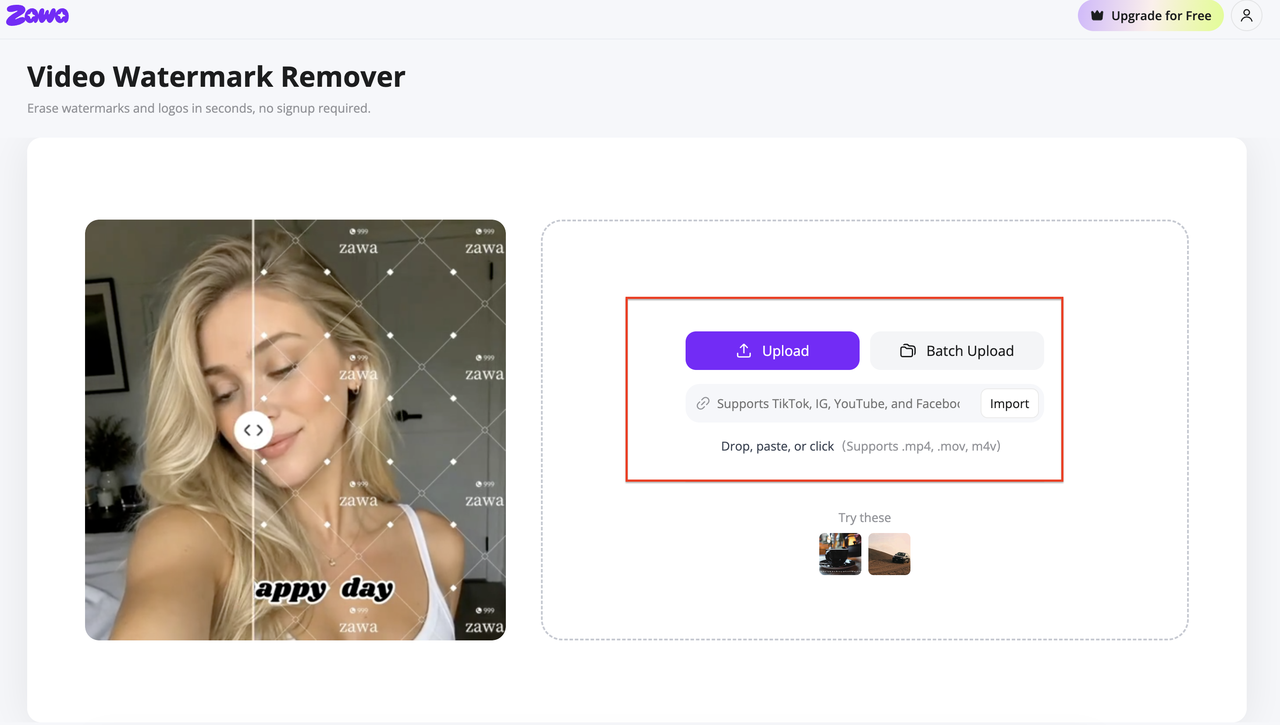
Step 2: Select the output resolution and run the enhancement
The AI detects watermarks automatically. You can also manually select an area if the auto-detection misses something. The tool processes each frame and tracks any moving watermark position across the full timeline without additional input from you.
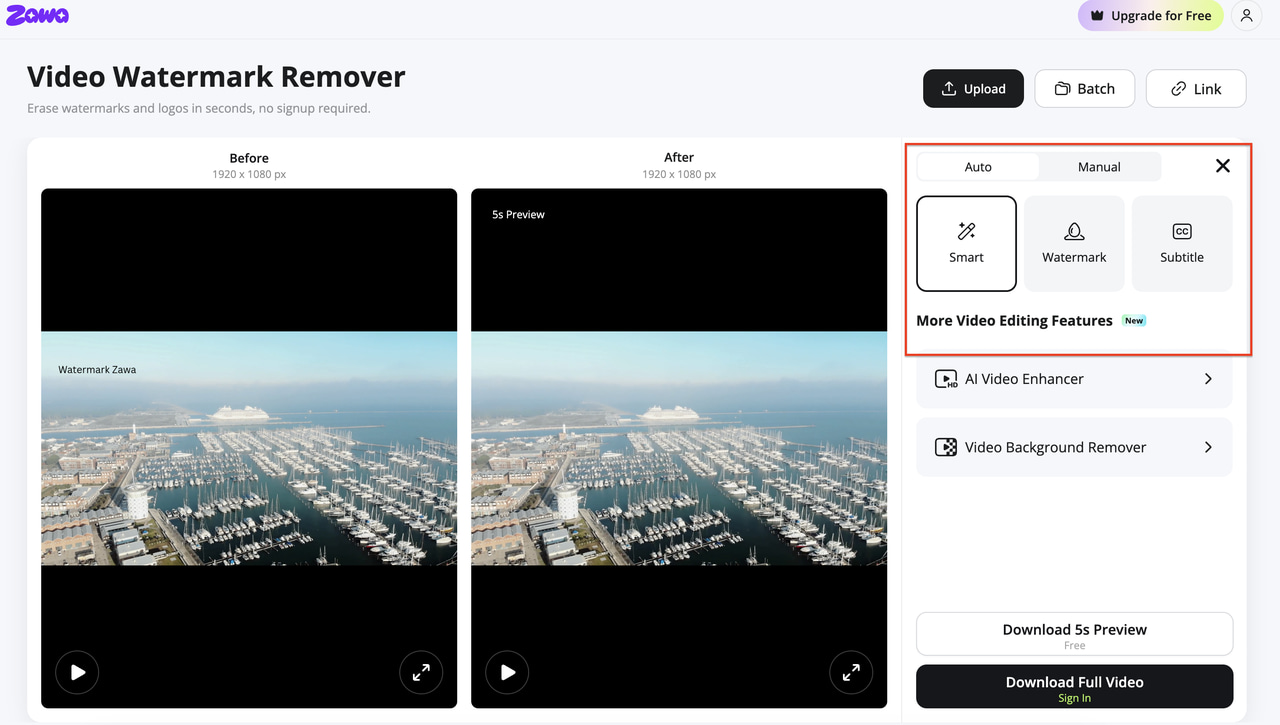
Step 3: Preview the result and download the clean file
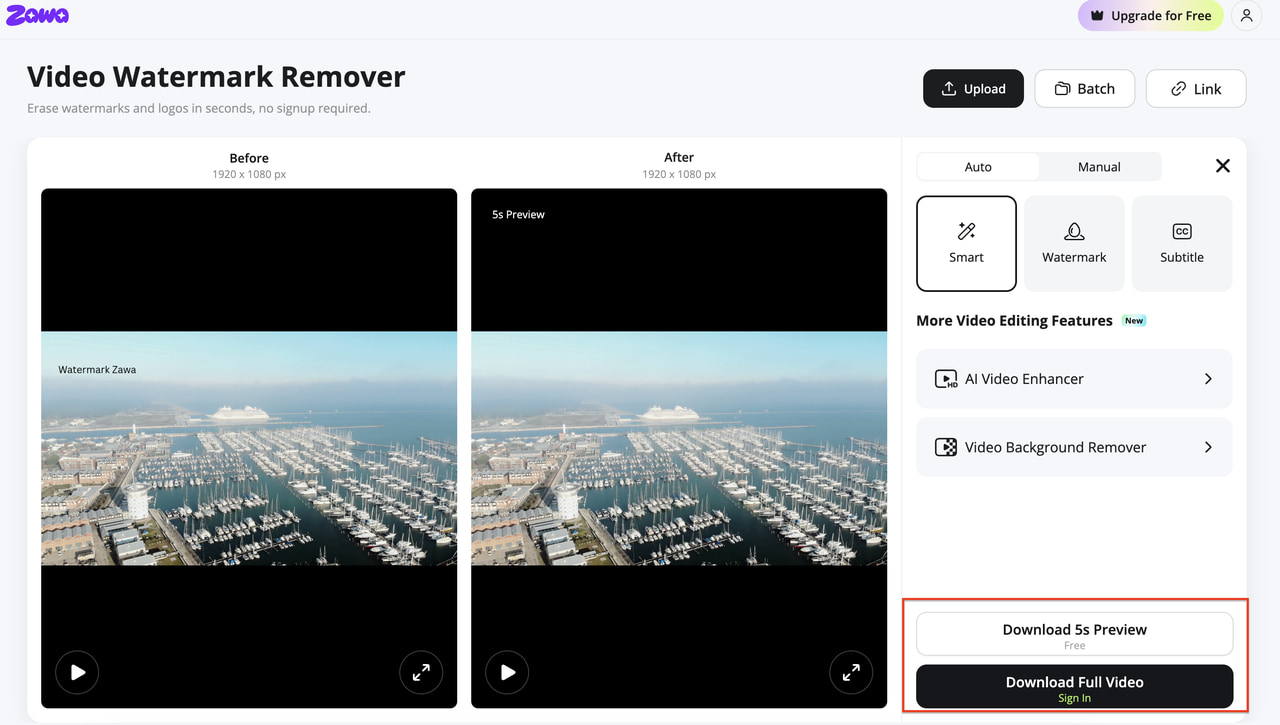
A 5-second preview loads when processing finishes. Scrub through it to check the reconstructed zone. If the removal looks clean, use a paid plan credit to download the full watermark-free file.
Conclusion
BeeCut hides watermarks. It does not remove them. For a quick crop on a corner badge, it is fine. For anything that needs to look like the watermark was never there, Zawa Video Watermark Remover is the tool that actually delivers that result.
FAQs
Does BeeCut actually remove watermarks?
BeeCut hides watermarks using crop, mosaic blur, or overlay elements. It does not reconstruct the background behind the watermark. The area is obscured or removed from the frame, not erased. For invisible removal with background reconstruction, AI inpainting tools like Media.io or Zawa Video Watermark Remover produce better results.
Is BeeCut watermark remover free?
The watermark removal tools are accessible on the free plan, but every export on the free tier includes a BeeCut watermark baked into the output file. Watermark-free exports require a paid plan starting at approximately $39.95 per month or $99.95 for the lifetime license.
Can BeeCut remove TikTok watermarks?
Yes, using the crop or mosaic method. If the TikTok watermark sits in the lower corner, cropping a thin strip of the frame removes it cleanly. The mosaic method covers it without cropping but leaves a visible blurred patch in its place.
What is the best free alternative to BeeCut for watermark removal?
For AI-based background reconstruction: Zawa Video Watermark Remover offers a free 5-second preview at zawa.ai/video-watermark-remover with no output badge; full removal requires a paid plan. For desktop editing with no output watermark at no cost: DaVinci Resolve handles watermark coverage in its free version.
Does BeeCut add its own watermark?
Yes. Every video exported on the BeeCut free plan includes a visible BeeCut watermark in the output. This means the tool replaces the original watermark with its own branding unless you upgrade to a paid plan.
You May Be Interested

Media.io AI Video Upscaler Review: Is It Worth It in 2026?
Apowersoft Watermark Remover: Review, Pricing & Alternatives

How to Remove Gemini Watermark?

How to Remove CapCut Watermark: Manual & AI Methods Guide

How to Remove Moving Watermark in Filmora: Official & AI Solutions
