VEED Watermark Remover Review: The Honest Verdict
VEED's watermark remover can hide watermarks from other tools, but it adds its own to every free export. This guide explains the difference, how to remove the VEED watermark, and how to edit video without picking up a watermark in the first place.

VEED markets a watermark remover tool that lets you crop or cover watermarks from other videos. What it cannot do is remove its own watermark from free exports. Every video exported on the VEED free plan carries a 'Made with VEED' badge baked directly into the file. This guide covers how the VEED watermark remover actually works, why the VEED watermark appears and how to get rid of it, and how to use Zawa Video Watermark Remover as a cleaner alternative for removing watermarks without adding new ones.

What Is the VEED Watermark Remover?
VEED offers two different things under the 'watermark remover' label. Most people find this confusing because they expect one tool that handles both. Understanding the difference before you start saves a lot of frustration.
What VEED's Watermark Remover Tool Actually Does
VEED's watermark remover is a browser-based video editor that lets you hide watermarks on footage you upload. It is not an AI reconstruction tool. It uses three methods to hide the watermark, not erase it:
-
Crop: Removes the section of the frame where the watermark sits. The badge disappears, but so does that part of the video.
-
Element overlay: Places a sticker, shape, or your own logo on top of the watermark. The badge is covered, not gone.
-
Add your own logo: Replaces the watermark area with your branding.
This works on TikTok watermarks on downloaded clips, old brand logos, text overlays, and badges from other video tools. The output hides the watermark from view. The background under it is not reconstructed. And the editing tools themselves are free to use on uploaded videos. VEED's own export watermark is a completely separate issue.
What It Cannot Do
-
Cannot remove the VEED watermark from your own VEED exports on the free plan: the watermark is rendered into the exported file at encoding and cannot be edited out after the fact.
-
Cannot inpaint or reconstruct the content underneath a watermark: hiding a watermark by cropping loses that portion of the frame; hiding it with an overlay covers the watermark but does not restore the original pixels.
-
Cannot process video that requires the watermark area to remain visible (e.g. a watermark positioned over a face or key action).
Why Does the VEED Watermark Appear on Your Video?
Before figuring out how to remove it, it helps to understand exactly when VEED adds its watermark and why it keeps showing up even for people who thought they had dealt with it.
The Free Plan Export Watermark
-
All videos exported on the VEED free plan or without a logged-in account receive a "Made with VEED" watermark.
-
Watermark position: Lower-right corner, semi-transparent white bar, clearly visible at standard viewing sizes on mobile and desktop.
-
On vertical 9:16 content: Sits at the bottom edge and can overlap subtitle captions positioned low on the frame.
-
On horizontal 16:9 content: Lower-right quadrant, which is prime real estate for CTAs and brand elements.
-
The watermark moves position periodically (VEED's confirmed behavior per their help center, updated May 2026).
-
It is baked into the exported video file at encoding: it is not an overlay that can be removed after download.
When the Watermark Persists Even on Paid Plans
Upgrading does not automatically clean up old exports. There are four specific situations where the badge keeps appearing even after you have paid:
You exported before upgrading. Videos exported on the free plan keep the badge permanently. To fix this, go back to the original project and re-export after the paid plan is confirmed active.
You are in the wrong workspace. Paid plans are attached to a specific workspace in VEED. If you are working in an unupgraded workspace, exports still carry the badge. Check the top-left corner of your dashboard to confirm the workspace shows the paid plan name.
A payment failed. A missed subscription payment temporarily reverts the account to free behavior. VEED sends a payment failure email. Check that first if the badge suddenly reappears.
You re-uploaded a watermarked file. Re-uploading a watermarked video into a new VEED project and re-exporting does not remove the badge. It is embedded in the pixel data of the file, not sitting on top as a layer.
VEED Pricing to Remove the Watermark
Here is what each plan costs and what it removes:

-
Creator: $12 per user per month, billed yearly as $147. Includes no watermark, unlimited auto subtitles, full audio and video catalog, 15+ AI tools, Gen-AI Studio. 6,000 credits (~1,200 AI videos)
-
Pro (Recommended): $24 per user per month, billed yearly as $288. Everything in Creator plus multiple brand kits, translate to 50+ languages, up to 144 hr/yr of AI voice, Gen-AI Studio. 30,000 credits (~6,000 AI videos)
-
Studio: $39 per user per month, billed yearly as $465. Everything in Pro plus custom templates, 50+ language translation, up to 960 hr/yr of AI voice. 180,000 credits (~36,000 AI videos)
-
Enterprise: Custom pricing. Custom AI credits, centralized team management, review mode, privacy controls, customer success
How to Remove the VEED Watermark: 3 Methods
The right method depends on whether you still have the original project file or only the exported video. Here are three paths, starting with the cleanest.
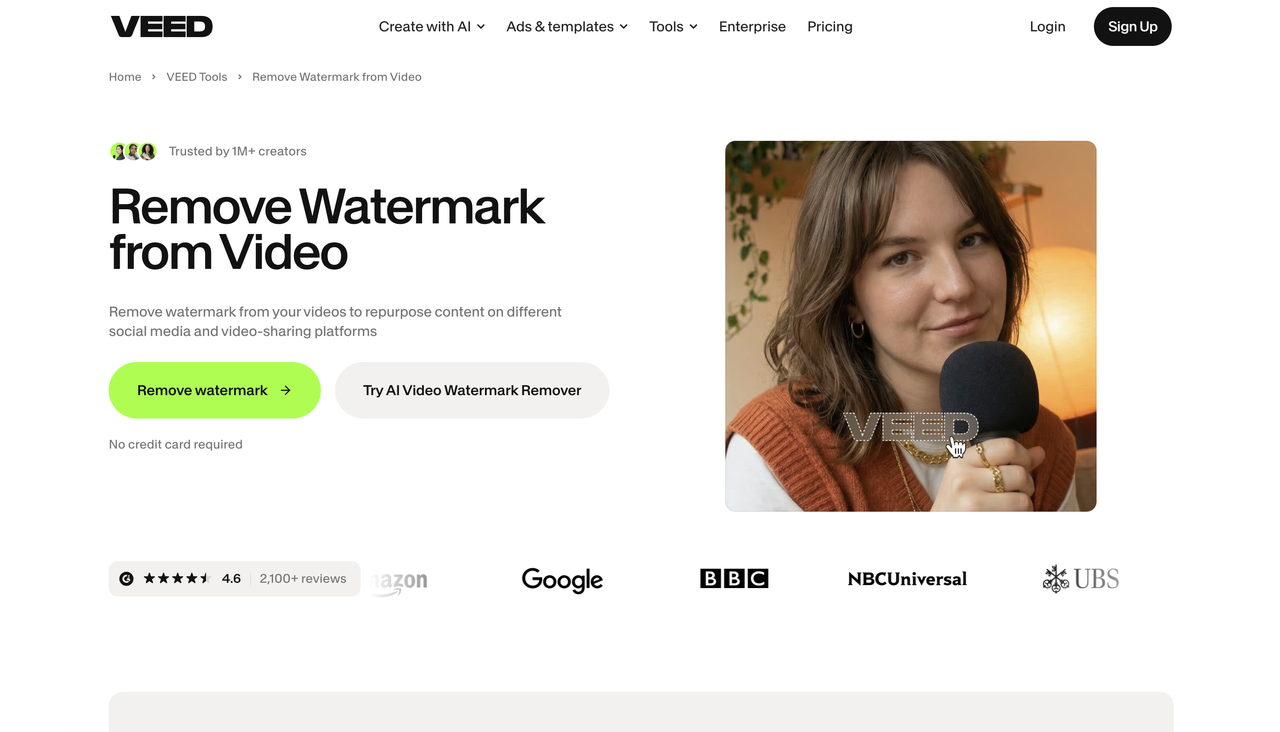
Method 1 — Upgrade and Re-export the Original Project (Cleanest)
This is the only method that gives you a completely clean file with no visible patches or quality loss. It only works if the original VEED project still exists in your account.
Step 1: Upgrade your VEED account to the Basic plan or above
Log into VEED and go to billing. Select the Basic plan, which starts at $12 per month on annual billing. Confirm the payment before moving on.
Step 2: Confirm the workspace shows the paid plan
Check the top-left of your VEED dashboard. The workspace name should reflect the upgraded plan. If it still shows Free, you may be in the wrong workspace.
Step 3: Open the original project and export again
Find the original project in your VEED library. Open it, make no changes, and hit export. The output will have no watermark and will export at 1080p on the Basic plan.
Step 4: Download and verify the clean file
Download the exported file and play it through to confirm the badge is gone. Check the lower-right corner specifically, and check the end of the video where the badge sometimes reappears.
Method 2 — Cover or Crop the Watermark in VEED (No Upgrade)
If you only have the exported file and do not want to pay, you can use VEED's own editing tools to hide the badge. This does not produce a clean result but it can work for informal use.
Step 1: Upload the watermarked file into VEED's editor
Go to veed.io and start a new project. Upload the watermarked file. It loads into the editor timeline as a regular clip.
Step 2: Choose your hiding method
To crop: drag the frame edges in the crop tool to cut off the lower-right corner. You lose that section of the video but the badge disappears. To cover: add a sticker, shape, or your own logo over the watermark area.
Step 3: Adjust and preview the edit
Scrub through the timeline to make sure the crop or overlay covers the badge at every point. If the badge moves position partway through the clip, check the whole video, not just the first few seconds.
Step 4: Export the edited file
Export the file. Note that this export will also carry the VEED badge unless you are on a paid plan. You are essentially replacing one badge with another unless you have upgraded.
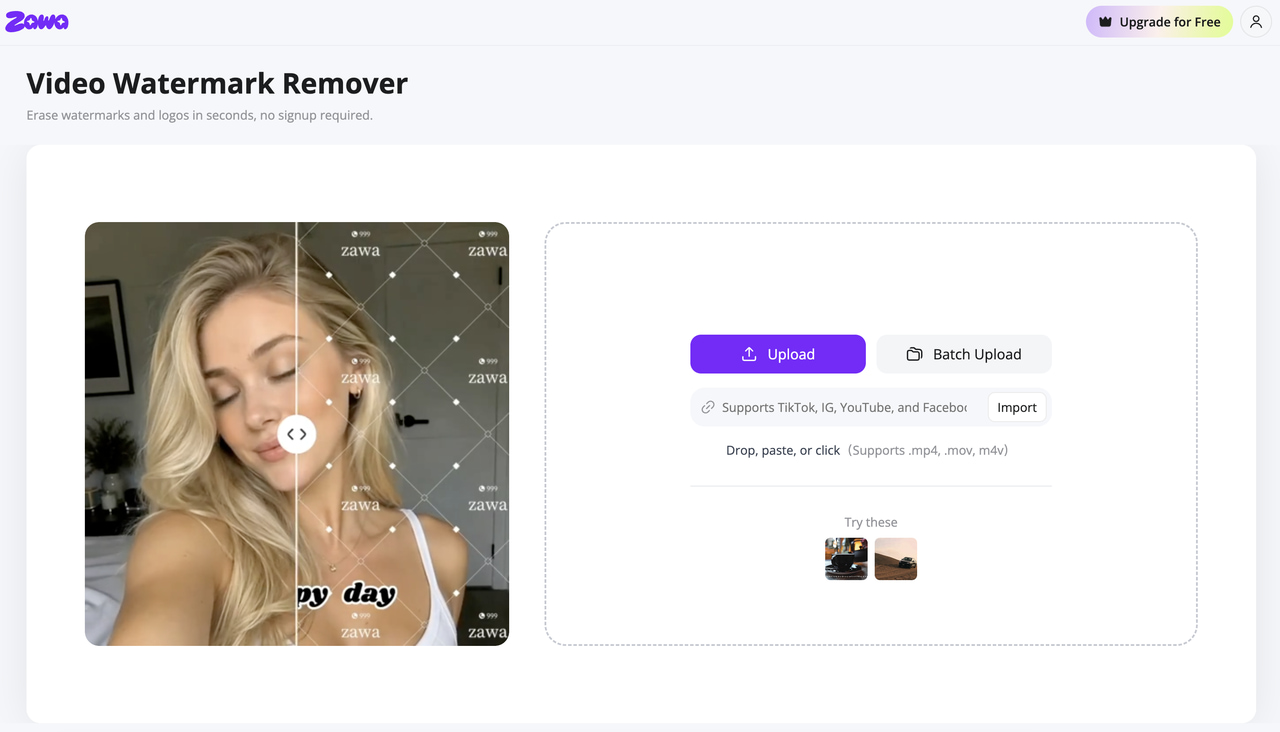
Method 3 — Use Zawa Video Watermark Remover
If your budget is zero and re-exporting from VEED is not an option, the cleanest path is switching to a dedicated watermark removal tool that does not add its own badge to the output.
Zawa Video Watermark Remover at zawa.ai/video-watermark-remover uses AI to detect and remove logos, text overlays, badges, and watermarks from video. It reconstructs the background behind the watermark rather than cropping or covering it. No watermark is added to any output.
Free tier: A 5-second preview of the watermark-removed output is available at no cost. Full-length watermark removal requires a paid plan. The Plus plan includes Full HD output at 10 uses per day. The Pro plan covers 30 uses per day. For context, DaVinci Resolve on desktop is also a free option for manual watermark coverage with no output badge.
Zawa Video Watermark Remover: A Cleaner Alternative
VEED covers or crops watermarks but adds its own badge to every free export. Zawa Video Watermark Remover works differently. It removes the watermark using AI reconstruction and adds nothing to the output in return.
What VEED's Watermark Remover Leaves Behind
When VEED covers or crops a watermark, the content underneath is either gone or obscured. For footage where the watermark sits over a face, a product, or on-screen text, covering it leaves a visible patch that clearly looks edited. Anyone watching knows something was hidden there.
VEED has no AI inpainting at all. It has no way to predict or reconstruct what was behind the watermark. The tool hides the problem. It does not solve it.
What Zawa Video Watermark Remover Does Instead
-
Uses AI to automatically detect logos, text overlays, badges, and watermarks anywhere in the video frame
-
Reconstructs the background pixels behind the watermark area rather than cropping or covering: the removed area blends into surrounding content
-
Handles static and animated watermarks: tracks moving watermarks frame by frame
-
Runs in the browser at zawa.ai/video-watermark-remover: no install, no GPU required, works on any device
-
Supports MP4, MOV, and M4V input formats
-
Free tier: 5-second preview of the watermark-removed output at no cost; full-length watermark removal requires a paid plan
Step-by-Step: Using Zawa Video Watermark Remover
Step 1: Open Zawa Video Watermark Remover and upload your video
Go to zawa.ai/video-watermark-remover and upload your file. MP4, MOV, and M4V are all accepted. No account is needed to access the upload interface or run the free 5-second preview.
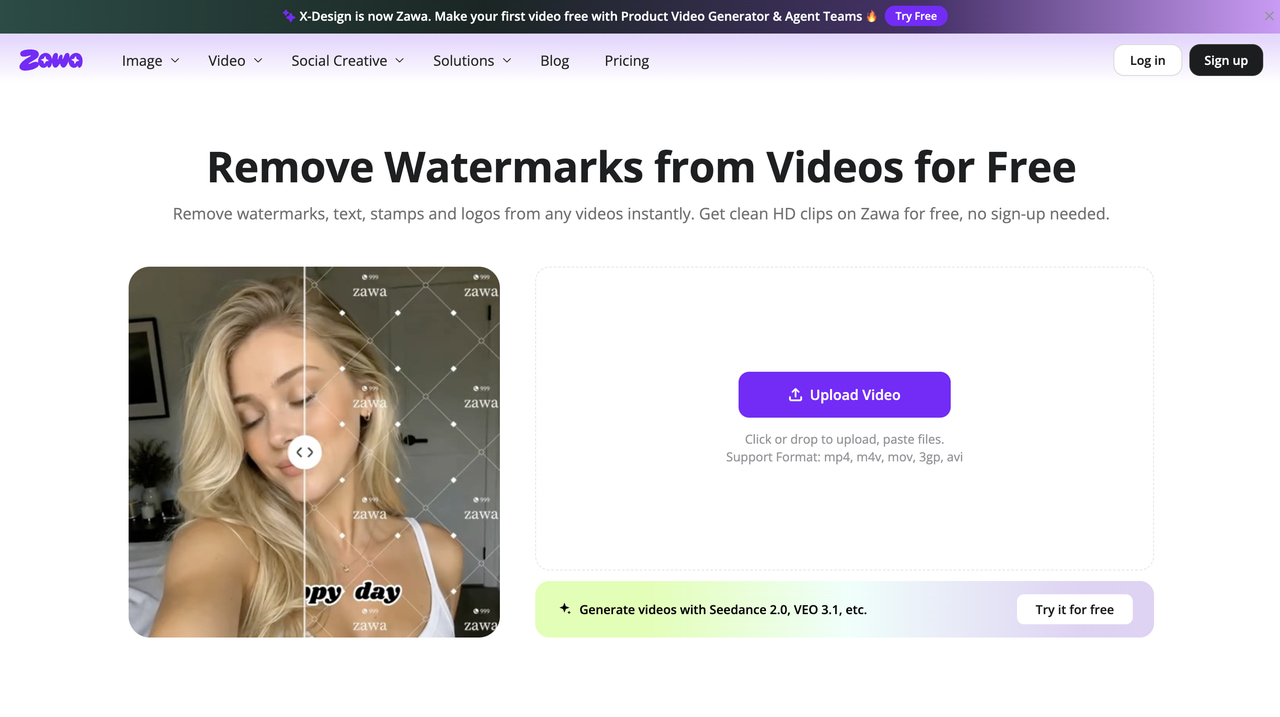
Step 2: Mark the watermark area or let AI detect it automatically
The AI scans the video and detects the watermark automatically across all frames. If it misses something, brush over the area manually. The tool tracks moving watermarks without you setting separate masks for each frame position
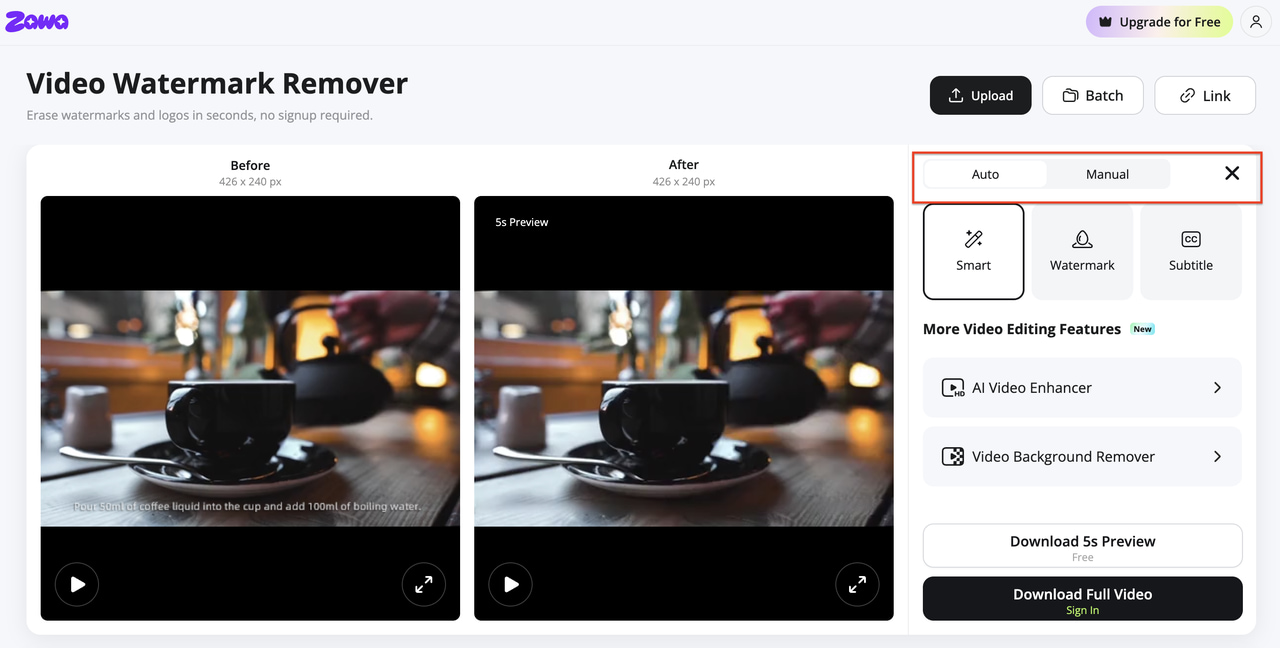
Step 3: Preview the 5-second result and confirm the removal quality
A 5-second preview loads when processing finishes. Scrub through it and check the zone where the watermark was. Look for any smearing, ghosting, or texture mismatch. If it looks clean, proceed to download.
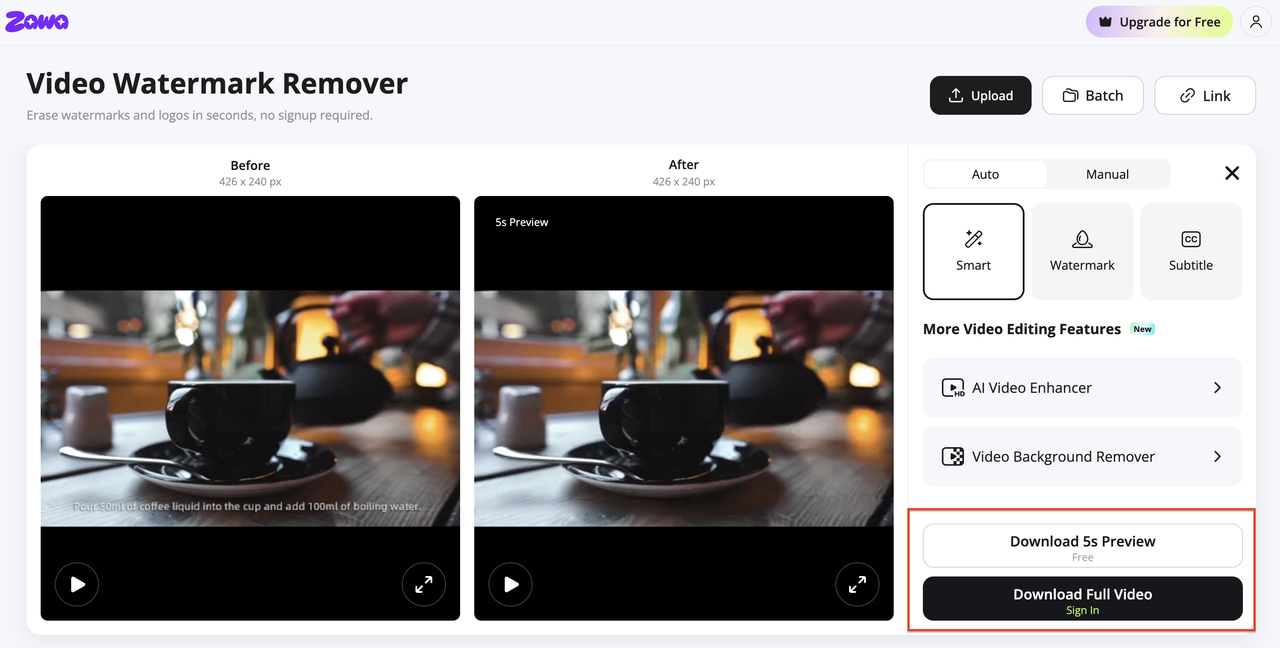
Step 4: Download the full watermark-free video using a paid plan if the result meets requirements
If the preview looks good, download the full-length output using a paid plan credit. The downloaded file carries no badge from Zawa.
VEED Watermark Remover vs. Zawa: Which Should You Use?
VEED and Zawa solve different parts of the watermark problem. Before picking one, it helps to see them side by side. The table below covers the key differences so you know exactly which tool fits your situation.
|
Feature |
VEED Watermark Remover |
Zawa Video Watermark Remover |
|---|---|---|
|
Removal method |
Crop, mosaic blur, or element overlay — no background reconstruction |
AI inpainting — reconstructs background pixels behind the watermark |
|
AI background reconstruction |
No — covered or cropped only |
Yes — fills the removed area with surrounding content |
|
Own watermark on free export |
Yes — "Made with VEED" on all free exports |
None added — no output badge on any plan |
|
Free tier limit |
Editor tools free to use; all exports carry VEED badge on free plan |
5-second preview per clip; full-length removal requires paid plan |
|
Full-length output |
Paid only — Creator plan $12/mo (billed yearly as $147) to remove VEED badge |
Paid only — Plus plan: Full HD, 10 uses/day; Pro: 30 uses/day |
|
Preview before download |
No |
Yes — 5-second preview before committing |
|
Browser-based |
Yes |
Yes — no install, works on any device |
|
Pricing to export clean |
Creator $12/mo, Pro $24/mo, Studio $39/mo (all billed yearly); subscription only |
Plus plan from $5.83/mo (annual); Pro from $20.83/mo |
Tips for Avoiding Watermarks in Your Video Workflow
Start with a Tool That Does Not Watermark Free Exports
Check the free tier conditions of any video editor before building a workflow around it. VEED, BeeCut, and several other browser editors watermark all free exports. Tools with watermark-free free tiers include DaVinci Resolve on desktop and Zawa Video Watermark Remover for the 5-second preview. Knowing this before you start saves having to fix it later.
Keep the Original Project File, Not Just the Export
If a tool watermarks free exports, re-exporting from the original project after upgrading is the only clean path. Deleting the project and keeping only the exported copy permanently locks the badge in. Always keep the source project until you have confirmed the export is clean.
Export at the Highest Quality Available Before Switching Tools
If you are moving footage between editing tools, export at the highest bitrate and resolution, the original tool allows. Each additional compression pass degrades quality. Starting with the best possible source file reduces the compounding quality loss when a second tool processes it.
FAQs
Does VEED have a free watermark remover?
VEED's editor is free to use for cropping or covering watermarks on videos you upload. But removing VEED's own watermark from your exports requires a paid plan. The Basic plan at $12 per month billed annually, is the minimum to export without the badge.
Can I remove the VEED watermark without paying?
Not from an already-exported file. The badge is embedded in the pixel data. If the original project still exists in VEED, you can cover or crop the badge using VEED's free editing tools, but the new export will still carry the VEED badge unless you are on a paid plan. For a fully clean file, Zawa Video Watermark Remover removes it without adding any badge of its own.
Does VEED remove watermarks from TikTok videos?
Yes, using the crop or overlay methods. VEED does not reconstruct the background behind the watermark. It crops that section of the frame or places an element on top of it. If the TikTok badge sits at the corner edge, a thin crop can remove it cleanly. Center-frame watermarks will leave a visible patch.
What is the best free watermark remover for video?
For removing third-party watermarks with AI reconstruction and no output badge: Zawa Video Watermark Remover offers a free 5-second preview at zawa.ai/video-watermark-remover. Full-length removal requires a paid plan. For desktop editing with no output watermark at zero cost: DaVinci Resolve covers basic watermark overlay and crop work in its free version.
Is there a watermark remover that actually reconstructs what was underneath?
Yes. Zawa Video Watermark Remover uses AI inpainting to reconstruct background pixels behind the watermark rather than hiding or cropping the area. Standard tools including VEED do not do this. The difference is visible: a reconstruction blends in and disappears. A crop or overlay is always noticeable.
You May Be Interested
Apowersoft Watermark Remover: Review, Pricing & Alternatives

How to Remove Gemini Watermark?

How to Remove CapCut Watermark: Manual & AI Methods Guide

How to Remove Moving Watermark in Filmora: Official & AI Solutions

How to Remove the Kling AI Watermark