What Is a Retouch? Photo Retouching Explained
Learn beverage photography with practical tips for lighting glassware, reducing reflections, styling ice and garnishes, and capturing true drink color. Use a basic setup, shoot fresh details, and polish images for menus, ads, sites, and social media.

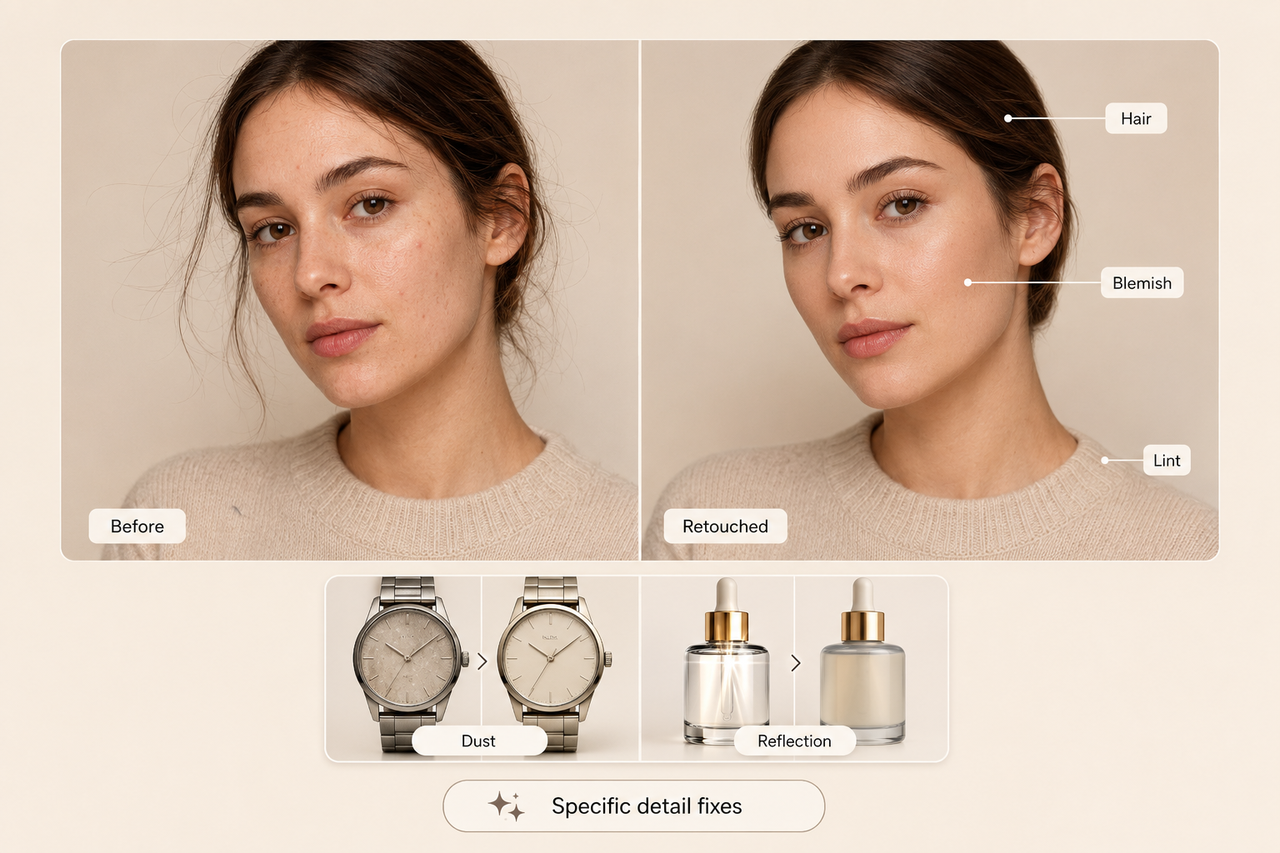
A retouch is a detailed adjustment made to a specific part of a photo. It may remove something distracting, improve an uneven area, or give the image a cleaner finish without changing what the photo is meant to show. A portrait retouch might reduce a temporary blemish or tidy loose hairs, while a product image may need dust, scratches, fingerprints, or harsh reflections removed.
Retouching does not always mean making a person look flawless or turning an ordinary image into something unrealistic. In many cases, the best work is difficult to notice because skin texture, natural features, product materials, and lighting still look believable. The amount of work also varies by purpose. A family snapshot may need only a few quick corrections, while a beauty campaign or jewelry advertisement often requires close attention to many small details.
What Does Retouch Mean?
To retouch a photo means improving selected details after the main image adjustments have been made. Rather than applying one change across the entire picture, the retoucher works on individual areas that need attention. What counts as appropriate retouching depends on the subject, where the photo will appear, and how natural the finished image should look.
What Makes a Photo Retouched?
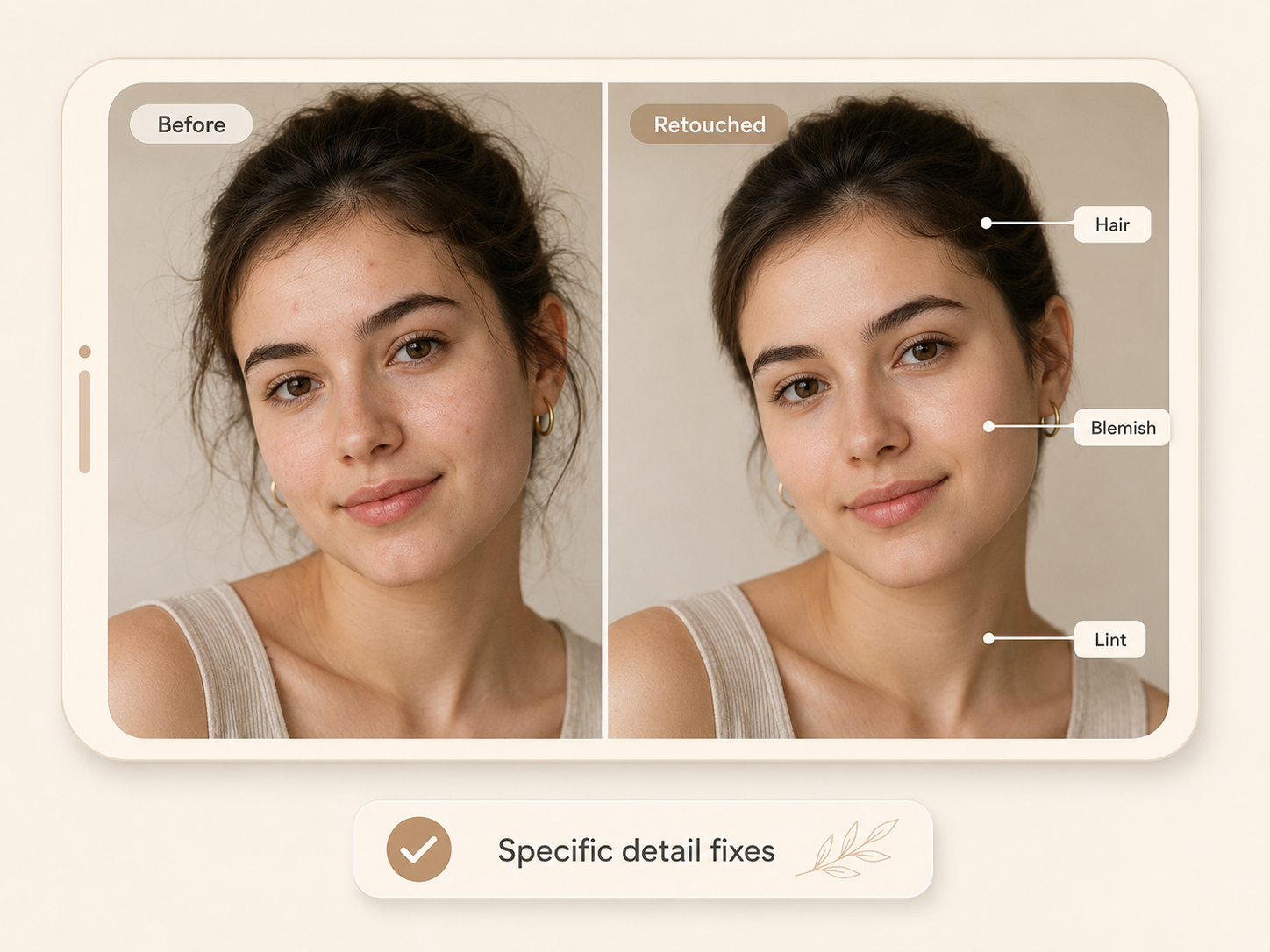
A photo becomes retouched when a specific element has been corrected, removed, or refined. In a portrait, that might involve softening a temporary breakout while leaving pores and permanent facial features intact. A product photographer may clean dust from a watch face, remove glare from photos of glass or reflective packaging, or smooth a wrinkled background. These targeted changes separate retouching from broad adjustments applied to the full image.
Photo Editing vs. Photo Retouching
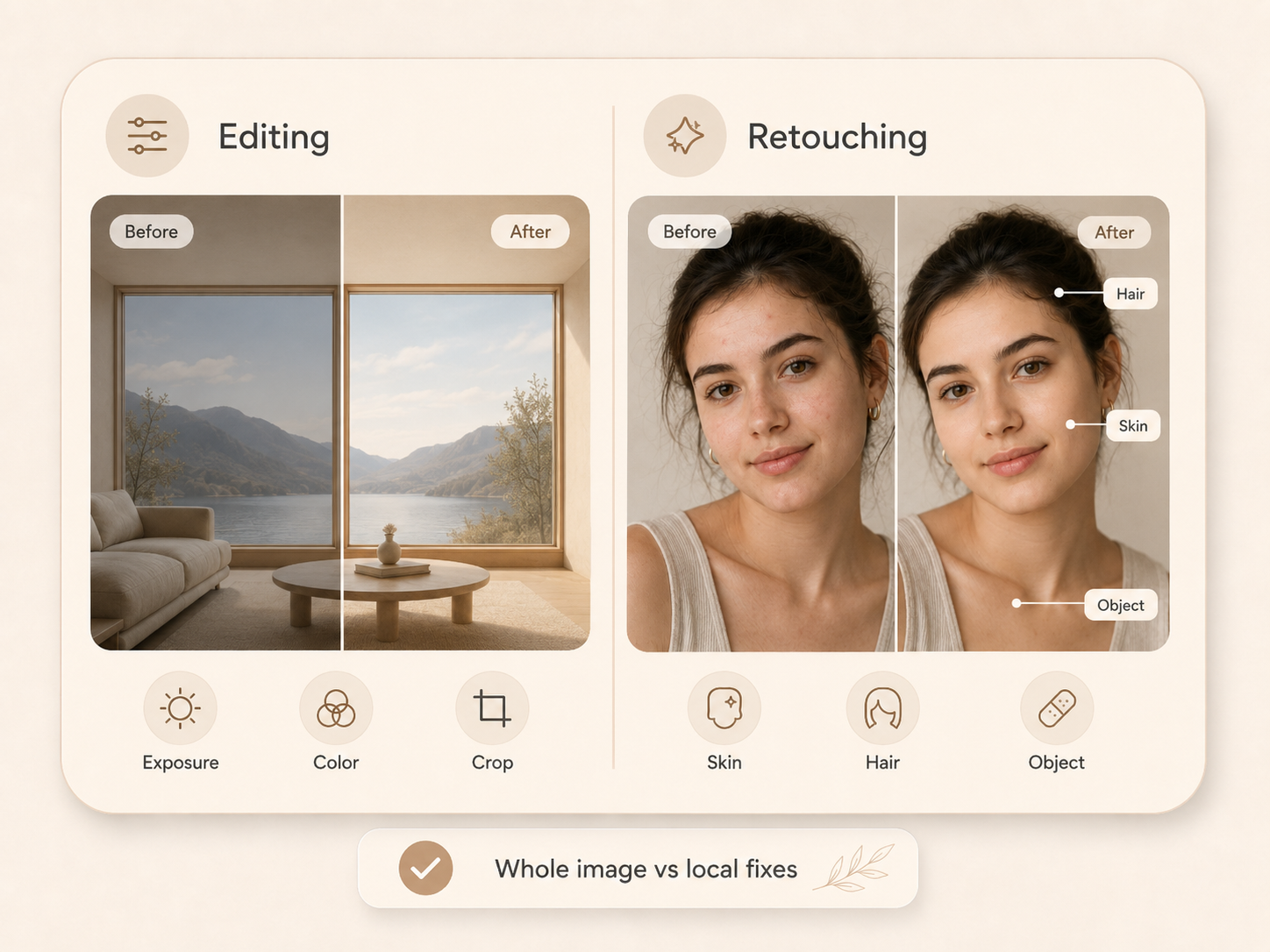
Photo editing shapes the overall appearance of an image, while retouching corrects smaller, specific details. A wedding photo might go through both processes:
Photo editing: Brighten an underexposed image, adjust the white balance, improve contrast, or crop the frame.
Photo retouching: Remove an exit sign behind the couple, clean a stain from a dress, or erase a distracting person in the background.
Most professionally finished photos use editing to establish the overall look and retouching to handle areas that need more precise correction.
Simple Examples of Photo Retouching
Retouching often appears in familiar photos without drawing attention to itself. A business headshot may need lint removed from a jacket and one stray hair cleaned up near the face. In a real estate photo, an electrical cord on the floor might be erased so the room looks less cluttered. An online store image could require fingerprints removed and product edges refined while keeping the item’s actual color, shape, and texture accurate.
What Does a Retoucher Do?
A retoucher improves selected parts of an image while keeping the final result consistent and believable. The exact work depends on whether the photo is a portrait, product shot, fashion campaign, or commercial image. Common responsibilities include:
Cleaning up portraits: Remove temporary blemishes, stray hairs, makeup smudges, or lint while preserving natural skin texture and permanent features.
Refining product photos: Clean up product photos by removing dust, fingerprints, scratches, or distracting reflections from items such as watches, jewelry, and electronics.
Fixing clothing and styling details: Smooth wrinkles, correct uneven fabric, or tidy loose threads in fashion and ecommerce photos.
Removing unwanted objects: Erase background clutter, signs, cables, or people that draw attention away from the main subject.
Making local color and light corrections: Brighten a shadowed face, reduce redness in one area, or balance highlights on a reflective product.
Preparing images for their final use: Check edges, resolution, color consistency, and overall finish before a photo is published online or sent to print.
What Can You Retouch in a Photo?
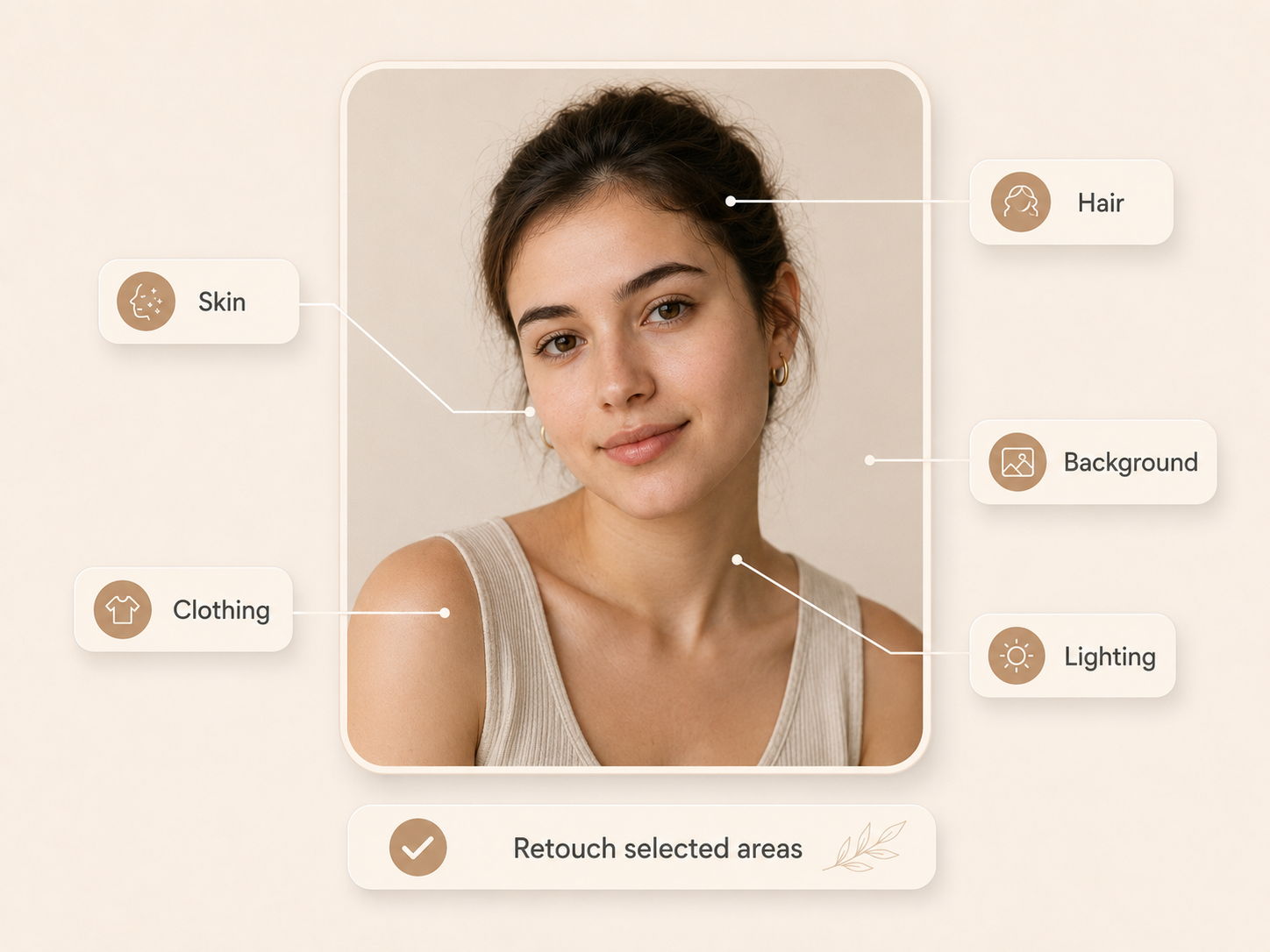
The need for retouching often becomes clear only after a photo is enlarged. A minor skin issue may pull attention away from an expression, or a damaged background may weaken an otherwise strong composition. Some corrections take seconds, while others require careful reconstruction. What matters is that every change improves the image without making the work behind it obvious.
Remove Blemishes and Smooth Skin Naturally
Close-up portraits can make temporary skin concerns appear more noticeable than they do in person. Retouching can calm redness, reduce a recent breakout, and blend patchy foundation without wiping away pores or natural facial lines. Freckles, moles, and other lasting features should usually remain unless the subject requests otherwise. The finished skin should still respond naturally to the original light.
Clean Up Hair, Teeth, Eyes, and Clothing
A gust of wind can leave hair crossing the face, and a camera flash may add an unwanted color cast to teeth or redness to the eyes. These details can be softened without giving the subject unnaturally white teeth or overly bright eyes. Clothing receives the same close attention, from reshaping a folded collar to repairing a missing button that was overlooked during the shoot.
Remove Dust and Scratches
Dust becomes difficult to ignore on dark, glossy, or highly reflective surfaces. Once a product image is viewed at full resolution, a clean tabletop may reveal fine particles, fingerprints, and small scuffs. Scanned photographs present a different challenge because cracks can run through faces, clothing, or important background details. Repairing them requires matching the surrounding grain instead of simply blurring the damaged area.
Fix Backgrounds and Remove Unwanted Objects
Sometimes the strongest frame includes something that cannot be cropped out cleanly, making it necessary to remove objects in photoshop or another precise editing tool. A parked car at the edge of a travel portrait or used dishes behind a restaurant scene can pull attention away from the subject. Removing them leaves an empty space that must be rebuilt with the right perspective, texture, and shadow. A convincing repair should look as though the object was never there.
Improve Lighting, Color, and Small Details
Not every lighting or color issue needs a change across the entire image. One side of a face may fall too deeply into shadow, even though the rest of the portrait is properly exposed. A white plate can also pick up a green cast from nearby décor, or a gemstone may lose definition under flat light. Selective retouching corrects those isolated areas while preserving the photograph’s overall atmosphere.
How Is a Photo Retouched?
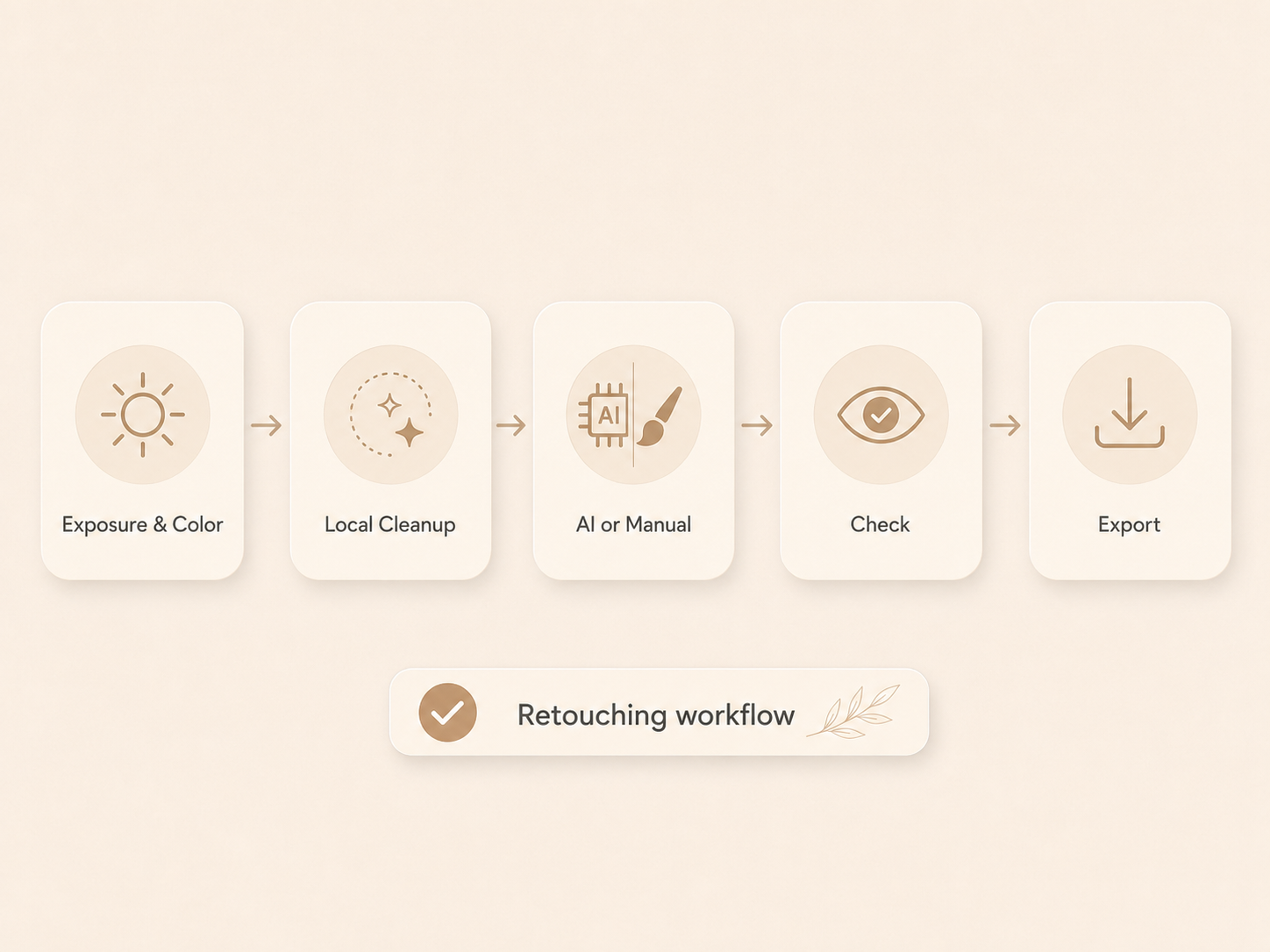
Photo retouching usually moves from broad corrections to smaller, more precise changes. Establishing the right exposure and color first makes it easier to see what actually needs attention. Detailed cleanup comes next, followed by a final review at different zoom levels. This order prevents time from being spent correcting areas that may already improve during the initial edit.
Start with Exposure and Color Correction
The first pass creates a balanced foundation for the detailed work that follows. Exposure, white balance, contrast, and overall color are adjusted across the image before individual areas are touched. A portrait taken under warm indoor lighting may need its orange cast reduced so skin tones look accurate. Once the color is balanced, uneven skin and other local issues are easier to judge correctly.
Fix Small Areas with Retouching Tools
Once the overall image looks balanced, individual problems can be corrected with tools designed for precise local work:
Healing Brush: Blends a selected area with nearby texture, making it useful for small blemishes, dust spots, and minor scratches.
Clone Stamp: Copies pixels from one area to another when damaged edges, patterned surfaces, or missing background details need more control.
Layer Masks: Limit an adjustment to a chosen area, such as reducing glare on a product label without darkening the rest of the image.
Dodge and Burn: Lighten or darken small areas to balance uneven skin, add shape to clothing, or improve the definition of a reflective object.
Keeping these corrections on separate layers makes it easier to adjust or remove them without damaging the original photo.
Use AI for Faster Photo Retouching
The best AI photo enhancers are helpful when an image needs several straightforward corrections before the finer work begins. In one workspace, you can remove distracting objects, clean up a background, sharpen soft details, and improve resolution. A vacation photo with a passerby in the distance and slightly blurred scenery could receive this first round of cleanup in seconds. You can then review the generated areas and refine anything that looks unnatural. For a faster starting point, retouch photos with AI before making the final manual adjustments.
Check the Photo Before Exporting
The finished image should be reviewed both close up and at its intended display size. Zooming in can reveal repeated textures, rough selection edges, or blurred patches left by removal tools, while the full view shows whether any correction looks too strong. Comparing the result with the original also helps catch changes to facial features or product colors. The correct dimensions, resolution, file format, and color profile can then be selected for web or print.
How Much Retouching Is Too Much?
There is no fixed amount of retouching that works for every photo. A beauty campaign may need more detailed correction than a family portrait, but both should remain visually believable. Retouching becomes excessive when it changes recognizable features, removes real texture, or introduces new distractions.
Plastic-Looking Skin and Lost Texture
Real skin has pores, fine lines, and slight changes in tone. Removing all of that texture leaves the face looking flat, especially across the cheeks and forehead. The problem becomes obvious when the skin appears equally smooth in both highlighted and shadowed areas.
Warped Backgrounds and Uneven Features
The background often reveals an overused reshaping tool before the subject does. Doorframes begin to curve, floor tiles lose alignment, and furniture bends toward the edited area. Facial adjustments can create similar problems when one eye, cheek, or side of the jaw no longer matches the other.
Harsh Edges, Halos, and Patchy Color
Some retouching mistakes appear along boundaries rather than within the corrected area. A pale outline around dark hair suggests an inaccurate mask, while sudden shifts in skin tone point to corrections that were not blended properly.
Overbright Eyes and Unnatural Teeth
A useful reality check is to compare the eyes and teeth with the light falling across the rest of the face. Both naturally contain shadows, color, and subtle surface detail. Whitening them until they become the brightest areas in the portrait breaks that relationship. Instead of looking clean, the subject begins to look artificially lit.
Repeated Patterns from Cloning Tools
The Clone Stamp copies texture along with color, so careless use can leave obvious repetition behind. Two identical fabric folds or a cluster of clouds appearing twice can expose the edit immediately. Natural surfaces rarely repeat in exactly the same way. Viewing the photo from farther away often makes these patterns easier to notice than inspecting them pixel by pixel.
FAQs
Is Retouching the Same as Photoshopping?
Not exactly. Retouching improves details already present in a photo, while Photoshopping can describe much larger changes, including combining images or altering the scene. Retouching is one type of Photoshop work, but the terms are not interchangeable.
Does Retouching Reduce Photo Quality?
Only when the workflow or export settings are poor. A carefully retouched high-resolution file can retain its original clarity, but repeated JPEG compression gradually removes image data. Keeping the original file and exporting the finished version once helps avoid unnecessary quality loss.
Can Retouching Fix a Blurry Photo?
Sometimes, but only to a point. Mild softness can respond well to sharpening or AI enhancement because some detail is still present. If the camera focused on the wrong subject or movement created a heavy blur, retouching cannot reconstruct the scene with complete accuracy.
Can You Retouch a JPEG Photo?
Yes. A JPEG provides enough information for most everyday retouching, particularly when the original exposure and color are already close to correct. Compared with a RAW file, however, it offers less room for major recovery in very dark or bright areas.
Is Photo Retouching Considered Cheating?
Not in most photography. Portrait and commercial images are normally polished before publication, much like clothing and lighting are prepared before the camera is used. The ethical line changes in photojournalism and documentary work, where removing an object could alter what actually happened. Photography competitions may also set their own editing rules.
Conclusion
A good retouch improves a photo without drawing attention to the changes behind it. Whether the work is done manually or with AI, the same principle applies: correct what distracts from the subject while preserving natural texture, accurate color, and recognizable details.
The final image does not need to look flawless. It needs to look intentional, believable, and appropriate for where it will be used. When viewers notice the person, product, or moment before they notice the editing, the retouch has done its job.
You May Be Interested

100+ Free Stable Diffusion Prompts to Generate Amazing AI Art
130+ Independence Day Quotes for Instagram

150+ Instagram Bio Ideas to Catch Eyes at a Glance in 2026

20 Seedance Prompts for AI Video Creation: Ready-to-Use Examples
30+ Father’s Day Poems for dad (Short, Funny & Heartfelt)