
720p Video Resolution: What It Means and How to Improve It
This guide explains 720p video resolution, why 1280 × 720 footage may look blurry, and where HD video still works well. It also covers bitrate, aspect ratio, upscaling, export settings, and practical ways to improve 720p video quality before export.

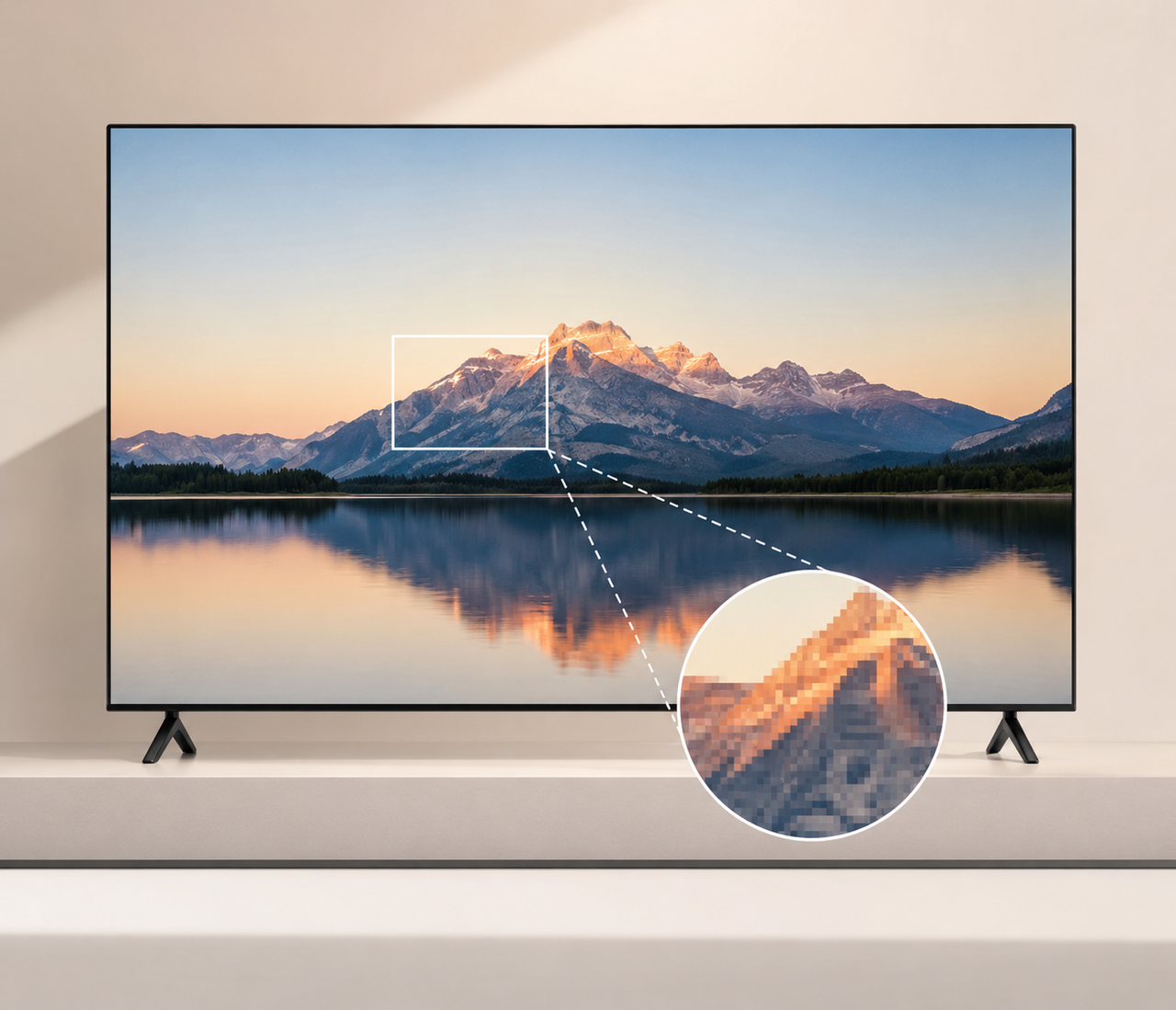
720p is an HD video format that normally uses a 1280 × 720 frame. It can provide clear results for phone viewing, video calls, smaller web players, and projects that need manageable file sizes. The resolution label does not describe the full quality of a video. A poorly encoded 720p file may look softer than a well-produced clip with the same dimensions. Source detail, compression, bitrate, and resizing all affect the finished picture.
What Is 720p Video Resolution?
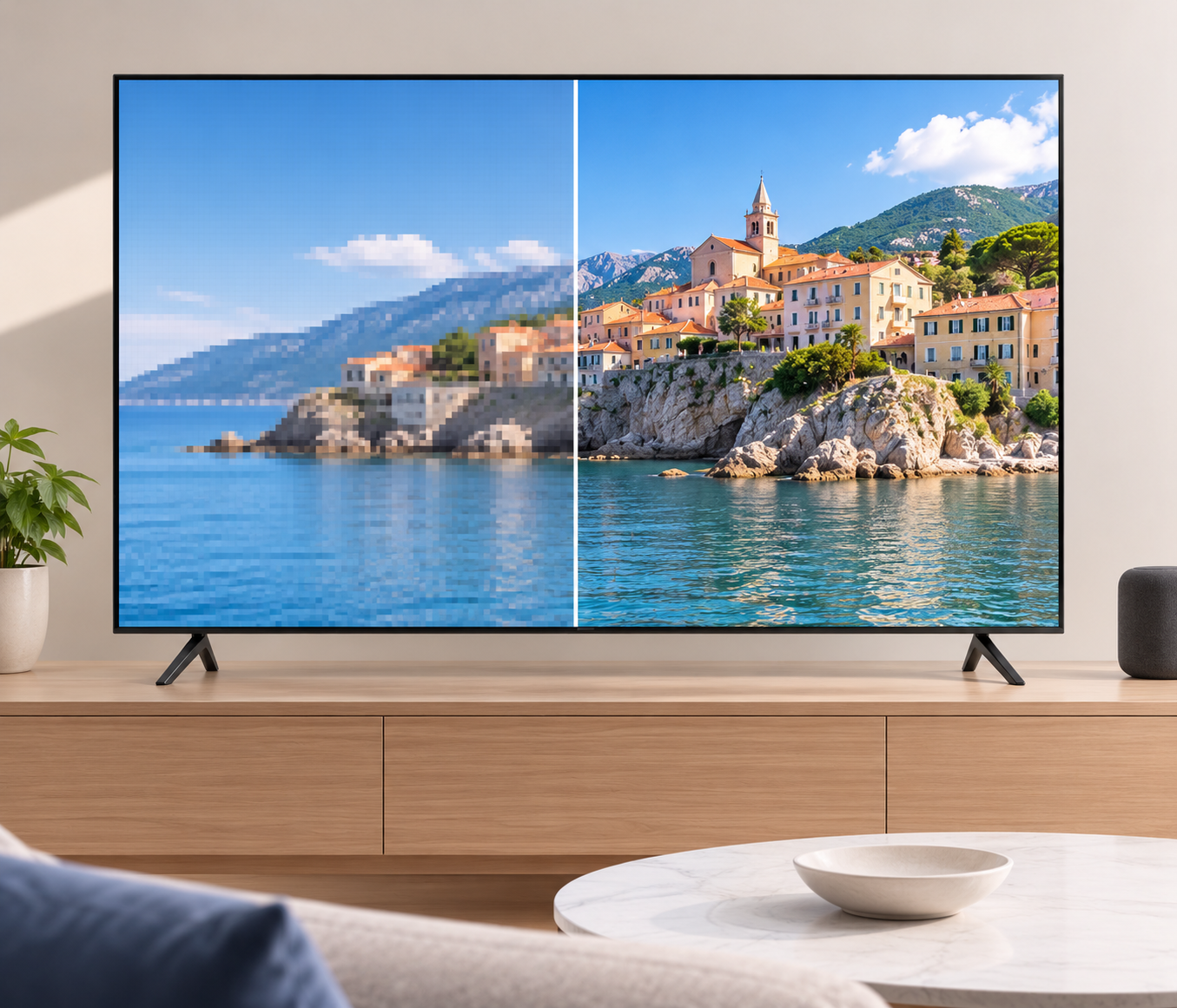
The term 720p identifies the vertical resolution and the way each frame is scanned. Standard widescreen 720p contains 921,600 pixels and uses a 16:9 frame. Vimeo classifies 1280 × 720 as 720p HD, while Netflix also places 720p within its HD streaming tier.
| Specification | Standard 720p value |
| Frame size | 1280 × 720 pixels |
| Pixels in each frame | 921,600 |
| Common label | HD |
| Aspect ratio | 16:09 |
| Scan method | Progressive |
| Common frame rates | 24 to 60 fps |
What Does 1280 × 720 Mean?
The number 1280 describes the width of the frame. The height is 720 pixels. Multiplying the two dimensions gives the number of pixels available in one complete image. Those pixels are then displayed across a phone, monitor, television, or browser window.
Screen size does not change the file’s resolution. It changes how widely the available pixels are spread. Fine lines may look clear in a small player and noticeably softer when the same file fills a large display.
Why Is 720p Called HD?
720p belongs to the high-definition family of video formats. It offers a larger frame than common widescreen standard-definition video, which Vimeo lists as 640 × 360. The company labels 1280 × 720 as 720p HD and 1920 × 1080 as 1080p HD.
The word HD does not promise a specific level of visual quality. It describes the frame class. A clean source with suitable encoding may look sharp at 720p, while a damaged source may remain unclear after export.
What Does the “p” in 720p Mean?
The letter p stands for progressive scan. Each frame contains its complete set of image lines. Interlaced footage divides image information across alternating fields. When it is handled incorrectly, moving edges may show comb-like lines. YouTube recommends progressive uploads and advises creators to deinterlace interlaced sources before uploading.
Progressive scanning works well for computer screens and online video because each displayed frame is complete.
Is 720p Video Quality Good Enough?
720p is often adequate when the video occupies a limited part of the screen. Talking-head clips, casual recordings, and simple demonstrations can remain easy to watch at this resolution.
The decision changes when small text or distant detail matters. Heavy cropping also exposes the lower pixel count because fewer source pixels remain after the frame is trimmed.
Viewing distance has an effect as well. Softness becomes easier to notice when a 720p image is enlarged across a nearby monitor or television.
Why Does a 720p Video Look Blurry?
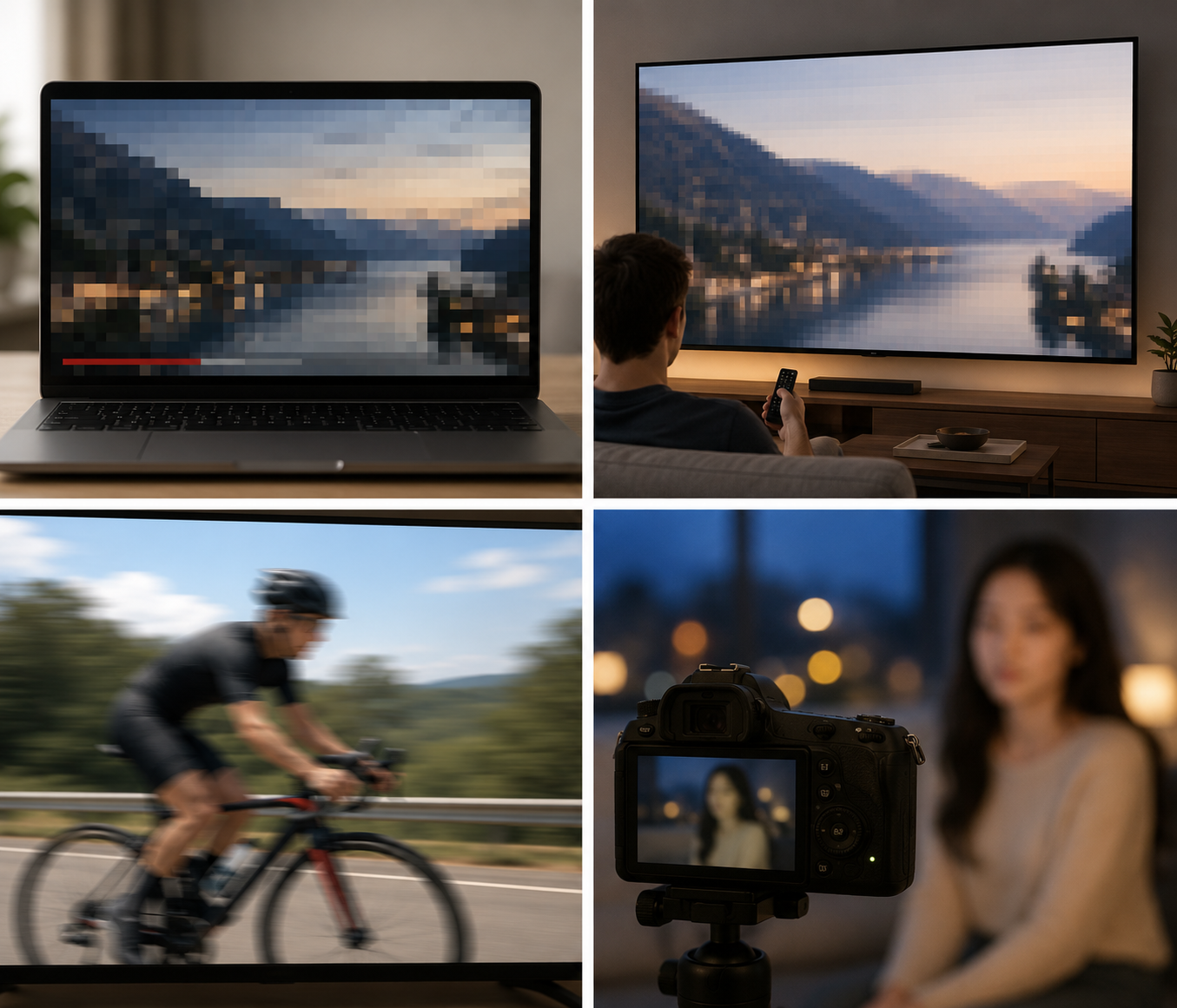
A resolution value only states the frame dimensions. It does not reveal whether the original camera captured enough detail or how much information the encoder kept. Finding the cause first prevents unnecessary processing.
The Original Video Is Lower Than 720p
A 640 × 360 source contains 230,400 pixels. Resizing it to 1280 × 720 creates a frame with four times as many pixel positions, yet the source still contains the original amount of recorded information.
Standard scaling fills the extra positions by calculating new pixel values from nearby ones. This can smooth visible blocks, though it rarely creates convincing texture.
AI enhancement may generate more natural edges and surface detail. The result should still be checked carefully. Super-resolution research shows that generated textures can appear realistic while also introducing artifacts that were absent from the source.
The 720p Bitrate Is Too Low
Bitrate measures how much data is used to encode each second. When too little data is available, the encoder must simplify the image more aggressively.
Damage may appear as blocky areas during movement. Dark gradients can break into visible bands. Hair, grass, or textured fabric may lose definition.
YouTube recommends 5 Mbps for 720p SDR uploads at 24 to 30 fps. Its recommendation rises to 7.5 Mbps at 48 to 60 fps. Vimeo provides a wider 5 to 10 Mbps range for 720p uploads. These values are platform guidance rather than universal requirements.
The Video Was Compressed Too Many Times
Lossy compression reduces file size by discarding some image information. Re-encoding the compressed result may remove more. This often happens when someone downloads a social media copy, edits it, and exports the file again. The new output carries the earlier damage into another compression pass.
Vimeo recommends returning to the program used to create the video and exporting the project again. HandBrake also notes that higher-quality creator presets can reduce the generational loss caused when hosting platforms produce additional versions.
Work from the earliest available source. Keep one high-quality master for future edits. Existing compression artifacts are harder to control once they have been saved into several copies.
The Video Was Stretched or Cropped
A normal landscape 720p frame uses a 16:9 aspect ratio. Changing the width without adjusting the height distorts the picture.
Cropping keeps the shape of the subject intact, though it removes pixels from the outer frame. Enlarging the cropped area afterward makes the remaining information cover more screen space.
Use padding when the entire source frame must remain visible. A moderate crop works when the subject still has enough surrounding detail. HandBrake provides controls that preserve the display aspect ratio during resizing.
Where Is 720p Video Resolution Commonly Used?
720p continues to serve tasks where connection stability, processing speed, or source limitations matter. It is less demanding than 1080p while retaining a widescreen HD frame.
Video Calls and Webcams
Zoom supports 720p HD during meetings. Its desktop guidance lists 1.2 Mbps in both directions for a one-to-one 720p call. Group calls have higher recommendations because several participant streams may be handled at once.
Lighting can matter more than adding pixels in this setting. A well-lit 720p webcam feed may preserve facial detail better than a noisy 1080p feed recorded in poor light.
Live Streaming With Limited Upload Speed
Live streaming sends video while it is being produced. The encoder has less time to process each frame, and unstable upload speed can cause dropped frames or reduced quality.
A 720p stream can leave more connection capacity available than a higher-resolution stream. That margin is useful when the upload speed changes during a broadcast.
The correct bitrate depends on the streaming service, frame rate, codec, and type of movement. Follow the destination platform’s current encoder settings instead of applying one value everywhere.
Mobile Viewing and Embedded Web Video
A 720p version can be practical when a video appears inside an article or occupies only part of a phone screen. The lower resolution may reduce processing and transfer demands when compared under similar encoding conditions.
File size still depends mainly on bitrate and duration. A high-bitrate 720p file can be larger than a heavily compressed 1080p file. File size depends primarily on bitrate and video duration rather than resolution alone.
Older Recordings and Low-Resolution Sources
Some archived clips and saved online recordings have limited source detail. Exporting them at 720p can provide a useful delivery size without creating an unnecessarily large file.
The source should guide the output. Enlarging weak footage to 1080p or 4K increases the dimensions, though the result may still show softness. A carefully enhanced 720p copy can therefore be more practical than a much larger export with aggressive sharpening.
How to Improve Video Quality to 720p
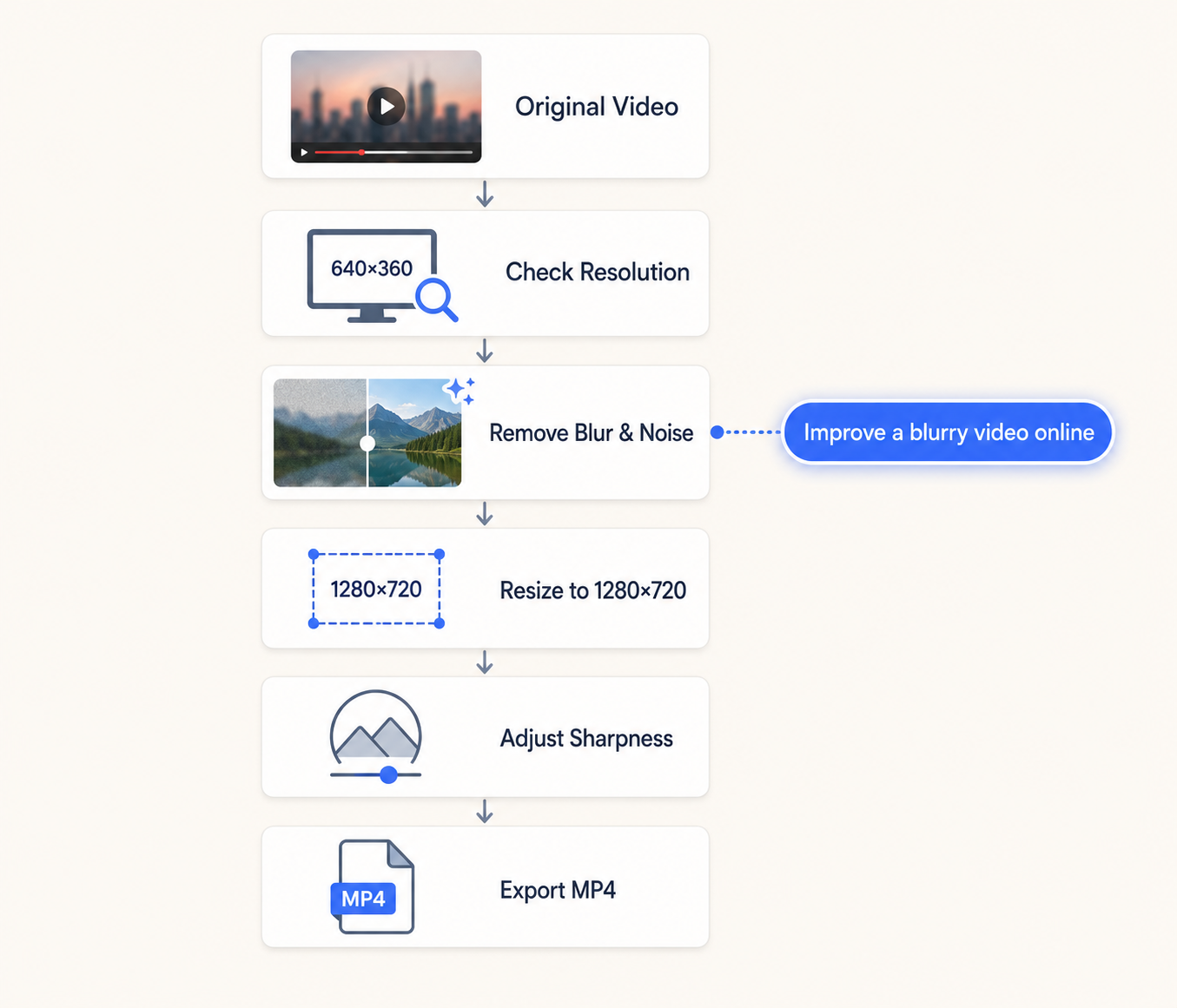
Improving a 720p video may involve more than changing its dimensions. Depending on the source, you may need to reduce noise, correct brightness, sharpen soft details, or upscale a smaller frame before exporting. AI video tools bring these editing options together, making it easier to choose a suitable workflow before preparing the final 1280 × 720 file.
Step 1: Check the Original Resolution
Open the file information panel in your editor or media player. Record the width, height, frame rate, and bitrate. A source that is already 1280 × 720 does not need resolution upscaling.
Lower-resolution footage requires a different decision. You can keep its native size, enlarge it with standard scaling, or use AI enhancement before preparing the 720p version.
Step 2: Remove Noise and Blur
A 720p export will not look clean if the source is still noisy, blurry, or heavily compressed. Before resizing, you can improve a blurry video online by sharpening soft details, reducing visible noise, balancing brightness and color, and restoring clarity automatically.
The browser-based tool supports common formats such as MP4, M4V, and MOV, and does not require manual editing skills. It can also upscale low-resolution footage when the original clip lacks enough detail. Once the source looks cleaner, continue with the 1280 × 720 resize and export steps so the final file stays lightweight without carrying avoidable blur or compression artifacts.
Preview the enhanced version before continuing. Check faces, moving edges, and text for unnatural detail. Once the source looks cleaner, resize it to the required dimensions.
Step 3: Resize the Video to 1280 × 720
Set the output width to 1280 and the height to 720 for a standard horizontal video. Higher-resolution sources can be downscaled. Many video editors reduce higher-resolution footage to 720p while keeping the aspect ratio intact. It does not enlarge a 480p source automatically under the same preset.
Choose a high-quality scaling option when your editor provides one. After resizing, inspect fine edges at full size rather than judging the image only through a small preview window.
Step 4: Keep the Correct Aspect Ratio
Lock the aspect ratio before changing either dimension. This prevents the frame from becoming too wide or too tall.
Landscape 720p normally uses 16:9. Vertical footage can be used 720 × 1280 when the destination accepts portrait video. YouTube automatically adapts its player to vertical and square uploads, so black bars do not need to be added solely for that platform. When a platform requires 16:9, choose between cropping and padding. Avoid manual stretching.
Step 5: Improve Sharpness and Color
Apply sharpening after major noise reduction and resizing. Small changes are easier to control. Excessive sharpening creates bright outlines around objects. It may also make compression blocks more visible. Compare the adjusted frame with the unsharpened version at 100% zoom.
Step 6: Export and Review the 720p Video
Export a short test before processing the full project. Select a section that includes movement or small details. Watch the test at full size. Check whether motion breaks into blocks and whether dark gradients remain smooth. Listen to audio problems as well.
Return to the source when defects are already visible before export. Raising the final bitrate may prevent additional loss, though it cannot repair information removed from an earlier file.
Best Export Settings for 720p Video
Export requirements vary between platforms. The following settings provide a practical starting point for SDR web uploads based mainly on YouTube’s current guidance, with Vimeo’s broader bitrate range included for comparison.
| Export setting | Suggested starting point |
| Resolution | 1280 × 720 |
| Aspect ratio | 16:9 for landscape video |
| Scan type | Progressive |
| Pixel aspect ratio | Square pixels |
| Frame rate | Match the recorded source |
| Container | MP4 |
| Video codec | H.264 |
| 24 to 30 fps bitrate | About 5 Mbps for YouTube |
| 48 to 60 fps bitrate | About 7.5 Mbps for YouTube |
| Vimeo bitrate range | 5 to 10 Mbps |
| SDR color space | BT.709 |
| Audio codec | AAC |
| Audio sample rate | 48 kHz |
Use 1280 × 720 Resolution
Choose a 720p preset or enter the dimensions manually. Confirm the output properties after exporting. Some presets only set a maximum resolution. A smaller source may stay at its original dimensions instead of being enlarged. HandBrake’s 720p30 preset behaves this way with a 480p input.
Match the Original Frame Rate
Keep the rate used during recording unless the delivery platform requires a change. YouTube accepts common rates such as 24, 25, 30, 48, 50, and 60 fps. It recommends uploading content at its recorded rate. Vimeo also advises maintaining the native rate and using a constant frame rate.
Changing 30 fps footage to 60 fps does not create genuine intermediate motion unless new frames are generated. Simple conversion may repeat existing frames.
Choose the Right 720p Bitrate
Start with the platform recommendation rather than using the highest value available. YouTube suggests 5 Mbps for standard-frame-rate 720p SDR uploads. High-frame-rate uploads use a 7.5 Mbps recommendation. Vimeo allows more flexibility with its 5 to 10 Mbps range.
Complex motion may need more data than a static talking-head clip. Run a short test when the project includes water, foliage, camera movement, or visible grain.
Export 720p Video to MP4
MP4 with H.264 offers wide compatibility for web uploads. YouTube lists this combination in its current encoding guidance. It also recommends progressive scan and variable bitrate.
Use AAC audio at 48 kHz for the same workflow. Save a separate master when future editing is likely. Repeatedly editing the delivery file can introduce generational loss.
FAQs
How Large Is a 720p Video File?
At 5 Mbps, the video stream uses about 37.5 MB per minute or 2.25 GB per hour. Audio and container data increase the final size slightly.
How Much Data Does 720p Streaming Use?
There is no fixed amount. Netflix lists HD playback at up to 3 GB per hour, while other services may use different codecs, bitrates, or adaptive settings.
Can 720p Video Run at 60fps?
Yes. YouTube accepts 60 fps and recommends 7.5 Mbps for 720p SDR uploads at high frame rates.
Does Upscaling 720p to 1080p Add Detail?
It can generate plausible detail and cleaner edges. The added texture is an estimate, so it may not match information that was absent from the source.
Conclusion
720p remains useful when file size, connection stability, or source limitations matter. Clear results depend on more than frame dimensions. Start with the best source, correct defects once, preserve the aspect ratio, and follow the final platform’s export guidance.
You May Be Interested

100+ Father’s Day Jokes That Dad Will Actually Laugh At

100+ Good Quotes for Instagram Bio (Copy & Paste Ideas)

100+ Trending Instagram Bios for Boys to Upgrade Your Profile

133 Independence Day Captions for Social Media

165 Father’s Day Card Messages & Ideas
