Best Ai Photo Editor for Beginners Hobbyists 2026
This guide compares the best AI photo editors for beginners and hobbyists in 2026, covering quick fixes, RAW editing, social content, product photos, restoration, pricing, privacy and export quality so users can choose the right tool with confidence.

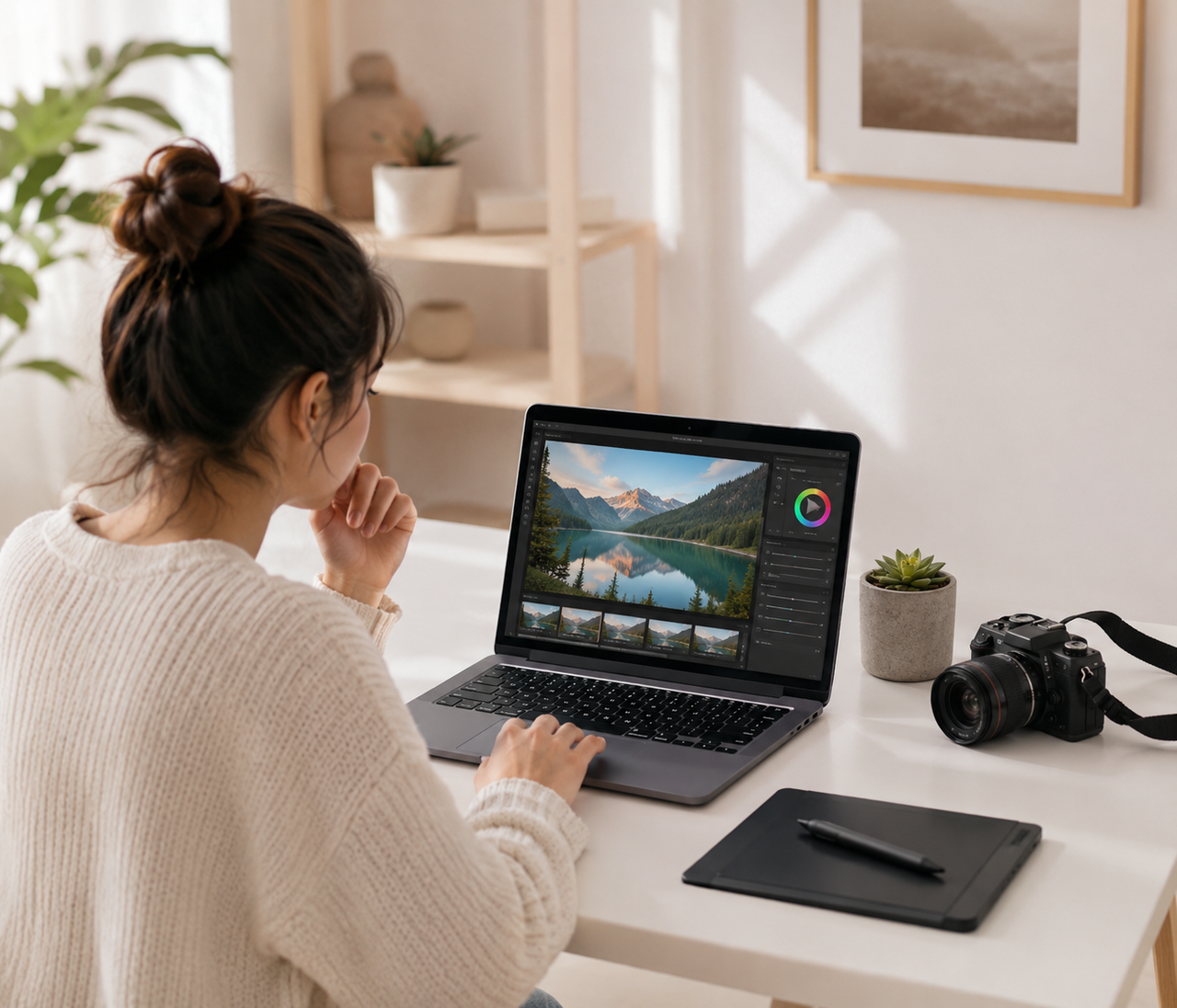
AI photo editors can now brighten underexposed shots, remove distractions, retouch portraits, and improve image quality with minimal manual work. However, beginner-friendly tools vary considerably in output quality, editing control, free-use limits, and ease of navigation. To identify the most practical options for everyday users, we tested each editor with common photography tasks rather than judging it by its feature list alone.
How the Best AI Photo Editors Were Tested
Each AI photo editor was evaluated using the same portraits, product photos, travel shots, and low-light phone images. The comparison focused on ease of use, AI output quality, editing flexibility, free-plan restrictions, and export quality.
Ease of Use and Learning Curve
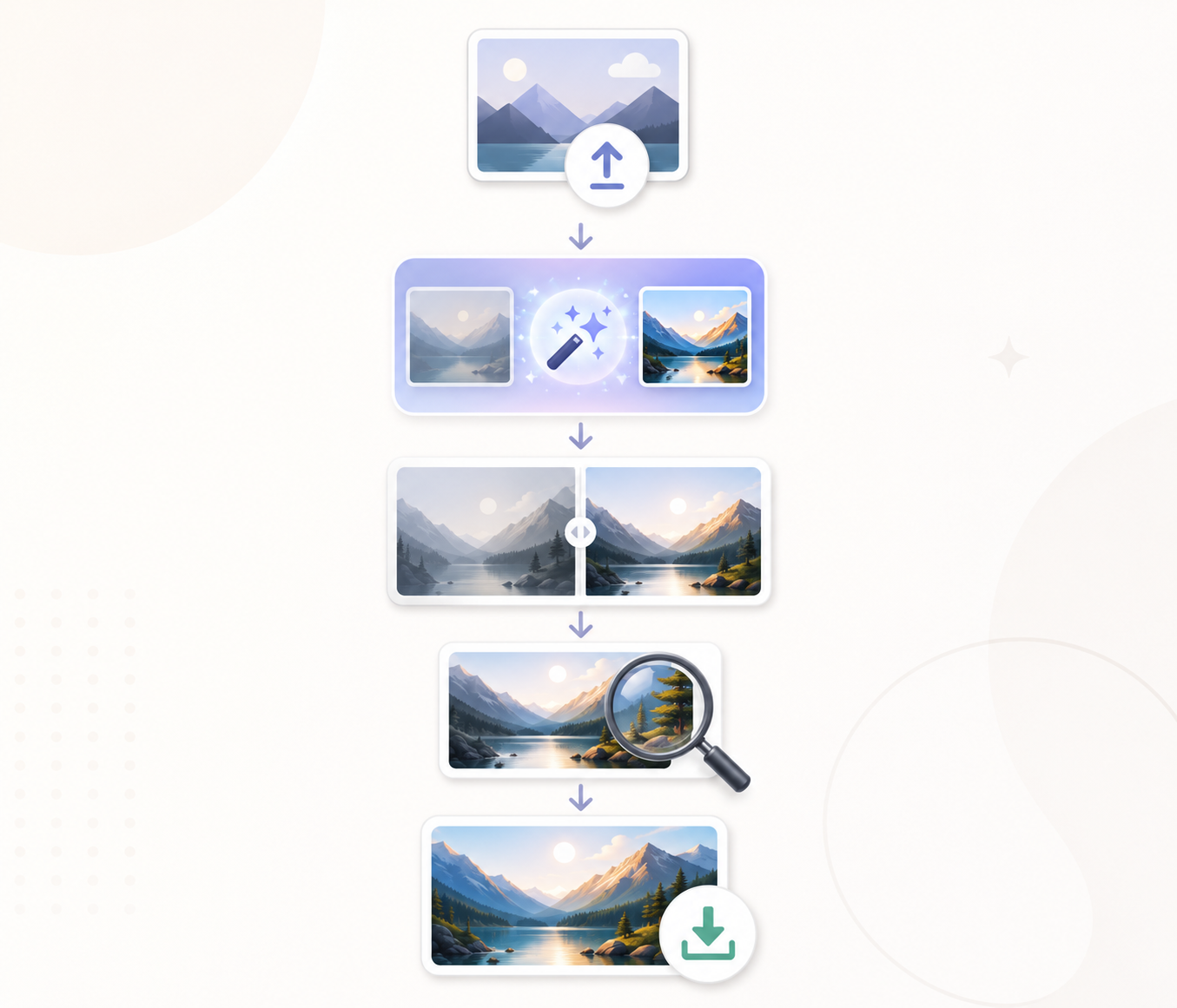
Usability was judged by how quickly a beginner could upload an image, find the correct tool, understand the controls, and undo mistakes. A dim birthday photo was used to test whether exposure correction, noise reduction, and face enhancement could be completed without knowledge of histograms or layers. Clear labels, timely guidance, and an organized interface received higher scores.
AI Results at Normal and 100% Zoom
Each edited image was examined at normal size and 100% zoom to reveal defects hidden in the standard preview. One test involved removing a passerby from a family photo and checking whether the surrounding grass and trees were reconstructed naturally. Repeated textures, blurred edges, plastic-looking skin, distorted facial details, and excessive sharpening reduced the image-quality score.
One-Click Tools and Manual Editing Control
Each automatic tool was tested with its default settings to see whether the first result was usable. Editors also received credit for clear before-and-after comparisons and an accessible undo function. This section focuses on testing performance rather than listing the controls users may need.
Free Limits, Pricing, and Export Quality
The free-tier test followed one image from upload to final download. Editors ranked higher when users could complete a practical project without encountering an unexpected paywall. Output quality was then compared with the uploaded source.
5 Best AI Photo Editors for Beginners in 2026
A beginner-friendly editor should simplify routine corrections without limiting future experimentation. The following tools cover quick browser edits, hobby photography, free editing, basic manual adjustments, and mobile content creation.
Zawa: Best Online AI Editor for Quick Fixes
When a photo needs a quick correction, Zawa’s online AI photo editor keeps the process straightforward. Background removal, object cleanup, image enhancement, canvas extension, resizing, and background generation are available in one browser-based workspace, so beginners do not need to understand layers or masks. A small business owner could clean up a product image, extend the canvas, and resize it for a social post in the same session. Its task-based workflow is particularly convenient for occasional edits, though it offers less project organization than a dedicated photography program.
Luminar Neo: Best Overall for Hobby Photographers
Hobby photographers often need more control than a simple one-click editor can provide, but Photoshop may feel unnecessarily complex. Luminar Neo occupies the space between those two options. AI-assisted tools handle lighting, skies, portraits, object removal, and noise reduction, while masks and adjustment sliders make it possible to refine selected areas.
On an underexposed landscape, Enhance AI can establish the initial correction before the sky and foreground are adjusted separately. Some practice is required, yet the visual interface remains accessible enough for users beginning to explore RAW editing.
Fotor: Best Free AI Editor for Beginners
A limited budget makes Fotor an appealing place to start. Its online workspace combines cropping, exposure correction, filters, text, and color controls with AI enhancement, portrait retouching, background removal, and image extension. These options are sufficient for common jobs such as brightening a phone portrait or preparing a photograph for a digital invitation.
Not every feature is freely available, however; certain AI actions consume credits, and higher-quality downloads may depend on the selected plan. Checking the export restrictions before starting a detailed edit can prevent an unpleasant surprise at the end.
Pixlr: Best Browser Editor for Basic Photo Edits
Anyone familiar with traditional desktop editors will recognize Pixlr’s canvas, toolbar, and layer-based arrangement. The software runs in a browser but still provides cropping, color correction, effects, selections, opacity controls, background removal, and generative tools. This balance works well for a marketplace seller who needs to isolate a product, correct its color, and resize the final image without installing another program. Because Pixlr offers several editing interfaces and a broad collection of tools, the first visit can feel busier than a single-purpose AI editor. Once the layout becomes familiar, basic manual edits are relatively easy to complete.
Picsart: Best Mobile App for Creative Edits
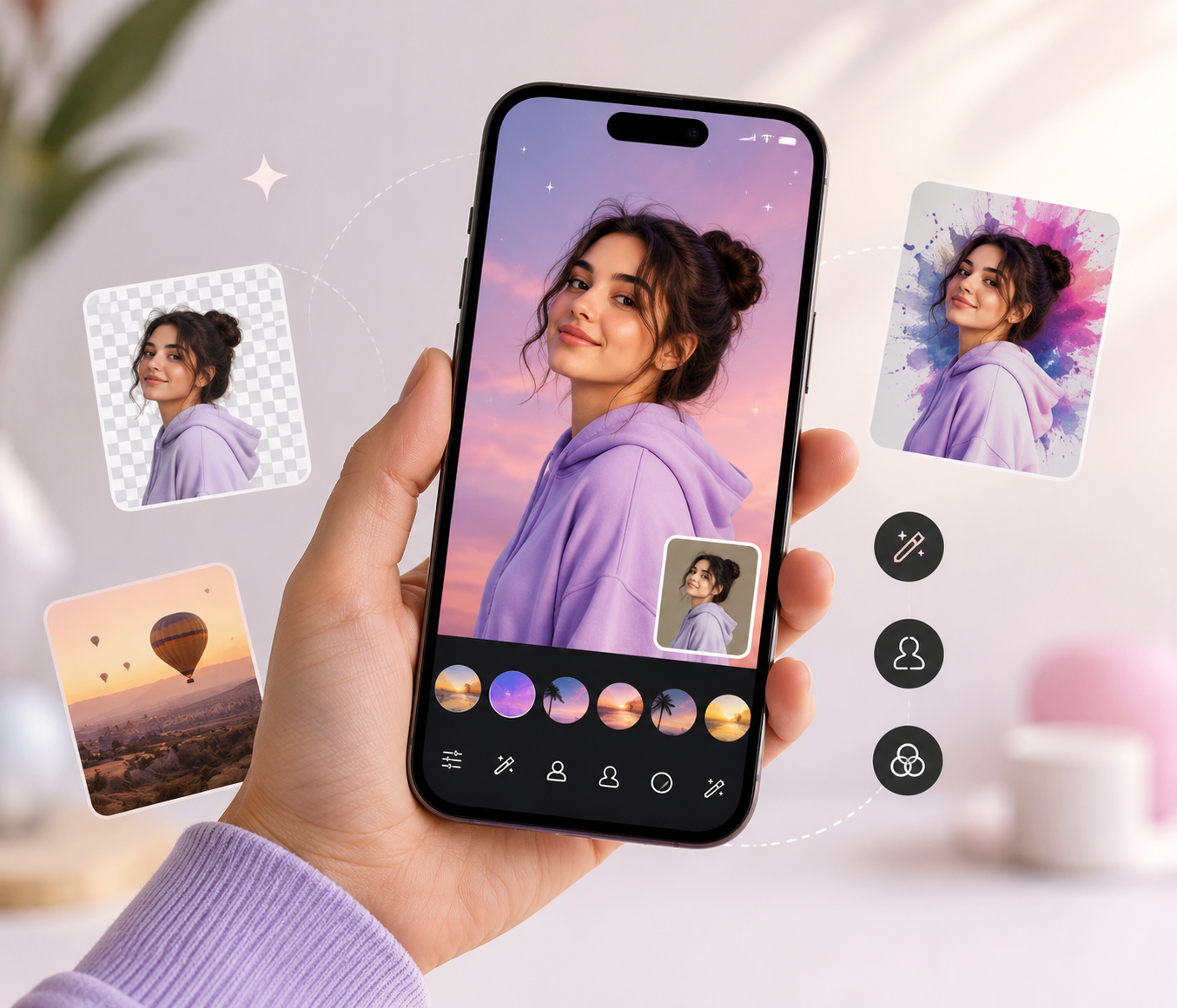
On a phone, photo editing is often part of a larger creative process rather than a standalone correction. Picsart supports that workflow with retouching, object removal, filters, text, stickers, collages, templates, and generative effects. An event announcement can move from a simple phone photo to a finished Story with text, stickers, and a coordinated layout—all within the same app.
The experience favors expressive social content over accurate RAW development, while premium assets and selected AI features sit behind a subscription. For users who regularly create posts, invitations, or short-form visual content on mobile, that creative range is its main advantage.
| Editor | Best for | Main strength | Limitation |
| Zawa | Quick fixes | Simple all-in-one AI editing | No RAW management |
| Luminar Neo | Hobby photography | AI tools with manual control | Learning required |
| Fotor | Free editing | Many beginner-friendly tools | Paid limits |
| Pixlr | Browser editing | Layers and basic controls | Busy interface |
| Picsart | Mobile content | Templates and creative effects | Limited RAW editing |
5 Best AI Photo Editors by Use Case
No editor performs every task equally well. Photo organization, social design, product presentation, restoration, and advanced compositing each require a different balance of automation and control.
Lightroom: Best for RAW Editing and Organization
A growing photo collection quickly creates problems that a basic editor cannot solve. Lightroom combines non-destructive RAW adjustments with albums, ratings, search, presets, and synchronization across devices. After photographing a weekend event, a hobbyist can sort hundreds of files, apply consistent color corrections, refine a few selected portraits, and produce multiple export sizes while leaving the originals untouched. Its subscription and extensive controls may be excessive for occasional phone edits, but the organizational features become increasingly valuable as the number of images grows.
Canva: Best for Social Media Content
The strength of Canva becomes clear when a photograph is only one part of the finished design. After adjusting brightness or removing the background, users can place the image inside a template, add text and graphics, then resize the layout for different social platforms.
A bakery promotion, for instance, might begin with a simple cake photo and end as an Instagram Story, feed post, and digital flyer. Detailed color grading remains limited compared with dedicated photography software. For fast, coordinated social content, however, editing and design in one workspace saves considerable time.
PhotoRoom: Best for Online Product Photos
Clean product images are PhotoRoom’s specialty. Automatic cutouts, AI backgrounds, shadows, templates, and batch features help online sellers produce a consistent catalog without building every scene manually. Even a candle photographed on a kitchen table can be isolated and placed against a polished studio-style background suitable for a marketplace listing.
Complex edges, reflective packaging, labels, and generated props still deserve close inspection because AI staging may alter small product details. The narrow focus makes PhotoRoom less versatile for general photography, but highly efficient for ecommerce work.
Remini: Best for Restoring Old or Blurry Photos
Old scans and heavily compressed phone images present a different challenge: much of the original detail may already be missing. Remini attempts to improve faces, reduce blur, remove noise, and restore faded photographs with minimal input. This can make a decades-old school portrait clearer and easier to share with family members.
The enhanced version should not be treated as a perfectly faithful reconstruction, since AI may invent eyelashes, skin texture, or facial contours that were never visible in the source. Keeping the original scan alongside the edited copy is therefore essential.
Photoshop: Best for Advanced AI Photo Editing
At the advanced end of the category, Photoshop offers precise selections, editable layers, masks, compositing tools, Generative Fill, and Generative Expand. Such control becomes useful when a project involves more than a quick correction—rebuilding part of a background, adjusting reflections, replacing an object, or combining several photographs into one scene.
A product photographer can isolate a bottle, extend the backdrop, refine its shadow, and preserve each change on a separate layer. The learning curve is considerably steeper than with browser-based editors, making Photoshop a better long-term choice for serious editing than the easiest starting point for a complete beginner.
| Editor | Best for | Main strength | Limitation |
| Lightroom | RAW photos | Editing and organization | Subscription required |
| Canva | Social content | Templates and easy resizing | Limited color control |
| PhotoRoom | Product photos | Fast background creation | May alter product details |
| Remini | Old or blurry photos | One-click restoration | May invent details |
| Photoshop | Advanced editing | Precise creative control | Steep learning curve |
How to Choose the Best AI Photo Editor
Choose an editor based on the type of photos you edit, where you work, and how much control you want. Pricing and privacy policies should also be checked before uploading personal images or purchasing a plan.
Decide How Much Editing Control You Need
For occasional enhancements or simple object removal, one-click tools usually provide enough control. Masks, brushes, layers, and adjustable effect strength become more important when only part of an image needs correction. Ideally, the editor should remain approachable while still allowing inaccurate AI results to be refined.
Choose a Mobile App, Browser, or Desktop Editor
A mobile app offers the fastest route from taking a photo to sharing it, whereas a browser editor avoids installation. For RAW files, batch processing, and detailed adjustments, desktop software is generally more capable; Mac users can narrow their options with this comparison of the best free photo editors for Mac. Offline availability also deserves attention when editing during travel or with an unreliable connection.
Compare Free Credits, Watermarks, and Paid Plans
Behind a “free” label may be limited AI credits, smaller exports, locked formats, or watermarked downloads. The real cost becomes clearer when calculated around a typical editing project rather than the advertised monthly price. Occasional users may manage with free credits, while frequent creators could receive better value from a subscription.
Review Photo Privacy and AI Training Policies
Cloud processing often requires the image to be transferred to the provider’s servers. Before uploading family photographs or client work, users should examine storage periods, deletion options, third-party access, and AI-training terms. Local processing provides a safer choice for particularly sensitive material.
How to Edit Your First Photo With AI
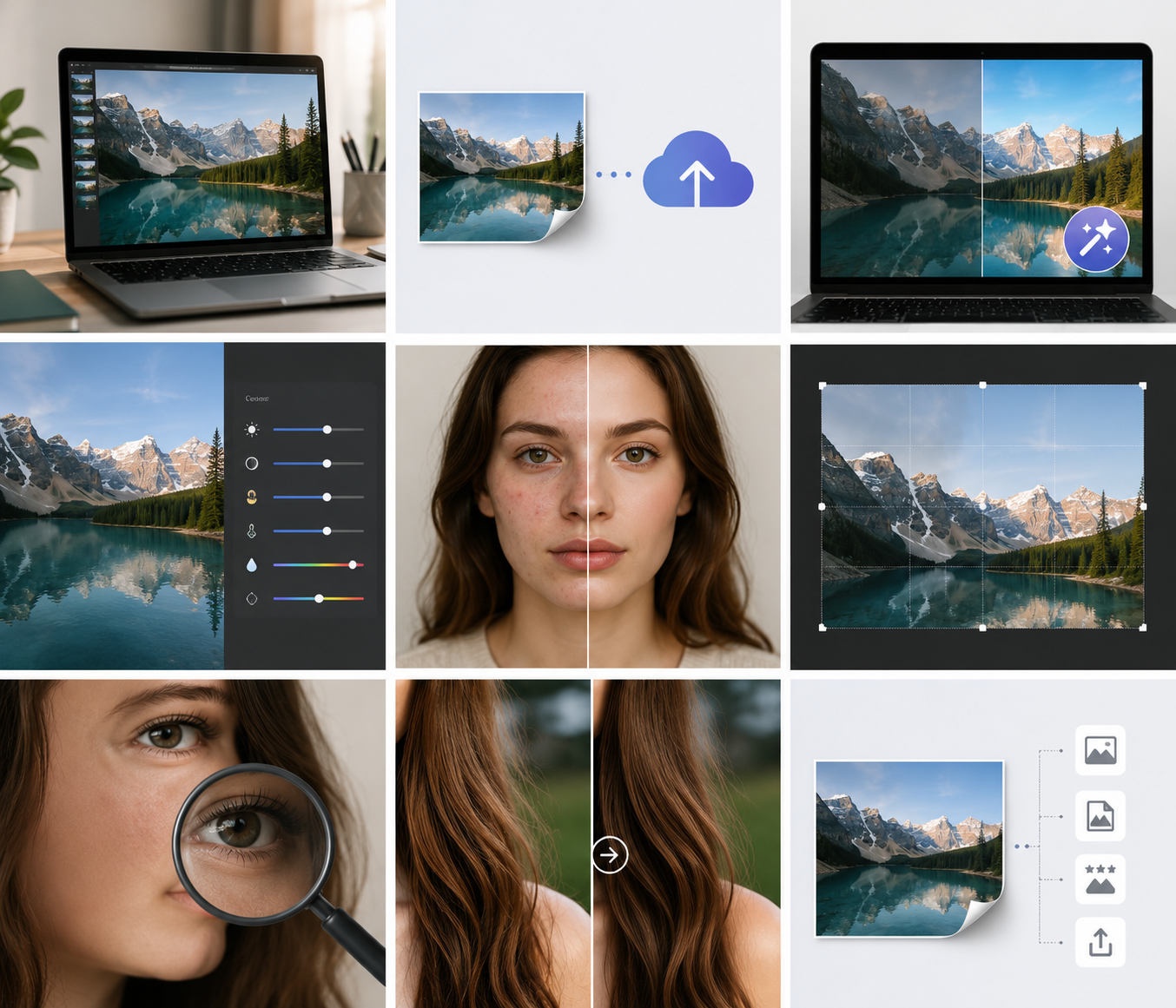
Natural-looking results usually come from a simple order: correct the overall image first, refine specific areas second, and inspect the details before exporting. This approach also makes unwanted changes easier to identify and reverse.
Upload a Copy and Start With Auto Enhance
Keeping the original untouched provides an easy fallback if the edit fails.An AI image enhancer can then establish a useful starting point by improving brightness, contrast, and clarity. An overly strong result is better reduced immediately than covered with more effects.
Correct Exposure and Color Before Retouching
Overall lighting has a direct effect on how skin, hair, and fine details appear. Once the exposure looks balanced, white balance can remove an unwanted yellow indoor cast or overly blue shadows. Retouching becomes easier to judge against a natural tonal and color foundation.
Refine the Background and Composition
Sometimes a straighter horizon or tighter crop improves the photo more than an AI-generated change. Unwanted objects can be removed after the composition and aspect ratio are settled. Any reconstructed area should remain consistent with the original perspective, texture, lighting, and depth of field.
Review Faces, Hair, Text, and Edges at 100%
At normal viewing size, distorted letters, repeated textures, and uneven cutout edges can remain hidden. A 100% view reveals problems around facial features, fingers, hair strands, reflections, and product labels. Where an artifact cannot be repaired cleanly, a weaker effect often looks more convincing.
Export the Photo at the Right Resolution
The intended use should determine the export settings, especially when preparing files for one of the standard photo print sizes. JPEG is suitable for most photographs, while PNG is preferable when transparency or crisp graphic elements matter. One high-quality master can be retained for future use, with smaller copies created for websites and social platforms.
FAQs
Can a Free AI Photo Editor Export Full-Size Images?
Yes, but full-size export is not included with every free editor. Certain services reduce the resolution, add a watermark, or charge credits for high-quality downloads. Export conditions should therefore be checked before an important edit begins.
Do AI Photo Editors Work Without an Internet Connection?
That depends on where the AI processing takes place. Browser editors usually require a connection, while desktop programs may offer certain adjustments and AI features offline. Generative editing and cloud synchronization commonly remain internet-dependent.
Is It Safe to Upload Family Photos to an AI Editor?
It can be safe, but only when the service provides acceptable privacy protections. Highly personal or confidential family photos are better edited locally whenever possible.
Can AI Photo Editors Handle JPEG and RAW Files?
JPEG works with nearly every AI photo editor, but RAW support is less universal. Photography-focused desktop software generally preserves more of the exposure and color information contained in RAW files. An online editor may convert the file during upload, reducing some of that flexibility.
Does AI Editing Permanently Change the Original Photo?
Not always. Non-destructive editors record adjustments separately, while some apps replace the source when the edited file is saved under the same name.
Conclusion
No single editor fits every beginner or hobby photographer. A suitable editor should make the user’s most common tasks easier without introducing unnecessary complexity. Reliable results, usable exports, and room to correct AI mistakes matter more than the longest feature list.
You May Be Interested
100+ Father’s Day Jokes That Dad Will Actually Laugh At

1440p vs 4K: Key Differences, Real Scenarios & Blur Fix
2D Animation vs. 3D Animation: A Detailed Guide for 2026
5 Free AI Random Image Generators—Generate Unique Images Instantly Online
Student Success Motivational Quotes to Inspire Growth and Confidence