
Video Resolution Guide: 720p, 1080p, 2K, 4K & 8K
This video resolution guide explains 720p, 1080p, 2K, 4K and 8K, covering pixel dimensions, bitrate, frame rate, file size, and display quality. It also helps you choose the best resolution for streaming, social media, gaming, editing, and daily use.


For most everyday videos, 1080p offers the best balance of clarity, file size, and device support. Choose 4K when the footage will be viewed on a large screen or needs extra room for cropping. Use 720p when upload speed or connection stability matters more than fine detail. The labels will be explained to help you choose the right setting.
What Is Video Resolution?
Resolution is one part of overall video quality. It determines the size of the image grid used to build each frame, while the final appearance also depends on how the video was captured, processed, and displayed. Understanding this basic relationship makes later resolution comparisons easier to evaluate.
Video resolution describes the pixel dimensions of each frame. It shows how much detail the frame can hold, though focus and compression still affect the result.

How Width and Height Define Resolution
Resolution is written as width × height. A 1920 × 1080 frame contains 1,920 pixels across and 1,080 pixels from top to bottom. These dimensions also create a 16:9 aspect ratio, which is common for televisions, monitors, and landscape online video.
Orientation changes the order of the dimensions. A vertical Full HD video uses 1080 × 1920. It contains the same number of pixels as landscape 1080p but fits a phone held upright.
How Many Pixels Are in Each Video Frame
Multiply the width by height to calculate the total pixel count. A 1080p frame contains 2,073,600 pixels. A 4K UHD frame contains 8,294,400, which is four times as many.
| Resolution | Pixels per frame | Compared with 1080p |
| 720p | 921,600 | 0.44× |
| 1080p | 2,073,600 | 1× |
| 1440p | 3,686,400 | 1.78× |
| 4K UHD | 8,294,400 | 4× |
| 8K UHD | 33,177,600 | 16× |
Video Resolution vs Frame Rate
Resolution controls detail within one frame. Frame rate controls how many frames appear each second. A 4K video at 30 FPS provides more detail per frame, while 1080p at 60 FPS can show motion more smoothly. Exporting at a different frame rate may create repeated or removed frames, so matching the source is usually safer.
Video Resolution vs Bitrate
Bitrate measures how much data is used each second. Resolution sets the pixel grid, while bitrate affects how much information the encoder can preserve inside that grid. A low-bitrate 4K video may show blocks or lost texture, while a well-encoded 1080p file can look cleaner.
Fast gameplay and detailed movement are harder to compress than a person speaking against a plain wall. YouTube recommends higher upload bitrates as resolution and frame rate increase.
Codec efficiency also matters. A newer codec may preserve similar quality with less data, but encoding time and device support can differ. Compare files only when their codec, frame rate, and content are also known.
Why Higher Resolution May Not Look Better
Changing a soft 720p file to 4K increases its dimensions but cannot restore detail the camera failed to capture. Blur, noise, and compression artifacts may remain visible.
A higher export resolution cannot restore detail that was already lost. Improving it before the final export can produce a more useful result than simply changing the resolution setting. The online video enhancer can process low-quality clips and raise them to higher resolutions such as 4K, with support for 30 FPS output. This can be useful when preparing older footage, downloaded clips, or compressed social videos for larger screens.
Complete Video Resolution Comparison Chart
| Common name | Dimensions | Aspect ratio | Pixels per frame | Common use |
| 720p HD | 1280 × 720 | 16:09 | 0.92 million | Calls and lightweight streaming |
| 1080p Full HD | 1920 × 1080 | 16:09 | 2.07 million | General recording and online video |
| 1440p QHD | 2560 × 1440 | 16:09 | 3.69 million | Gaming and screen capture |
| DCI 2K | 2048 × 1080 | About 1.90:1 | 2.21 million | Digital cinema |
| 4K UHD | 3840 × 2160 | 16:09 | 8.29 million | Consumer TVs and online 4K video |
| DCI 4K | 4096 × 2160 | About 1.90:1 | 8.85 million | Digital cinema |
| 8K UHD | 7680 × 4320 | 16:09 | 33.18 million | High-end capture and 8K displays |
YouTube labels 2560 × 1440 as 2K, while Digital Cinema Initiatives defines DCI 2K as 2048 × 1080. The table separates cinema containers from consumer display formats so the names do not hide their actual dimensions.
Why Are There Two Naming Systems?
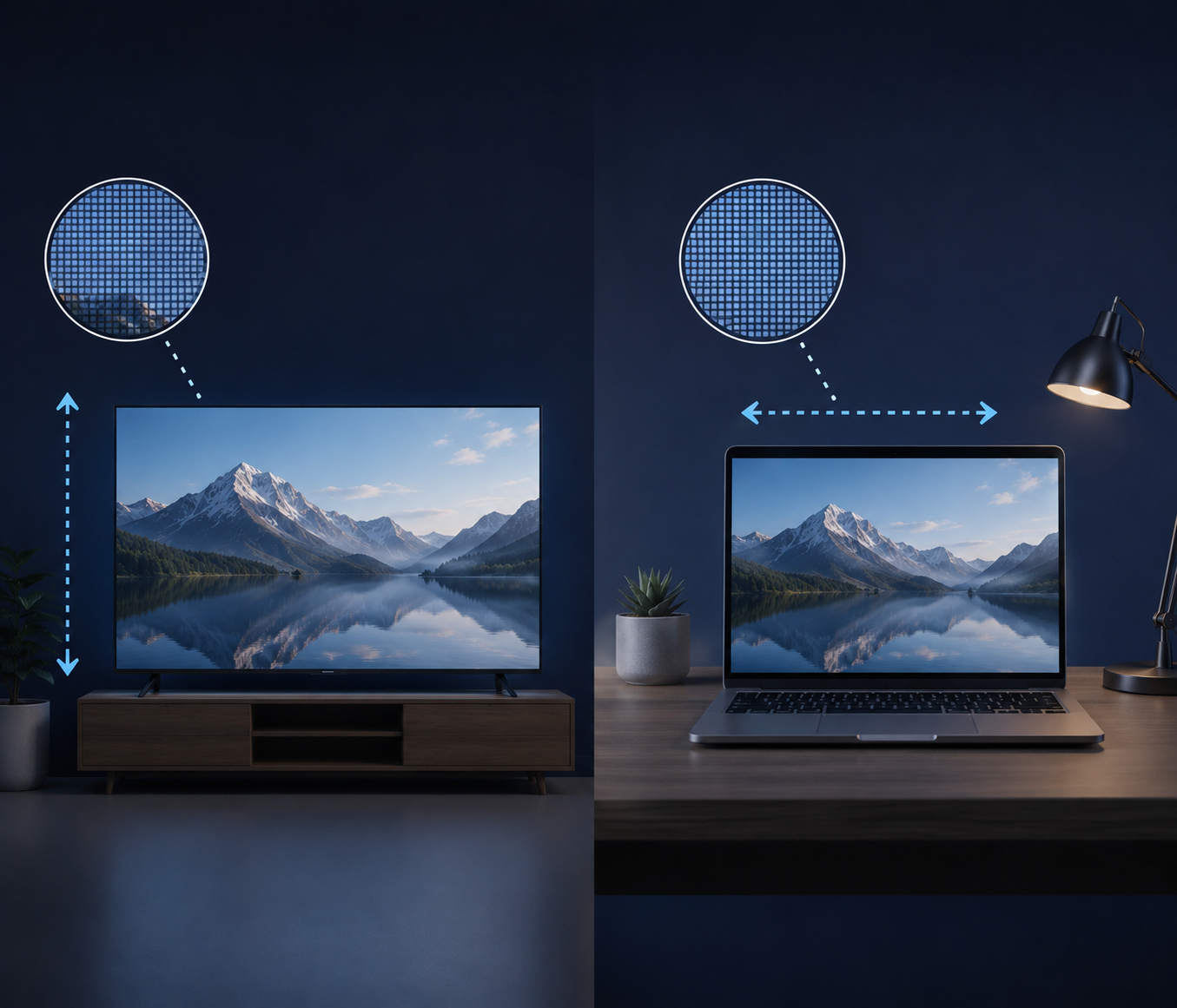
Resolution labels were developed for different technical and commercial environments. As video moved between broadcast systems, digital cinema, computer monitors, and consumer electronics, more than one naming convention remained in use. Recognizing which convention a label follows helps prevent incorrect comparisons between formats.
Television and web formats commonly use image height, while cinema and display marketing often use approximate width.
The Vertical-Pixel Naming System
Labels such as 720p and 1080p use the vertical pixel count. In a standard 16:9 frame, 1080p normally means 1920 × 1080. The final letter identifies the scan method. Frame rate is listed separately, as in 1080p30 or 1080p60.
The Horizontal-Pixel Naming System
K labels describe an approximate horizontal width. DCI 4K is 4,096 pixels wide, while consumer 4K UHD is 3,840 pixels wide. Both sit near the 4,000-pixel class. The 2K label is less consistent. DCI uses 2048 × 1080, while many consumer products use 2560 × 1440.
Resolution Naming by Vertical Pixels (p)
Height-based labels are widely used in playback menus, camera settings, and export software. They offer a compact way to identify familiar video classes, but they may leave out information about orientation or aspect ratio. Full pixel dimensions are still needed when preparing files for a specific platform. The p system remains the clearest naming method for common web and television video.
How Vertical Pixels Name a Resolution
The number before p normally matches the frame height. Standard 720p uses 1280 × 720, while standard 1440p uses 2560 × 1440.
Width changes with aspect ratio, so export tools show both dimensions. For vertical content, 1080 × 1920 is clearer than a p label alone.
What the p in 1080p Actually Means
The p stands for progressive scan. Each frame contains the complete set of image lines. Interlaced formats use alternating fields captured at different moments. Motion can create comb-like edges without proper deinterlacing. Progressive output is standard for modern screens and online video.
p Resolution Chart: 240p to 4320p
| Label | Standard 16:9 dimensions | Common category |
| 240p | 426 × 240 | SD |
| 360p | 640 × 360 | SD |
| 480p | 854 × 480 | SD |
| 720p | 1280 × 720 | HD |
| 1080p | 1920 × 1080 | Full HD |
| 1440p | 2560 × 1440 | QHD |
| 2160p | 3840 × 2160 | 4K UHD |
| 4320p | 7680 × 4320 | 8K UHD |
These widths assume a 16:9 aspect ratio.
Resolution Naming by Horizontal Pixels (K)
Width-based naming appears frequently in product marketing and higher-resolution production workflows. The labels are easy to recognize, though they often describe a general class rather than one fixed frame size. Checking the published dimensions remains important when comparing recording modes, displays, or delivery requirements. K labels are common on cameras, displays, and cinema specifications.
What K Means in Video Resolution
K represents an approximate width measured in thousands of pixels. True DCI 2K is 2,048 pixels wide, and DCI 4K is 4,096 pixels wide. A K label does not reveal height or aspect ratio, so 4K UHD and DCI 4K remain separate specifications.
How K Labels Round the Pixel Width
Consumer labels are simplified. A 3,840-pixel-wide UHD frame is called 4K rather than 3.84K. A 2560 × 1440 monitor is often sold as 2K even though its width is closer to 2.5K. QHD or 1440p is more precise.
K Resolution Chart: 2K to 8K
| Label | Dimensions | Where it is used |
| DCI 2K | 2048 × 1080 | Digital cinema |
| Consumer 2K or QHD | 2560 × 1440 | Monitors and online video |
| 4K UHD | 3840 × 2160 | Consumer TVs and cameras |
| DCI 4K | 4096 × 2160 | Digital cinema |
| 8K UHD | 7680 × 4320 | High-resolution displays |
Why 4K Is Not Called 2160K
The number 2160 describes vertical pixels, so its vertical name is 2160p. The 4K label describes approximate horizontal width. Both 2160p and 4K UHD can describe a 3840 × 2160 frame.
HD vs Full HD vs QHD vs UHD
These category labels are often displayed more prominently than the subdimensions in product pages. They provide an indication to buyers of general quality levels, but related terms can obscure big differences in pixel count. Looking at the precise resolution allows you to better understand what a camera or display really supports.
How Their Pixel Counts Compare
HD has approximately 0.92 million pixels in each frame. Full HD takes it up to 2.07 million. QHD has 3.69 million, and UHD has 8.29 million. The visible improvement is a function of screen size, viewing distance, and quality of the source.
Which Formats Use 720p, 1080p, and 1440p
720p is still good for video calls and watching on low bandwidth. It has the advantage of lower network and processing demands, while also maintaining an HD view.
1080p is your all-purpose format when you want to record personal videos, tutorials, and general screen recordings.
1440p is also popular on QHD gaming monitors and has become a viable middle ground for gameplay or desktop capture.
UHD vs 4K: Are They the Same?
In consumer products, the term UHD/4K typically refers to 3840 × 2160 pixels. Digital cinema uses a 4096 × 2160 container. This DCI 4K is 256 pixels wider than UHD. Use the full term when a production or delivery specification calls for the cinema format.
Which One Looks Best on Your Screen?
A monitor will appear clearest at its native resolution. A 1080p video can still be played on a 4K monitor by upscaling it, while a 4K video can be played on a 1080p monitor by downscaling.
True 4K is most beneficial on a 4K screen if the material being shown has genuine fine detail. It is less beneficial in the case of a soft source or a small screen.
720p vs 1080p vs 1440p vs 4K vs 8K
Choosing among these resolutions is more than just picking the sharpest one. Every step up impacts recording space, editing performance, upload requirements, and playback requirements. The best format is the one that maintains enough detail, while not generating unnecessary overhead in other parts of the workflow.

Sharpness on Phones, Laptops, and TVs
1080p is a sensible phone target without the heavier file size of 4K. Laptops may benefit from 1440p or 4K when video contains small interface text.
Large 4K televisions reveal more texture from native 4K footage. The benefit becomes easier to notice when the screen fills more of the viewer’s field of view. At a longer viewing distance, the difference between 1080p and 4K may be less obvious. An 8K file offers no native-resolution advantage on a 4K panel.
File Size and Upload Time
The size of a compressed file is influenced by Bitrate and Duration. Different resolutions may have approximate sizes if the bitrate is the same.
Since Bitrate × Duration ÷ 8, a 10-minute 1080p video at 8 Mbps is 600 MB before audio and container overhead. A 4K file at 35-45 Mbps is about 2.6 to 3.4 GB.
Bandwidth and Streaming Performance
Live streaming requires the continuous transmission of data, and even a momentary drop in upload speed can degrade quality or result in dropped frames.
A steady 1080p stream is normally nicer than a choppy 4k stream. Leave some headroom under the maximum upload speed of your connection.
Editing, Cropping, and Stabilization Room
A 3840 × 2160 source can be cropped to half its width and height and still have enough pixels for a native 1080p frame.
A portion of the image border is also taken for stabilization. A higher-res source allows for more cropping, but lens softness and noise still constrain the result.
Is 1080p the Same as 2K?
No. The standard 1080p and official DCI 2K are different-sized widths. The word 2K generates more confusion than most other resolution brand names, because it is not always consistently used by companies and technical standards. When making a direct comparison, it is important to ascertain whether 2K is being used to mean a cinema format or a consumer display format before comparing the numbers.
1080p vs True DCI 2K
Full HD uses 1920 × 1080. DCI 2K uses 2048 × 1080. DCI 2K adds 128 pixels across the width and has about 6.7 percent more pixels than Full HD.
Why 1440p Is Often Called 2K
Many monitor brands and platforms use 2K for 2560 × 1440. YouTube also labels 1440p as 2K. The term is imprecise because 2,560 is closer to 2.5K. QHD or 1440p is clearer.
Consumer 2K vs Cinema 2K
Consumer 2K usually refers to 2560 × 1440 and uses a 16:9 aspect ratio. Cinema 2K refers to the 2048 × 1080 DCI container. A gaming monitor and a cinema delivery file should not be compared by the 2K name alone.
Which Resolution Should You Choose?
A useful resolution selection begins with where the final video will be viewed. The same footage might require several different settings for a live call, TV, or social feed. Before deciding on a higher capture mode, you also need to consider equipment limitations and available storage. Start with the ultimate platform and screen, then edit the room.
Best Resolution for Videos
Use 1080p for general recording and routine online publishing. It provides clear results without making editing unnecessarily heavy. Choose 4K for larger displays or later cropping. Use 720p for limited connections, and reserve 8K for a clear 8K delivery or a reframing need. Using various tools to enhance your videos is also an efficient choice.
Best Resolution for Social Media
For full-screen vertical video, use 1080 × 1920. Its 9:16 aspect ratio is perfect for Reels and Shorts. Keep faces out of areas obscured by captions or buttons on the interface.
For landscape videos on YouTube, use 1920 × 1080. Uploading in 4K can help on larger displays, but it doesn’t stop the platform compression.
After uploading, social platforms generate their own versions for playback. Working from the original edited master means you’re not adding a further generation of compression prior to the platform rendering it.
Best Resolution for Streaming and Video Calls
Use 1080p for live streaming when the computer and connection can maintain the required bitrate. Choose 720p when stability matters more than fine detail.
Video calls adjust quality according to bandwidth and device performance. Good lighting may help more than 1080p on a weak connection.
Best Resolution for Gaming and Screen Recording
Match the game to the monitor’s native resolution when hardware can maintain the desired frame rate. Lowering resolution reduces GPU load.
Record at 1080p for general gameplay. Choose 1440p for small interface details, and use 4K only when recording does not cause frame drops.
Best Resolution for Editing and Cropping
Record at the delivery size when framing is final to keep files smaller. Record at 4K for a 1080p project when zooms, stabilization, or vertical reframing are likely. Confirm that storage speed and editing hardware can handle the larger files before recording a long project.
FAQs
Can You Change Resolution After Recording?
Yes. You can downscale or upscale during export. Downscaling removes pixels, while upscaling creates a larger pixel grid without fully restoring missing source detail.
Can a 1080p Screen Play a 4K Video?
Yes. The player downscales the video to 1920 × 1080. Playback also depends on whether the device supports the codec and bitrate.
What Happens Above Your Screen Resolution?
The extra pixels are scaled to the display’s native grid. The screen cannot show native detail beyond its own resolution, though a clean downscaled source may still look smooth.
Should Vertical Video Use 1080 × 1920?
Yes. It creates a 9:16 Full HD frame suited to vertical platforms. Keep important content inside the visible safe area.
Conclusion
Resolution decisions become simpler when the exact pixel dimensions and final viewing conditions are considered together. The largest setting may offer useful flexibility, but it also increases the demands placed on recording, storage, editing, and delivery. A suitable choice preserves the detail the audience can realistically use.
1080p is the most practical everyday choice. Choose 4K when larger screens or reframing make its extra pixels useful, and use 720p when bandwidth takes priority.
Check the exact dimensions behind any 2K label. Choose resolution together with bitrate and frame rate because a well-encoded 1080p video can look better than a weak 4K file.
You May Be Interested

140+ Facebook Bio Ideas: Short, Professional, Unique, and More

100+ Good Quotes for Instagram Bio (Copy & Paste Ideas)

100+ Trending Instagram Bios for Boys to Upgrade Your Profile

133 Independence Day Captions for Social Media

20 Seedance Prompts for AI Video Creation: Ready-to-Use Examples
